Automate Group Join Requests with Workflows
This article explains how to use the Requested to Join Group workflow trigger in HighLevel Communities to automate membership request handling. You'll discover how to filter requests by group and membership question responses, and how to build workflows that intelligently approve or reject users based on their answers.
By the end, you'll understand how to reduce manual review work, detect spam submissions using AI, and create smarter membership automation for your community groups.
What is the Requested to Join Group Trigger?
The Requested to Join Group trigger is a workflow automation trigger available in HighLevel Communities. This trigger activates whenever a user submits a request to join a community group, allowing administrators to automate the review, routing, and approval process for membership requests.
Rather than manually reviewing each join request, admins can build workflows that automatically process requests based on specific criteria. The trigger captures the moment a user requests access and makes all relevant data available for workflow automation, including the user's responses to membership questions.
This capability transforms group membership management from a manual task into an intelligent, scalable system that can handle growing communities while maintaining quality control over who gains access.
Key Benefits
Automating group join requests delivers significant operational advantages for community administrators and improves the member experience. Here are the core benefits this trigger provides:
Available Filters
The Requested to Join Group trigger provides two types of filters that determine when the workflow fires and which data is available for automation. Understanding these filters is essential for building precise, targeted workflows.
Select the specific community group that the workflow monitors. When a user requests to join the selected group, the workflow trigger fires. This filter allows you to create different automation rules for different groups within your community.
Once you select a group, all membership questions configured for that group become available as dynamic filters. Each question appears as a separate filter option, allowing you to build conditional logic based on how users answer specific questions during the join request process.
Using Membership Question Responses in Workflows
Membership question responses are available throughout your workflow, not just as trigger filters. This gives you powerful capabilities to build intelligent, context-aware automation based on what users submit when requesting access.
Here's how you can use membership question responses in different parts of your workflow:
Add If/Else workflow steps that evaluate user responses. For example, you can check if a user's answer to "Why do you want to join?" contains certain keywords, then route them to different approval paths based on the result.
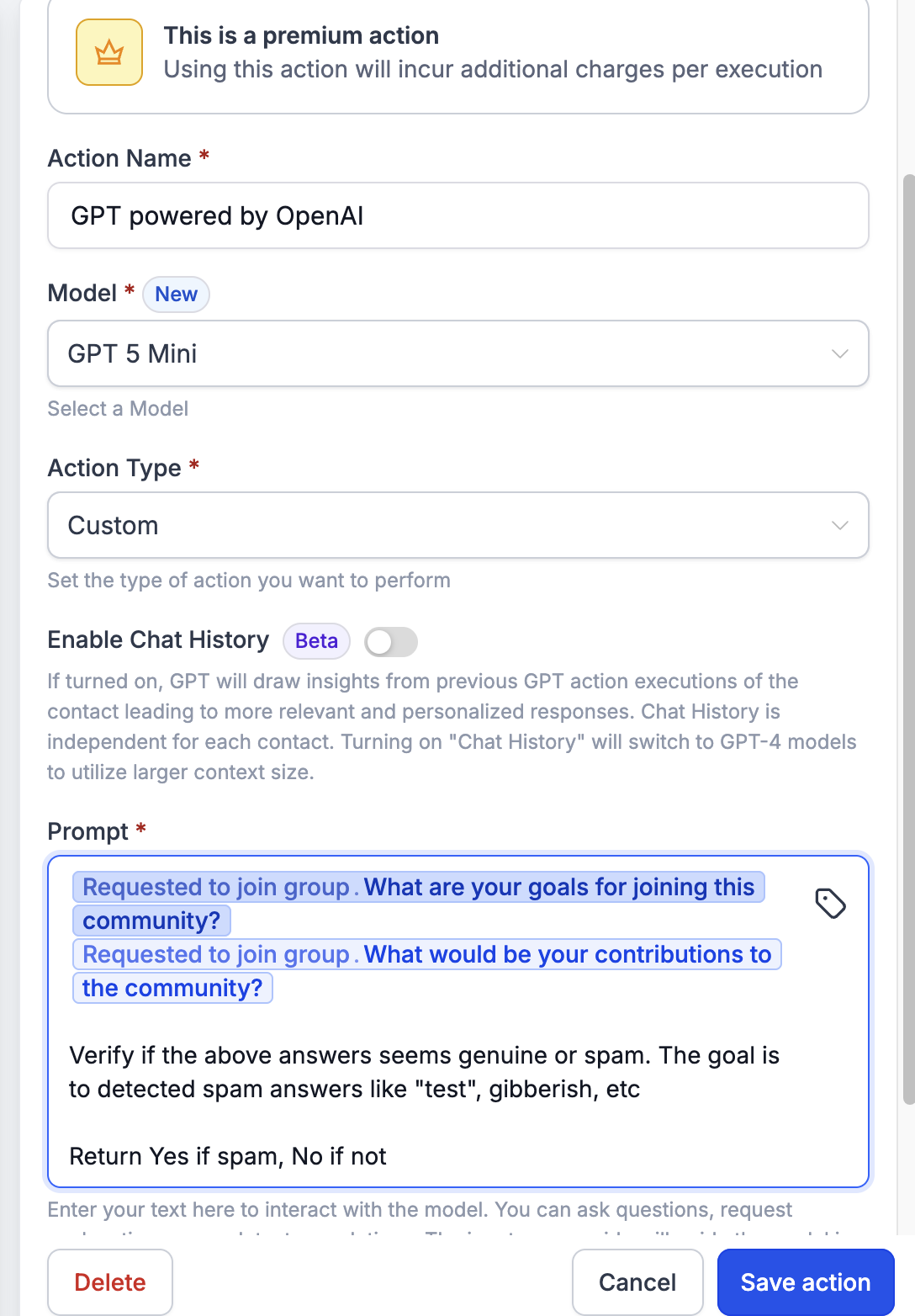
Pass membership question responses into GPT workflow actions to analyze the quality and intent of submissions. For instance, you can send the user's answers to a GPT prompt asking, "Does this response look like spam or a legitimate request?"
Based on the AI's evaluation, the workflow can automatically approve genuine requests, flag suspicious ones for manual review, or reject obvious spam submissions—all without admin intervention.
How to Set Up Group Join Request Automation
Follow these steps to create a workflow that automatically processes group join requests based on user responses to membership questions.
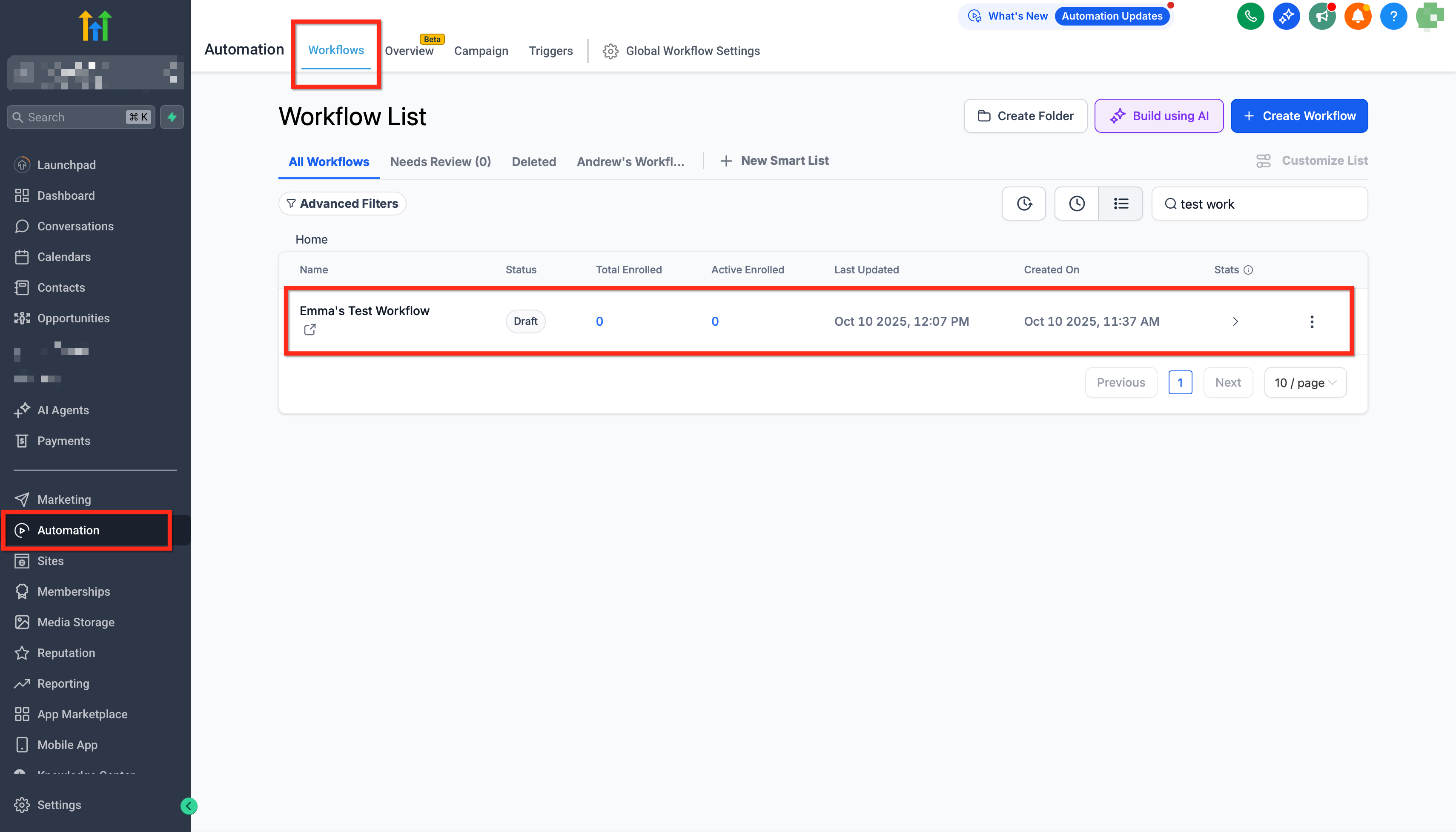
Navigate to the Workflows section in your HighLevel account. Click Create Workflow and give your workflow a descriptive name, such as "Auto-Approve Premium Group Requests."
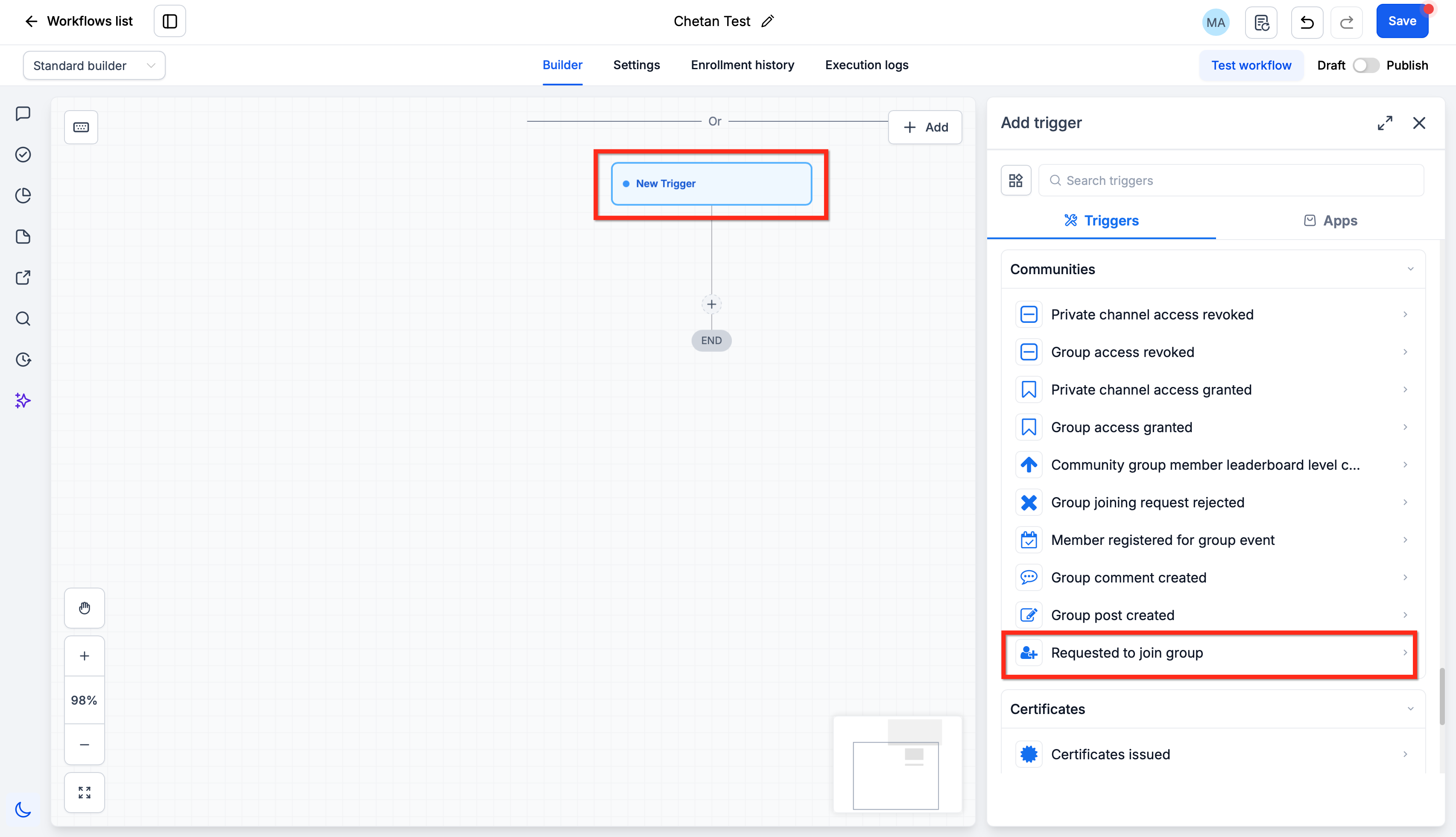
In the workflow builder, select Requested to Join Group as your trigger. This tells the workflow to start whenever a user submits a join request for a community group.
Use the Group filter to select which community group this workflow monitors. Once you select a group, the system automatically loads all membership questions configured for that group.
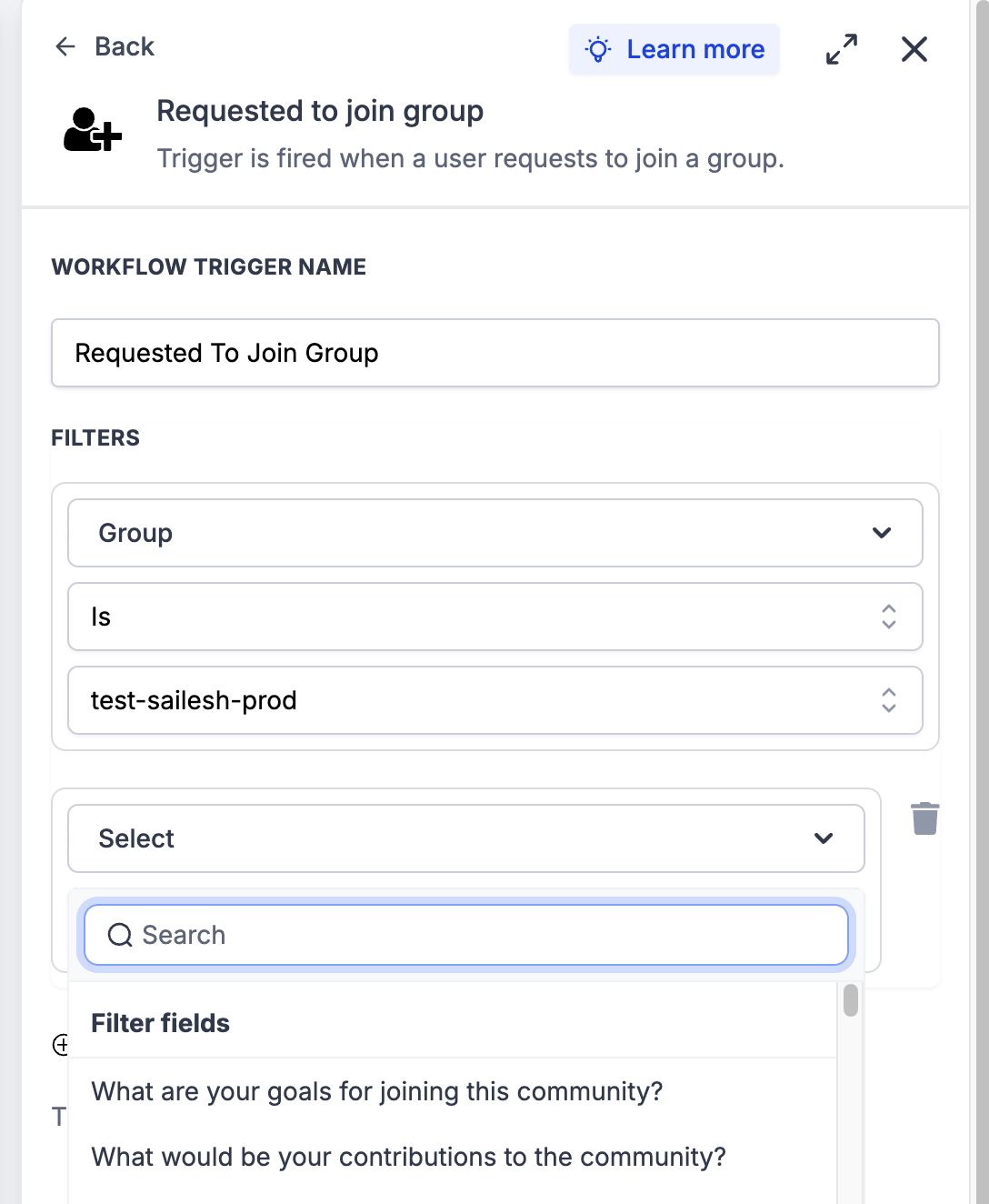
If you want the workflow to fire only when users provide specific answers, use the Membership Question Responses filters. Each question configured for the selected group appears as a filter option. Set conditions such as "Industry = Marketing" or "Experience Level = Advanced" to narrow when the workflow triggers.
Add workflow actions that define what happens when the trigger fires. Common actions include:
- Adding an If/Else condition to evaluate membership question responses
- Sending responses to a GPT prompt for spam detection or quality checks
- Automatically approving the request and adding the user to the group if conditions are met
- Sending a notification email to admins for manual review if the submission looks suspicious
- Rejecting the request automatically if spam is detected
Once your workflow is complete, toggle it to Publish. The workflow will begin monitoring join requests for the selected group and automatically execute the actions you defined.
Frequently Asked Questions
Was this article helpful?
That’s Great!
Thank you for your feedback
Sorry! We couldn't be helpful
Thank you for your feedback
Feedback sent
We appreciate your effort and will try to fix the article