Course Announcements let course creators post updates with rich content directly inside Courses, while learners receive them through a dedicated announcements experience — with optional email notifications. It gives you a central place to communicate launches, new lessons, reminders, and important notices, and reaches learners right where they already study.
TABLE OF CONTENTS
- What are Course Announcements
- Key benefits of Course Announcements
- How to Create and Manage Course Announcements
- Step 1) Open Courses → Announcements
- Step 2) Create a new announcement
- Step 3) Add rich content and target courses
- Step 4) Enable email notifications (optional)
- Step 5) Manage your announcements
- How learners experience announcements
- Frequently Asked Questions
- Relevant articles
What are Course Announcements
Course Announcements are updates you publish from the Courses admin that appear inside your learners' course experience. Each announcement supports:
- Rich content — formatted text, images, and links.
- Flexible targeting — send to learners of a specific course or across all courses.
- Optional email notifications — also deliver the announcement to course members via email.
- A dedicated learner experience — an announcement banner, an unread indicator in the top bar, an announcements list, and an announcement detail page.
Key benefits of Course Announcements
- Keep learners informed: Share updates without relying on external email blasts alone.
- One central place: Post launches, new lessons, reminders, and important notices where learners already study.
- Higher engagement: Announcements show up in-app, so more learners actually see them.
- Full admin workflow: Create, edit, clone, and delete announcements — with a clean read experience for learners.
How to Create and Manage Course Announcements
Step 1) Open Courses → Announcements
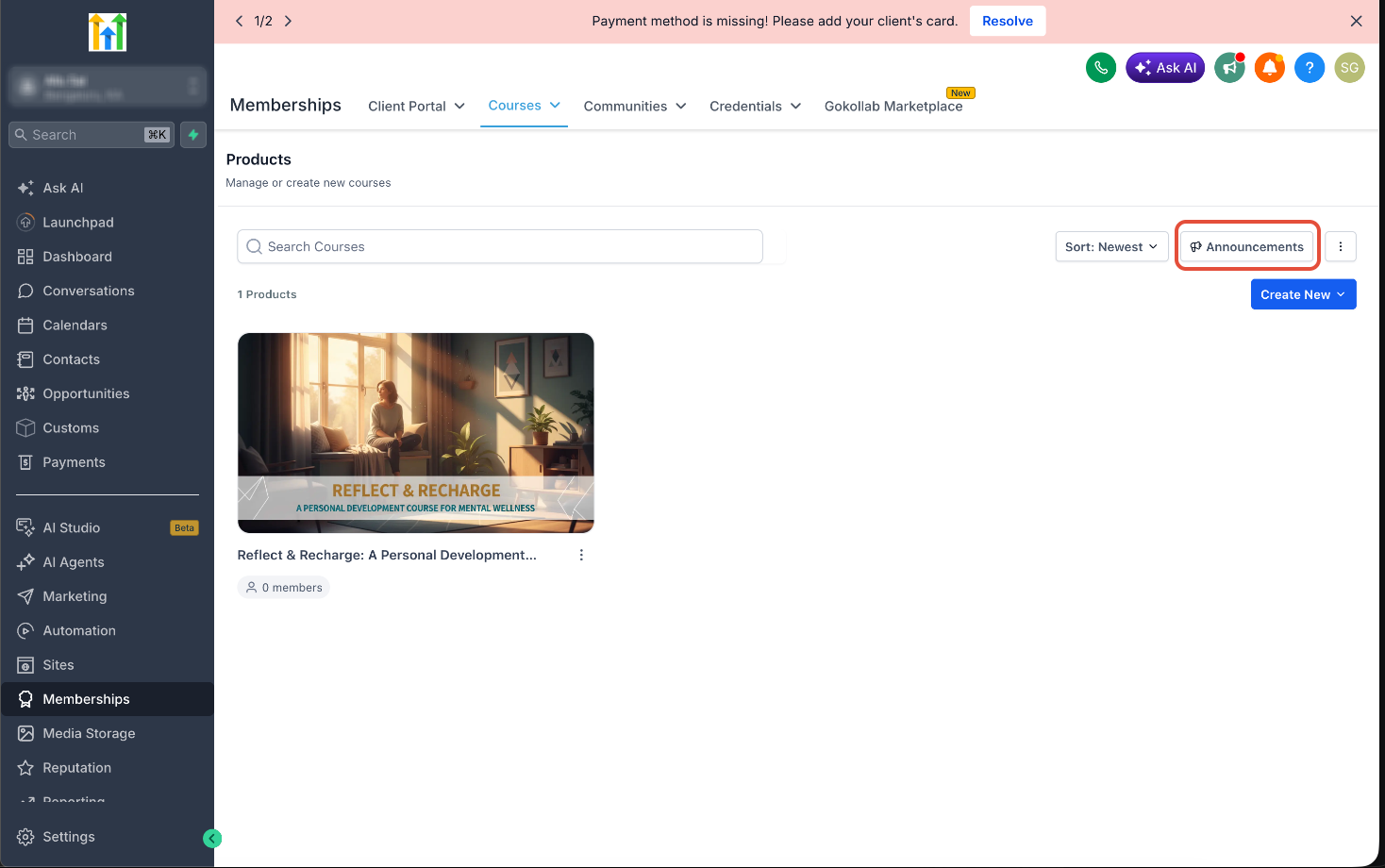
- Go to Memberships → Courses → Products.
- Click Announcements in the top-right of the Products page.
Step 2) Create a new announcement
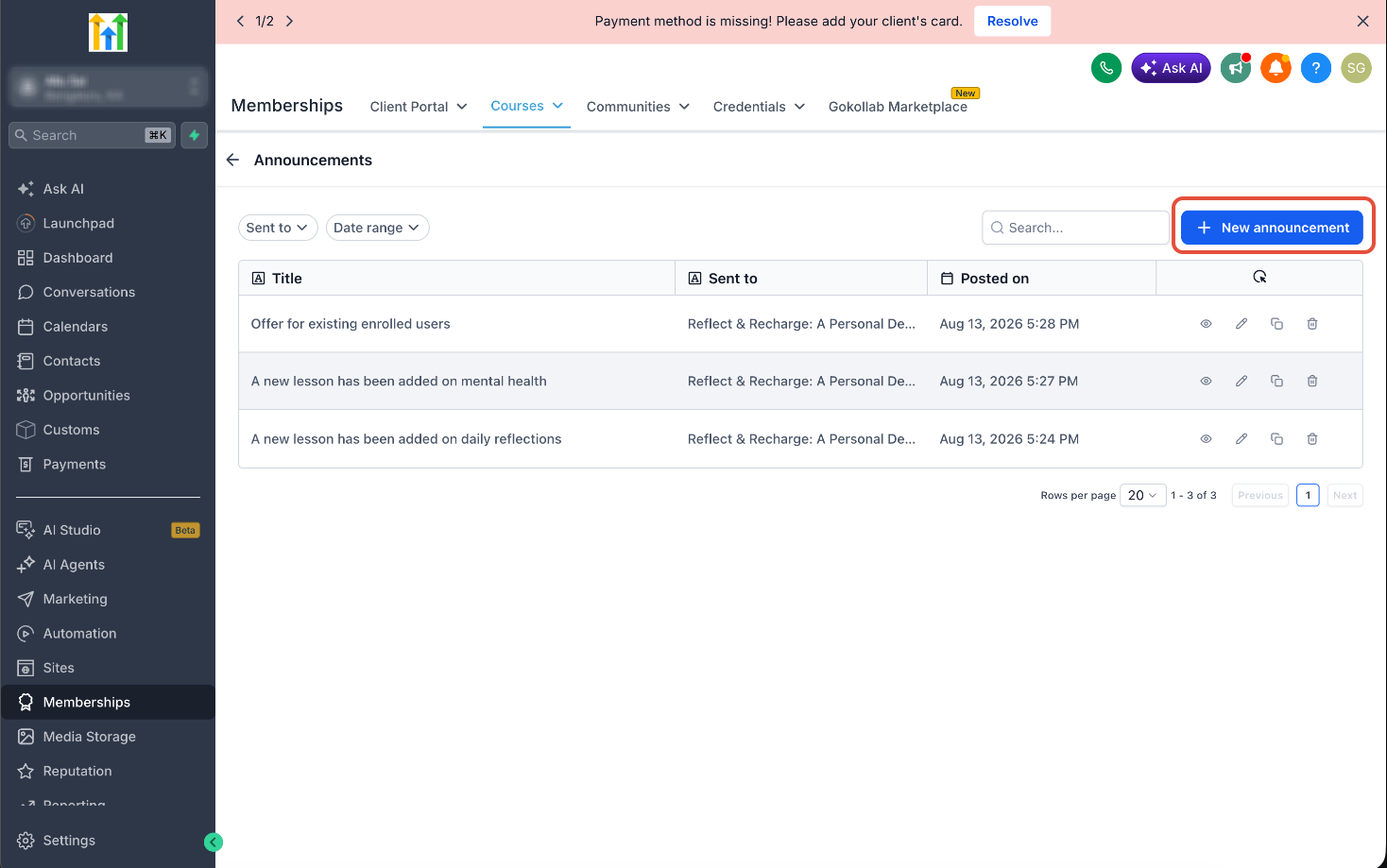
- On the Announcements page, click + New announcement.
- Enter a clear Title for your announcement.
Step 3) Add rich content and target courses
- Use the rich text editor to add formatted text, images, and links to your announcement body.
- Choose your targeting — send the announcement to learners of a specific course, or to all courses.
Step 4) Enable email notifications (optional)
- If you'd like course members to also receive the announcement by email, enable email notifications.
- Click Publish to send the announcement.
Step 5) Manage your announcements
From the Announcements list you can view, edit, clone, and delete announcements. Use the Sent to and Date range filters or the search box to quickly find a specific announcement.
How learners experience announcements
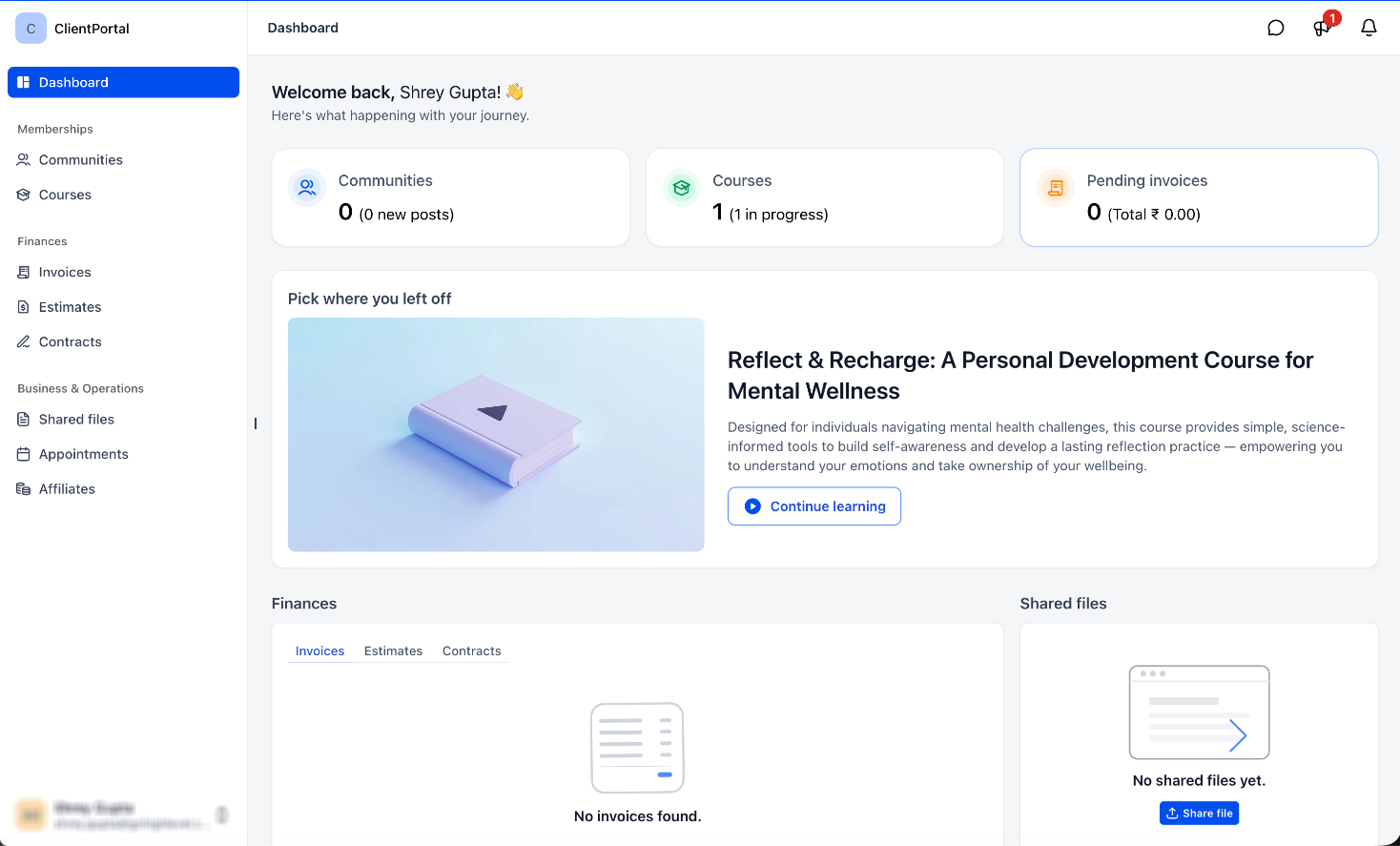
Once an announcement is published, learners can discover it inside the Client Portal / course experience through:
- An unread indicator and announcement icon in the top bar.
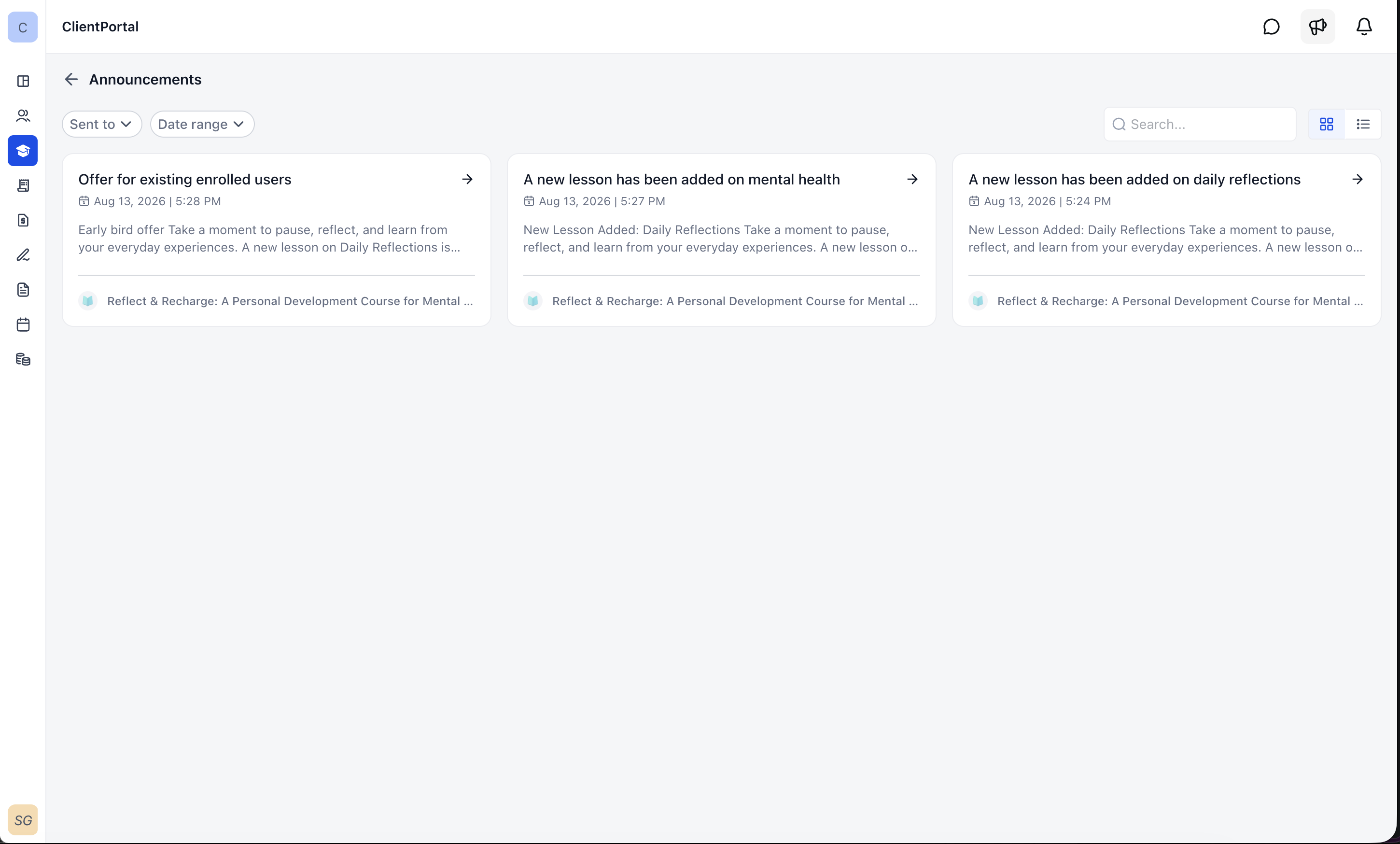
- An announcements list showing all updates for their courses.
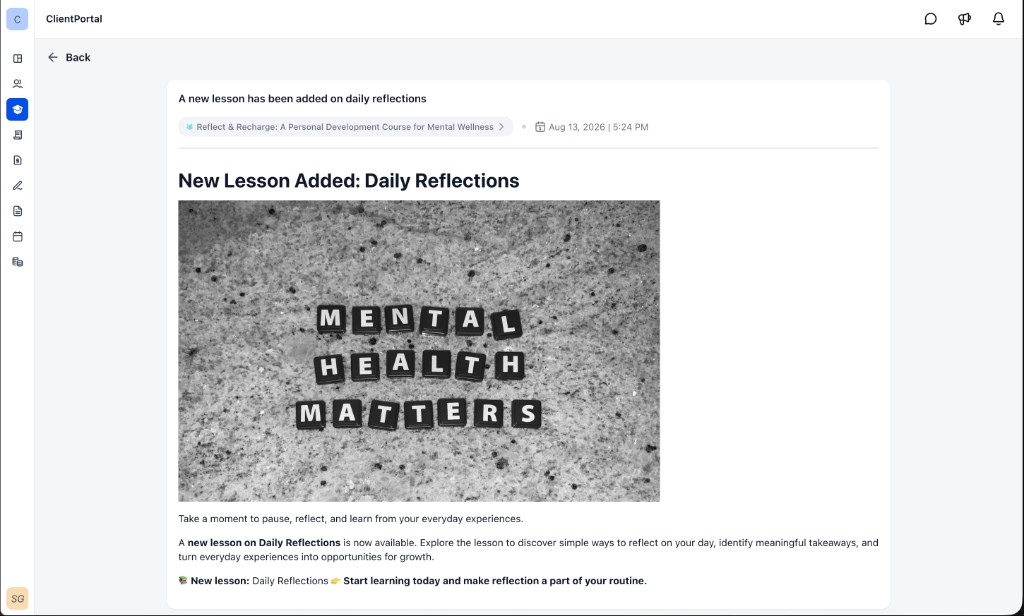
- An announcement detail page with the full rich content, opened without leaving their learning experience.
Frequently Asked Questions
Q. Where do I create course announcements?
From the Courses admin: go to Memberships → Courses → Products and click Announcements.
Q. Can I send an announcement to more than one course?
Yes. You can target learners of a specific course or send to all courses.
Q. Do learners get an email for every announcement?
Only if you enable email notifications for that announcement. Email delivery is optional — announcements always appear in-app regardless.
Q. Can I add images and links to an announcement?
Yes. Announcements support rich content, including formatted text, images, and links.
Q. Can I edit or reuse an announcement after publishing?
Yes. From the Announcements list you can edit, clone, or delete any announcement.
Q. How do learners know there's a new announcement?
Learners see an unread indicator and announcement icon in the top bar, plus a banner, and can open the announcements list and detail page to read the full update.
Relevant articles
Was this article helpful?
That’s Great!
Thank you for your feedback
Sorry! We couldn't be helpful
Thank you for your feedback
Feedback sent
We appreciate your effort and will try to fix the article