Send Documents and Contracts via SMS in HighLevel helps you deliver documents faster through a channel clients are more likely to see quickly. This feature supports SMS-only sending or Email + SMS delivery, gives you more control over customer notifications, and works with snippets for reusable message templates. It also supports workflow-based sending, making document delivery more flexible and scalable.
TABLE OF CONTENTS
- What is Send Documents and Contracts via SMS?
- Key Benefits of Send Documents and Contracts via SMS
- Global Defaults for Document Notifications
- Create SMS Templates with Snippets
- Send Documents Individually
- Send Documents via Workflows
- View Contact Information While Adding Recipients
- How To Setup Send Documents and Contracts via SMS
- Frequently Asked Questions
What is Send Documents and Contracts via SMS?
Sending Documents and Contracts via SMS allows you to deliver contracts and documents to recipients through text message instead of relying only on email. This helps improve visibility, supports faster document delivery, and works alongside existing HighLevel tools such as snippets, workflows, and document notification settings.
Key Benefits of Send Documents and Contracts via SMS
SMS delivery gives businesses another way to reach contacts when email may be missed. It is especially useful when speed, visibility, and workflow automation matter for proposals, contracts, and other documents.
Faster visibility: SMS messages can help documents get noticed more quickly than email alone.
Flexible delivery options: You can send documents through SMS only or combine Email + SMS for broader reach.
Reusable messaging: SMS snippets help you create consistent, personalized message templates for document sends.
Workflow support: Documents can be sent through workflow automation, helping standardize delivery across your pipeline.
Centralized settings: Global customer notification defaults make it easier to manage how document-related messages are delivered.
Global Defaults for Document Notifications
Global notification settings help keep document communication consistent across your account. Setting defaults is useful when you want your team to follow the same delivery method for document-related notifications while still allowing flexibility where supported.
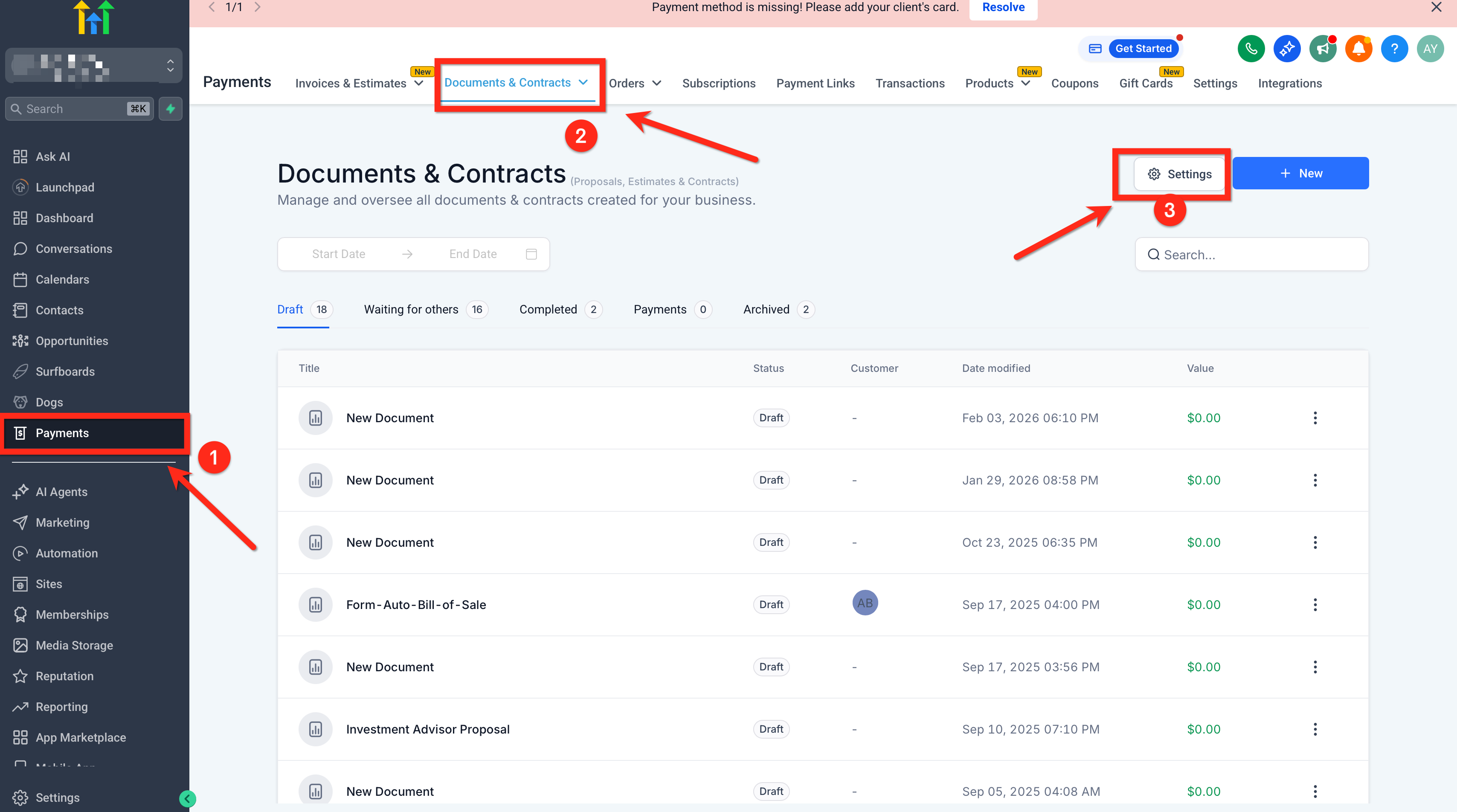
Go to Payments > Documents & Contracts.
Open Settings.
Select Customer Notifications.
Under the document notification options, choose your preferred delivery method:
SMS only
Email + SMS
Save your changes.
Important: Based on the release note, Document Received follows the default but can be overridden later when supported, while Document Signed always follows the global setting.
Create SMS Templates with Snippets
SMS snippets make document delivery more efficient by letting you reuse clear, consistent text messages instead of rewriting them each time. This is especially helpful when multiple team members send the same type of contract or proposal and need a repeatable communication standard.
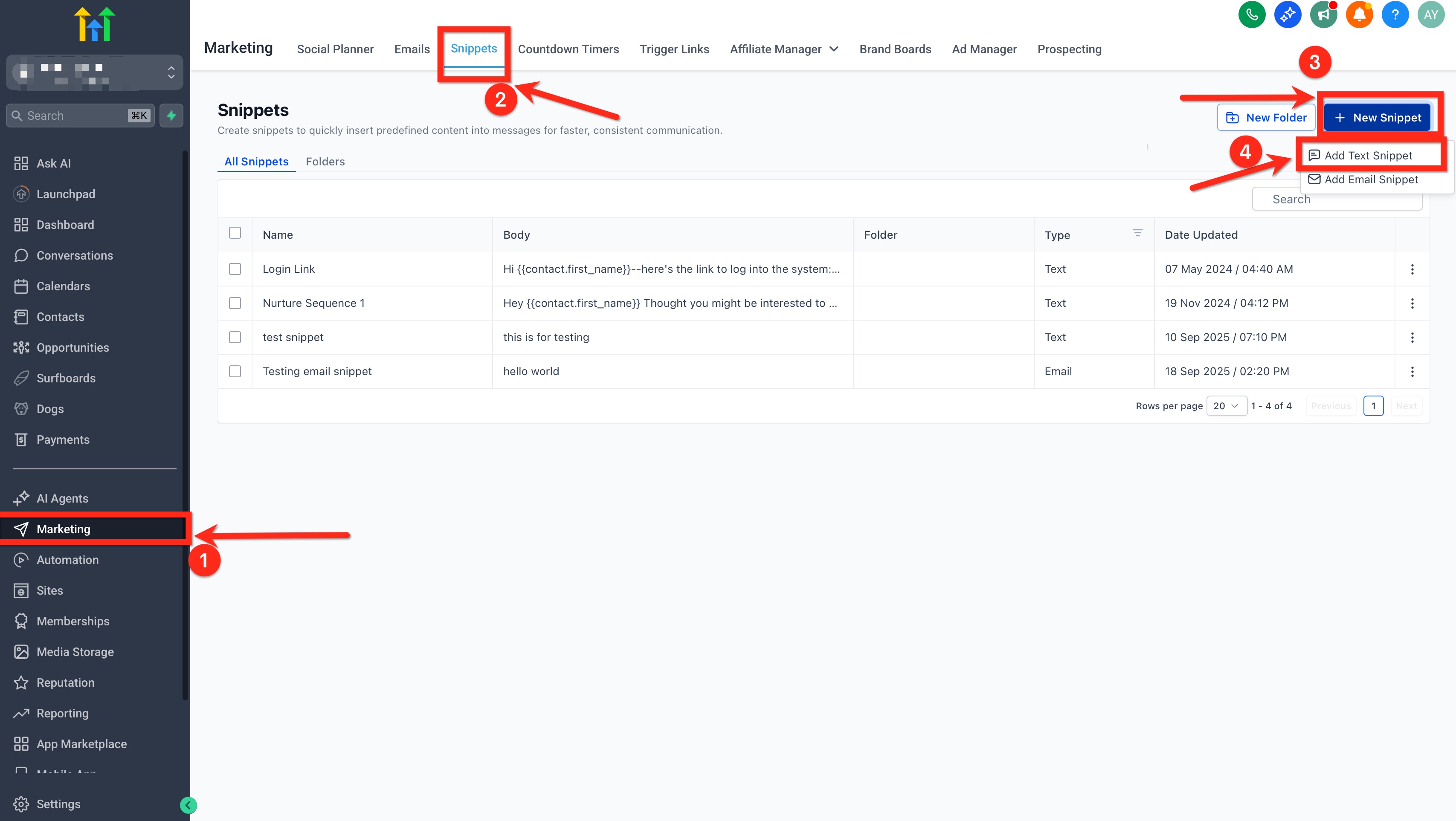
Go to Marketing > Snippets.
Click New Snippet.
Choose SMS as the snippet type.
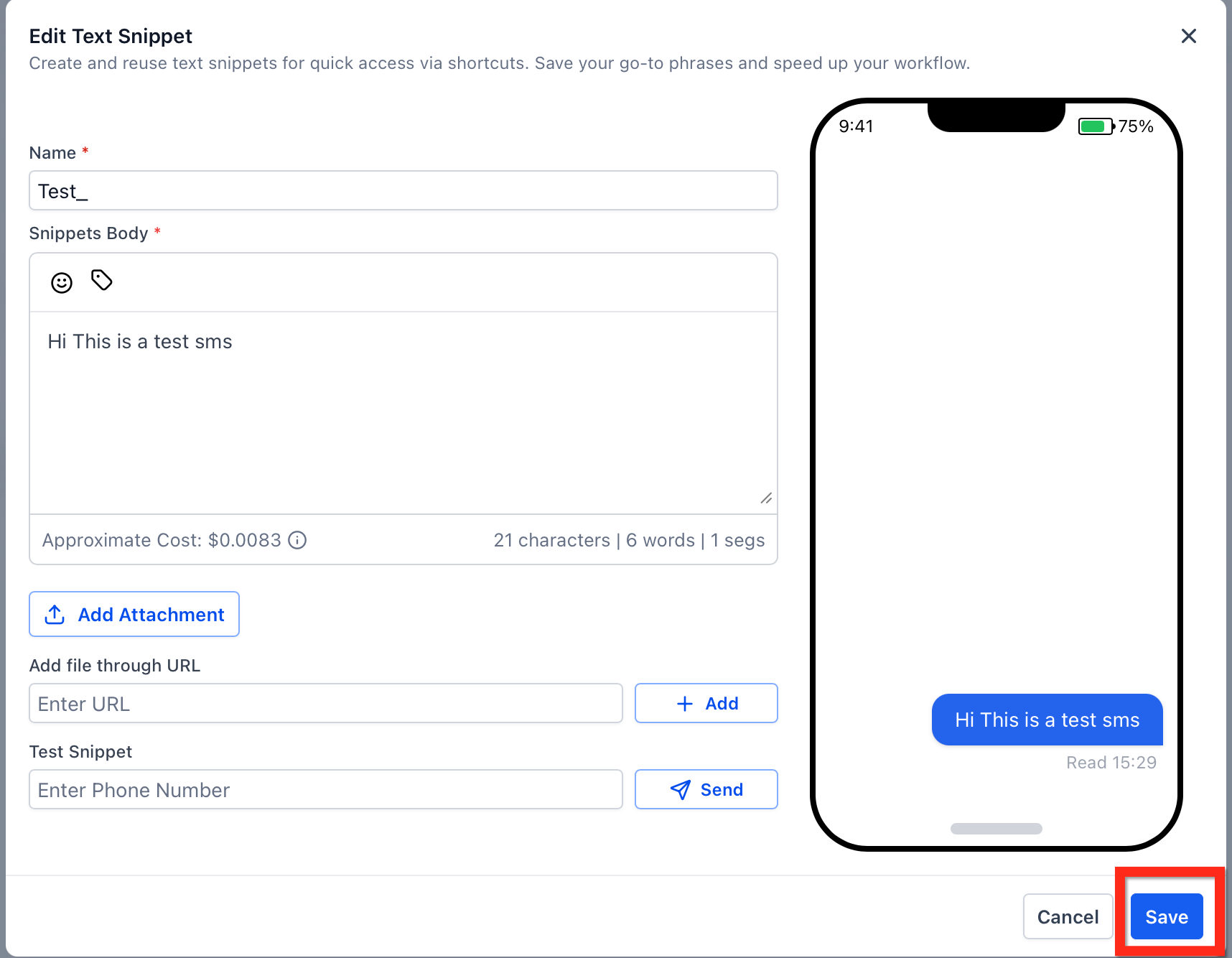
Write your SMS message.
Save the snippet.
Example SMS snippet:
Your document is ready. Please review and sign it here.
Use concise wording so the recipient immediately understands what action to take.
Send Documents Individually
Individual sending gives users more control when they want to choose the delivery channel at the moment they send a document. This is useful for one-off sends, special cases, or situations where a contact may respond better to text than email.
Open the document you want to send.
Click Send.
Choose the delivery channel:
Email
SMS
Email + SMS
If you choose SMS, select the SMS snippet you want to use.
Review the details and send the document.
This sending option helps you adapt to the recipient’s preferred communication method without changing your broader account defaults.
[Screenshot: Document send modal showing Email, SMS, and Email + SMS options plus SMS template selection]
Send Documents via Workflows
Workflow-based document sending helps automate your process so documents can go out when specific business conditions are met, such as a new opportunity stage, a form submission, or another workflow trigger. This makes it easier to deliver documents at scale while keeping communication consistent.
Go to Automation > Workflows.
Open an existing workflow or create a new one.
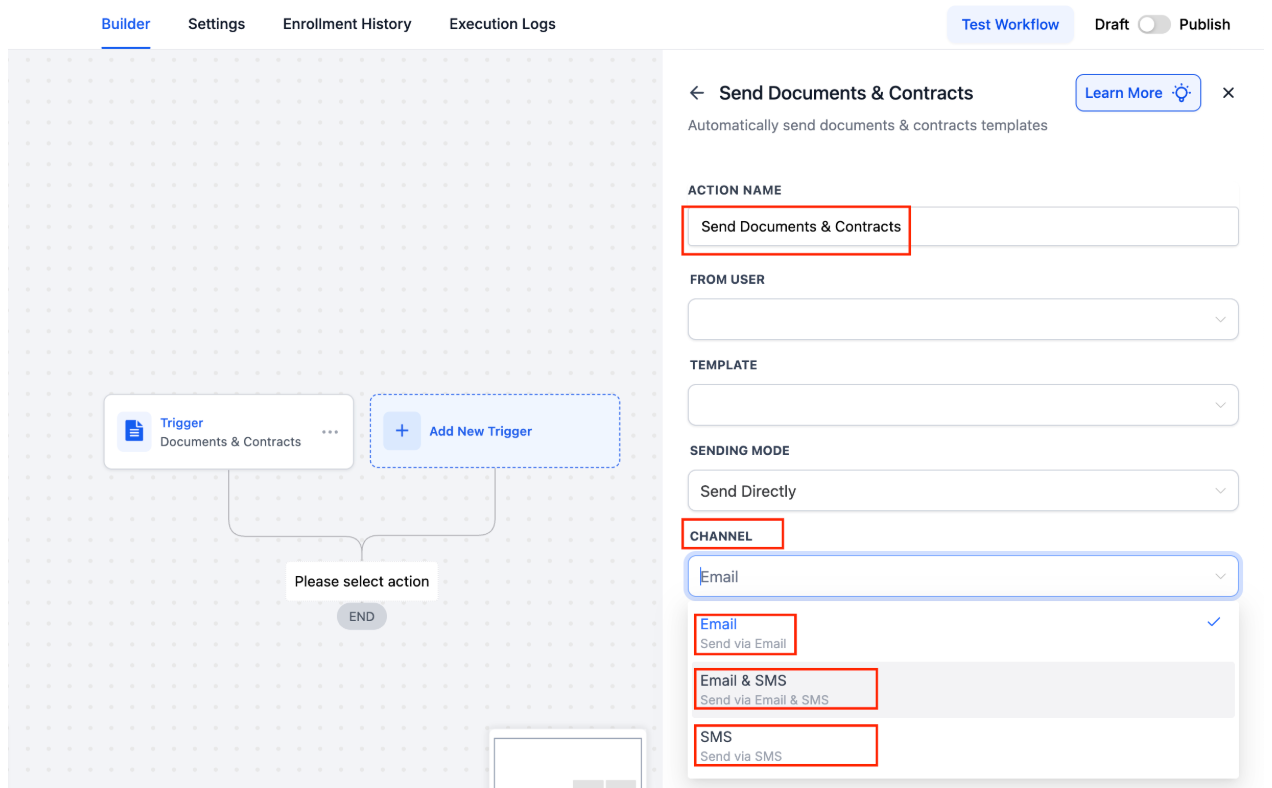
Add the Send Documents & Contracts action.
Select the document or contract template you want to send.
Choose the sending channel based on the options available in your account setup.
Save and publish the workflow.
Based on the release note, workflow sends use the default SMS content or template behavior configured for documents.
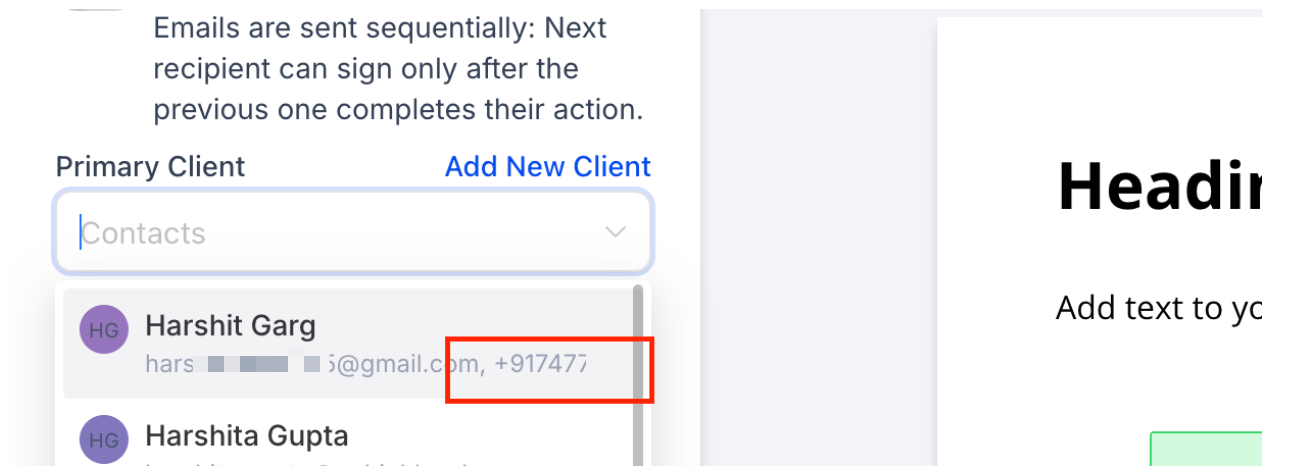
View Contact Information While Adding Recipients
Being able to review contact details while adding recipients helps reduce sending mistakes and improves confidence before delivery. This is especially important when using SMS because the correct phone number must be available for successful delivery.
Review the contact’s available details before sending.
Confirm the phone number when selecting SMS delivery.
Check the email address as well if you are using Email + SMS.
Use the visible contact information to make sure the document is going to the correct recipient.
How To Setup Send Documents and Contracts via SMS
A proper setup ensures your team can send documents consistently, use reusable SMS messaging, and avoid delays caused by missing delivery settings. Completing these steps before sending helps create a smoother experience for both your team and your recipients.
Go to Payments > Documents & Contracts > Settings > Customer Notifications.
Choose your default customer notification method for supported document events.
Go to Marketing > Snippets and create at least one SMS snippet.
Return to Documents & Contracts and open the document you want to send.
Click Send and select SMS or Email + SMS.
Choose your SMS snippet if prompted.
Review the recipient information before sending.
Send the document or configure the same delivery flow inside a workflow.
Frequently Asked Questions
Q: Can I send a document by SMS only?
Yes. The feature supports sending documents through SMS only, or through Email + SMS.
Q: Can I send a document through both email and SMS at the same time?
Yes. You can choose Email + SMS for broader visibility when sending supported documents.
Q: Do I need to create an SMS snippet before sending documents via SMS?
SMS snippets are used for reusable SMS message content and should be created in Marketing > Snippets.
Q: Can I choose a different send channel when sending an individual document?
Yes. Individual sends allow you to select the delivery channel during the send process.
Q: Do workflow-sent documents support SMS?
Yes. The release note states that documents can be sent through workflows using the available channel options.
Q: Do signed notifications always follow the global setting?
Yes. According to the release note, Document Signed always follows the configured global setting.
Q: What should I check before sending a document via SMS?
Confirm that the recipient has the correct phone number and review their contact details before sending.
Q: Can I still use email for document delivery?
Yes. Email remains available, and you can also combine it with SMS.
Related Articles
Was this article helpful?
That’s Great!
Thank you for your feedback
Sorry! We couldn't be helpful
Thank you for your feedback
Feedback sent
We appreciate your effort and will try to fix the article