Persistent QR Scan Failure During WhatsApp Coexistence Setup
What to do when a fresh QR code still fails on your phone and the Coexistence setup in the CRM does not move forward.
Table of Contents
What You May See
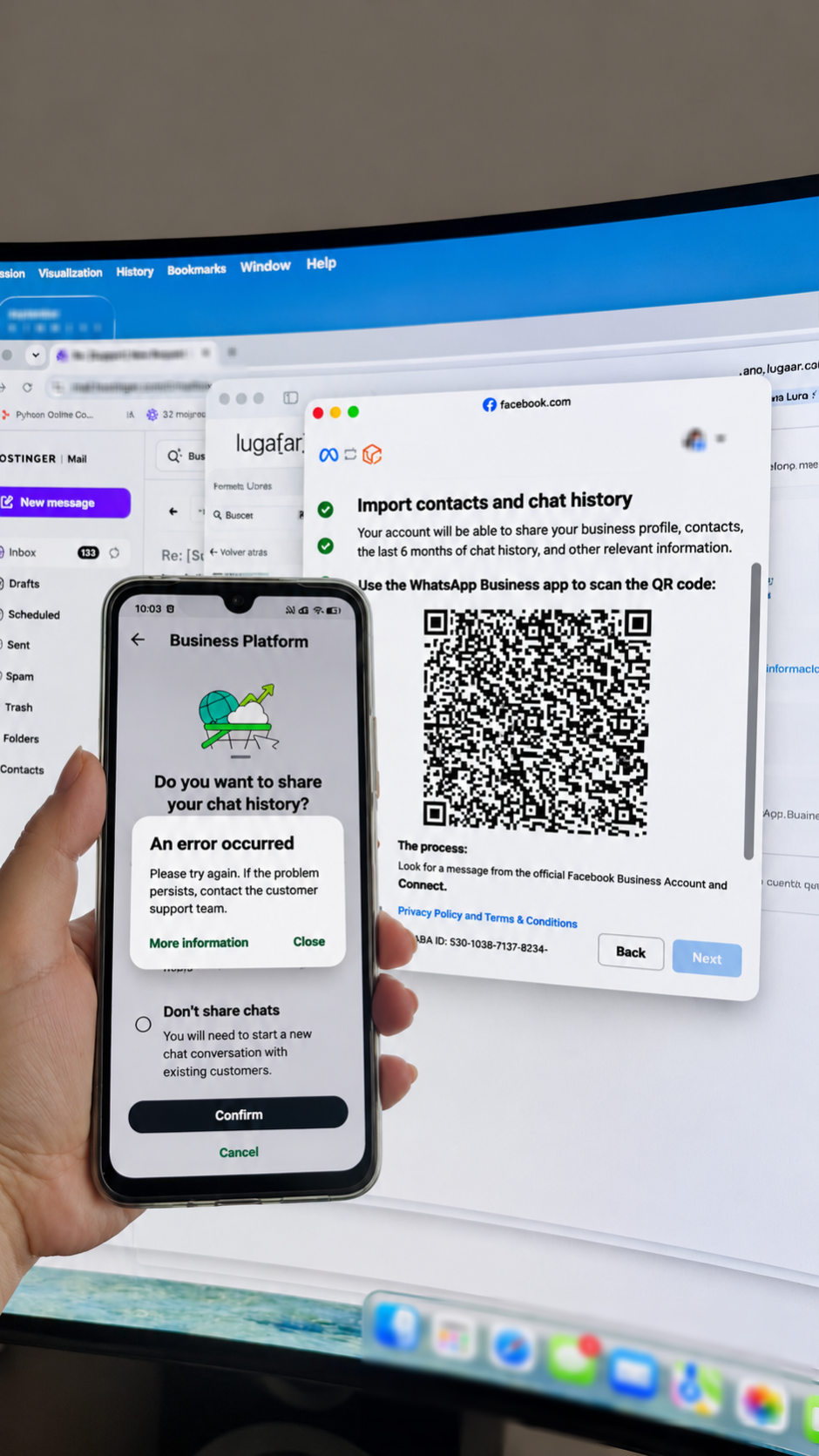
When you connect an existing WhatsApp Business app number through Coexistence, the CRM shows a QR code that you scan from Settings → Account → Business Platform in the WhatsApp Business app. Sometimes the setup gets stuck at this step.
Note: Different scan errors can have different causes. Write down the exact wording your phone shows, because Support will ask for it.
 First Checks
Try these quick checks before contacting Support. They are worth doing once, but they do not fix every scan failure.
Use a fresh QR code and scan it promptly
QR codes expire after a short time. Generate a new code in the CRM and scan it right away instead of using one that has been open for a while.
Update the WhatsApp Business app
Coexistence requires WhatsApp Business app version 2.24.17 or newer. Update the app from your app store and try again.
If the camera has trouble reading the code
Zoom the browser page to around 150% so the code is larger and easier for the camera to read. This only helps when the phone cannot read the code. It does not help if the phone reads the code and then shows an error.
If a Fresh QR Code Still Fails: Contact Support
If a fresh QR code still fails and setup does not advance, stop and contact Support. Support will review the failed connection and provide the next steps. In some cases the review involves our technical team and Meta.
Please include:
While Support investigates, please do not:
• scan new QR codes again and again. Repeated attempts can extend a temporary attempt limit.
• remove and re-add your WhatsApp Business Account, or disconnect the number from your business portfolio, unless Support asks you to.
After Support Confirms the Next Step
Wait for Support's confirmation
Support will tell you when the connection is ready for another attempt and whether you need to wait before trying. Follow the instructions you are given for your case.
Generate a new QR code and scan once
Have your phone ready. In the CRM, start the Coexistence setup to get a new QR code, then scan it once from Settings → Account → Business Platform in the WhatsApp Business app. Earlier codes are no longer valid.
Confirm the connection and send a test message
When the setup finishes, confirm that your number appears as connected in Settings → WhatsApp, then send a test message and check that it sends and receives. A completed connection alone does not confirm messaging, so please let Support know the result of your test.
Frequently Asked Questions
Q: Is something wrong with my phone or the WhatsApp Business app?
Not necessarily. After you update the app and use a fresh code, a persistent failure can come from the connection itself rather than from your phone. Support can review it.
Q: Does this mean my WhatsApp number has been restricted?
A scan failure on its own does not show that your number or account is restricted. Share the exact error with Support so the cause can be confirmed.
Q: Can I just keep scanning new codes until one works?
No. If a fresh code fails once, contact Support. Repeated attempts can extend a temporary attempt limit and do not help get past the underlying problem.
Q: How long will it take to get a fix?
It depends on the cause and on whether Meta needs to review the connection. Support will update you when the next step is confirmed.
Q: Will I lose my WhatsApp Business app chats?
The steps in this article do not involve deleting your WhatsApp Business app account. Please do not delete it to try to fix a scan failure.
Was this article helpful?
That’s Great!
Thank you for your feedback
Sorry! We couldn't be helpful
Thank you for your feedback
Feedback sent
We appreciate your effort and will try to fix the article