The mobile customizer lets you brand and arrange your iOS and Android app while you watch it update on a phone preview. Customizer edits are written into your app's own source, so what you save is what ships.
Create a Mobile App
Open Client App Builder and describe your app.
Choose Mobile, then choose a starting point and click Continue.
Answer the setup questions. The phone preview on the right updates as you answer.
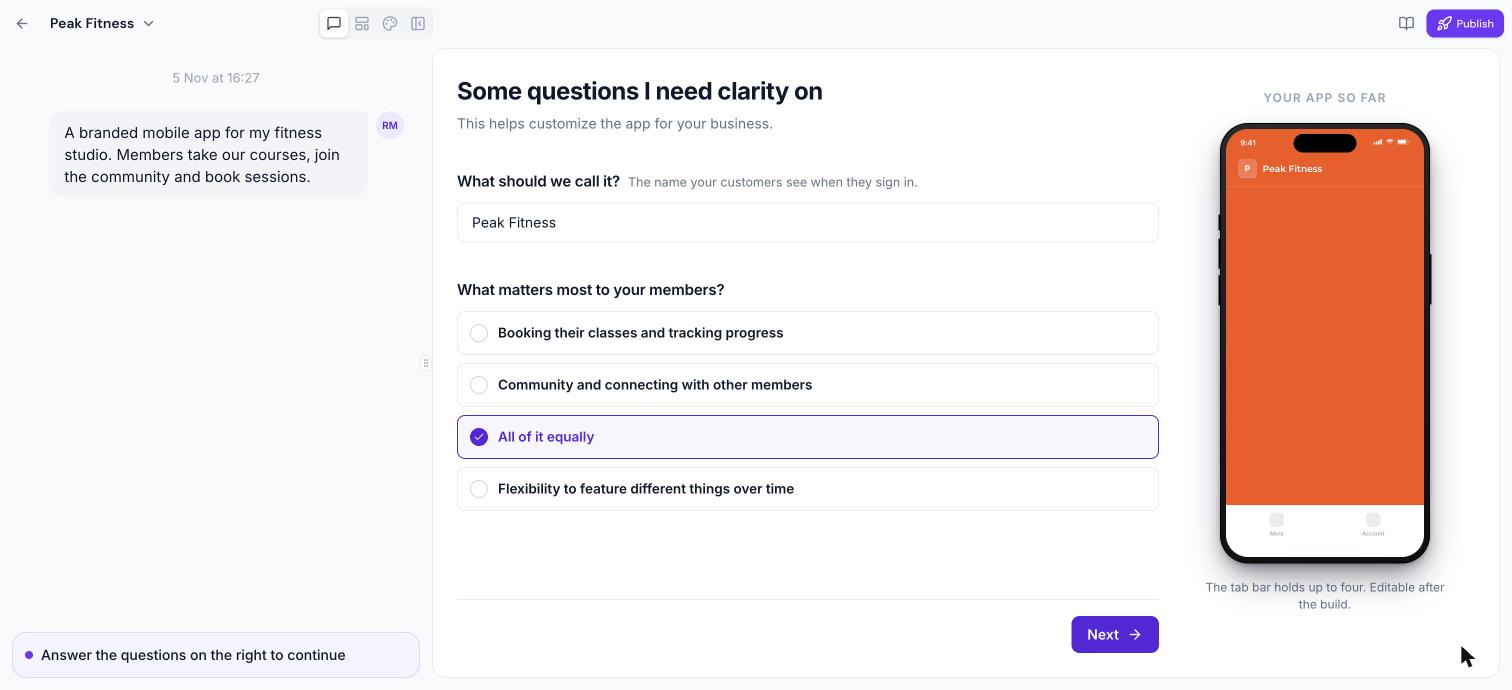
Choose a colour palette and fonts, then click Build my app.
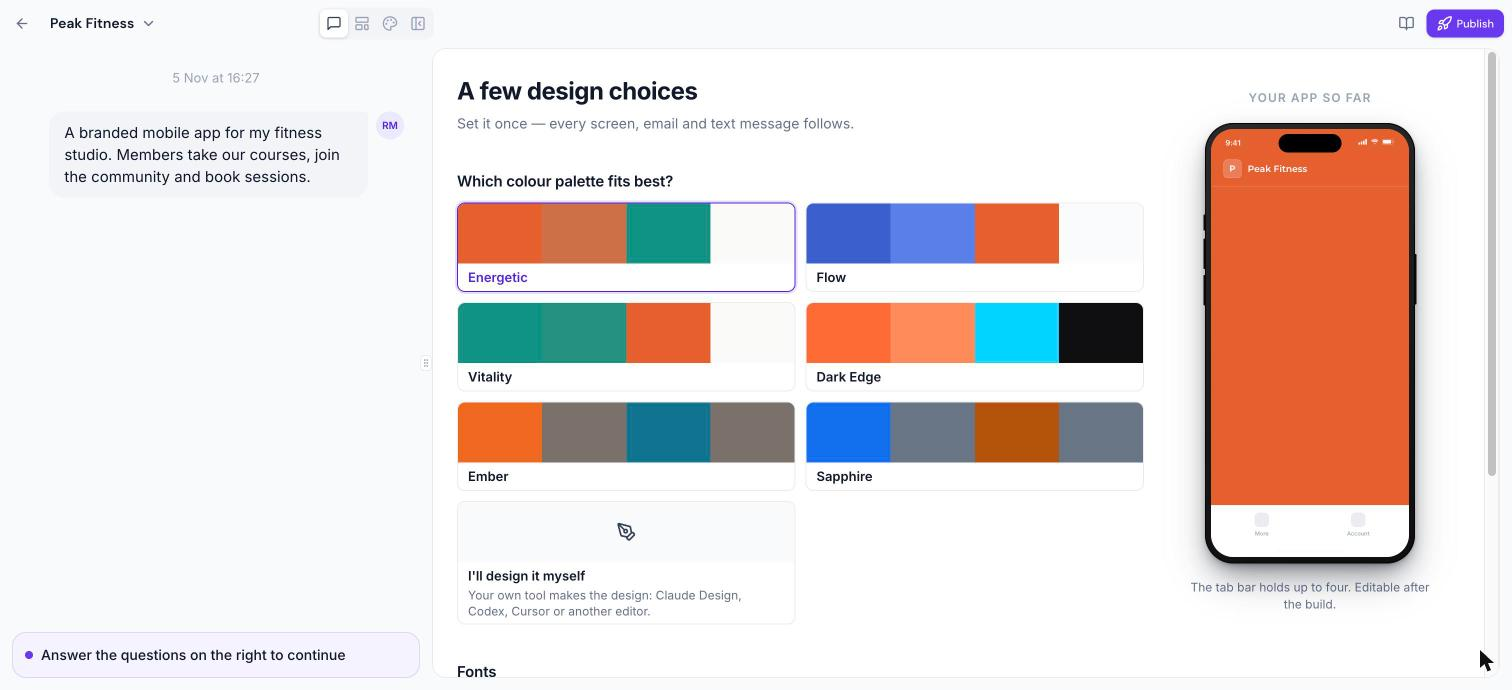
If you already have a design, choose I'll design it myself and your design is what gets built.
Preview on a Phone Frame
Your app appears on a live phone frame. As AI builds or updates the app, the preview shows what's changing, and it updates as you make changes in the customizer.
Customize Your Mobile App
Click the Layout icon at the top left to open the customizer. It has four sections: Brand, Entry points, Navigation and Screen layouts.
Onboarding
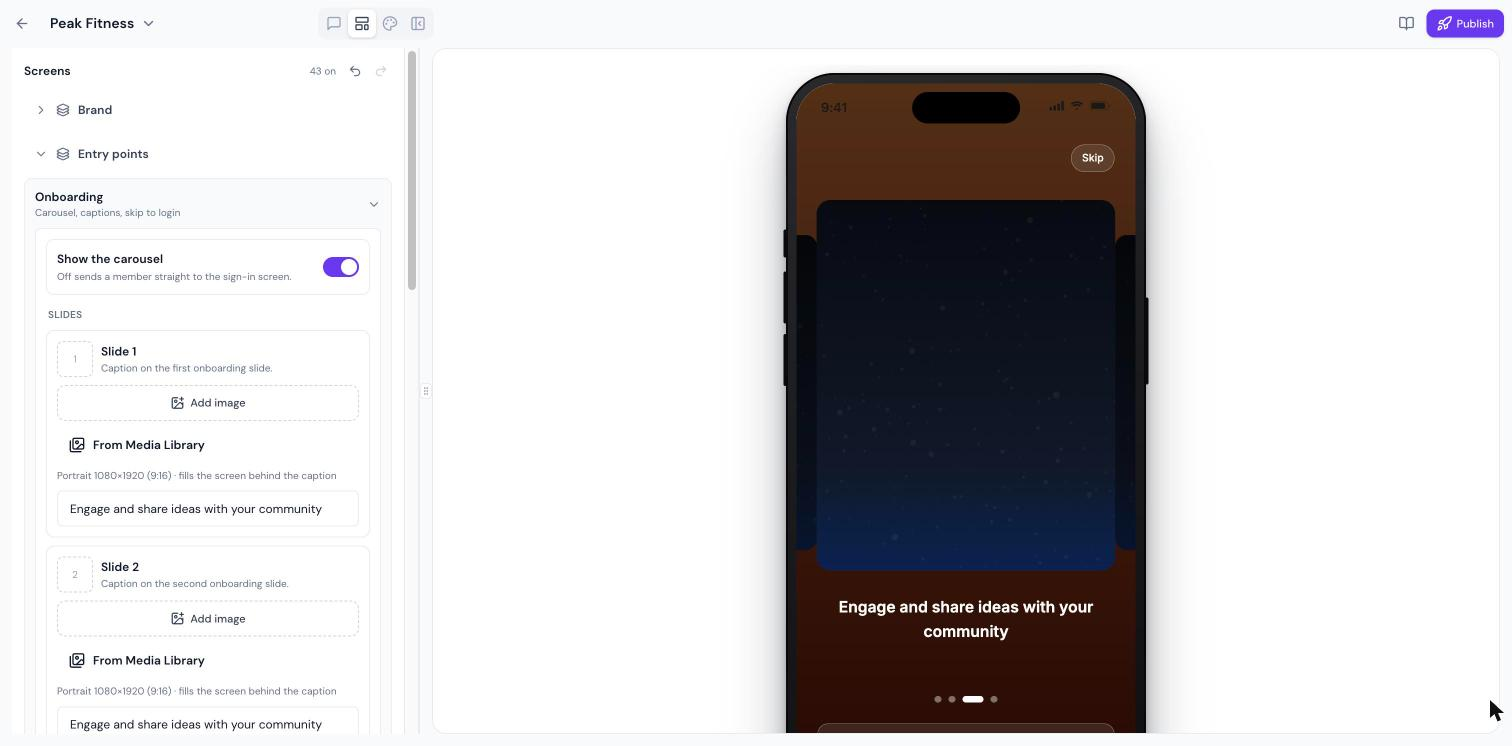
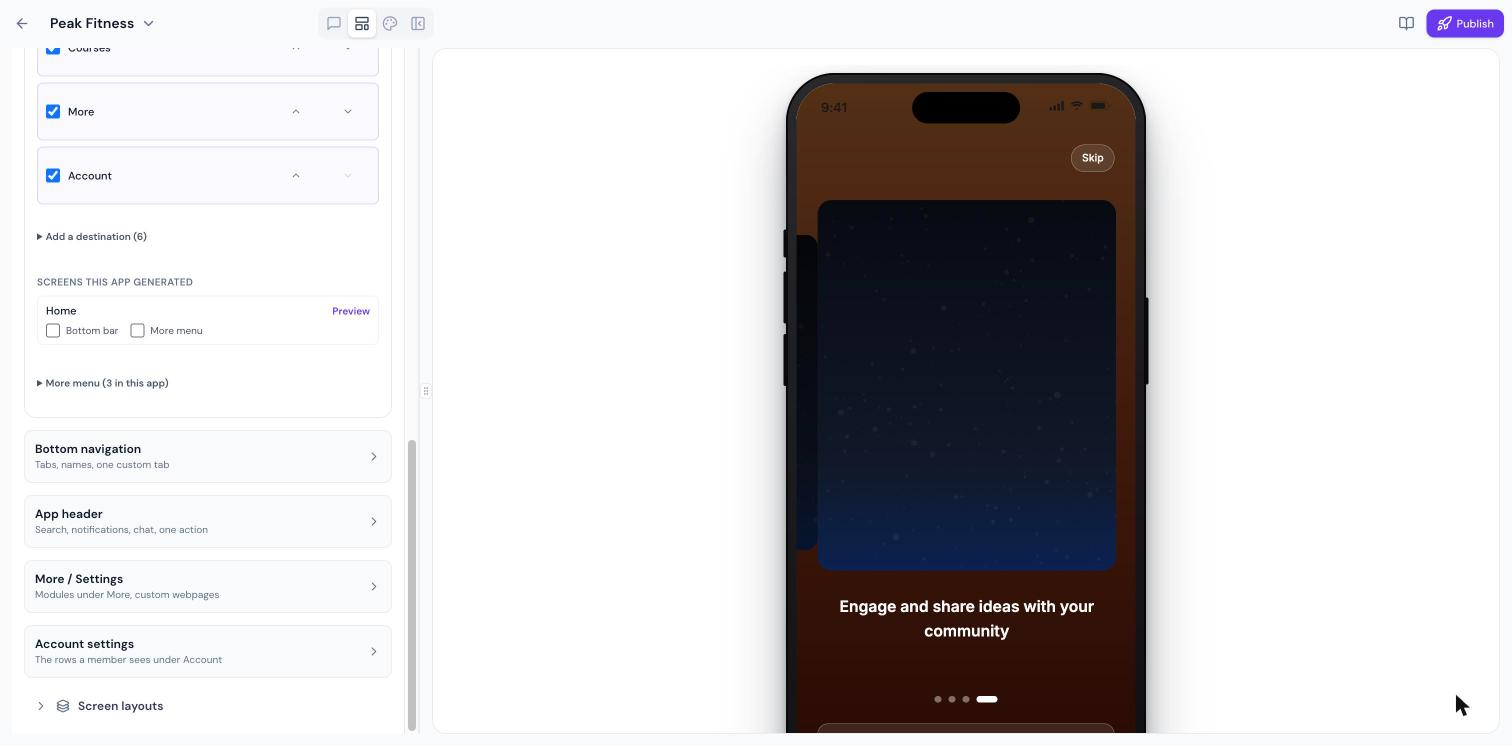
Under Entry points, open Onboarding to set up the welcome carousel members see before they sign in.
Turn Show the carousel off to send members straight to the sign-in screen.
For each slide, add a portrait image and a caption. The carousel takes up to 4 slides.
Members can tap Skip to go to sign-in.
App shell
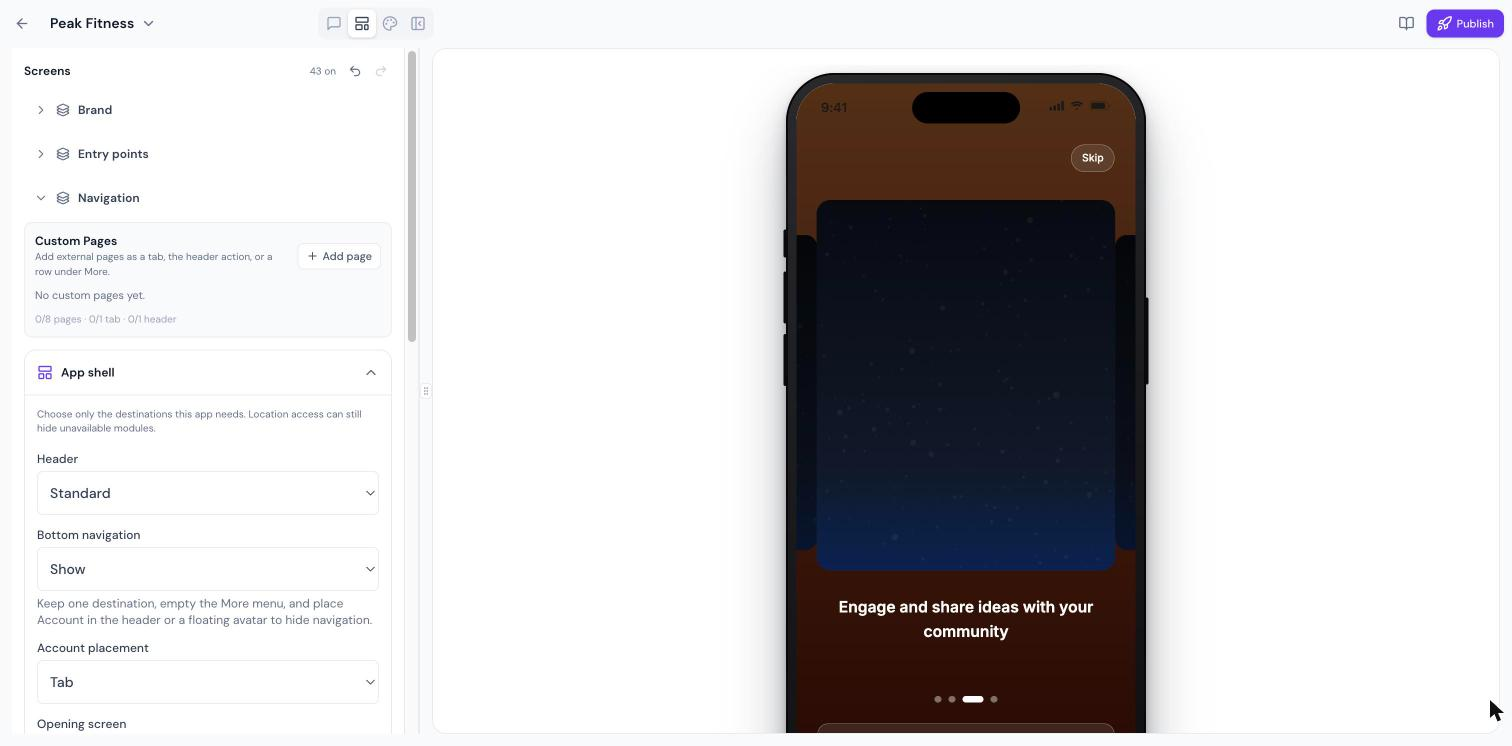
Under Navigation, the App shell controls the frame around every screen:
Header: choose the header style: Standard, Minimal or Hidden.
Bottom navigation: show or hide the bottom tab bar.
Account placement: show Account as a tab, under More, in the header or as a floating avatar.
Opening screen: the screen members see after sign-in.
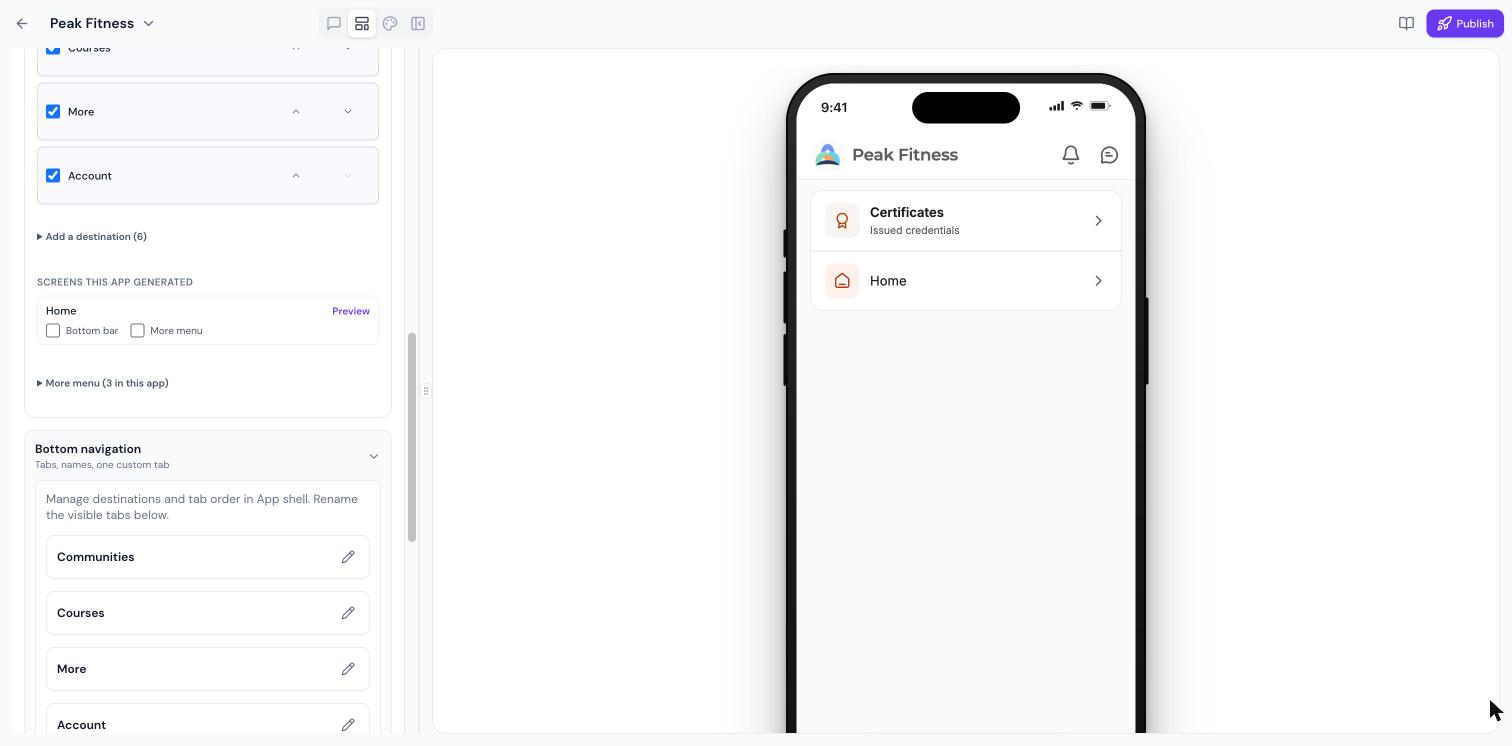
Primary destinations: tick the tabs to show and use the arrows to reorder them. Use Add a destination to add more.
Tabs, header and menus
Bottom navigation: rename the visible tabs and add one custom tab.
App header: turn the logo, search, notifications and chat on or off, and add one action.
More / Settings: choose which modules appear under More and add custom web pages.
Account settings: choose the rows members see under Account.
Custom Pages: add external pages as a tab, the header action, or a row under More.
Change Your Mobile App Through Chat
Describe what you want in the chat. For example: "Make the mobile onboarding feel warmer" or "Show icons only in the bottom navigation."
Real Phone Features
Mobile apps can use phone features like the camera and photos. The permission text members see is written for you.
Publish Your Mobile App
When you're ready, publish your app as a signed Android APK. See Publish Your Branded Android App from Client App Builder.
Frequently Asked Questions
How many tabs can the bottom bar hold?
Up to five primary destinations. Add more as rows under More.
Can I skip the onboarding carousel?
Yes. Turn off Show the carousel and members go straight to the sign-in screen.
Are customizer changes kept when I chat with AI?
Yes. Customizer edits are written into your app, and follow-up requests keep your design unless you ask for a redesign.
Was this article helpful?
That’s Great!
Thank you for your feedback
Sorry! We couldn't be helpful
Thank you for your feedback
Feedback sent
We appreciate your effort and will try to fix the article