A brand board stores your brand's colours, fonts and logo in one place. Use it in Client App Builder so every screen of your app follows your brand without setting each colour by hand.
Create a Brand Board
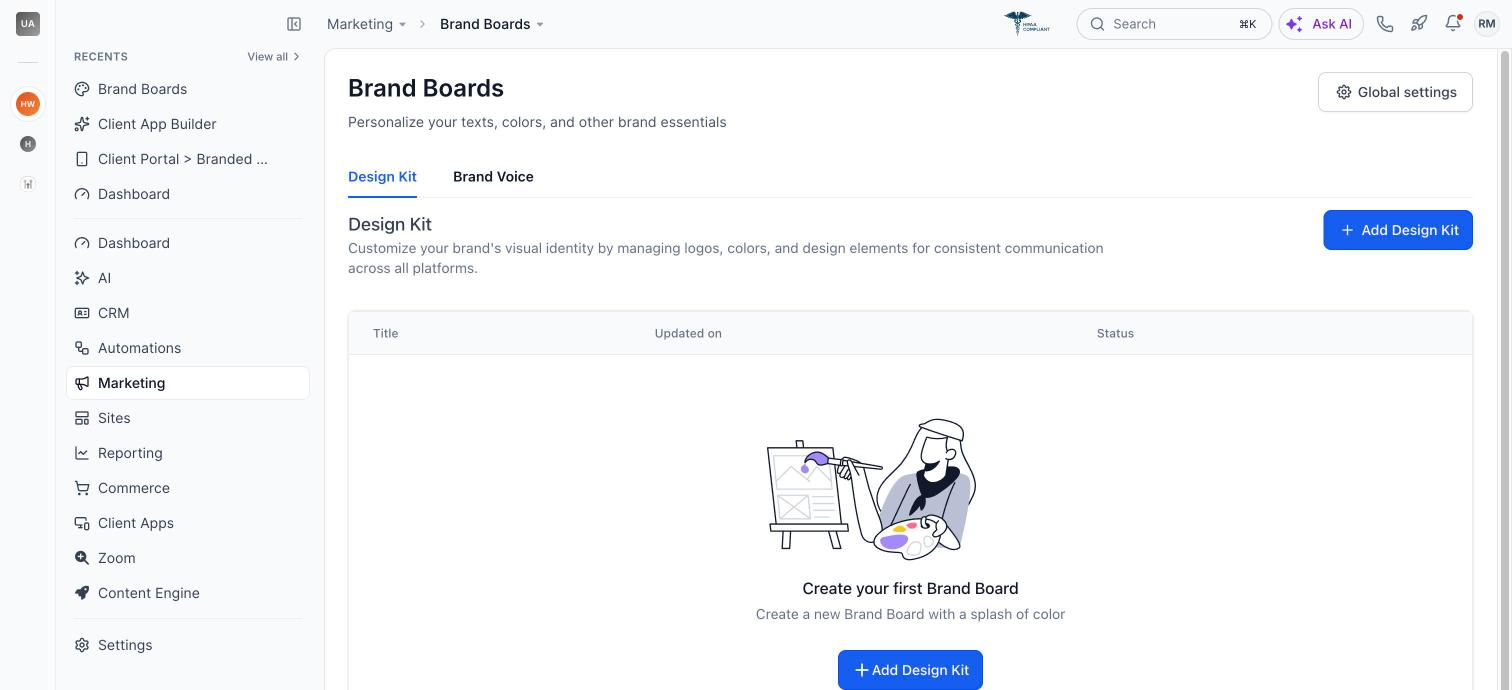
Go to Marketing → Brand Boards.
On the Design Kit tab, click Add Design Kit.
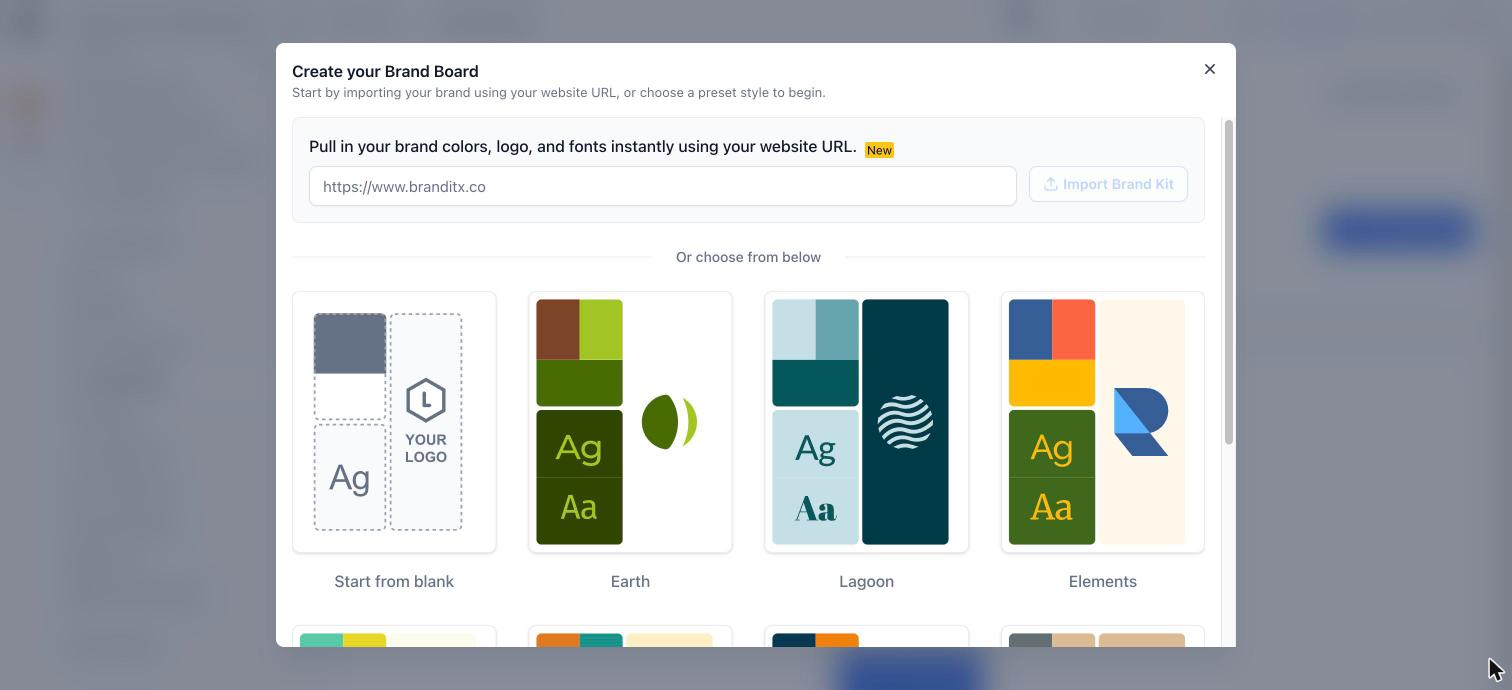
Choose how to start:
Import from your website: enter your website URL and click Import Brand Kit to pull in your colours, logo and fonts.
Choose a preset style, such as Earth, Lagoon or Elements.
Start from blank.
Edit Your Brand Board
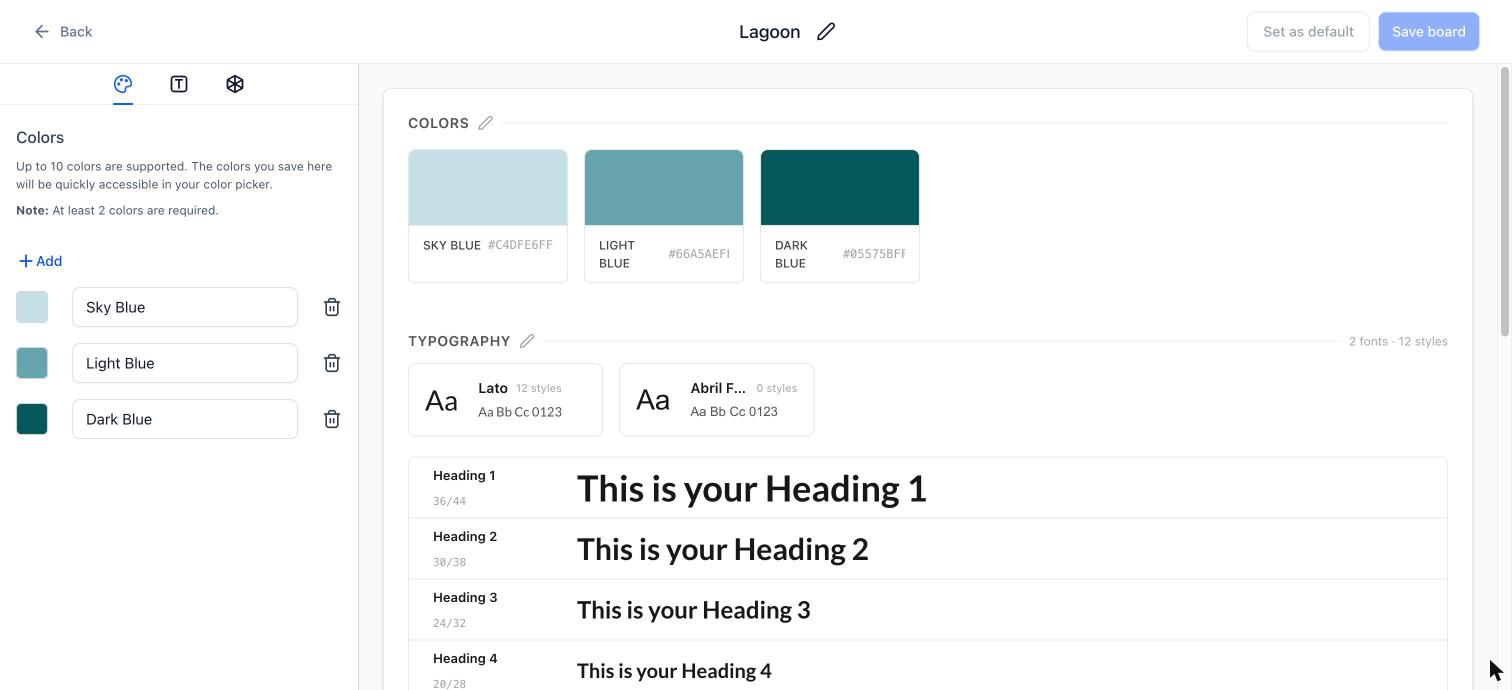
Add up to 10 colours (at least 2 are required), set your heading and body fonts, and add your logo. Click Save board when you're done. Use Set as default to make it the default for your account.
Use a Brand Board in Your App
Open your app in Client App Builder.
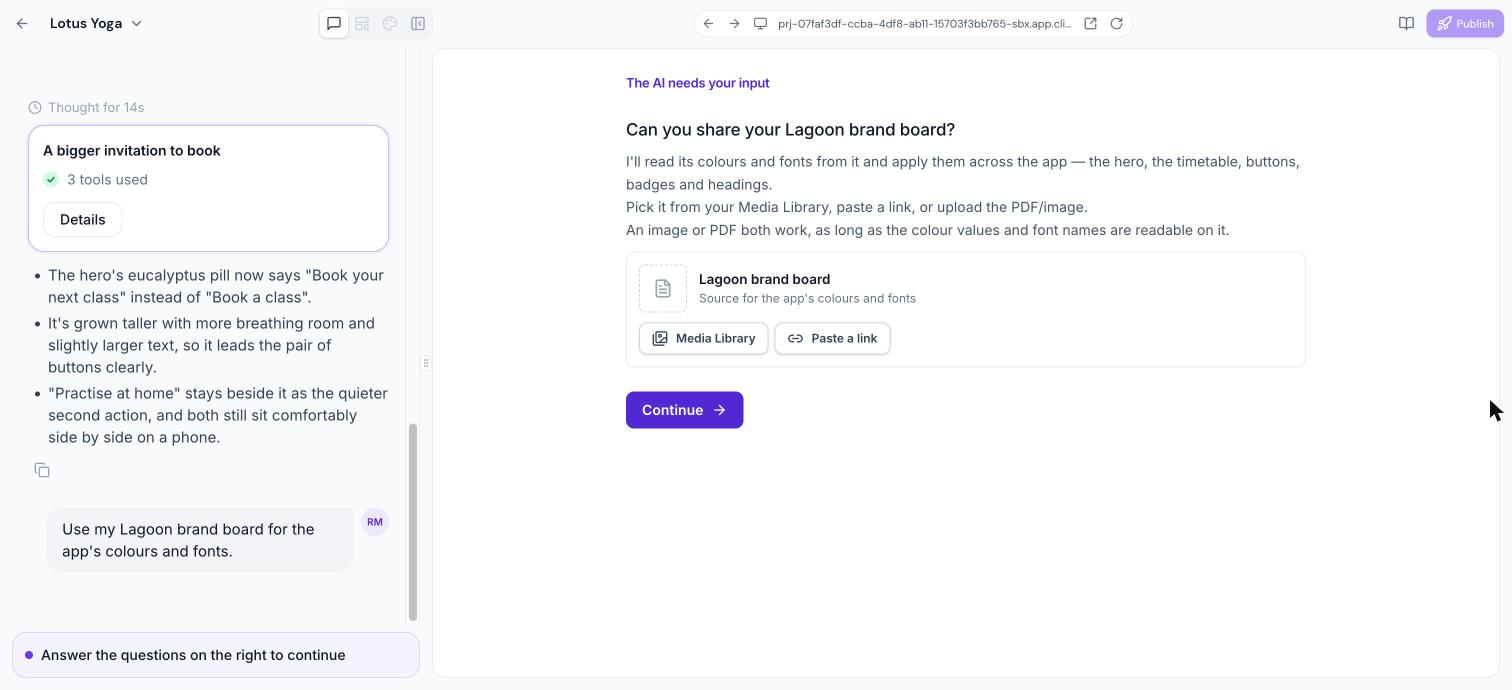
In the chat, ask AI to use your brand board, for example: "Use my Lagoon brand board for the app's colours and fonts."
AI asks you to share the board. Choose it from your Media Library, or click Paste a link, enter the link and click Add. To share a PDF or image of the board instead, attach it to your chat message with the paperclip icon.
AI reads the colours and fonts and applies them across the app, including headings, buttons and badges.
Tip: An image or PDF of your brand board works, as long as the colour values and font names are readable on it.
You can still adjust individual colours and fonts afterwards in the Themes panel. See Theme and Branding in Client App Builder.
Tips
Keep one brand board per brand so it's easy to choose the right one.
Import from your website to get started in seconds, then tidy up the colours.
Only colours are required. Fonts and logo are optional.
Frequently Asked Questions
Do I need a brand board to build an app?
No. You can pick a design system or palette instead and change colours later.
If I update my brand board, does my app change?
No. Share the updated board in the chat and ask AI to apply it again, then review the preview before publishing.
Was this article helpful?
That’s Great!
Thank you for your feedback
Sorry! We couldn't be helpful
Thank you for your feedback
Feedback sent
We appreciate your effort and will try to fix the article