Client App Builder includes ready-made Client Portal modules, such as Courses, Communities and Appointments, that you can add to any app. Modules are connected to your existing data, so your clients see their real courses, bookings, invoices and files from day one.
Available Modules
Start From the ClientPortal Standard
The quickest way to get every module is to start from the ClientPortal standard. It's your existing Client Portal with its built-in apps, restyled for your business.
Open Client App Builder and describe your business.
Choose Web or Mobile.
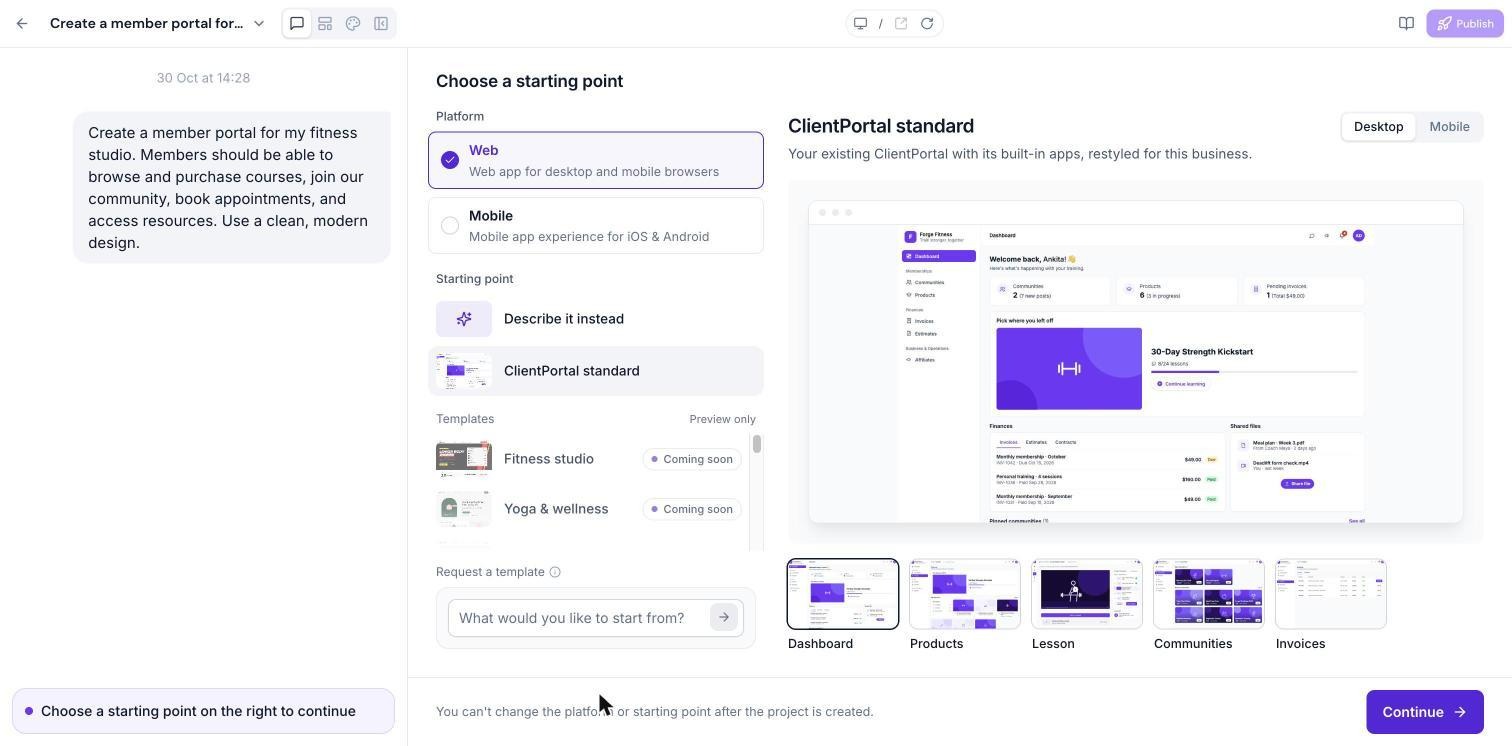
Under Starting point, choose ClientPortal standard and click Continue.
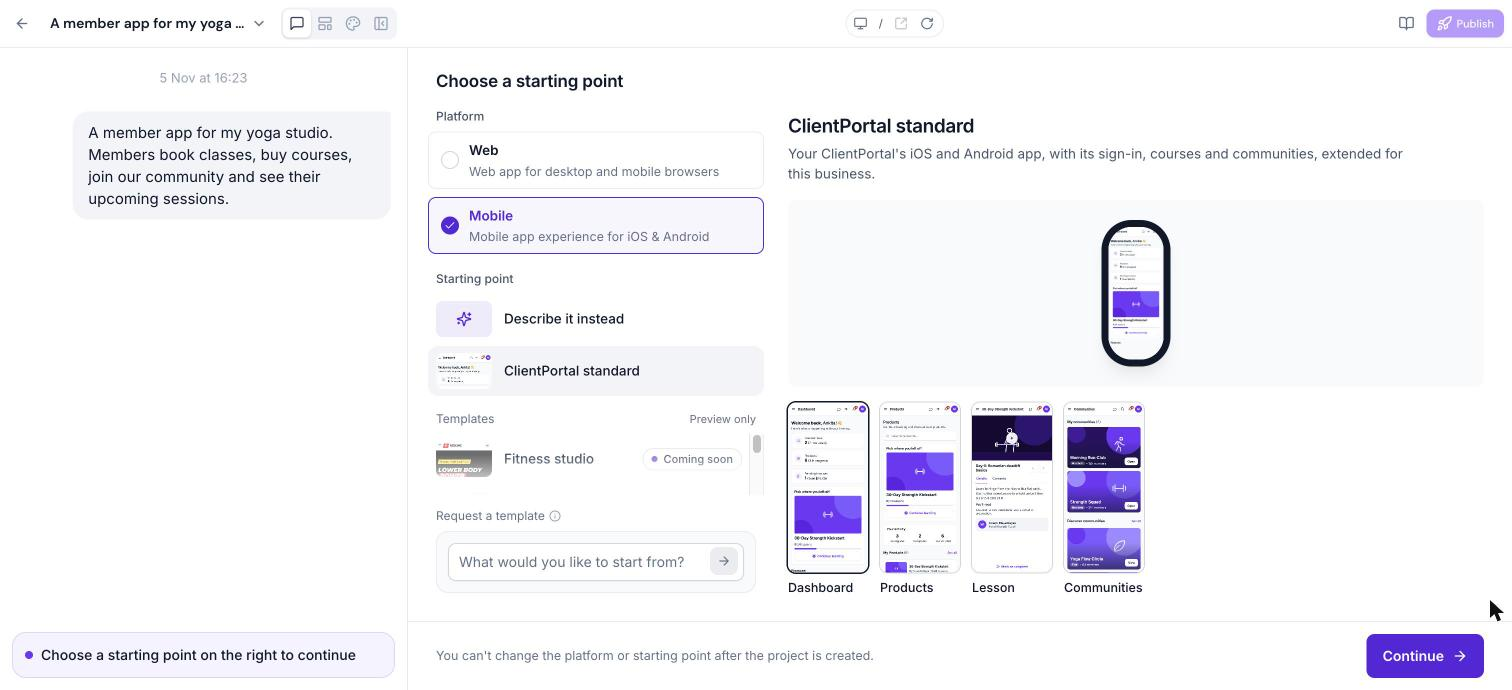
For mobile, the ClientPortal standard is your Client Portal's iOS and Android app, with its sign-in, courses and communities, extended for your business.
Choose Modules During Setup
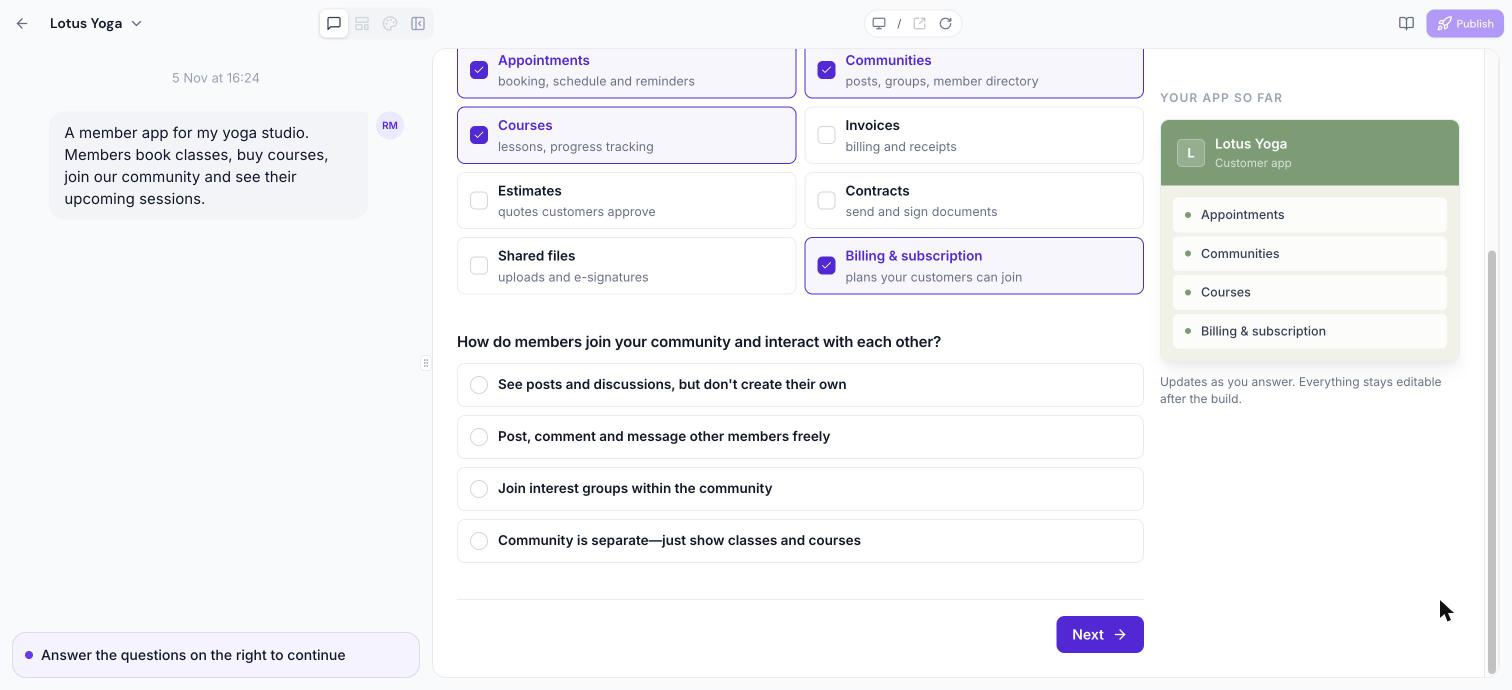
Whichever starting point you choose, AI pre-selects the modules that match your description. Untick any you don't need or tick more to add them.
Organise Modules in Navigation
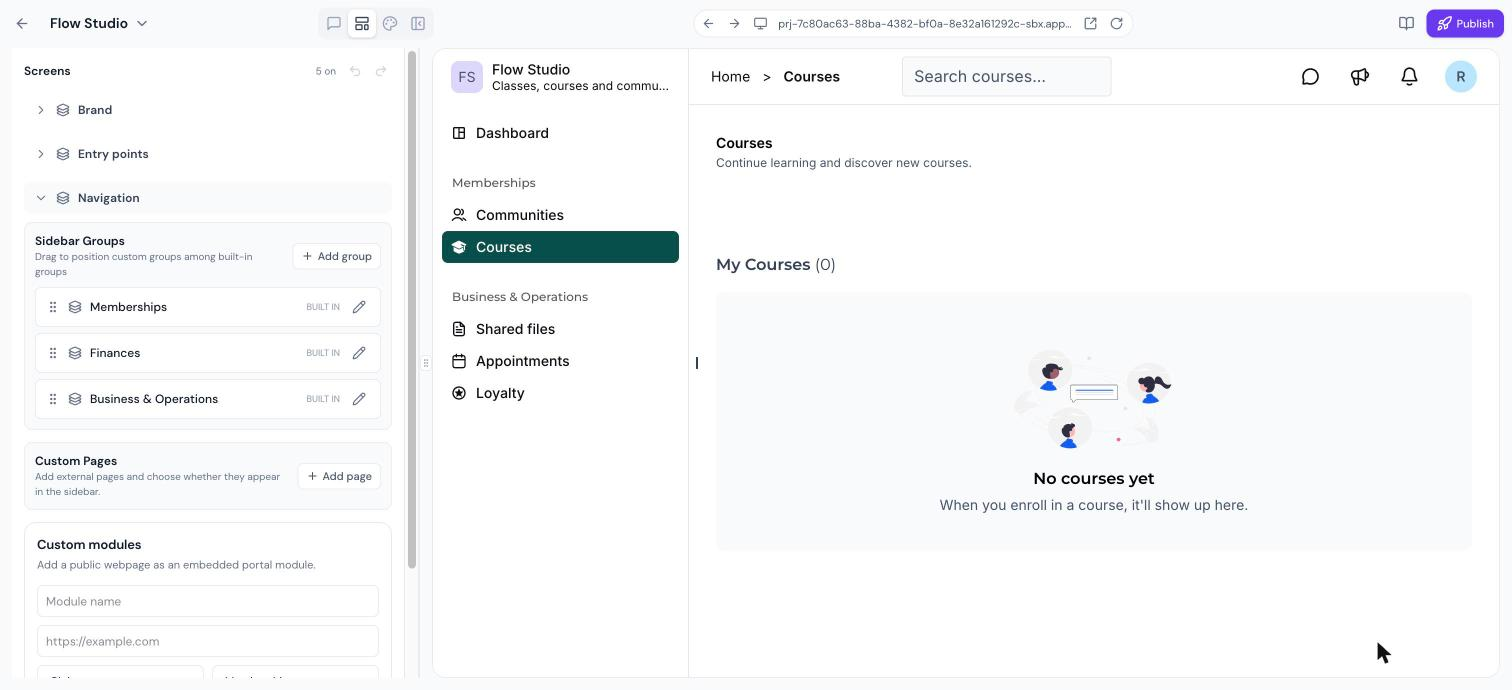
In web apps, open the Layout panel. Modules are grouped in the sidebar under Memberships, Finances and Business & Operations. You can rename, reorder or hide them. Mobile apps use a bottom tab bar instead. See Layout and Navigation Editor in Client App Builder.
Add or Remove Modules Later
Ask in the chat, for example "Add Invoices to the sidebar" or "Hide Affiliates". You can also add your own pages and embedded web pages as custom modules from the Layout panel.
Frequently Asked Questions
Do modules use my existing content?
Yes. Modules show the courses, communities, appointments, invoices and files already in your account.
Will more templates be available?
Yes. More ready-made templates, for courses, communities, appointments, events and more, are coming soon. You can request a template from the start screen.
Was this article helpful?
That’s Great!
Thank you for your feedback
Sorry! We couldn't be helpful
Thank you for your feedback
Feedback sent
We appreciate your effort and will try to fix the article