Your app can keep what clients add. Ask for bookings, requests or applications, and Client App Builder saves them as custom objects (records) in your CRM. You approve one plan before anything is created.
How It Works
It asks first. If your request needs saved data, AI asks "Use custom objects in your CRM for this?" Look-only changes and built-in products like Courses never get this question.
It designs the data. Up to 3 objects at a time, with fields, dropdown options and links to contacts, companies or each other. It reuses an existing object instead of creating a duplicate.
One review, then it builds. The plan shows the fields, sample records and who sees what.
Clients see and add records. Each object gets its own page in your app.
Create Custom Records
Step 1: Describe what clients add
Start a new app or ask in the chat of an existing one. For example: "Members browse upcoming workshops and apply for a 1:1 strategy call."
Step 2: Answer Yes to the custom objects question
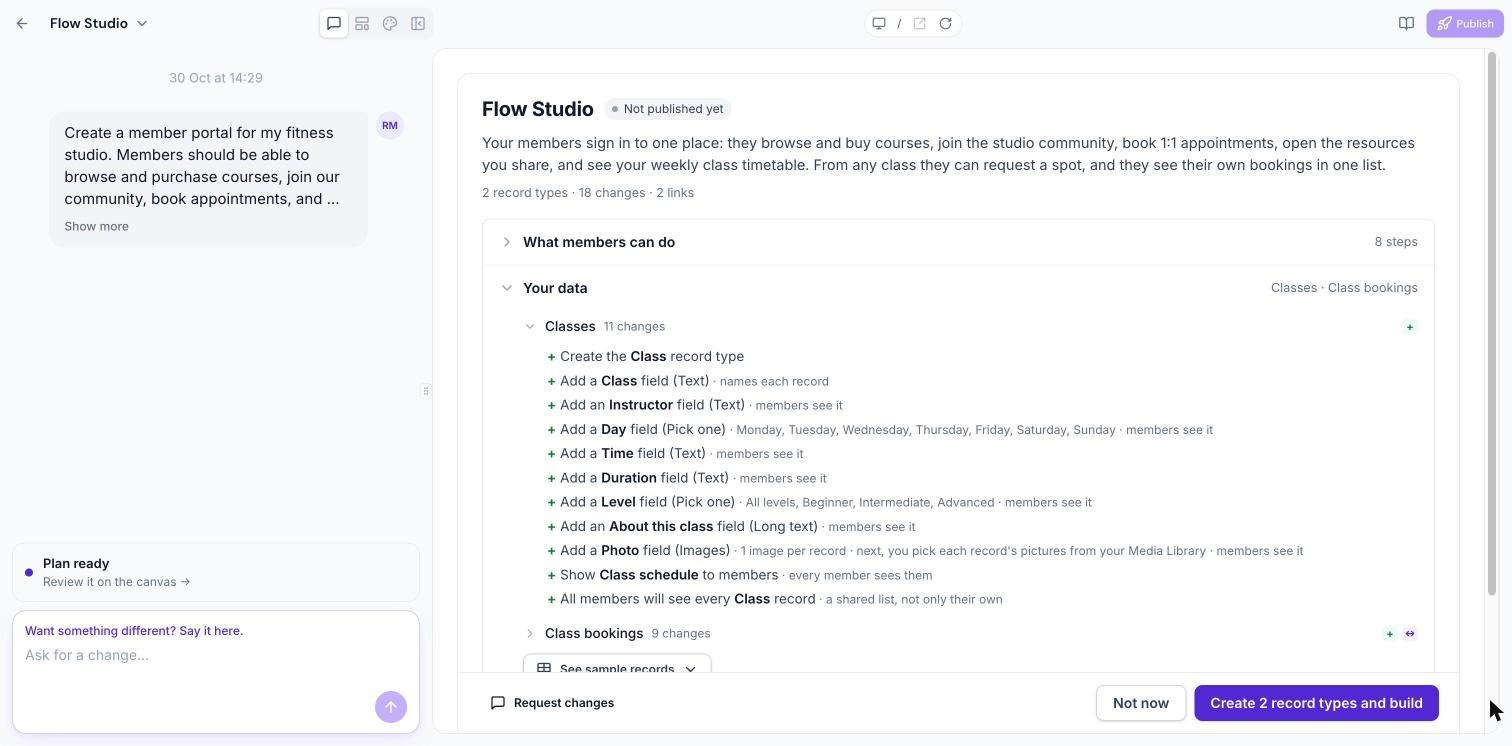
Step 3: Review the plan
The plan lists each record type and every field it will create, with options such as dropdown values and whether members can see each field.
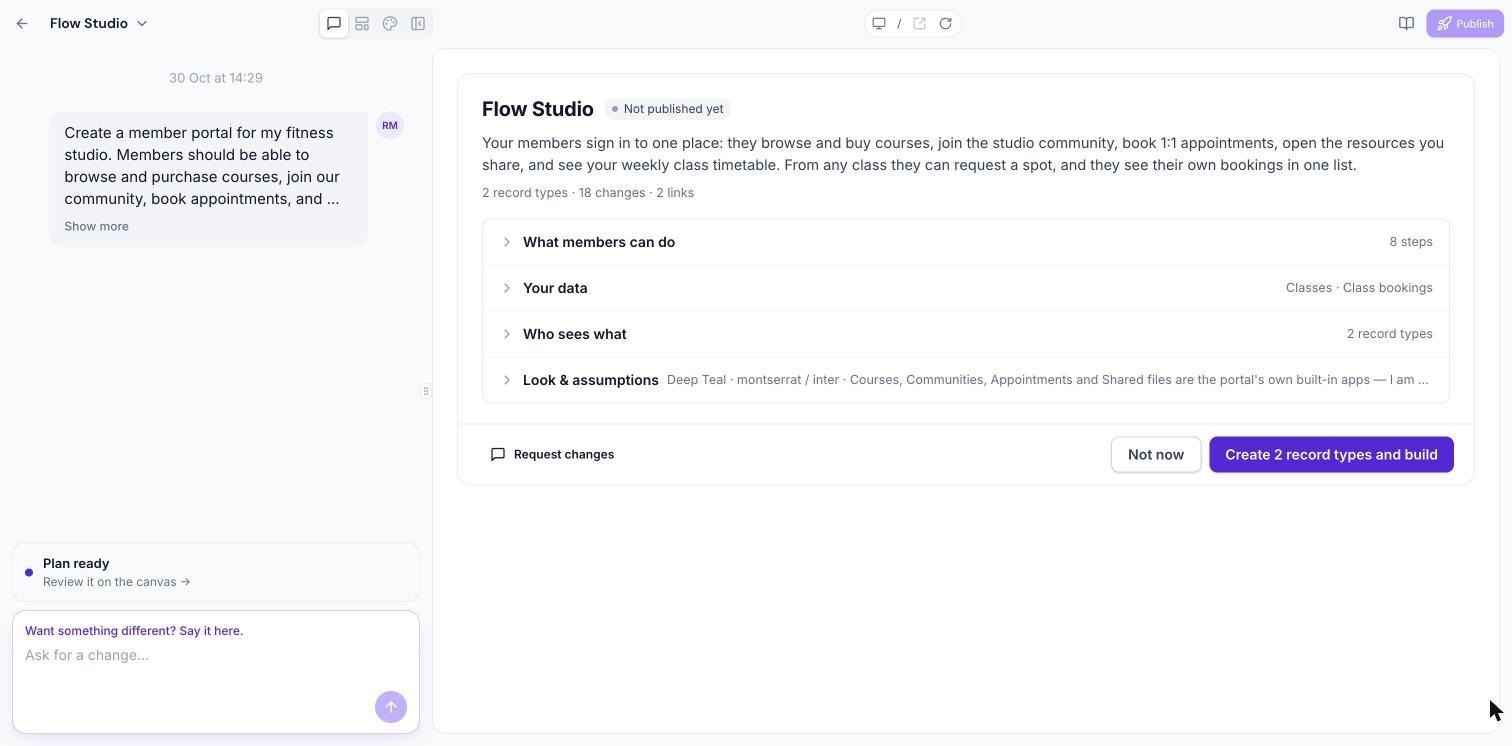
Step 4: Approve, change or skip
Create 3 record types and build: approve the plan and build. The button shows how many record types it will create and reuse, for example Create 3 record types, reuse 1 and build.
Request changes: describe what to change in plain words.
Not now: continue without creating records. This option appears only when the review offers a way to decline.
After you approve, links to the new objects in your CRM appear under the reply.
Who Sees What
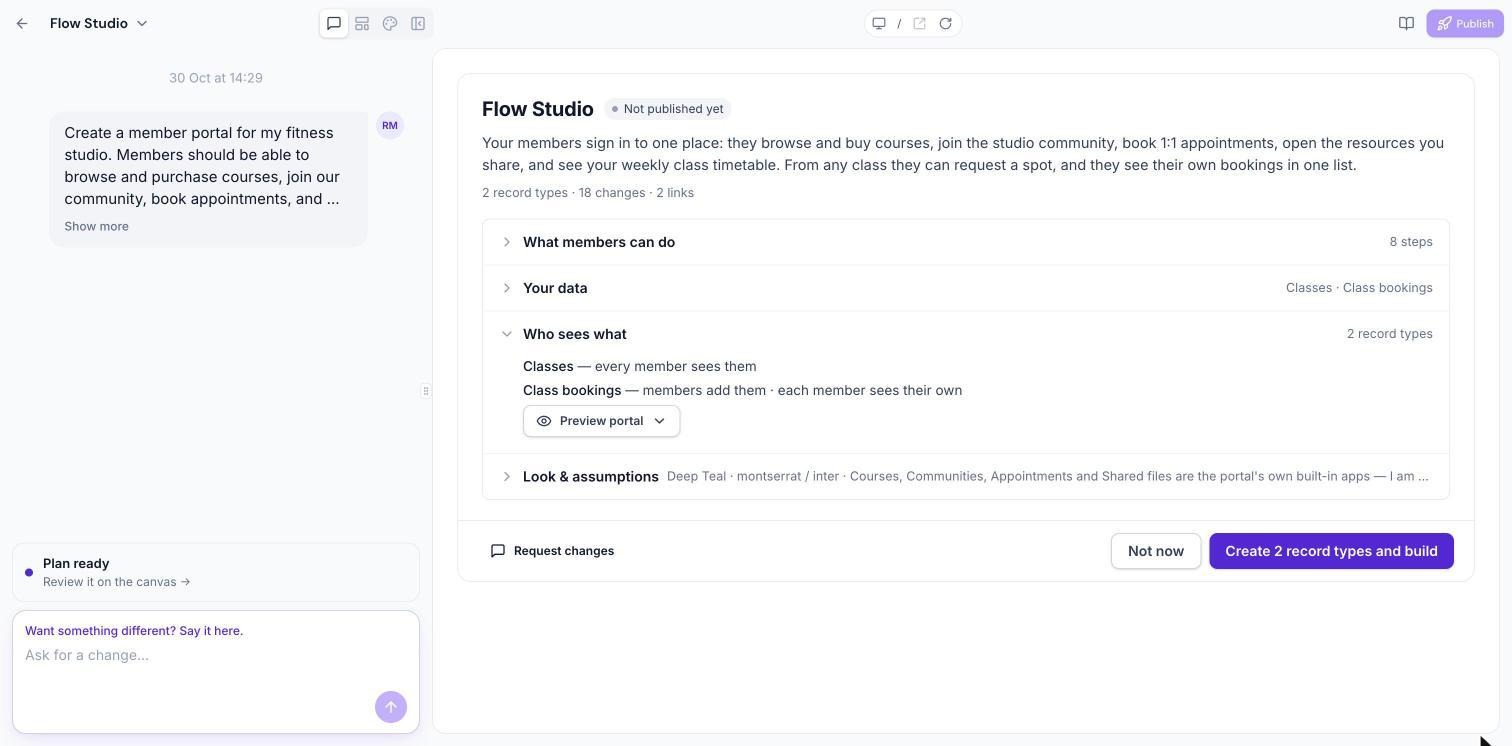
For each record type you choose whether members see only their own records, their company's records, every record as read-only, or Public, where anyone visiting your app, including signed-out visitors, can see the records (read-only). Choose Public only for records that are safe to show to anyone.
Payments on Records
Records can include Pay and Buy buttons that charge through an invoice once a payment provider is connected.
Limits
Up to 3 objects can be designed at a time.
A sub-account holds up to 10 custom objects. When there's no room, the review lets you reuse one you don't need, free a slot, or skip.
Mobile apps support up to 3 objects with fields, dropdowns and links. Members view and add records from a screen in the bottom bar.
Frequently Asked Questions
Will anything be created without my approval?
No. You see the whole plan before anything is created, and later changes go through the same review.
Where do the records appear in my CRM?
As custom objects in your sub-account. Links to them appear in the chat after you approve.
Was this article helpful?
That’s Great!
Thank you for your feedback
Sorry! We couldn't be helpful
Thank you for your feedback
Feedback sent
We appreciate your effort and will try to fix the article