Make your app look and feel like your brand. Set your app name, logo and icon, choose a theme, and fine-tune colours, fonts, corners and spacing. Changes show in the preview as you make them.
Set Your Branding
Open your app in Client App Builder.
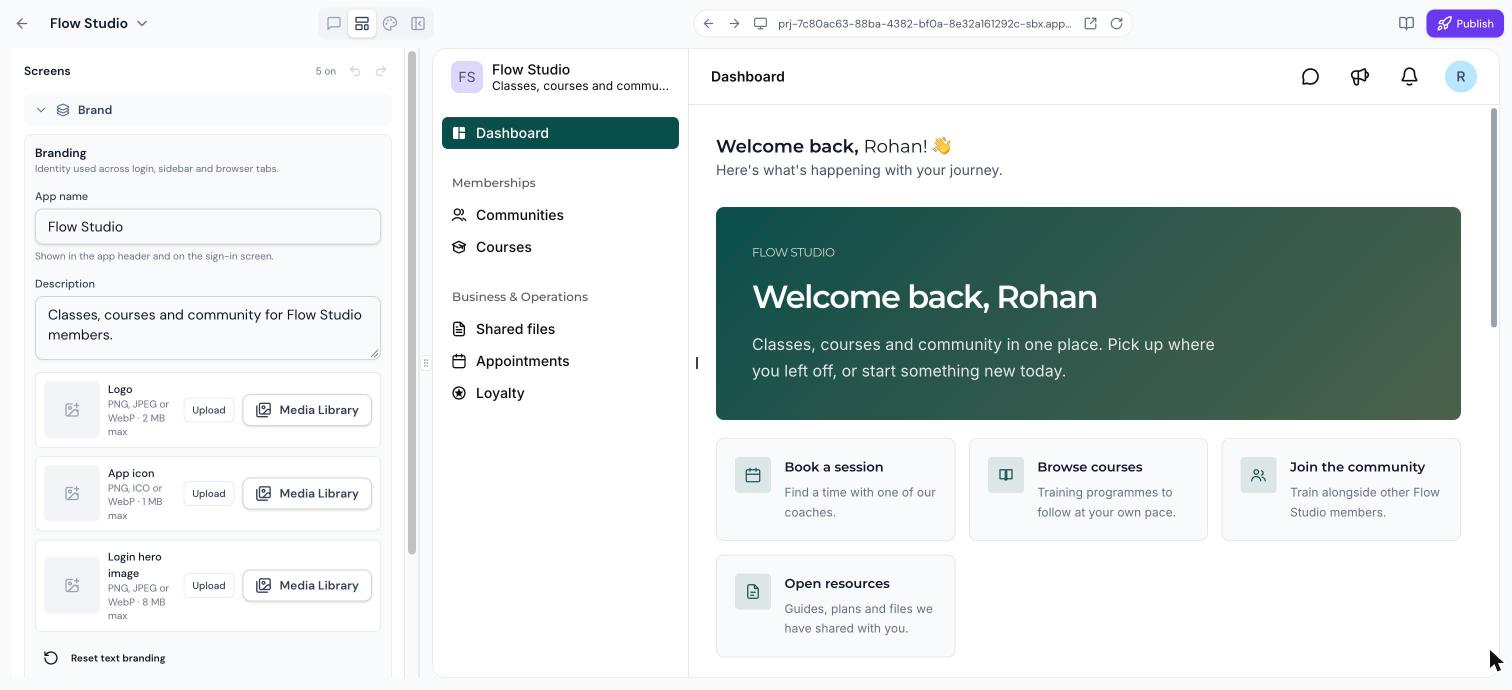
Click the Layout icon at the top left and expand Brand.
Update your App name, Description, Logo, App icon and Login hero image.
The app name and description show in the app header and on the sign-in screen. Upload images from your computer or choose them from the Media Library.
Choose a Theme
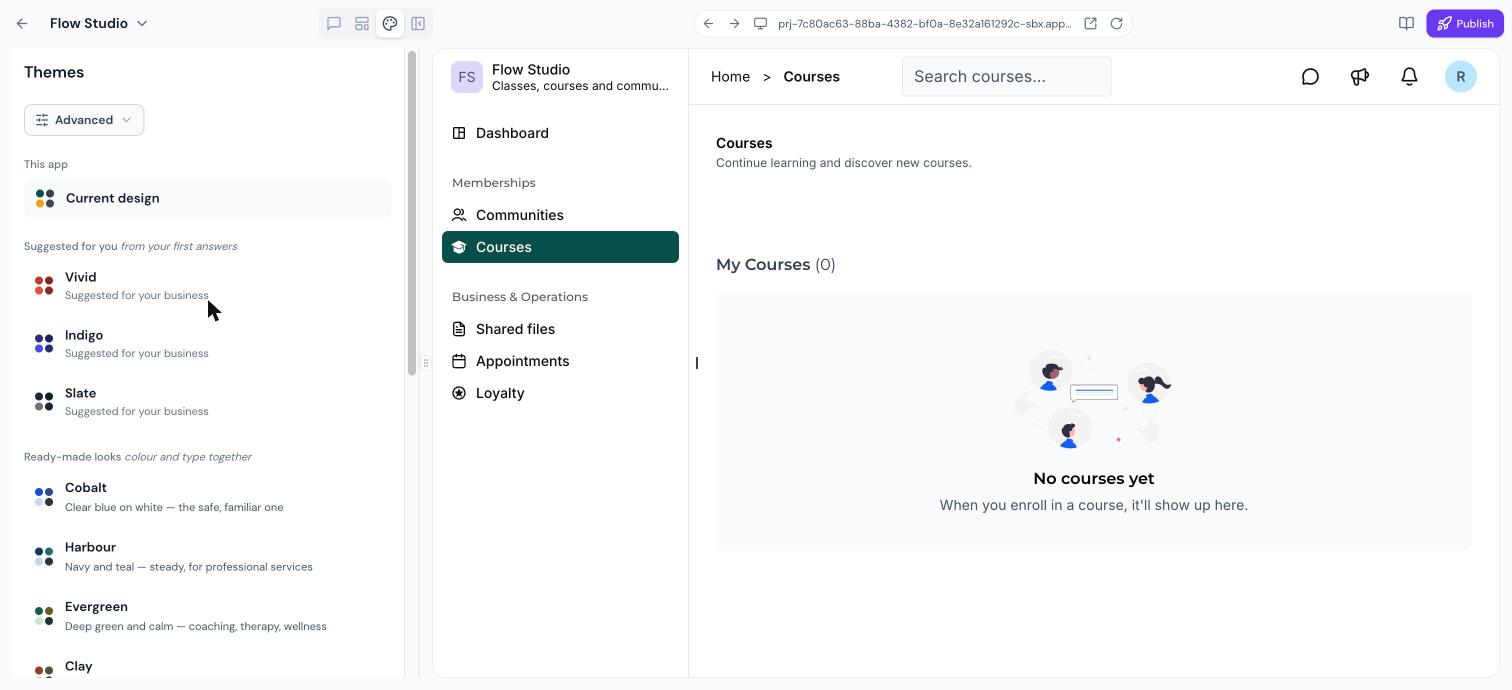
Click the Theme icon (palette) at the top left to open the Themes panel.
This app: your current design.
Suggested for you: themes picked from your first answers.
Ready-made looks: colour and type pairs, such as Cobalt, Harbour, Evergreen, Clay, Ember, Plum and Graphite.
Your own colour: pick one colour and the page, buttons and text are built around it.
Change Fonts
At the bottom of the Themes panel, choose a Heading font and a Text font.
Fine-Tune With Advanced Settings
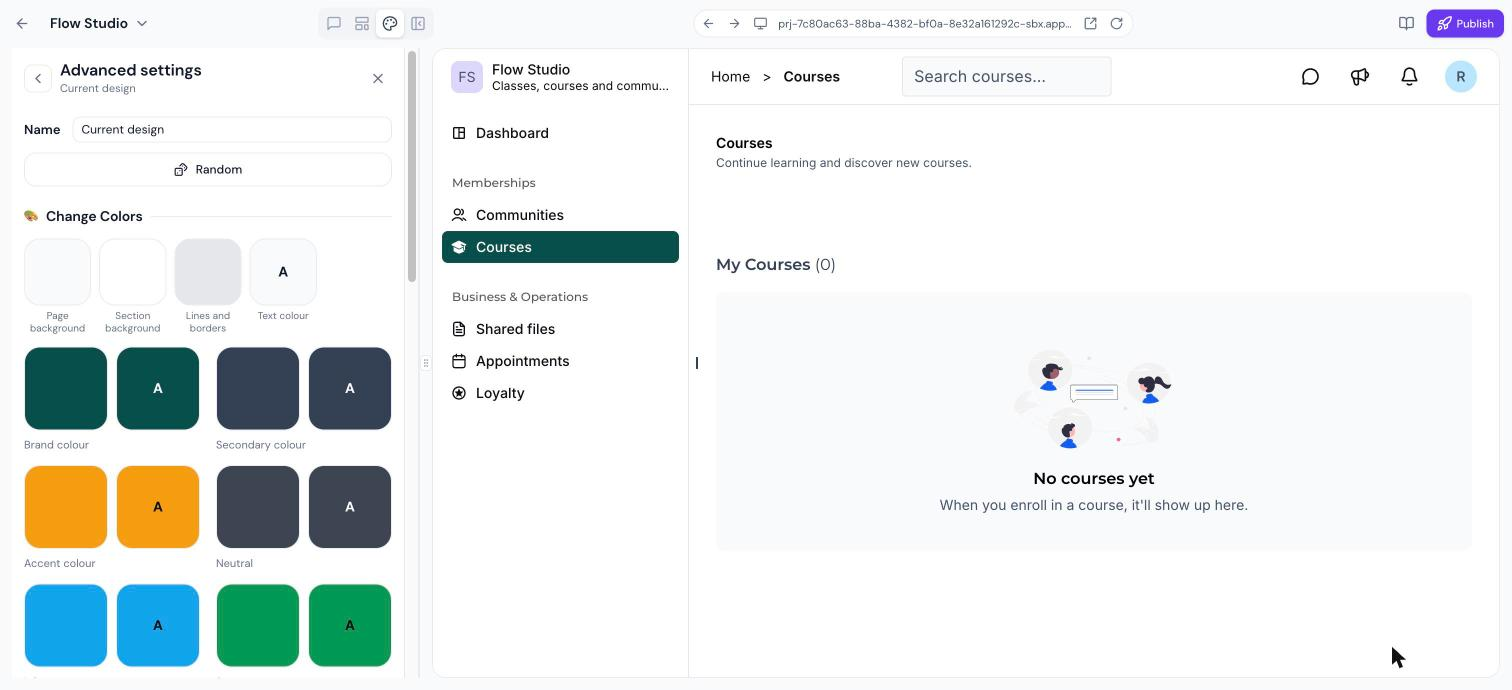
Click Advanced at the top of the Themes panel for full control:
Change Colors: page and section backgrounds, lines and borders, text, and brand, secondary, accent, neutral, info, success, warning and error colours.
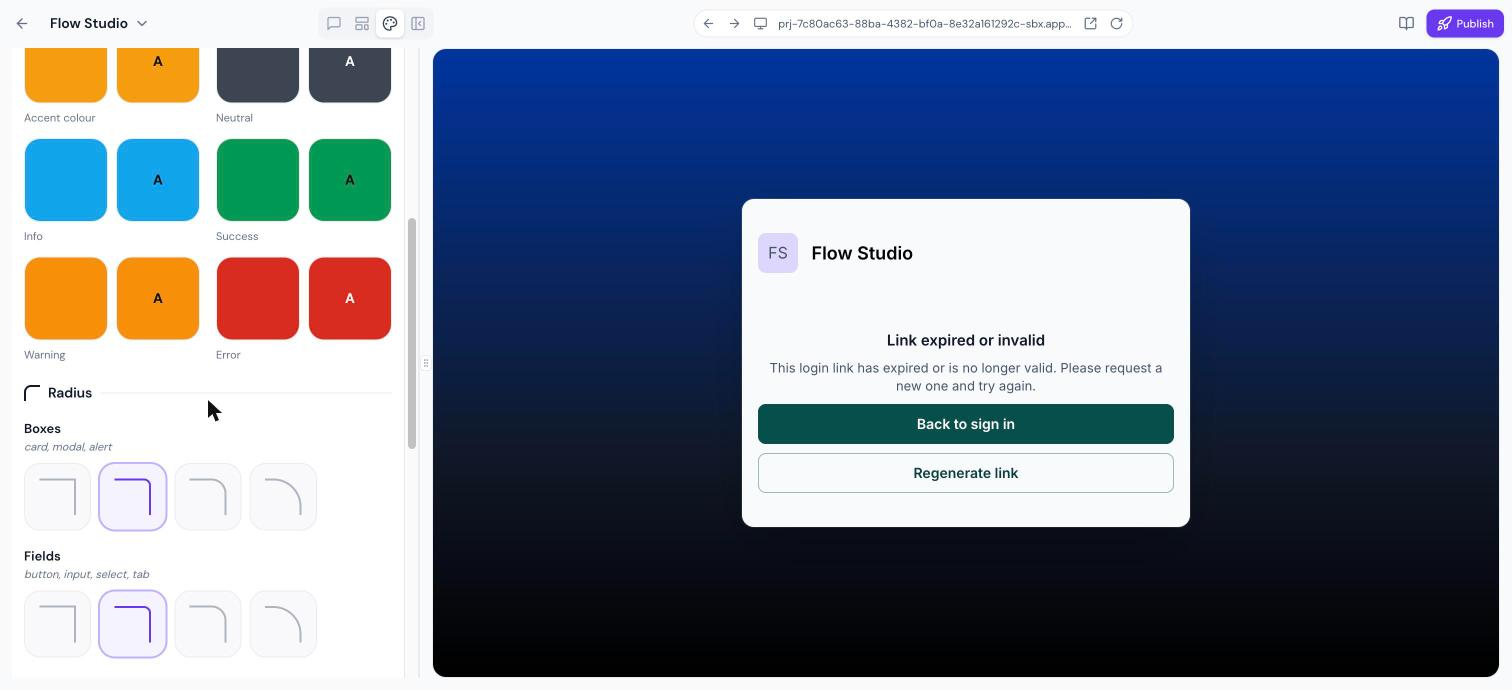
Radius: corner shape for boxes (cards, modals, alerts), fields (buttons, inputs, tabs) and selectors (checkboxes, toggles, badges).
Effects: turn the 3D depth effect on fields and selectors on or off.
Sizes: density (compact, comfortable or roomy), text scale and border width.
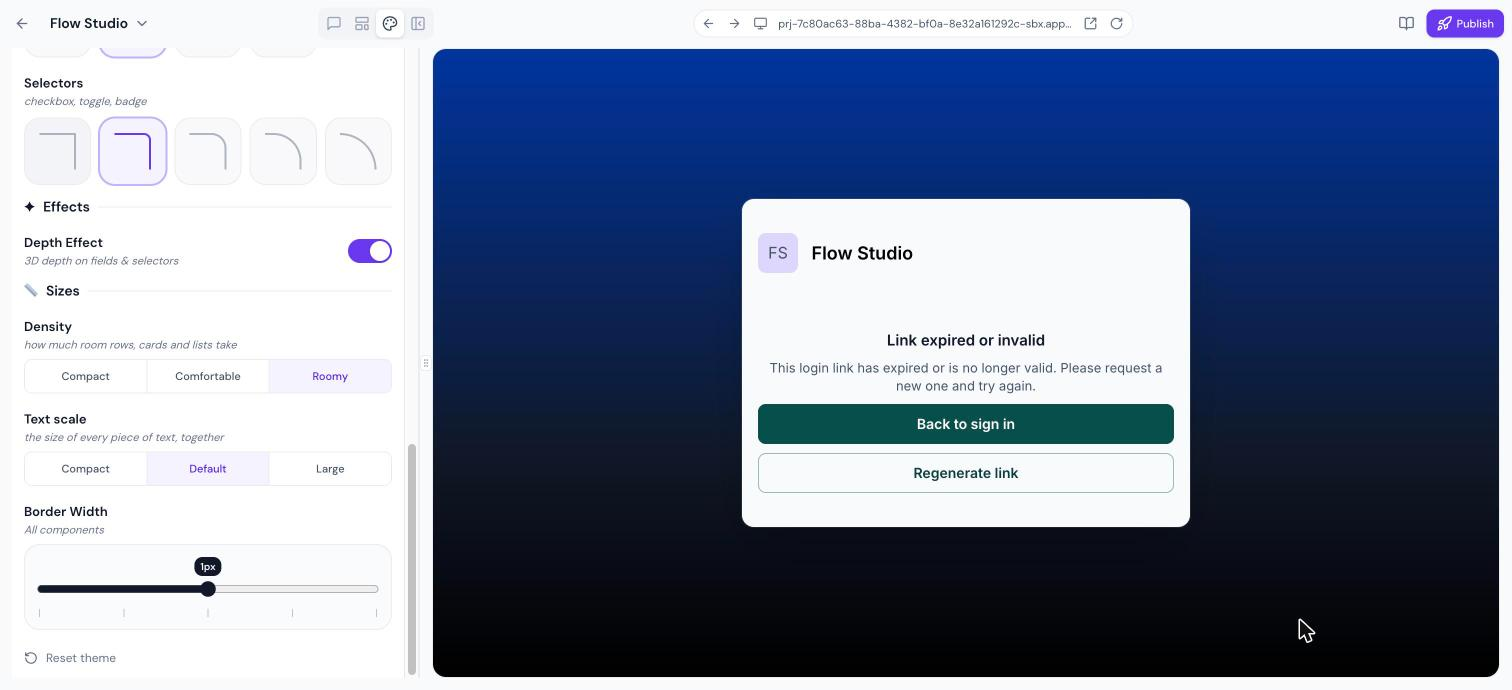
Click Random to try a new combination, or Reset theme to go back to the default.
Change Your Brand Through Chat
You can also describe the look you want. For example: "Give my wellness brand a warm editorial look, use terracotta and cream." AI applies the change across web and mobile.
Frequently Asked Questions
Can I use my existing brand colours and fonts?
Yes. Use Your own colour or Advanced settings, or apply a brand board. See Brand Boards in Client App Builder.
Will my clients see changes immediately?
No. Changes appear in the preview first and go live when you publish.
Was this article helpful?
That’s Great!
Thank you for your feedback
Sorry! We couldn't be helpful
Thank you for your feedback
Feedback sent
We appreciate your effort and will try to fix the article