Client App Builder now connects your HighLevel Opportunities & Pipelines, Custom Objects, and Custom Fields to personalized client apps. Clients can follow their opportunity progress and view details you choose to share. You can control which pipelines, stages, records, and fields appear in the experience. This guide covers how to configure client-facing CRM information, manage visibility, and review your app before publishing.
Table of Contents
Key Benefits of Client-Facing CRM Data in Client App Builder
How To Setup Pipelines and Custom Fields in Client App Builder
What is Client-Facing CRM Data in Client App Builder?
Client-Facing CRM Data allows you to build client experiences using information stored in your HighLevel CRM. Instead of maintaining separate progress trackers or copying information into another system, your app displays data from supported CRM features.
Client App Builder supports three key capabilities:
Opportunities & Pipelines: Display a client's progress through your sales or service pipeline. Choose which pipelines and stages appear in the client app.
Custom Objects: Display CRM records using public or private pages, with visibility options for individual clients, companies, and broader audiences.
Custom Fields: Display selected Contact Custom Fields, such as membership tiers, policy numbers, or client goals, in a personalized My details page.
Client apps use live HighLevel CRM information, allowing clients to see current progress without requiring a separate synchronization process.
Key Benefits of Client-Facing CRM Data in Client App Builder
Connecting your CRM information to Client App Builder gives clients access to relevant updates while keeping your business in control of the information they can view.
Real-Time Progress Visibility: Let clients follow their opportunities through your pipeline without contacting your team for routine status updates.
Controlled Pipeline Stages: Display relevant stages while hiding internal stages, such as reviews or Lost, from the client-facing experience.
Personalized Client Information: Show selected Contact Custom Fields so clients can access important details associated with their records.
Flexible Record Visibility: Use public Custom Object pages for general information and private visibility settings for client-specific records.
AI-Assisted Configuration: Describe the experience you want, create missing fields, and organize Custom Fields through natural-language requests.
Connected CRM Data: Use HighLevel as the source of truth instead of maintaining a separate set of client records.
How To Setup Pipelines and Custom Fields in Client App Builder
Client App Builder uses natural-language requests to build and update client experiences.
Access Client App Builder
Client App Builder operates within a HighLevel sub-account. You can start a new app or modify an existing project using the builder's AI-assisted workflow.
Log in to HighLevel and switch to the Sub-Account view.
Select the sub-account where you want to create or update the client app.
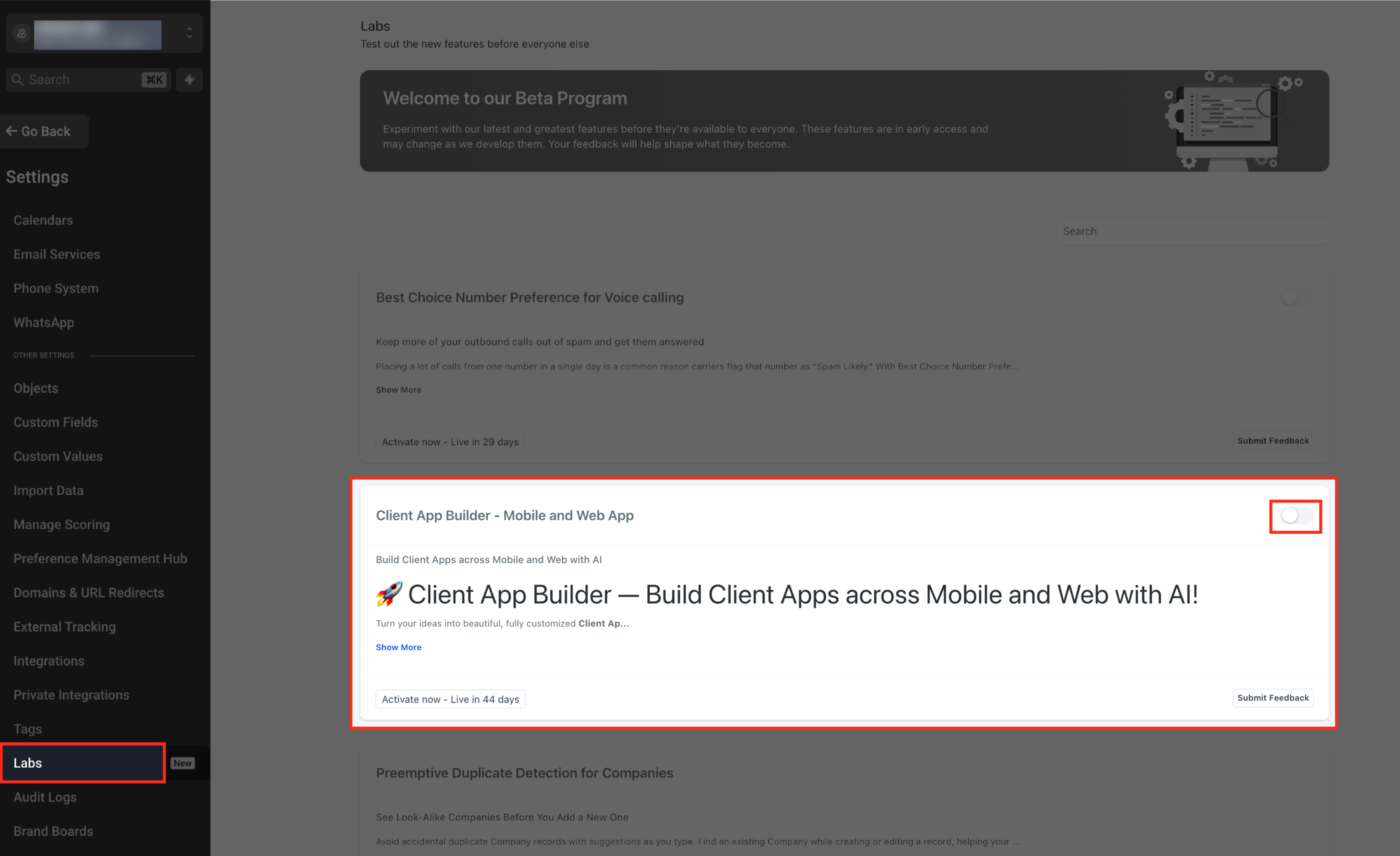
If Client App Builder is not enabled, select Settings in the sub-account navigation, then select Labs.
Find Client App Builder and enable the feature for the sub-account, if available.
Return to the sub-account navigation.
Select Memberships, then Client App Builder.
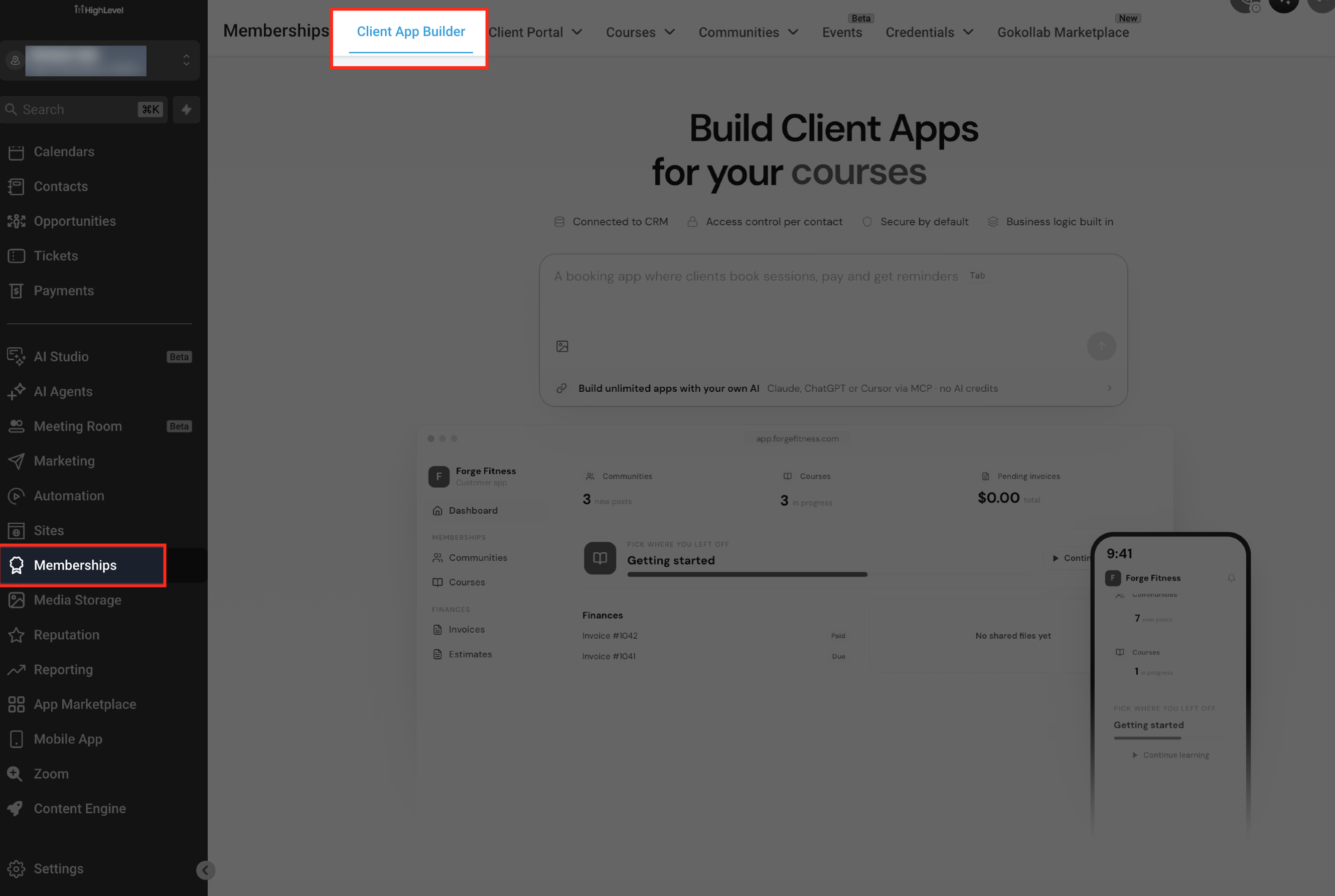
To create a new app:
Enter a description of the client experience you want in the prompt box.
Choose Web or Mobile.
Under Starting point, select Describe it instead, then click Continue.
Answer the setup questions and choose your preferred design system.
Click Build my app to generate the initial experience.
To modify an existing app:
On the Client App Builder home screen, select All projects.
Open the project you want to update.
Use the project's AI chat to describe the changes you want.
Display Opportunities and Pipelines
Opportunity tracking lets clients follow their progress through a sales or service process. Choose the pipelines clients should follow and remove internal stages from the client-facing experience.
From Sub-Account view, select Memberships → Client App Builder.
On the builder home screen, select All projects and open the app you want to update.
Use the app's AI chat to describe the pipeline experience you want clients to see.
Example prompt:
"Show clients their progress through my Onboarding pipeline. Include Application received, Approved, and Onboarding. Hide Internal review and Lost from the client-facing experience."
Specify whether clients should follow one pipeline, several pipelines, or all available pipelines.
Identify any stages that should remain hidden from clients.
Review the proposed pipeline experience and the information clients will be able to see.
Request adjustments if any pipeline or stage should be added or removed.
Confirm the configuration using the builder's review process.
Inspect the resulting experience in the app preview.
Clients can follow their progress in the client app as their opportunities move through the connected HighLevel pipeline. The release identifies this functionality as supported for web and mobile experiences.
Show Contact Custom Fields in Your App
Contact Custom Fields let you display personalized information that does not belong in standard contact details. You can choose which fields clients can see and search without exposing every field stored in your CRM.
From Sub-Account view, select Memberships → Client App Builder, or Client Apps → Client App Builder when using the alternative navigation.
Select All projects and open the app you want to update.
Use the AI chat to request a page displaying the relevant Contact Custom Fields.
Example prompt:
"Add a My details page where clients can see their membership tier, policy number, and goals from their Contact Custom Fields."
When AI requests confirmation about existing fields, identify which fields clients are allowed to see.
Specify which approved fields clients should be able to search.
Review the selected fields and their intended visibility before approving the changes.
Create Missing Custom Fields with AI
If the field you need does not exist, you can describe it to AI. Client App Builder can create the field and include it in the app experience.
Example prompt:
"Create a Contact Custom Field called Policy number and display it on the My details page."
Review the resulting field and its intended visibility before approving the change.
Organize Custom Fields Through AI
You can also use natural-language instructions to organize existing fields.
Example prompt:
"Add a folder called Billing and move the premium field into it."
Review the proposed changes to ensure the fields are organized as intended.
Review Client Visibility and Publish
Reviewing the client experience before publication helps ensure that each audience sees the intended information. Check the selected CRM data, confirm visibility decisions, and preview the app before making it available.
From Sub-Account view, select Memberships → Client App Builder, or Client Apps → Client App Builder in the alternative navigation.
Select All projects and open the app you want to publish.
Use the app preview to inspect the generated pages and navigation.
Review the pipelines and stages displayed in the client experience.
Confirm that each My details page includes only the selected Contact Custom Fields.
If your app includes Custom Objects, verify the intended public or private record visibility.
Review the AI configuration plan and any warnings about changes to page visibility.
Request corrections before approving a change that would expose information to an unintended audience.
For web apps:
Open the app's publishing controls.
Choose an available address on app.clientclub.net.
Review any warnings about linked pages that have not been built.
Complete the publishing action after reviewing the app.
Control Public and Private Custom Object Visibility
Custom Objects allow you to build client experiences around records stored in your HighLevel CRM. You can choose whether records are available publicly, to signed-in members, to members of the same company, or only to an individual client.
Choose Who Can See Custom Object Records
The visibility you choose determines which stored records clients can access. Select the appropriate audience before approving a Custom Object configuration.
From Sub-Account view, select Memberships → Client App Builder
Select All projects and open the app you want to update.
In the AI chat, describe the Custom Object information or record page you want to create.
If AI asks Use custom objects in your CRM for this?, select Yes when Custom Objects are appropriate for the request.
Review the proposed record types, fields, and visibility options.
Choose the visibility that matches the intended audience.
Approve the plan or request changes before building.
Available visibility approaches include:
Own Records: Clients see records associated with themselves.
Company Records: Clients see records associated with their company.
All Records: Signed-in members can view the available records in read-only mode.
Public: Visitors can view public records without signing in. Public access is documented as read-only.
For detailed Custom Object configuration, see Custom Records in Client App Builder.
Review Sensitive Data and Access Changes
Public record visibility requires additional care because visitors may access these records without signing in. Client App Builder includes AI-assisted safeguards intended to reduce accidental exposure of sensitive information.
AI requests confirmation when a proposed public page would expose sensitive contact information, such as email addresses or phone numbers.
AI requests confirmation when a proposed public page would allow visitors to edit information.
When a requested change affects who can view a page, the review identifies the visibility change before approval.
Existing Custom Fields are not automatically exposed to clients without a visibility review.
Before approving a change, check the intended audience and the data that will become visible.
Frequently Asked Questions
Q: Can I manage Custom Fields directly in HighLevel instead of using Client App Builder chat?
Yes. From Sub-Account view, select Settings → Custom Fields. Use the object selector to choose the relevant object. Use the Fields tab to manage fields and the Folders tab to organize them.
Q: Can I convert an Opportunity Custom Field into a Contact Custom Field?
No. Contact and Opportunity Custom Fields belong to different object types. Once a field is created, you cannot change its object type. You must recreate the field under the appropriate object.
Q: Do Pay and Buy buttons still work with Custom Object records?
Yes. Supported web experiences can include Pay and Buy buttons that initiate payments through HighLevel invoices. A connected payment provider is required for these payment actions.
Q: Does AI create Custom Objects without my approval?
No. When AI proposes new Custom Objects, it presents a plan for review before creating the records and connected app experience. You can approve the plan or request changes.
Q: Does mobile support mean I can publish directly to Google Play or the Apple App Store?
No. Current Client App Builder documentation supports generating downloadable Android APK files but does not support direct publishing to Google Play or the Apple App Store. iOS app generation is also not currently available in the documented workflow.
Related Articles
Was this article helpful?
That’s Great!
Thank you for your feedback
Sorry! We couldn't be helpful
Thank you for your feedback
Feedback sent
We appreciate your effort and will try to fix the article