HighLevel now offers a simplified invoice view for supported reselling add-ons. Mid-cycle subscription changes appear as net adjustments instead of separate prorated credit and debit lines. This makes it easier to understand billing changes and identify the sub-accounts involved. This guide explains how to view your latest invoice, review its charges, and download a PDF.
TABLE OF CONTENTS
- What Is Simplified Invoice View for Reselling Add-ons?
- Key Benefits of Simplified Invoice View
- Prerequisites and Limitations
- How to Set Up and Use Simplified Invoice View
- How to Read a Simplified Invoice
- Frequently Asked Questions
- Related Articles
What Is Simplified Invoice View for Reselling Add-ons?
Simplified Invoice View presents the latest generated invoice for a supported reselling add-on in an easier-to-read format. When sub-accounts are added or removed during a billing cycle, prorated credit and debit entries are combined into a single net adjustment for each change.
The simplified format changes only how charges are displayed. Stripe remains the billing source of truth, and invoice calculations and totals remain unchanged.
Key Benefits of Simplified Invoice View
The simplified format helps agencies understand subscription charges without manually reconciling multiple proration entries. It also makes it easier to identify adjustments associated with individual sub-accounts.
- Clearer adjustments: See one net row for each mid-cycle subscription change.
- Sub-account visibility: Identify which sub-account caused an adjustment when attribution is available.
- Easier credit tracking: Recognize credits highlighted in green in the invoice view.
- PDF download: Save a formatted invoice for billing records or review.
Prerequisites and Limitations
Simplified invoices are available from Agency View for supported reselling add-ons. You need access to the agency's Settings → Billing area. The view displays charges on an invoice that has already been generated, not estimates of upcoming charges.
Supported Reselling Add-ons
The simplified invoice view applies to the following supported products:
- Email IP
- Prospecting
- SEO
- Conversation AI
- AI Employee
- Workflow
- Yext
- WordPress
- Branded Client Portal App
- Ad Manager
Important Limitations
Understanding the invoice's date range and available details helps prevent confusion about missing charges or sub-account names.
- Latest invoice only: The panel displays the latest generated invoice for the selected product's subscription. Earlier invoices are not listed in this panel.
- No upcoming charges: Future renewals and changes made after the latest invoice are excluded until the next invoice is generated.
- Sub-account attribution: Sub-account names may be missing from current or earlier invoices. Attribution begins appearing on invoices from subsequent billing cycles.
- Language support: The in-app invoice panel supports localization. Downloaded PDFs are available in English only.
How to Set Up and Use Simplified Invoice View
No separate setup is required to use the simplified invoice view. Open the latest invoice for a supported reselling add-on from Agency View, then review its adjustments or download a PDF for your records.
- Switch to Agency View in HighLevel.
- Click Settings.
- Select Billing.
- Under Subscription, locate the Reselling section and open the supported add-on product you want to review.
- Click Invoice to open the latest generated invoice for that product.
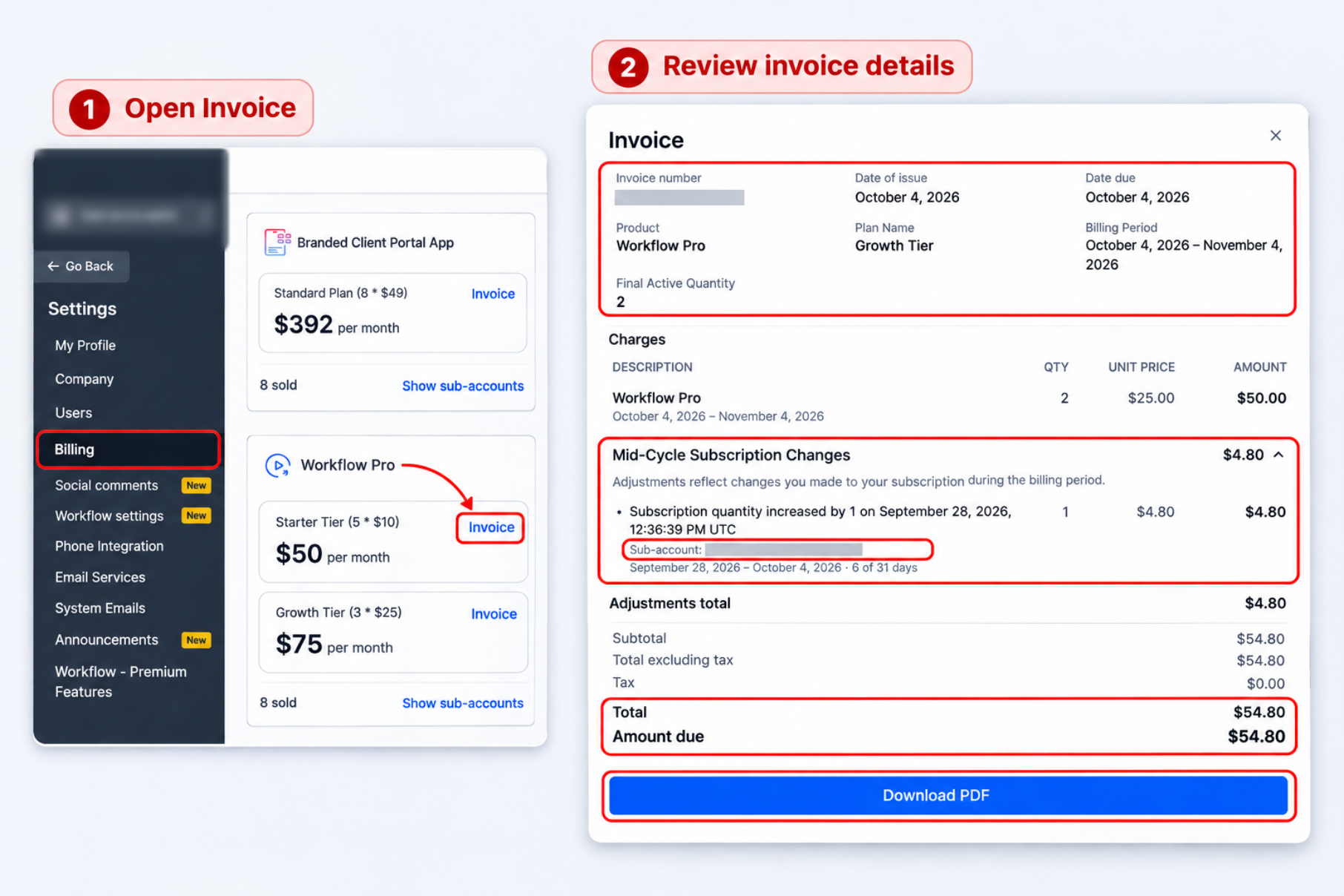
- Review the invoice, then select Download PDF to save a copy.
Note: The simplified product invoice panel shows the latest invoice for the selected reselling subscription.
How to Read a Simplified Invoice
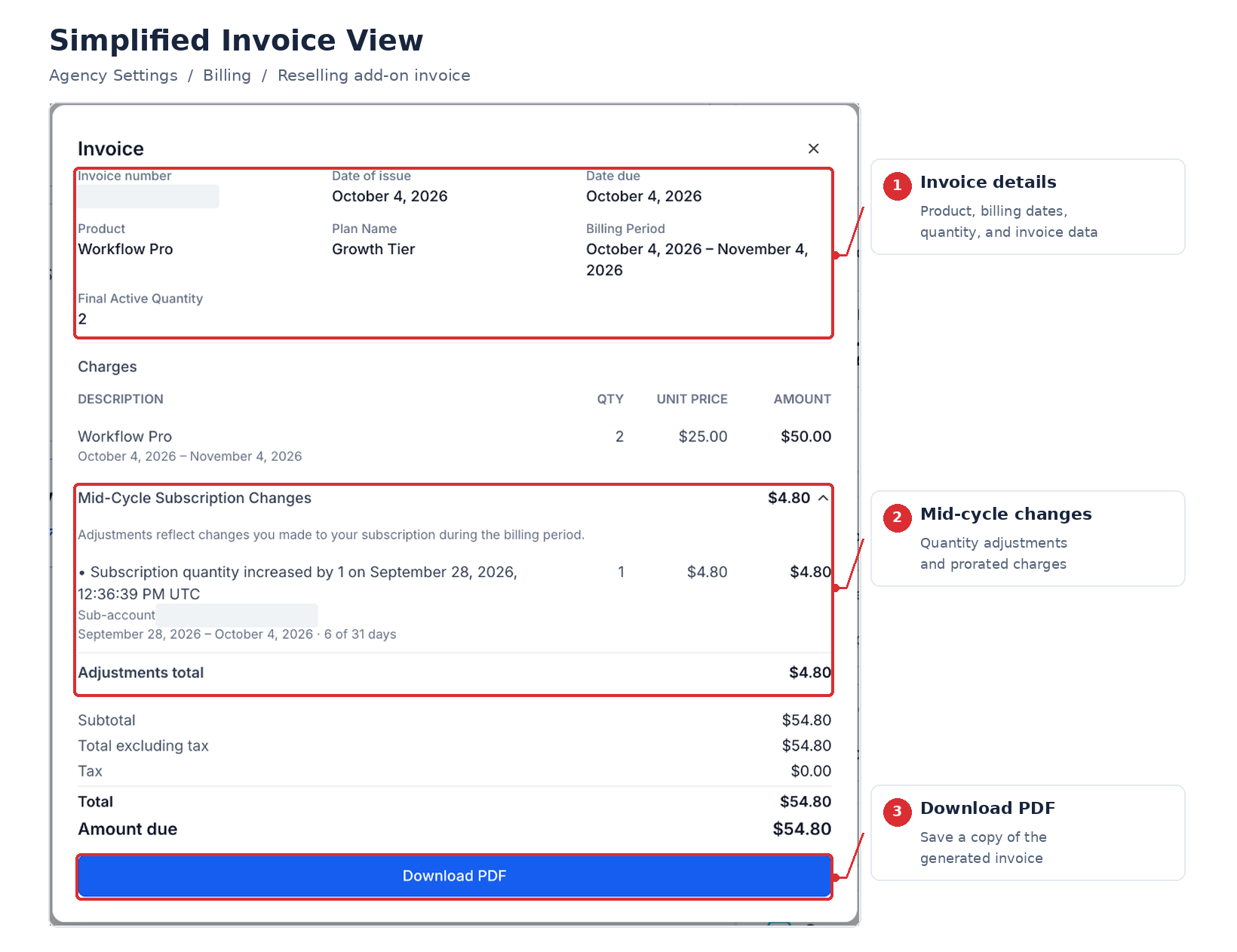
The invoice separates subscription information, prorated adjustments, and final amounts so you can understand what was billed and why. Net adjustments simplify the presentation without changing the amounts calculated by Stripe.
- Invoice header: Shows the invoice number, date of issue, date due, product, Plan Name, billing period, and final active quantity.
- Charges: Displays subscription charges with quantity, unit price, amount, and applicable billing period.
- Mid-Cycle Subscription Changes: Shows net adjustments for quantity changes during the billing cycle, including the adjustment amount and applicable period.
- Sub-account: Identifies the sub-account responsible for an adjustment when attribution is available.
- Credits: Appear in green in the invoice view to distinguish them from charges.
- Totals: Shows subtotal, total excluding tax, tax, total, and amount due.
The downloaded PDF contains a formatted copy of the same invoice breakdown.
Frequently Asked Questions
Q: Am I being charged twice when I see prorated entries?
A mid-cycle subscription change can create both credit and debit entries. The simplified invoice combines them into a net adjustment without changing the underlying Stripe-calculated total.
Q: Why doesn't a sub-account change I made today appear?
Only generated invoice charges are displayed. Changes made after the latest invoice will appear when the next invoice is generated.
Q: Why can't I see previous invoices?
The simplified panel shows only the latest generated invoice for the selected product's subscription. It is not an invoice history.
Q: Why isn't a sub-account name shown on an adjustment?
Sub-account attribution may be unavailable on existing invoices. Names begin appearing on invoices generated in subsequent billing cycles.
Related Articles
Was this article helpful?
That’s Great!
Thank you for your feedback
Sorry! We couldn't be helpful
Thank you for your feedback
Feedback sent
We appreciate your effort and will try to fix the article