Conversation AI Flow Builder in HighLevel lets you create inbound chat experiences using connected AI agents, actions, and conversation paths. Instead of managing every task through one prompt, you can assign specific responsibilities and tools to different agents. The visual canvas makes it easier to organize conversations, route requests, and test how your bot responds. This article explains how to build, test, and configure a flow-based bot.
TABLE OF CONTENTS
- What is Conversation AI Flow Builder?
- Key Benefits of Conversation AI Flow Builder
- Understanding the Flow Builder Canvas
- How to Build a Conversation AI Bot with Flow Builder
- AI Agent and Global AI Agent Nodes
- AI Agent
- Global AI Agent
- Routing and Flow Control
- Tools and Actions in Flow Builder
- Bot Transfer and Wait
- Building a Flow with AI
- Testing and Deploying Your Flow
- Frequently Asked Questions
- Related Articles
What is Conversation AI Flow Builder?
Conversation AI Flow Builder is a visual canvas for creating inbound conversations using specialized AI agents and connected nodes.
Each AI Agent can have its own instructions and tools. You can connect agents through routes, collect contact information, transfer conversations to other bots, and configure actions based on what a contact needs.
For example, a clinic can build a bot that collects patient information, answers treatment questions, books appointments, and transfers billing questions to a separate bot.
Important: The new Flow Builder is designed for inbound conversations. Outbound campaigns and outbound opening messages remain available through supported prompt-based bot configurations.
Key Benefits of Conversation AI Flow Builder
Flow Builder helps businesses organize complex conversations without placing every instruction in one prompt.
Specialized Agents: Assign different tasks and instructions to individual AI Agents.
Visual Routing: Connect nodes to guide conversations through different paths.
Global Assistance: Use a Global AI Agent for requests that may occur at any stage.
Flexible Tools: Give agents access to the tools needed for their responsibilities.
Conversation Continuity: Use Wait and Bot Transfer to manage pauses and handoffs.
Easier Testing: Test conversation paths using a selected contact.
AI-Assisted Building: Generate or modify flows using natural-language instructions.
Understanding the Flow Builder Canvas
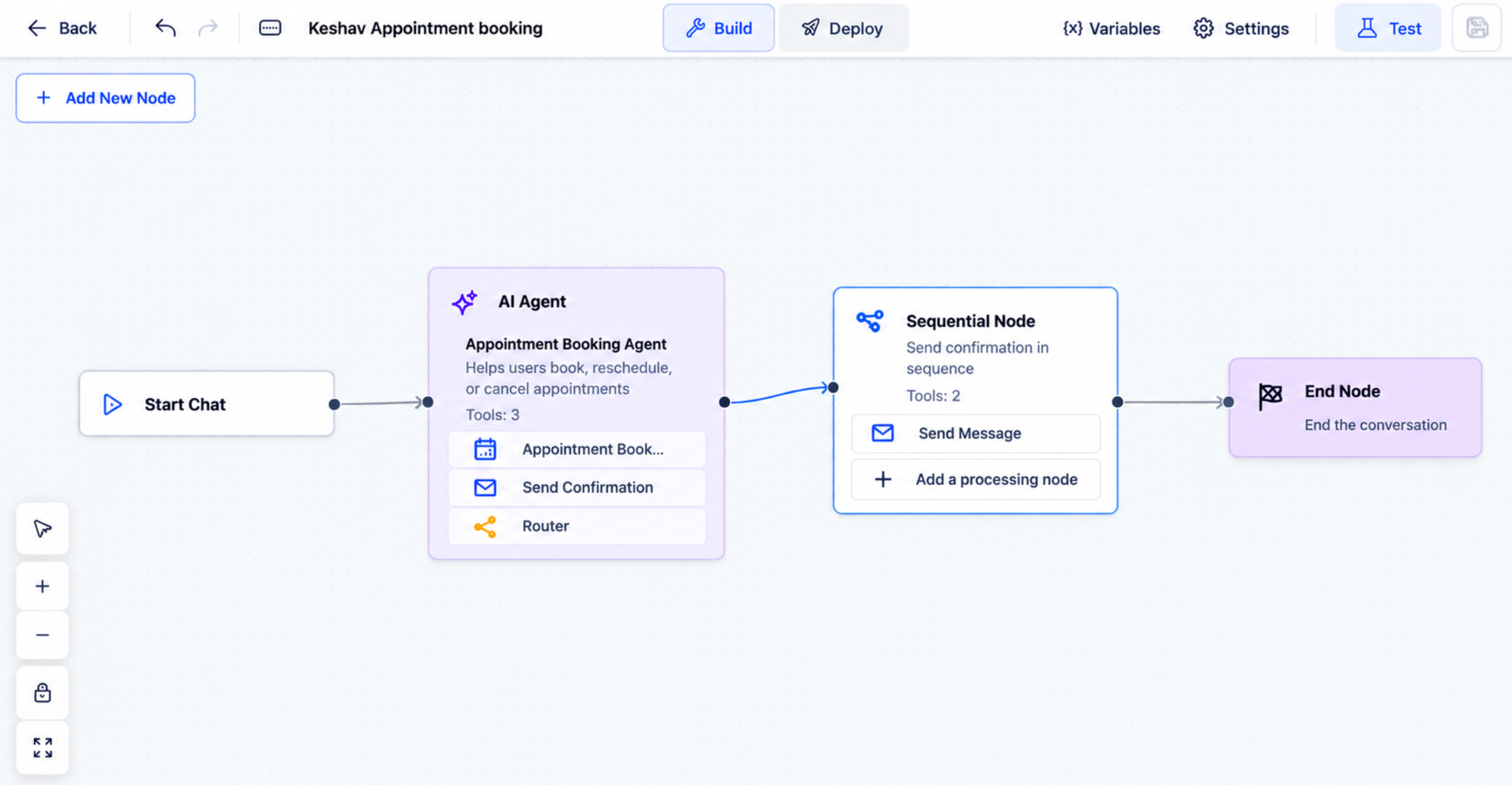
The canvas provides a visual workspace where you can create, connect, and configure conversation nodes.
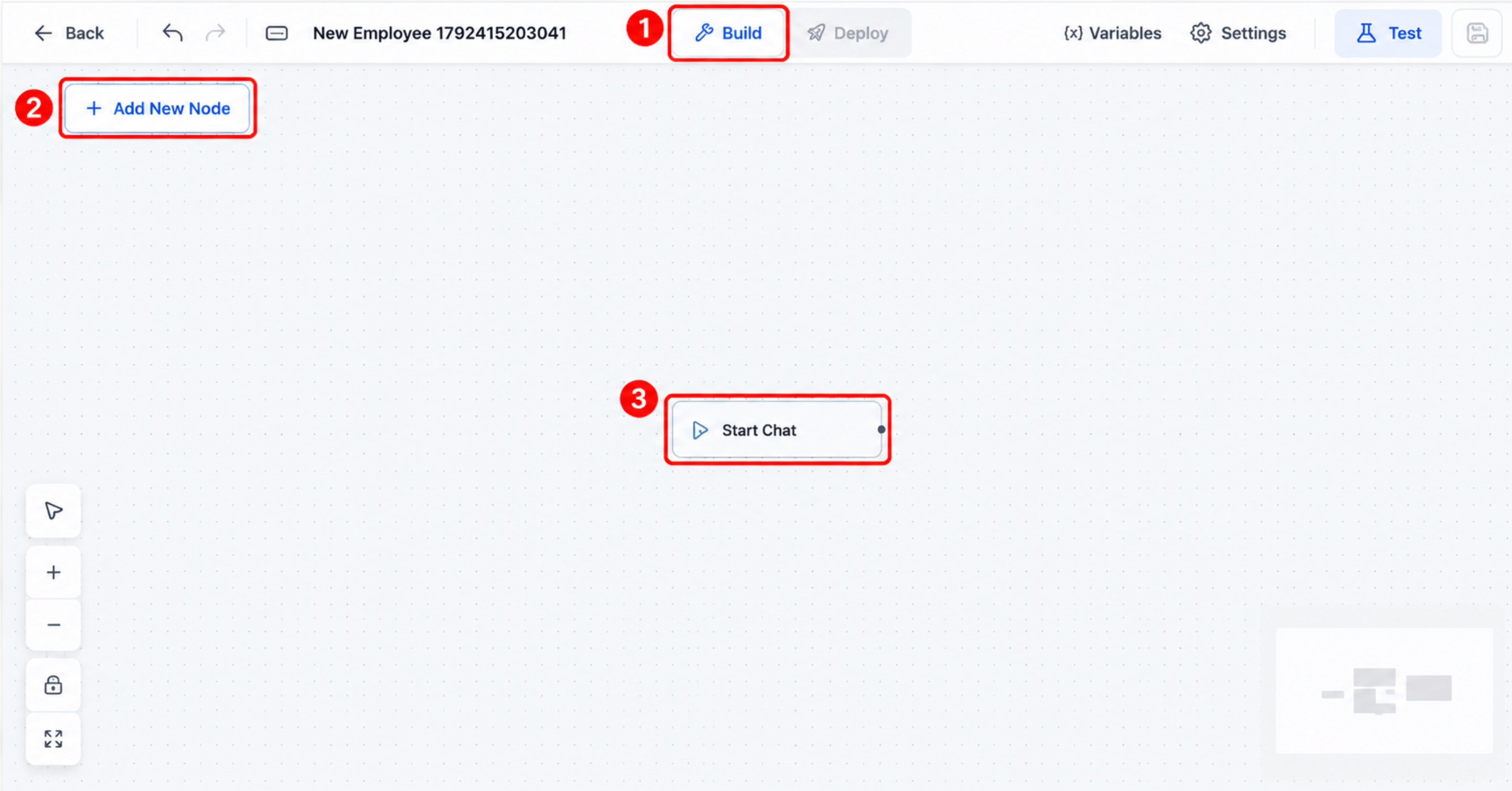
New flow-based bots begin with a basic structure containing Start Chat, an AI Agent, and an End Node, as described in the release.
The main controls include:
Build: Add and configure conversation nodes.
Deploy: Set up inbound channels and Working Hours.
Test: Test the bot using a selected contact.
Add New Node: Add agents, tools, and flow-control components.
Start Chat is the fixed entry point for incoming conversations. It runs when a chat begins and does not require a separate trigger.
Note: The new multi-agent canvas differs from the earlier Conversation AI Flow Builder interface. Existing prompt bots, form bots, and legacy flow configurations remain separate.
How to Build a Conversation AI Bot with Flow Builder
Creating a flow-based bot involves adding agents, connecting conversation paths, assigning tools, and testing the result before activation.
Step 1: Create a Flow-Based Bot
Start by creating a bot in the Conversation AI workspace.
Go to AI Agents → Conversation AI.
Click Create Bot.
Choose Flow Based Builder.
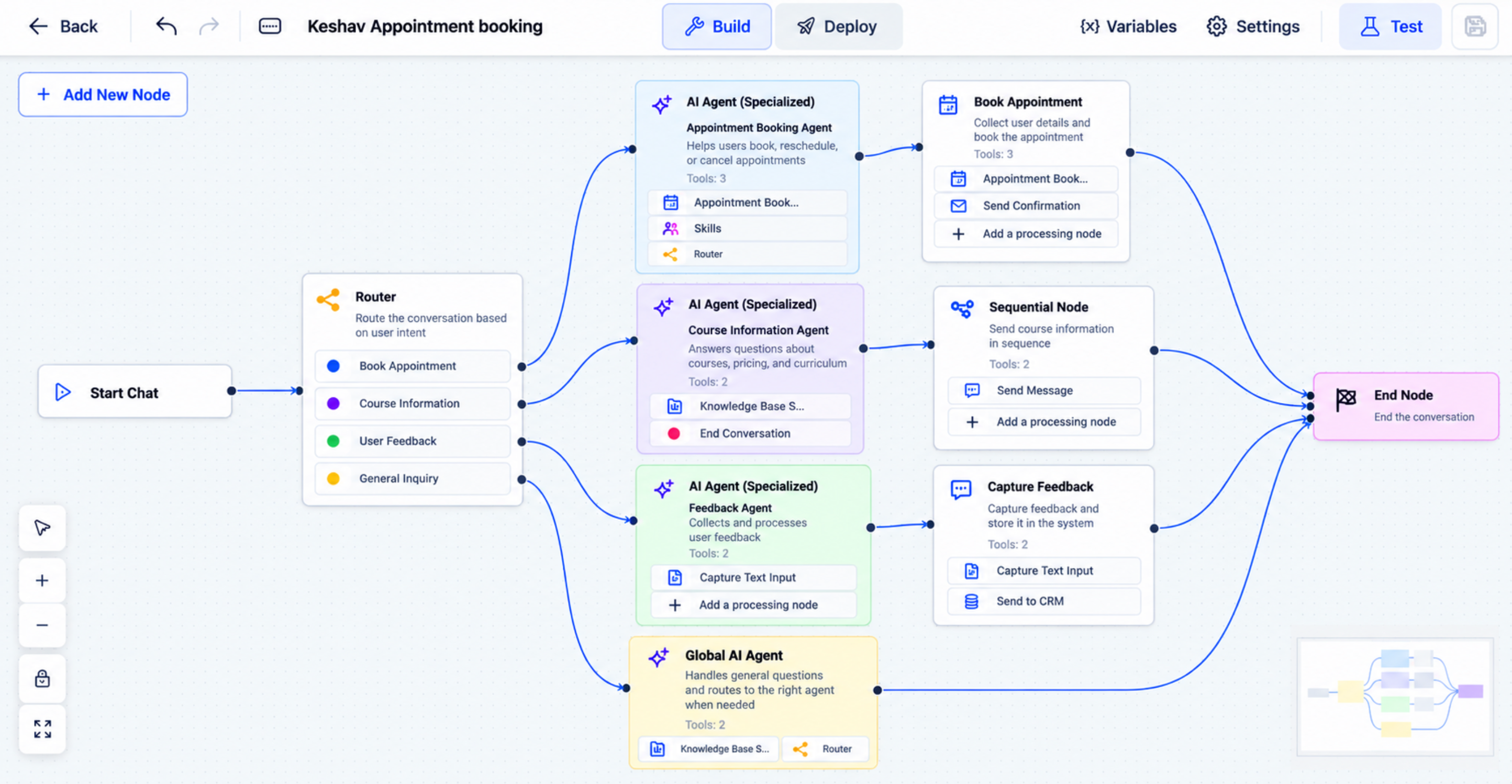
Open the Build canvas.
Review the starting conversation structure.
Step 2: Add an AI Agent
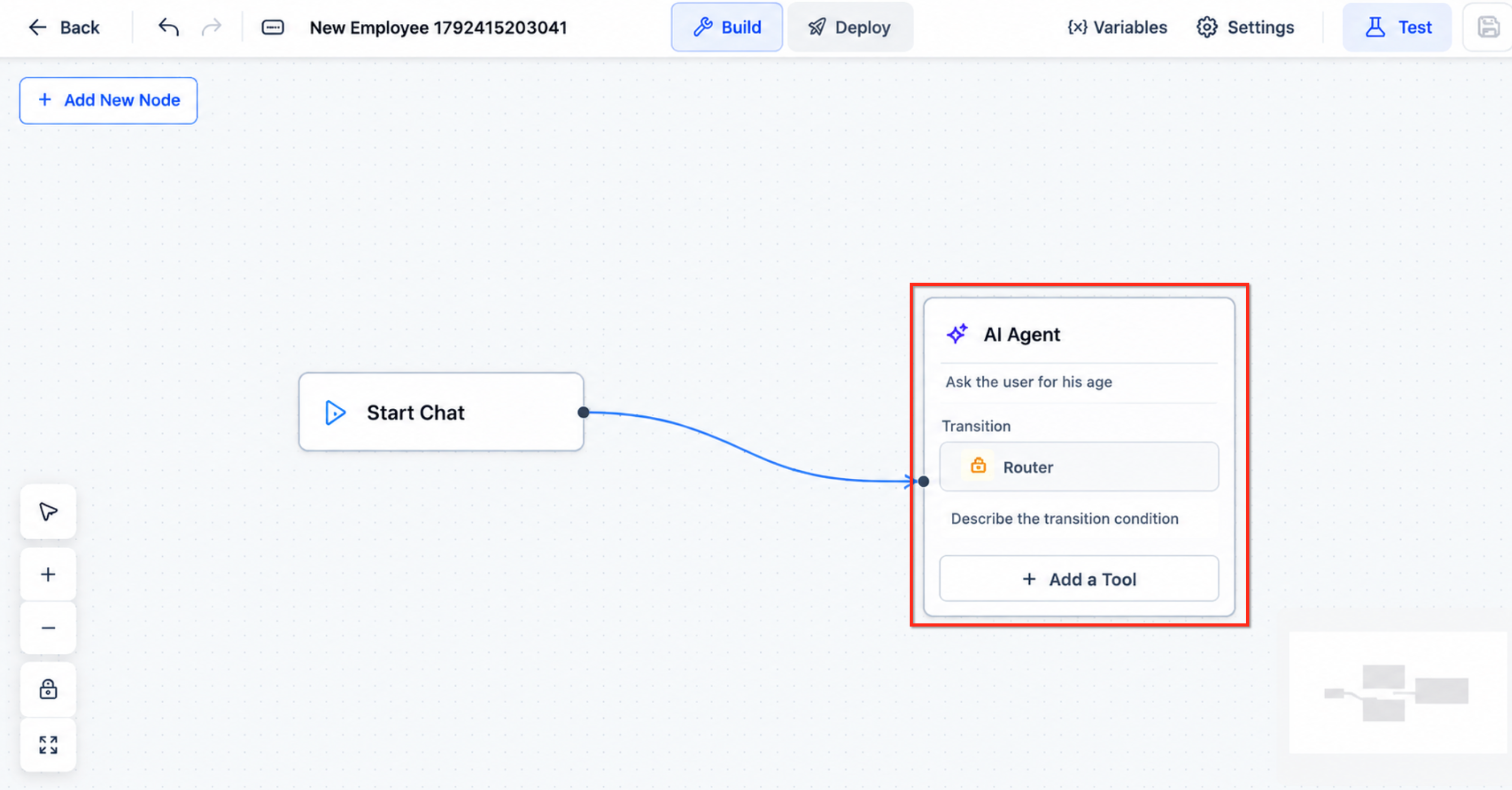
AI Agent nodes handle specific parts of the conversation.
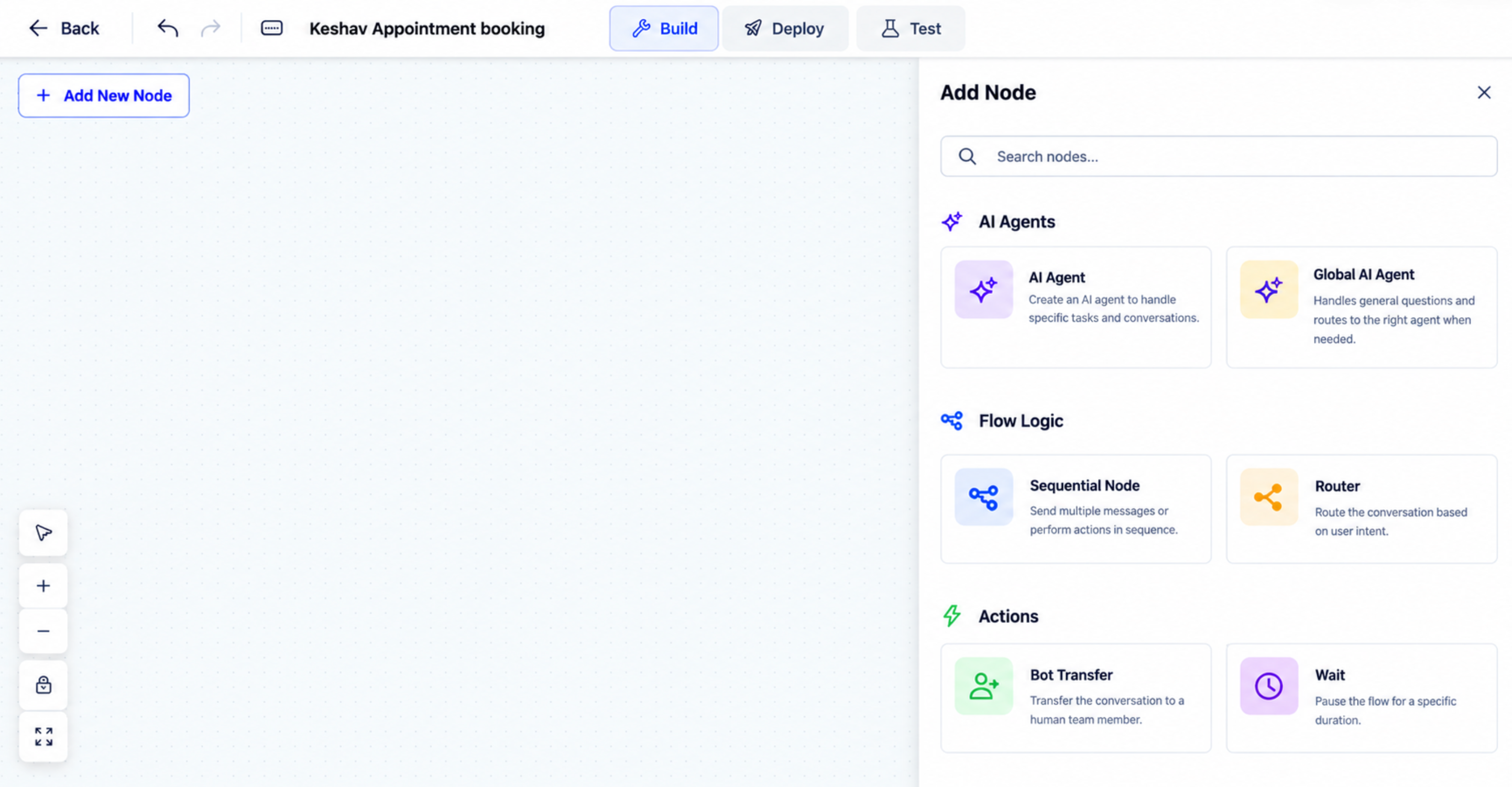
Click Add New Node.
Select AI Agent.
Give the agent a descriptive name.
Add instructions explaining its responsibilities.
Connect the agent to the appropriate node in the flow.
For example, name the agent Appointment Assistant and instruct it to help contacts book appointments.
Step 3: Add Tools to the Agent
Tools help an agent complete its assigned task.
Select the AI Agent node.
Click Add a Tool.
Choose the required tool.
Complete any additional configuration.
For an appointment agent, add the supported Appointment Booking tool and configure the required calendar settings.
Use only the tools needed for that agent's responsibilities.
Step 4: Add Conversation Routes
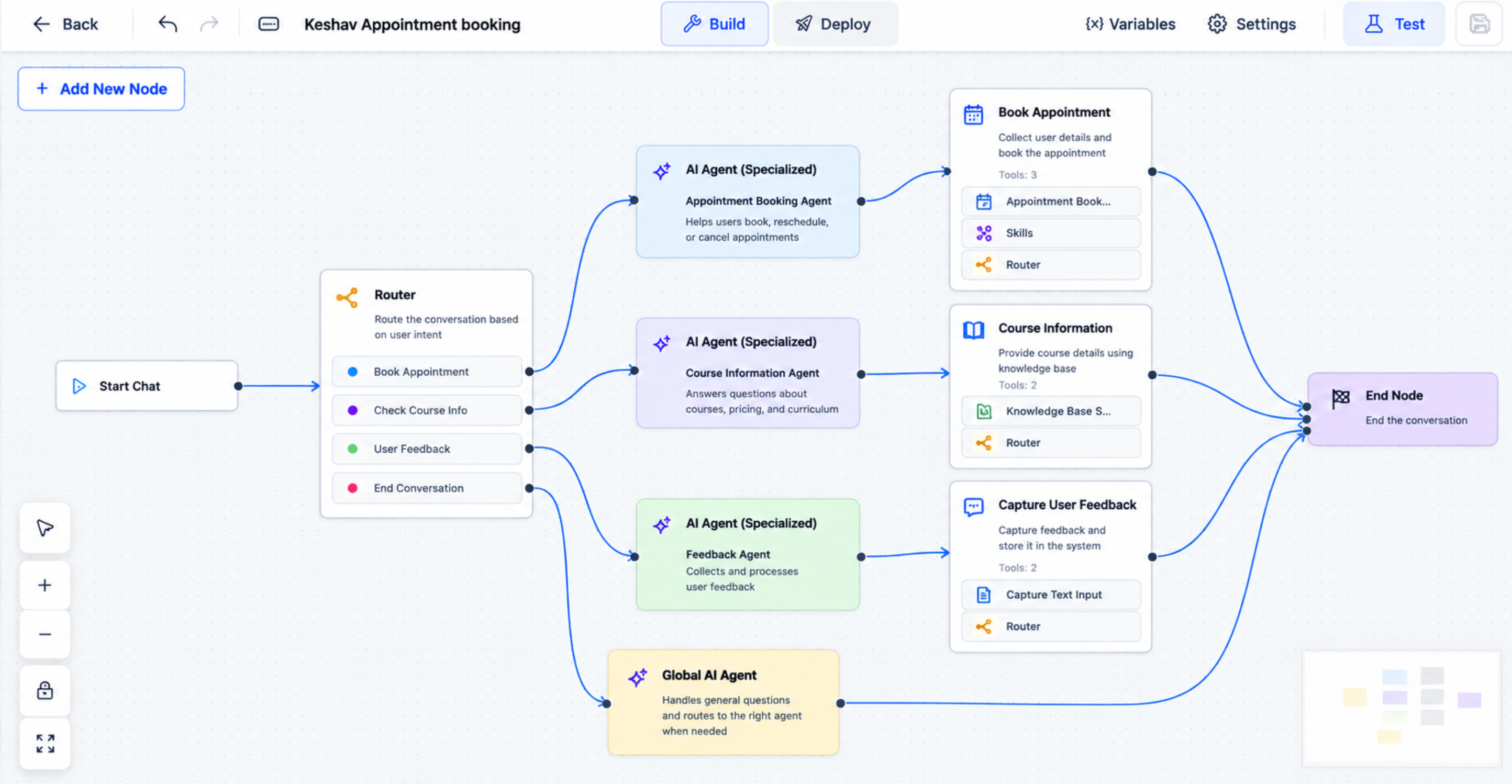
Routing sends contacts to the appropriate part of the flow.
Add a Router where the conversation needs to branch.
Configure the available route conditions or descriptions.
Connect each route to its destination node.
Review the connections.
Step 5: Add Additional Nodes
Additional nodes let you collect information and control how the conversation continues.
Depending on your workflow, you can add:
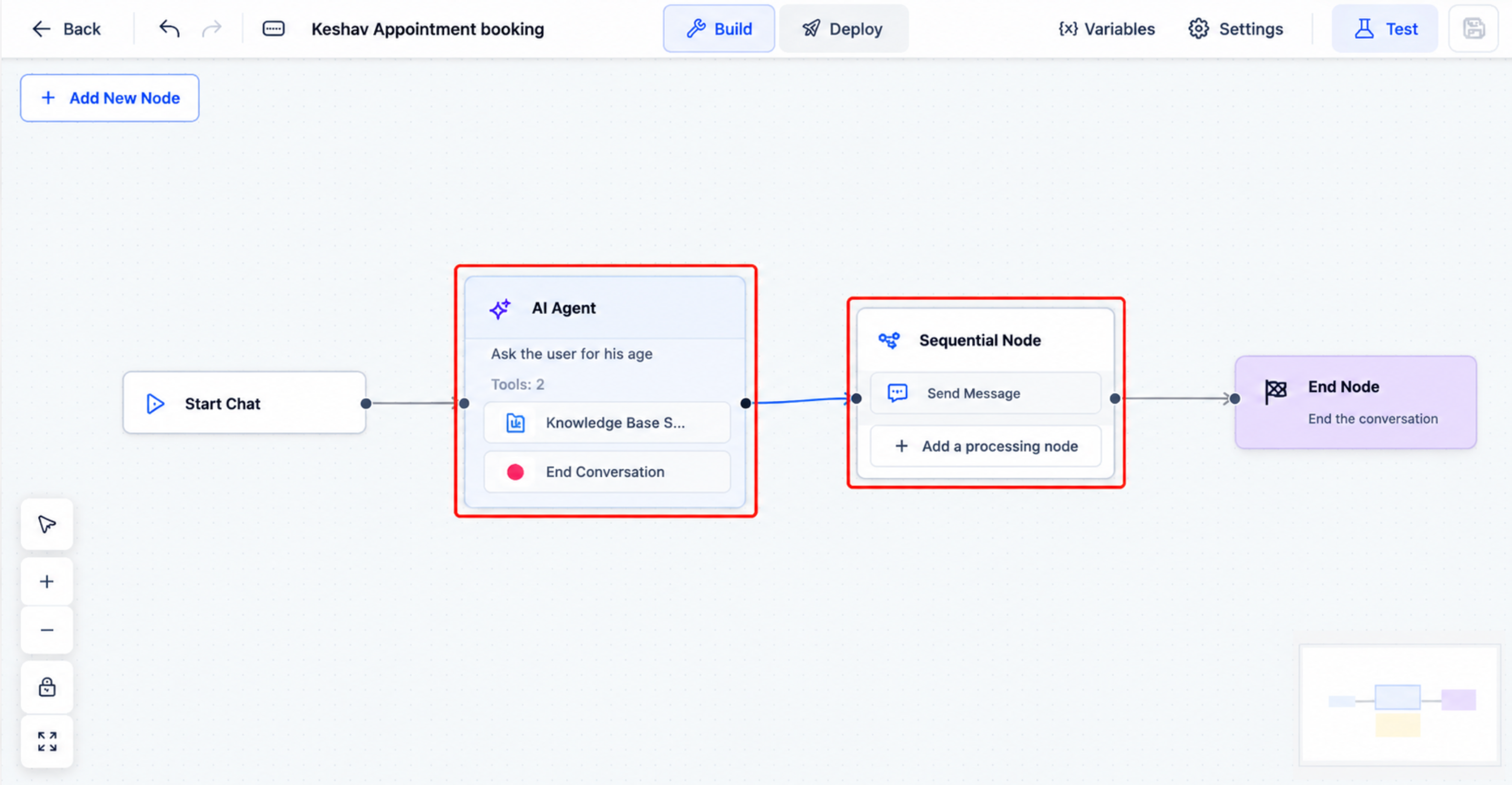
Sequential to perform configured actions in order.
Wait to pause the flow.
Bot Transfer to hand the conversation to another bot.
Email Capture, Phone Capture, or Text Input Capture to collect information.
Global AI Agent to handle requests across conversation paths.
End Node to mark the end of the flow.
Step 6: Review the Completed Flow
Reviewing the full canvas helps identify missing routes or incorrectly connected nodes.
Check the connections between nodes.
Review agent instructions and assigned tools.
Confirm Router destinations.
Check Global AI Agent responsibilities.
Review Wait, transfer, and ending paths.
Step 7: Test the Flow
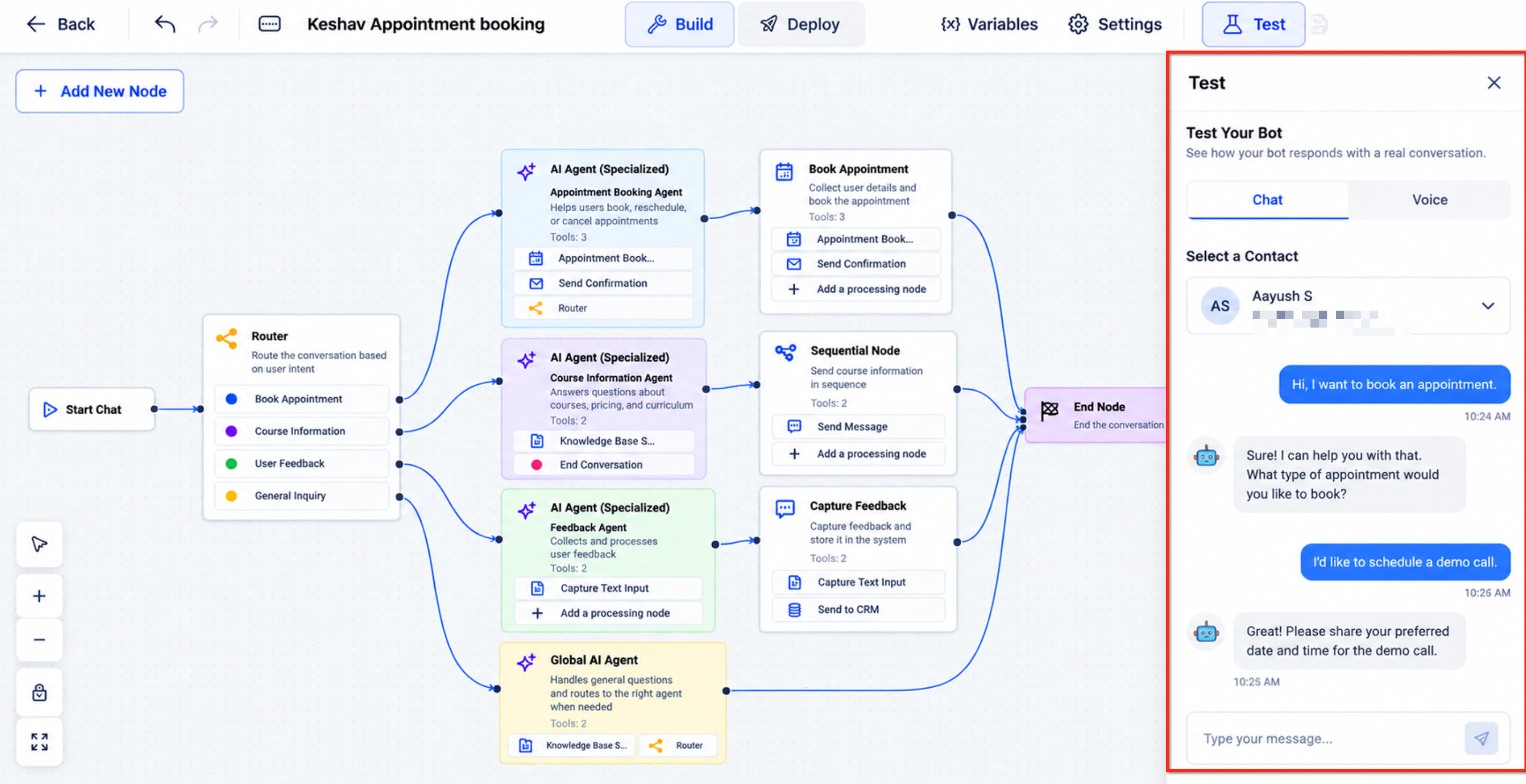
Testing helps verify the experience before the bot is activated.
Click Test.
Select a contact for testing.
Start a test conversation.
Try different requests and routing scenarios.
Check agent responses, tool behavior, and handovers.
Adjust the flow if necessary.
Important: Some tools can affect contact records, appointments, or other account data. Use an appropriate test contact and review the actions performed during testing.
[Screenshot placeholder: Test Panel]
Step 8: Configure Deploy and Activate the Bot
Deployment settings determine which inbound channels the bot can answer and when it is available.
Open Deploy.
Configure the supported Inbound channels.
Set Working Hours and any required after-hours behavior.
Review the deployment settings.
Open Bot Settings.
Activate the bot using the applicable bot activation control.
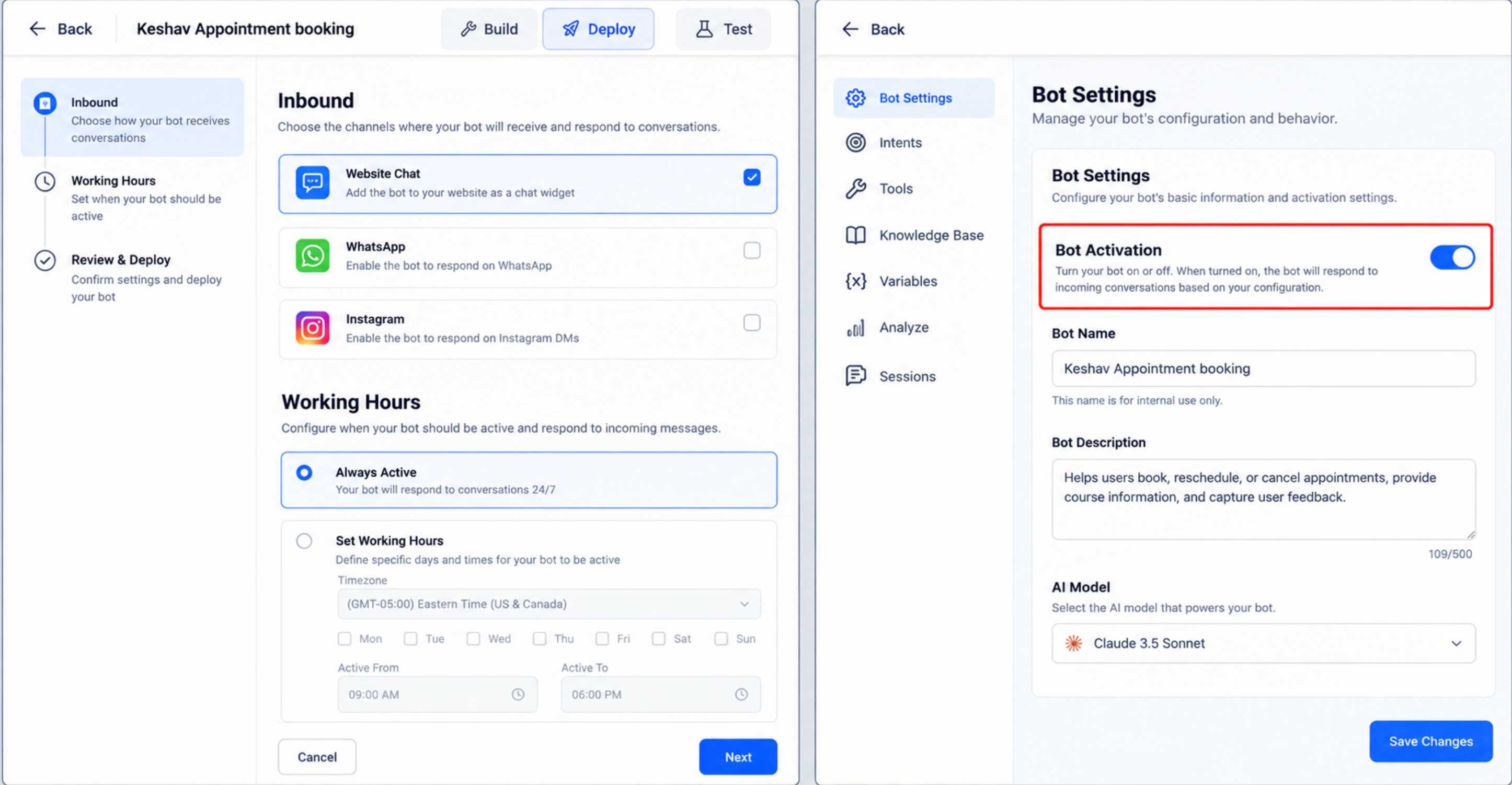
Important: The new Flow Builder is for inbound conversations. Outbound campaigns remain separate, and the canvas has no dedicated Publish button.
AI Agent and Global AI Agent Nodes
AI Agent nodes determine how different parts of a conversation are handled.
AI Agent
An AI Agent manages a specific task using its own instructions and assigned tools.
For example, you can create separate agents to:
Qualify a lead.
Answer questions using a Knowledge Base.
Book an appointment.
An AI Agent handles the conversation when its connected path is active.
Global AI Agent
A Global AI Agent remains available throughout the conversation rather than only within one branch.
It is useful for requests that can occur at any time, such as:
Asking to speak with a person.
Requesting that the bot stop.
Requesting another supported action while a different agent is active.
Global AI Agents can also use their own assigned tools.
Tip: Use specialized agents for individual tasks and Global AI Agents for requests that should remain available across the conversation.
Routing and Flow Control
Flow-control nodes determine how conversations move between agents and actions.
| Node | Purpose |
|---|---|
| Router | Directs conversations to different paths based on configured conditions |
| Sequential | Performs configured actions in order |
| Wait | Pauses the flow until a supported time or reply condition |
| Bot Transfer | Hands the conversation to another bot |
| End Node | Marks the end of a flow path |
| Sticky Note | Adds internal notes to organize the canvas |
For example, a Router can direct appointment requests to a booking agent and billing questions to a transfer path.
A Wait node can pause the flow for a period of time or until a supported reply condition is met.
Tools and Actions in Flow Builder
Tools allow an AI Agent to perform specific tasks beyond generating replies.
You can assign tools to the agents that need them instead of making every tool available throughout the flow.
Supported tools described in the release include:
| Tool | Purpose |
|---|---|
| Knowledge Base | Answer questions using connected business information |
| Web Search | Find information beyond the connected Knowledge Base |
| Appointment Booking | Book appointments using configured calendars |
| Skills | Perform supported CRM tasks |
| API Call | Interact with external systems |
| MCP | Use tools from connected MCP servers |
| Custom Message | Send predefined wording |
| Email Capture | Collect an email address |
| Phone Capture | Collect a phone number |
| Text Input Capture | Collect information through a text response |
For example, a questions agent can use Knowledge Base, while an appointment agent can use Appointment Booking.
Important: Some tools require additional configuration, permissions, or external connections before they can be used.
Bot Transfer and Wait
Bot Transfer and Wait help conversations continue when a different bot or additional information is needed.
Bot Transfer hands a live conversation to another configured bot. For example, a clinic's front-desk bot can transfer a billing question to a billing bot.
Wait pauses the current flow until a configured condition is met. Supported conditions described in the release include elapsed time, scheduled times, contact replies, and team member replies.
The release also describes team replies resuming certain reply-based waits.
These nodes help avoid restarting a conversation when a contact returns or a different bot needs to handle the request.
For additional transfer configuration, see Conversation AI – Transfer Bot Action.
Building a Flow with AI
Build with AI helps you create or modify a conversation flow using natural-language instructions.
Instead of adding every node manually, describe what you want the bot to accomplish.
For example:
"Create a clinic front-desk bot that collects patient details, answers treatment questions, books appointments, and transfers billing questions to another bot."
Ask AI can draft a flow from your description or help modify the existing canvas.
Note: Build with AI is marked Beta in the supplied interface. Review the generated agents, routes, and tools before testing or activating the bot.
Testing and Deploying Your Flow
Testing helps you check whether the bot follows the correct conversation paths before handling inbound messages.
Use Test to evaluate the flow with a selected contact. Test common requests, alternative routes, booking actions, and handovers.
The Deploy tab controls where and when the bot can respond:
Inbound: Configure supported inbound channels.
Working Hours: Configure response availability and supported after-hours behavior.
The release identifies separate permissions for channel management and Working Hours.
Important: Configuring Deploy does not replace bot activation. The bot is turned on through Bot Settings. The new canvas does not have a separate Publish button or built-in version history.
Frequently Asked Questions
Q: What is the difference between Flow Builder and a prompt-based bot?
A: A prompt-based bot uses a main set of instructions. Flow Builder separates conversation tasks into connected agents and nodes.
Q: Do I need to configure a trigger for Start Chat?
A: No. Start Chat is the fixed entry point for an inbound conversation.
Q: Can different AI Agents use different tools?
A: Yes. Each AI Agent can have its own instructions and assigned tools.
Q: What is a Global AI Agent used for?
A: A Global AI Agent handles requests that may occur throughout the conversation, such as asking for human assistance.
Q: Can Flow Builder transfer a conversation to another bot?
A: Yes. Use Bot Transfer to hand the active conversation to another configured bot.
Q: Can a flow wait for someone to reply?
A: Yes. Wait supports configured time-based and reply-based conditions.
Q: Can I create a flow using AI?
A: Yes. Build with AI can draft or modify flows from natural-language instructions. The feature is marked Beta in the supplied interface.
Q: How do I test a flow before activating it?
A: Click Test, select a contact, and run sample conversations through the configured paths.
Q: Does clicking Deploy automatically activate the bot?
A: No. Deploy configures inbound channels and Working Hours. Activation remains in Bot Settings.
Q: Can Flow Builder run outbound campaigns?
A: No. This Flow Builder is designed for inbound conversations. Outbound campaign functionality remains separate.
Related Articles
Was this article helpful?
That’s Great!
Thank you for your feedback
Sorry! We couldn't be helpful
Thank you for your feedback
Feedback sent
We appreciate your effort and will try to fix the article