Build with AI for Voice AI Flows
Build with AI transforms how you create Voice AI experiences in HighLevel. Instead of manually connecting nodes and configuring actions, you describe what you want your Voice AI to do, and Build with AI generates the complete flow graph for you.
This article explains what Build with AI is, its key capabilities, how to use it to create or modify flows, and includes ready-to-build use cases for common business scenarios.
What is Build with AI?
Build with AI is an intelligent assistant within HighLevel's Flow-Based Builder that allows you to create and modify Voice AI conversation flows using natural language. Instead of manually dragging nodes and configuring actions, you simply describe the Voice AI experience you want to create through chat, and Build with AI generates the complete flow graph for you.
Whether you're starting from scratch or updating an existing flow, Build with AI helps you go from idea to implementation in minutes. The AI understands Voice AI-specific requirements, asks clarifying questions when needed, and creates flows optimized for voice interactions.
Build with AI is purpose-built for Voice AI experiences and understands the capabilities available in Flow-Based Builder, including native actions, Knowledge Base integrations, Web Search, Model Context Protocol (MCP), and other supported tools.
Key Capabilities
Build with AI combines natural language understanding with deep knowledge of Voice AI workflows to deliver powerful flow creation capabilities.
How Build with AI Works
Build with AI follows a collaborative process to ensure you get exactly the Voice AI flow you need. The workflow includes understanding your requirements, creating a build plan, generating the flow, and allowing you to review before applying.
You chat with Build with AI and describe the Voice AI experience you want to create. Explain what the Voice AI should do, what information it should collect, and how it should respond to different scenarios.
If needed, Build with AI asks clarifying questions to better understand your workflow requirements. This ensures the generated flow matches your specific business process and conversation logic.
Build with AI creates a build plan outlining the flow structure, actions, and conversation logic it will implement. You can review this plan and request changes before the flow is generated.
Build with AI generates the complete flow graph based on your requirements and the approved build plan. You can preview the generated graph and see all nodes, connections, and configurations.
Once you're satisfied with the generated flow, apply it to your canvas. Build with AI adds the flow to your Flow-Based Builder workspace where you can further customize it or immediately start using it.
How to Use Build with AI
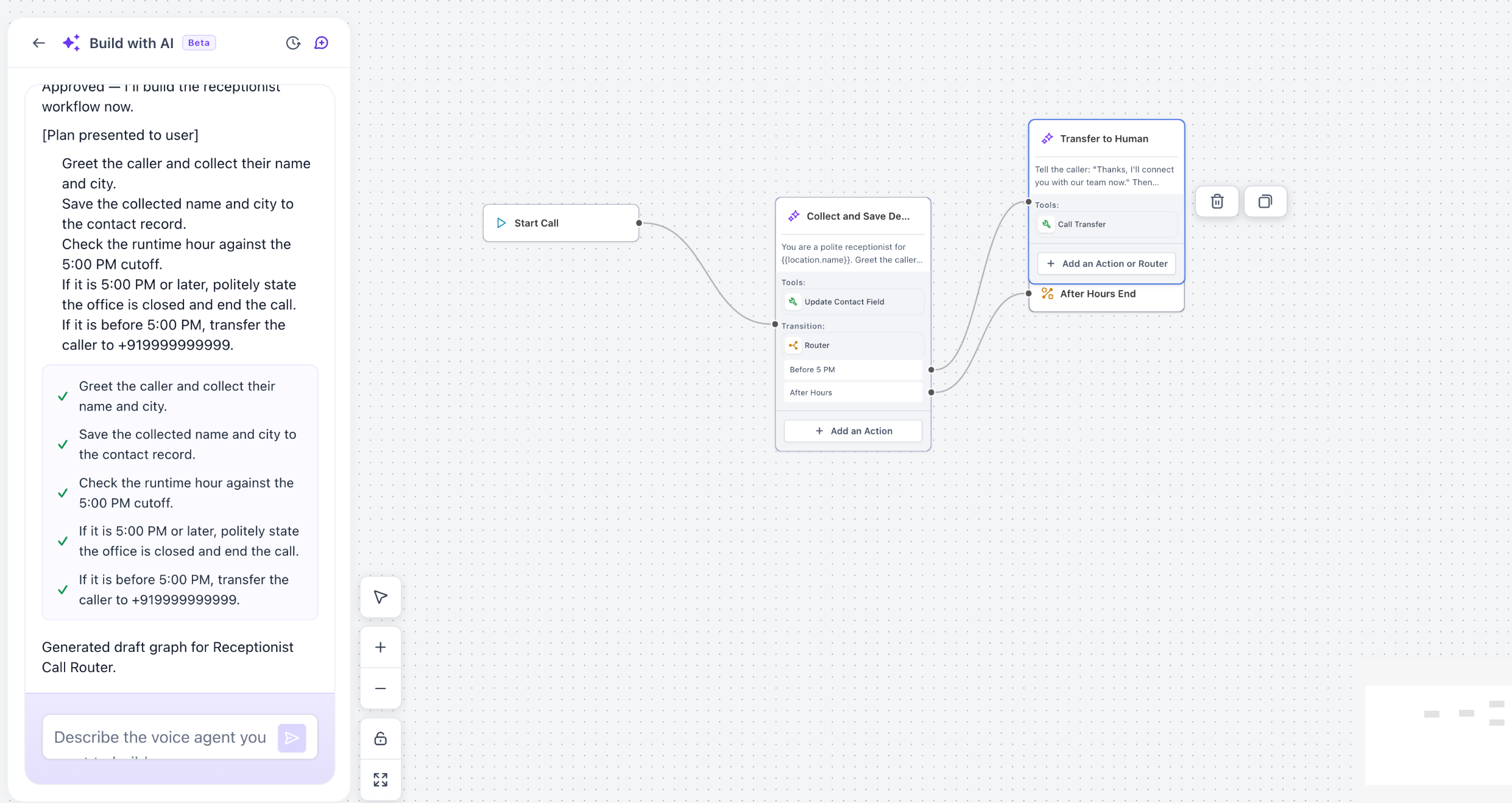
Build with AI is integrated directly into the Flow-Based Builder interface with a split-screen layout that makes it easy to describe your requirements and see the generated flow in real time.
The Build with AI interface features a two-panel layout:
Left Panel (Chat) — The conversational interface where you describe your Voice AI requirements, review build plans with checkmarks showing completed steps, and interact with the AI to refine your flow.
Right Panel (Canvas) — The visual flow builder where you see the generated graph with all nodes, connections, and routing logic. You can zoom, pan, and inspect nodes before applying the flow to your workspace.
Creating a New Flow
When creating a new flow, describe the Voice AI experience you want to build in the chat panel. Be specific about what the Voice AI should do, what information it should collect, and how it should handle different caller scenarios. Build with AI will generate a complete flow graph that appears in the canvas panel for your review.
The more specific you are in your description, the better Build with AI can match your requirements. Include details about caller types, information to collect, decision points, and what actions to take based on caller responses.
Editing Existing Flows
To modify an existing flow, describe the changes you want to make in the chat panel. You can add new capabilities, modify conversation logic, update actions, or restructure parts of the flow. Build with AI understands your current flow and applies the requested changes while preserving the rest of your configuration.
Reviewing and Applying Your Flow
After Build with AI generates your flow:
- Review the build plan in the chat panel (marked with green checkmarks when approved)
- Examine the flow graph in the canvas panel to see all nodes and connections
- Click on individual nodes to inspect their configurations and actions
- Request changes through the chat if you want to modify the flow
- Apply the flow to your workspace when you're satisfied with the result
The flow is not applied to your workspace until you explicitly choose to apply it. You can preview, request changes, and iterate as many times as needed before committing the flow to your canvas.
Ready-to-Build Use Cases
Build with AI can create Voice AI flows for a wide range of business scenarios. Below are common use cases you can describe to Build with AI to quickly generate functional flows for your business.
Answer clinic FAQs, identify emergency versus routine calls, transfer urgent callers to the right team, and send office information via SMS after hours.
Collect the service type and ZIP code, determine serviceability, update the contact record, and trigger an estimate workflow automatically.
Qualify callers based on company size and use case, tag the contact, and route enterprise prospects directly to the sales team.
Answer common questions using your Knowledge Base, identify whether the issue is billing or technical support, and transfer callers to the appropriate team.
Schedule appointments, answer frequently asked questions, capture patient information, and seamlessly hand off complex inquiries to staff.
Qualify buyers and sellers, collect property requirements, answer listing questions, and trigger follow-up workflows for your sales team.
Frequently Asked Questions
Was this article helpful?
That’s Great!
Thank you for your feedback
Sorry! We couldn't be helpful
Thank you for your feedback
Feedback sent
We appreciate your effort and will try to fix the article