WhatsApp Carousel Templates allow businesses to showcase multiple products, services, or offers in a single interactive WhatsApp message. Each carousel contains 2–10 swipeable cards with images or videos, descriptions, and buttons. This article explains how to create, configure, approve, and send carousel templates in HighLevel.
TABLE OF CONTENTS
- What Are WhatsApp Carousel Templates?
- Key Benefits of WhatsApp Carousel Templates
- How to Set Up WhatsApp Carousel Templates
- WhatsApp Carousel Card Components
- Media and Content Requirements
- Carousel Buttons and Interactions
- WhatsApp Carousel Template Limitations
- Frequently Asked Questions
- Related Articles
What Are WhatsApp Carousel Templates?
WhatsApp Carousel Templates are marketing messages that display multiple swipeable cards within one WhatsApp conversation. Customers can browse different offers and interact with individual cards without leaving the chat.
Each carousel contains a main message body and 2–10 cards. Templates require Meta approval before they can be sent.
Key Benefits of WhatsApp Carousel Templates
Carousel templates help businesses present multiple offerings in one message, making marketing campaigns more engaging and cost-effective.
Showcase Multiple Offers: Display up to 10 products, services, or promotions in one message.
Reduce Messaging Costs: Pay for one marketing message instead of separate messages for each offer.
Improve Engagement: Let customers swipe through images, videos, and offers.
Personalize Content: Use supported variables in card descriptions.
Encourage Customer Actions: Add interactive buttons to individual cards.
Preview Before Sending: Review the carousel using the live preview during template creation.
How to Set Up WhatsApp Carousel Templates
Creating a carousel involves selecting the template type, adding cards, configuring their content, and submitting the finished template for approval.
Step 1: Create a Template
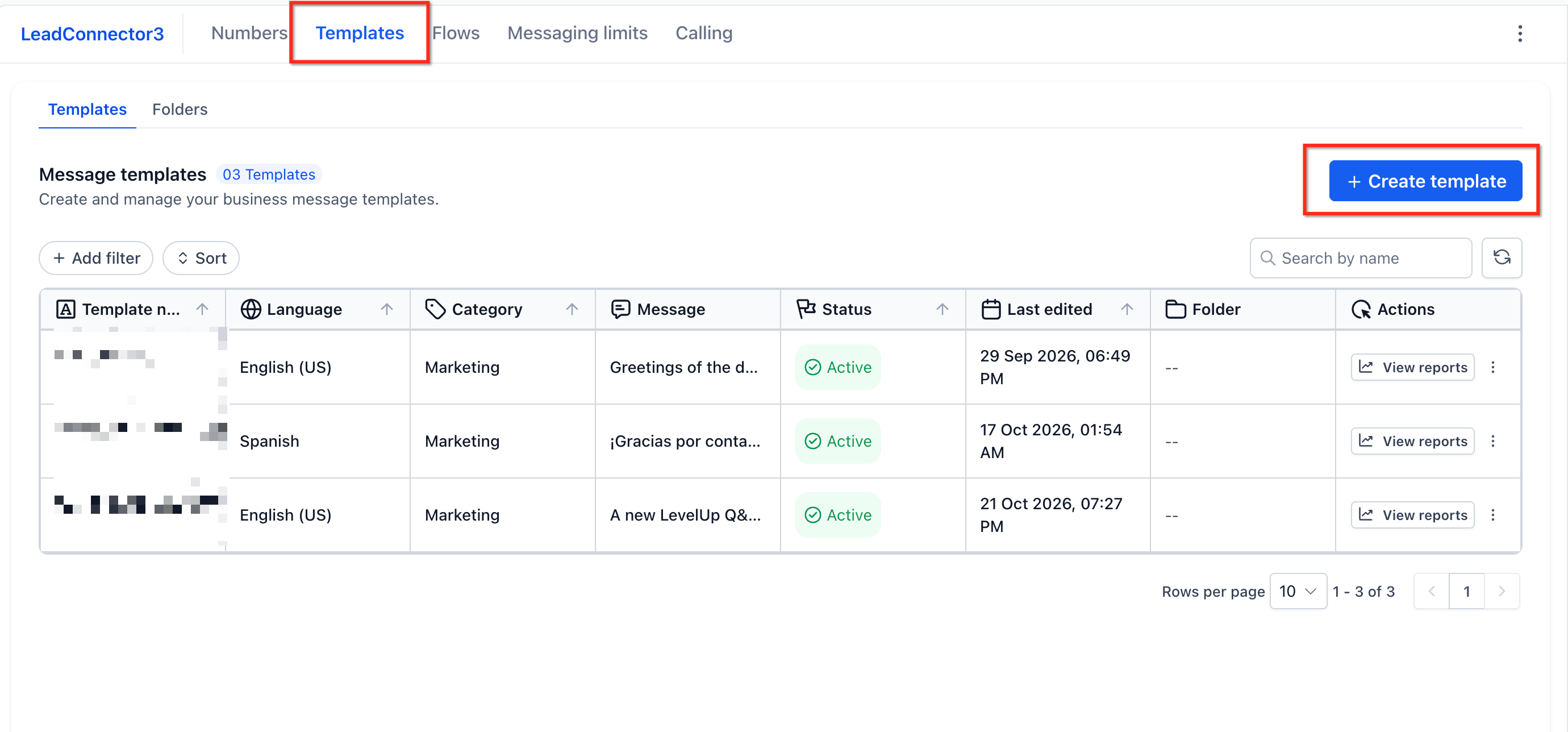
Navigate to Settings > WhatsApp > Templates.
Click Create Template.
Enter a template name and select the language.
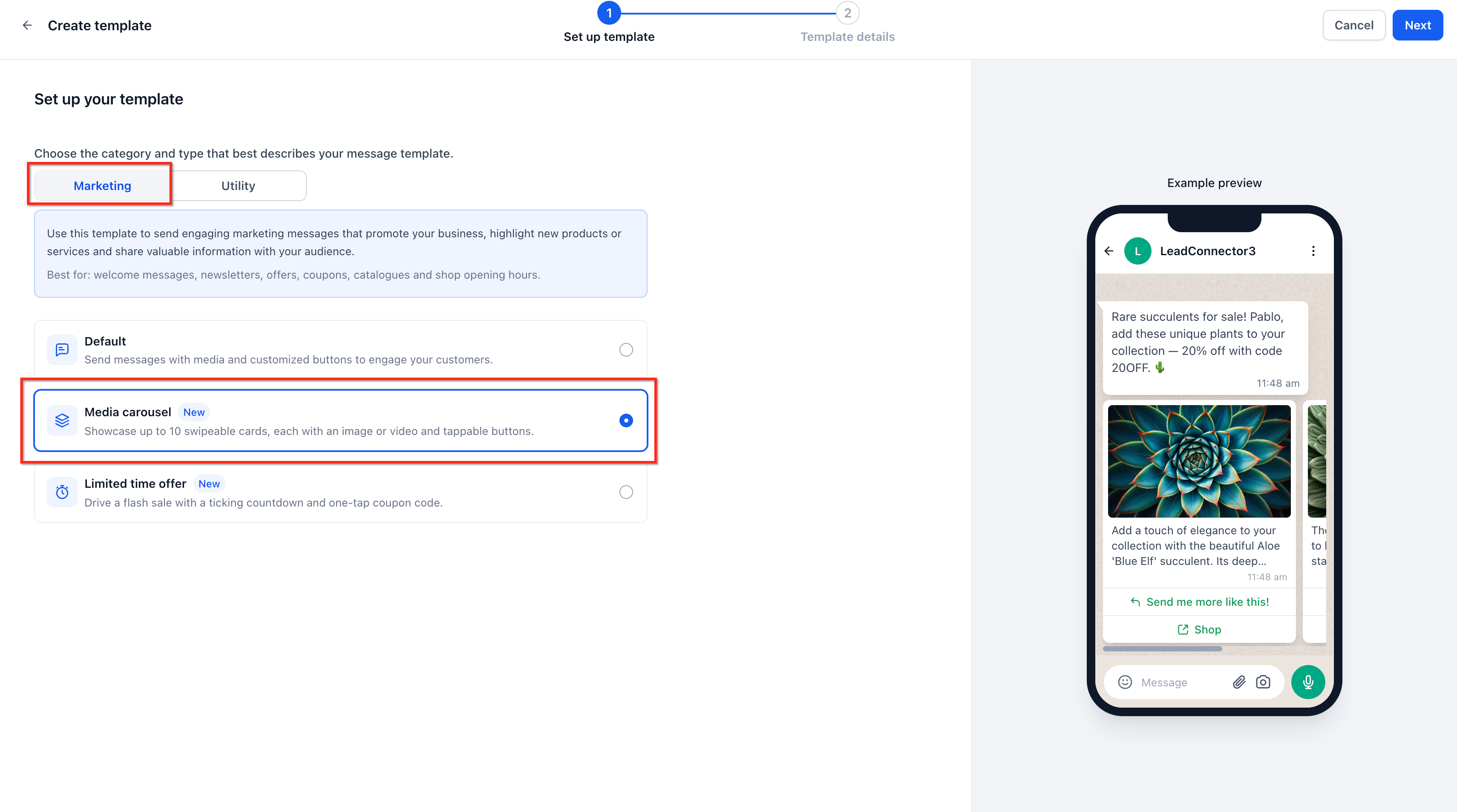
Choose Marketing as the category.
Select Media Carousel.
Step 2: Add Message Content and Cards
Enter the main message body.
Add 2–10 carousel cards.
Upload an image or video for each card.
Add a description of up to 160 characters per card.
Configure up to two buttons per card.
Drag cards to rearrange their order.
Ensure every card has the same button structure.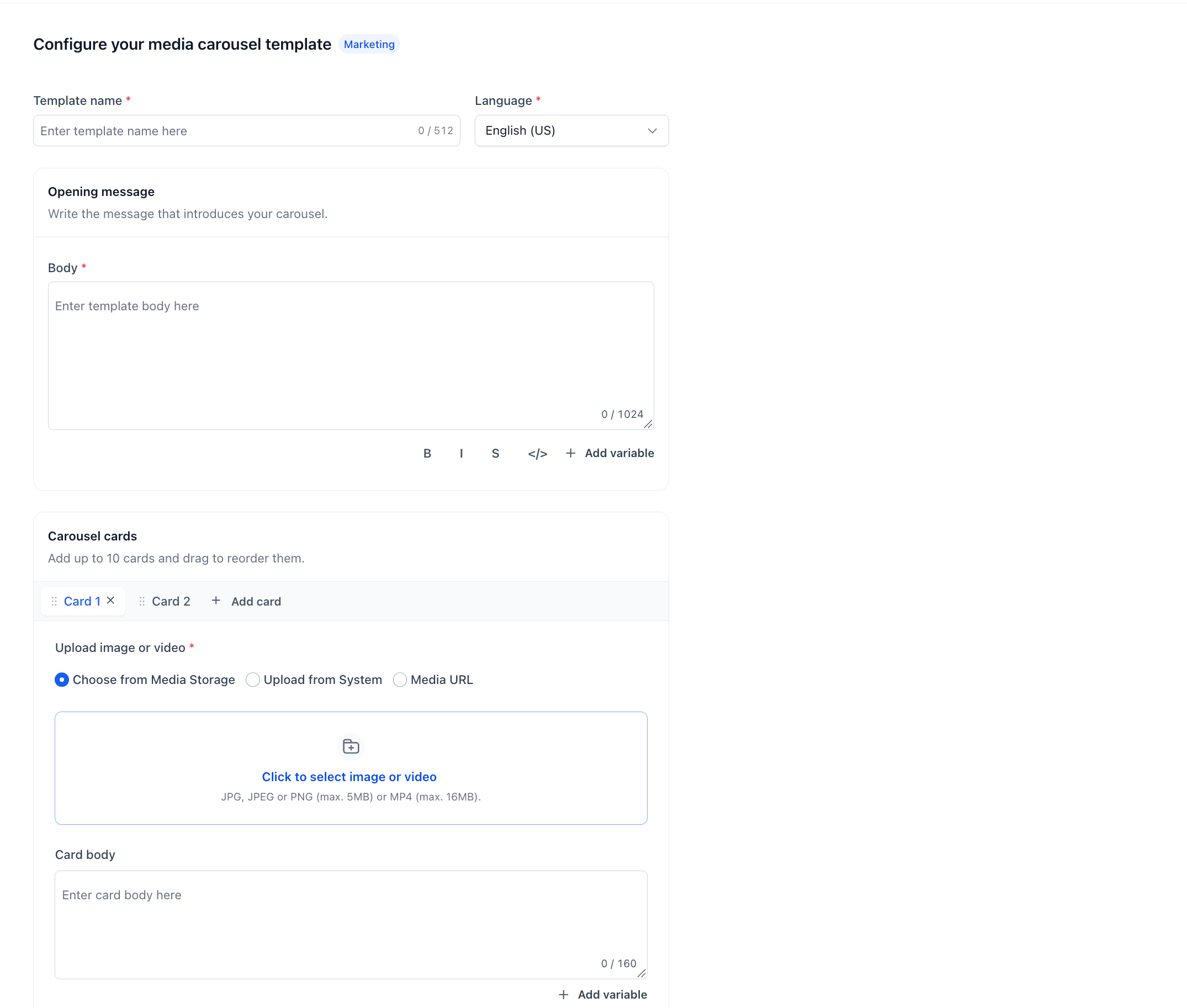
Step 3: Preview and Submit for Approval
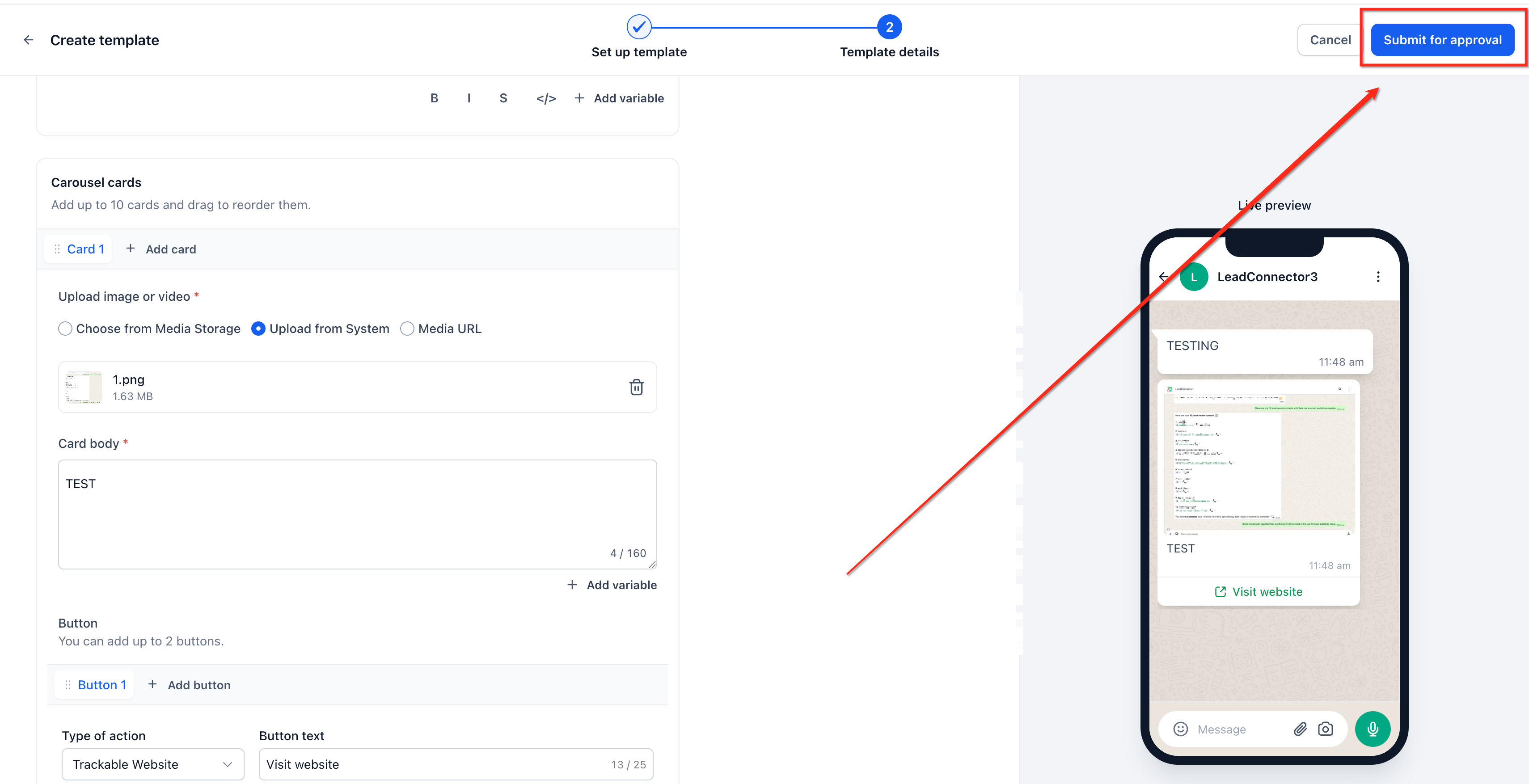
Review the carousel in the live preview panel.
Check the media, descriptions, buttons, and card order.
Confirm that the card count and components are correct.
Submit the template for approval.
Once approved, the number of cards cannot be changed.
Step 4: Send the Approved Carousel
Approved templates can be sent through the following HighLevel features:
Conversations: Open a contact conversation, select the WhatsApp template option, choose the approved carousel, and send.
Workflows: Add a WhatsApp action, select the approved carousel template, and configure the sending conditions.
Bulk Actions: Select contacts, choose Send WhatsApp, select the approved carousel template, and configure the send.
WhatsApp messaging policies, contact eligibility, and applicable sending limits still apply.
WhatsApp Carousel Card Components
Each card contains visual content, descriptive text, and optional buttons. Consistent card formatting ensures a uniform experience when customers swipe through the carousel.
| Component | Requirement |
|---|---|
| Carousel Cards | 2–10 cards |
| Media | Image or video on each card |
| Card Body | Required; maximum 160 characters |
| Variables | Supported in card body text |
| Buttons | Up to 2 per card |
| Button Labels | Maximum 25 characters |
| Card Order | Adjustable using drag-and-drop |
Media and Content Requirements
Each carousel card requires an image or video and a short description. Businesses can select media from HighLevel Media Storage, upload a file, or provide a media URL. Card descriptions must not exceed 160 characters and can include supported variables.
For additional media guidance, see WhatsApp Media Templates.
Carousel Buttons and Interactions
Carousel buttons let customers interact with specific products or offers directly from WhatsApp. Each card supports up to two buttons, with labels limited to 25 characters. Button actions must be selected from the options available in the carousel template editor. Available tracking depends on the supported button configuration.
Important: All cards must have the same number and structure of buttons.
WhatsApp Carousel Template Limitations
Carousel templates follow specific requirements to maintain consistent formatting and comply with Meta's approval process.
Fixed Card Count: A template approved with five cards must always send five cards. Changing the count requires a new template.
Matching Components: Every card requires body text, and button counts and component structures must match.
Supported Media: Carousel cards use images or videos.
Approval: Templates must be approved before sending.
Frequently Asked Questions
Q: Can I add more cards after approval?
No. Changing the number of cards requires creating and approving a new template.
Q: Can cards have different numbers of buttons?
No. All cards must use the same number and structure of buttons.
Q: Can I use both images and videos in one carousel?
Carousel templates support images and videos, but mixing both formats within the same carousel should be confirmed in the template editor.
Q: Does a ten-card carousel cost more than a two-card carousel?
Both count as one marketing message. Applicable WhatsApp marketing message rates still apply.
Q: Can carousel templates be used in workflows?
Yes. Approved carousel templates can be selected in supported WhatsApp workflow actions.
Q: Can I track which card a customer selects?
Card-specific buttons can help indicate customer interest. The available tracking and automation capabilities depend on the supported button action.
Related Articles
Was this article helpful?
That’s Great!
Thank you for your feedback
Sorry! We couldn't be helpful
Thank you for your feedback
Feedback sent
We appreciate your effort and will try to fix the article