WhatsApp Media Card Carousel Templates
Send horizontally scrollable card campaigns on WhatsApp with images, descriptions, and trackable action buttons — all from within the CRM.
Table of Contents
What Are Media Card Carousel Templates?
A media card carousel template combines an introductory message with up to 10 horizontally scrollable cards. Each card can include an image or video, a short description, and up to two action buttons. WhatsApp supports these as Marketing templates only.
Trigger Links are tracked destinations you add to URL buttons. When a contact clicks one, the CRM records the interaction and can trigger a configured workflow — for example, applying an interest tag or notifying your sales team.
Example
A furniture business can showcase sofas, dining tables, and beds in separate cards. Each card links to its product page, with a different follow-up workflow based on which product the customer explores.
Before You Begin
Before creating your template, prepare the following:
Ensure your WhatsApp sending number is connected and that you have access to template and workflow settings. Only connected numbers are available for selection in WhatsApp workflow actions.
Your template must be approved by Meta before it can be sent. Send messages only to contacts with the required consent, and honor all opt-out requests.
Supported Content and Limits
Important: All cards must use the same component structure. Keep the header format and button arrangement consistent across every card — for example, an image header followed by a URL button and a Quick Reply button on every card. The images, descriptions, and destinations can differ between cards.
Step 1 — Create Your Trigger Links
Create all Trigger Links before building your carousel template.
Navigate to Marketing → Trigger Links → Links.
Click Add Link.
Enter a descriptive name — for example, Sofa Collection or Book a Consultation — and add the destination URL.
Click Save.
Static vs. dynamic destinations
{{custom_values.product_link}}. Use the available value picker and test that it resolves to a valid URL.Important: A regular URL or a custom value containing a URL is not automatically a Trigger Link. Create the Trigger Link first, then use that saved link in your carousel button.
Tip: Create a separate Trigger Link for each card or action you want to track individually. This makes it easier to configure product-specific follow-ups.
Step 2 — Create Your Carousel Template
Open the Template Builder
Navigate to Settings → WhatsApp → Templates and click Create Template. Enter a template name and language, set the category to Marketing, and enable the carousel configuration in the builder.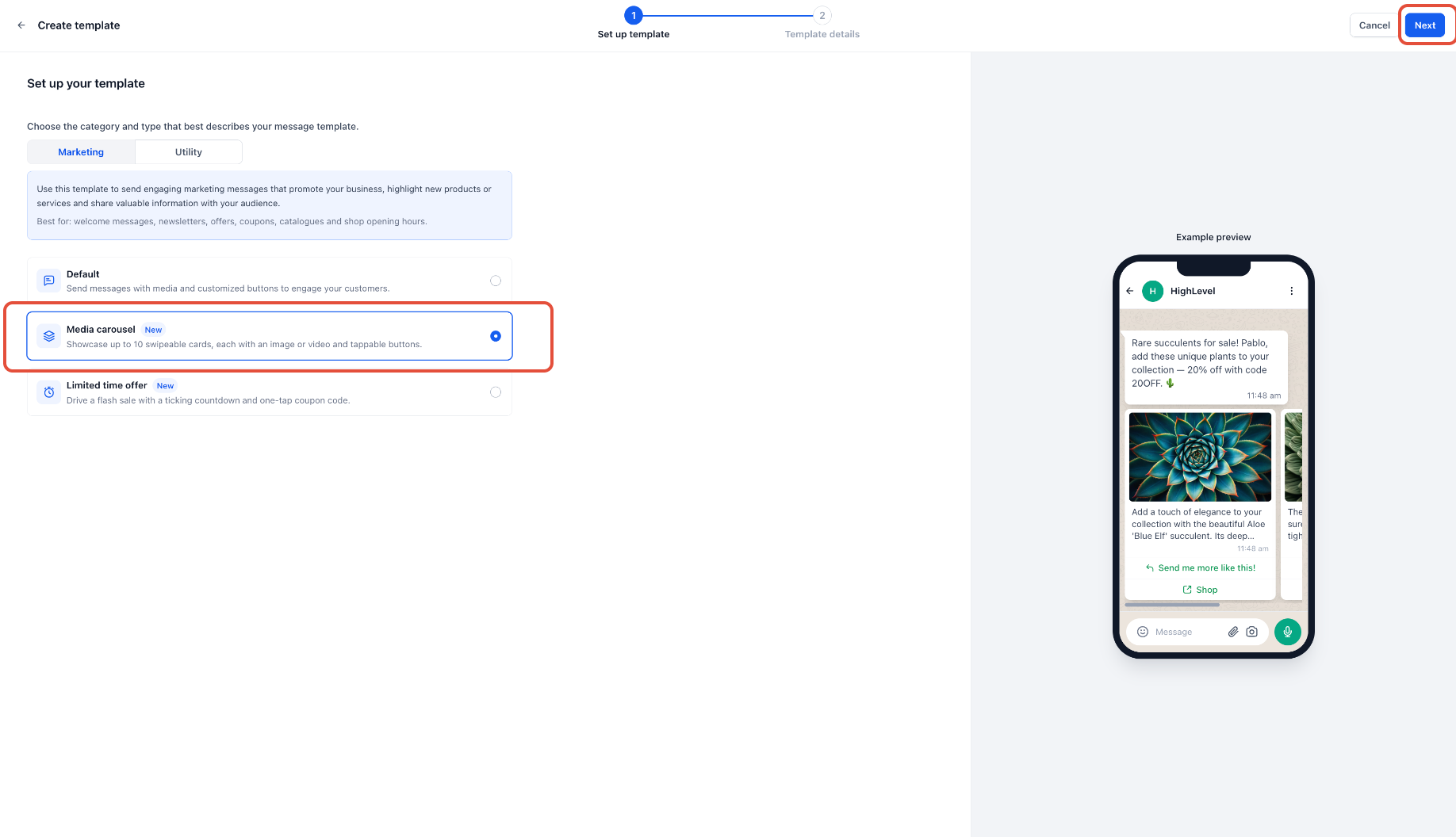
Add the Introductory Message
Write the message that introduces the carousel. Explain what customers are viewing and what action they can take. Use the builder's variable controls to map each placeholder to the appropriate contact field. Provide realistic sample values for Meta's review — for example, Aisha as a sample first name.
Example: Hi {{1}}, explore our latest collections below. Tap "View Collection" to find your favorite.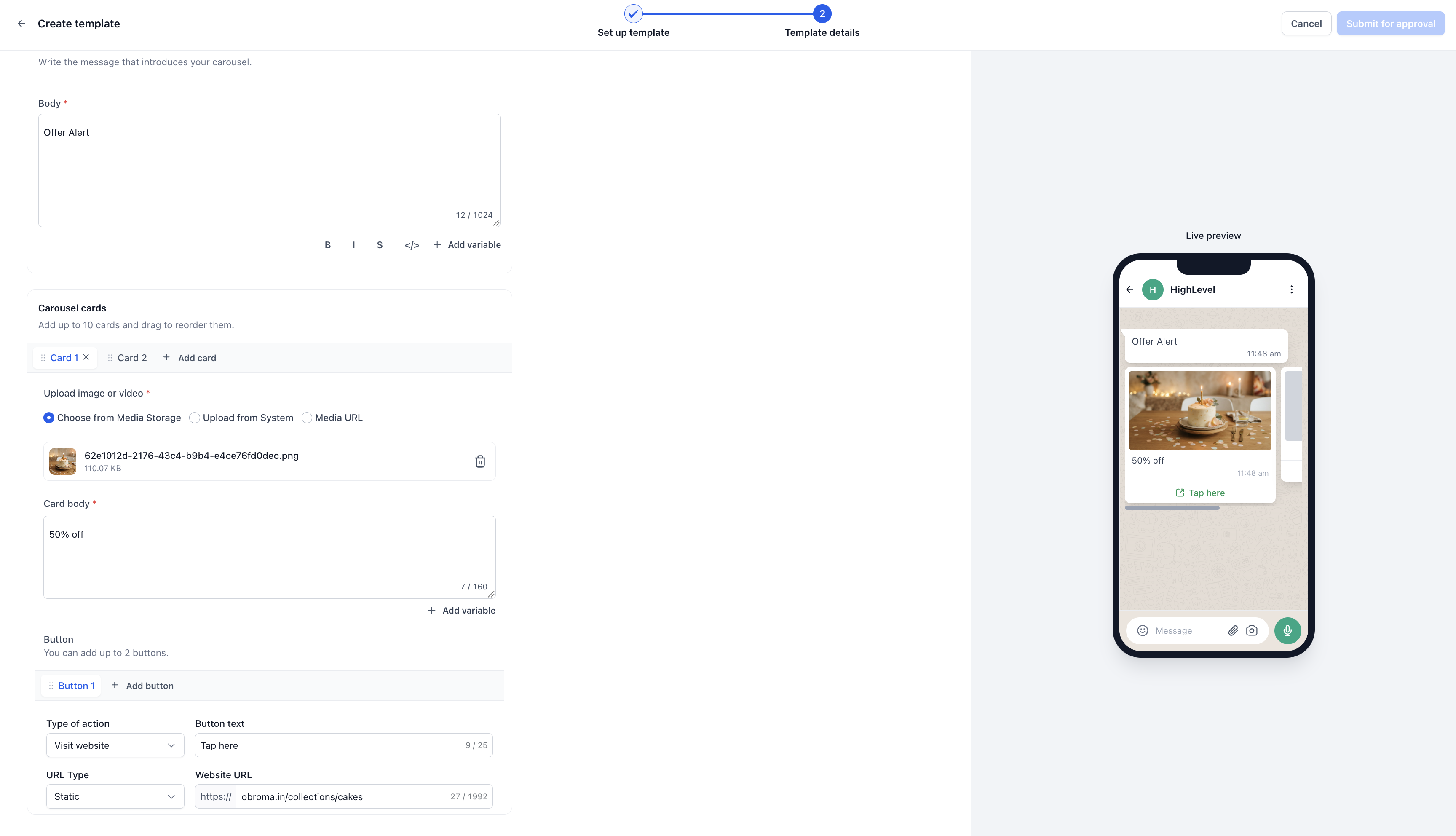
Add Your Media Cards
For each card, upload the media, enter the description, and configure the action buttons within the limits above.
For a trackable URL action, select the saved Trigger Link you created in Step 1 for that button.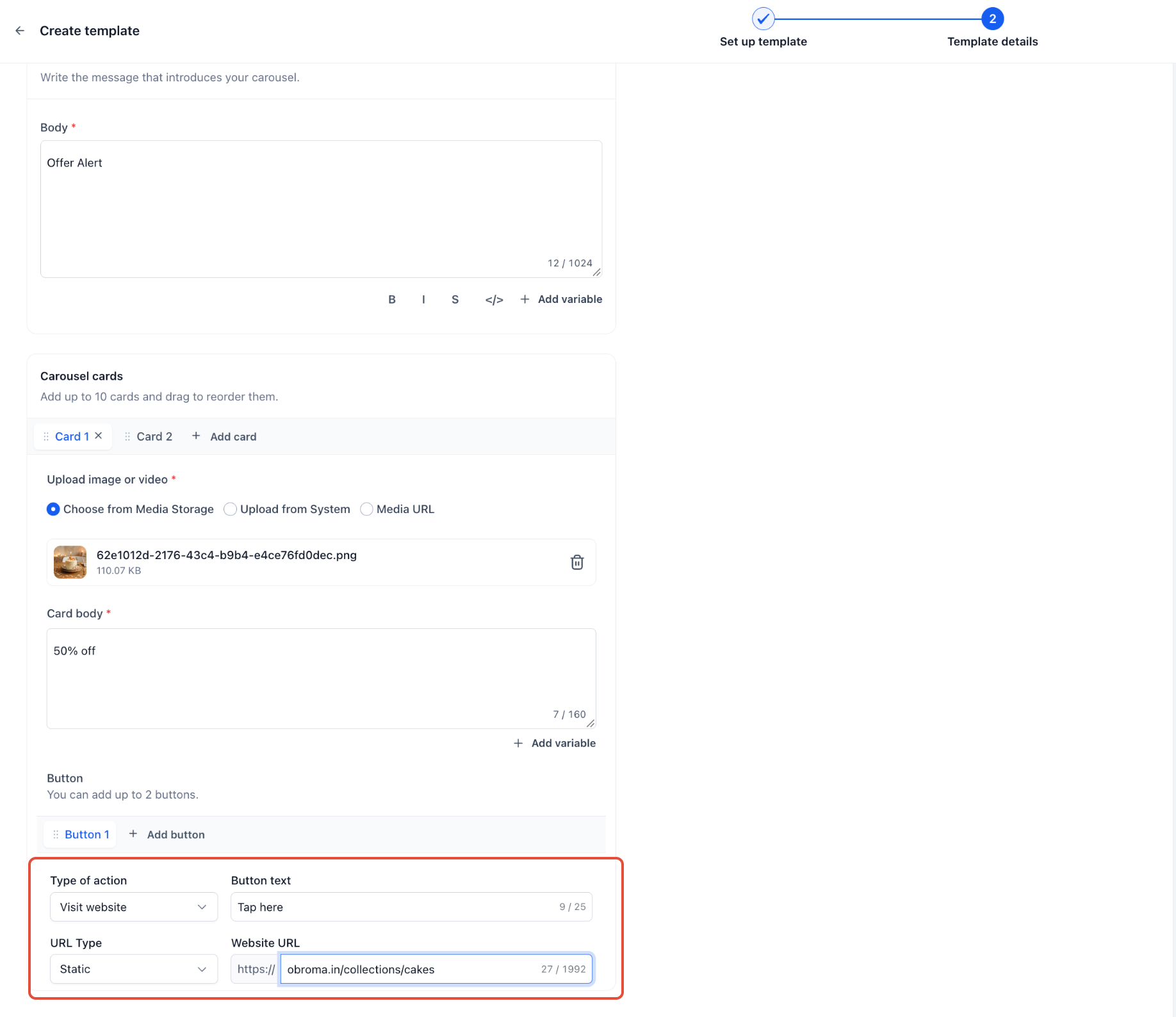
Preview and Submit
Review the introductory message and every card — media, descriptions, button labels, destinations, and variable mappings. Submit the template for Meta's review and wait for approval before sending. If Meta rejects the template, review the rejection reason, correct the identified issue, and resubmit.
Step 3 — Configure Click-Based Automation
Adding a Trigger Link does not automatically create a follow-up workflow. Configure the actions you want the CRM to perform after the click.
Open Automation → Workflows and create or edit a workflow.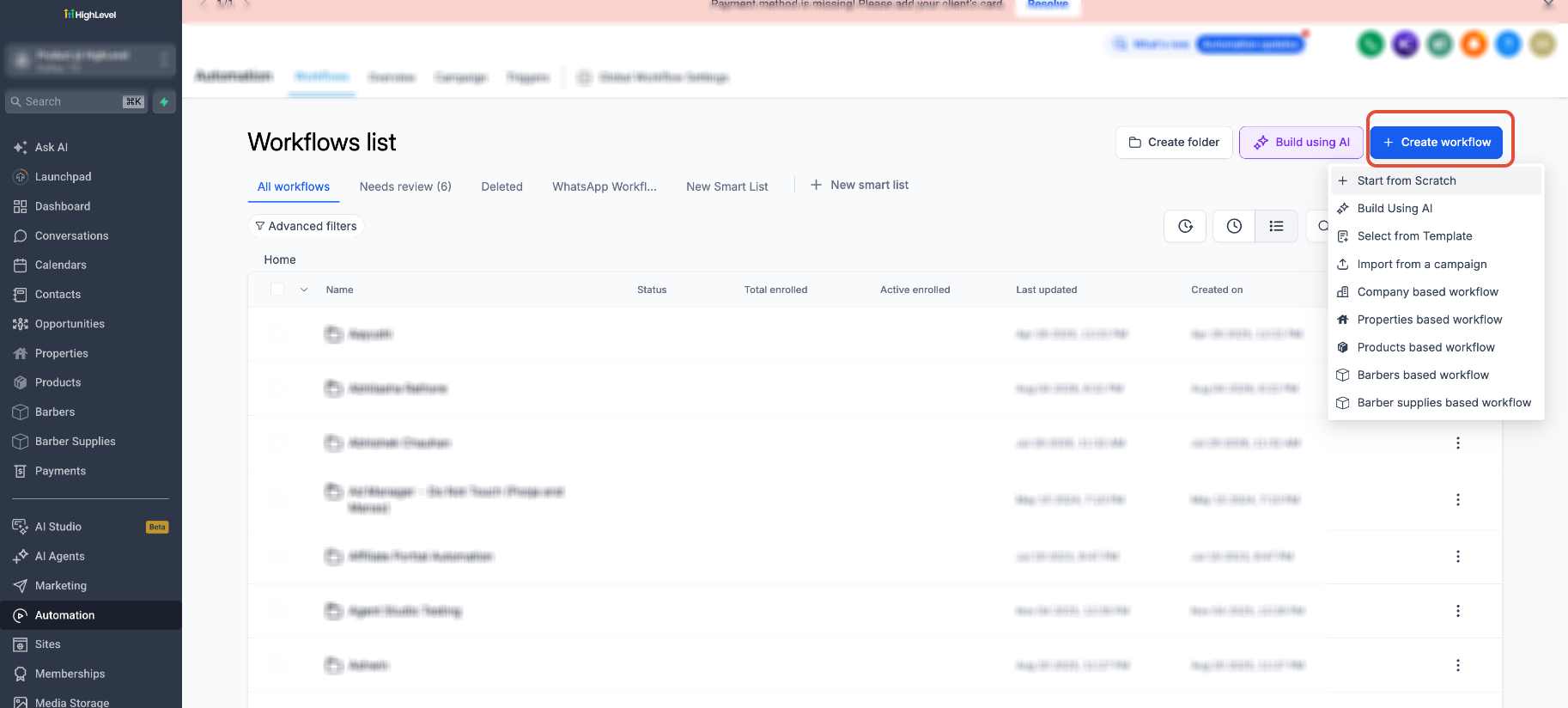 .
.
Add a Trigger Link filter and select WhatsApp.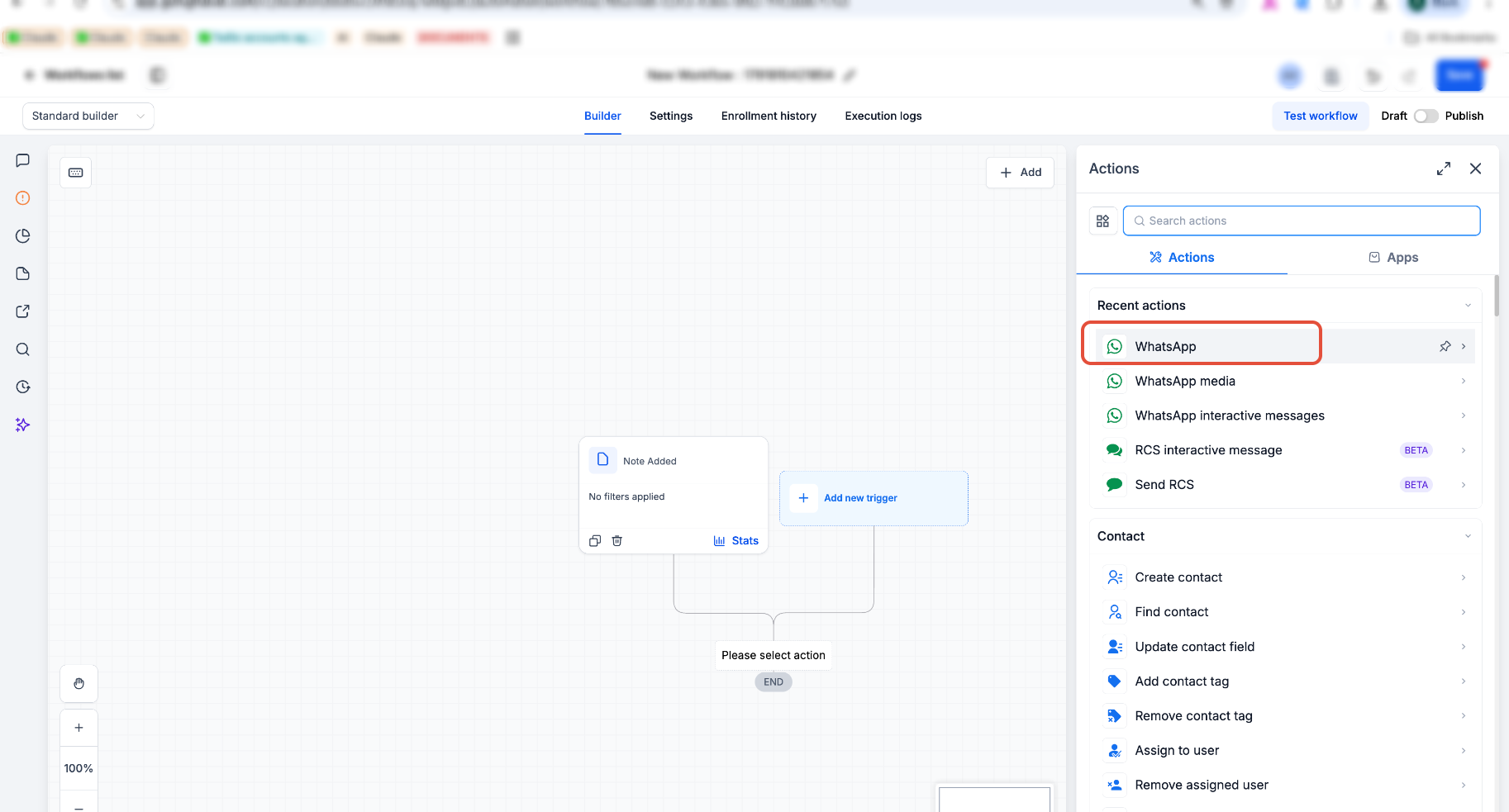
Select the carousel template.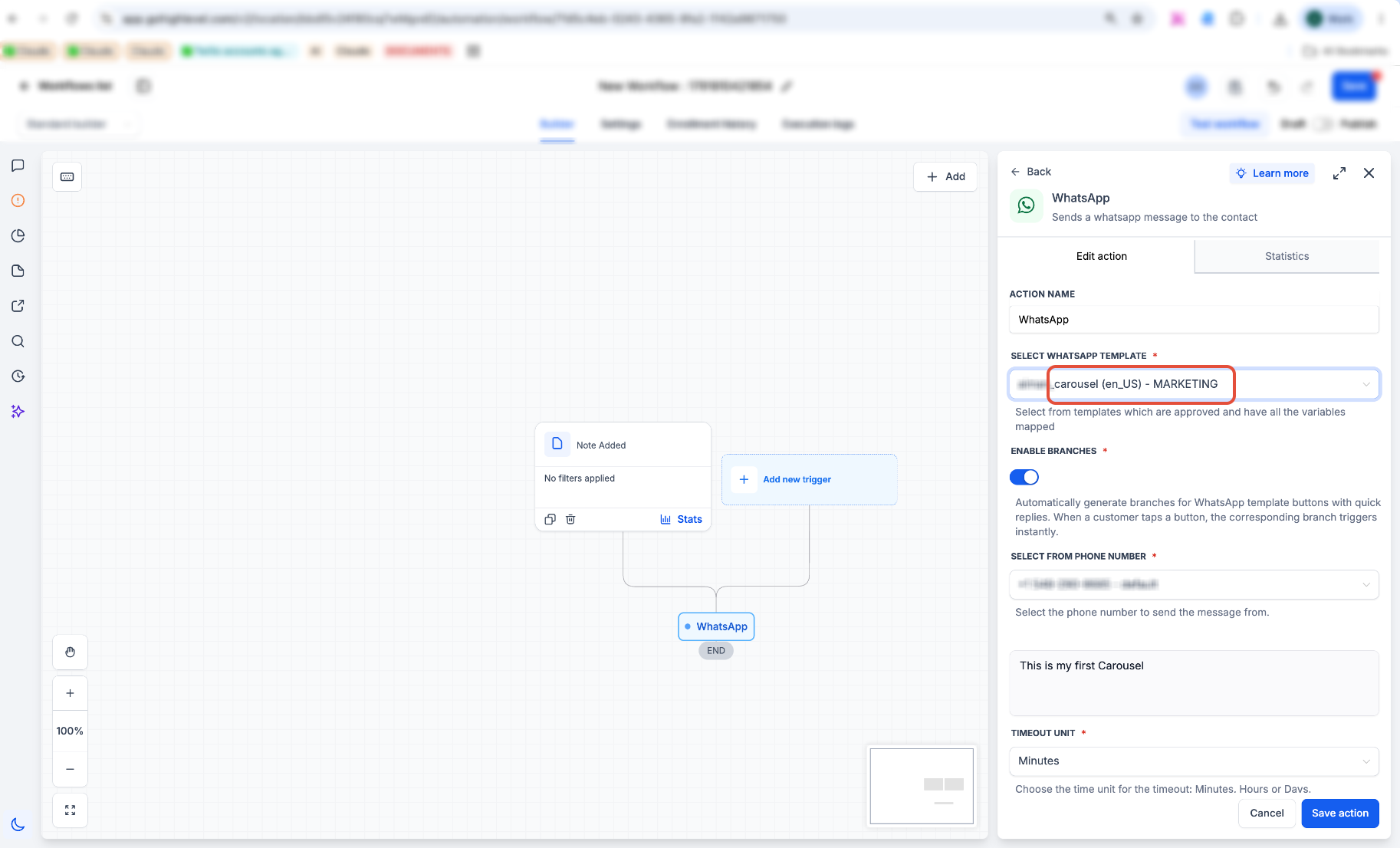
The branches are created based on the trigger links. You can save and publish it
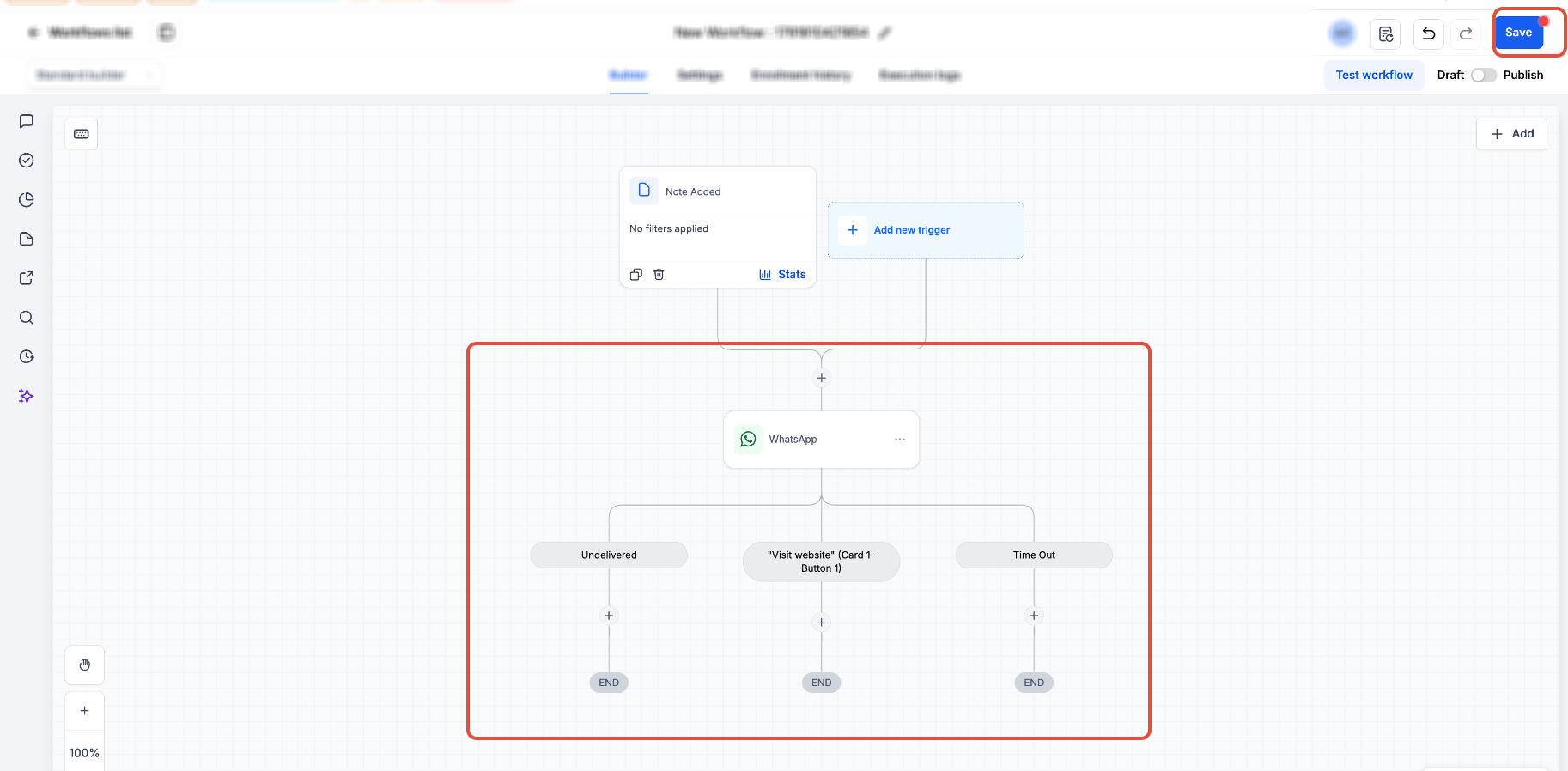
Example automation
A customer clicks View Collection on the sofa card → the workflow applies a Sofa Interest tag and notifies the sales team. A click on the dining table card triggers a different follow-up.
Important: Clicking a URL button does not open or reset WhatsApp's 24-hour customer service window. That window opens or resets only when the customer sends your business a message. If a follow-up WhatsApp message is sent outside the window, use an approved template.
Step 4 — Send Your Approved Carousel
Carousel templates can be sent through Workflows, Bulk Actions, and Conversations once the feature is enabled in your sub-account and your approved template appears in the selector for each channel.
Through Workflows
Open your workflow, add a WhatsApp action, select the connected sending number, and choose the approved carousel template. Complete any required variable mappings and review the configuration before publishing.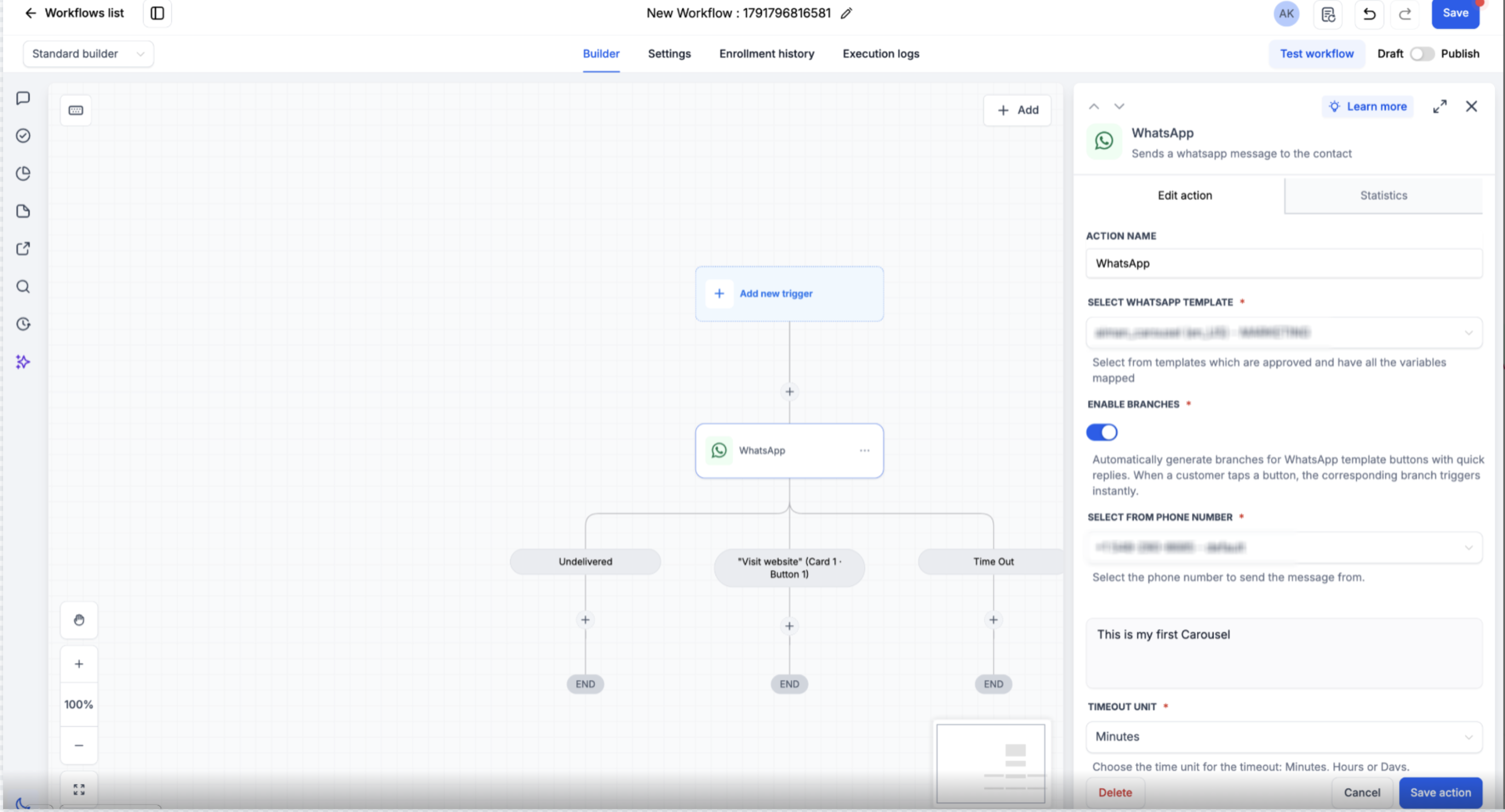
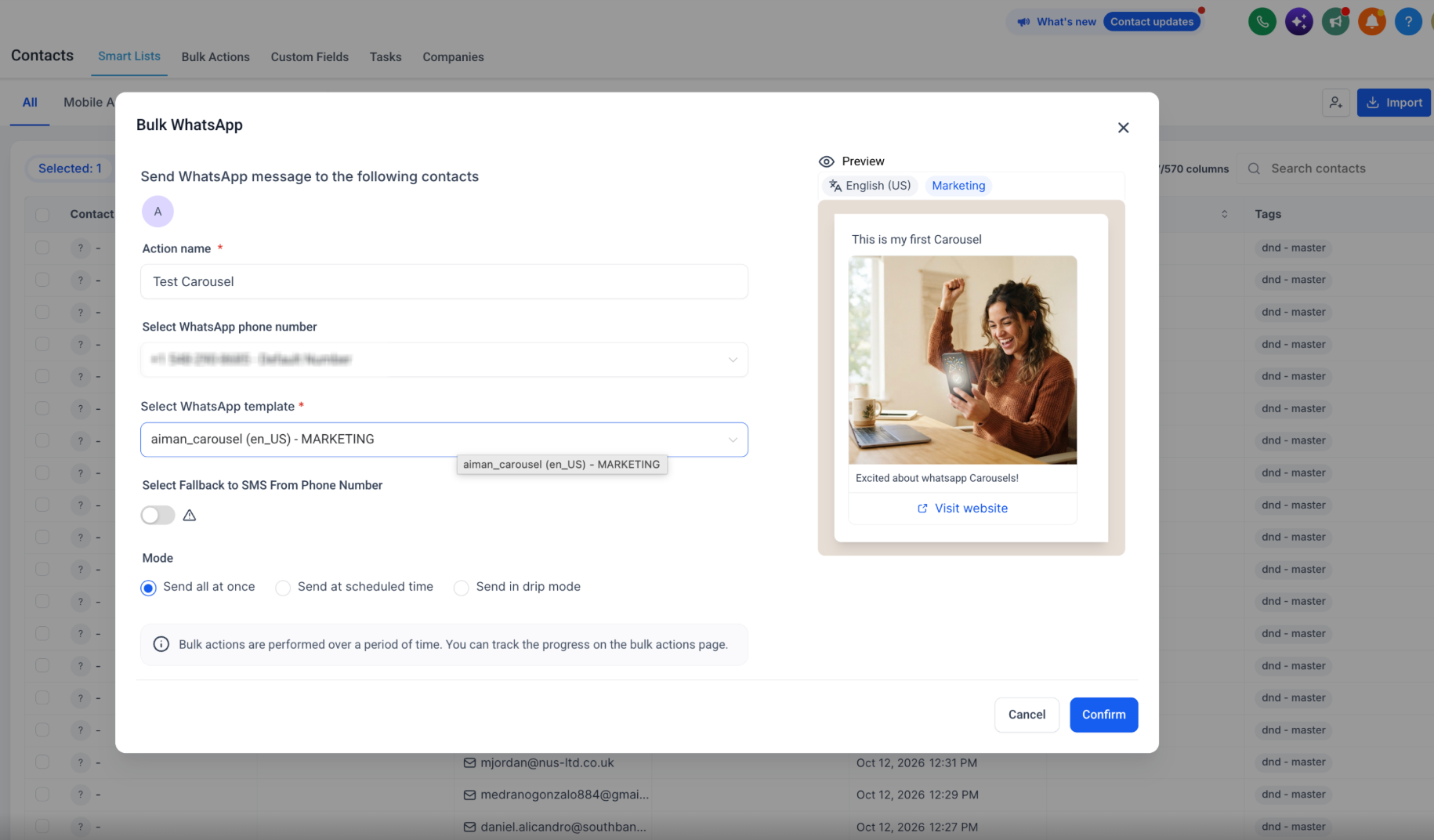
Through Bulk Actions
Go to Contacts, select the intended audience, and choose the WhatsApp bulk action. Select and preview your approved carousel template, complete the required fields, and choose the available sending or scheduling option. After launching, review campaign progress under Contacts → Bulk Actions. Bulk sending is subject to Meta's messaging limits, account restrictions, and contact messaging settings.
From Conversations
Open the contact's conversation, select WhatsApp, and choose the approved carousel from the template selector. Review the content and personalization before sending.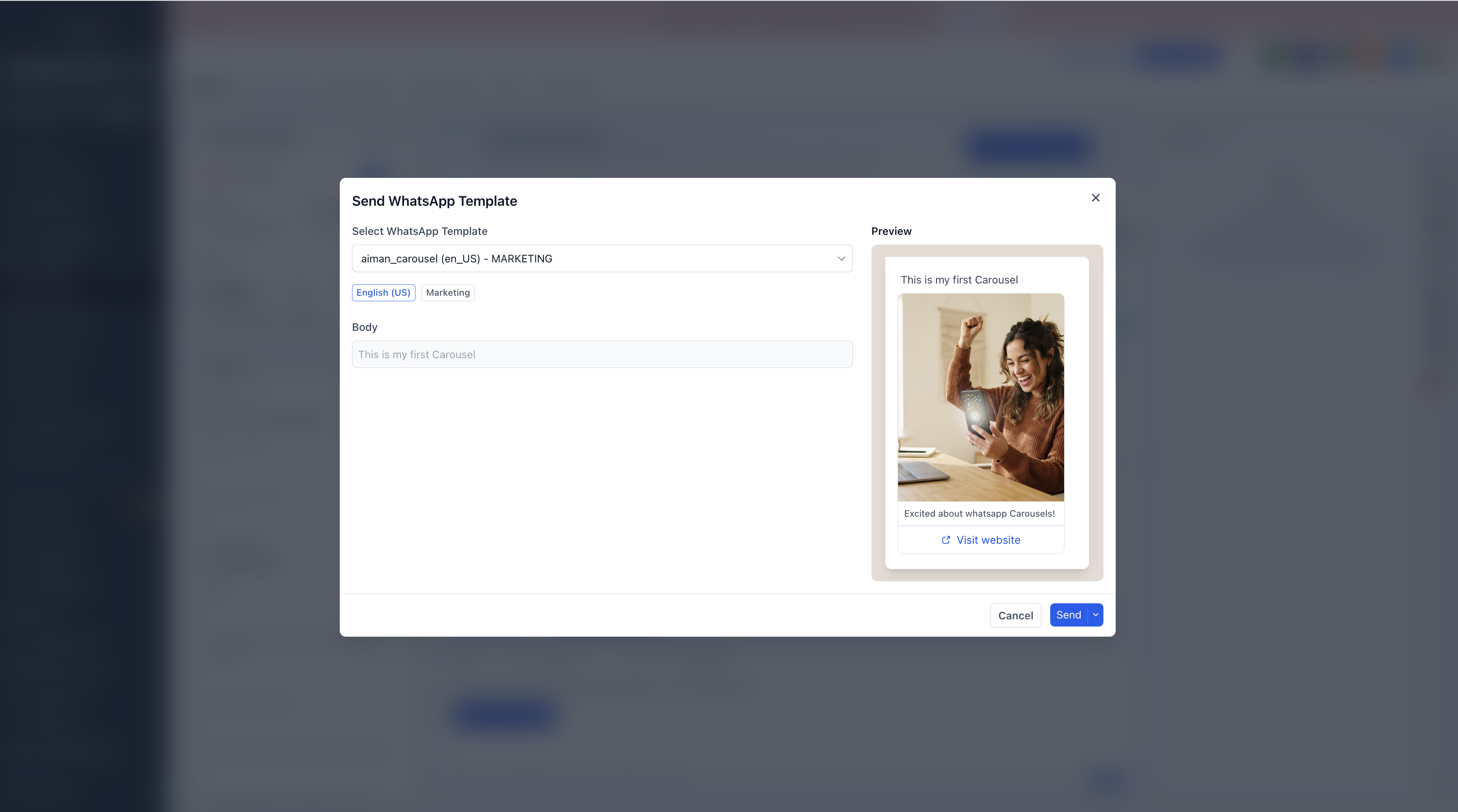
Recommended: Send the carousel to an internal test contact before launching a campaign. Open every card, tap each tracked button, confirm the destination, and verify that the intended workflow runs.
Track Engagement and Follow-Up Activity
Template Performance
Navigate to Settings → WhatsApp → Templates, locate the template, and open Reports. The CRM documents sent, delivered, read, and supported button-click metrics in template reporting.
Trigger Link Activity
Review the contact's activity timeline to check recorded Trigger Link interactions. Use workflow history to confirm whether the expected automation started and whether its actions completed. A recorded click shows engagement but does not confirm that a follow-up action completed or that the customer made a purchase.
Troubleshooting
When contacting Support, include: Location ID, template name, sending channel, exact error message, and a screenshot or recording. For automation issues, also include the workflow name and the Trigger Link selected in the button.
The Phone View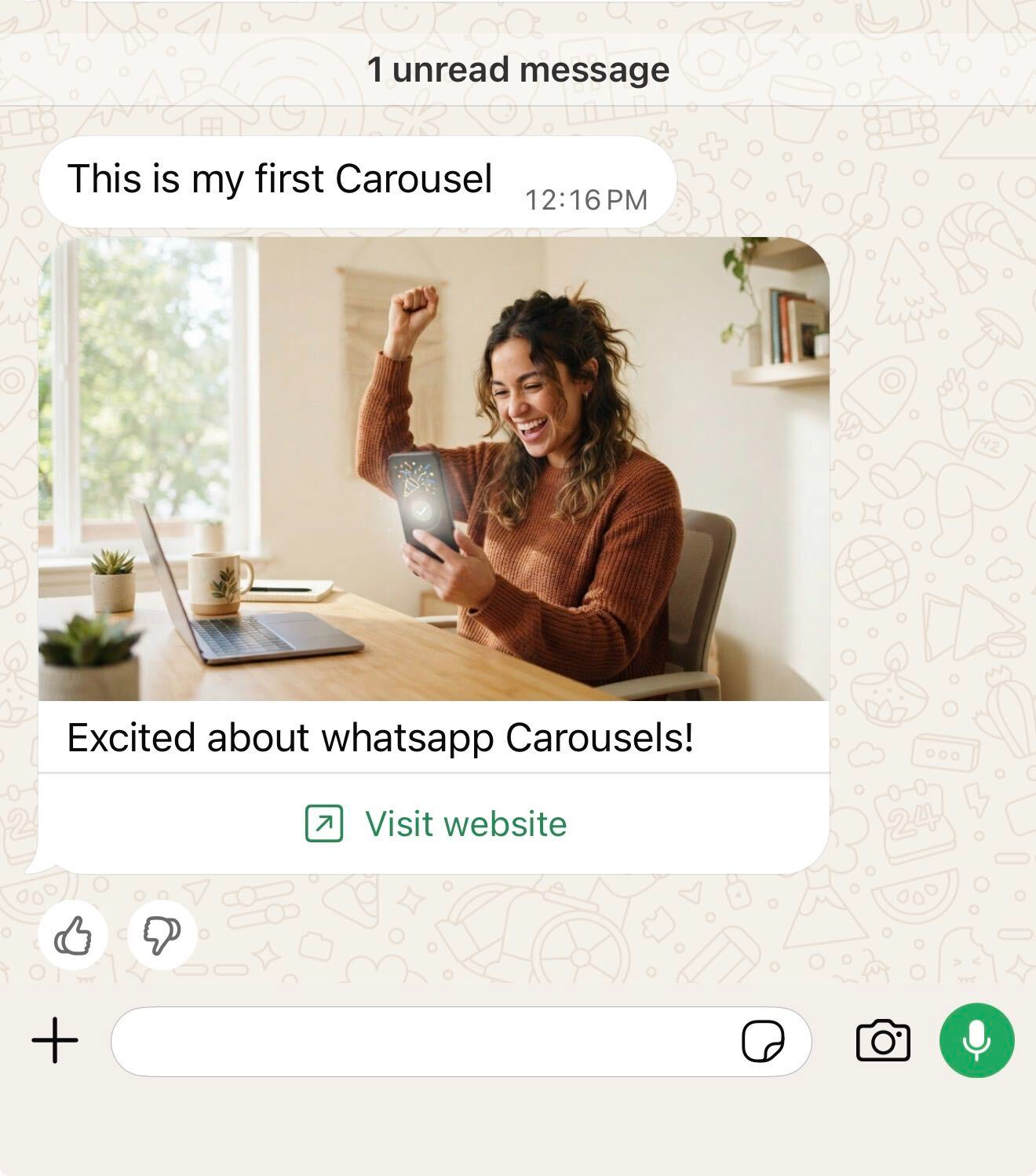
Frequently Asked Questions
Q: Can I use a carousel without Trigger Links?
Yes. A carousel can use ordinary URL, Quick Reply, or Phone Number buttons. However, a destination URL does not become a CRM Trigger Link just because it is placed in a button. Use a saved Trigger Link only when you need the Trigger Link Clicked automation.
Q: Will customers stay inside WhatsApp when they click a URL button?
No. A URL button opens its destination in the device's default browser.
Q: Does a Trigger Link click confirm a purchase?
No. A click indicates interaction with the link, not a completed order. Purchases made on an external website do not generate WhatsApp order webhooks for a media card carousel. Track purchases through the relevant website, checkout, or payment integration.
Q: How is this different from a Product Card Carousel?
A media card carousel uses uploaded media and configured actions. A Product Card Carousel uses catalog product information and can provide an in-WhatsApp product and cart experience when configured with View buttons. These are different template formats.
Was this article helpful?
That’s Great!
Thank you for your feedback
Sorry! We couldn't be helpful
Thank you for your feedback
Feedback sent
We appreciate your effort and will try to fix the article