WhatsApp Notifications for Rentals
This guide walks through how to enable WhatsApp as a notification channel for your Rental bookings, configure recipient settings for customers and internal teams, and manage templates using HighLevel's built-in tools.
By the end, you'll know how to set up automated WhatsApp messages for every stage of the rental lifecycle—from unconfirmed bookings to post-rental follow-ups.
What is WhatsApp Notifications for Rentals?
WhatsApp Notifications for Rentals adds WhatsApp as a delivery channel for your Rental booking notifications in HighLevel. Instead of relying only on email or in-app alerts, you can send automated WhatsApp messages for key booking events such as confirmations, cancellations, reminders, and follow-ups.
This capability builds on your existing Rentals Global Settings so that every listing using those global notification rules can automatically benefit from WhatsApp messaging once you enable it and select approved WhatsApp templates for each event type.
Key Benefits
Using WhatsApp for Rental notifications helps your business communicate faster and more reliably with both customers and internal stakeholders.
Supported Rental Event Types
Understanding which Rental events can trigger WhatsApp messages helps you design a complete communication journey around each booking lifecycle.
HighLevel supports WhatsApp notifications for all standard Rental booking events:
Triggered when a booking is created but still awaiting approval.
Triggered when a booking changes from unconfirmed to confirmed.
Triggered when a booking is canceled or marked invalid.
Triggered when dates or times for a booking are changed.
One or more reminders sent before the rental start time.
Messages sent after the rental ends for reviews, feedback, upsells, or additional services.
Each event type appears as a separate notification row under Global settings → Notifications for Rentals. You can enable WhatsApp per event, which means you might use WhatsApp only for Reminders and Follow-ups while keeping confirmation emails via Email/In-App, or enable WhatsApp for all events to create a fully mobile-first experience.
Recipient Configuration
Recipient configuration determines who receives each WhatsApp message. This allows you to keep customers informed while also notifying the business or partner accounts that need operational details.
When editing a Rental notification and switching to the WhatsApp tab, you'll see recipient options:
The renter who made the booking (pulled from the booking form or contact record).
A business-side recipient, such as your internal operations number, a property owner or asset owner, or a partner company that fulfills the rental.
Per-recipient toggles: You can enable WhatsApp for Contacts, Business, or both. If you only want internal operational alerts on WhatsApp, enable Business and leave Contact off.
Per-recipient templates: Contacts and Business can each have their own WhatsApp template for the same event. For example, your Contact Reminder template might include friendly, customer-facing instructions and directions, while your Business Reminder template includes booking ID, dates, asset name, and internal notes.
Different language or tone per recipient: You might maintain a more formal template for Business recipients and a more conversational tone for Contacts, while still using the same trigger event.
WhatsApp Templates
WhatsApp templates define the content your renters and business recipients receive. Because WhatsApp Business messages must use approved templates for outbound, business-initiated notifications, managing these templates correctly is essential.
Each Rental notification type (Unconfirmed, Booked, Canceled, Rescheduled, Reminder, Follow-up) provides:
HighLevel provides a default template for each event that you can use as-is, customize (where allowed), or replace with another approved template.
For each recipient type (Contact vs. Business), you can keep the default template, select a different approved template from the dropdown, or create a new template if you need a different structure or language.
Use the built-in WhatsApp template builder to create new templates that follow Meta's formatting requirements and include variables (like customer name, booking dates, listing name) using merge fields and custom values, similar to email and SMS.
Click Fetch WhatsApp templates to refresh the dropdown with the latest approved templates from your WhatsApp Business account. This is useful when templates have been added or approved outside of HighLevel.
Keep messages clear and concise, especially for reminders and follow-ups.
Use friendly but professional language that matches your brand.
Clearly state key booking details: dates, times, asset name, location, and any required actions (confirm, reschedule, payment, pickup instructions).
Avoid unsupported media types or formatting that may cause delivery issues; stick to supported template content formats.
Testing & Managing Notifications
Testing your WhatsApp notifications before going live ensures that renters receive the right details and that you stay within WhatsApp's requirements and limits.
For each notification type, use the Send test WhatsApp notification button to preview the exact message content and formatting, confirm merge fields resolve correctly (names, dates, listing details), and validate that the correct recipient template (Contact vs. Business) is being used.
After going live, check the conversation in the contact's conversation view or WhatsApp logs to ensure messages are being delivered. Investigate any delivery errors—these can stem from invalid numbers, unapproved templates, or unsupported message types.
Because WhatsApp uses per-message pricing and has messaging limits, review your WhatsApp Billing & Pricing Guide to understand how template messages are billed (Marketing, Utility, Authentication, Service) and plan your rental notifications accordingly. Keep an eye on your WhatsApp messaging limits if you're sending large volumes of Rental reminders and follow-ups, as high usage across the account counts against the same limit pool.
Requirements & Best Practices
Ensuring that your WhatsApp setup is healthy and compliant prevents delivery issues and protects your sender reputation.
Connected WhatsApp Business Account: Your WhatsApp Business Account must be properly connected and verified in HighLevel. The same connection is used across WhatsApp messaging features, including Rentals notifications.
Approved WhatsApp Templates Only: Outbound notifications (like reminders, follow-ups, confirmations) must use Meta-approved templates. Template approvals, message category (Marketing vs. Utility), and quality ratings can impact cost and messaging limits.
Accurate Phone Numbers with Country Codes: Rental contacts and Business recipients must have valid WhatsApp-enabled numbers with country codes to ensure delivery.
Use Utility/Service templates where appropriate. For time-sensitive rental updates (confirmations, reminders, check-in details), using Utility or Service categories can be more cost-effective and policy-aligned than Marketing templates.
Avoid unsupported message types. Stick to supported message formats (text, basic media, template messages, interactive buttons). Avoid polls, ephemeral messages, or other unsupported formats that may fail or show as "unsupported message."
Monitor quality and messaging volume. High complaint rates or low engagement on Marketing-style templates can affect your messaging limits. As your rentals business grows, review messaging limits and, if needed, follow Meta's scaling paths to increase them.
How to Set Up WhatsApp Notifications
Setting up WhatsApp in Rentals is a one-time configuration that unlocks automated, mobile-first communication for all your Rental listings using Global Settings.
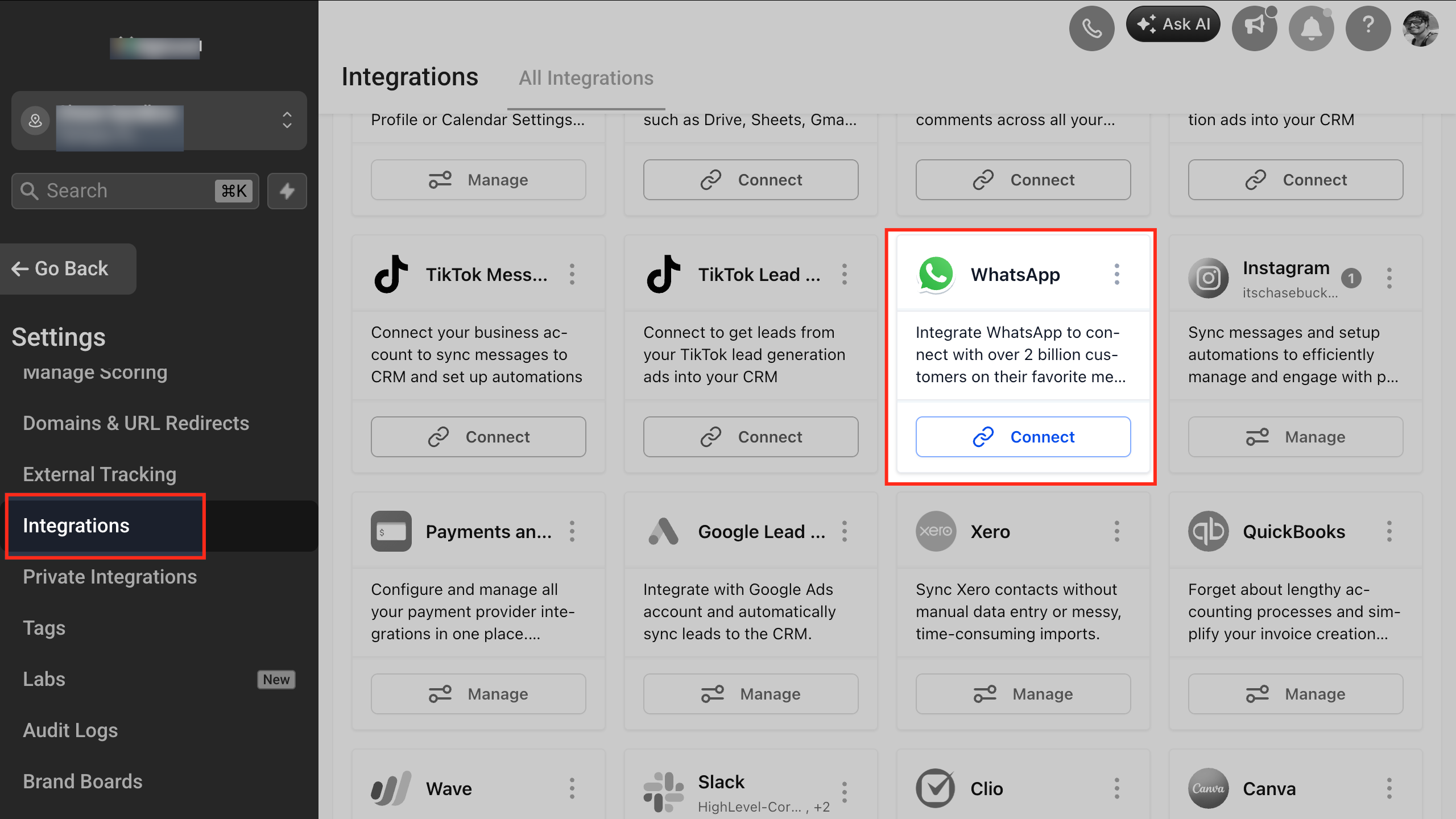
Go to your HighLevel WhatsApp or Integrations area and ensure a WhatsApp Business Account and phone number are connected and active for your sub-account.
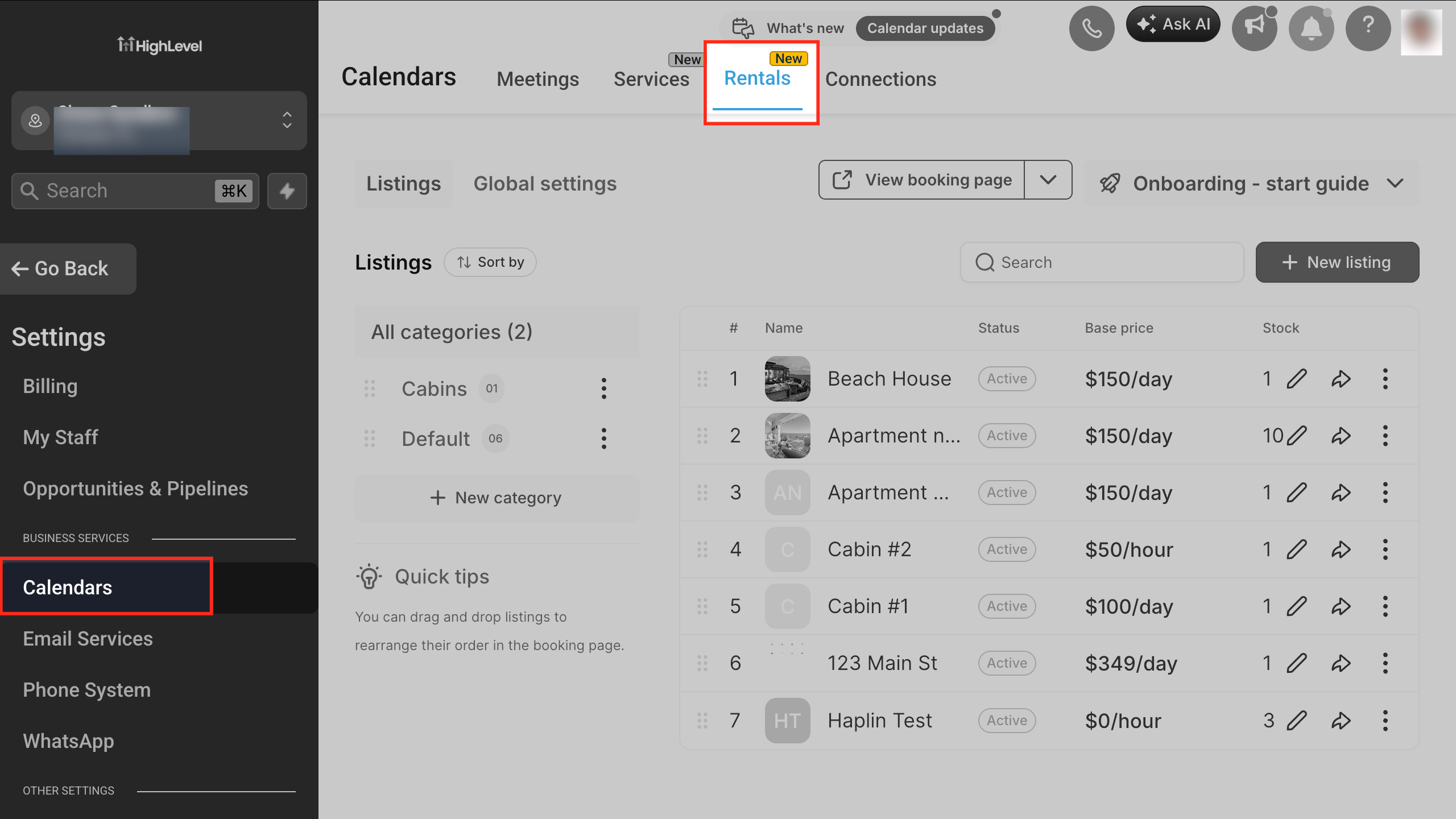
Navigate to Calendars → Calendar Settings. Select Rentals, then click Global settings and open the Notifications tab.
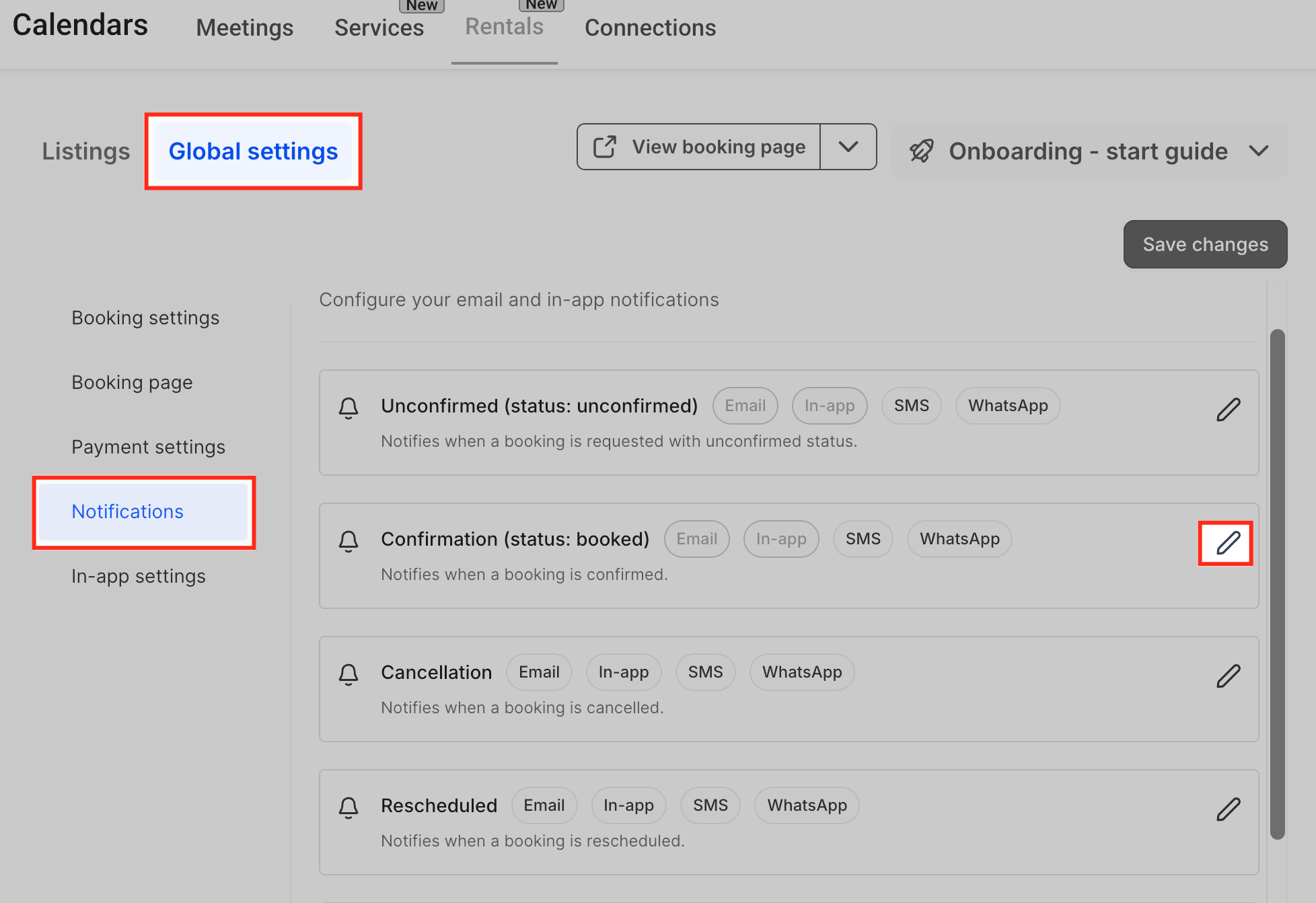
Open Notifications and Choose an Event
Under Rentals, click Global settings, then select Notifications from the left-hand menu.
The Notifications page displays each rental booking event such as Unconfirmed, Confirmation (Booked), Cancellation, Rescheduled, Reminder, and Follow-up—along with its available delivery channels.
Find the event for which you want to configure WhatsApp notifications, then click the Edit (pencil) icon on the right side of that event’s row to open its notification settings.
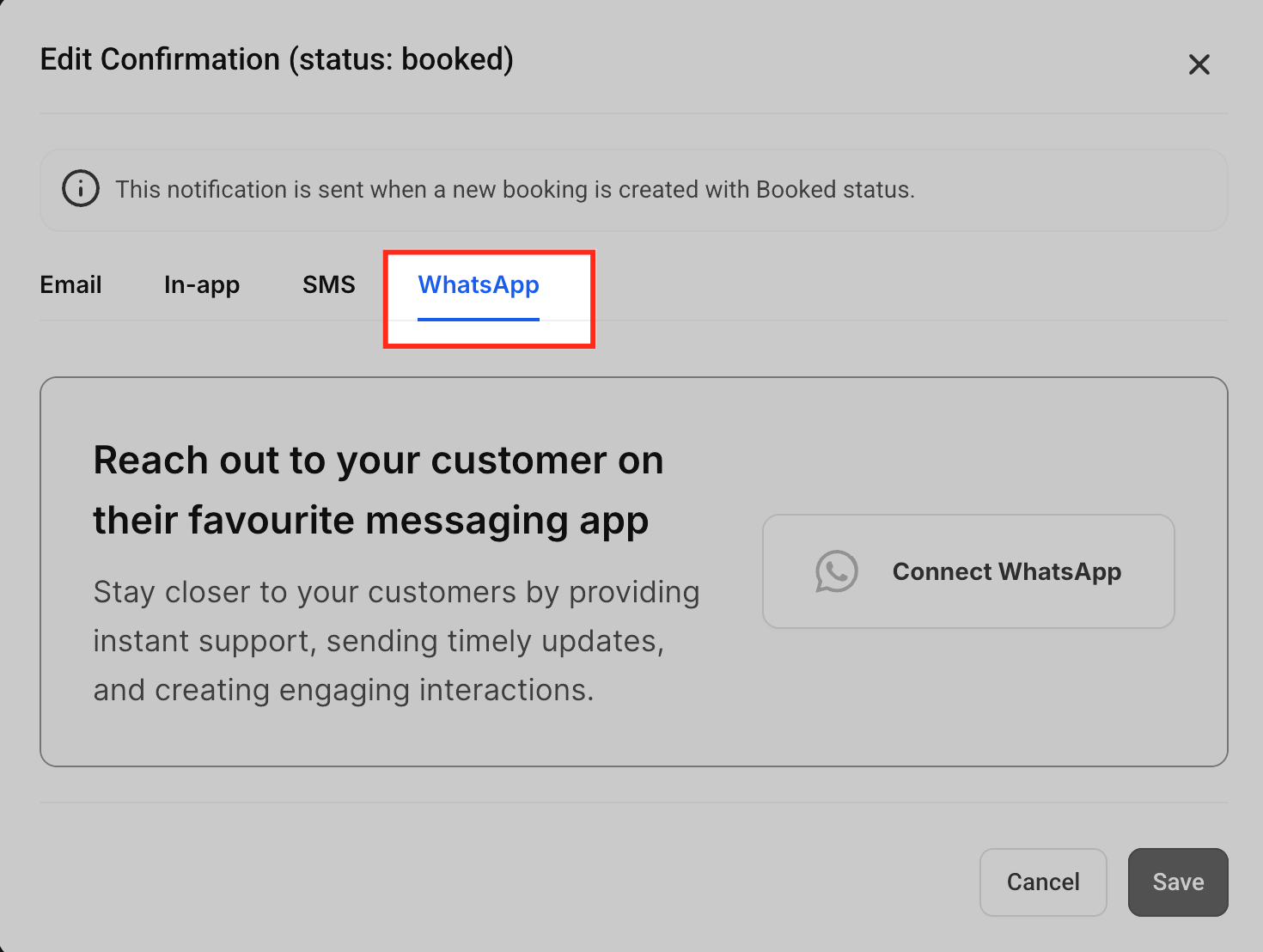
Go to the WhatsApp tab within the notification and turn the WhatsApp toggle ON to activate this channel for that event.
Choose whether to send this WhatsApp notification to Contact (the renter), Business (internal or partner number), or both. Enable or disable each recipient depending on your workflow (for example, Reminders to Contact only; Booked notifications to both).
For Contact, choose the default template, a different approved template from the dropdown, or create a new template via the in-app builder (if available in your workflow). Repeat the same for Business using a template tailored to internal needs.
Click Fetch WhatsApp templates to sync any newly created or newly approved templates from your WhatsApp Business account.
Click Send test WhatsApp notification. Enter a test WhatsApp number (usually your own or a team member's) and validate content, formatting, and that the correct template is used for each recipient type.
Click Save on the notification drawer. Repeat steps 3–8 for any other notification types (Unconfirmed, Booked, Canceled, Rescheduled, Reminder, Follow-up) where you want WhatsApp enabled.
From the Rentals Calendar View or Appointments/Bookings area, create a test booking that triggers the configured event. Confirm the WhatsApp messages are delivered as expected to the Contact and/or Business recipients.
WhatsApp notifications are active for your Rentals. Every new booking that matches the configured event types will automatically send WhatsApp messages to the selected recipients using the templates you assigned.
Frequently Asked Questions
Was this article helpful?
That’s Great!
Thank you for your feedback
Sorry! We couldn't be helpful
Thank you for your feedback
Feedback sent
We appreciate your effort and will try to fix the article