Automatic Taxes in Forms & Surveys allow you to calculate applicable taxes based on customer address details while collecting payments in HighLevel. You can also customize shipping address labels, collect separate billing information, and let customers reuse their shipping details for a faster checkout experience.
What Are Automatic Taxes and Billing Addresses in Forms & Surveys?
Automatic Taxes use the customer address information collected through the Address element to calculate applicable taxes during checkout. Combined with enhanced Shipping and Billing Address options, these capabilities help businesses create a more complete order form experience without requiring separate checkout processes.
Customers can provide different shipping and billing details or indicate when both addresses are the same, reducing repetitive data entry.
Key Benefits of Automatic Taxes and Billing Addresses
These capabilities simplify tax calculation and address collection while making checkout more convenient for customers. Businesses can create more complete order forms directly within Forms & Surveys.
- Automatic Tax Calculation: Calculate applicable taxes based on customer address details and configured tax settings.
- Consistent Address Fields: Automatically mirror Shipping Address fields in Billing Address.
- Faster Checkout: Allow customers to reuse their shipping information for billing.
- Transparent Order Summary: Display applicable tax amounts and the final payment total.
Automatic Taxes and Address Settings
The Address and Sell Products elements work together to collect customer information, support automatic tax calculations, and manage shipping and billing details. Understanding the following settings helps you configure the checkout correctly.
| Feature | Description | Important Detail |
|---|---|---|
| Automatic Taxes | Calculates applicable taxes using customer address information. | Requires automatic tax configuration in HighLevel. |
| Custom Address Label | Renames the Address element to "Shipping Address," "Ship to," or another label. | Configured within the Address element. |
| Billing Address | Collects billing information separately from shipping details. | Available only when Shipping Address is enabled. |
| Mirrored Address Fields | Uses the same configured fields for shipping and billing. | No separate billing field setup is required. |
| Same as Shipping Address | Allows customers to reuse shipping details for billing. | Customers can enter a separate address when needed. |
Important: The Address element provides the customer information used for automatic tax calculation. Applicable taxes also depend on the business's configured tax settings, including nexus locations and product tax categories.How to Set Up Automatic Taxes and Billing Addresses in Forms & Surveys
Configuring automatic taxes and address collection helps ensure that the checkout gathers the required customer details and displays applicable taxes correctly. Follow these steps to configure your tax settings, customize address collection, and verify the customer checkout experience.
- Navigate to Payments > Settings > Taxes, enable Automatic Tax, and configure the applicable nexus locations, product tax categories, and pricing settings. For more information, see How to Setup and Use International Automatic Taxes.
- Navigate to Sites > Forms or Sites > Surveys and open an existing Form or Survey, or create a new one.
- Add the Sell Products element, if needed, and configure the products and payment provider.
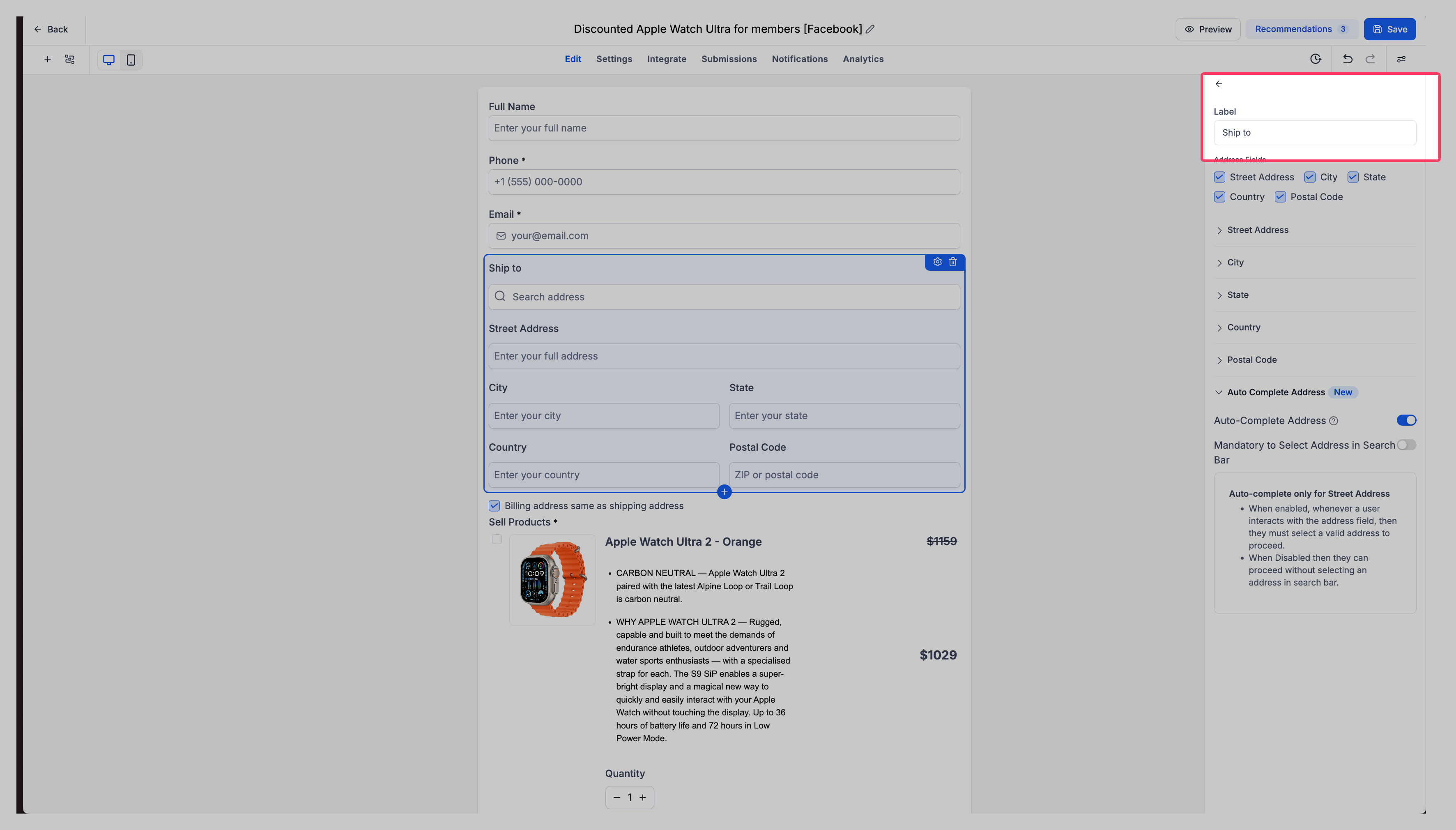
- Add or select the Address element. In its settings, customize the Label to "Shipping Address," "Ship to," or another preferred name, and select the required Address Fields.
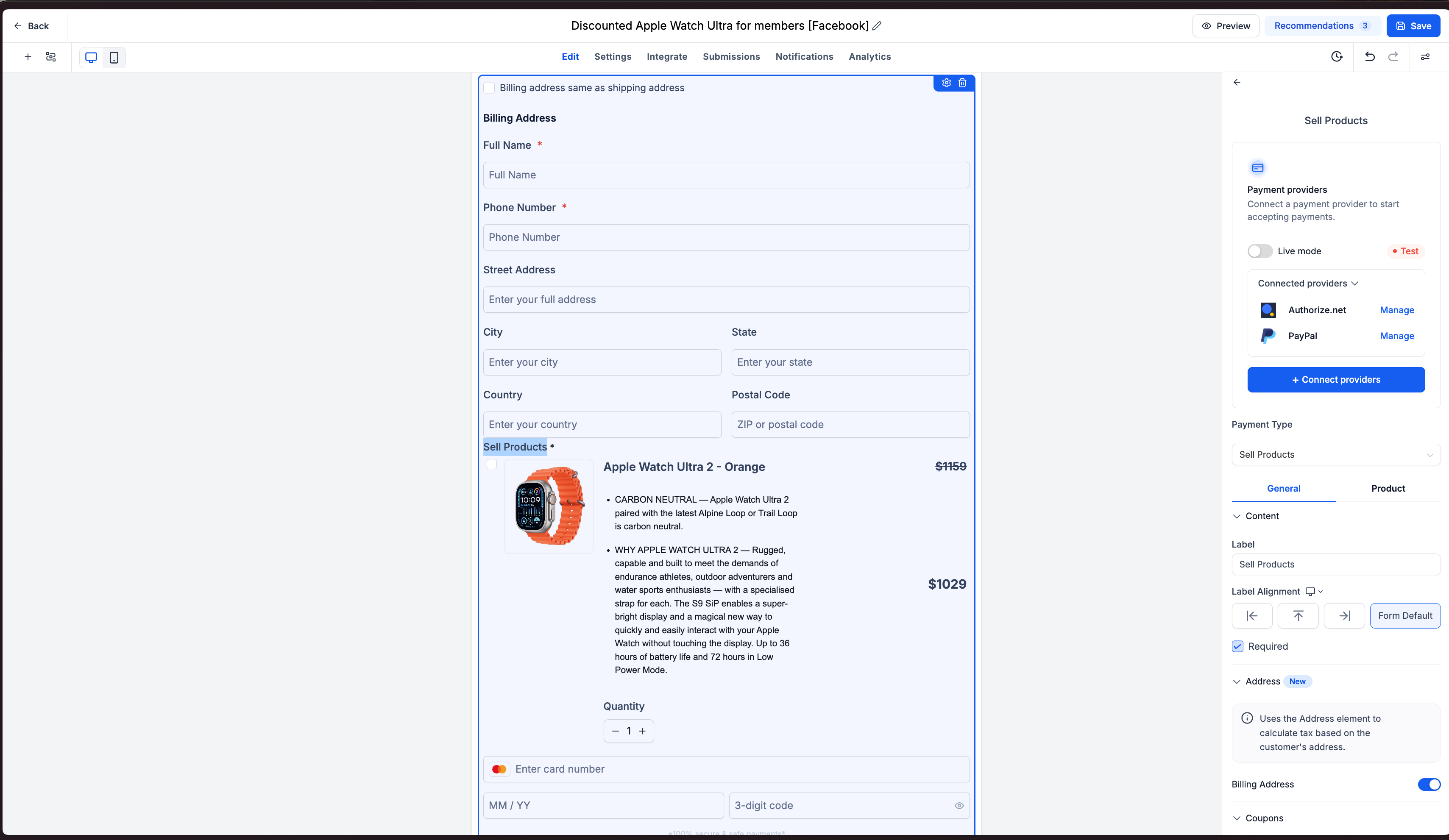
- Select the Sell Products element, open General > Address, and enable Shipping Address, followed by Billing Address. The billing fields automatically mirror the Address element's configuration.
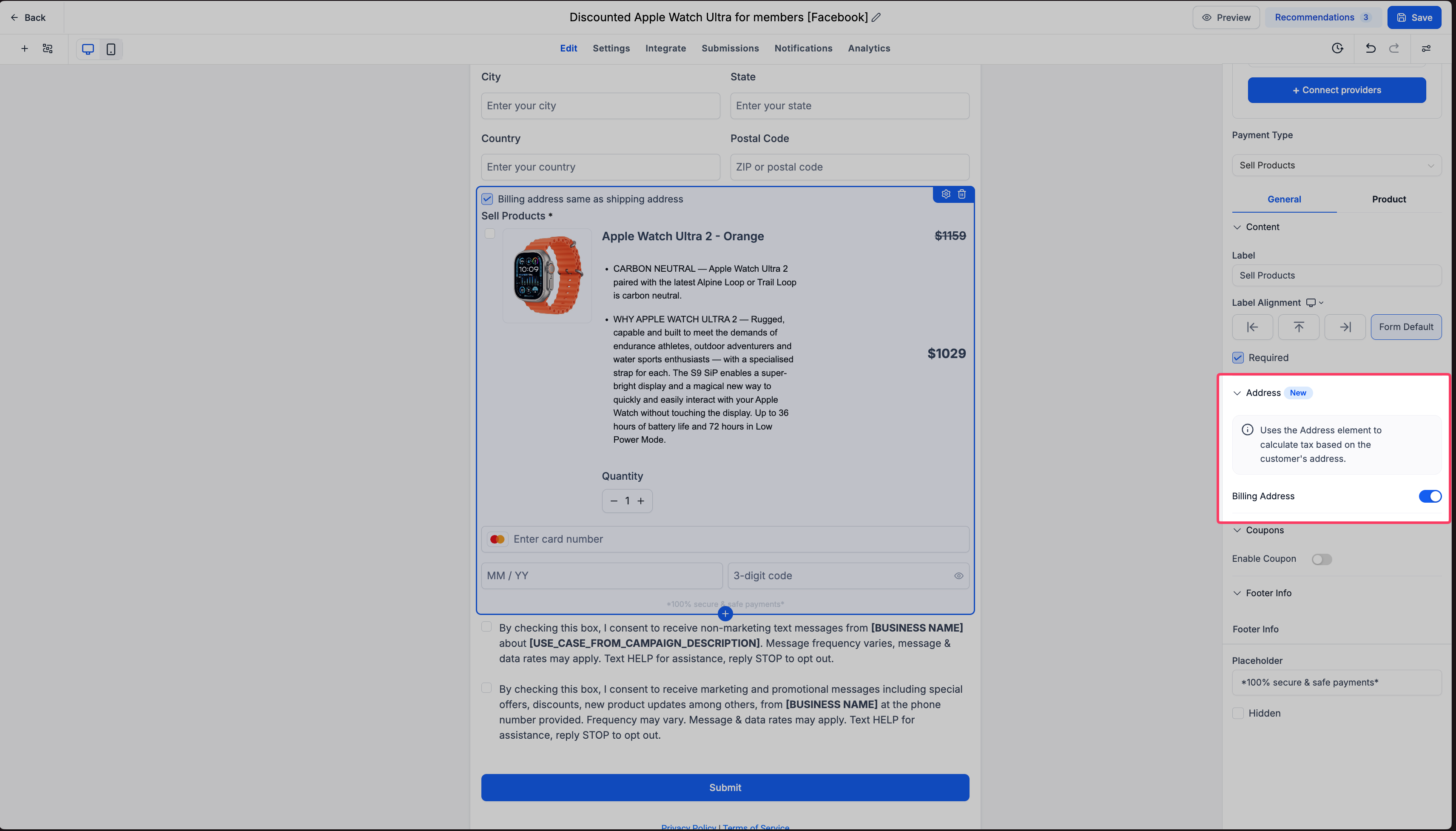
- Review the Billing address same as shipping address checkbox in the form preview. Customers can use their shipping details for billing or clear the checkbox to enter a different address.
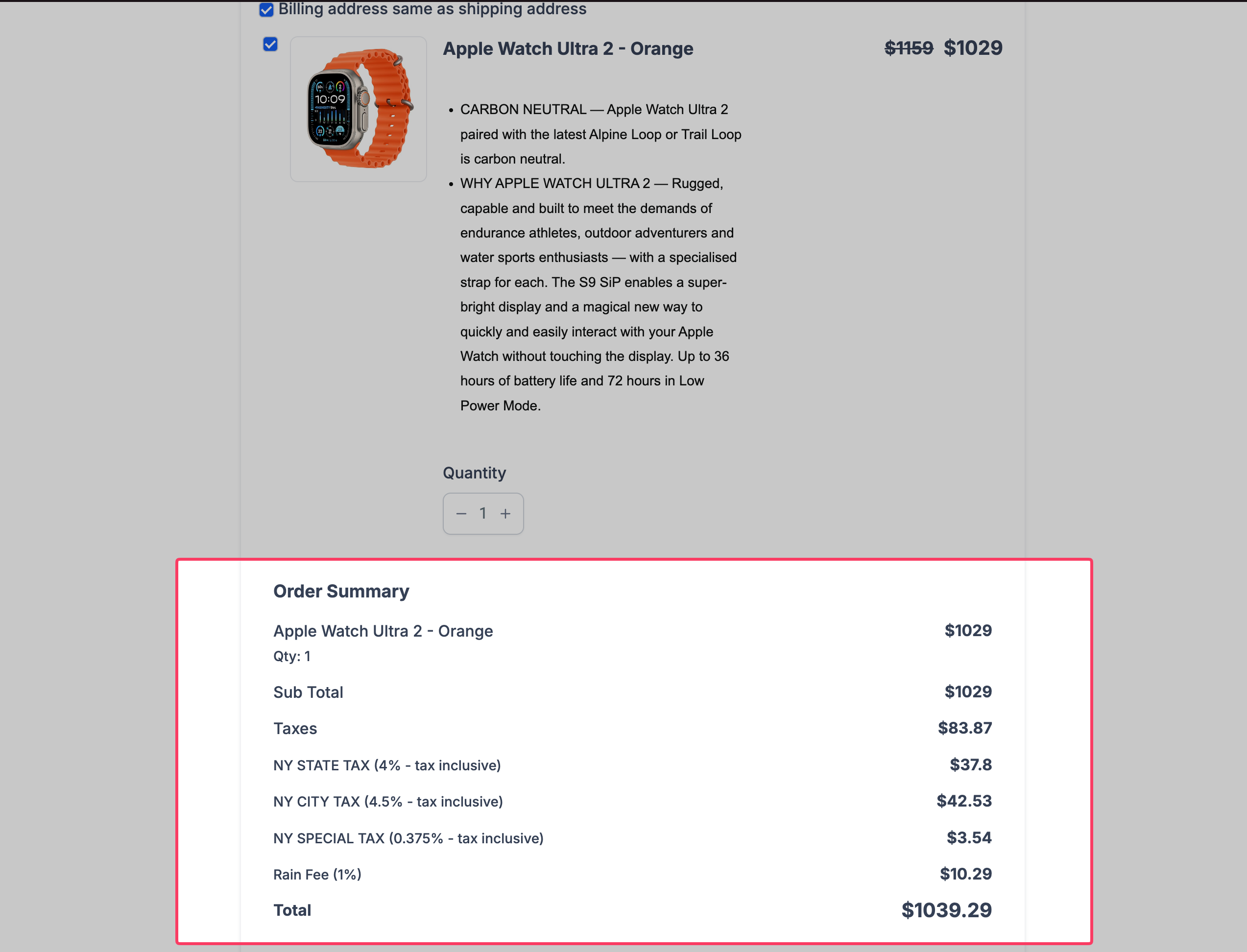
- Save the Form or Survey and open Preview. Enter customer and shipping details, select a product, and verify that applicable taxes appear in the Order Summary.
- Test checkout with matching and different shipping/billing addresses. Once everything works as expected, save and publish the Form or Survey.
Note: Tax calculations depend on customer address information, configured nexus locations, product tax settings, and applicable tax rules.Frequently Asked Questions
Q: Why aren't automatic taxes appearing in my Order Summary?
Ensure Automatic Taxes are enabled, the applicable nexus locations and product tax categories are configured, and the customer has entered the required address information. Taxes may not apply to every location or transaction.
Q: Does enabling Address Auto-Complete automatically enable Automatic Taxes?
No. Address Auto-Complete helps customers enter accurate address information, while Automatic Taxes use those details along with your configured tax settings to calculate applicable taxes. Both features require separate configurations.
Q: Are taxes included in the product price or added separately at checkout?
This depends on your tax-inclusive or tax-exclusive pricing settings. Tax-inclusive pricing incorporates applicable taxes into the product price, while tax-exclusive pricing adds them separately to the checkout total.
Q: Are Automatic Taxes supported for customers in every country?
No. Automatic tax calculations depend on supported jurisdictions and your business's tax configuration. Refer to How to Setup and Use International Automatic Taxes for supported locations and setup requirements.
Related Articles
- How to Setup and Use International Automatic Taxes
- How to Use Products in Payment Element in Forms
- How to Use Address Auto-Complete in HighLevel Forms and Surveys
- Payments Integration in Surveys | Collect Payments & Sell Products
- Tax Inclusive or Exclusive Pricing
- How-to Add Taxes Overview
Was this article helpful?
That’s Great!
Thank you for your feedback
Sorry! We couldn't be helpful
Thank you for your feedback
Feedback sent
We appreciate your effort and will try to fix the article