Save Progress for Forms, Surveys & Quizzes
This article explains how the Save Progress feature automatically preserves respondent data in multi-step forms, surveys, and quizzes, enabling them to return and complete their submissions at their convenience.
You'll learn how to enable the feature, how it works for respondents, and how the Resume Progress modal automatically adapts to your branding.
What is Save Progress?
Save Progress is a feature that automatically preserves respondent data when they leave a multi-step form, survey, or quiz before completing it. When enabled, respondents can close their browser, refresh the page, or navigate away, and their answers are securely stored.
When they return to the same form, survey, or quiz, a Resume Progress modal appears, giving them the option to continue from where they left off or start over with a new submission. This feature is especially valuable for longer forms that require significant time or information gathering.
Save Progress is controlled using the Save Exit Confirmation toggle in the Settings tab and is available for all multi-step forms, surveys, and quizzes in HighLevel.
Key Benefits
Save Progress improves the respondent experience and increases completion rates by removing the frustration of lost work. Here are the key benefits:
How Save Progress Works
When Save Progress is enabled, HighLevel automatically monitors respondent activity and preserves their data if they leave before completing the submission. Here's how the feature works from the respondent's perspective:
A respondent starts completing a multi-step form, survey, or quiz with Save Progress enabled. They answer questions and navigate through multiple steps.
The respondent closes the browser, refreshes the page, or navigates to a different website before completing and submitting the form. Their progress is automatically saved.
When the respondent returns to the same form, survey, or quiz URL, a "Submission in progress" modal automatically appears on their screen.
The modal presents two options: Continue from where they left off, or Start Over with a new submission. The respondent selects their preferred option and proceeds accordingly.
Progress is only saved when the Save Exit Confirmation toggle is enabled. If the feature is disabled, respondents who leave the form will need to start over when they return.
How to Enable Save Progress
Enabling Save Progress for your multi-step forms, surveys, and quizzes is a straightforward process. Follow these steps to activate the feature:
Navigate to the form, survey, or quiz for which you want to enable Save Progress. Open the item in edit mode.
Click on the Settings tab within the form, survey, or quiz builder interface.
Locate the Save Exit Confirmation toggle in the Settings tab. Switch the toggle to the enabled position to activate Save Progress.
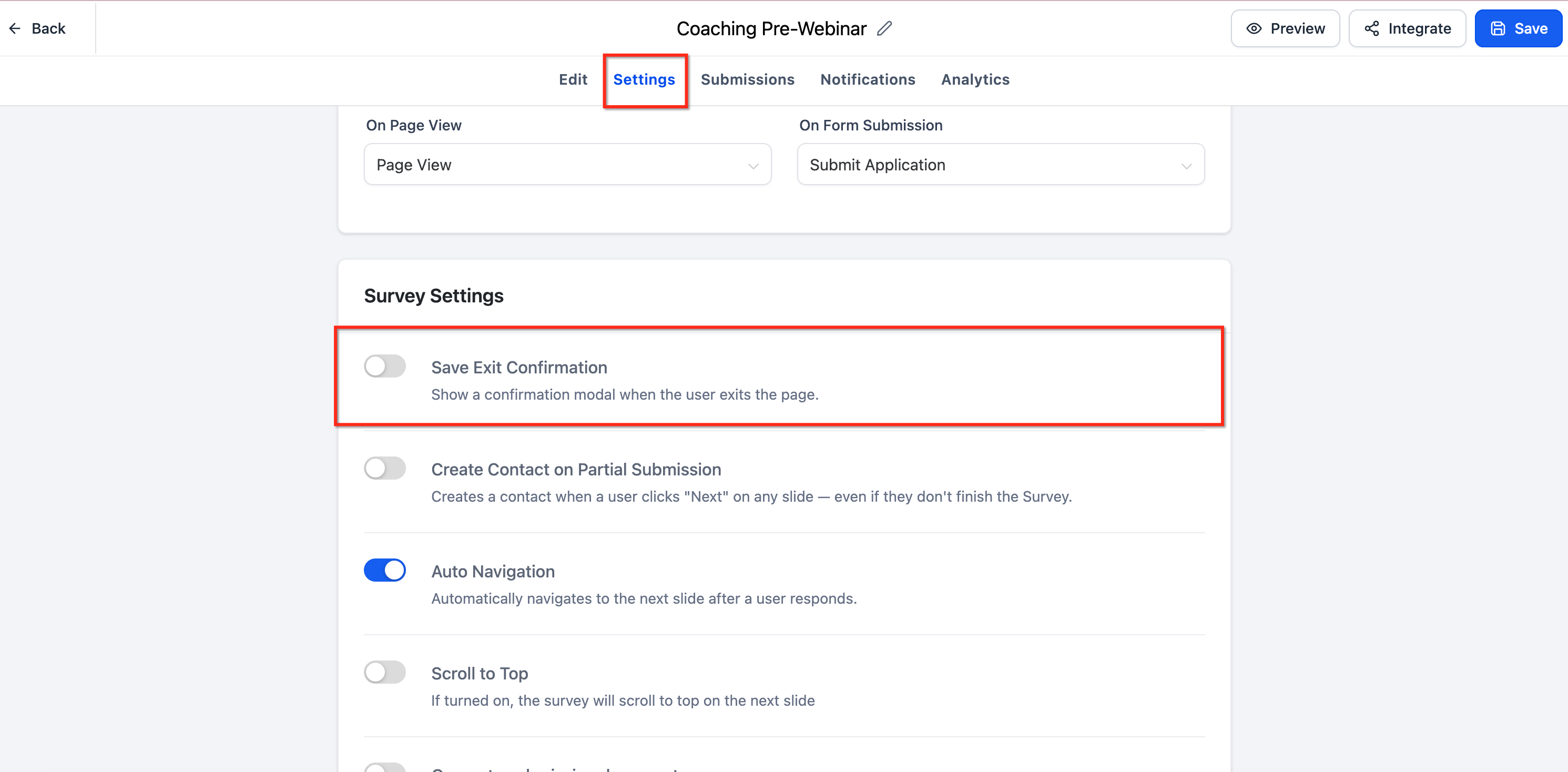
Save the form, survey, or quiz to apply your changes. The Save Progress feature is now active and will preserve respondent data going forward.
Existing forms, surveys, and quizzes remain unchanged until you explicitly enable the Save Exit Confirmation toggle. This feature is opt-in and does not activate automatically.
Resume Progress Modal Branding
The Resume Progress modal automatically inherits branding settings from your form, survey, or quiz, ensuring a consistent visual experience for respondents. This automatic styling applies to two key design elements:
The call-to-action buttons in the Resume Progress modal (Continue and Start Over) inherit the footer color configured in your form, survey, or quiz settings. This ensures the modal buttons match your existing brand palette without requiring additional configuration.
All text displayed in the Resume Progress modal uses the label font configured in your form, survey, or quiz settings. This maintains typographic consistency between the modal and the rest of your form experience.
You do not need to configure the Resume Progress modal separately. All branding settings are automatically inherited from your form, survey, or quiz configuration.
Related Articles
Frequently Asked Questions
Was this article helpful?
That’s Great!
Thank you for your feedback
Sorry! We couldn't be helpful
Thank you for your feedback
Feedback sent
We appreciate your effort and will try to fix the article