Generate Submission Documents for Forms, Surveys & Quizzes
This article explains how to enable automatic PDF document generation for form, survey, and quiz submissions in HighLevel. You'll learn how to configure the setting, understand the PDF naming convention, and access generated documents from contact records.
Submission documents provide printable, professional records of responses that are automatically stored and associated with contacts for easy access throughout your CRM workflows.
What is Generating Submission Documents?
The Generate Submission Document setting allows you to automatically create and store professional PDF copies of every form, survey, or quiz submission. When enabled, HighLevel generates a beautifully formatted document containing all questions and responses, complete with submission metadata.
Each PDF is automatically associated with the submitting contact and stored in their Documents section, making it easy to view, download, share, or use throughout your CRM workflows. This feature is available for Forms, Surveys, and Quizzes across both desktop and mobile experiences.
Key Benefits of Generating Submission Documents
How to Enable Submission Document Generation
Follow these steps to enable automatic PDF generation for form, survey, or quiz submissions:
Log into your HighLevel account and click on Sites in the main navigation.

Choose whether you want to enable the setting for a Form, Survey, or Quiz. Click the appropriate option from the Sites menu.
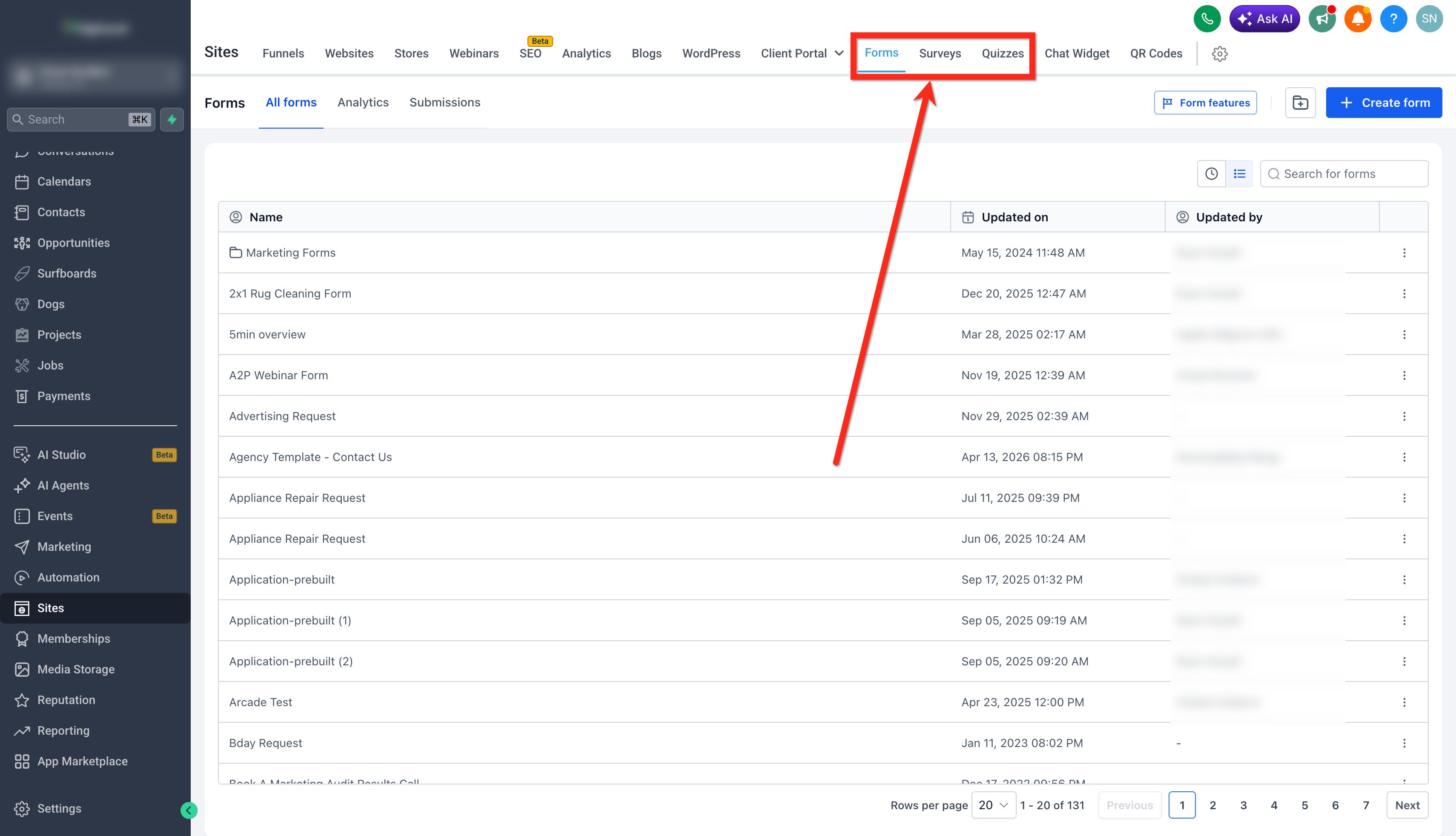
Either select an existing form, survey, or quiz from the list, or create a new one by clicking the + Create Form button (or equivalent for surveys/quizzes). You can start from scratch or use a template.

Once the form, survey, or quiz builder loads, click on Settings in the top navigation or side panel.

Scroll down to the Form Settings (or Survey/Quiz Settings) section. Locate the Generate Submission Document toggle and switch it to ON.

Click Save to apply the setting. Every new submission from this point forward will automatically generate a PDF document.

The Generate Submission Document setting is configured individually for each form, survey, or quiz. Enabling it on one does not automatically enable it for others. If you want submission documents for multiple forms, you must enable the setting for each one separately.
PDF Naming Convention
Generated documents follow consistent naming formats to ensure easy identification and organization. The naming convention differs slightly between Forms/Surveys and Quizzes:
Form/Survey: ContactForm_JohnDoe_2024-03-15_1430.pdf
Quiz: Result_ProductKnowledgeQuiz_JaneSmith_2024-03-15_0920.pdf
This standardized naming convention ensures that PDFs are easily searchable and identifiable within contact records and throughout your CRM.
Accessing Generated Documents
Once a submission is processed, the generated PDF is automatically stored in the contact's Documents section. Here's how to locate and use these documents:
Go to Contacts in your HighLevel account and locate the contact who submitted the form, survey, or quiz.

Click on the contact's name to open their detailed contact record.

In the right-hand panel, locate and click on Documents. You'll see organized folders for Forms, Surveys, and Quizzes.

From here, you can preview, download, print, or share the document via the client portal.

Submission documents can be used throughout HighLevel workflows, including email attachments, workflow triggers, and client portal sharing. They integrate seamlessly with your existing CRM processes.
Frequently Asked Questions
Was this article helpful?
That’s Great!
Thank you for your feedback
Sorry! We couldn't be helpful
Thank you for your feedback
Feedback sent
We appreciate your effort and will try to fix the article