Custom MCP Connectors for Superagents - Agent Studio

Modified on: Tue, 4 Aug, 2026 at 12:05 PM

AI Superagents

Custom MCP Connectors for Superagents

Connect any MCP server to your Superagents and extend agent capabilities with custom tools from third-party services or your own internal systems.
What You'll Learn

HighLevel Superagents support custom MCP (Model Context Protocol) connectors, allowing you to integrate any MCP server—not just the ones in our catalog. This opens up unlimited possibilities for extending your agents with specialized tools from third-party services or your own internal systems.

This article explains what custom MCP connectors are, how to add and configure them in Agent Studio, and best practices for using them effectively.

1

What are Custom MCP Connectors?

Custom MCP connectors allow you to connect any MCP (Model Context Protocol) server to your Superagents. MCP is a protocol that enables AI agents to interact with external tools and services in a standardized way.

While HighLevel provides a catalog of prebuilt MCP connectors for popular services, custom MCP connectors remove these limitations. You can now integrate third-party MCP servers or your own internal tooling, giving your agents access to specialized capabilities that match your exact business needs.

Each custom MCP connector requires a server name and server URL. Once connected, you can select which specific tools from that server your agent can access and use.

2

Key Benefits

Custom MCP connectors unlock new possibilities for extending your Superagents with specialized tools and services.

Unlimited Integration Options — Connect any MCP server, not just the ones in HighLevel's prebuilt catalog, giving you unlimited flexibility in extending agent capabilities.
Internal Tooling Support — Integrate your own internal MCP servers, allowing agents to interact with proprietary systems and workflows specific to your organization.
Secure Authentication — Configure client ID and client secret credentials for servers that require authentication, ensuring secure connections to protected resources.
Granular Tool Selection — Choose exactly which tools from each MCP server your agent can access, giving you precise control over agent capabilities and permissions.
Third-Party Service Access — Let agents take actions on external third-party MCP servers, expanding automation possibilities beyond HighLevel's native integrations.
3

How to Add a Custom MCP Connector

Follow these steps to add a custom MCP connector to your Superagent in Agent Studio.

Step 1
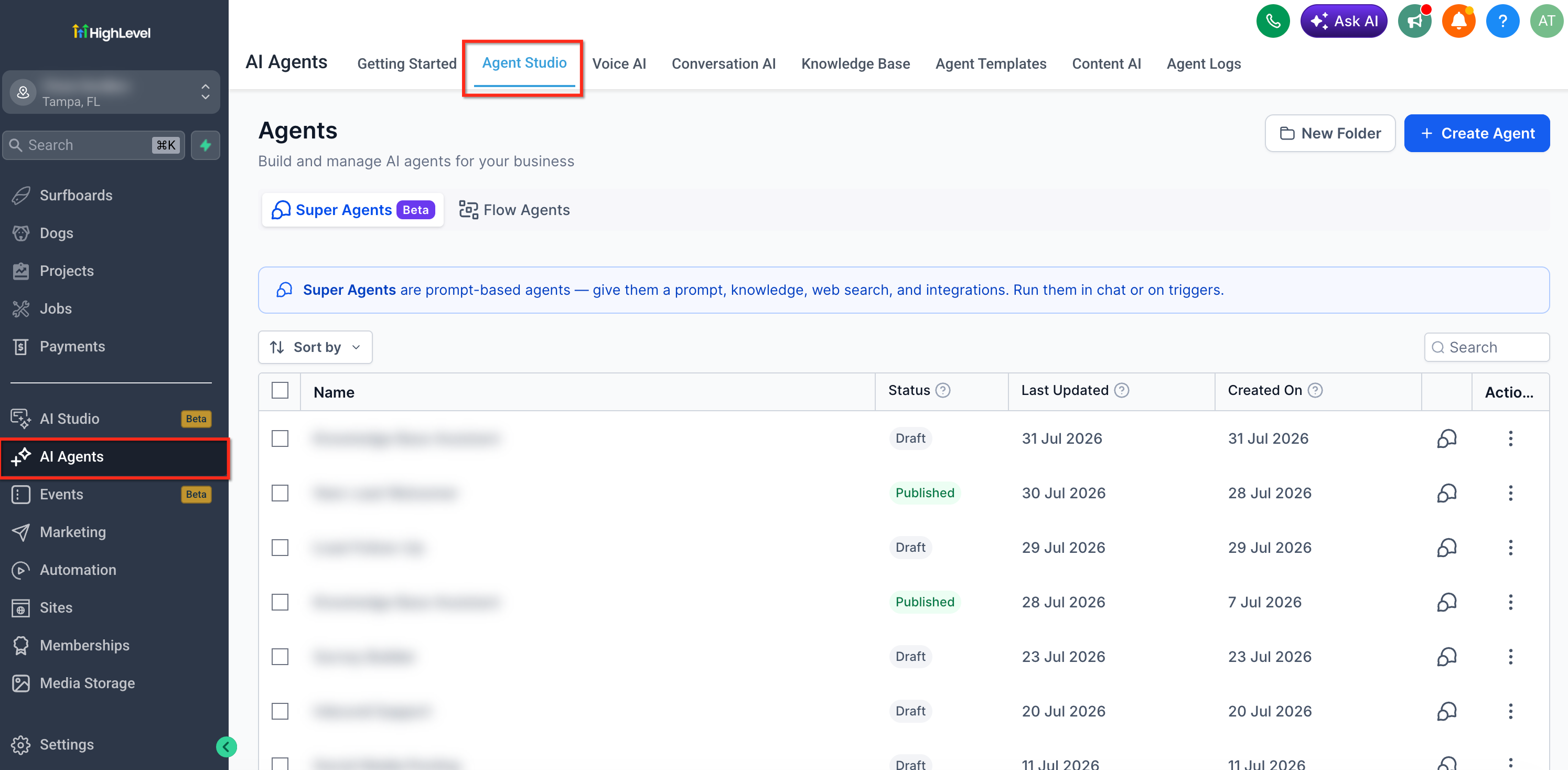
Open Agent Studio

Navigate to Agent Studio where you create and manage your Superagents.


Step 2
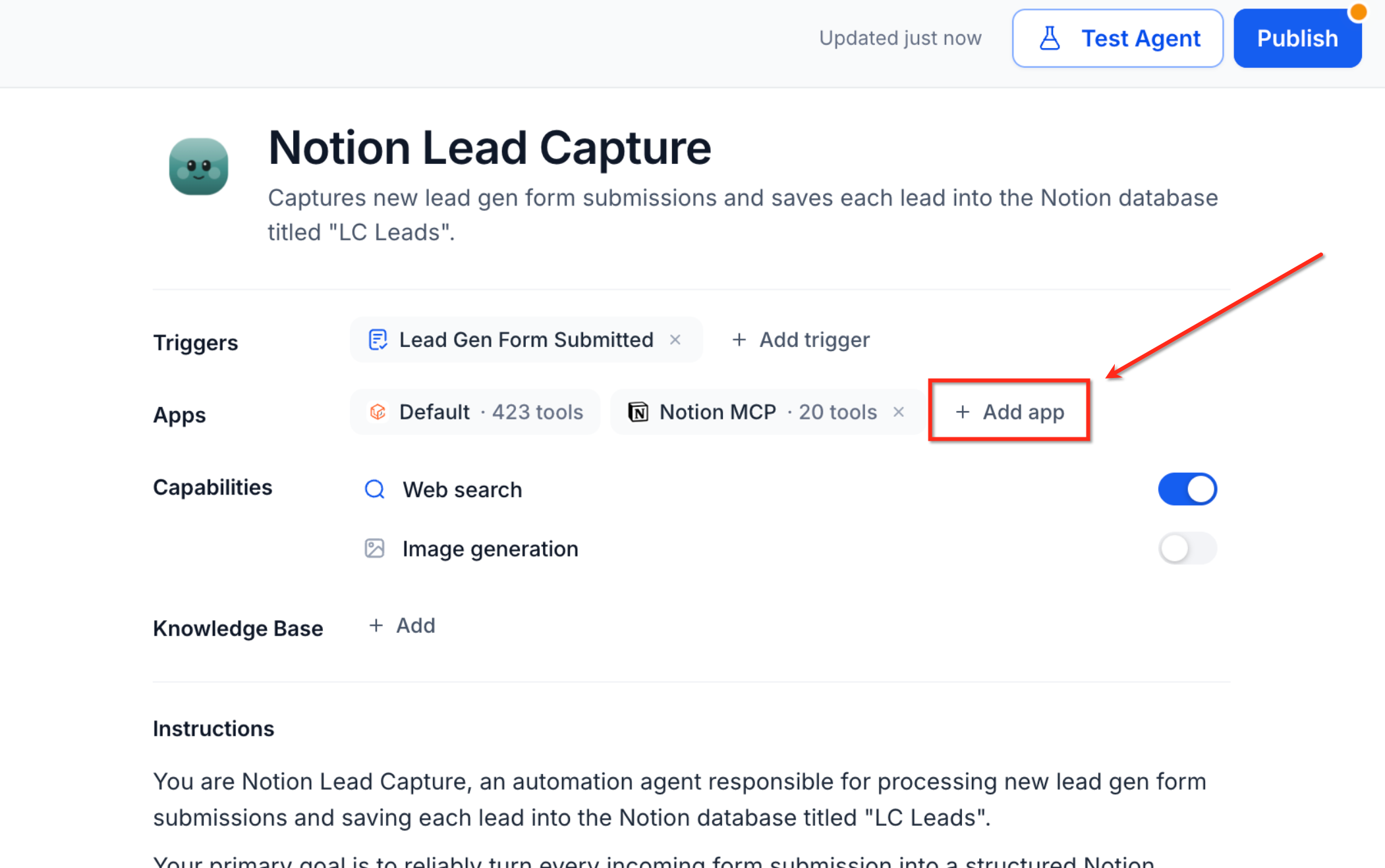
Add an MCP App

Click the option to add an MCP app to your agent configuration.

Step 3
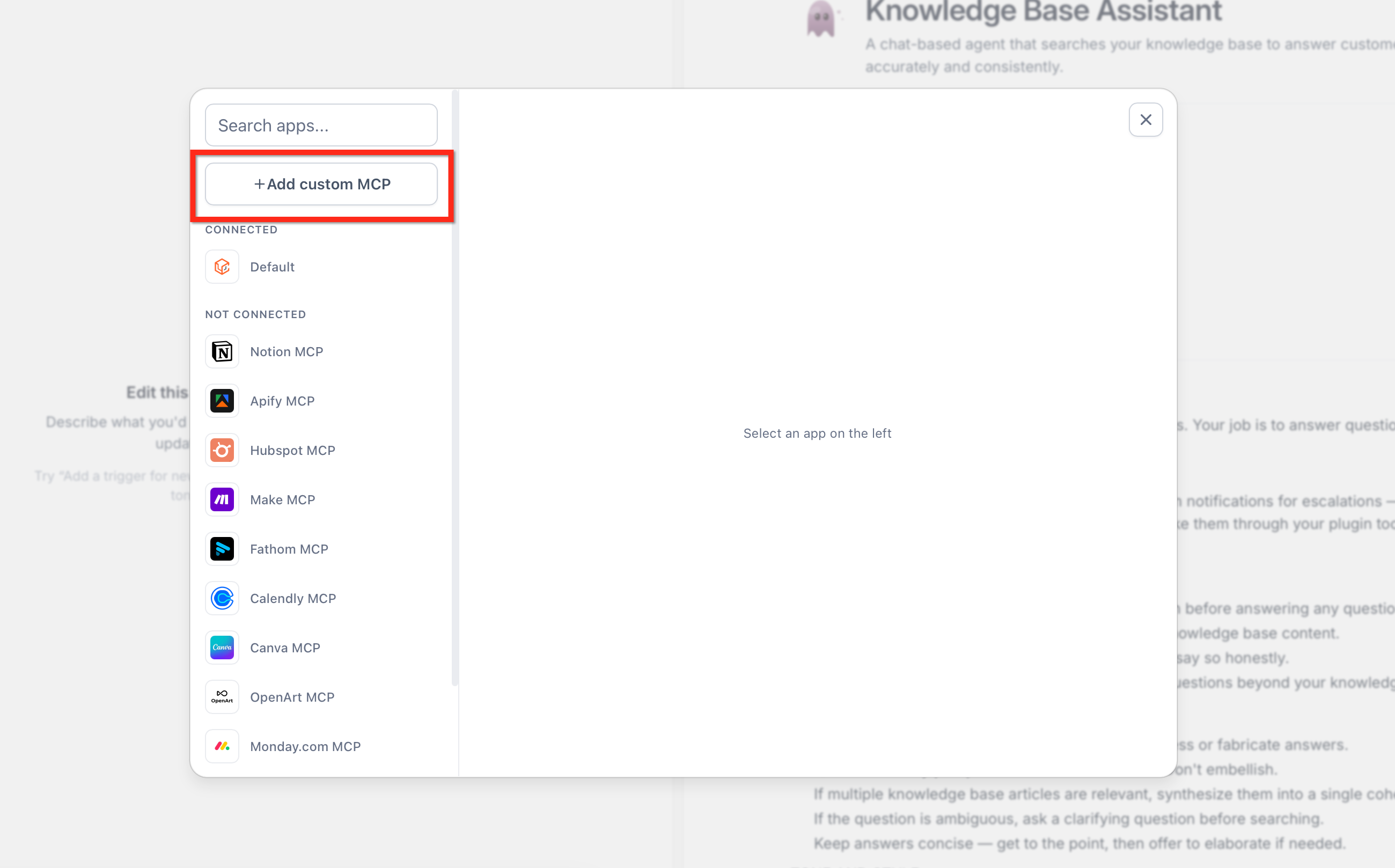
Select Add Custom MCP

Click the + Add custom MCP button to open the custom connector configuration form.

Step 4
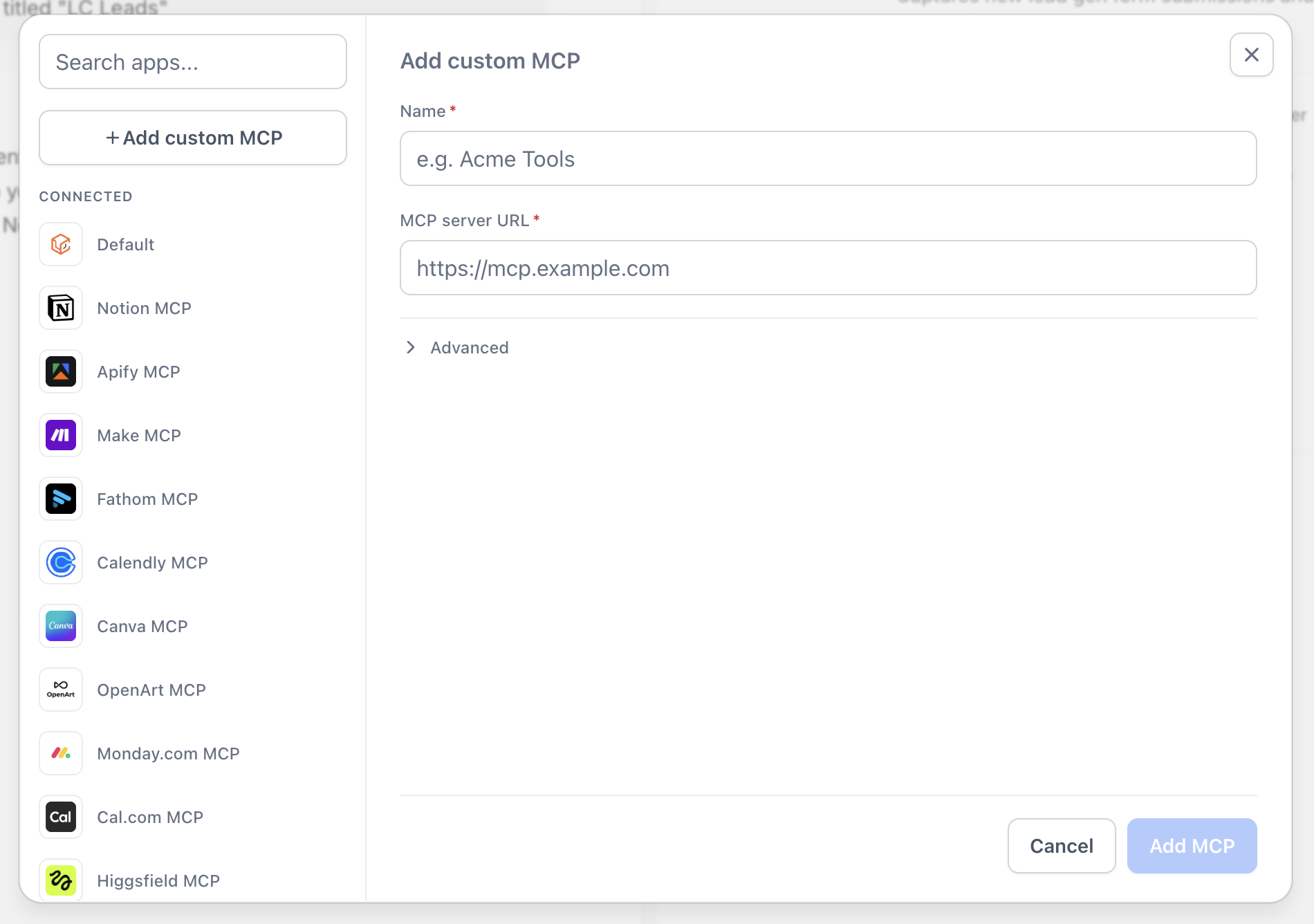
Enter Server Name and URL

Provide a descriptive name for your MCP connector and enter the server URL where the MCP server is hosted.

Step 5
Add the MCP

Click the Add MCP button to save the connector configuration.

Step 6
Wire the MCP to Your Agent

Connect the custom MCP connector to your agent so it can access and use the tools provided by the MCP server.
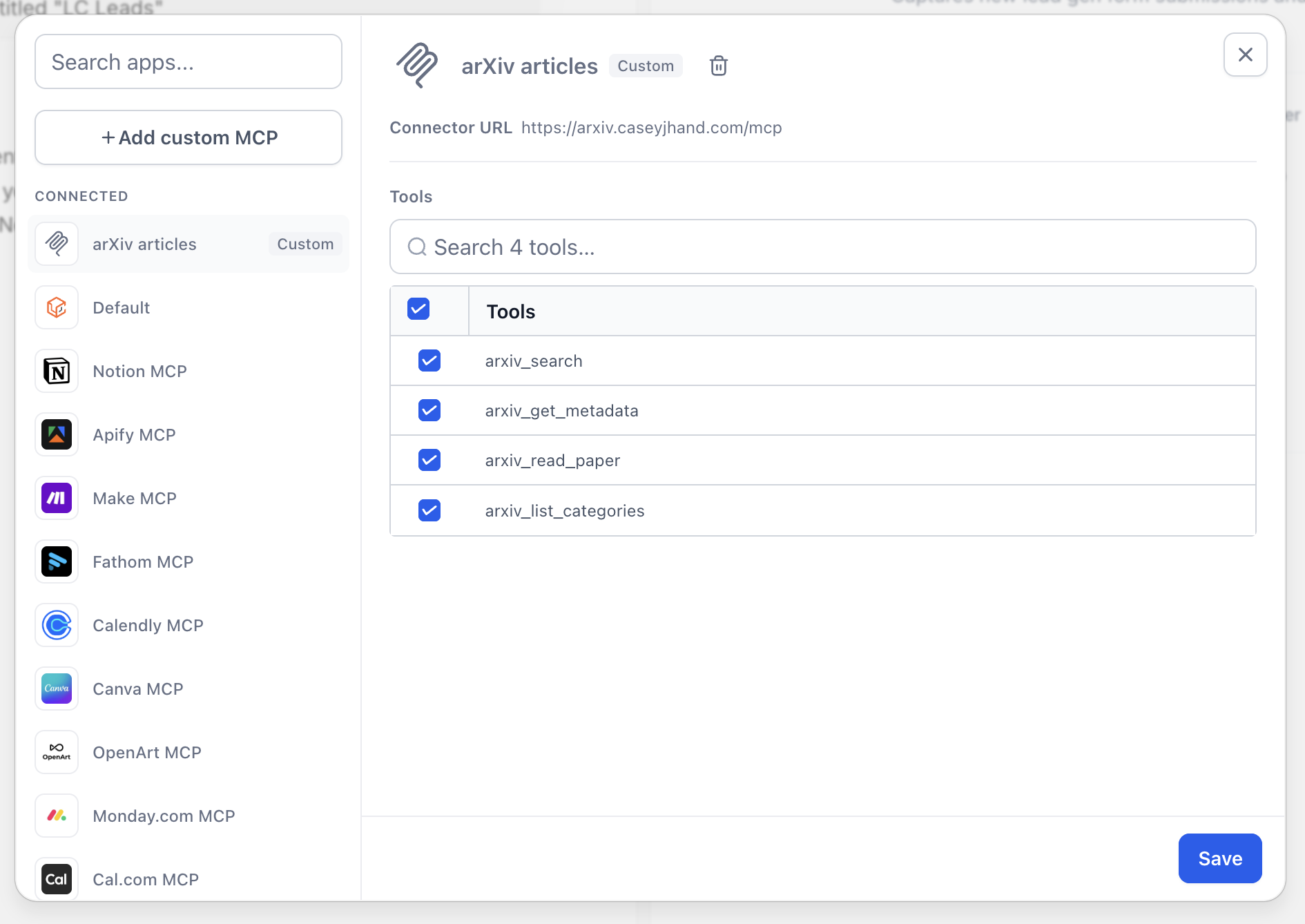

Success

Your custom MCP connector is now added and ready to use. You can proceed to configure authentication if required and select which tools your agent can access.

4

Configuring Authentication for Custom MCPs

Some MCP servers require authentication credentials to establish a secure connection. HighLevel supports configuring client ID and client secret credentials for custom MCP connectors.

To configure authentication credentials:

Step 1
Access Advanced Settings

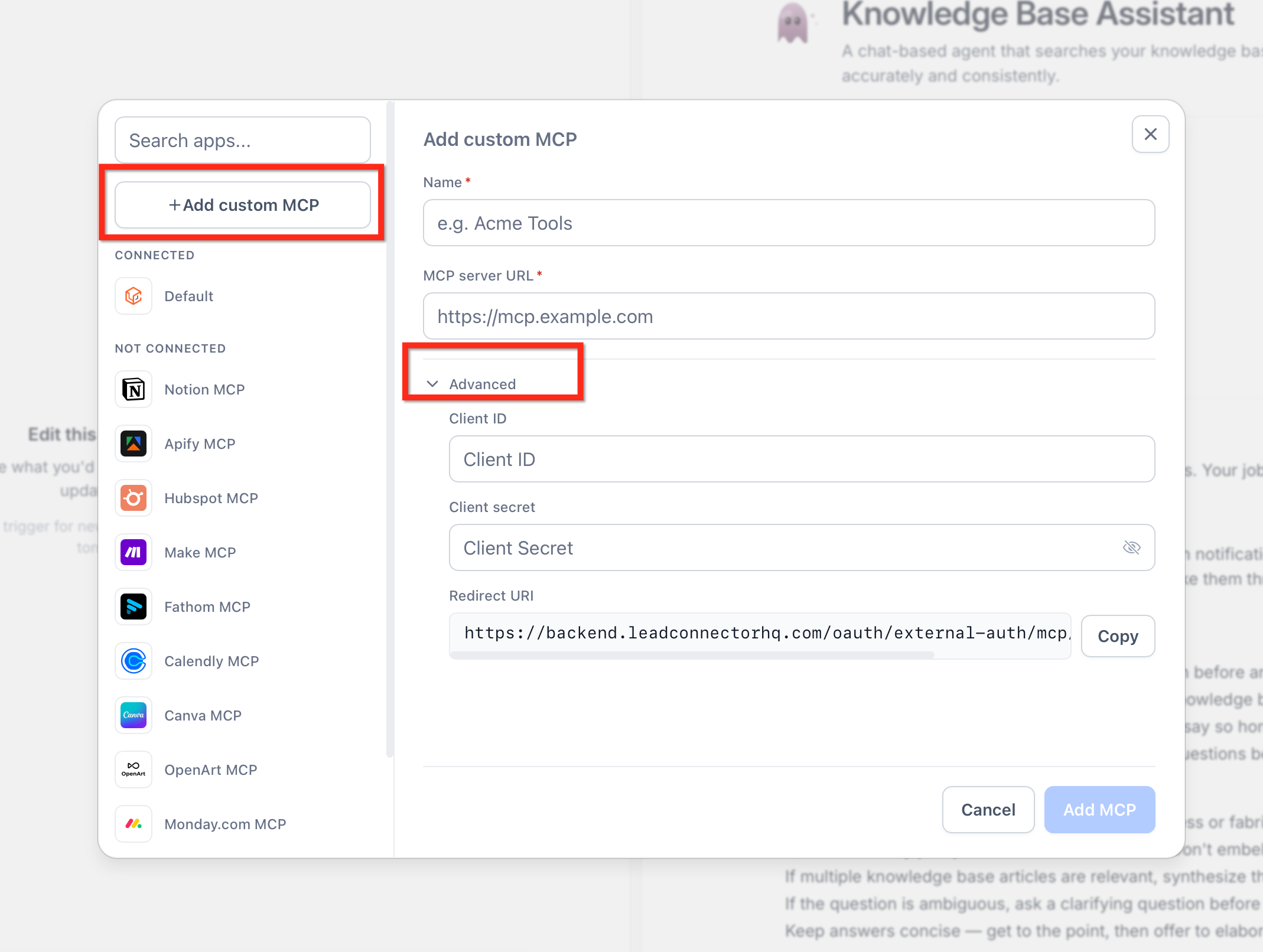
When adding or editing a custom MCP connector, look for the Advanced settings section in the configuration form.

Step 2
Enter Client ID

Provide the client ID credential issued by your MCP server provider.

Step 3
Enter Client Secret

Provide the client secret credential issued by your MCP server provider. This field is encrypted for security.

Note

Only configure authentication credentials if your MCP server requires them. Not all MCP servers require authentication. Consult your MCP server documentation for authentication requirements.

5

Frequently Asked Questions

Q: What is the difference between catalog MCP connectors and custom MCP connectors?
Catalog MCP connectors are prebuilt integrations provided by HighLevel for popular services. Custom MCP connectors allow you to add any MCP server by providing its server URL, including third-party services or your own internal tooling.
Q: Do I need to configure authentication for every custom MCP connector?
No. Only configure authentication credentials (client ID and client secret) if your MCP server requires them. Many MCP servers do not require authentication. Check your MCP server documentation for authentication requirements.
Q: Can I use custom MCP connectors to integrate with my company's internal systems?
Yes. Custom MCP connectors are designed to support both third-party services and internal tooling. If your internal systems expose an MCP server, you can connect your Superagents to them using a custom MCP connector.
Q: How many custom MCP connectors can I add to a single agent?
You can add multiple custom MCP connectors to a single agent. There is no fixed limit, but adding too many tools can impact agent performance. Focus on the tools your agent needs for its specific use case.
Q: Can I control which tools from a custom MCP server my agent can use?
Yes. After adding a custom MCP connector, you can select which specific tools from that server your agent has permission to use. This gives you granular control over agent capabilities and security.
Q: Will HighLevel continue adding catalog MCP connectors?
Yes. HighLevel continues to expand the catalog of prebuilt MCP connectors. Custom MCP connectors provide flexibility for services not yet available in the catalog or for internal tooling.
Q: What information do I need to add a custom MCP connector?
You need the MCP server name (a descriptive label) and the server URL where the MCP server is hosted. If the server requires authentication, you also need the client ID and client secret credentials.
Q: Can I edit or remove a custom MCP connector after adding it?
Yes. You can edit the configuration of a custom MCP connector or remove it from your agent at any time in Agent Studio. Changes take effect immediately.

Was this article helpful?

That’s Great!

Thank you for your feedback

Sorry! We couldn't be helpful

Thank you for your feedback

Let us know how can we improve this article!

Select at least one of the reasons
CAPTCHA verification is required.

Feedback sent

We appreciate your effort and will try to fix the article