Track review requests, customer feedback, and response performance directly from your HighLevel Location Dashboard using Reputation widgets.
These customizable widgets bring important reputation metrics together, making it easier to monitor review activity, identify trends, and evaluate how your business responds to customer feedback.
With flexible charts, date ranges, and filtering options, you can create a dashboard tailored to your reporting needs.
TABLE OF CONTENTS
- What Are Reputation Widgets in Location Dashboards?
- Key Benefits of Reputation Widgets
- Review Request Widgets
- Customer Review Widgets
- Review Response Widgets
- Dashboard Filters and Customization
- How to Set Up Reputation Widgets in Location Dashboards
- Frequently Asked Questions
- Related Articles
What Are Reputation Widgets in Location Dashboards?
Reputation widgets are customizable dashboard components that display key metrics related to review requests, customer reviews, and review responses. Instead of navigating between different reporting pages, businesses and agencies can monitor reputation performance alongside other business metrics within their Location Dashboards.
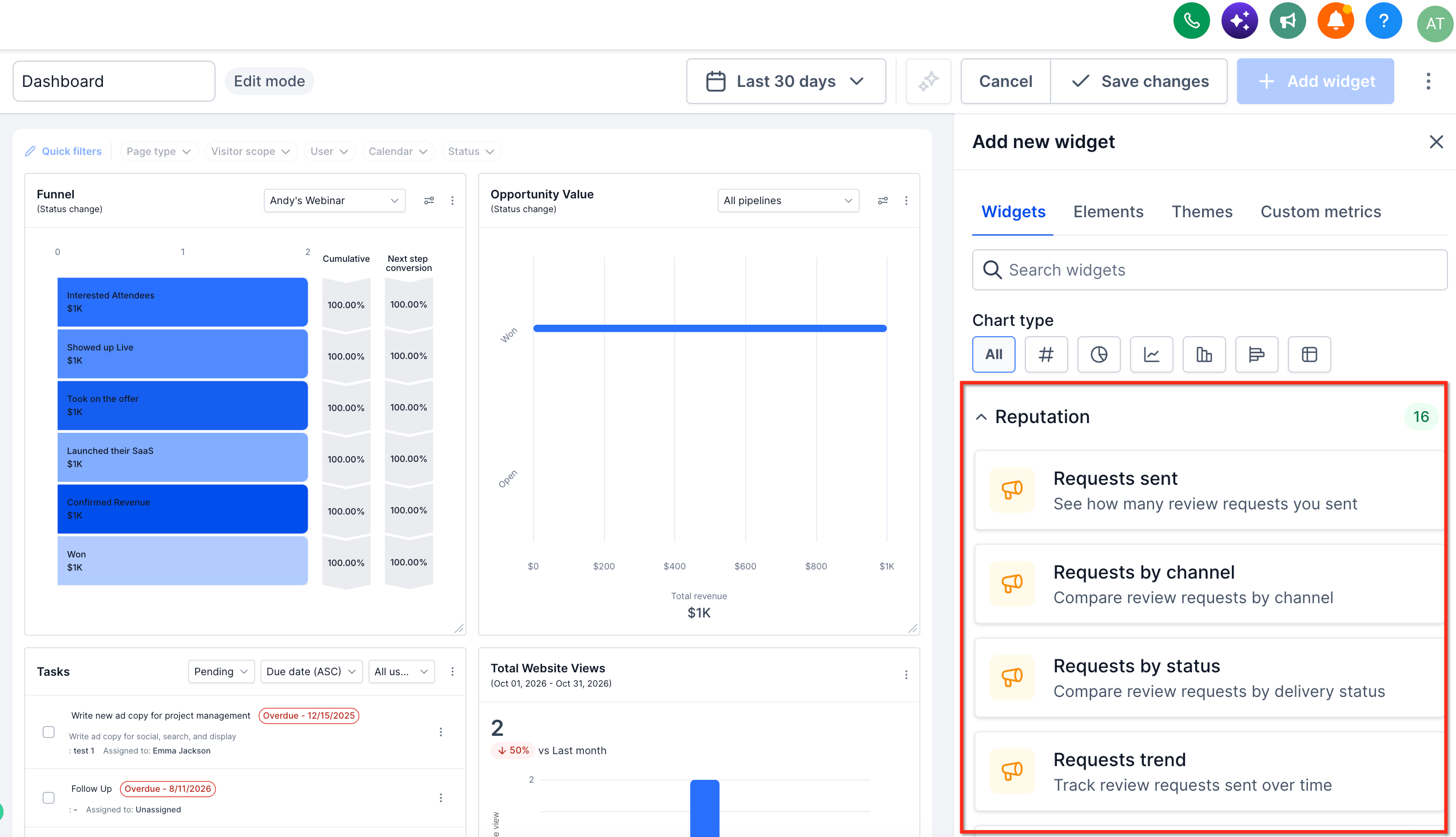
HighLevel provides 16 Reputation widgets that help users track review request activity, review volume, ratings, sentiment, and response performance. These widgets can be added to an existing dashboard or used to build a dedicated reputation dashboard.
Users can customize the dashboard layout, select reporting periods, and apply supported filters to focus on the information most relevant to their business.
Key Benefits of Reputation Widgets
Reputation widgets make it easier to understand customer feedback and monitor review management efforts without switching between different areas of HighLevel. By bringing important reputation data into customizable dashboards, businesses can identify trends, monitor performance, and share meaningful insights with their teams.
Centralized Reputation Monitoring: View review requests, customer reviews, and response performance alongside other business metrics in one dashboard.
Review Request Visibility: Track how many review requests are sent, which communication channels are used, and the status of those requests.
Customer Feedback Insights: Monitor review volume, star ratings, sentiment, and review sources to better understand customer experiences.
Response Performance Tracking: Evaluate how consistently and quickly customer reviews are answered, including visibility into AI and manual responses.
Customizable Reporting: Add, resize, and rearrange widgets to create dashboards that reflect your business priorities.
Flexible Data Filtering: Use date ranges and supported Quick Filters to focus on particular review ratings, sources, and response statuses.
Improved Client Reporting: Give agencies and business owners a clearer snapshot of reputation performance alongside other operational metrics.
Review Request Widgets
Review request widgets help businesses understand how actively they are requesting customer feedback and how those requests progress through different communication channels. Tracking request volume, delivery status, and trends can help identify opportunities to improve review outreach.
The following widgets provide insights into review request activity:
| Widget | Description |
|---|---|
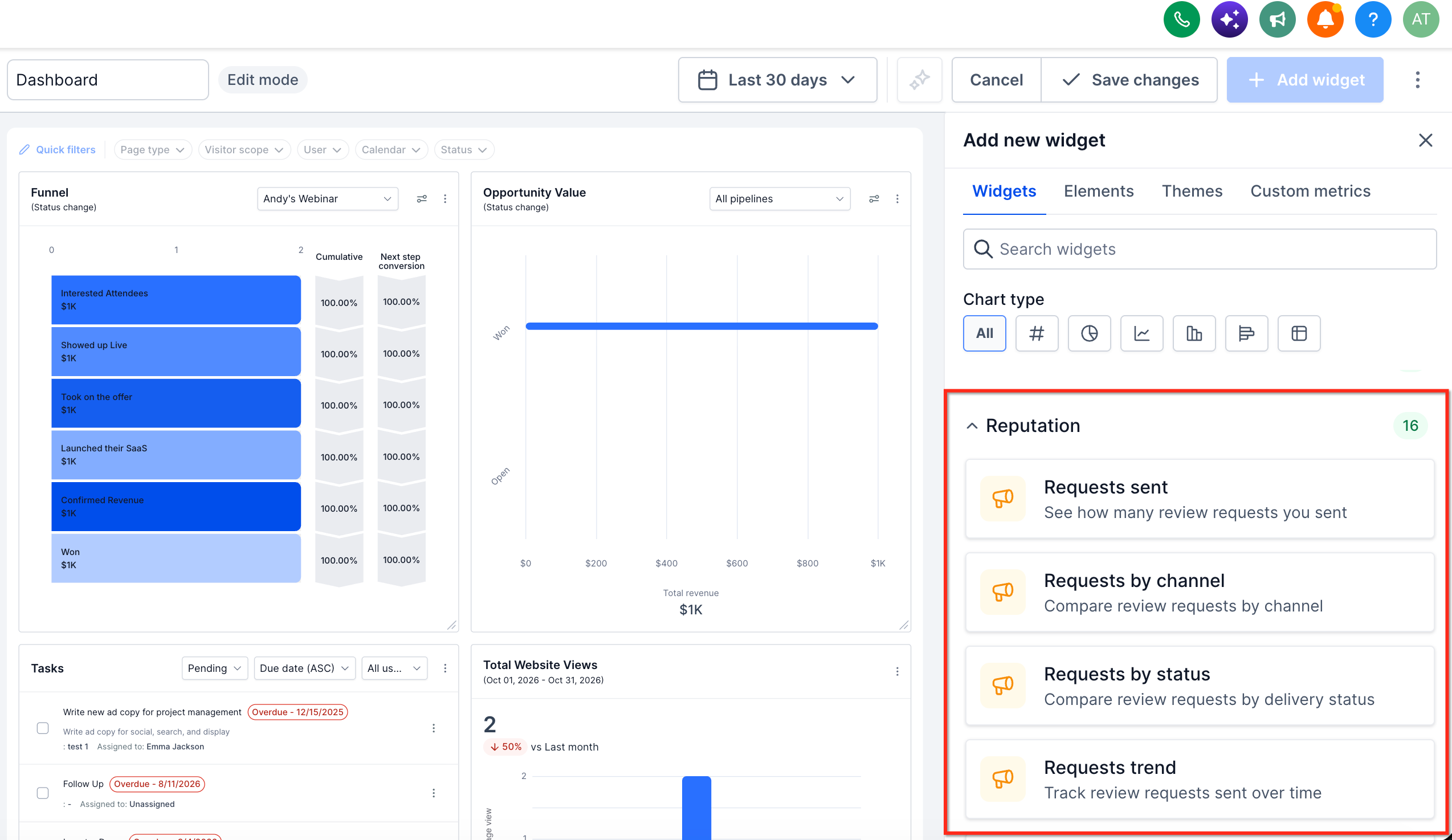
| Requests sent | Displays the number of review requests sent during the selected reporting period. |
| Requests by channel | Breaks down review requests by communication channel, such as SMS, Email, and WhatsApp, where applicable. |
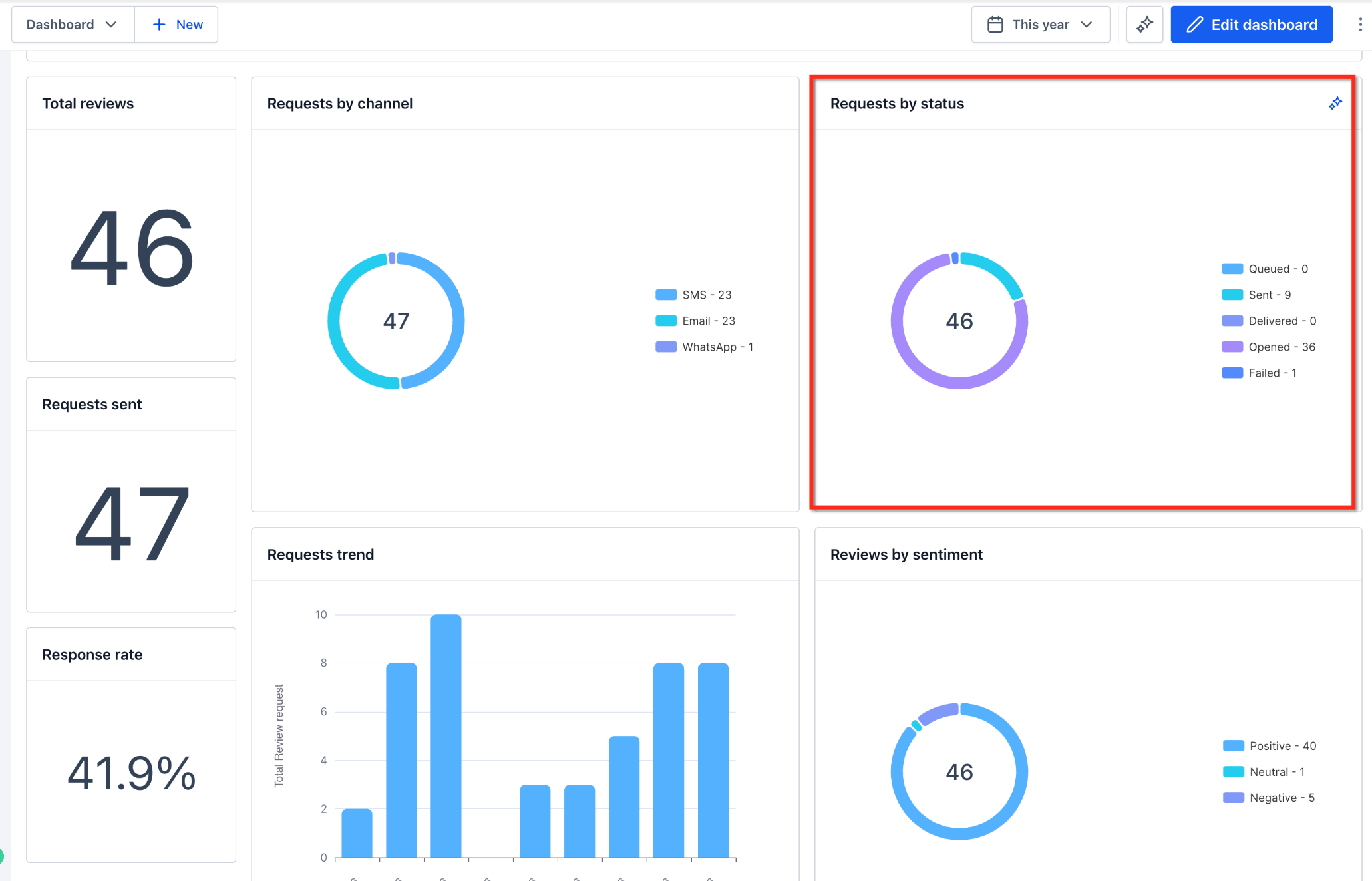
| Requests by status | Displays review requests grouped by status, such as Queued, Sent, Delivered, Opened, and Failed. |
| Requests trend | Visualizes changes in review request volume over time. |
Understanding Review Request Statuses
Request statuses help users determine whether review requests have been processed successfully or require attention.
Queued: The review request is waiting to be sent.
Sent: The review request has been sent through the selected channel.
Delivered: Delivery has been confirmed where supported by the messaging provider.
Opened: The request has an opened status recorded.
Failed: The request could not be delivered successfully.
Delivery confirmation and status availability can vary by communication channel and provider.
For more information about sending review requests and managing their statuses, refer to How to Send Review Requests.
Customer Review Widgets
Customer Review widgets provide visibility into the feedback your business receives across supported review platforms. By tracking the number of reviews, customer ratings, review sources, and sentiment, you can identify changes in customer satisfaction and monitor your overall reputation.
Available review metrics include:
| Widget | Description |
|---|---|
| Total reviews | Displays the total number of reviews included in the widget's reporting period and applicable data scope. |
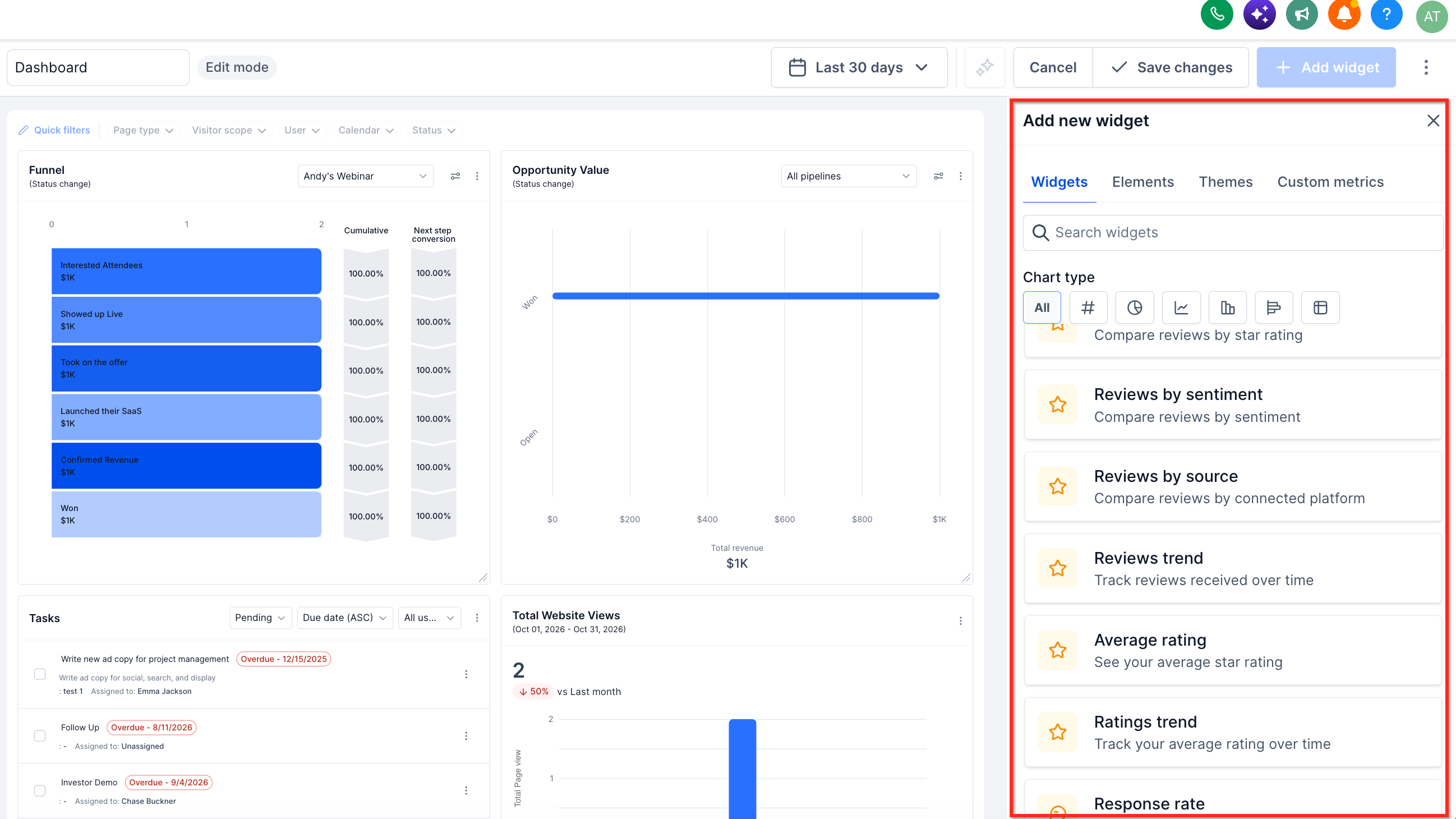
| Reviews by rating | Groups customer reviews according to their star ratings. |
| Reviews by source | Breaks down reviews by their source or connected review platform. |
| Reviews by sentiment | Categorizes reviews as Positive, Neutral, or Negative. |
| Reviews trend | Displays changes in review volume over time. |
| Average rating | Displays the average star rating for reviews included in the metric. |
| Ratings trend | Tracks changes in average star ratings over time. |
Understanding Review Sentiment
Review sentiment helps businesses assess how customers feel about their experiences.
Positive: Reviews expressing favorable customer feedback.
Neutral: Reviews expressing mixed or neutral feedback.
Negative: Reviews expressing unfavorable customer feedback.
HighLevel uses sentiment analysis to classify written reviews. For reviews without written comments, sentiment can be determined from the star rating.
Review sentiment provides additional context beyond star ratings, making it easier to recognize customer satisfaction trends and areas that may need improvement.
For additional information about review analytics, refer to Reputation – Breaking Down the Reputation Overview Dashboard.
Review Response Widgets
Review response widgets help businesses monitor how consistently and efficiently they respond to customer feedback. Tracking response activity can reveal unanswered reviews, identify changes in response performance, and support better customer engagement.
Available response metrics include:
| Widget or Metric | Description |
|---|---|
| Response rate | Displays the percentage of reviews that have received a response, based on the widget's reporting criteria. |
| Average response time | Measures the average time taken to respond to customer reviews. |
| Response rate trend | Displays changes in review response rates over time. |
| Average response time trend | Tracks changes in average review response time over time. |
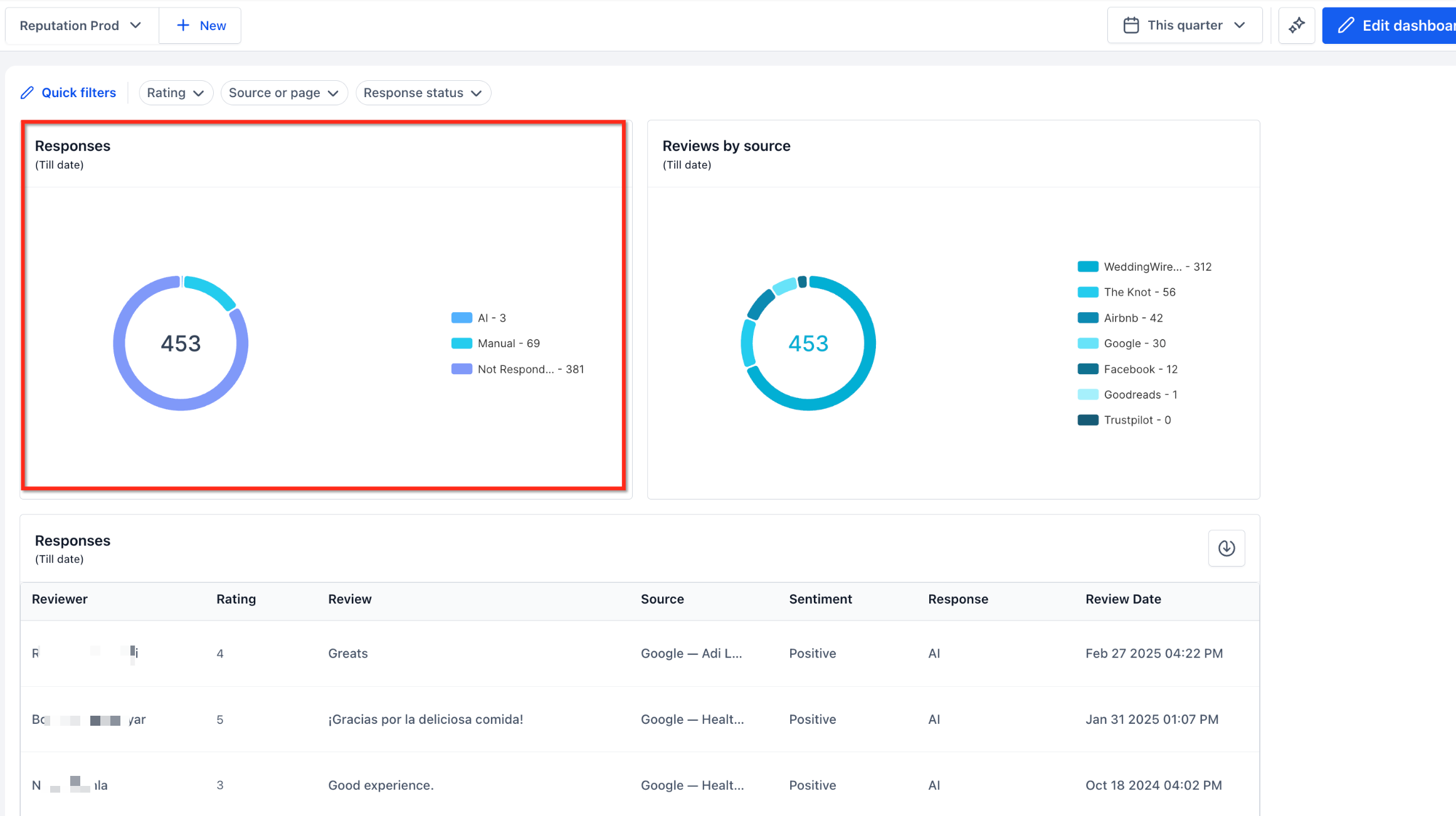
| AI vs. manual responses | Provides visibility into review responses generated using AI compared with manually submitted responses. |
Understanding Response Categories
Review responses can be grouped by how they were handled:
AI: Reviews answered using AI-powered response functionality.
Manual: Reviews answered manually.
Not Responded: Reviews that have not received a recorded response.
These categories help businesses understand how review responses are being managed.
Note: Response-related metrics and counts depend on the reviews included in the widget's reporting scope. The availability of AI response data may depend on the review response features configured for the location.
Dashboard Filters and Customization
Dashboard customization allows businesses to focus on relevant reputation metrics while keeping reporting organized.
Users can adjust date ranges, use supported Quick Filters, and modify the placement of Reputation widgets to create reporting views for different business goals.
Date Range Filters
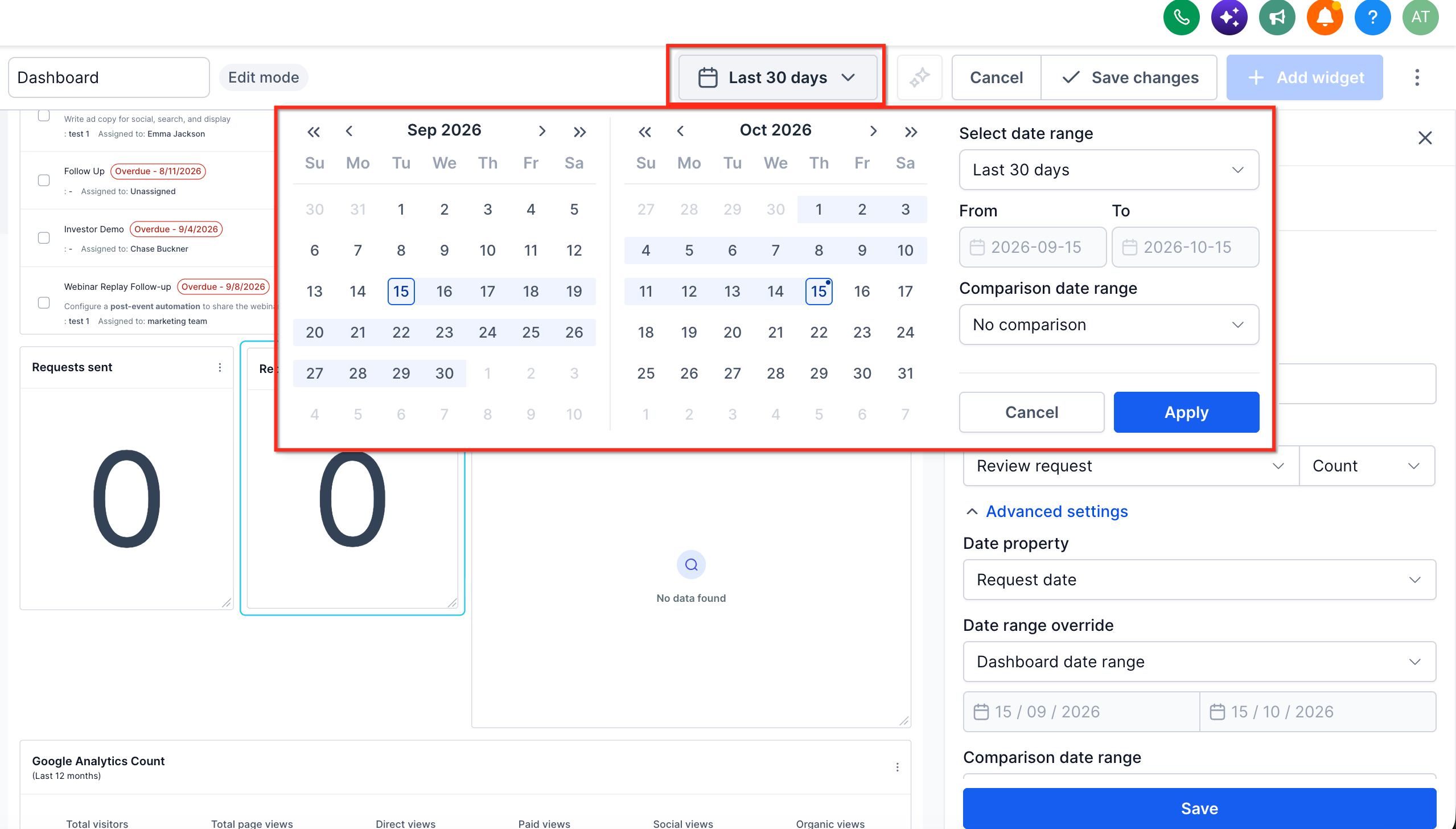
Use the date range selector at the top of the Dashboard to view metrics for a particular reporting period.
For example, you can select a monthly, quarterly, or yearly reporting period to monitor changes in reputation activity.
Open the Location Dashboard containing your Reputation widgets.
Click the date range selector in the upper-right corner.
Choose the desired reporting period.
Review the updated metrics for widgets that use the selected dashboard date range.
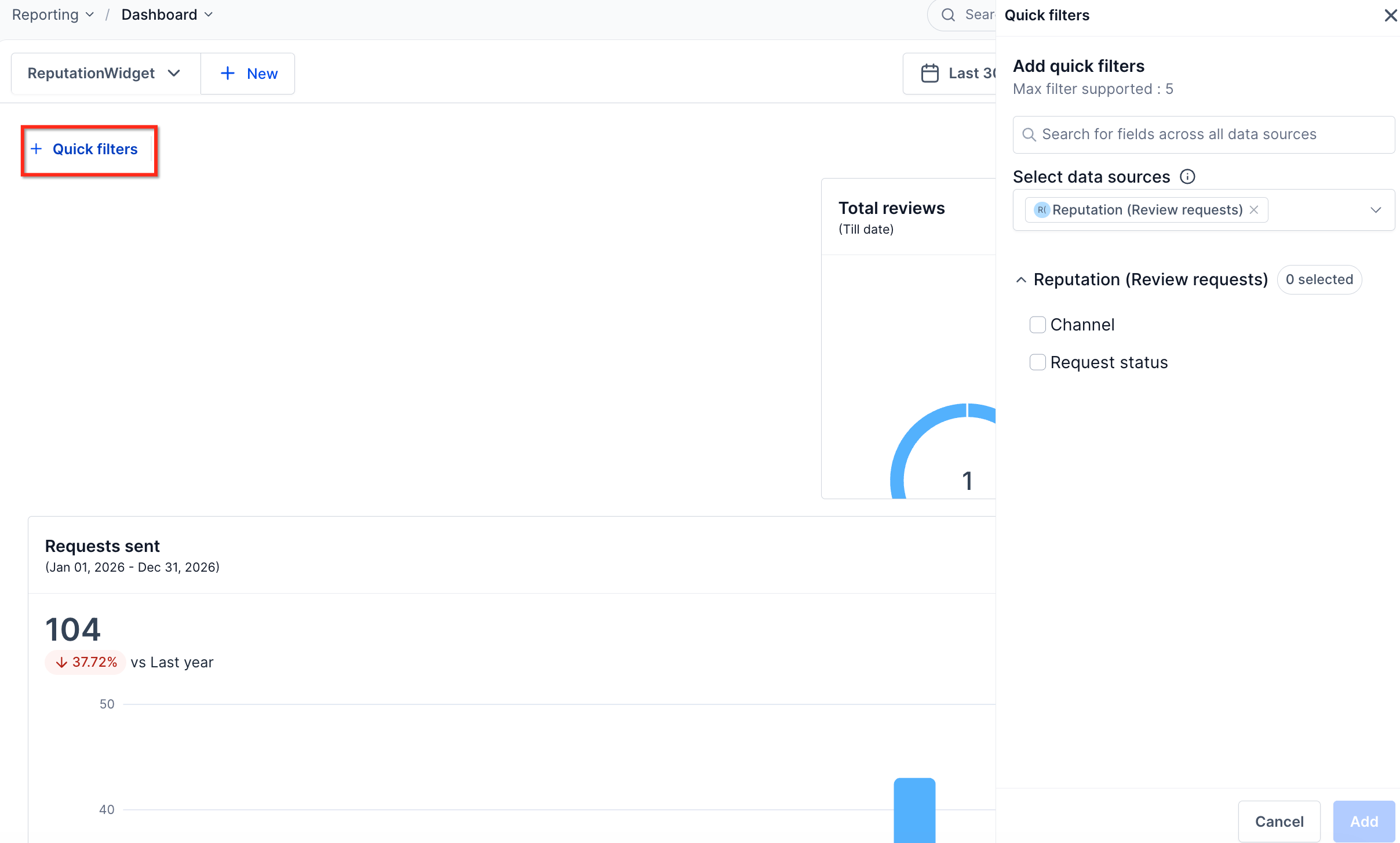
Quick Filters
Reputation dashboards can use supported Quick Filters to narrow the displayed information.
Examples shown in the Reputation dashboard interface include:
| Filter | Purpose |
|---|---|
| Rating | Focus on reviews with particular star ratings. |
| Source or page | Narrow review data to a selected source or page. |
| Response status | Focus on reviews based on whether or how they have been answered. |
To apply an existing Quick Filter:
Open the dashboard containing your Reputation widgets.
Locate the Quick Filters bar.
Select Rating, Source or page, or Response status.
Choose the desired filter value.
Review the widgets affected by the selected filter.
Important: Quick Filters apply to compatible widgets and data sources. They do not automatically affect every widget on a dashboard. Quick Filters also work alongside widget-level conditions, so conflicting conditions may result in no matching data.
For detailed instructions, refer to Quick Filters on Dashboards.
Widget Layout and Customization
Reputation widgets can be arranged alongside other dashboard metrics to create a reporting layout that works for your team.
Supported dashboard customization options include:
Rearrange widgets: Drag widgets to change their placement on the dashboard.
Resize widgets: Adjust widget dimensions to improve readability.
Configure widgets: Modify supported settings, chart types, and conditions.
Combine metrics: Display Reputation widgets alongside other business performance widgets.
Customize appearance: Use available dashboard themes and layout elements.
Add Custom Metrics: Use the separate Custom Metrics functionality when additional calculated business metrics are needed and supported.
For advanced widget configurations, refer to Customizing Dashboard Widgets.
How to Set Up Reputation Widgets in Location Dashboards
Adding Reputation widgets to a Location Dashboard allows you to monitor important reputation metrics without repeatedly navigating to Reputation Management. Setting up the widgets and arranging them thoughtfully helps ensure the dashboard displays useful information for your business or clients.
Step 1: Navigate to the Location Dashboard
Log in to your HighLevel account.
Open the desired sub-account.
Select Dashboard from the left navigation menu.
Open an existing dashboard using the dashboard selector.
You can also create a new dashboard if you want a separate reporting view dedicated to Reputation metrics.
Step 2: Enter Dashboard Edit Mode
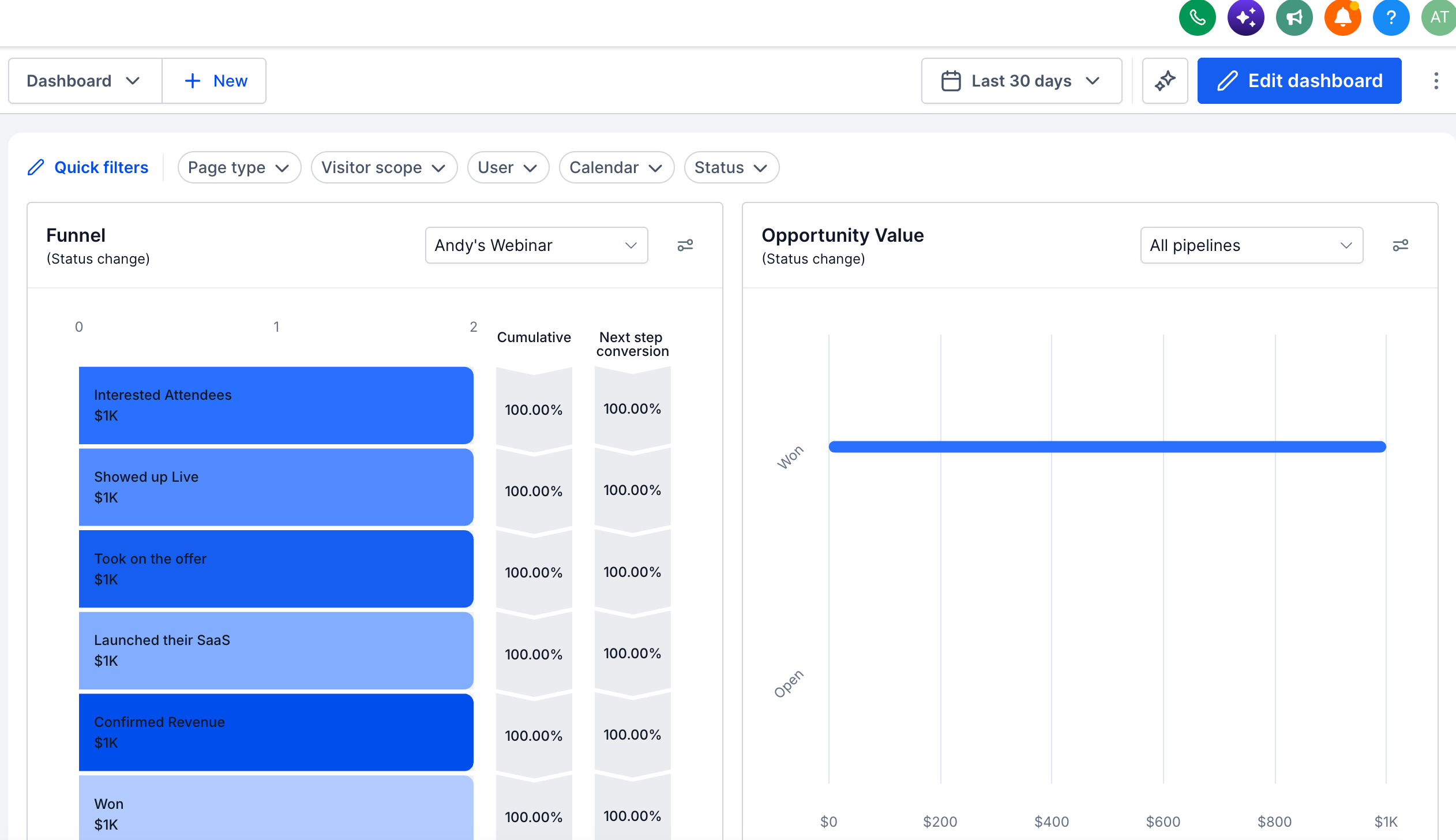
Open the dashboard you want to customize.
Click Edit dashboard in the upper-right corner.
Wait for the Dashboard editor to open.
Edit mode allows users with the required permissions to add, arrange, and configure dashboard widgets.
Step 3: Open the Widget Library
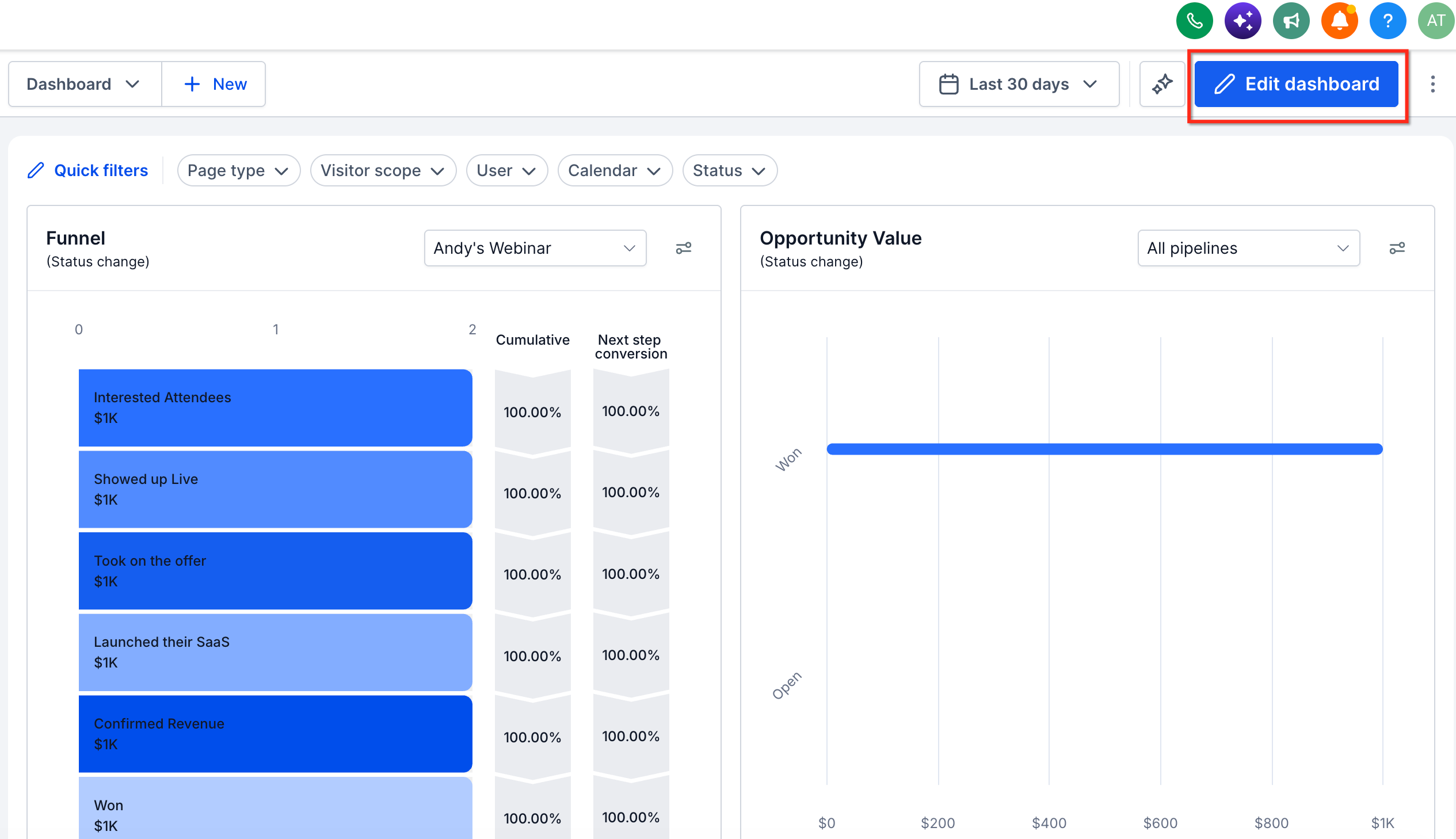
While in edit mode, click Add widget.
The Add new widget panel opens on the right side of the screen.
Select the Widgets tab if it is not already active.
Locate the Reputation widget category.
You can also use the widget search field to find a specific Reputation metric.
Step 4: Select a Reputation Widget
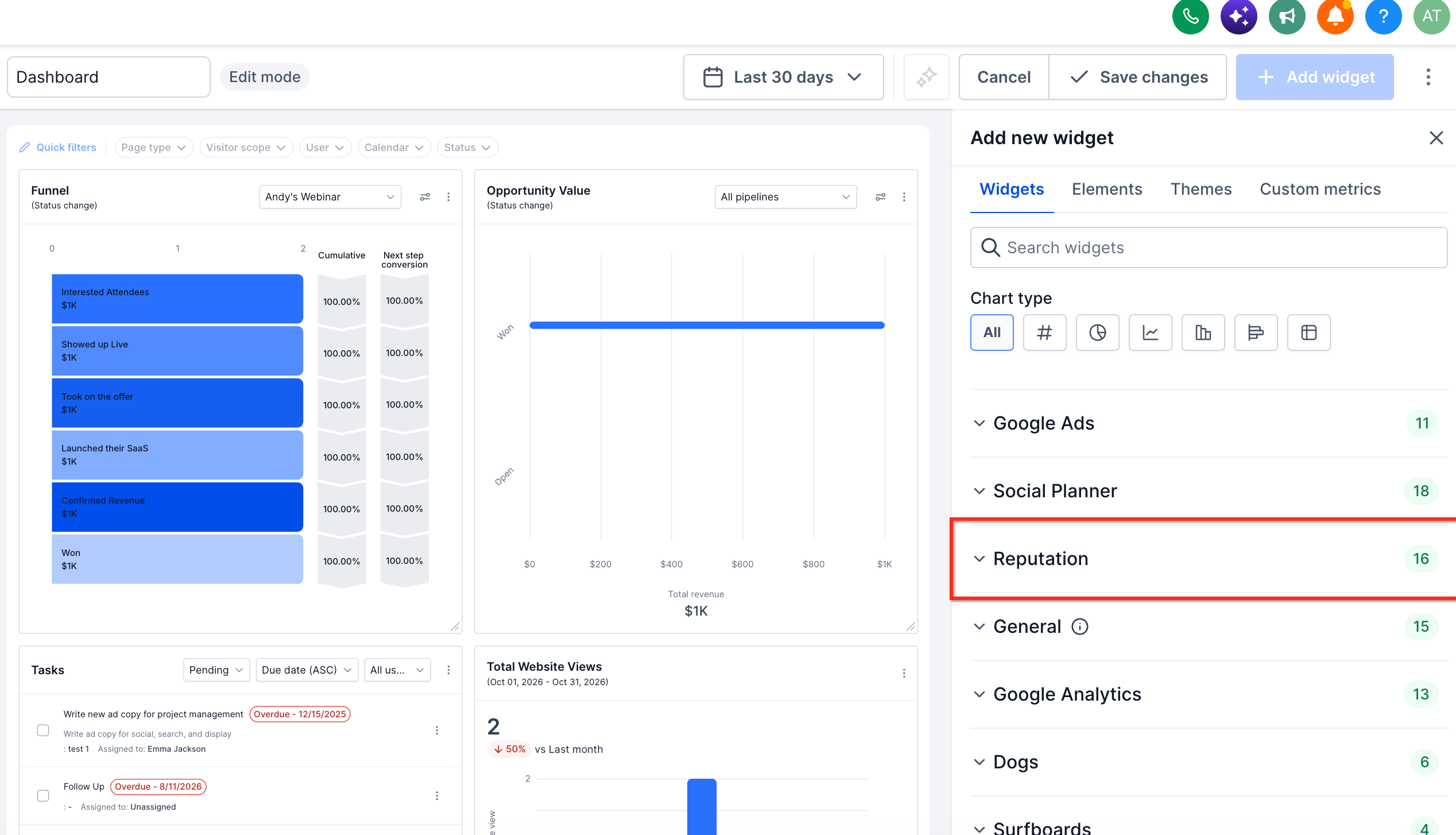
Browse the Reputation category.
Select the widget you want to add, such as:
Requests sent
Requests by channel
Total reviews
Reviews by rating
Reviews by sentiment
Response rate
Review any configuration options displayed for the selected widget.
Choose the available chart type and other settings as needed.
Save the widget configuration to add it to the dashboard.
Different widgets may support different chart types or configuration options.
Step 5: Add Additional Reputation Widgets
Repeat the widget selection process to add other Reputation metrics.
For example, a business monitoring its entire reputation workflow may want to include:
Requests sent to track outreach activity.
Requests by status to identify delivery issues.
Total reviews to monitor review volume.
Reviews by sentiment to evaluate customer feedback.
Response rate to monitor review response activity.
You can also combine these metrics with existing dashboard widgets to create a broader business performance overview.
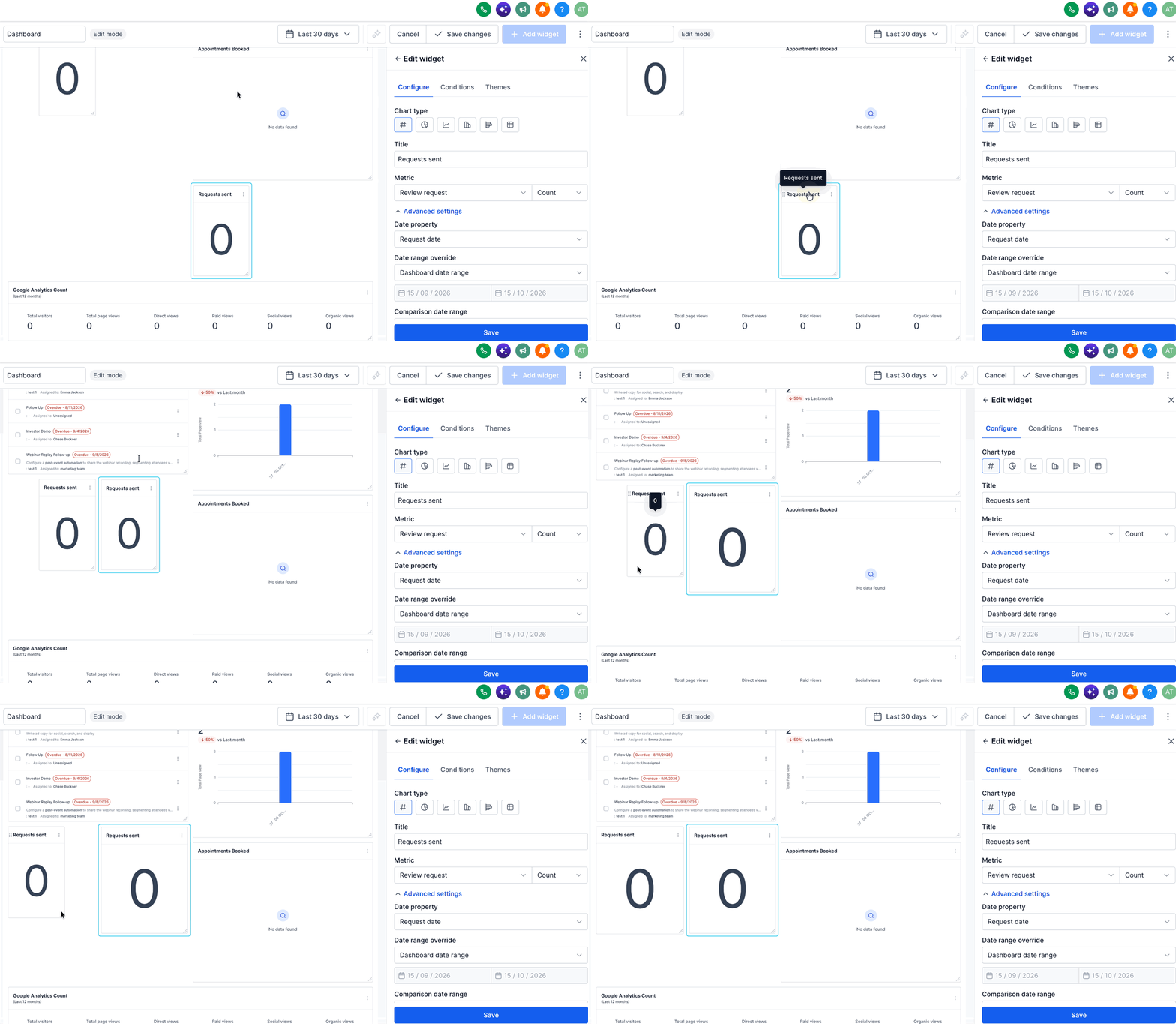
Step 6: Arrange and Resize Widgets
After adding the desired widgets:
Stay in dashboard edit mode.
Drag widgets to rearrange their positions.
Resize widgets using the available resize controls.
Group related widgets together to improve readability.
For example, you can place Review Request widgets together, followed by Customer Review and Review Response widgets.
Step 7: Save Dashboard Changes
Review the widget arrangement and configuration.
Click Save changes at the top of the dashboard.
Return to the dashboard view.
Verify that the selected Reputation widgets appear as expected.
Step 8: Apply Date Ranges and Filters
After saving the dashboard:
Select the desired date range from the dashboard header.
Use available Quick Filters to narrow the displayed information.
Review how the compatible Reputation widgets respond to the selected criteria.
Adjust filters as needed to compare different areas of reputation performance.
Note: If a widget displays no data, review the selected date range, applicable filters, connected review sources, and whether the location has relevant review or request activity.
Frequently Asked Questions
Q: Can I add Reputation widgets to an existing Location Dashboard?
Yes. Open the dashboard, enter edit mode, and select Add widget to access the Reputation category. You can add Reputation widgets alongside other business metrics.
Q: Do Reputation widgets replace the existing Reputation Overview page?
No. Reputation widgets provide an additional way to monitor reputation metrics within Location Dashboards. The Reputation Overview page remains a separate reporting area.
Q: Why do some Reputation widgets display different review totals?
Totals may differ because of reporting periods, filters, available source data, or differences in what each metric measures. Check the widget's configuration and reporting scope when comparing results.
Q: Why is a Reputation widget showing no data?
A widget may have no matching activity for the selected period or filters. Review the date range, widget-level conditions, Quick Filters, and relevant review source connections.
Q: Can I use Reputation widgets without editing permissions?
Users with dashboard viewing access can view the widgets available to them. Adding, rearranging, and configuring widgets requires the appropriate dashboard editing permissions.
Q: Do Quick Filters affect every Reputation widget?
Not necessarily. Quick Filters affect compatible widgets using the corresponding data sources. Some widgets may remain unchanged when a particular filter is applied.
Q: Can I track AI-generated and manually written review responses separately?
Response reporting can display AI, Manual, and Not Responded categories where supported. This provides visibility into how customer reviews are being handled.
Q: Are Reputation Dashboard widgets the same as website Review Widgets?
No. Reputation Dashboard widgets are designed for internal analytics and performance monitoring. Website Review Widgets are designed to display customer reviews publicly on websites and funnels.
Related Articles
Was this article helpful?
That’s Great!
Thank you for your feedback
Sorry! We couldn't be helpful
Thank you for your feedback
Feedback sent
We appreciate your effort and will try to fix the article