Manual Reviews lets you add customer feedback collected outside connected platforms (e.g., paper forms, emails, calls) into HighLevel. You can create individual reviews, bulk import via CSV, and display them alongside Google and other integrated reviews—plus include them in Review Widgets for your website. This guide explains setup, entry options, and display controls.
TABLE OF CONTENTS
- What are Manual Reviews?
- Key Benefits of Manual Reviews
- How To Setup Manual Reviews
- Showcase Manual Reviews in Widgets
- Frequently Asked Questions
- Related Articles
What are Manual Reviews?
Manual Reviews provides a structured way to record offline or unsupported‑platform feedback so your reputation data, summaries, and website widgets show a complete picture—not just reviews fetched from integrations. By centralizing these entries in Reputation → Reviews, teams can manage, filter, and showcase them consistently with existing review workflows.
Key Benefits of Manual Reviews
Understanding the core benefits helps you decide when and where to use Manual Reviews in your workflow—whether migrating legacy feedback, filling gaps from offline channels, or unifying disparate sources.
- Complete Coverage: Add offline/unsupported reviews so your public proof isn’t limited to connected platforms.
- Unified Management: Work from one Reviews list with consistent cards, filters, and labeling.
- Bulk Efficiency: Import large historical datasets quickly via CSV with field validations.
- Widget-Ready: Publish manual reviews across widget layouts and filter by source for precise curation.
- Migration-Friendly: Move legacy feedback into HighLevel to keep past wins visible.
- AI-Compatible: Ensure AI summaries analyze the full spectrum of feedback.
How To Setup Manual Reviews
Enabling Manual Reviews in Labs activates the feature for your account. After enabling, use the Reviews tab for single entries or CSV imports, then optionally publish through widgets.
Manually Add a Review
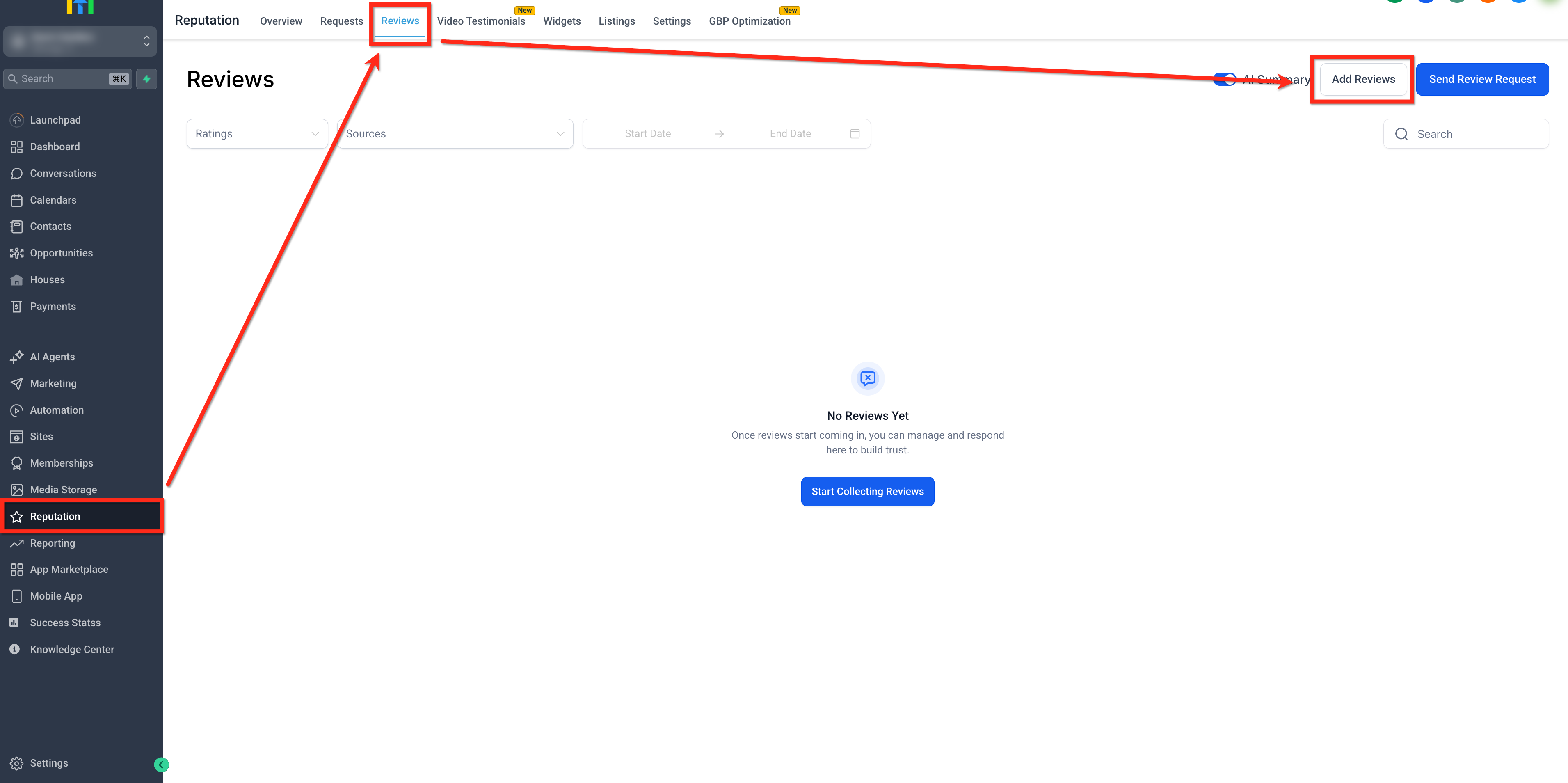
- Open Reputation, navigate to the Reviews tab and click Add Reviews.
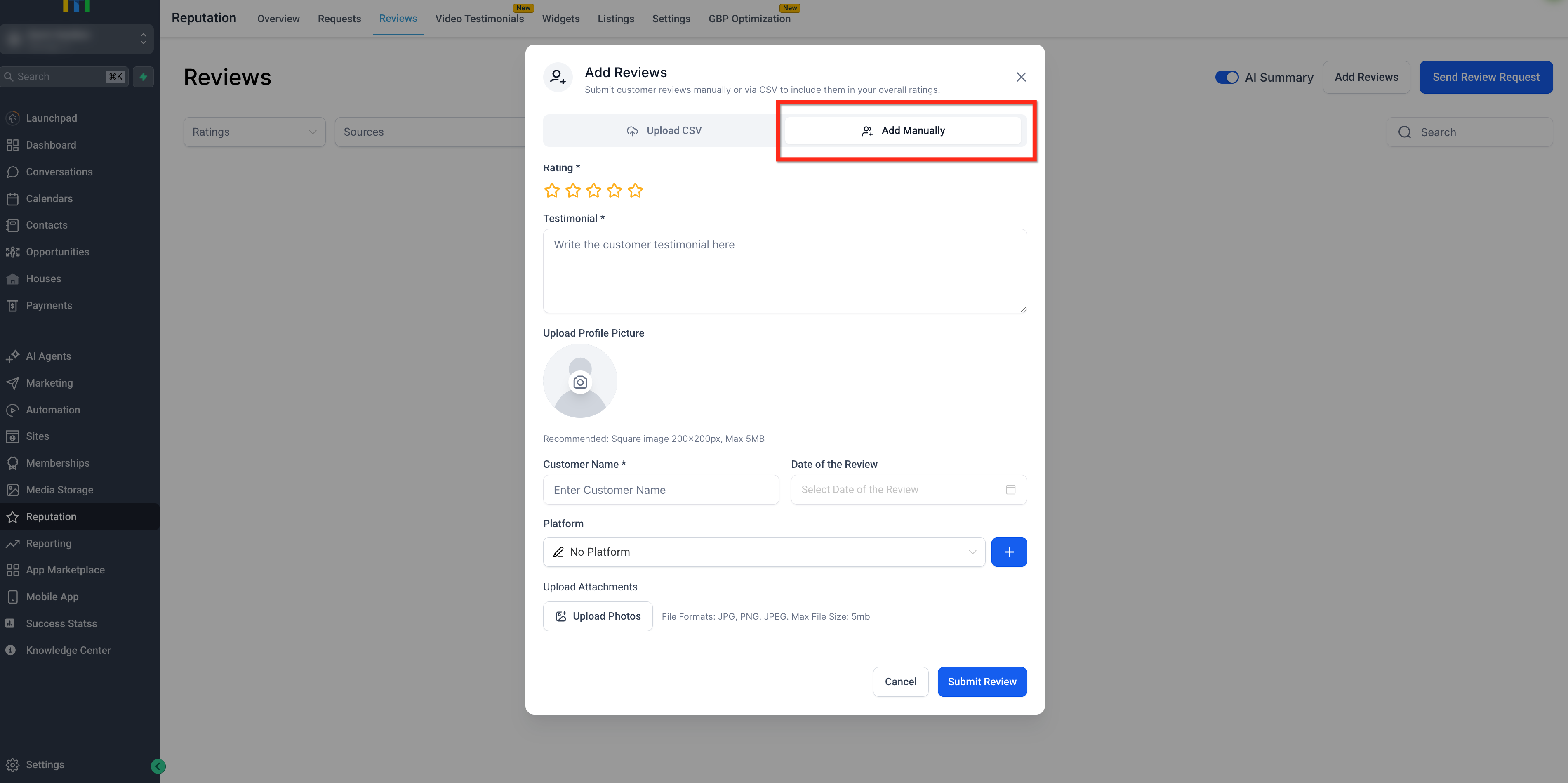
- Select the Add Manually tab.
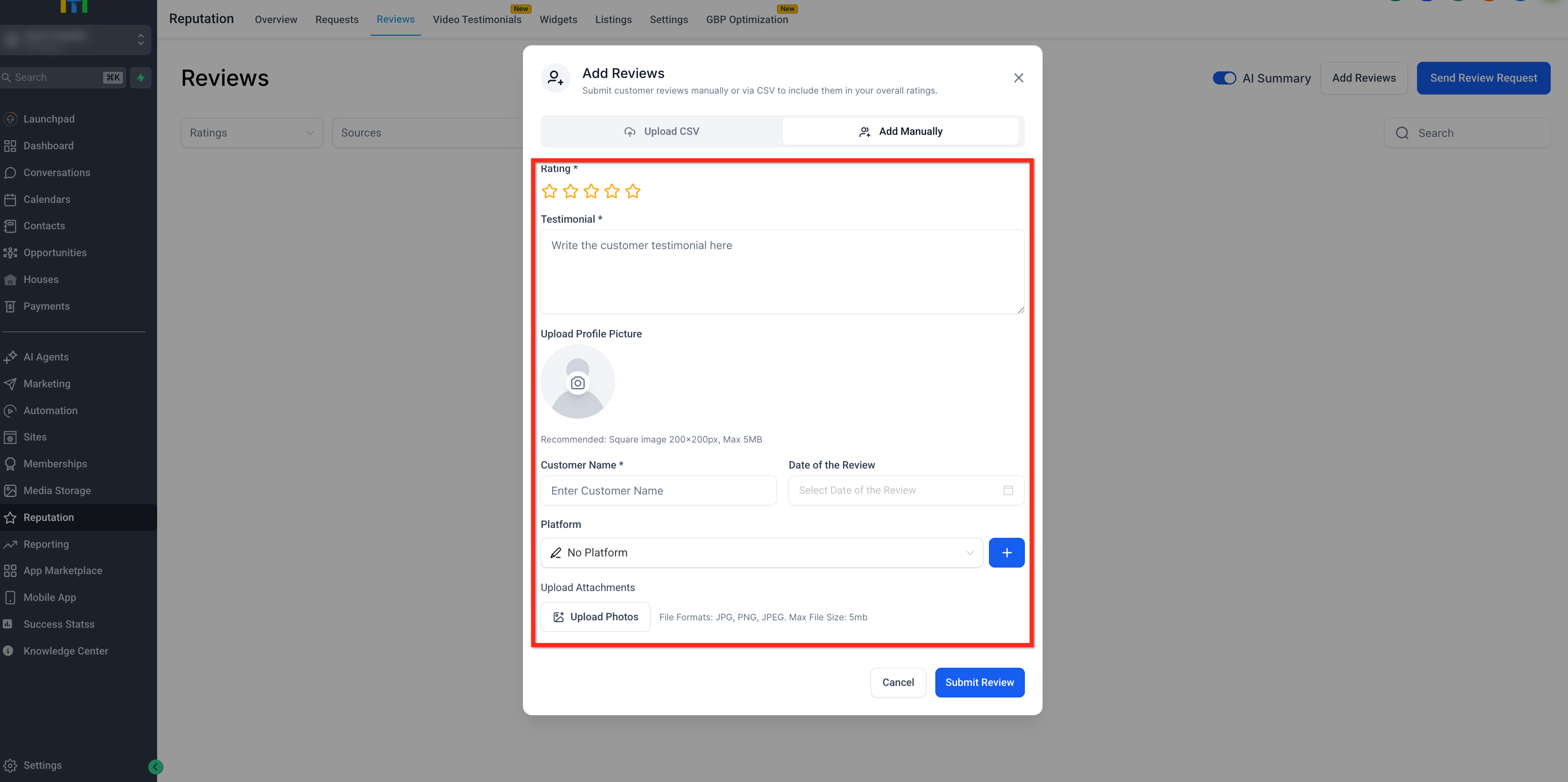
- Add fields like Rating, Testimonials, Date, Platform, Profile Picture and Customer Name as needed.
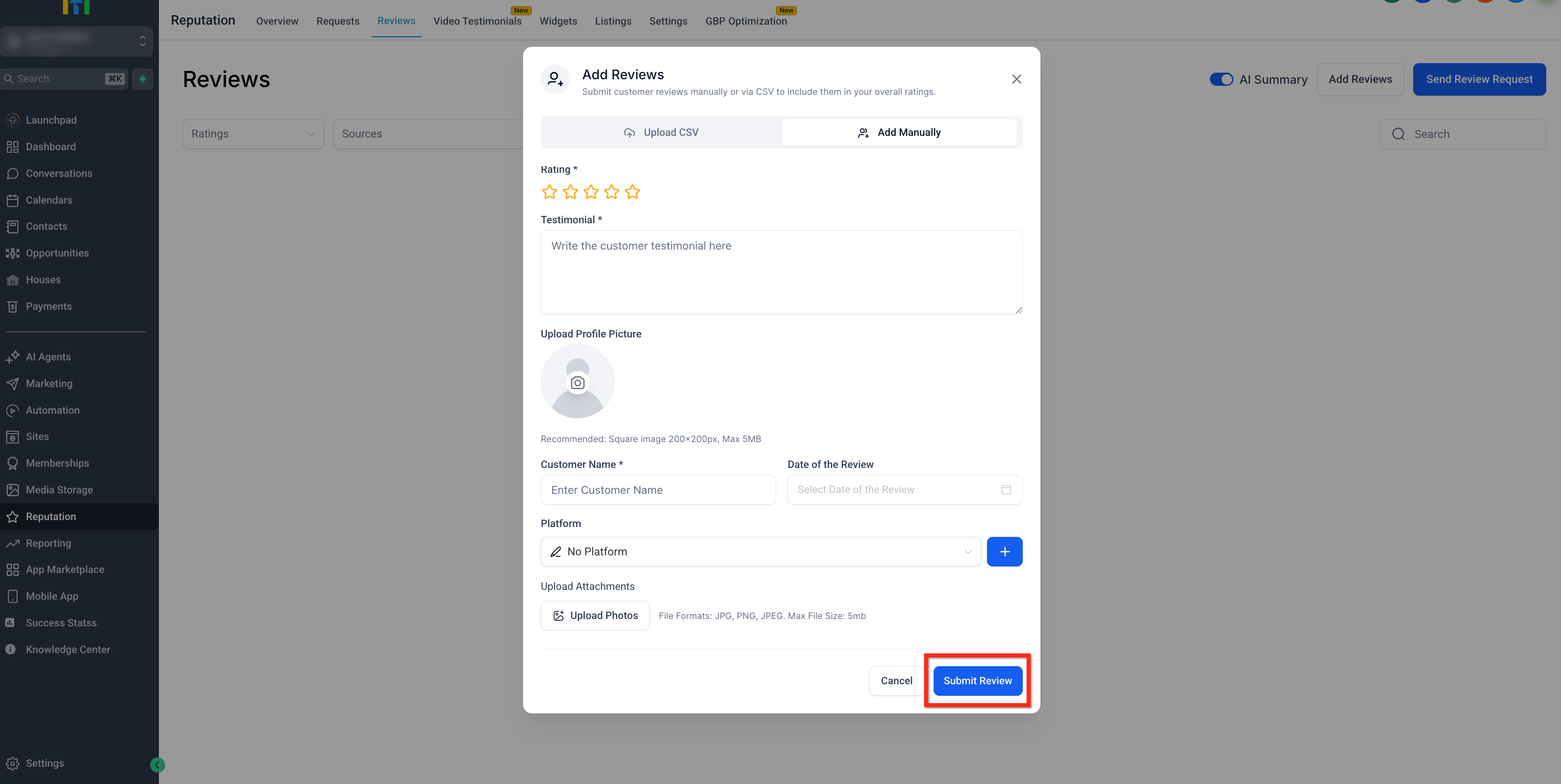
- Click Submit Review.
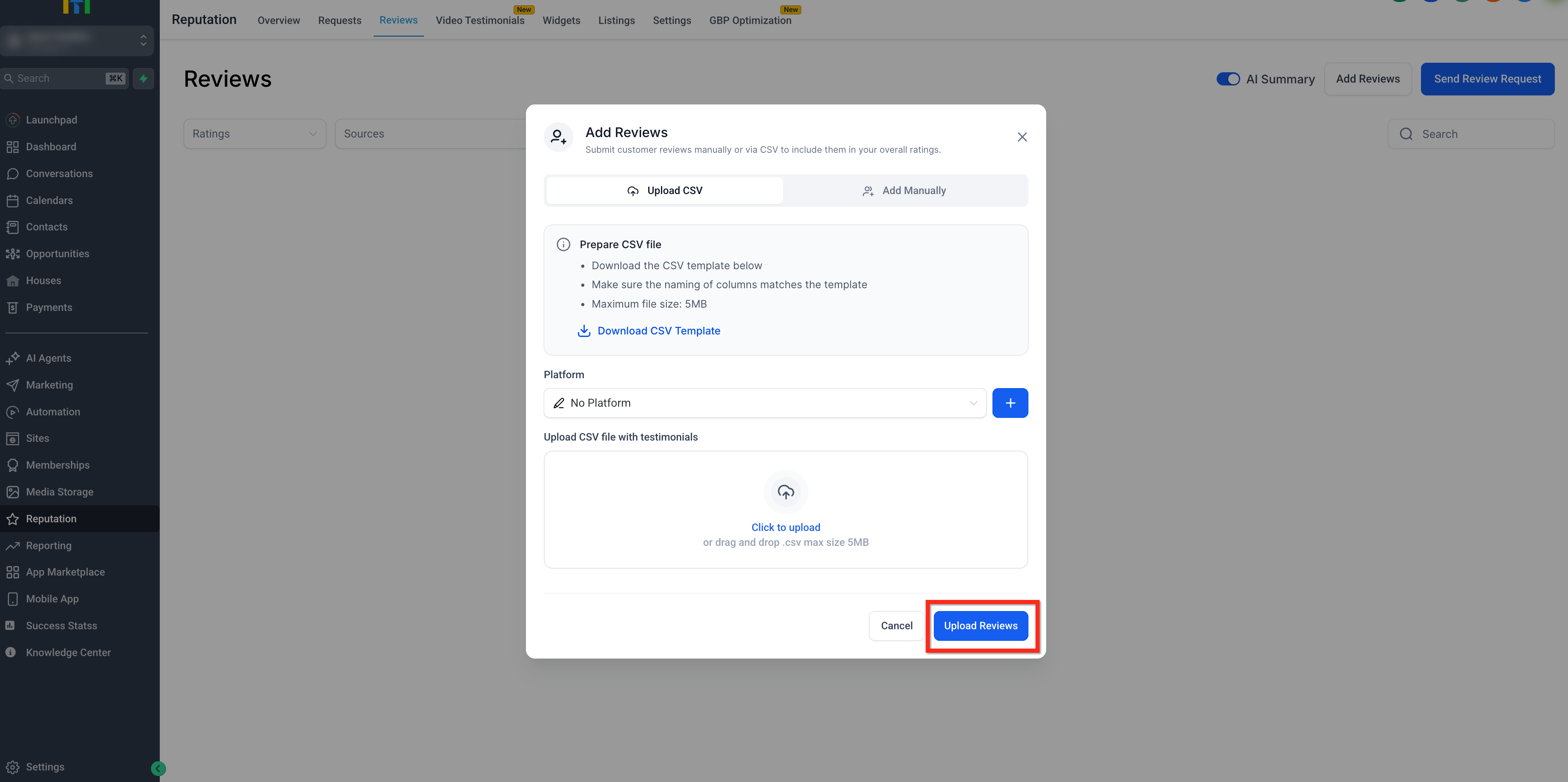
- Open Reputation, navigate to the Reviews tab and click Add Reviews.
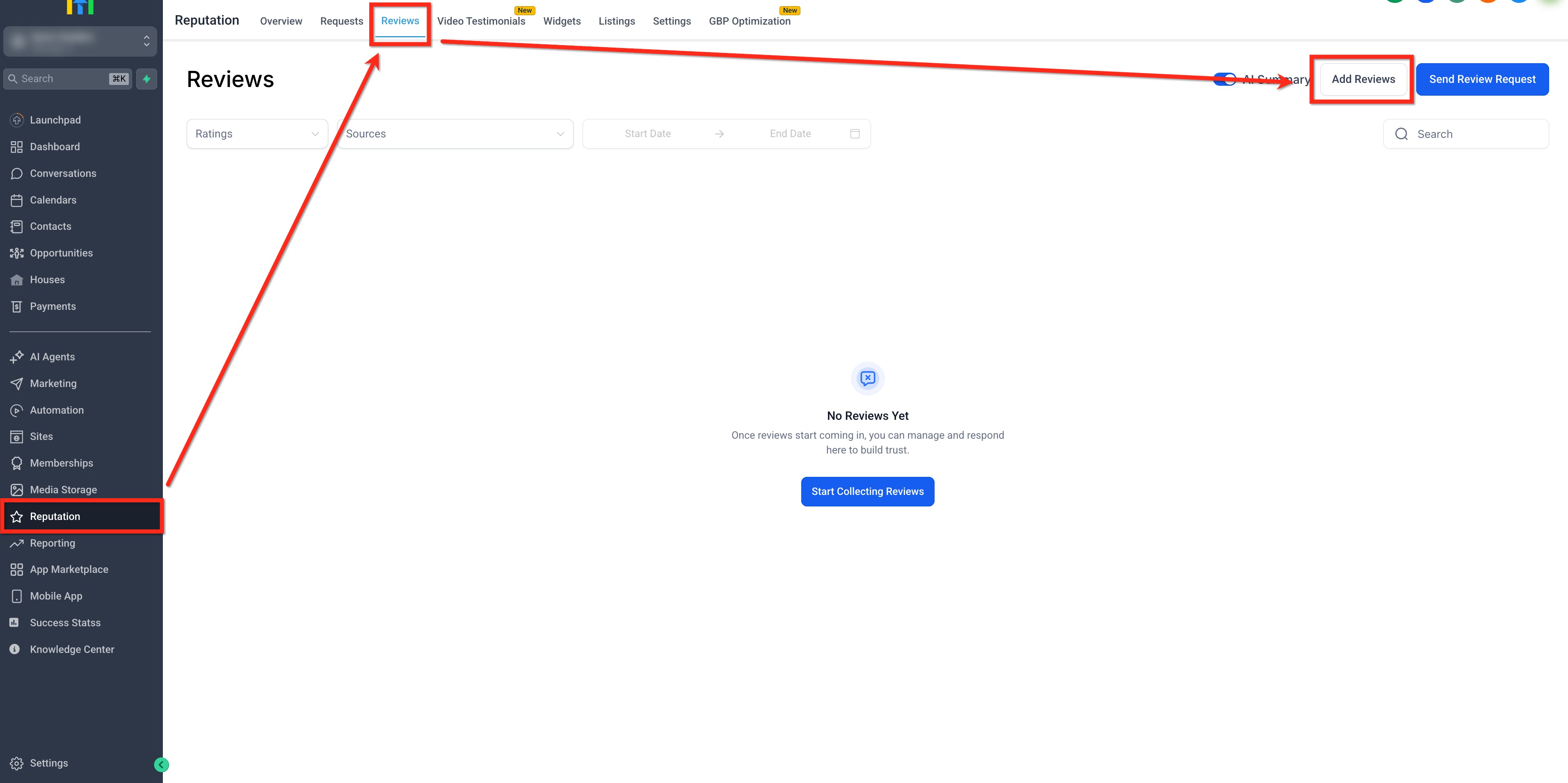
- Choose Upload CSV tab.
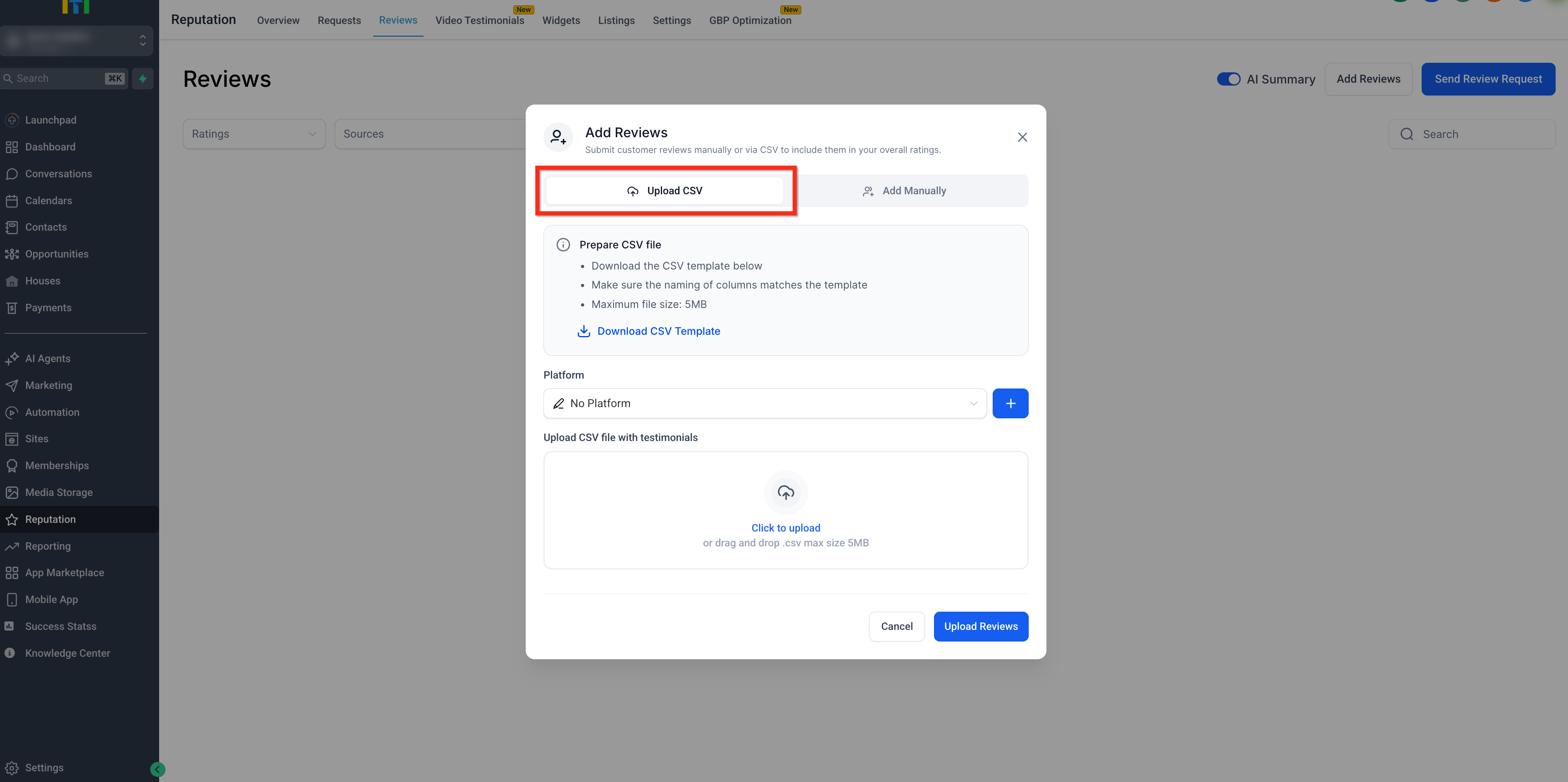
- Download the template using Download CSV Template and populate it with your data.
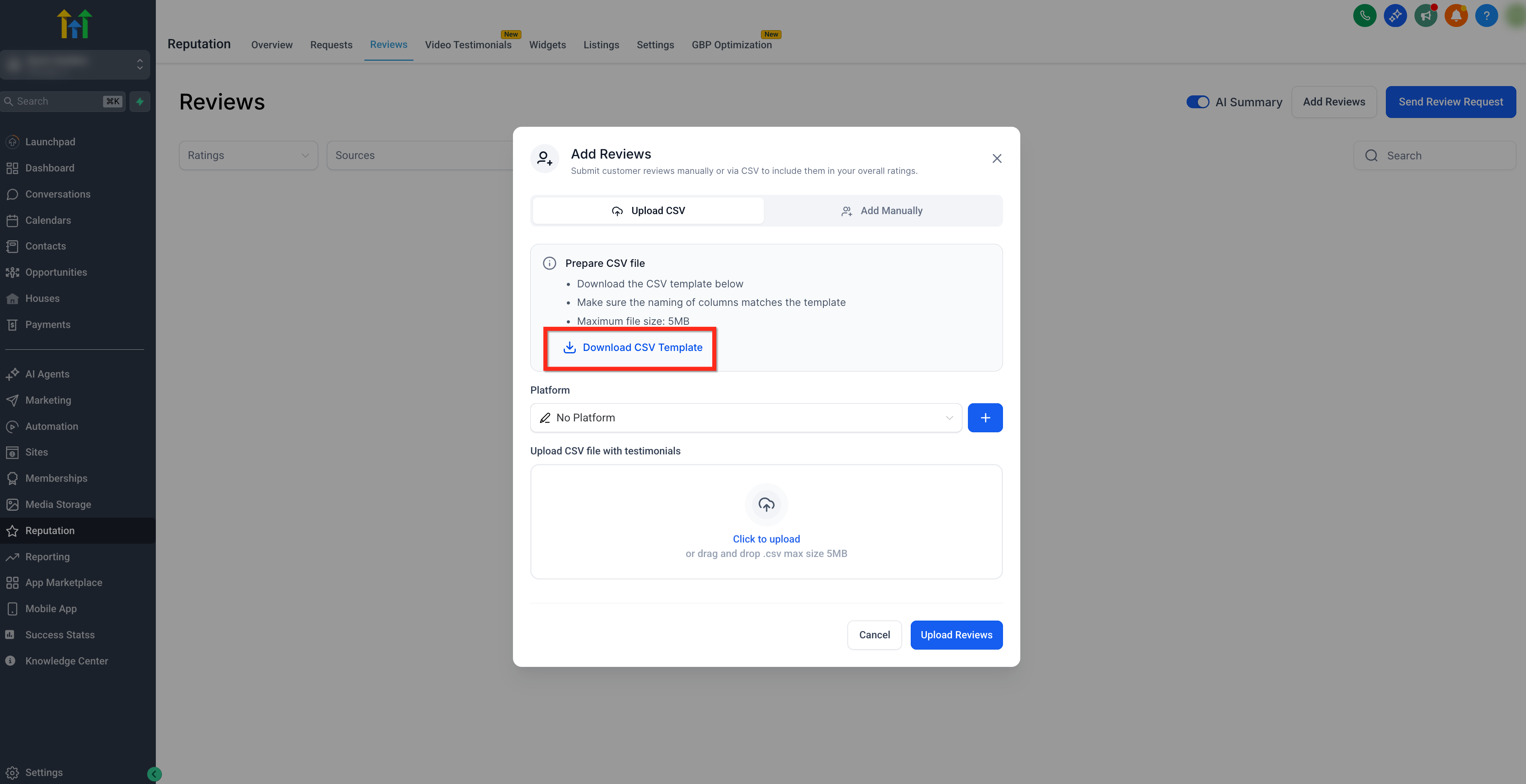
- Choose the platform and upload the CSV.
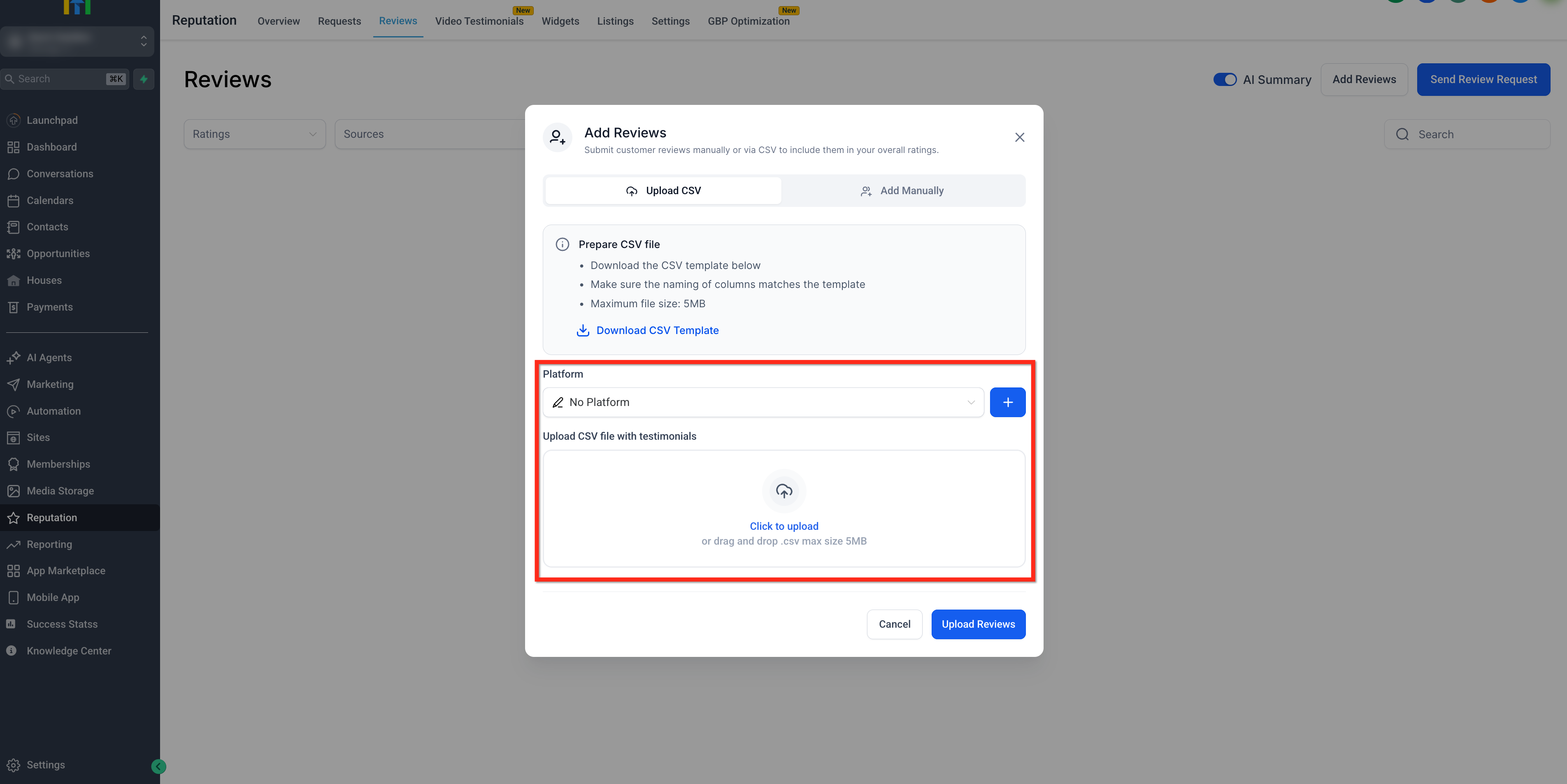
- Click Upload Reviews.
Showcase Manual Reviews in Widgets
Displaying manual reviews on your website ensures your best offline feedback appears wherever prospects evaluate you—across all widget layouts and filters.
- Go to Reputation → Widgets and choose or create a widget.
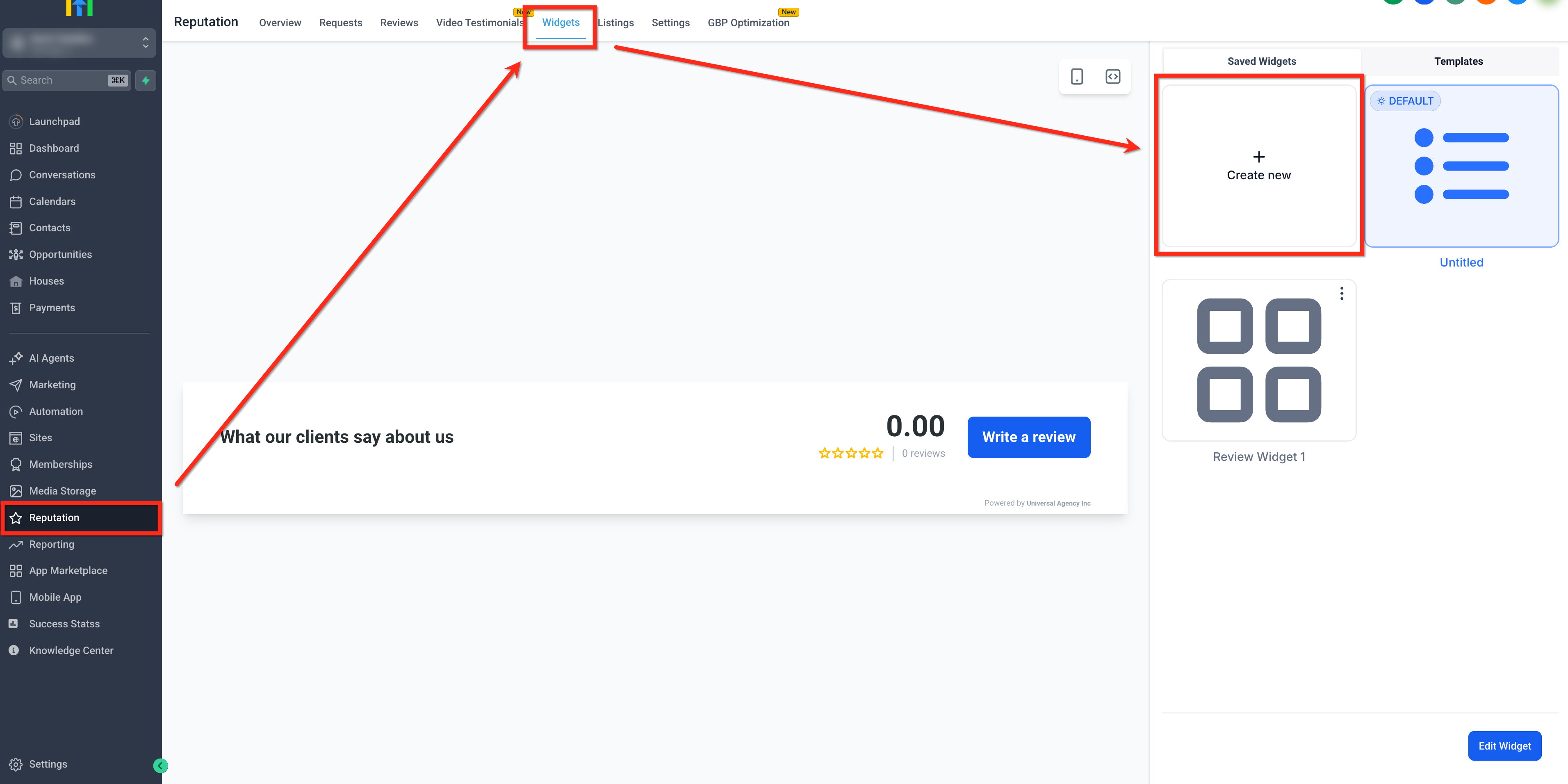
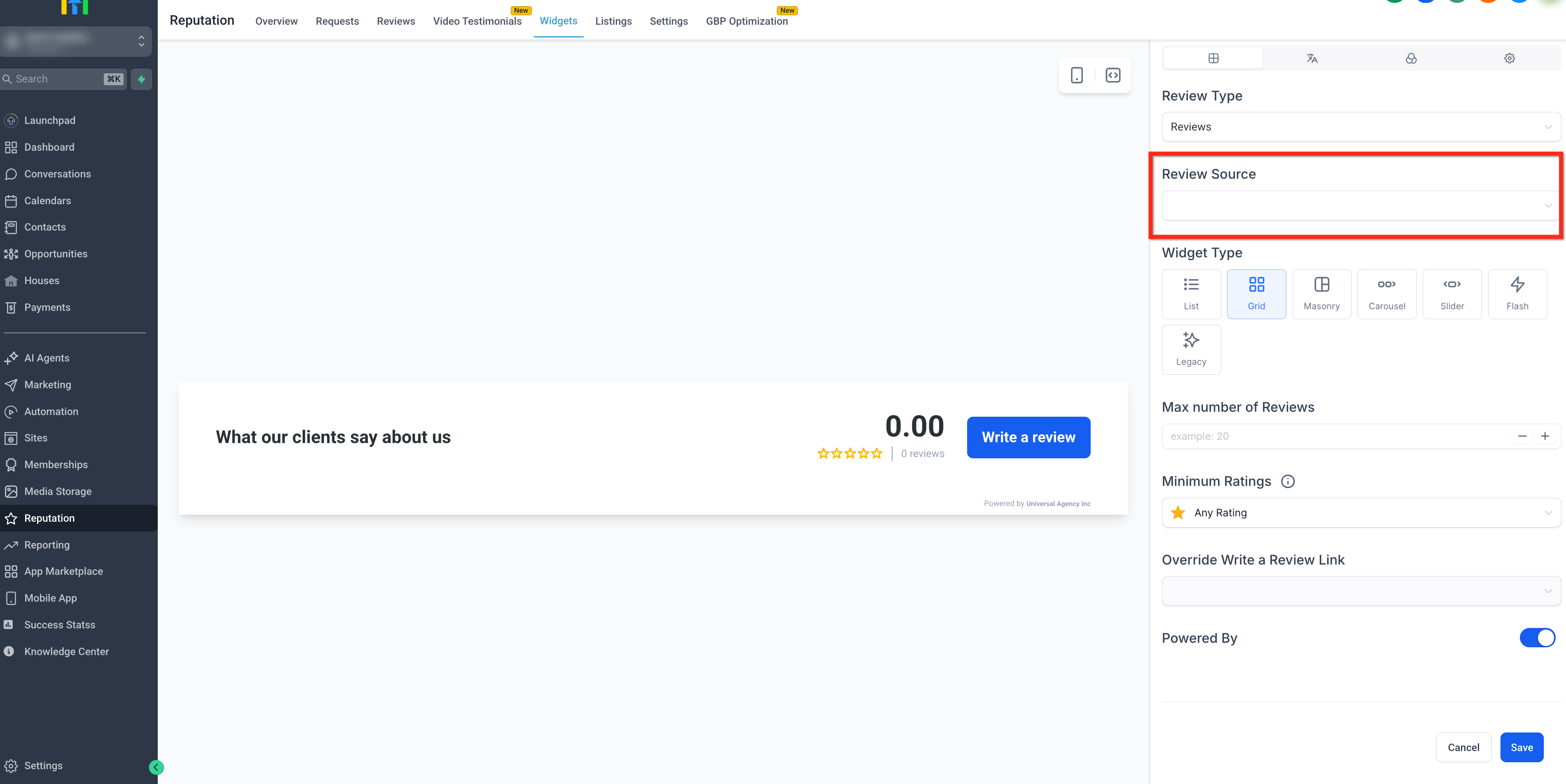
- In Review Source, select the Manual.
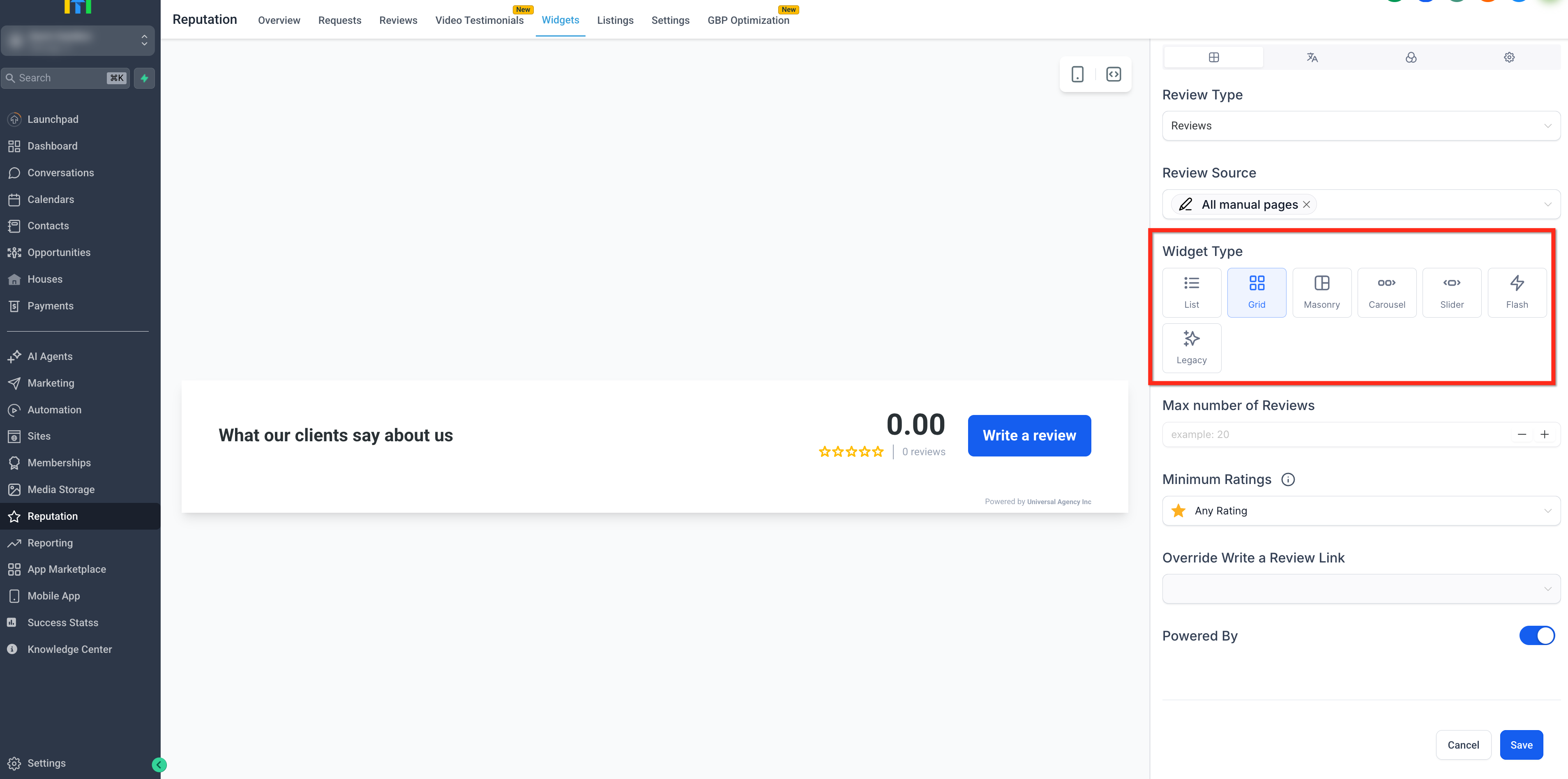
- Pick a layout and adjust display settings (e.g., max count, minimum rating) then embed the widget where needed (Sites, Funnels, WordPress, etc.).
Frequently Asked Questions
Q: Do manual reviews affect AI Summaries?
Yes. Manual reviews are compatible with AI Summaries, allowing summaries to reflect both integrated and manually added feedback.
Q: Can I add a new platform/source that isn’t natively supported?
Yes. When adding a manual review, you can select an existing platform, create a custom platform/source (e.g., Checkatrade), or choose No Platform.
Q: Where do manual reviews appear after I add or import them?
They appear in Reputation → Reviews with a Manual Pages label and can be filtered by Source.
Q: Can manual reviews be shown in widgets?
Yes. Manual reviews can appear in Review Widgets, and you can combine or filter by sources across multiple layouts.
Q: Is there a bulk import option?
Yes. Use the CSV uploader with the downloadable template to import multiple reviews at once. Validation helps prevent bad data.
Q: What fields are available for manual reviews?
Customer Name, Rating, Review Text, Date, Platform/Source, Profile Picture, and Photo Attachments. Availability and requirements follow the in‑app form and template.
Q: Can I override the “Write a Review” link in widgets?
Yes. Widgets support overriding the Write a Review link so you can direct customers to your preferred destination.
Q: How do I filter by only manual reviews?
Use the Source filter in the Reviews tab and select Manual (Manual Pages) or the specific custom platform name you created.
Related Articles
Was this article helpful?
That’s Great!
Thank you for your feedback
Sorry! We couldn't be helpful
Thank you for your feedback
Feedback sent
We appreciate your effort and will try to fix the article