Ask AI can use information from the HighLevel page you are currently viewing to better understand your questions and instructions. Page context helps you ask natural questions about what is on screen, point Ask AI to specific elements, and receive visual guidance directly on the page.
TABLE OF CONTENTS
- What is Page Context in Ask AI?
- Key Benefits of Page Context
- How to Select Page Elements
- Follow Guided Highlight Walkthroughs
- Page Context and Voice Mode
- Approval Before Ask AI Makes Changes
- Privacy
- Use Cases
- Frequently Asked Questions
- Related Articles
What is Page Context in Ask AI?
Page context allows Ask AI to understand information from the HighLevel page you are currently working on. When Ask AI is open alongside a HighLevel page, it can use relevant information from that page when your request depends on what you are viewing. You do not need to turn page context on.
Instead of manually describing every card, field, row, setting, or section, you can ask questions that depend on what is already visible on the page. Ask AI will use the current page to understand what your question refers to before responding.
For example:
- “What is this?”
- “Why are these in the list?”
- “What does this mean?”
- “Help me here.”
- “Explain this section.”
When you need Ask AI to focus on something specific, you can even select individual page elements and attach them directly to your message.
Note: Page context can work whether Ask AI is open as a floating panel or in Split View. Since it requires a HighLevel host page, it is unavailable from the full-page Ask AI experience.Key Benefits of Page Context
Ask more naturally: Ask questions about what you are viewing without describing every detail manually.
Point instead of describing: Select the exact card, row, field, setting, or section you want Ask AI to consider.
Get more precise assistance: Give Ask AI direct context when a page contains several similar elements.
Follow visual guidance: Ask AI can highlight relevant areas of the page during supported walkthroughs.
Keep page context with voice requests: Select something on the page and then explain what you want using Voice Mode.
Protect sensitive information: Credentials and sensitive fields are masked before page content is sent to Ask AI.
How to Select Specific Page Elements
Page element selection lets you point Ask AI to the exact part of the page you want it to consider. This is useful when a page contains several cards, rows, fields, settings, or other elements that could make a general request unclear.
Select Page Element is unavailable on the full-page Ask AI screen and the sidebar expanded to full screen as there's no host page to point at.
To select a page element:
- Click Select page element in the Ask AI composer, or press Ctrl + Shift + E on Windows or Command + Shift + E on Mac.
Hold Shift to temporarily interact with the page while selection mode is active, such as opening a dropdown, scrolling through a list, or entering a modal. - Move your pointer across the page to highlight and click selectable areas that you want Ask AI to consider.
- Continue selecting additional elements when needed. You can attach up to 20 page sections per message.
- Review the page-context cards displayed above the composer.
- Type your question or request and send it to Ask AI.
Each selected item appears as a page-context card above the composer. Click a card to highlight its location on the page again. You can remove individual selections or use Clear all to remove all attached page context.
Note: Attached selections stay pending until the transcript lands, so you can point at something and simply say what you want. For more information about Ask AI voice controls, see How to Use Ask AI Voice Mode.
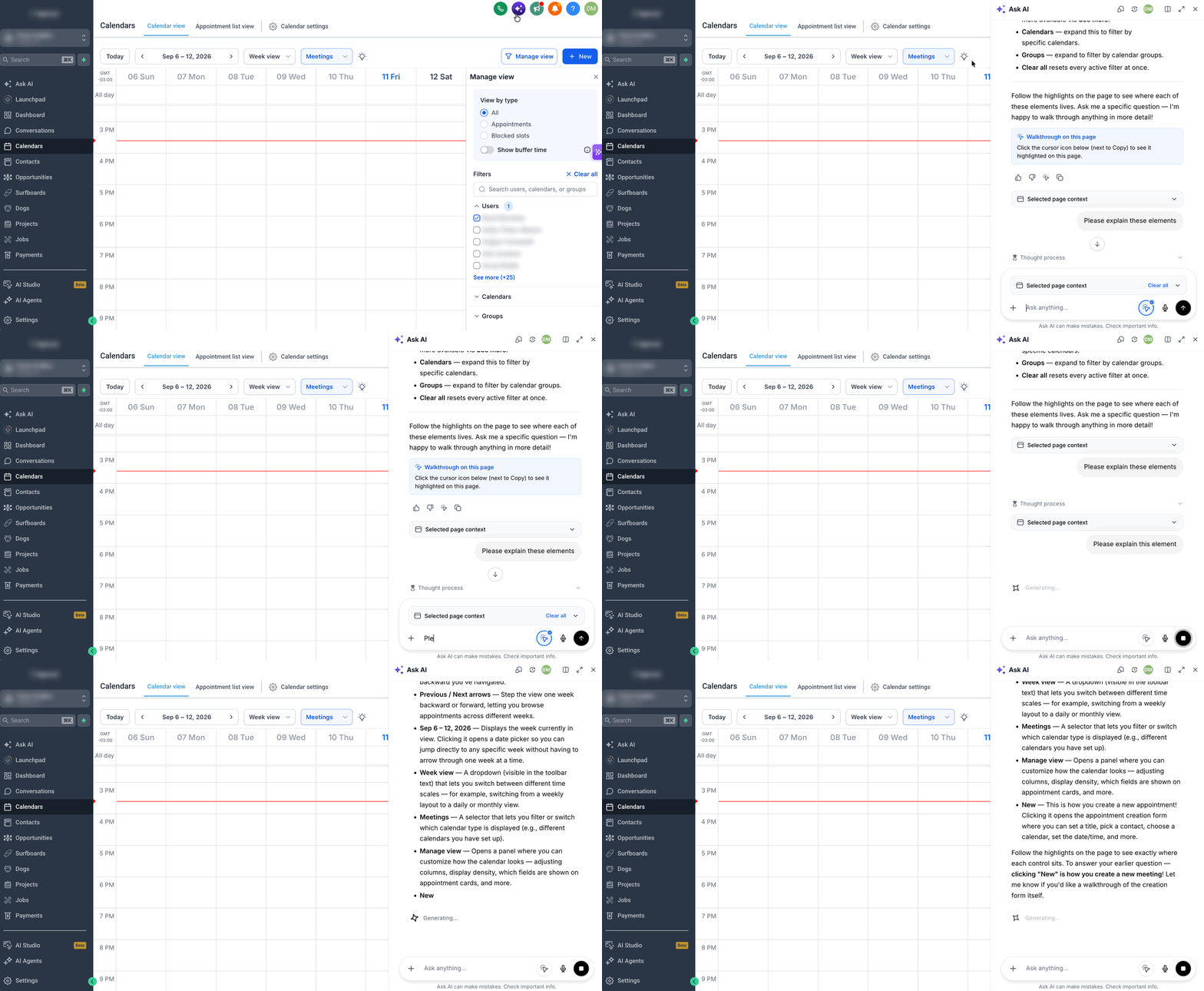
Follow Guided Highlight Walkthroughs
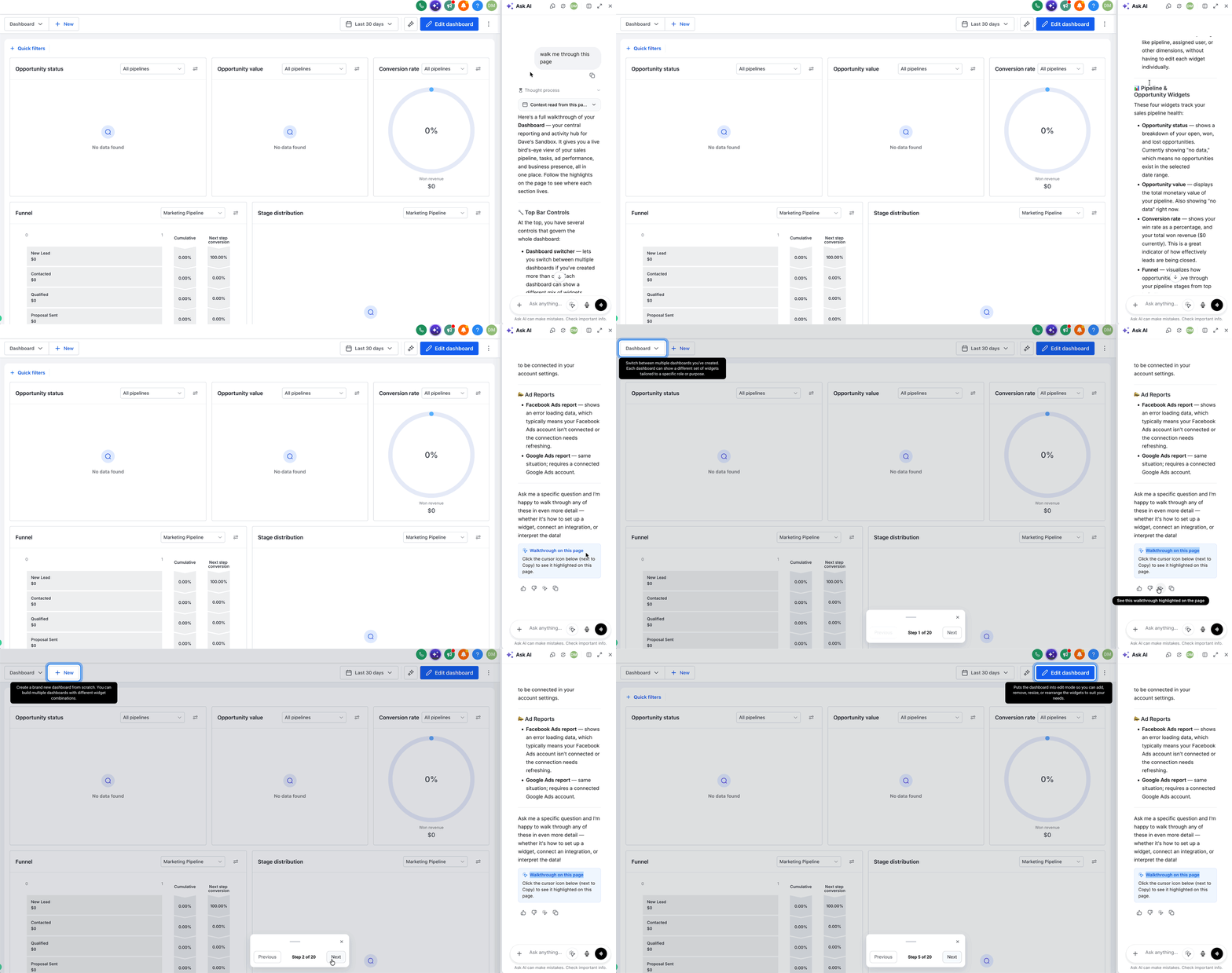
Ask AI can show you where to go on the page instead of only describing it. When visual guidance is available, Ask AI can highlight the relevant location directly on the current HighLevel page.
Multi-step walkthroughs can include:
A step counter
Previous and Next controls
Arrow-key navigation
A draggable hint bar
You can move the hint bar if it covers content you need to see. If the page changes and Ask AI can no longer reliably identify a previously referenced location, it identifies that highlight as stale instead of directing you to outdated page content. Ask AI may then prompt you to select the relevant area again.
Page Context and Voice Mode
You can combine page element selection with Ask AI Voice Mode. After selecting an element, start Voice Mode and explain what you want Ask AI to do. The attached page selection remains pending while your spoken request is transcribed, allowing the selected information to accompany your voice request.
For example, you can select a field or section and then simply ask:
“What does this do?”
For more information about voice controls, see How to Use Ask AI Voice Mode.
Approval Before Ask AI Makes Changes
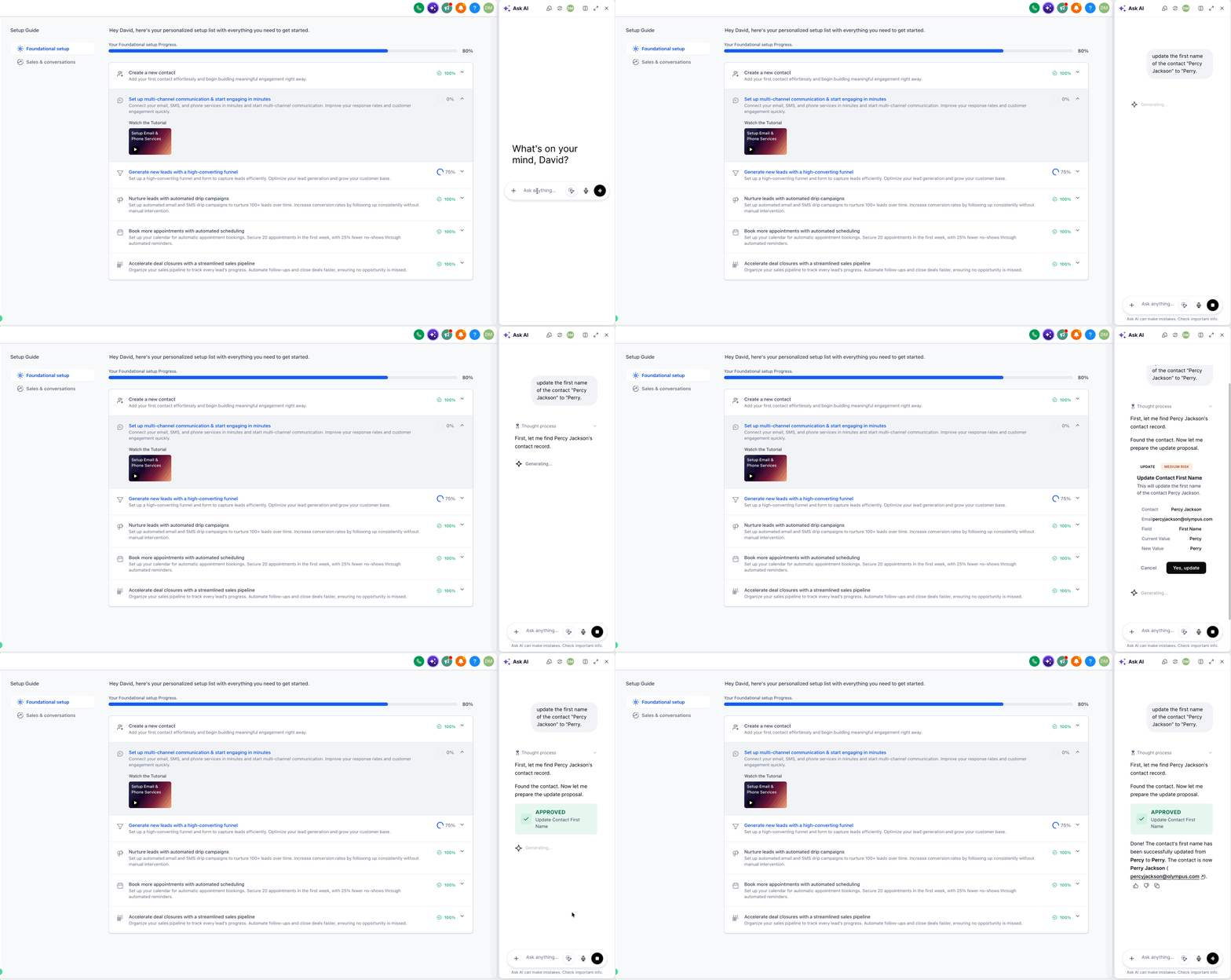
Ask AI can use page context to understand what you mean, but it will not automatically perform a supported write action based on that context. Any request that would create, update, delete, cancel, reschedule, send, publish, or perform a supported bulk action must stop for explicit approval before execution.
When a request results in a write action, Ask AI shows the exact operation it plans to perform. You can then Approve the action to continue, Edit the proposed plan before execution or Reject the action and return it to Ask AI.
If the page leaves more than one reasonable interpretation, Ask AI can first ask you to select the intended option before presenting the approval request.
Questions, explanations, and guided walkthroughs do not require approval.
Privacy and Page Context
HighLevel applies safeguards before page information is used as Ask AI context.
- Sensitive-Field Redaction: Credentials and sensitive fields are masked before page content is sent to Ask AI.
- Masking disclosure: Ask AI indicates when sensitive information has been redacted.
- Large Page Content: If the amount of page content exceeds the supported context limit, Ask AI can truncate the extracted information. Ask AI indicates when truncation occurs.
Use Cases for Page Context with Ask AI
Analyze Dashboard Metrics
Ask AI makes it easy to ask questions about the dashboard metrics you are currently reviewing.
You can rely on page context for general questions or select a specific metric when you want Ask AI to focus on one part of the dashboard.
For example, you can prompt:
- “Explain how I can improve my business.”
- “What does this metric mean?”
Manage Calendars and Booking Assignments
Calendar workflows often involve several appointments, filters, settings, or booking details at once. Ask AI can understand the information you are viewing while you ask for assistance. You can select a specific appointment, filter, setting, or section when you want Ask AI to focus on one part of the page
For example, you can prompt:
- “Block my calendar from 2pm - 4 pm.”
- “Create a new meeting with John Smith”
Accelerate Platform Setup
Ask AI can help you move through setup and configuration tasks by explaining the settings and options you are currently working with.
For example, you can prompt:
- “What does this setting do?”
- “Help me here.”
- “Explain the selected element on this page."
- “Explain this option before I change it.”
You can also select a specific field when you need a more precise explanation or follow a guided highlight walkthrough when visual guidance is available.
Frequently Asked Questions
Q: Do I need to turn page context on?
No. When Ask AI is open alongside a supported HighLevel host page, it can use page information when your request depends on what you are viewing.
Q: Does Ask AI need to be in Split View to use page context?
No. Page context can also work when Ask AI is open as a floating panel. Split View changes the panel layout but is not required for page context. Page context does not apply when in a full-screen Ask AI mode as there is no page to draw context from.
Q: When should I select a page element manually?
Use page element selection when you want Ask AI to focus on a specific card, row, field, setting, or section instead of relying on the broader page context.
Q: How many page elements can I select?
You can attach up to 20 page sections to one message.
Q: Can I use page context from the full-page Ask AI experience?
No. Page context requires a HighLevel host page. It is unavailable from the full-page Ask AI experience and when Ask AI is expanded to full screen.
Related Articles
Was this article helpful?
That’s Great!
Thank you for your feedback
Sorry! We couldn't be helpful
Thank you for your feedback
Feedback sent
We appreciate your effort and will try to fix the article