Meeting Room is HighLevel's built-in video conferencing solution for client calls, team meetings, training sessions, and more. You can create reusable meeting links, start video calls instantly, collaborate with participants, and access recordings, transcripts, and AI-powered meeting summaries in one place.
Important: The Meeting Room feature is exclusive to Agencies subscribed to the Founder Plan ($497). It is not available to users on the $97 or $297 plans.
TABLE OF CONTENTS
- What Is Meeting Room?
- Key Features of Meeting Room
- Video Meetings and Collaboration
- Meeting Management and Security
- Recordings, Transcripts, and AI
- Multilingual Live Transcription
- Meeting Room Integrations
- How to Set Up Your Personal Meeting Room
- How to Start an Instant Meeting
- Related Articles
What Is Meeting Room?
Meeting Room lets you host video meetings directly in HighLevel without using a separate video conferencing platform. The Meeting Room section in your sub-account includes three main areas:
My room: Create and manage your personal Meeting Room with a permanent, reusable link.
Team rooms: Find and access team members' Meeting Rooms.
Integrations: Connect Meeting Room with other HighLevel products.
You can also generate unique Meeting Room links for individual calendar appointments.
Key Features of Meeting Room
Video Meetings and Collaboration
- Instant meetings: Start video calls without scheduling an appointment.
- Guest access: Invite participants using a meeting link without requiring a HighLevel account when guest access is enabled.
- Screen sharing and chat: Share content and communicate during meetings.
- Interactive tools: Use reactions, hand raising, and different meeting layouts.
Picture-in-Picture (Chrome desktop): Keep your shared screen above up to four attendees while switching tabs. PiP highlights presenters, prioritizes numbered raised hands, and enables participant pinning. Without a presenter, PiP displays up to six attendees.
Meeting Management and Security
Host and co-host controls: Manage participants, meeting permissions, and host responsibilities.
Waiting rooms and passcodes: Control who can access your meetings.
Video and audio settings: Configure cameras, microphones, backgrounds, lighting, and noise cancellation.
Adaptive background effects: Meeting Room automatically reduces background blur and effects when device performance drops, helping maintain smoother calls. A brief notification appears when adjustments occur.
System default audio : Select System default for your microphone and speaker to automatically switch to a connected headset during meetings. Manually selected devices remain unchanged when new devices are connected.
Recordings, Transcripts, and AI
Meeting recordings: Record meetings and access available recordings afterward.
Speaker-labeled transcripts: Review conversations with speaker names and timestamps.
AI meeting assistance: Ask questions during meetings and generate summaries, key decisions, and action items from transcripts.
Multilingual Live Transcription
Meeting Room supports multilingual live transcription, allowing participants to communicate in different languages during a meeting. Live transcription uses Deepgram Nova-3 and includes nine individual transcription language options and a Mixed Languages mode.
Mixed Languages Mode
Mixed Languages mode automatically detects supported languages during live transcription, including when participants switch between languages during a conversation. Mixed Languages supports 10 languages, including the following newly added languages:
Dutch
Hindi
Russian
Japanese
How to Enable Mixed Languages
Start a meeting in Meeting Room.
When starting live transcription, select Mixed Languages as the transcription language.
Start transcription.
Meeting Room automatically recognizes supported languages during the conversation.
Note: The existing live transcription workflow remains unchanged. Users can continue selecting their preferred transcription language when starting transcription.Meeting Room Integrations
Meeting Room works with several HighLevel products:
| Integration | What You Can Do |
|---|---|
| Calendars | Use your permanent Meeting Room link or generate a unique link for each appointment. |
| Communities | Host live discussions and Community Events. |
| Courses | Add live meeting sessions to courses. |
| Events | Use Meeting Room as an online event location. |
| Webinars | Connect live webinars to a Meeting Room. |
You can explore these options under Meeting Room > Integrations.
How to Set Up Your Personal Meeting Room
Create a personal room with a permanent link that you can reuse for meetings.
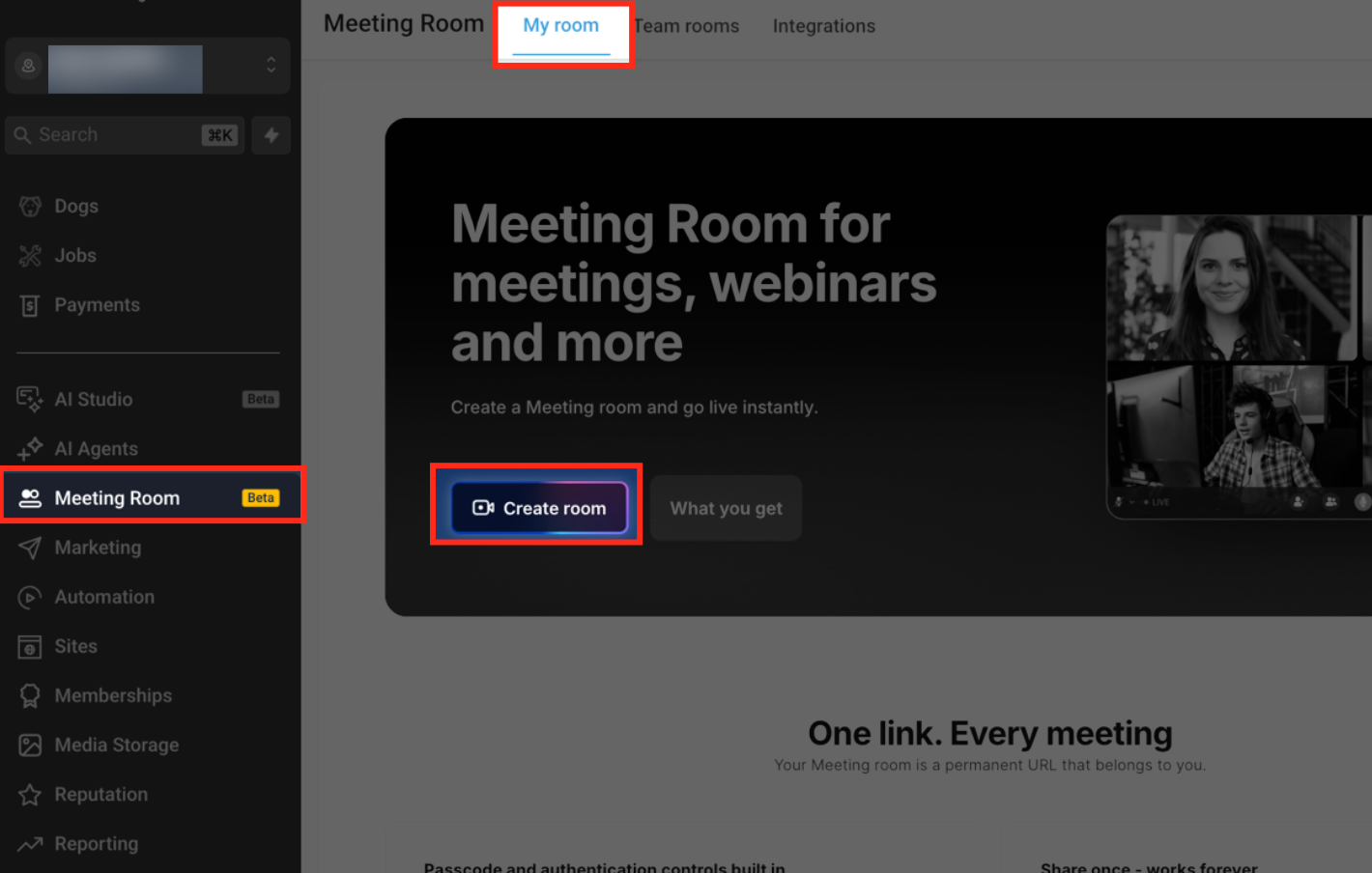
Open your HighLevel sub-account and go to Meeting Room > My room.
Click Create room.
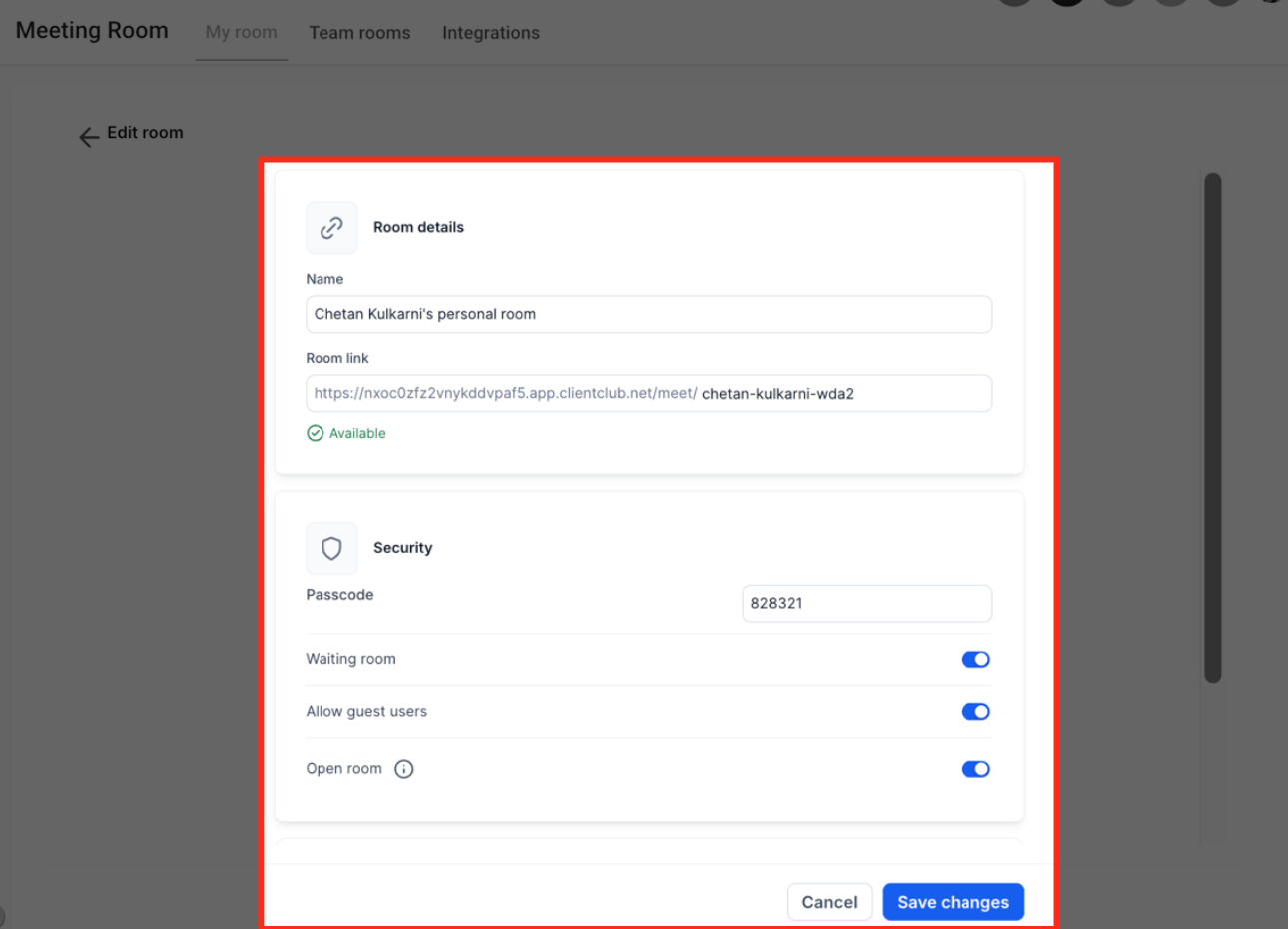
Under Room details, enter your Name and Room link.
Under Security, configure your passcode, waiting room, guest access, and room availability as needed.
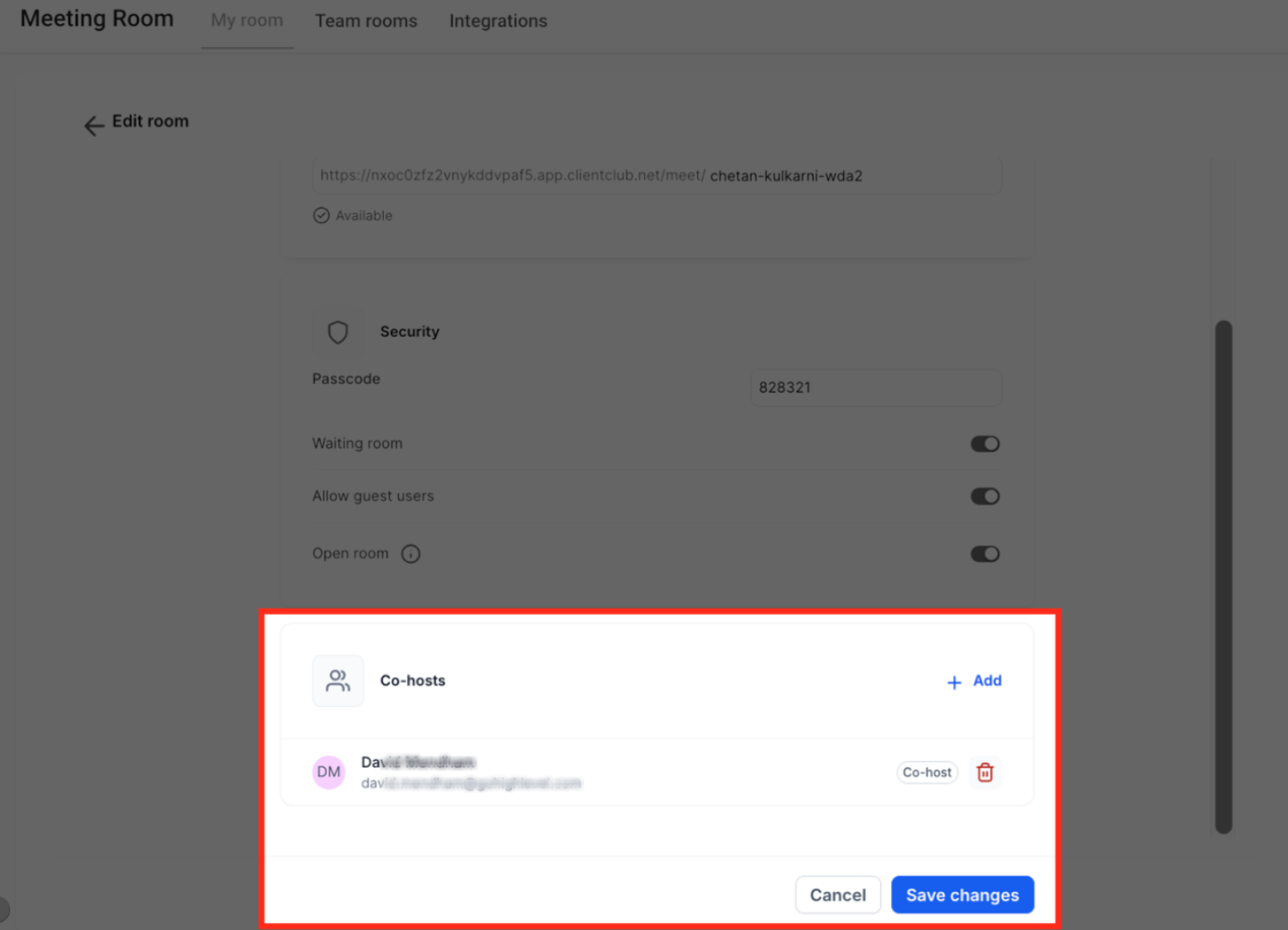
Optionally, add a co-host under Co-hosts.
Click Save changes. Your personal Meeting Room is now ready to use!
How to Start an Instant Meeting
You can start a meeting anytime without scheduling an appointment.
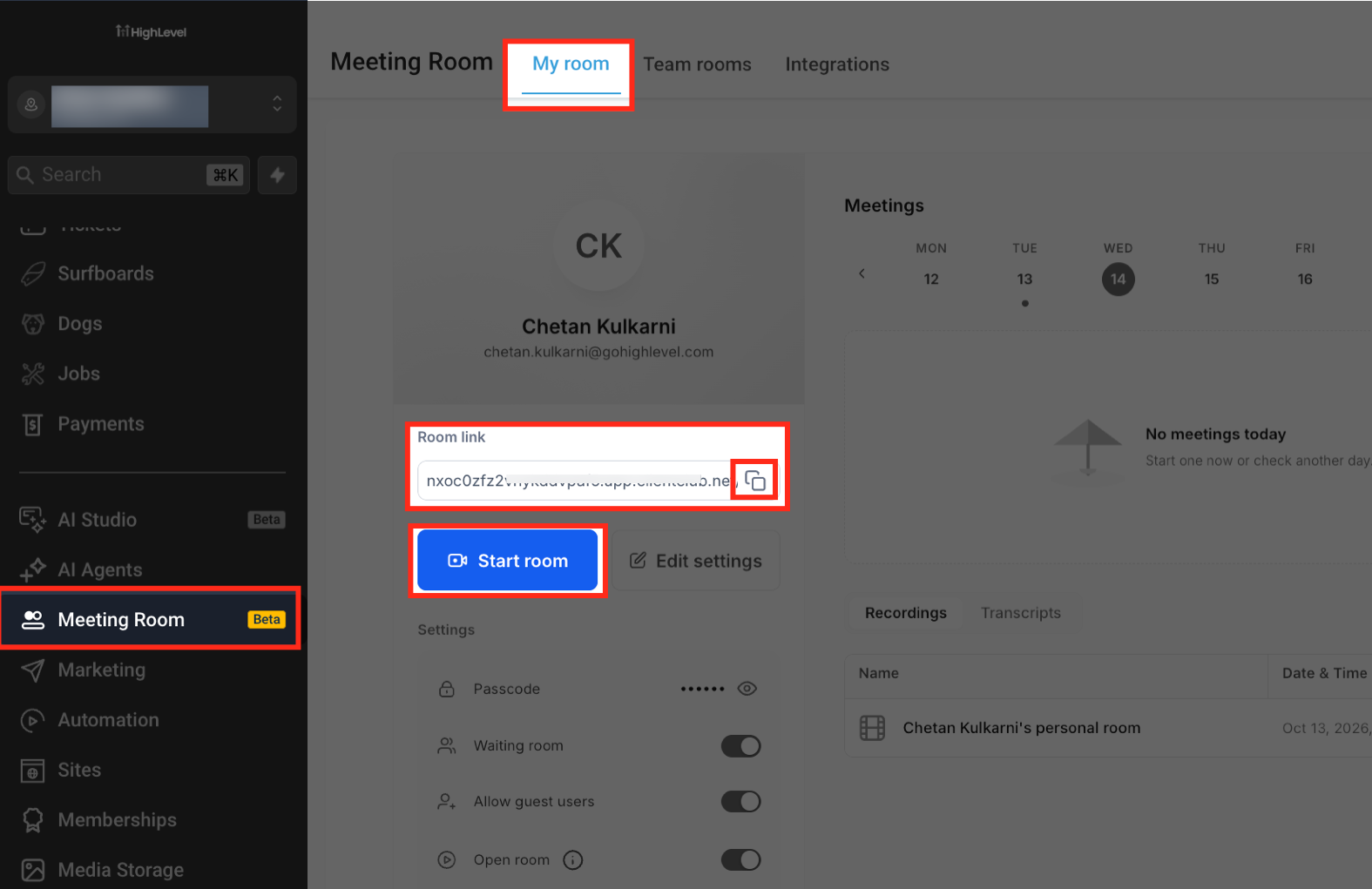
Go to Meeting Room > My room.
Click Start room.
Review your microphone, speaker, and camera settings.
Click Start now to begin your meeting.
To invite participants, copy your Room link from My room and share it with them.
Important Notes
Guests can join without a HighLevel account when Allow guest users is enabled.
Custom background uploads are available to logged-in users.
Recording a meeting does not automatically generate a transcript. Transcription must be enabled during the meeting for transcript-based AI features.
Browser compatibility: Enhanced Picture-in-Picture is supported in Chrome on desktop. The System default microphone and speaker options are available in Chrome.
Related Articles
Was this article helpful?
That’s Great!
Thank you for your feedback
Sorry! We couldn't be helpful
Thank you for your feedback
Feedback sent
We appreciate your effort and will try to fix the article