Breakout Rooms let you divide a Meeting Room session into smaller groups for workshops, training, coaching, and team discussions. Hosts can create rooms, assign participants, manage individual discussions, and bring everyone back to the main meeting. This guide explains how to create breakout rooms, configure participant permissions, manage active sessions, and control recording and live transcription for individual rooms.
TLDR: In an active Meeting Room, click Breakout Rooms, choose the number of rooms and an assignment method, then click Create rooms. Review your assignments and Options, then click Open all rooms. Use Close all rooms when you are ready to bring everyone back.
TABLE OF CONTENTS
- What are Breakout Rooms?
- Key Benefits of Breakout Rooms
- Participant Assignment Methods
- Breakout Room Settings
- How To Create and Open Breakout Rooms
- How To Manage Active Breakout Rooms
- How Participants Join and Switch Rooms
- Important Notes and Limits
- Frequently Asked Questions
- Related Articles
What are Breakout Rooms?
Breakout Rooms are smaller discussion spaces within a Meeting Room session. Instead of keeping everyone in one conversation, the host can divide participants into groups that collaborate independently and then return to the main meeting.
For example, a trainer can divide attendees into practice groups, a team lead can organize separate brainstorming discussions, or a coach can create smaller groups for focused conversations.
Hosts manage the rooms from the meeting interface, including participant assignments, room access, broadcasts, timers, recording, and live transcription.
Key Benefits of Breakout Rooms
Breakout Rooms help hosts organize group activities while keeping participants within the same meeting experience.
Flexible grouping: Assign participants automatically, select their rooms manually, or let them choose a room.
Centralized session management: Join discussions, move participants between rooms, and broadcast messages to every room.
Controlled session timing: Set a duration, extend sessions when needed, and use a countdown before participants return.
Independent recording and transcription: Manage recording and live transcription separately for each breakout room.
Participant Assignment Methods
When creating breakout rooms, choose how participants will be assigned. The available methods support different types of activities and levels of host control.
| Assignment method | How it works | Useful for |
|---|---|---|
| Automatically | Assigns participants to rooms automatically. | Quickly dividing a meeting into smaller groups. |
| Manually | Lets the host choose participants’ room assignments. | Creating specific teams, coaching groups, or workshop groups. |
| Let participants choose | Lets participants select which room to join. | Topic-based discussions or activities where attendees choose their group. |
Automatic assignment and automatic movement are separate settings.
Automatically determines participants’ room assignments.
Auto-move people to rooms, available under Options, determines whether assigned participants move into their rooms automatically when the rooms open.
Breakout Room Settings
Click Options in the Breakout Rooms panel to configure how participants move between rooms and how breakout sessions end.
| Setting | What it controls |
|---|---|
| Auto-move people to rooms | Moves assigned participants into their breakout rooms automatically when the rooms open. |
| Let people switch rooms | Allows participants to move between breakout rooms. |
| Allow return to main room | Allows participants to return to the main meeting while breakout rooms are active. |
| Close after | Sets the duration before breakout rooms close automatically. |
| Countdown | Sets a countdown before rooms finish closing and participants return to the main meeting. |
Configure these settings before opening the rooms so the participant experience matches your activity. For example, a structured training session may use assigned rooms and automatic movement, while an open discussion may allow participants to choose and switch rooms.
How To Create and Open Breakout Rooms
These steps begin inside an active Meeting Room session where you are the host. For instructions on starting a Meeting Room through Communities, see Communities – Use Go Live to Host Meetings & Broadcasts.
Step 1: Open Breakout Rooms
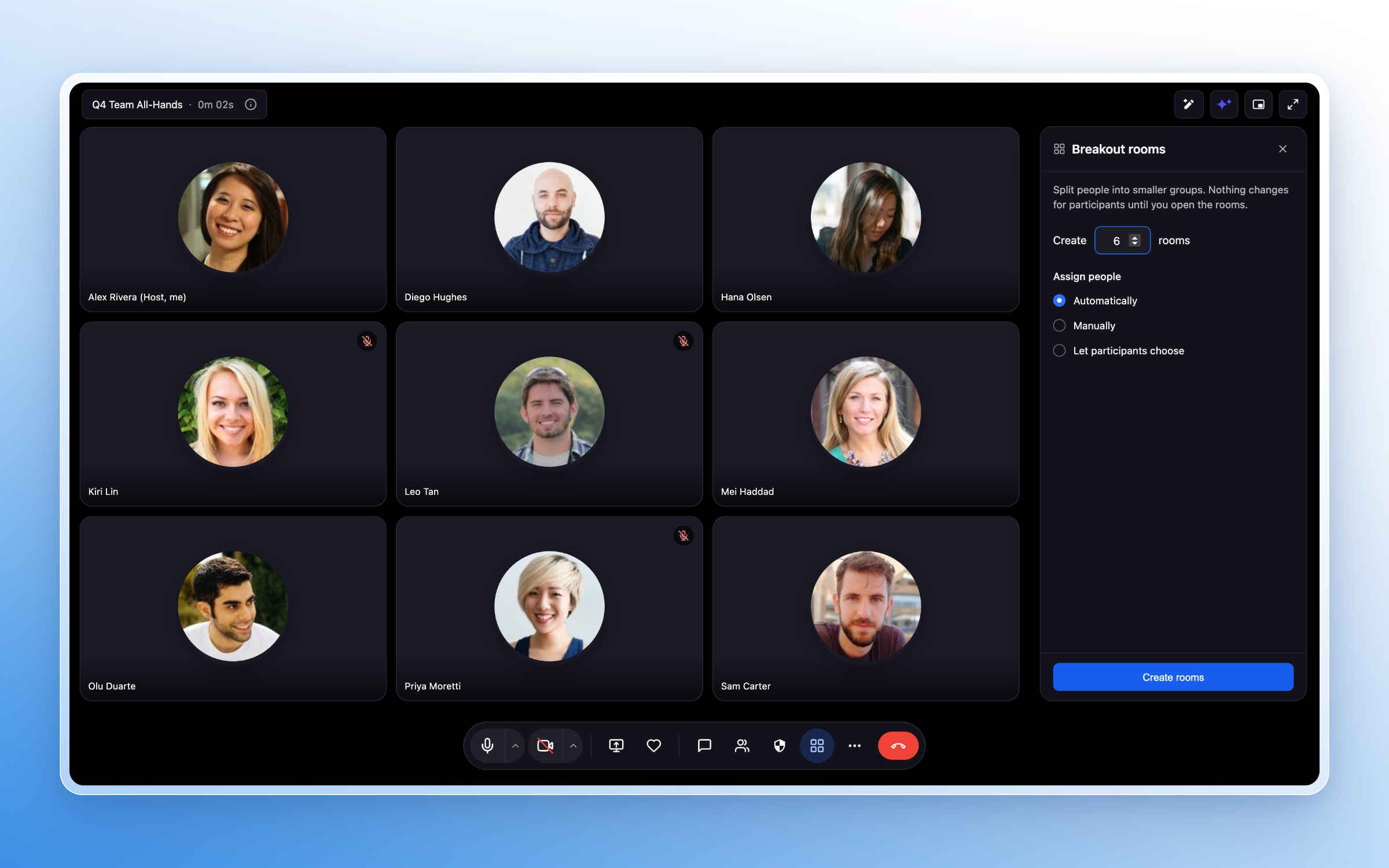
Click Breakout Rooms, represented by the four-square icon in the meeting toolbar. The Breakout Rooms panel opens on the right side of the meeting.
Step 2: Choose the Number of Rooms and Assignment Method
Enter the number of rooms you want to create. You can create up to 100 breakout rooms per session.
Under Assign people, choose Automatically, Manually, or Let participants choose. Then click Create rooms.
Step 3: Review the Draft Room Plan
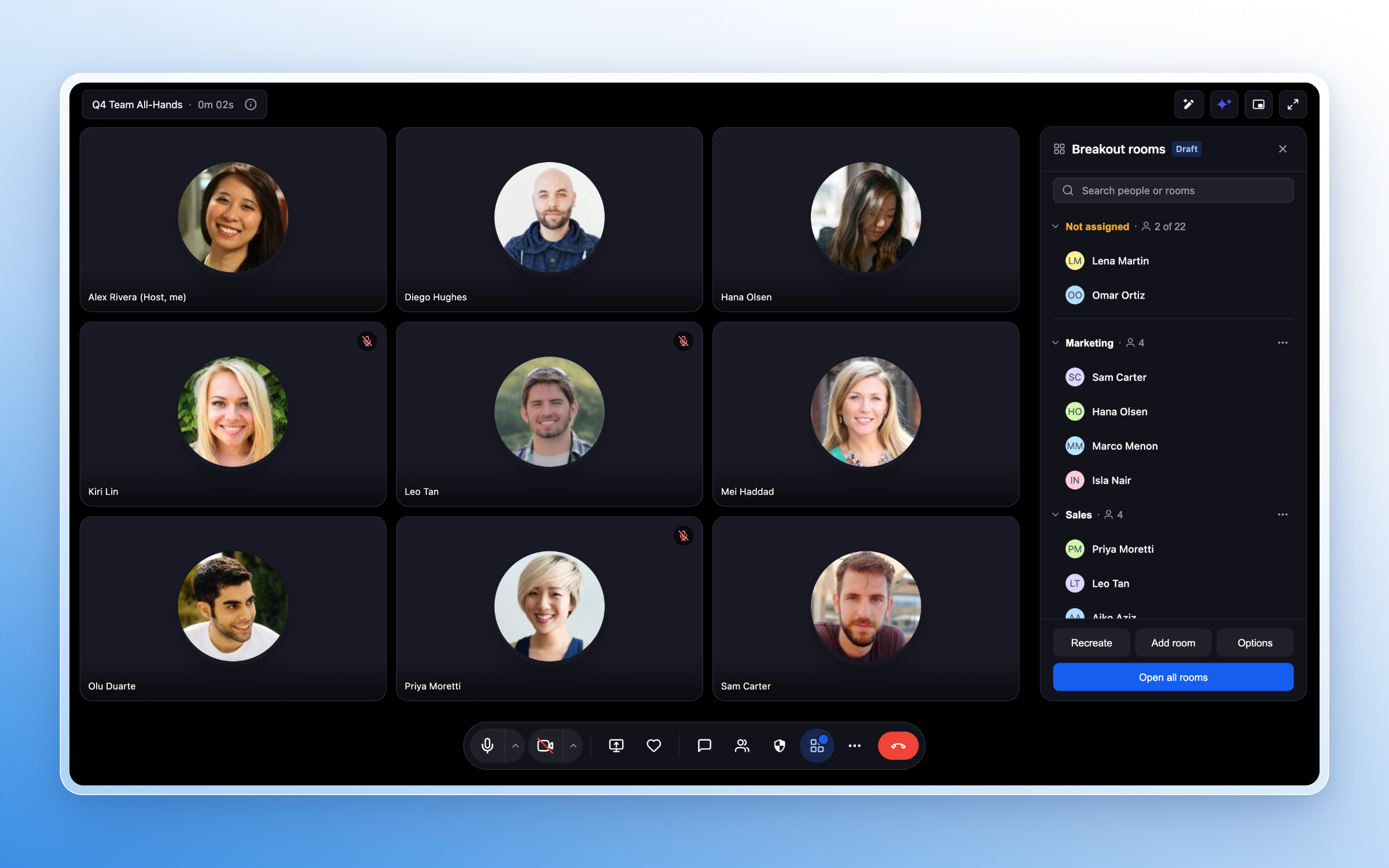
After creating the rooms, review the room list and participant assignments. The panel displays a Draft label while you prepare the breakout session.
Expand a room to review its participants. Rename rooms and adjust assignments as needed, or click Add room to create another room. Review the Not assigned section for participants who do not currently have a room assignment.
Creating rooms does not start the breakout session. Participants are not moved into rooms while you are preparing the draft plan.Step 4: Configure Options
Click Options and review the movement permissions, automatic closing duration, and countdown settings.
Return to the room list after configuring your settings.
Step 5: Open the Rooms
Click Open all rooms to start the breakout session.
Assigned participants receive an invitation to join their room or move automatically, depending on your settings. When participant choice is enabled, attendees can select a room to join.
How To Manage Active Breakout Rooms
Once rooms are open, use the Breakout Rooms panel to monitor groups, support participants, and manage the session.
View and Join Rooms
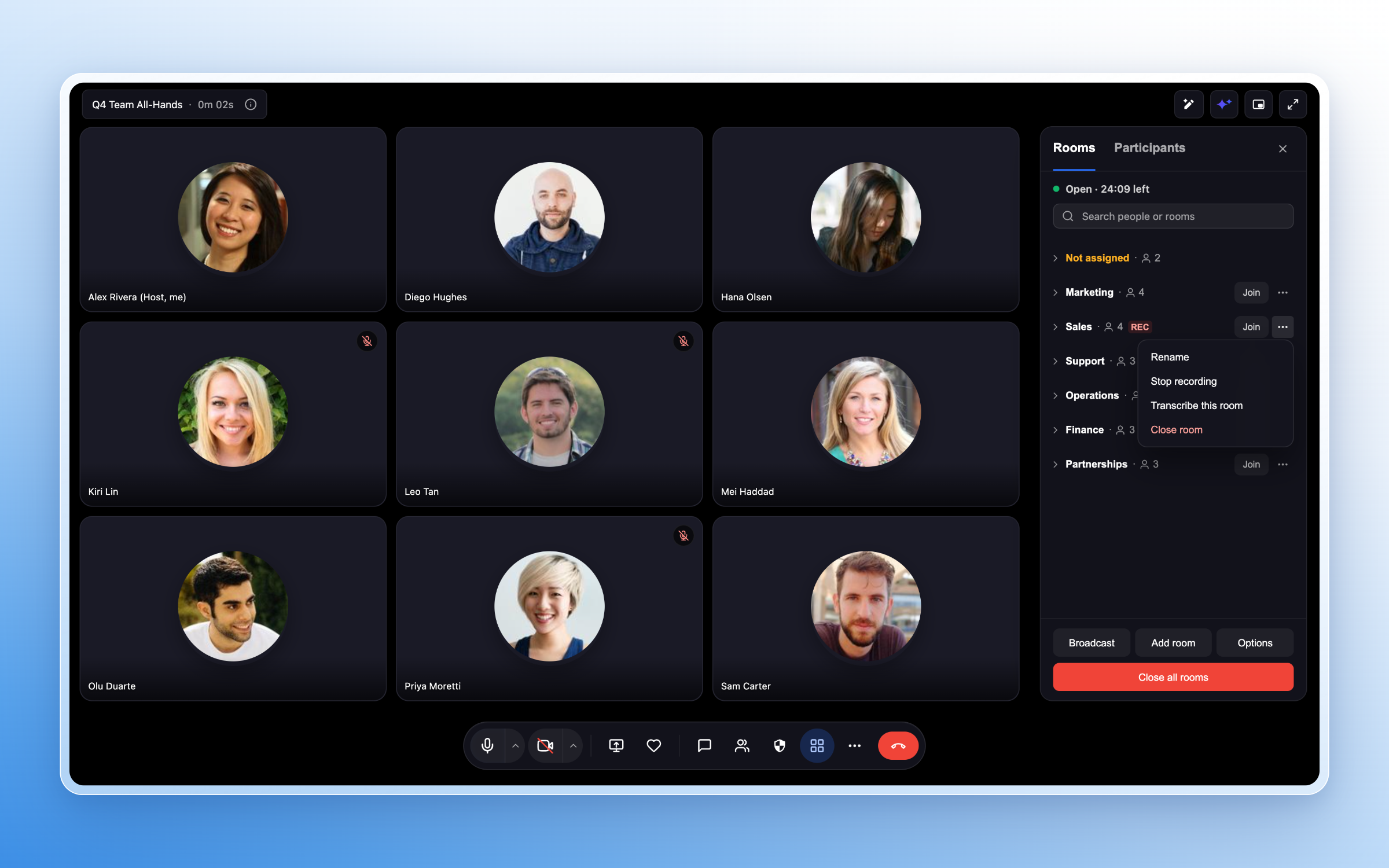
Use the Rooms tab to review the room list. Expand a room to see its participants, or use Search people or rooms to locate a specific person or room.
Click Join next to a room to enter that discussion. You can also move participants between rooms as needed.
Broadcast a Message to All Rooms
Broadcasts let you share instructions or reminders with every breakout room without joining each discussion.
Click Broadcast at the bottom of the Breakout Rooms panel.
Enter your message in Message to all rooms.
Click Send.
For example, you might remind groups to select a spokesperson or prepare one idea to share when they return.
Manage Timers and Close Rooms
Use Close after to configure automatic closure. During a timed session, the host panel displays the remaining time. Sessions can also be extended when groups need more time.
To end one breakout room, open its three-dot action menu and select Close room. To bring all groups back, click Close all rooms.
When a closing countdown is enabled, participants receive a countdown before returning to the main meeting.
Record and Transcribe Individual Rooms
Recording and live transcription are managed independently for each breakout room. Use the room’s three-dot action menu to access its controls.
| Action | How to use it |
|---|---|
| Start or stop recording | Use the room’s recording control to manage recording for that room. While recording is active, the menu includes Stop recording. |
| Start live transcription | Select Transcribe this room from the room’s action menu. |
| Stop live transcription | Use that room’s transcription control to stop transcription independently of recording. |
| Check capture status | Review the room’s recording and transcription indicators. An active recording displays a REC indicator next to the room. |
Manage recording and transcription for each room individually. These are separate controls, so review the status of each room you intend to record or transcribe.How Participants Join and Switch Rooms
The participant experience depends on the host’s assignment method and movement settings.
Join an Assigned Room
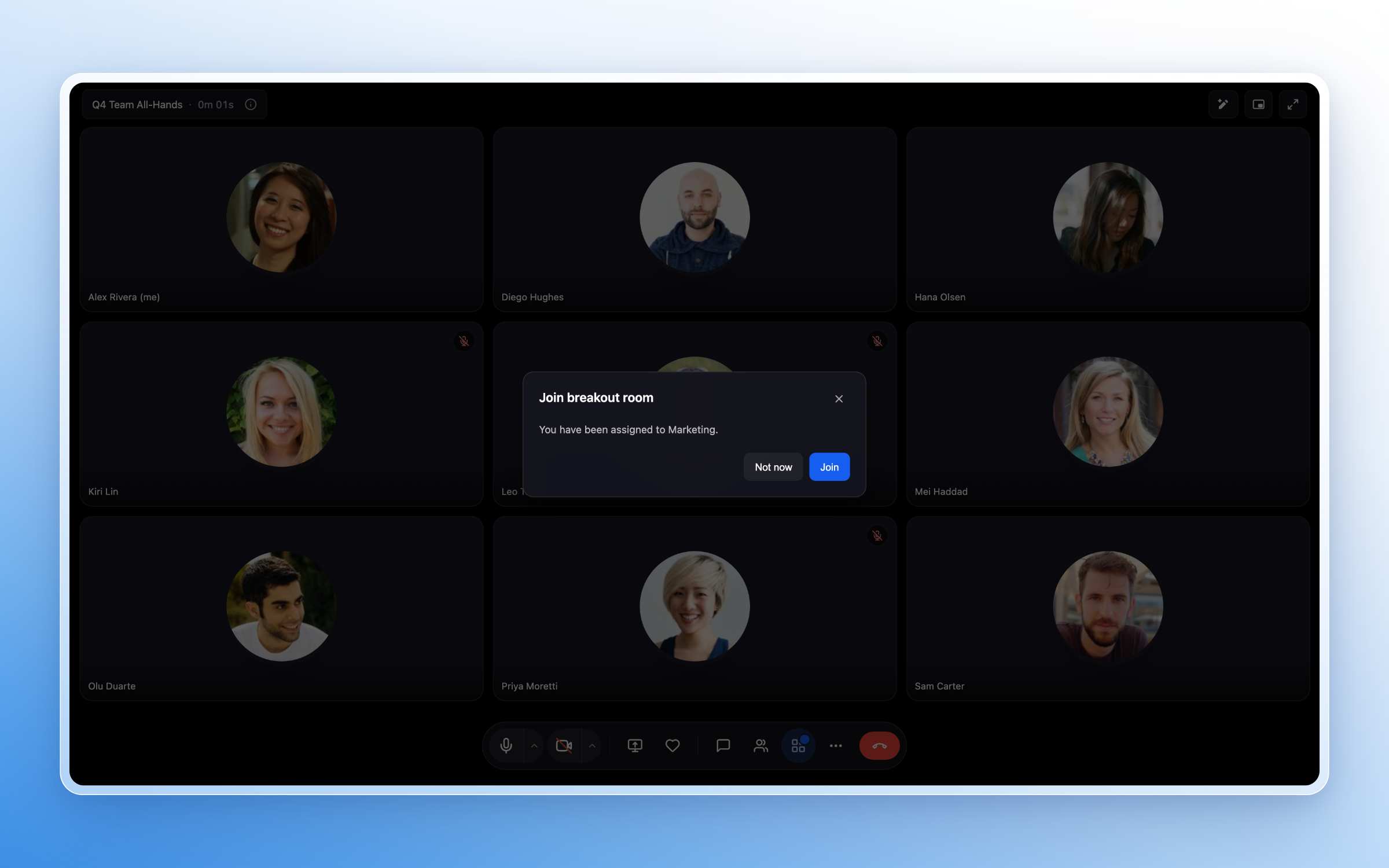
When invited to an assigned room, participants see a Join breakout room dialog that identifies the room.
Click Join to enter the room. Click Not now to dismiss the invitation without joining at that moment.
When Auto-move people to rooms is enabled, assigned participants can be moved automatically instead of accepting an invitation.
Choose or Switch Rooms
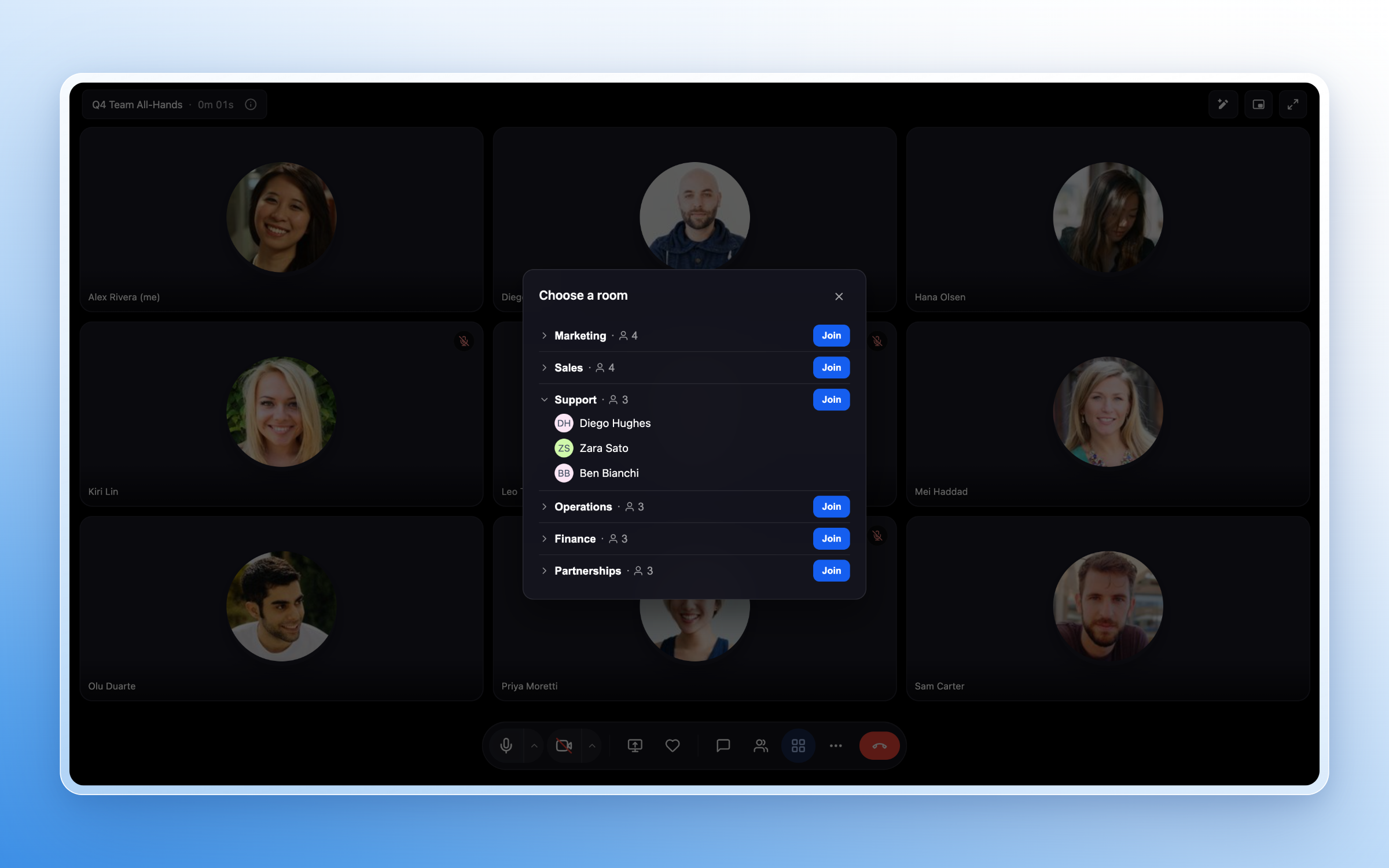
When the host allows participants to choose their room, open Breakout Rooms from the meeting toolbar to view the Choose a room dialog.
Review the available rooms, expand a room to see its participants, and click Join next to the room you want to enter.
Participants can switch rooms when the host permits room switching.
Return to the Main Meeting
When the host enables Allow return to main room, participants can return to the main meeting while breakout rooms are active.
When rooms are closing, participants see the closing countdown. They can click Return now to return before the countdown finishes, or return automatically when the rooms close.
Important Notes and Limits
Room limit: You can create up to 100 breakout rooms per session. This is the number of breakout rooms, not a statement of participant capacity.
Draft versus open rooms: Create rooms prepares the room plan. Open all rooms starts the breakout session.
Participant permissions: Choosing rooms, switching rooms, and returning to the main meeting depend on the host’s settings.
Per-room capture: Recording and live transcription are managed independently for individual rooms. Check the relevant room’s status indicators rather than assuming the same settings apply to every room.
Frequently Asked Questions
Q: How many breakout rooms can I create?
You can create up to 100 breakout rooms per session.
Q: Does creating rooms immediately move participants out of the main meeting?
No. Rooms remain in a draft state until you click Open all rooms. After rooms open, participants join through an invitation, move automatically, or choose a room, depending on the settings.
Q: What is the difference between automatic assignment and automatic movement?
Automatic assignment determines which room each participant is assigned to. Automatic movement determines whether assigned participants move into those rooms without clicking Join.
Q: Why are some participants listed under Not assigned?
These participants do not currently have a breakout-room assignment. Review this section and assign anyone who needs to join a specific group.
Q: Can participants choose or switch rooms themselves?
Yes. Select Let participants choose when creating rooms to allow room selection. Use Let people switch rooms in Options to allow movement between rooms.
Q: Can I send the same instructions to every room?
Yes. Click Broadcast, enter your message, and click Send to share it with all breakout rooms.
Q: Can I record one room without recording every room?
Yes. Recording is managed independently for each breakout room. Live transcription is also controlled separately for each room.
Q: Can participants return before the breakout session ends?
Yes, when the host enables Allow return to main room. During the closing countdown, participants can also click Return now.
Related Articles
Communities – Use Go Live to Host Meetings & Broadcasts
Learn how to start a Meeting Room session through Communities and use the main meeting controls.
HighLevel Meetings: Reusable Links for One-Time & Recurring Calls
Learn about personal meeting links and how to access your Meeting settings.
Live Rooms in Communities Events
Learn how to schedule a Community Event using the built-in Live Room location.
Communities Live Session Enhancements: Personal Meeting Links, Recordings Hub & Noise Cancellation
Review the broader live-session tools, including reusable meeting links and recording management.
Was this article helpful?
That’s Great!
Thank you for your feedback
Sorry! We couldn't be helpful
Thank you for your feedback
Feedback sent
We appreciate your effort and will try to fix the article