Screen Sharing Enhancements in HighLevel Meeting Rooms
Screen sharing is essential for collaboration during support sessions, presentations, training, and client meetings. HighLevel Meeting Rooms include several screen-sharing enhancements that make shared content clearer, easier to view, and more comfortable to navigate.
This article covers full-screen viewing, zoom controls, system audio sharing, improved streaming quality, and how these features improve collaboration during live meetings.
What Are Screen Sharing Enhancements?
Screen sharing enhancements in HighLevel Meeting Rooms improve how participants view and interact with shared content during live meetings. These features include full-screen viewing, zoom controls, system audio sharing, and upgraded streaming quality up to 1080p at 30 FPS.
These improvements make it easier to deliver presentations, conduct training sessions, run support calls, review reports, troubleshoot issues, and collaborate in real time with clients and teammates.
Key Features
HighLevel Meeting Rooms include the following screen-sharing enhancements to improve collaboration and content visibility:
Full-Screen Mode for Shared Screens
Full-screen mode allows participants to expand shared screens to fill their entire display. This provides a more focused viewing experience by eliminating distractions and maximizing screen space when reviewing presentations, demonstrations, documents, dashboards, and other detailed content.
Participants can enter and exit full-screen mode at any time without affecting the presenter's screen or other attendees' views.
Zoom In & Zoom Out Controls
Shared screens include built-in zoom controls that allow participants to zoom in or out on shared content as needed. This feature improves readability for text-heavy content, makes it easier to view spreadsheets and reports, and provides better visibility of detailed interfaces and workflows.
Participants can adjust the viewing scale without affecting the presenter's screen. Each attendee controls their own zoom level independently.
Use zoom controls when viewing dashboards, spreadsheets, or detailed workflows to make small text and interface elements easier to read.
Screen Sharing with System Audio
Attendees can share their screens along with system audio during meetings. This makes it easier to present videos with sound, deliver training sessions and walkthroughs, demonstrate applications with audio output, and share multimedia content without requiring separate audio sources.
Participants experience both visual content and audio exactly as intended by the presenter. System audio sharing is available when starting a screen share in HighLevel Meeting Rooms.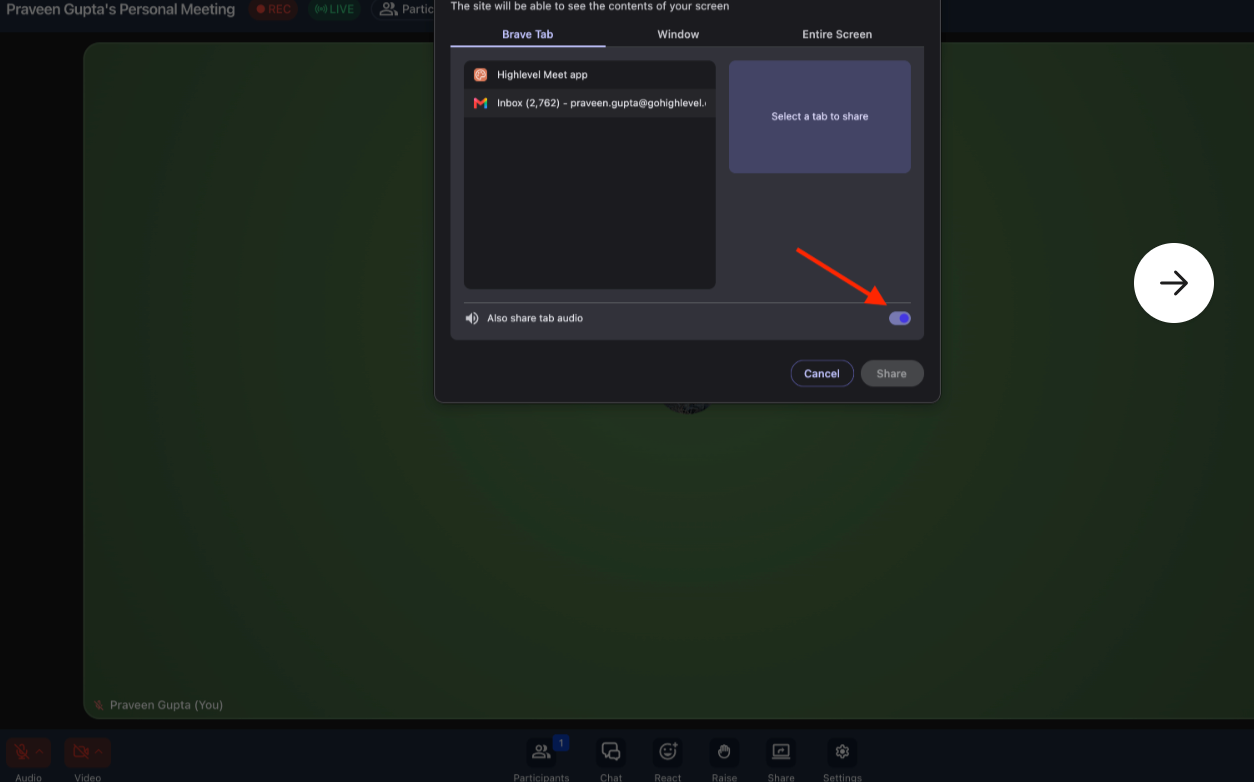
Improved Screen Sharing Quality
Screen sharing in HighLevel Meeting Rooms supports upgraded streaming quality to deliver sharper visuals, smoother motion, and a more professional viewing experience during presentations, demos, training sessions, and collaborative meetings.
Shared screen streaming quality supports the following specifications:
How to Use Screen Sharing Enhancements
Follow these steps to use screen sharing enhancements in HighLevel Meeting Rooms:
Join a HighLevel Meeting Room and click the screen share button to start sharing your screen. Select the screen, window, or tab you want to share.
When starting a screen share, select the option to share system audio if you want participants to hear audio from your computer along with the shared screen.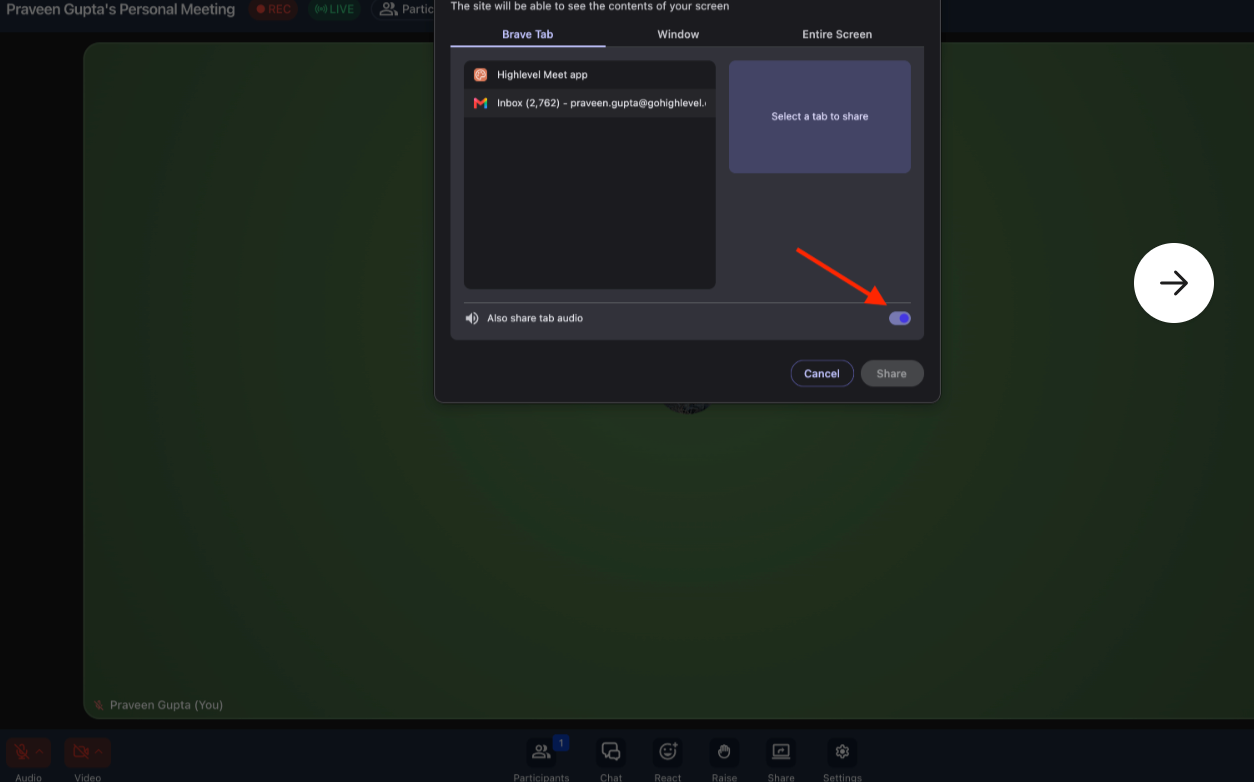
As a participant viewing a shared screen, click the full-screen button to expand the shared content to fill your entire display. Exit full-screen mode by pressing Escape or clicking the exit button.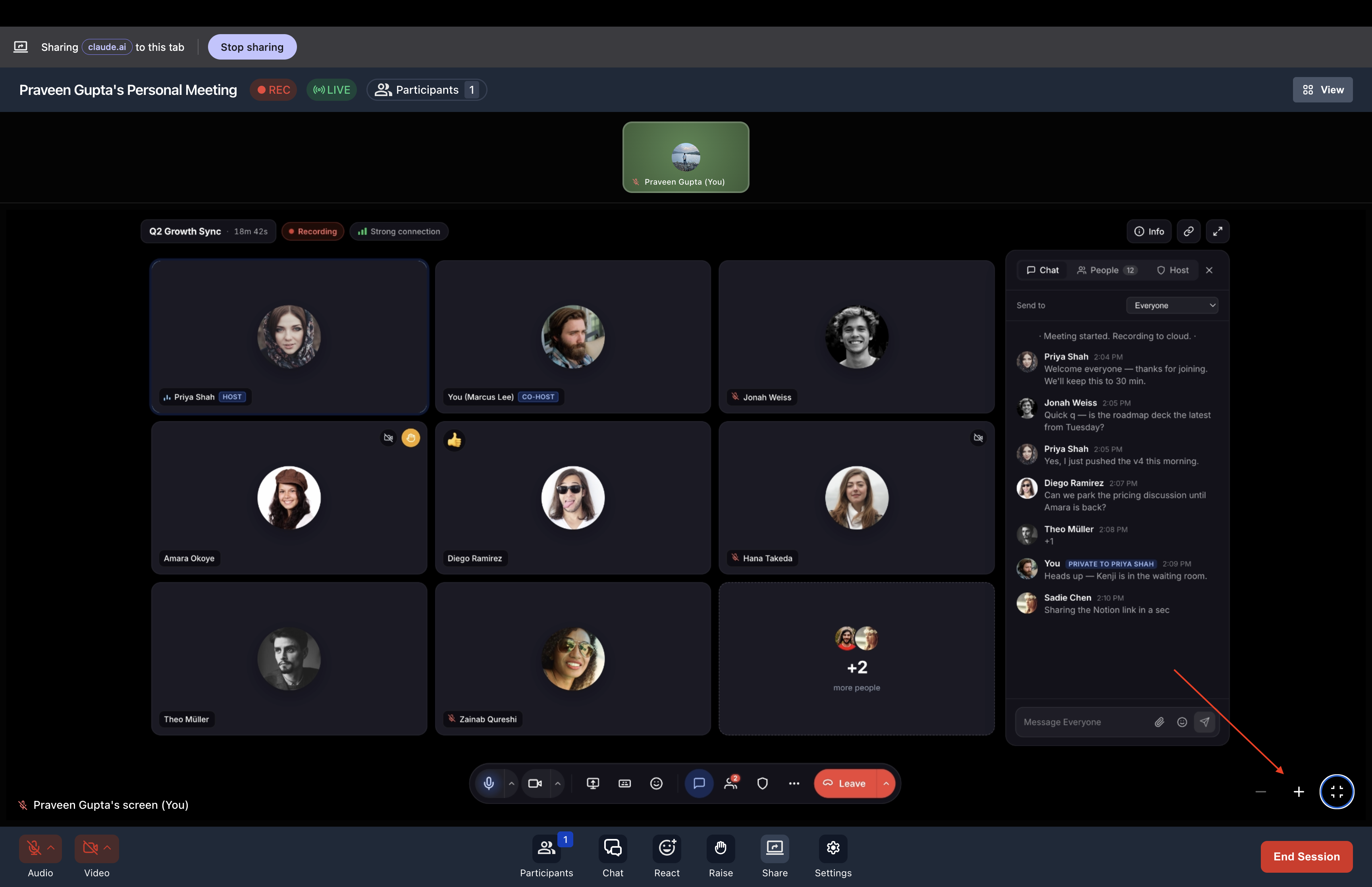
Use the zoom in and zoom out controls to adjust the viewing scale of the shared screen. This allows you to view detailed content more clearly without affecting the presenter's screen or other participants' views.
Frequently Asked Questions
Was this article helpful?
That’s Great!
Thank you for your feedback
Sorry! We couldn't be helpful
Thank you for your feedback
Feedback sent
We appreciate your effort and will try to fix the article