Meeting Room is HighLevel's built-in video conferencing solution for client calls, team meetings, training sessions, and more. You can create reusable meeting links, start video calls instantly, collaborate with participants, and access recordings, transcripts, and AI-powered meeting summaries in one place.
What Is Meeting Room?
Meeting Room lets you host video meetings directly in HighLevel without using a separate video conferencing platform.
The Meeting Room section in your sub-account includes three main areas:
My room: Create and manage your personal Meeting Room with a permanent, reusable link.
Team rooms: Find and access team members' Meeting Rooms.
Integrations: Connect Meeting Room with other HighLevel products.
You can also generate unique Meeting Room links for individual calendar appointments.
Key Features of Meeting Room
Video Meetings and Collaboration
- Instant meetings: Start video calls without scheduling an appointment.
- Guest access: Invite participants using a meeting link without requiring a HighLevel account when guest access is enabled.
- Screen sharing and chat: Share content and communicate during meetings.
- Interactive tools: Use reactions, hand raising, and different meeting layouts.
- Picture-in-Picture: Keep your meeting visible while switching browser tabs.
Meeting Management and Security
Host and co-host controls: Manage participants, meeting permissions, and host responsibilities.
Waiting rooms and passcodes: Control who can access your meetings.
Video and audio settings: Configure cameras, microphones, backgrounds, lighting, and noise cancellation.
Recordings, Transcripts, and AI
Meeting recordings: Record meetings and access available recordings afterward.
Speaker-labeled transcripts: Review conversations with speaker names and timestamps.
AI meeting assistance: Ask questions during meetings and generate summaries, key decisions, and action items from transcripts.
Meeting Room Integrations
Meeting Room works with several HighLevel products:
| Integration | What You Can Do |
|---|---|
| Calendars | Use your permanent Meeting Room link or generate a unique link for each appointment. |
| Communities | Host live discussions and Community Events. |
| Courses | Add live meeting sessions to courses. |
| Events | Use Meeting Room as an online event location. |
| Webinars | Connect live webinars to a Meeting Room. |
You can explore these options under Meeting Room > Integrations.
How to Set Up Your Personal Meeting Room
Create a personal room with a permanent link that you can reuse for meetings.
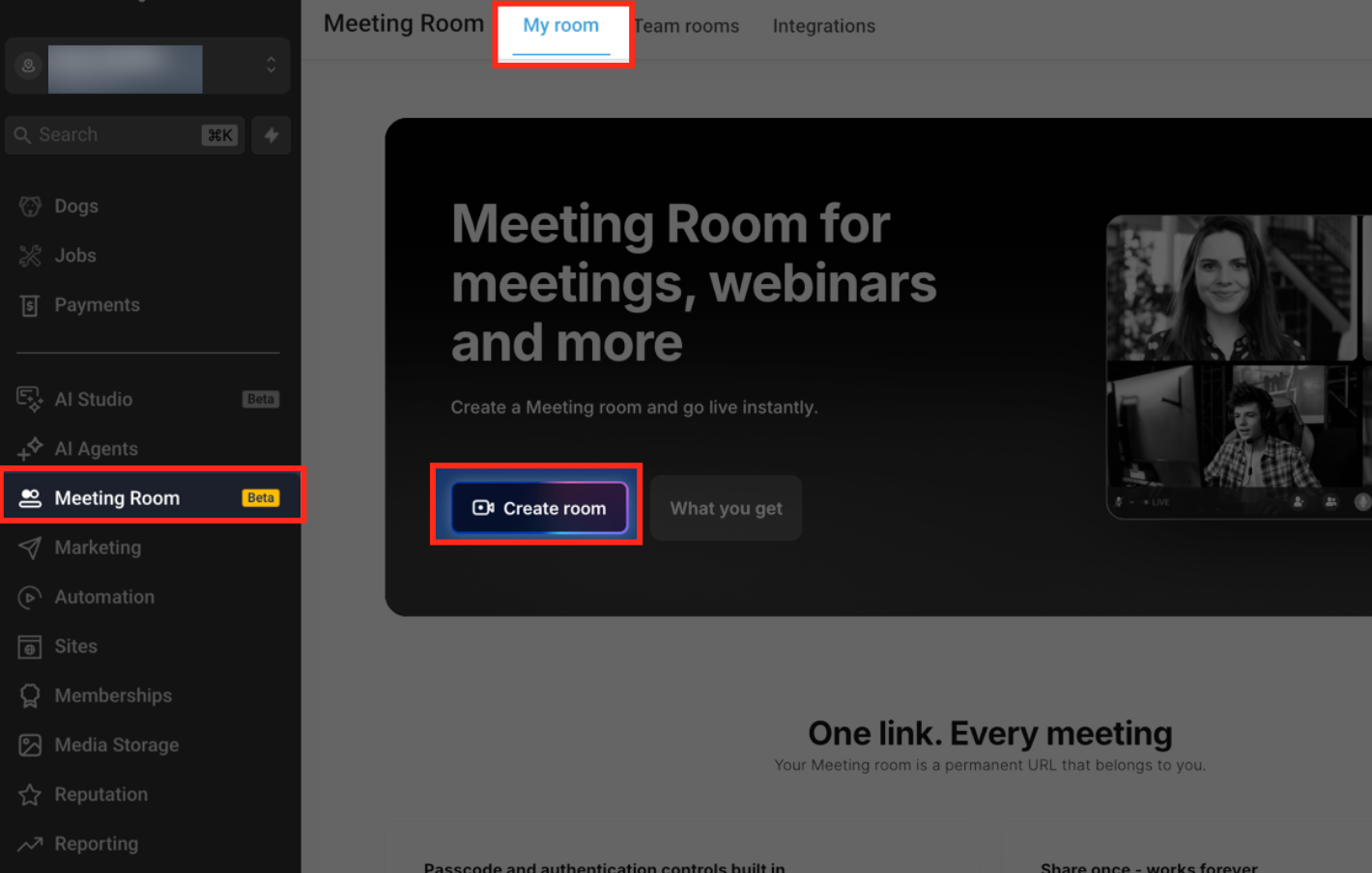
Open your HighLevel sub-account and go to Meeting Room > My room.
Click Create room.
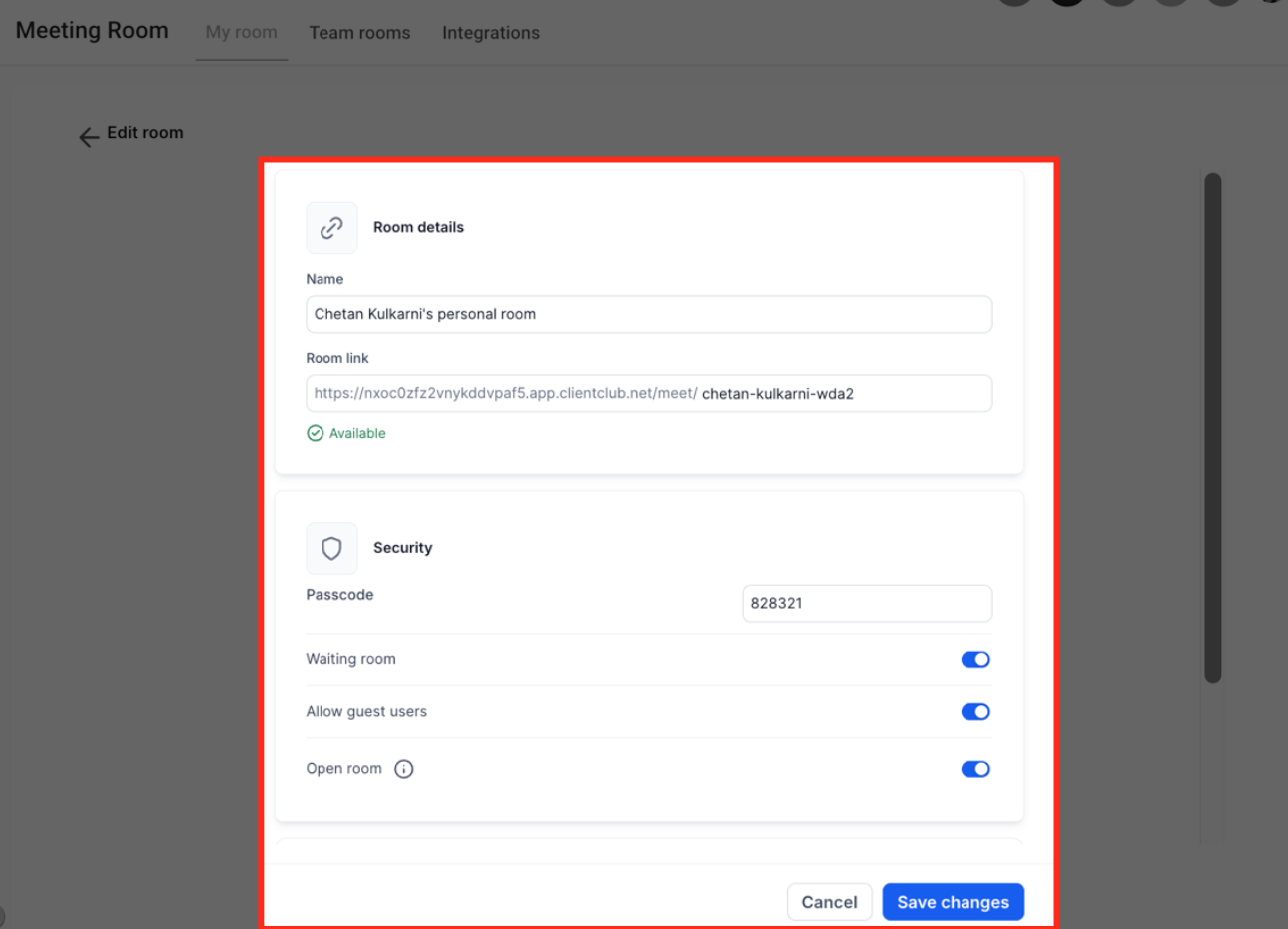
Under Room details, enter your Name and Room link.
Under Security, configure your passcode, waiting room, guest access, and room availability as needed.
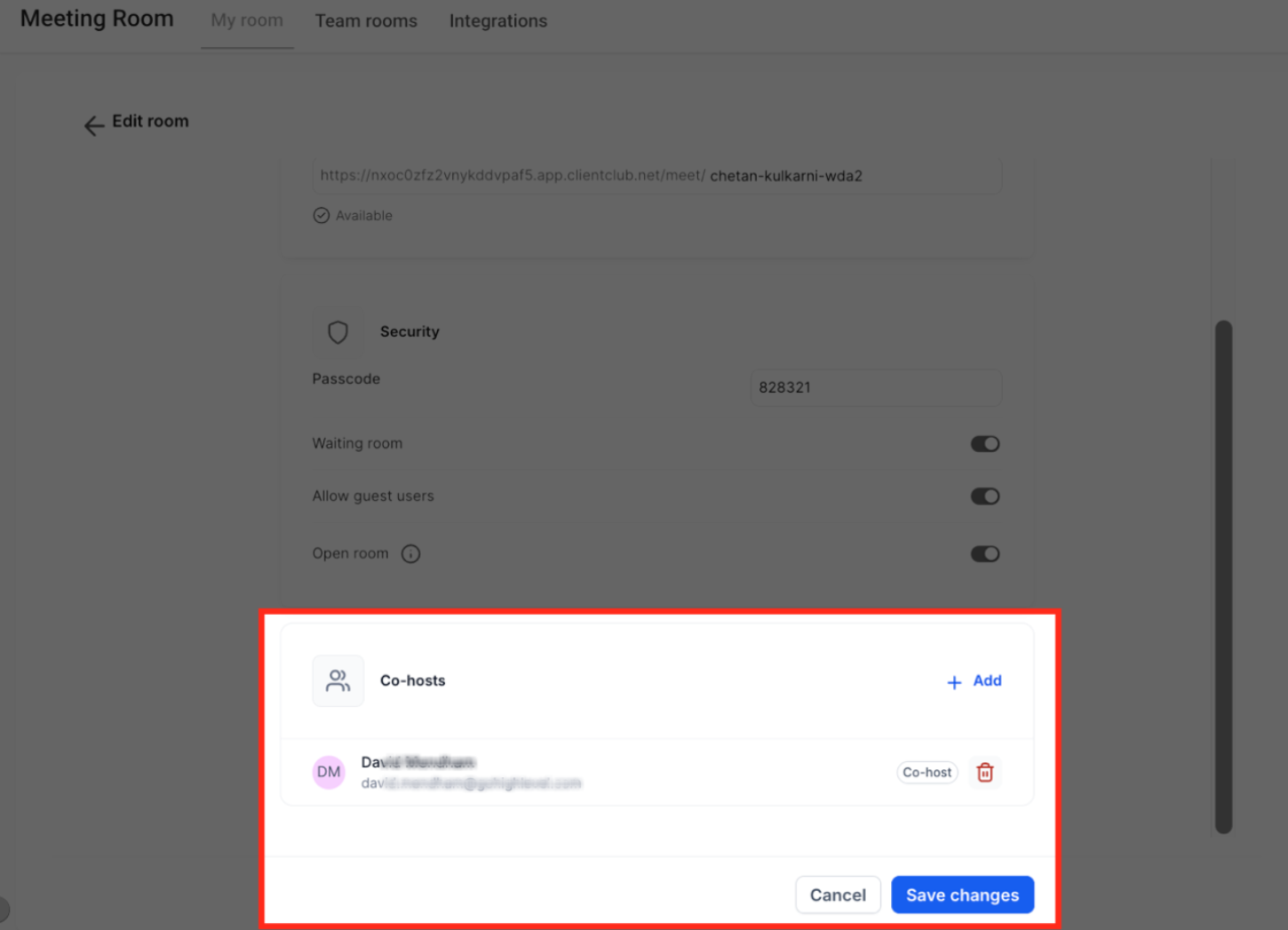
Optionally, add a co-host under Co-hosts.
Click Save changes.
Your personal Meeting Room is now ready to use.
How to Start an Instant Meeting
You can start a meeting anytime without scheduling an appointment.
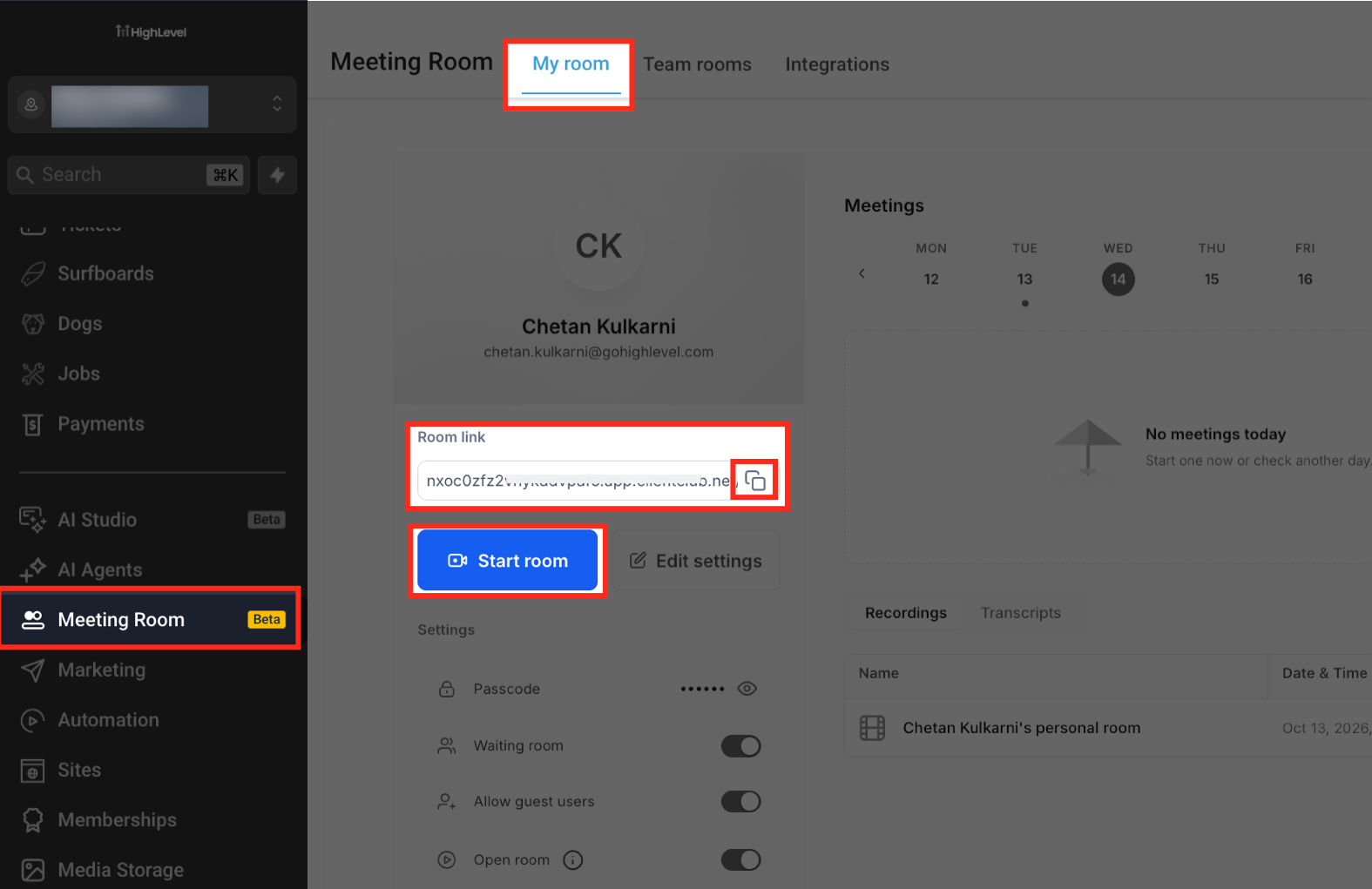
Go to Meeting Room > My room.
Click Start room.
Review your microphone, speaker, and camera settings.
Click Start now to begin your meeting.
To invite participants, copy your Room link from My room and share it with them.
Important Notes
Guests can join without a HighLevel account when Allow guest users is enabled.
Custom background uploads are available to logged-in users.
Recording a meeting does not automatically generate a transcript. Transcription must be enabled during the meeting for transcript-based AI features.
Related Articles
Was this article helpful?
That’s Great!
Thank you for your feedback
Sorry! We couldn't be helpful
Thank you for your feedback
Feedback sent
We appreciate your effort and will try to fix the article