Client Portal AI now supports Custom Objects, making it possible to create interactive member portals that collect and save information directly to your HighLevel CRM. Build portals for service requests, applications, inquiries, and other business processes using natural-language prompts. Client Portal AI can generate the required Custom Objects, fields, and relationships, then present a plan for your approval before creating anything. This gives you more control over your data while making it easier for members to submit and access information.
TABLE OF CONTENTS
- What Are Custom Objects in Client Portal AI?
- Key Benefits of Custom Objects in Client Portal AI
- How to Set Up Custom Objects in Client Portal AI
- How Custom Object Detection Works
- AI-Generated Custom Object Plans
- Custom Object Approval and Modifications
- Payments with Custom Object Records
- Custom Object Limits and Reuse
- Supported Platforms and Availability
- Frequently Asked Questions
- Related Articles
What Are Custom Objects in Client Portal AI?
Custom Objects in Client Portal AI allow you to build member-facing experiences that collect, organize, and display information stored in your HighLevel CRM. Instead of manually configuring every data structure, you can describe what you want your portal to do and let Client Portal AI propose the Custom Objects needed to support it.
A Custom Object is a CRM record type used to store information that doesn't fit into standard records such as Contacts, Companies, or Opportunities.
For example, a coaching business might use Custom Objects to manage strategy call applications, while a property management company might use them to collect tenant service requests.
Key Benefits of Custom Objects in Client Portal AI
Custom Objects help transform AI-generated portals from informational experiences into interactive tools that support real business processes. By connecting member submissions to your CRM, you can collect structured information without creating every data structure manually.
AI-Assisted Setup: Describe the information you want to collect, and Client Portal AI generates an appropriate Custom Object plan.
Centralized CRM Records: Store member-submitted applications, requests, and inquiries directly in your HighLevel sub-account.
Approval Before Creation: Review object structures, fields, relationships, sample records, and visibility settings before approving changes.
Flexible Data Organization: Create Custom Objects with customized fields, dropdown options, and associations that reflect your business needs.
Reduced Duplicate Objects: Reuse suitable existing Custom Objects instead of creating unnecessary duplicates.
Member Record Access: Allow members to submit and view records through dedicated portal pages.
Flexible Record Visibility: Support individual records, company-associated records, and read-only access to all records.
Payment Collection: Use Pay and Buy buttons with HighLevel invoices when a supported payment provider is connected.
Object Limit Management: Review available options when your sub-account approaches its Custom Object limit.
How to Set Up Custom Objects in Client Portal AI
Creating Custom Objects through Client Portal AI begins with a clear description of the information your members need to submit. Reviewing the AI-generated structure before approval ensures that the resulting portal pages and CRM records support your intended business workflow.
Follow these steps to create a portal that collects and saves member-submitted information.
Step 1: Open Client Portal AI
Access Client Portal AI in the appropriate HighLevel sub-account and start a new portal build.
Make sure you are working in the sub-account where the Custom Objects should be created.
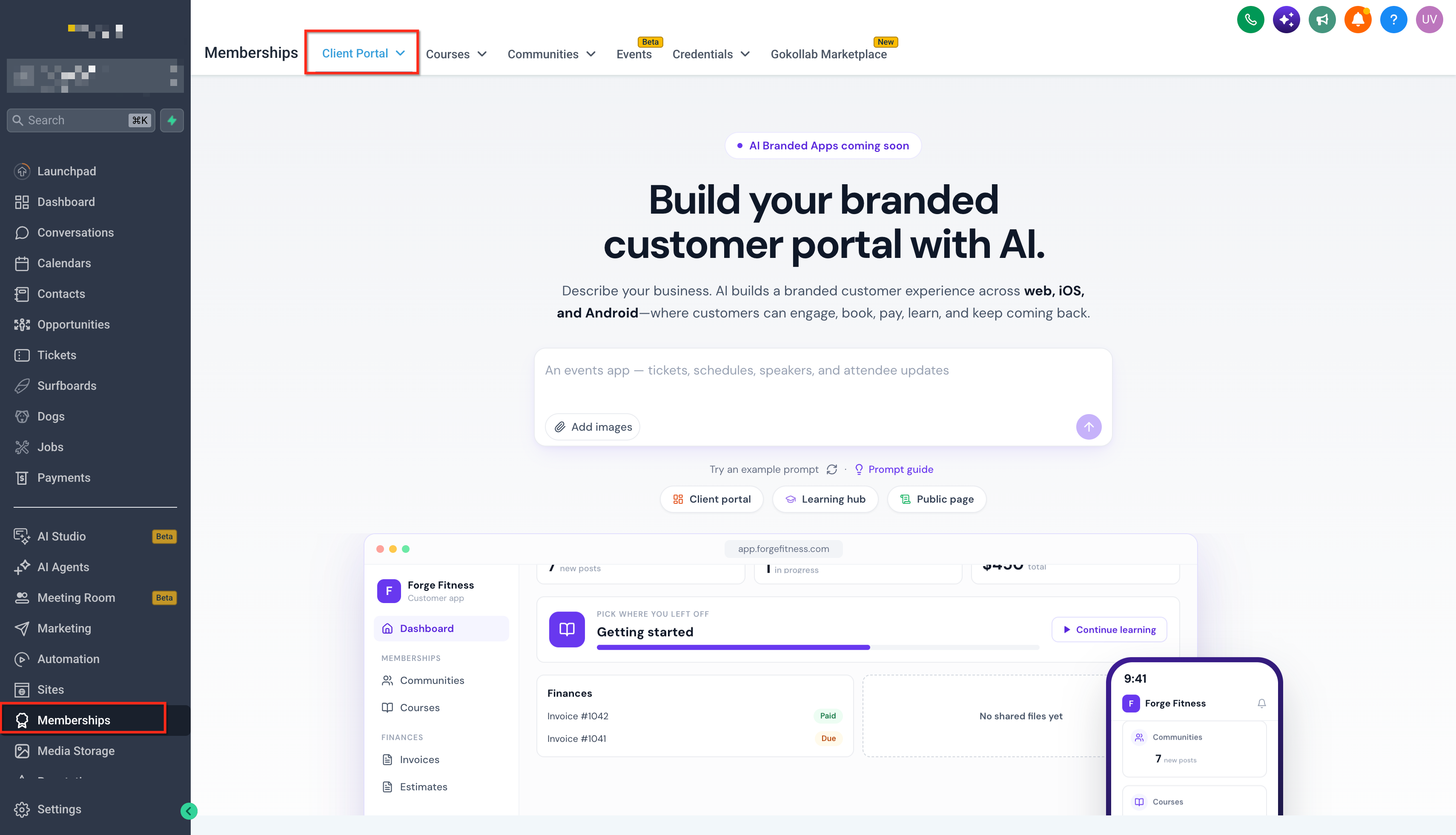
Step 2: Describe Your Portal Requirements
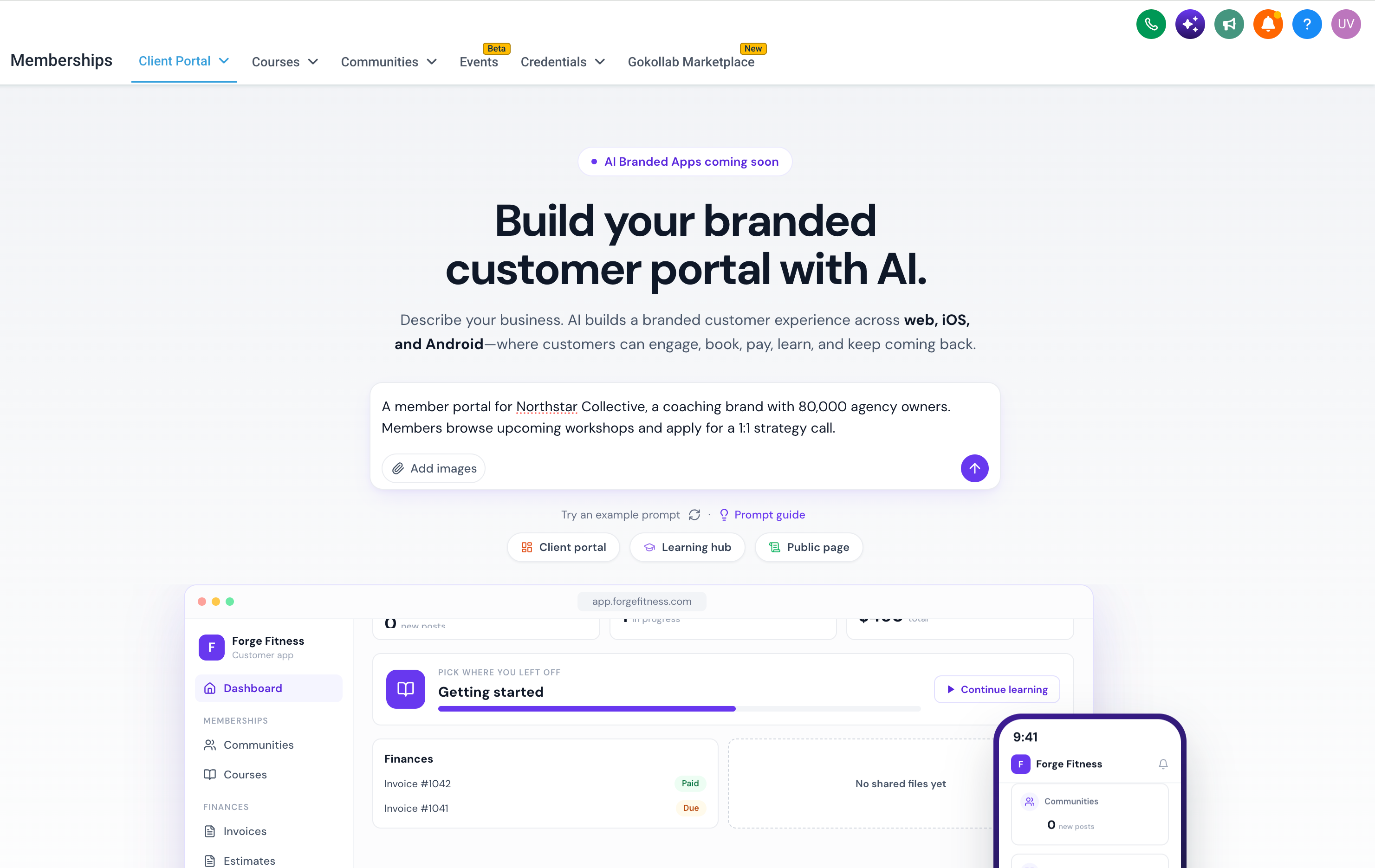
Enter a natural-language prompt explaining what your portal should do and what information members need to submit. For example:
"A member portal for Northstar Collective, a coaching brand with 80,000 agency owners. Members browse upcoming workshops and apply for a 1:1 strategy call."
You can make your prompt more specific by describing the fields you want to collect.
For example:
"Allow members to submit a strategy call application with their business name, monthly revenue range, primary challenge, and preferred consultation topic. Members should be able to view their own applications."
Clear requirements help Client Portal AI propose the appropriate data structure and member-facing experience.
Step 3: Confirm Custom Object Usage
When Client Portal AI identifies that your request requires saved information, it asks:
"Use custom objects in your CRM for this?"
Select Yes to continue. Client Portal AI will prepare a proposed Custom Object plan for your review.
If you do not want to proceed with Custom Objects, you can decline the request.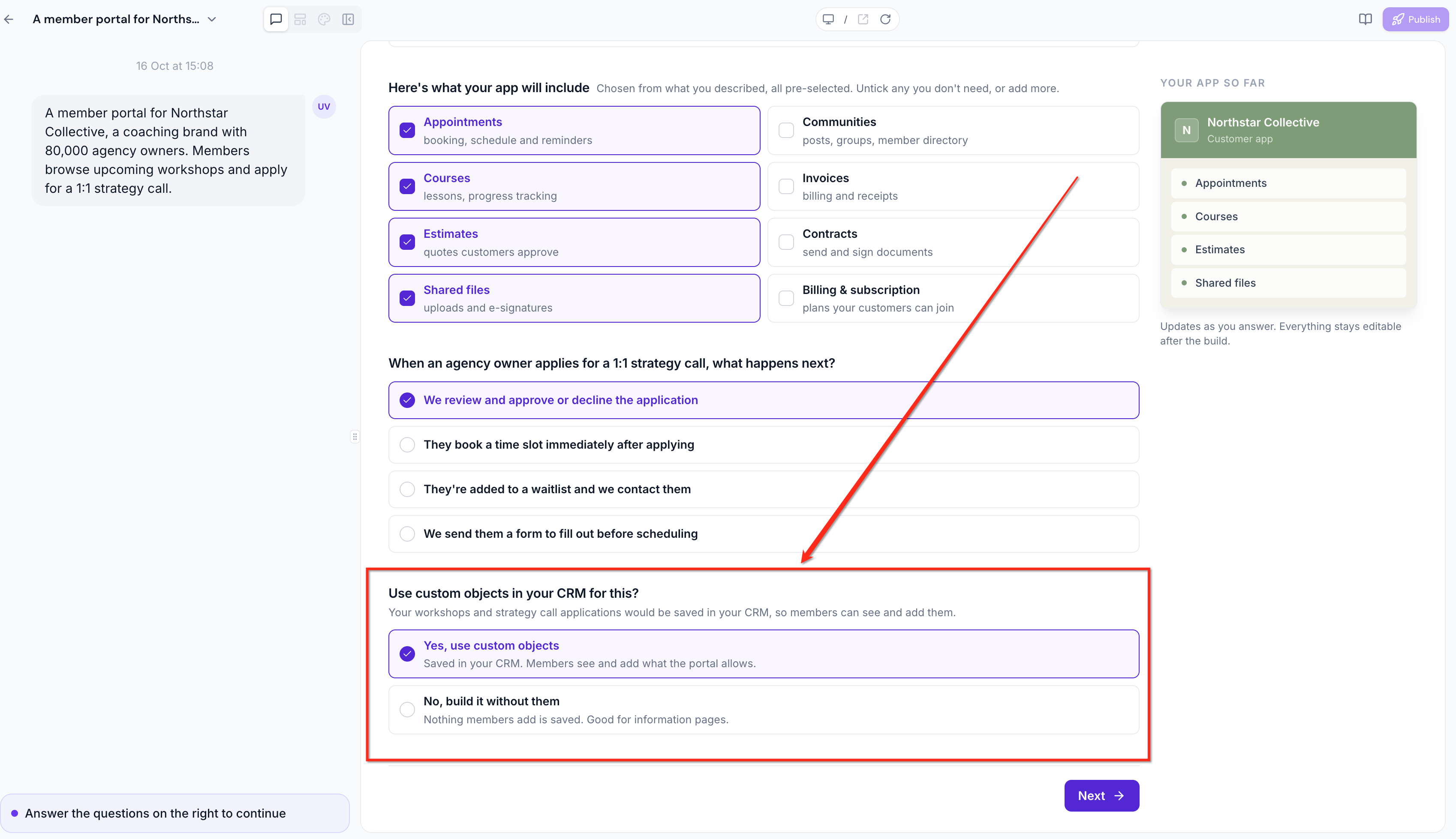
Step 4: Review the Proposed Custom Object Plan
Inspect the configuration generated by Client Portal AI. Pay particular attention to:
Proposed Custom Object names.
Fields and dropdown options.
Relationships with Contacts, Companies, or other Custom Objects.
Example records.
Member record visibility.
Whether existing objects will be reused.
Check that the structure matches the information your business needs to collect.
Step 5: Request Modifications if Needed
If the plan requires changes, describe them in natural language.
For example:
"Add an Application Status dropdown with New, Under Review, Approved, and Declined."
Client Portal AI can revise the proposed plan.
Review the updated configuration before continuing.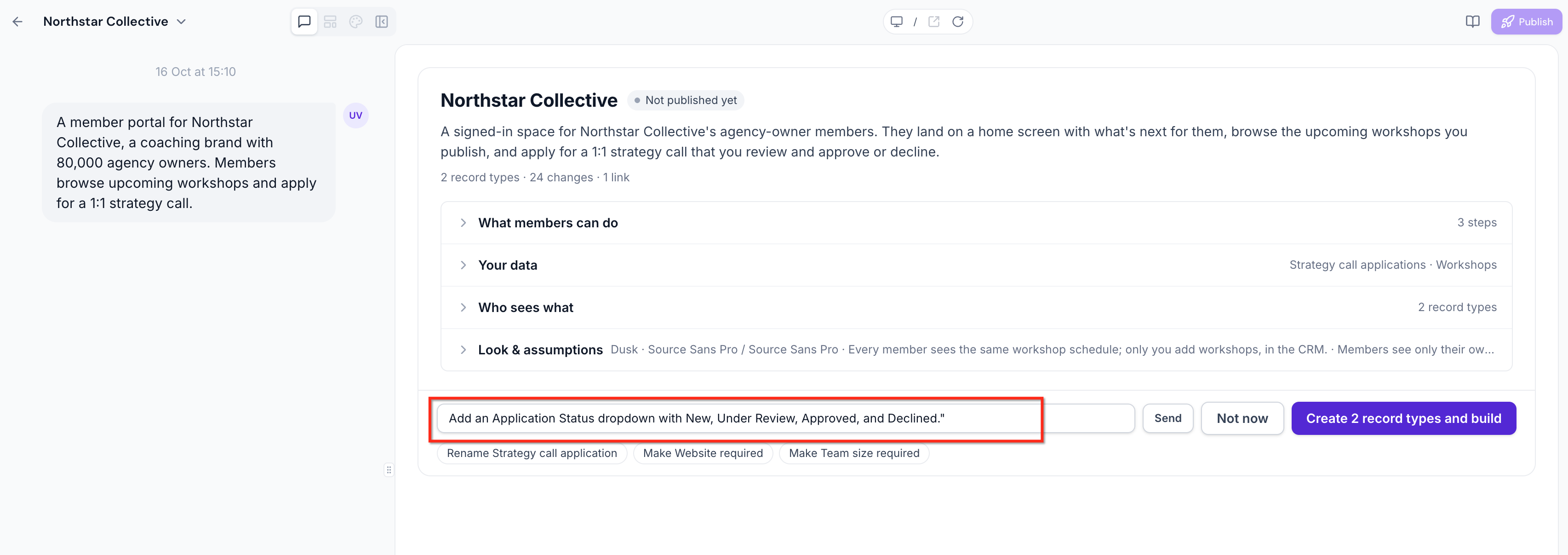
Step 6: Approve the Custom Object Plan
Once the plan meets your requirements, approve it. Client Portal AI then creates the approved Custom Objects in the sub-account's CRM. If you are not ready to proceed, use Not now to postpone creation.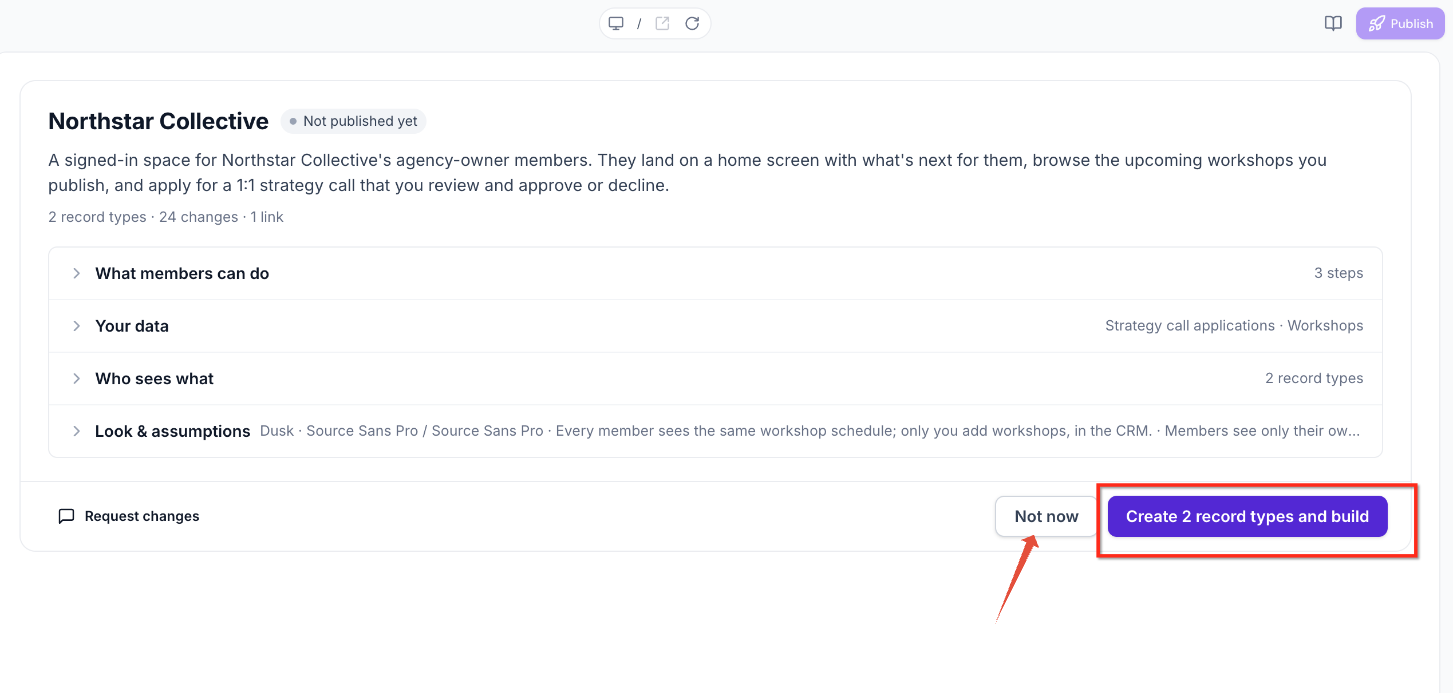
Step 7: Open the Created Custom Objects
After the creation process completes, look for links to the new Custom Objects below the Client Portal AI response. Open the links to review the newly created objects in your CRM.
For additional CRM record management instructions, see Creating and Updating Custom Object Records.
Step 8: Review the Member-Facing Portal Experience
Open the generated portal experience and locate the pages associated with your Custom Objects.
Verify that:
Each expected Custom Object page is available.
The submission experience contains the intended fields.
Record visibility matches the approved plan.
Payment actions, when included, are configured appropriately.
Step 9: Test a Member Submission
Use an appropriate test member account to verify the experience. Submit a sample application or request, then inspect the corresponding Custom Object in the CRM. Also test the relevant member visibility rules using suitable test accounts before inviting real members.
Step 10: Make the Portal Available to Members
Once the portal and CRM configuration have been reviewed and tested, use the available Client Portal access and invitation options to make the experience available to members. For general portal configuration, branding, domain setup, and invitations, see How to Set Up the Client Portal.
How Custom Object Detection Works
Client Portal AI evaluates your portal-building prompt to determine whether your requested functionality requires storing information in the CRM. Understanding this distinction helps you write prompts that produce the appropriate portal experience without unnecessarily creating Custom Objects.
When your prompt includes activities that require saving member-submitted information, Client Portal AI displays a confirmation question:
"Use custom objects in your CRM for this?"
Important: Client Portal AI requests your confirmation before beginning the Custom Object planning process. Objects are not created simply because a prompt mentions a request, application, or similar activity.AI-Generated Custom Object Plans
A Custom Object plan defines the CRM structure required to support the information your portal collects. Reviewing this plan helps ensure that member submissions are organized correctly and connected to the appropriate CRM records.
Reusing Existing Custom Objects
Client Portal AI can reuse a suitable Custom Object that already exists in the sub-account rather than creating a duplicate. Reusing an existing object helps maintain consistent CRM data structures and preserves available Custom Object capacity. Review the proposed reuse carefully to ensure that the existing object is appropriate for the new portal workflow.
Custom Object Approval and Modifications
The approval workflow provides control over which CRM structures Client Portal AI creates. Reviewing the proposed plan before approval helps prevent unwanted objects, unnecessary fields, and incorrect data relationships. After Client Portal AI generates a plan, you can review the proposed configuration and decide how to proceed.
The available actions include:
Request Changes: Describe the modifications you want using natural language.
Approve: Accept the proposed configuration and allow Client Portal AI to create the required objects.
Not Now: Postpone the proposed creation instead of approving it immediately.
Important: Requests for later changes also go through a review process. Existing Custom Object restrictions still matter; for example, HighLevel does not allow an existing object's internal name or primary display field to be changed after creation.Payments with Custom Object Records
Payment actions allow certain Custom Object workflows to include payment collection directly within the member experience. This is useful when an application, registration, or request requires payment as part of the business process.
Client Portal AI supports Pay and Buy buttons that initiate payments through HighLevel invoices. A payment provider must be connected before these actions can process payments. For example, a business could create a portal that allows members to submit a paid service request.
For more information about invoice configuration, see How to Send Your First Invoice.
Custom Object Limits and Reuse
Custom Object limits determine how many distinct record types a sub-account can maintain. Understanding these limits helps you plan AI-generated portal functionality without unnecessarily using the available CRM capacity.
HighLevel supports a maximum of 10 Custom Objects per sub-account. Client Portal AI can propose up to three objects within a single plan, but the sub-account's overall limit still applies. When insufficient capacity is available, the review process provides options to:
Reuse an existing Custom Object that is no longer needed for its original purpose.
Free an available Custom Object slot.
Skip the proposed object creation.
For example, if a sub-account already contains nine Custom Objects, it has capacity for only one additional object. A proposal containing multiple new objects would therefore require capacity management or reuse.
Important: Deleting an existing Custom Object is not the same as simply removing an unused configuration. HighLevel documentation states that deletion permanently removes the object and its related records, fields, associations, and dependent configurations. Review the consequences before deleting an object to free capacity.Learn more in Custom Objects in All Plans + Higher Limit.
Supported Platforms and Availability
Platform availability determines where AI-generated Custom Object functionality can be used. Reviewing supported experiences before building your portal helps prevent compatibility issues and clarifies which features are planned for future releases.
| Platform or Experience | Availability |
|---|---|
| Client Portal (Web) | Supported |
| Vibe — Describe it workflow | Supported |
| Branded Mobile App | Not yet supported |
Frequently Asked Questions
Q: What happens if I select Not now during the approval process?
Selecting Not now postpones the proposed Custom Object creation. The objects in that proposal are not created through that unapproved action. The release note does not specify whether an unfinished proposal is retained for later reopening.
Q: Can Client Portal AI reuse a Custom Object that already contains records?
Client Portal AI can propose reusing an existing Custom Object. Before approval, review whether its current fields, relationships, and intended use are compatible with the new portal. The release does not specify every condition governing reuse.
Q: Can Client Portal AI modify existing Custom Objects after they are created?
Later changes go through another review process. However, the changes permitted by the CRM remain subject to HighLevel's existing Custom Object restrictions, including immutable internal names and primary display fields.
Q: Can I create more than three Custom Objects using Client Portal AI?
The AI can propose up to three objects at a time. This does not change the overall limit of 10 Custom Objects per sub-account. The release does not specify a separate cumulative limit on successive plans.
Q: Does company-level visibility depend on CRM associations?
The release confirms company-level record visibility and support for CRM relationships. The exact rules used to determine company membership and access should be verified when configuring the portal.
Related Articles
Was this article helpful?
That’s Great!
Thank you for your feedback
Sorry! We couldn't be helpful
Thank you for your feedback
Feedback sent
We appreciate your effort and will try to fix the article