Default activity associations help keep CRM activities connected to related Contacts, Opportunities, Companies, and Custom Object records in HighLevel. Administrators can configure how new messages, calls, appointments, notes, and tasks are linked based on where each activity originates. Learn how to set up, preview, and reset association rules, and understand the supported activities and limitations.
TABLE OF CONTENTS
- What Are Default Activity Associations?
- Key Benefits of Default Activity Associations
- Prerequisites and Limitations
- How to Set Up Default Activity Associations
- Association Rules and Default Behavior
- How the Rules Apply to Activities
- Activity Limits and Exceptions
- Frequently Asked Questions
- Related Articles
What Are Default Activity Associations?
Default activity associations determine which related CRM records receive a new activity. The applicable rules depend on the object where the activity originates.
- Contact: Activities started from a Contact use Contact rules.
- Opportunity: Activities started from an Opportunity record use Opportunity rules.
- Company: Activities started from a Company record use Company rules.
- Custom Object: Activities started from a Custom Object record use that object's rules.
For example, an email started from a Contact can also appear on the Contact's primary Company and most recently associated open Opportunity. A task started from an Opportunity can also appear on its primary Company and primary Contact.
An email started from a Company follows Company rules, not Contact rules, even when the message is sent to a Contact.
Key Benefits of Default Activity Associations
Automatic associations help teams keep relevant communication and work history connected to the CRM records they use.
- Connected activity history: View relevant messages, appointments, notes, and tasks on associated records.
- Less manual linking: Automatically select eligible related records when supported activities are created.
- Consistent associations: Apply saved rules to supported manual, incoming, and automated activities.
- Flexible configuration: Configure different rules for each activity type and originating object.
- Association preview: Review expected associations in the Activity panel before saving.
Prerequisites and Limitations
Before configuring activity associations, confirm that your location has access to the feature and that your user role allows you to manage its settings.
Private Beta Availability: This feature is available only to locations where the private beta has been enabled.
- Administrator access: Only sub-account administrators can open and change Default activity associations.
- User access: Users with the User role do not see the configuration button. They can still adjust suggested records on supported individual activities.
- Existing relationships: Related records must already be associated with the originating record for the rules to select them.
- New activities only: Changing rules does not update associations on previously created activities.
- Eligible Opportunities: Automatic Opportunity associations include only open Opportunities.
- Required participants: Message recipients and appointment attendees remain associated with their activities.
If an object has no configured associations, the page displays {Object} has no associations yet. Select Manage associations, create the required association, and return to the activity settings.
How to Set Up Default Activity Associations
Administrators configure activity associations from the sub-account's Objects settings. Select an activity type and originating object, choose the available rules, preview the results, and save.
Configure Association Rules
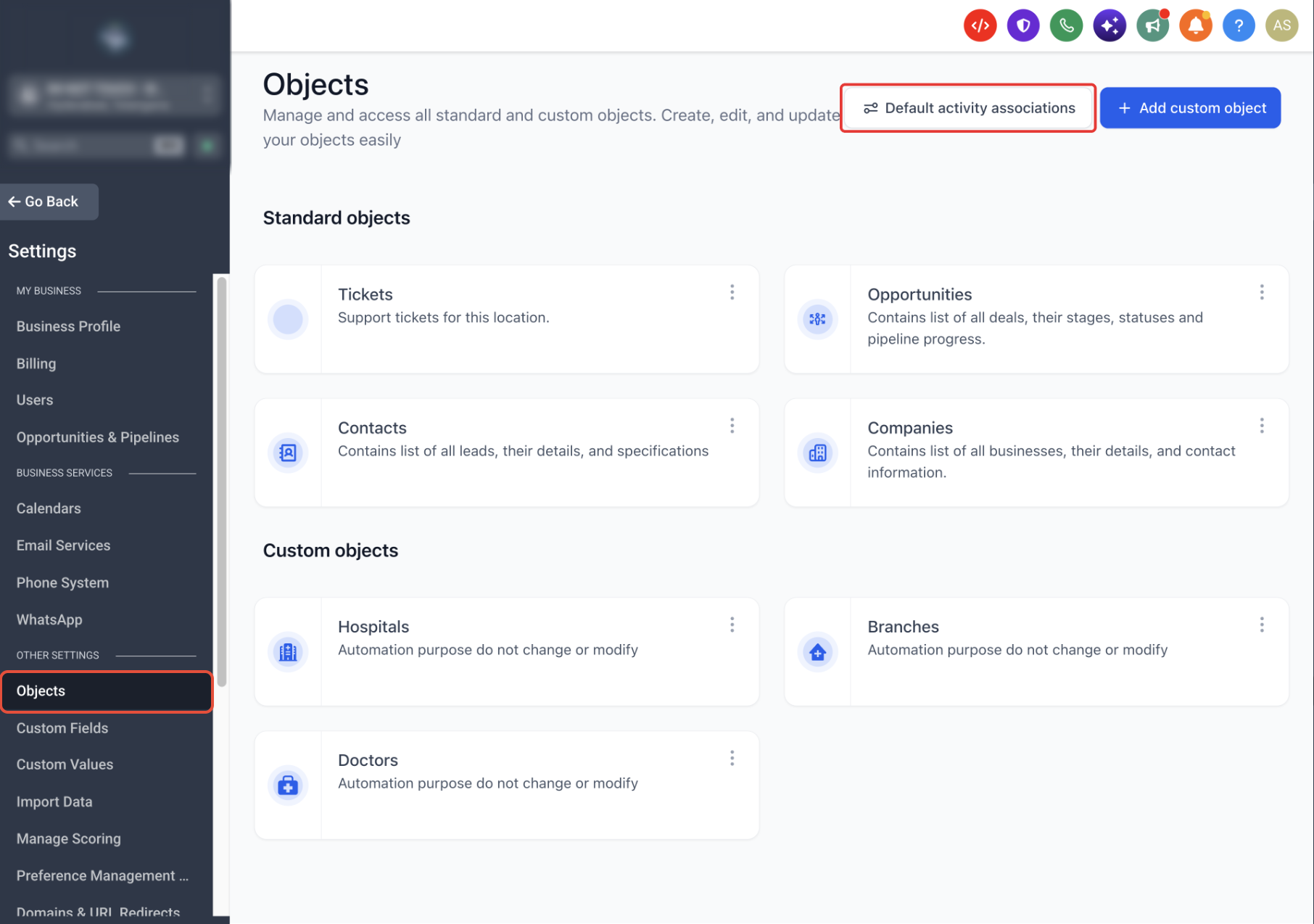
- Open the HighLevel Sub-Account view.
- Select Settings from the left navigation.
- Select Objects.
- Click Default activity associations in the upper-right area.
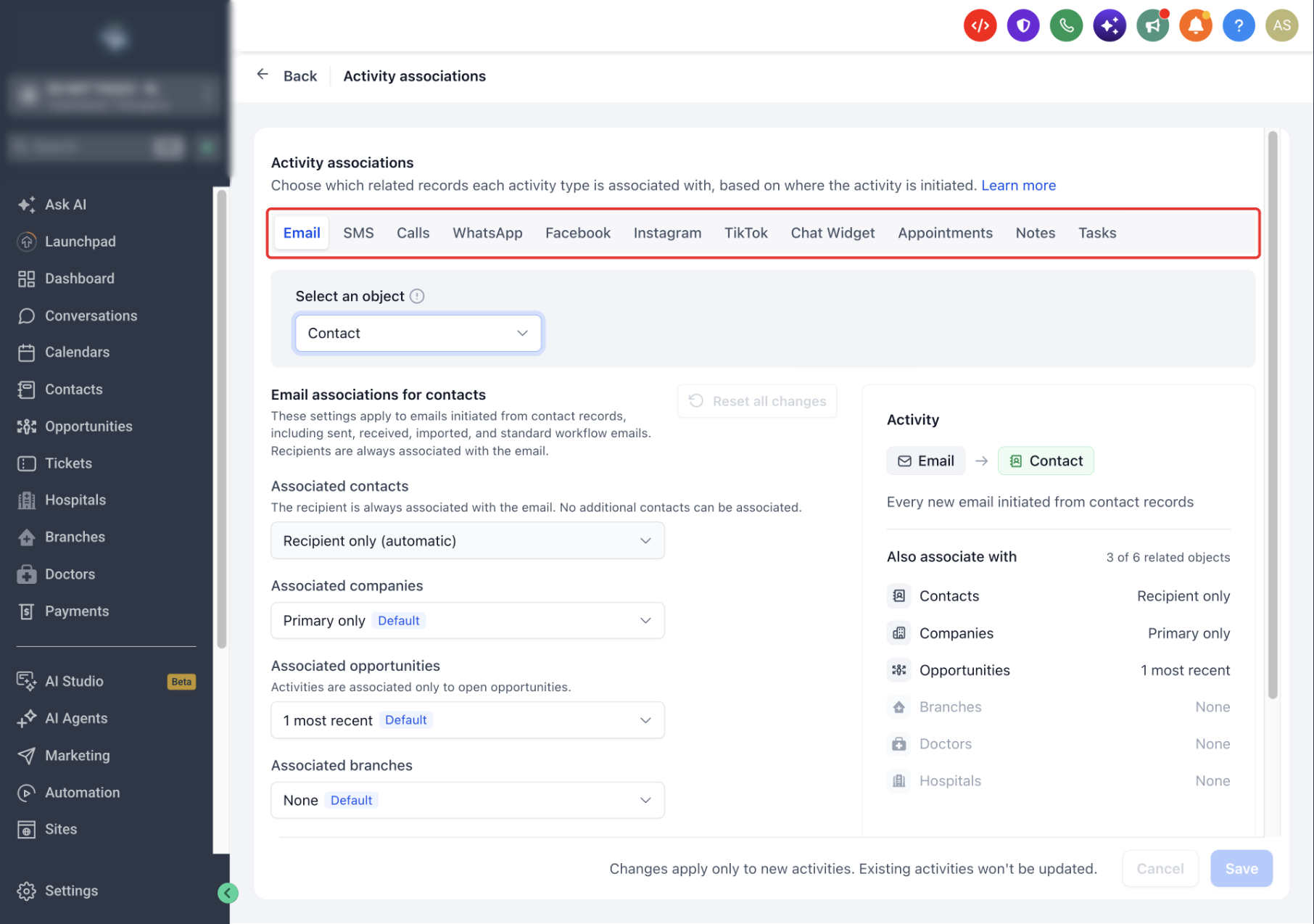
- On the Activity associations page, select the activity type you want to configure.
The available tabs include Email, SMS, Calls, WhatsApp, Facebook, Instagram, TikTok, Chat Widget, Appointments, Notes, and Tasks.
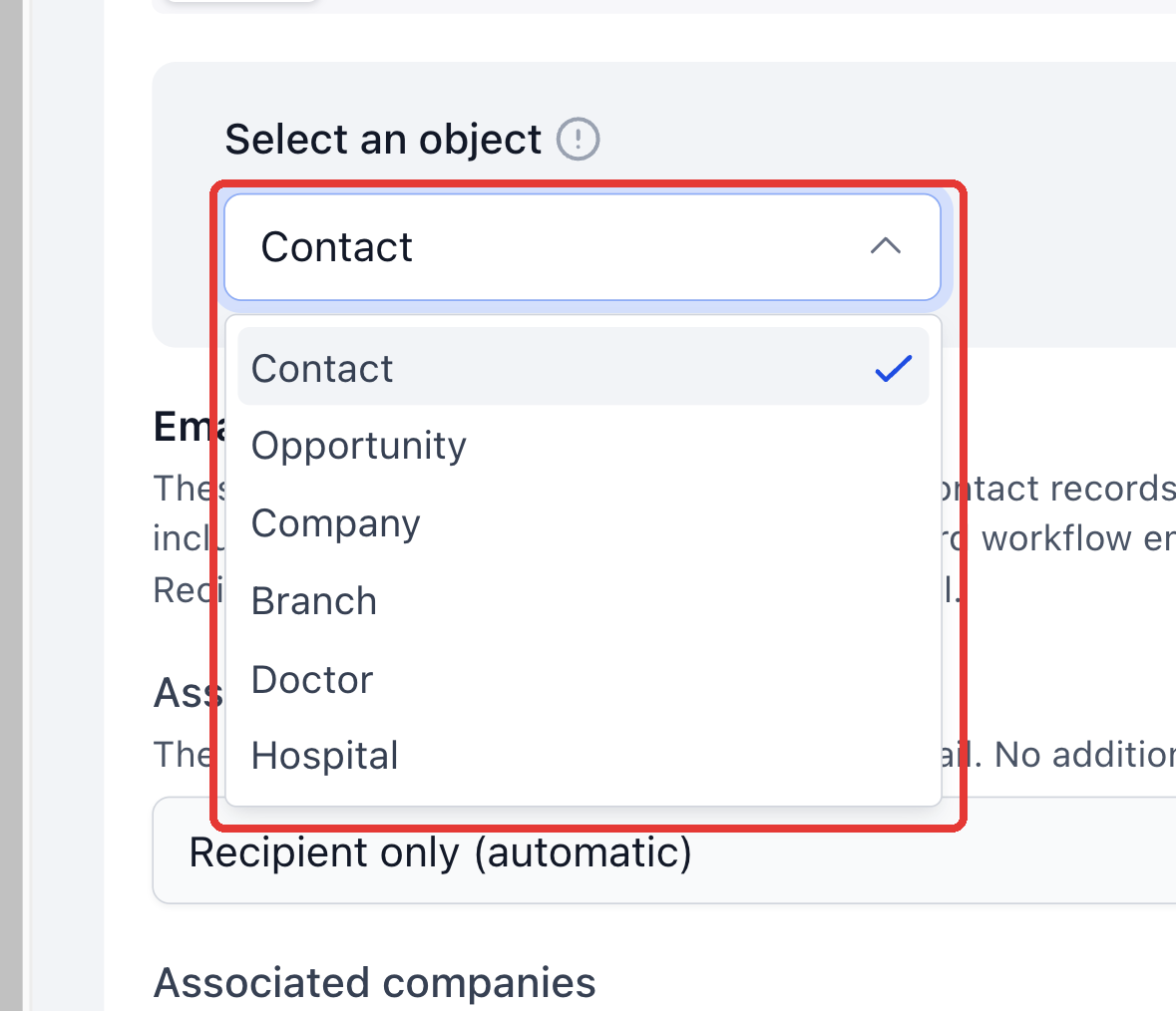
- Under Select an object, choose where the activity starts: Contact, Opportunity, Company, or an available Custom Object.
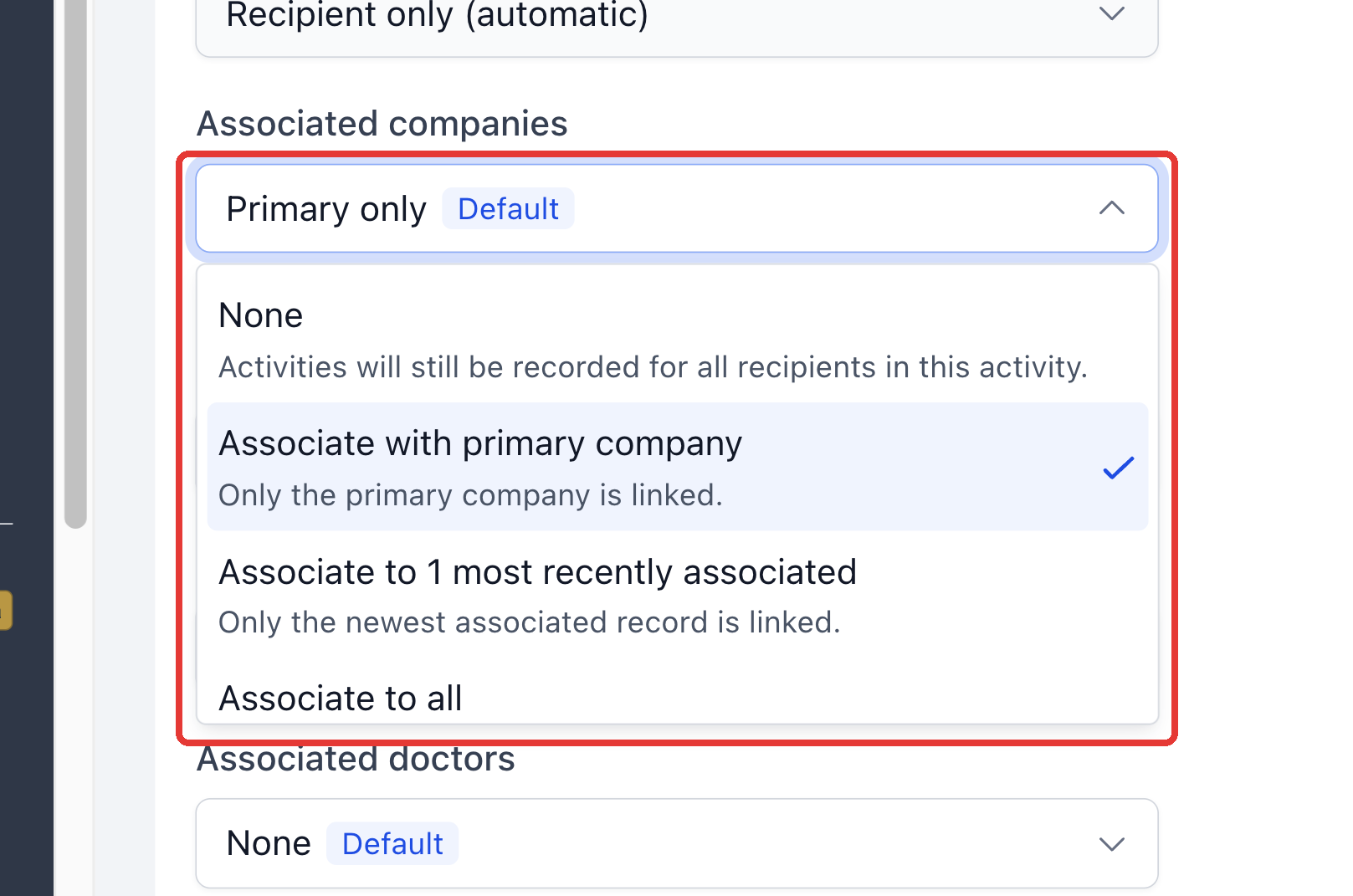
- Choose a rule for each editable related-object row, such as Associated companies or Associated opportunities.
- Review the Activity panel on the right to preview the records that new activities will be associated with.
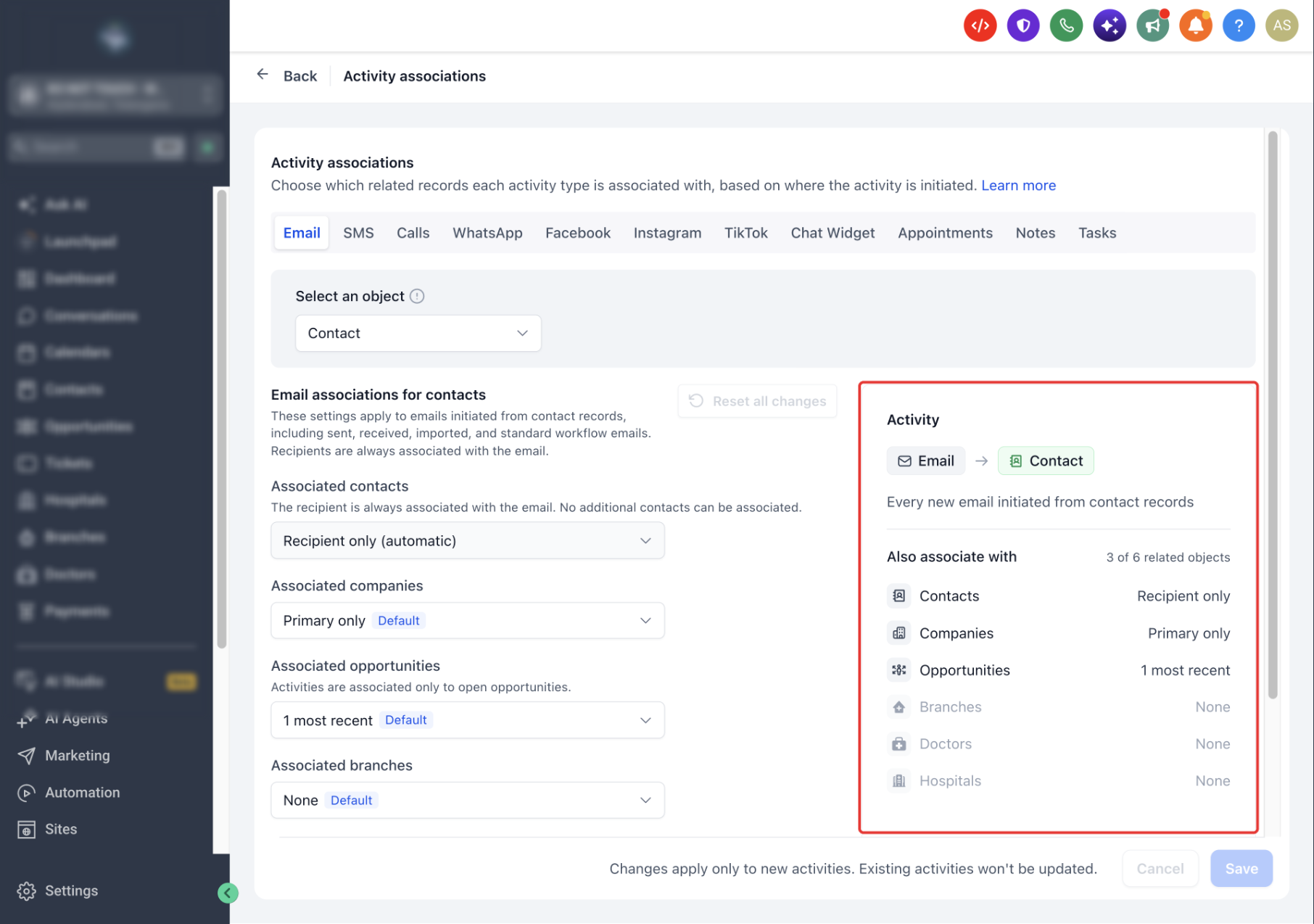
- Click Save to apply your changes.
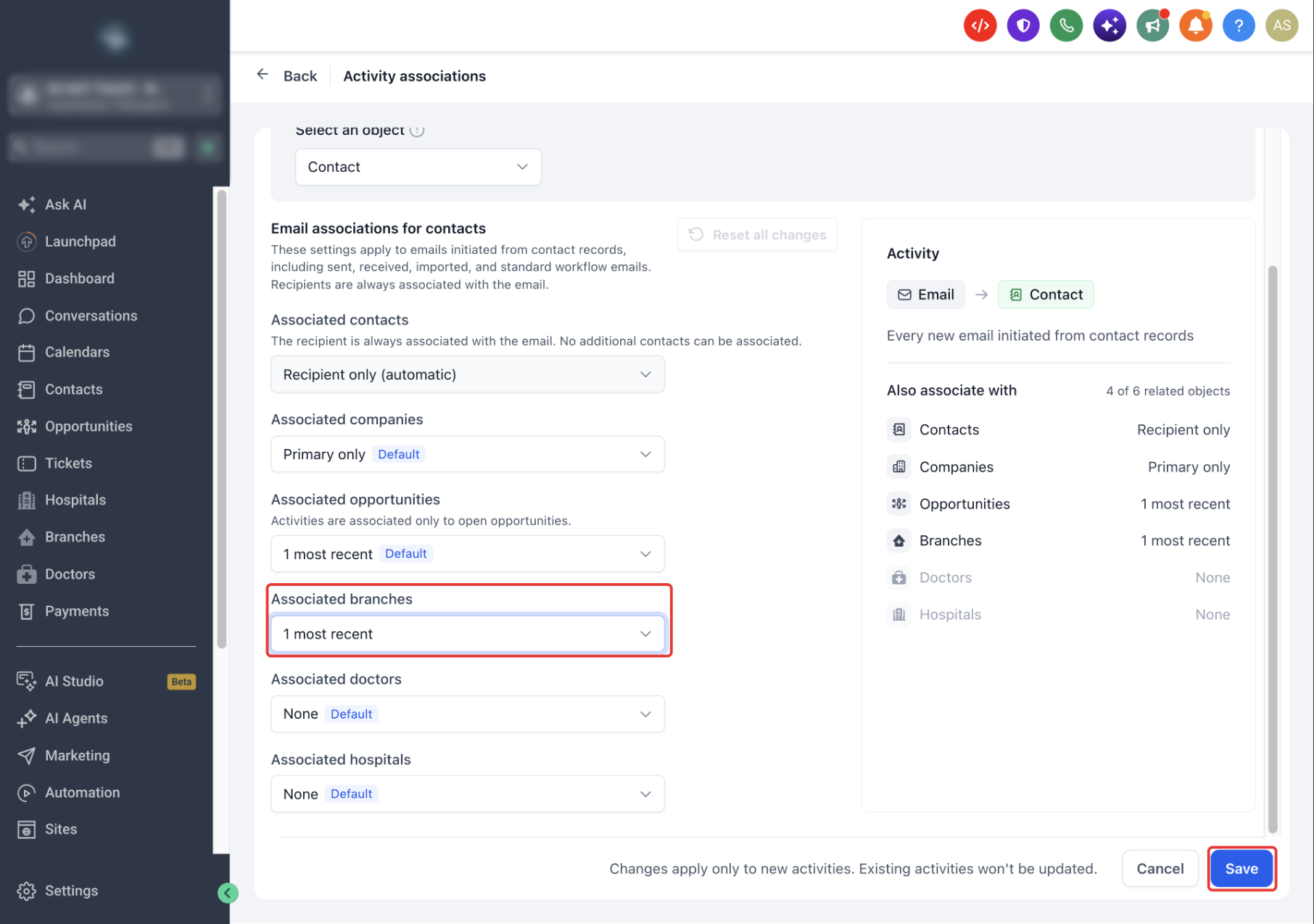
Rows marked Default retain their original settings. Changing a row removes that tag and enables Save. If an object has been renamed, its current name appears in the configuration.
Rules Are Saved Separately: Changing Email rules for Contact does not change Email rules for Company or SMS rules for Contact. Each activity type and originating object has its own settings.
Reset Association Rules to Default
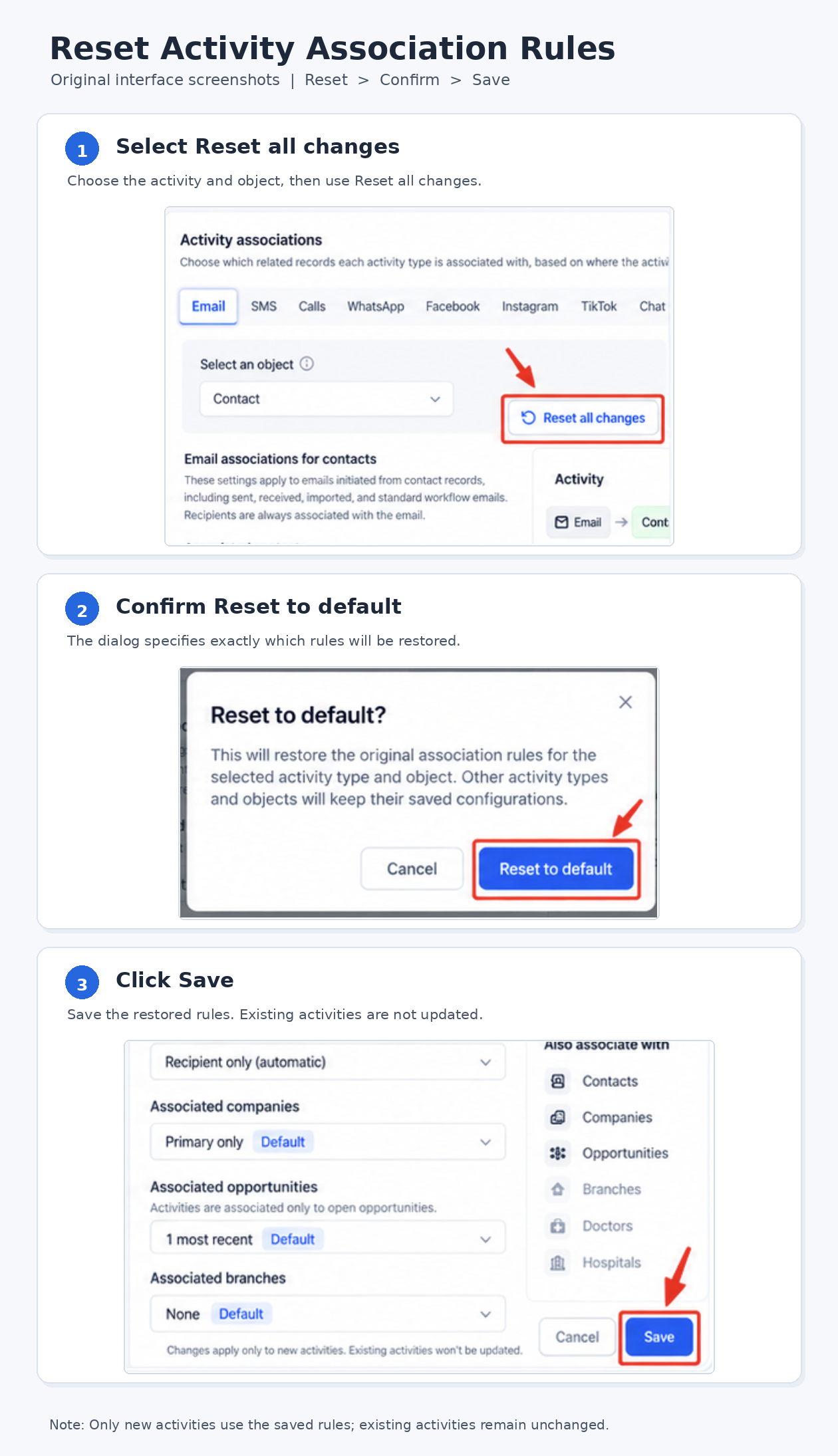
Reset all changes restores the original rules for the selected activity type and object. Other activity types and objects keep their saved configurations.
- Open the HighLevel Sub-Account view.
- Select Settings from the left navigation.
- Select Objects, then Default activity associations.
- Select the activity type and originating object.
- Click Reset all changes.
- In the Reset to default? confirmation, select Reset to default.
- Click Save to apply the reset.
Reset all changes is disabled until you have saved a change for the selected activity type and object. Confirming the reset does not apply it until you save.
Chat Widget Settings: Web chat and live chat share the Chat Widget configuration. Resetting Chat Widget restores the rules for both.
Association Rules and Default Behavior
Each related-object row determines how records are selected. Available choices depend on the activity type and the relationships configured for the originating object.
Available Association Rules
| Rule | Behavior |
|---|---|
| None | Does not add records of that related type. Required recipients and attendees remain associated. |
| Associate with primary {object} | Selects the related record with the Primary association label. This option appears only for supported Primary relationships. |
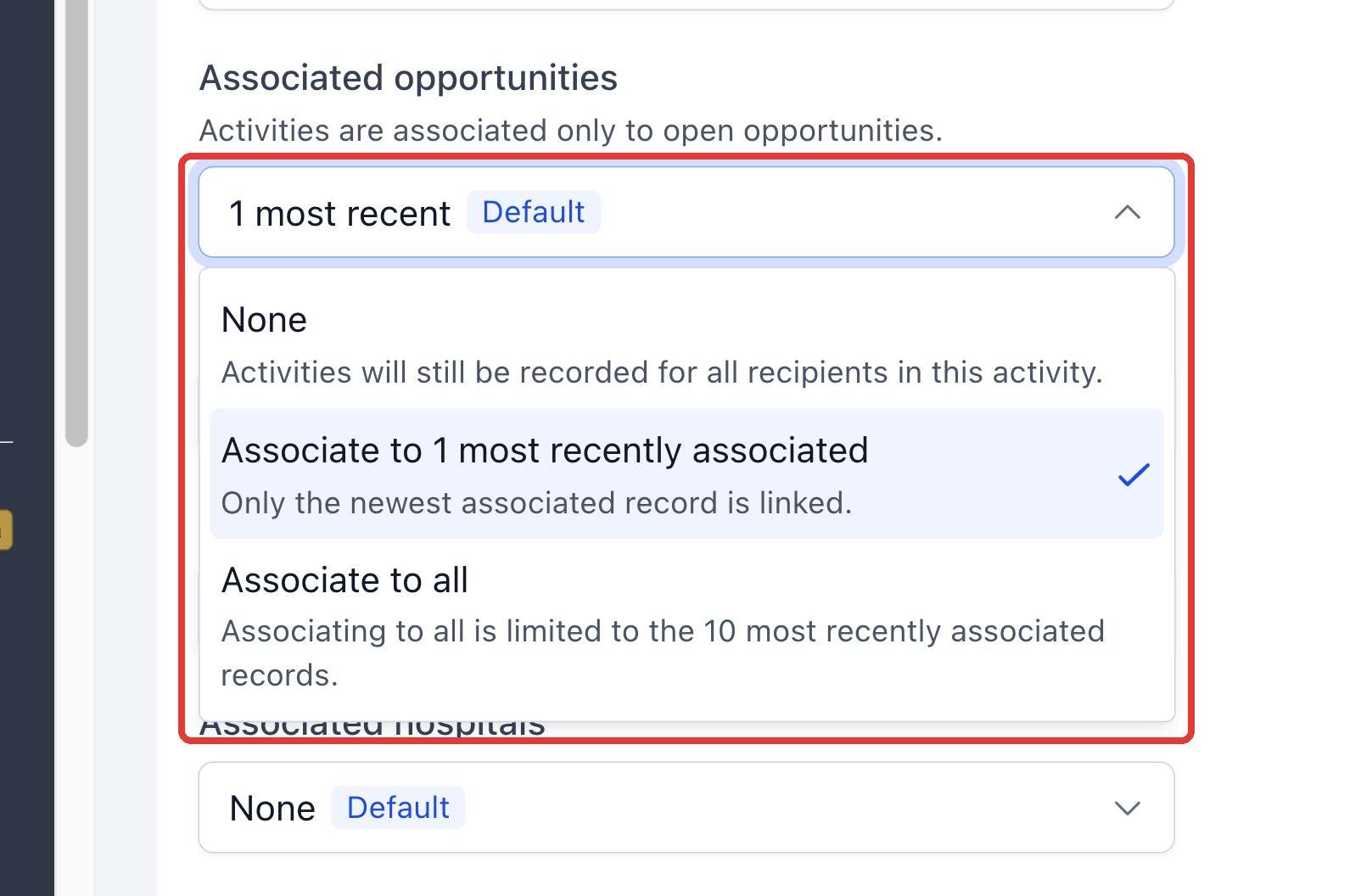
| Associate to 1 most recently associated | Selects the most recently associated eligible record of that type. |
| Associate to all | Selects up to the 10 most recently associated eligible records of that type. |
The interface can show shortened labels such as Primary only and 1 most recent. Primary options are available for supported relationships, including a Contact's Company and an Opportunity's primary Contact or Company.
If a Contact has associated Companies but none has the Primary label, the documented fallback selects the most recently associated Company.
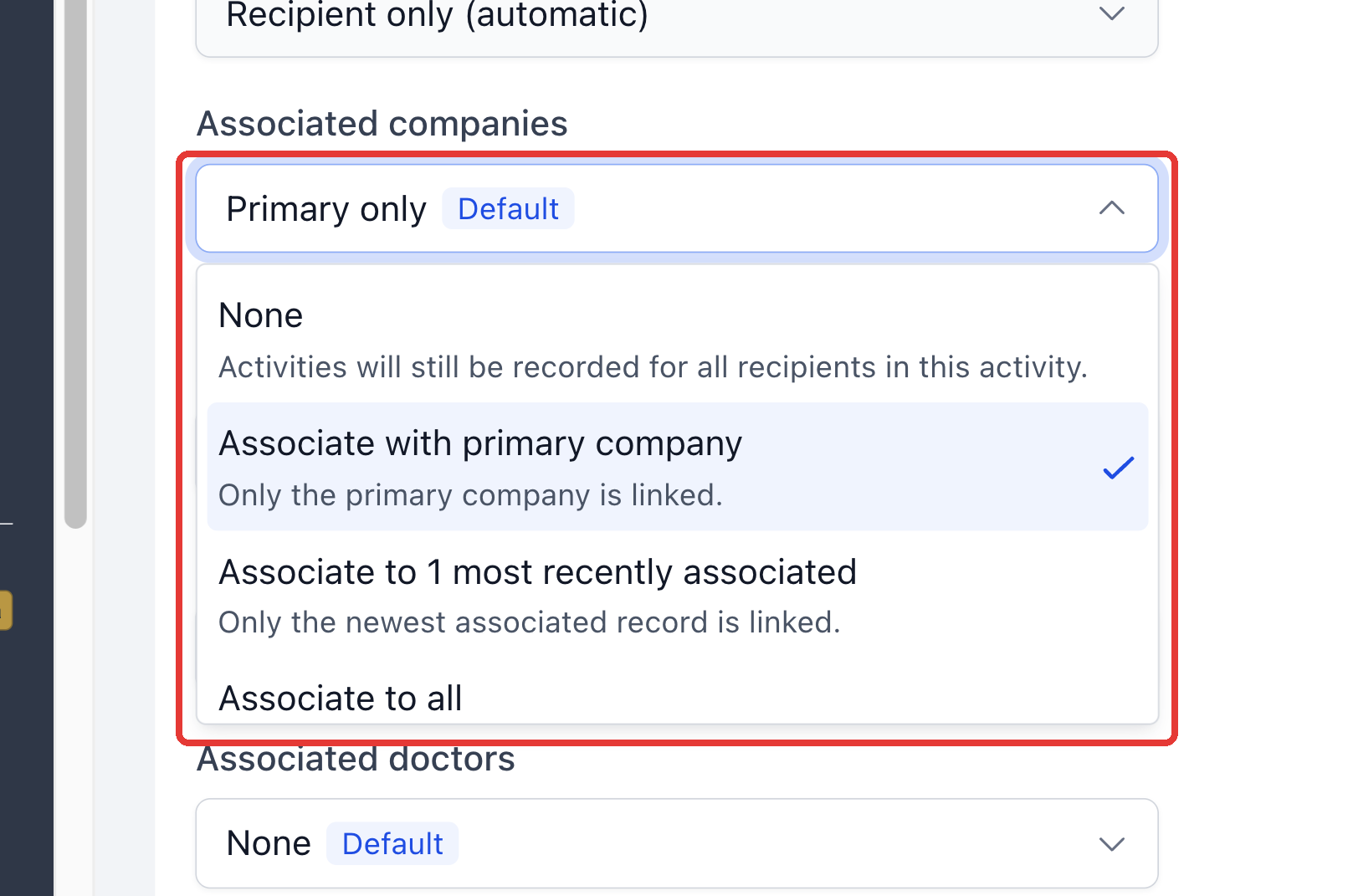
Some rows do not support Primary. For example, Associated opportunities offers the applicable recent-association choices and excludes closed Opportunities.
Activity-Specific Restrictions
Some associations are automatic or have stricter limits. The available options change to reflect those restrictions.
- Messages and supported calls: Associated contacts is locked to Recipient only (automatic).
- Appointments: Associated contacts is locked to Attendee only (automatic).
- Notes: Associate to all is not available because a note can be associated with only one record per related object type.
- Opportunities: Automatic rules include only open Opportunities. Won, lost, and abandoned Opportunities are excluded.
Default Association Settings
HighLevel provides starting rules for common CRM relationships. Administrators can change these rules for supported activity types and originating objects.
| Activity Starts On | Default Associations |
|---|---|
| Contact | Primary Company and one most recently associated open Opportunity. Recipients and attendees remain associated where applicable. |
| Opportunity | Primary Company. Notes and Tasks use the primary Contact; messages and appointments use the recipient or attendee. |
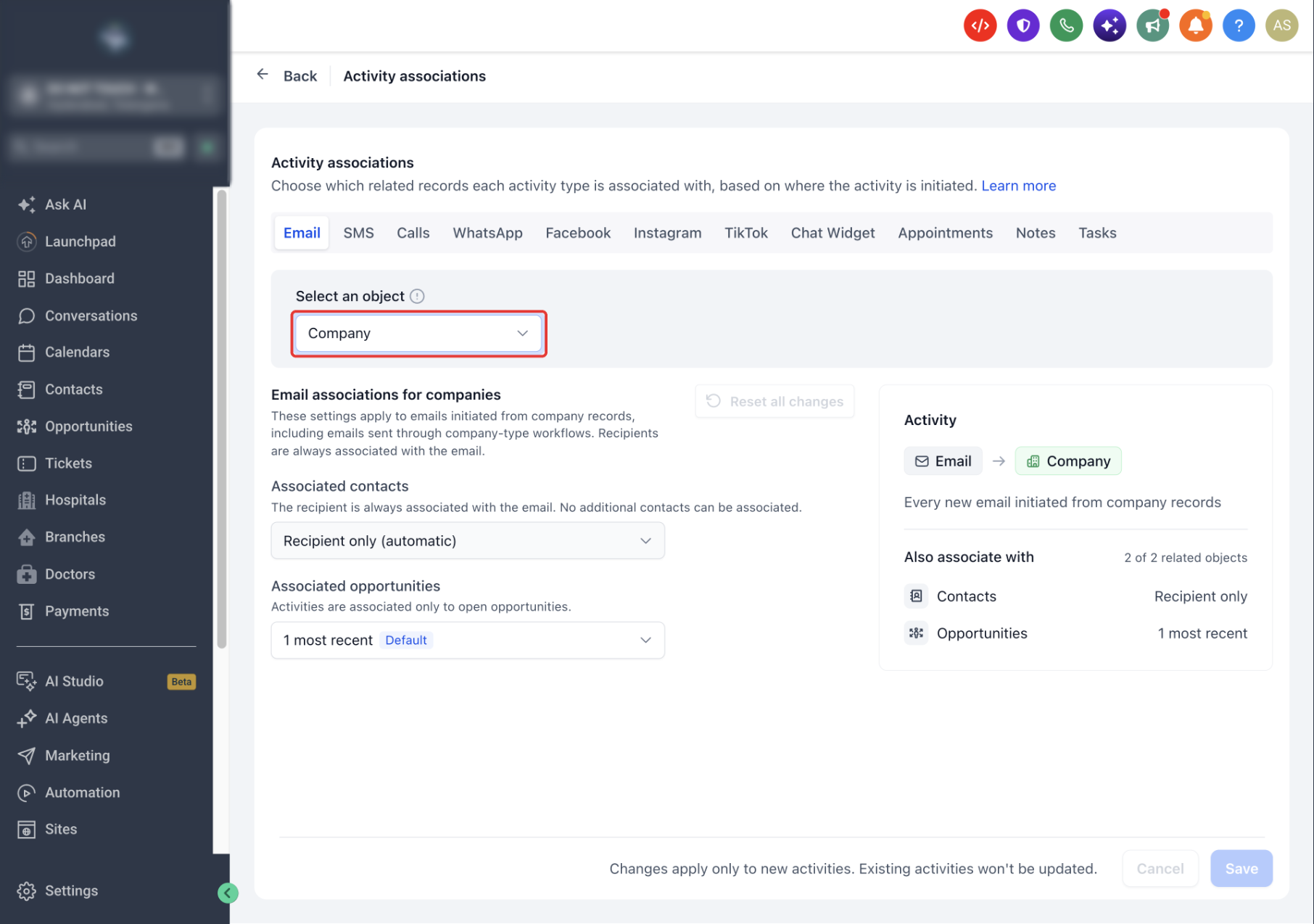
| Company | One most recently associated open Opportunity. Messages and appointments retain recipients or attendees. Notes and Tasks do not automatically add Contacts by default. |
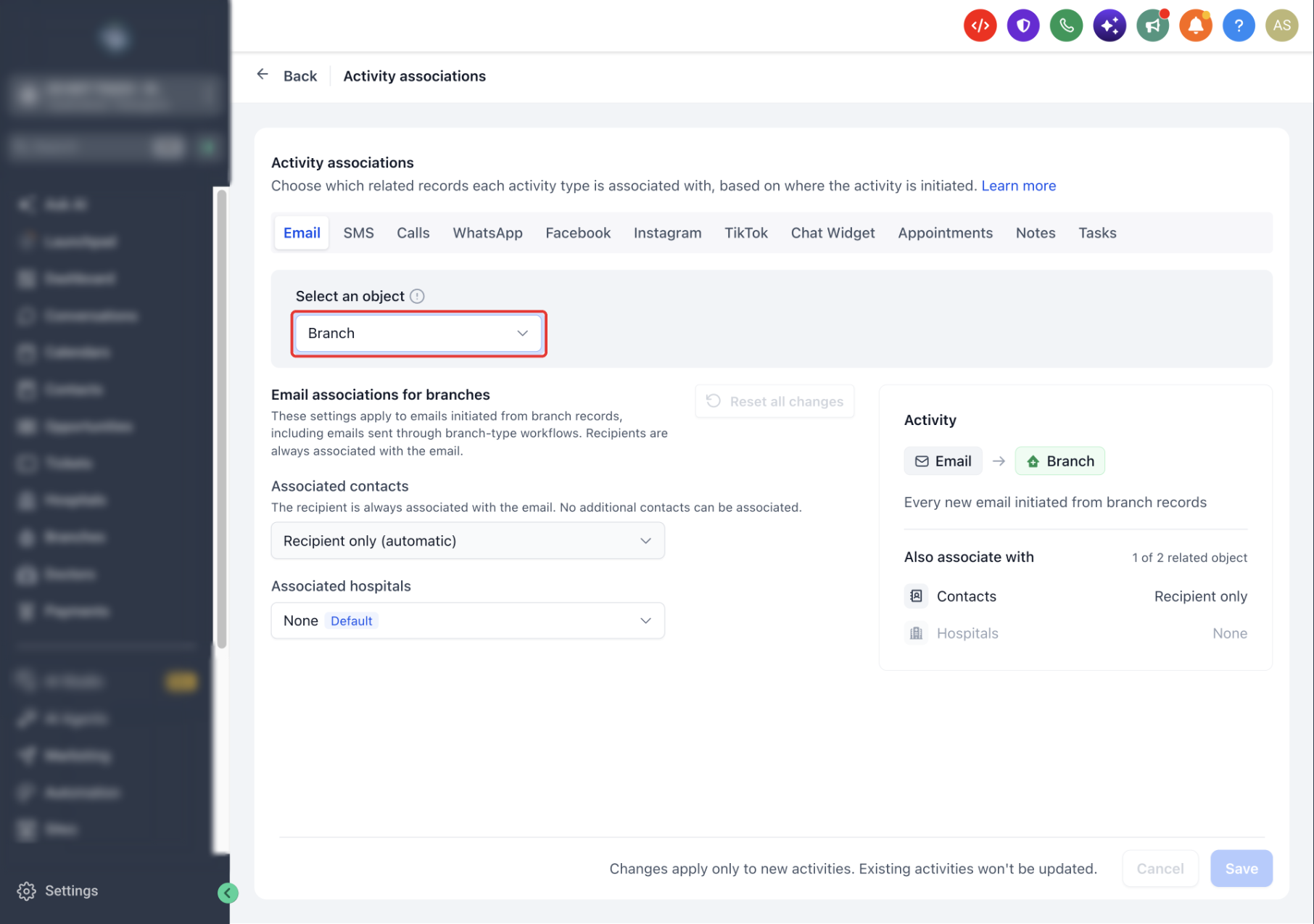
| Custom Object | No additional related objects by default. Messages and appointments still retain recipients or attendees. |
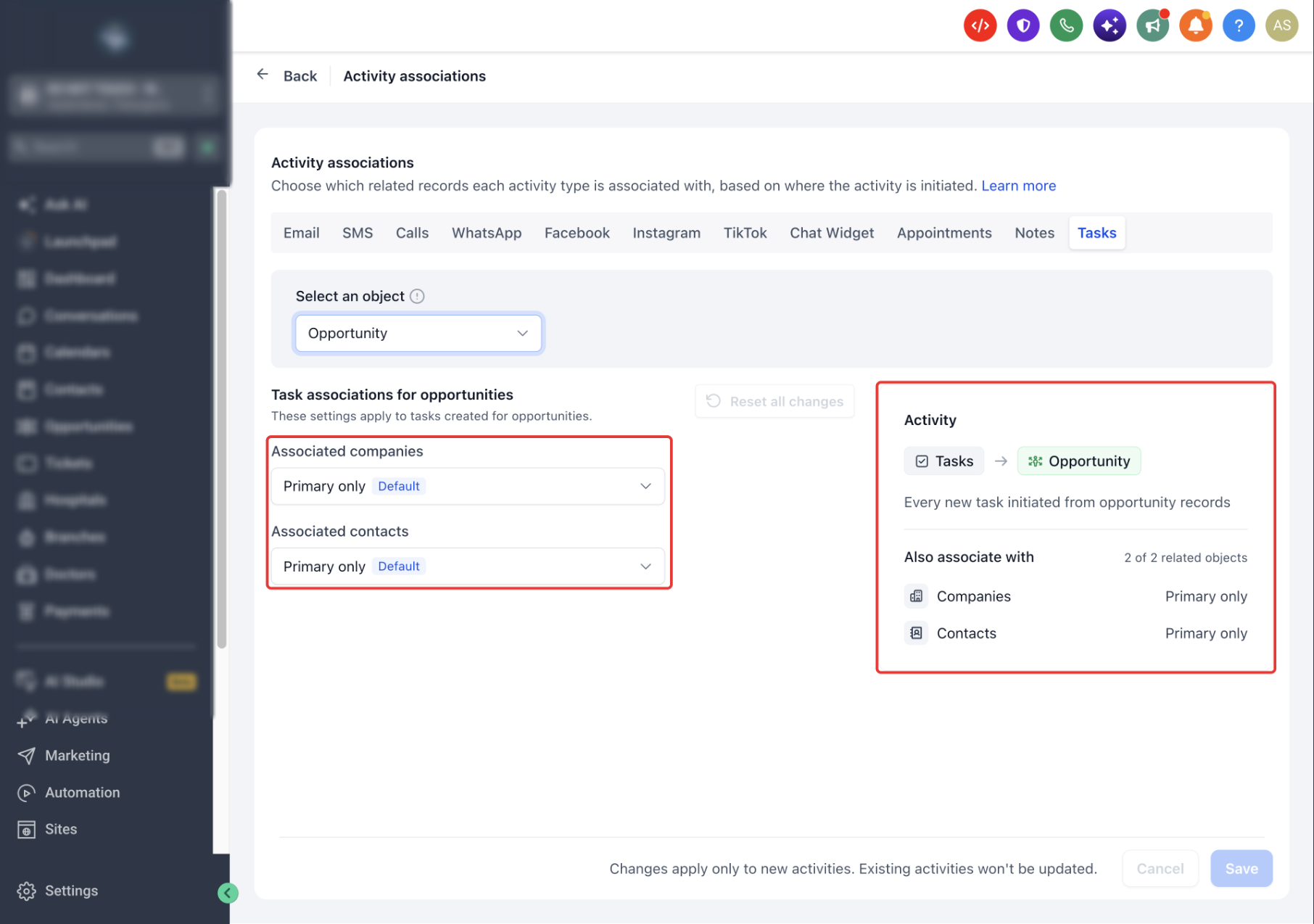
Once you change a row, the saved rule replaces that default for the selected activity type and originating object.
How the Rules Apply to Activities
The originating object determines which rules apply. The saved settings then select eligible related records when a new activity is created.
Which Rules an Activity Uses
Activities created manually generally use the object of the record where they start. Incoming messages, workflows, bulk actions, and self-booked appointments follow their applicable activity-source rules.
| How the Activity Is Created | Rules Used |
|---|---|
| Message, Note, Task, or Appointment started from a CRM record | The rules for the originating record's object. |
| Incoming email, SMS, call, or supported social or chat message | Contact rules. |
| Customer self-booking through supported channels, including booking widgets, supported Google booking options, Calendly, WhatsApp flows, and the client portal | Contact rules. |
| Supported AI-generated replies or appointment bookings | Contact rules. |
| Contact workflow, including a Contact workflow started by an Opportunity trigger | Contact rules. |
| Company workflow | Company rules. |
| Custom Object workflow | Rules for that Custom Object. |
| Workflow-created Note, Task, or Appointment | Rules for the record receiving the activity. |
| Bulk email or SMS | Rules for the object used to initiate the send, such as Contact, Company, or Custom Object. |
Emails imported into the supported Contact activity flow and messages sent through supported email or SMS providers follow their applicable Email or SMS rules.
Manual and Background Activities
When you create a supported activity manually, its composer or form shows the records selected by the configured rules. You can adjust those associations for the individual activity without changing the saved defaults.
- Manual activities: Review, add, or remove the selected records before saving or sending.
- Background activities: Incoming messages, workflow activities, and self-booked appointments receive additional associations after creation.
- Processing time: Additional associations may take a few seconds to appear on background activities.
- Individual overrides: Changing one activity's associations does not change the configured rules.
How Related Records Are Selected
Rules use the relationships that exist when the activity is created. If you associate another record afterward, the older activity is not automatically updated.
- Primary: Selects the record marked Primary at creation time. Changing the Primary label affects future activities.
- Most recent: Selects the most recently associated eligible record, not necessarily the most recently created CRM record.
- Associate to all: Selects up to 10 of the most recently associated eligible records.
- Existing Opportunity: An activity already associated with an Opportunity does not receive another Opportunity through these rules.
- Existing Note association: A Note already associated with one record of an object type does not receive a second record of that type.
- Existing associations: Default rules add eligible records; they do not remove records already on the activity.
Activity Limits and Exceptions
Different activity types have different association limits. Some creation methods also bypass automatic association rules.
Association Limits
| Activity or Rule | Limit |
|---|---|
| Notes | One associated record per related object type. |
| Tasks | Up to 10 associated records per object type, including records already on the Task. |
| Manually created Appointments | Up to 10 associated records in total, excluding the Contact. |
| Associate to all | Up to the 10 most recently associated eligible records of the selected type. |
Activities Not Covered by Automatic Rules
The following activities or creation methods do not receive additional records through the default association rules.
- Existing activities: Changing or resetting rules does not retroactively update older activities.
- Imported or bulk-created Notes and Tasks: These keep the associations selected by the import or bulk action.
- Public API-created Notes, Tasks, and Appointments: These do not receive additional associations through these rules.
- Unsupported third-party appointment integrations: Appointments created through these integrations are excluded from automatic linking.
Incoming messages received through the API still use Contact rules. Bulk email and SMS sends also use their applicable association rules.
Frequently Asked Questions
Q: Why wasn't a Company associated with a new activity?
Confirm that the Company was already associated with the originating record when the activity was created. Review the configured rule and check the Primary label when applicable.
Q: Why didn't an email from a Company workflow appear on the Contact's Opportunity?
Company workflows use Company rules, not Contact rules. Open Default activity associations, select Email and Company, and review the Associated opportunities setting.
Q: Which rules apply when an Opportunity trigger starts a Contact workflow?
Contact rules apply. The workflow is Contact-based, even when its trigger references an Opportunity.
Q: Why can't I choose Associate to all for Notes?
Notes support only one associated record per related object type. The Associate to all option is unavailable for Notes.
Q: Can I change the associated records on one activity?
Yes. Adjust the selected records before saving or sending a supported manual activity. These changes affect that activity without changing the default settings.
Q: Will Reset all changes update older activities?
No. Reset restores the original configuration for the selected activity type and object after you save. It does not change existing activity associations.
Q: Why can't I see the Default activity associations button?
Only sub-account administrators can access these settings. The feature must also be enabled for your location through the private beta.
Related Articles
Was this article helpful?
That’s Great!
Thank you for your feedback
Sorry! We couldn't be helpful
Thank you for your feedback
Feedback sent
We appreciate your effort and will try to fix the article