App QR Codes let you use one QR code to direct people to the appropriate app destination based on their device. iOS users can open the Apple App Store, Android users can open the Google Play Store, and other or unidentified devices can use an optional fallback URL. This guide explains how App QR Codes work and how to create one in HighLevel.
Learn how App QR Codes route visitors based on device type, configure App Store and Play Store destinations, add an optional fallback URL, customize the QR code, and test it before publishing.
What Is an App QR Code?
An App QR Code is a QR Code type that automatically routes someone to the appropriate destination based on the device used to scan it.
You can configure an App Store URL for iOS users and a Play Store URL for Android users. You can also provide an optional Other Devices URL for unsupported or unidentified devices.
When someone scans the QR code, HighLevel detects the device and redirects the visitor to the applicable configured destination.
Key Benefits of App QR Codes
App QR Codes simplify app promotion by giving multiple device types one scannable entry point while automatically directing visitors toward the destination intended for their device.
- One QR Code Across Platforms: Promote one code instead of maintaining separate QR codes for iOS and Android.
- Automatic iOS Routing: Send iOS devices to the configured Apple App Store destination.
- Automatic Android Routing: Send Android devices to the configured Google Play Store destination.
- Fallback Support: Add an optional destination for unsupported or unidentified devices.
- Fewer Download Steps: Direct visitors toward the appropriate destination without requiring a separate page containing multiple app-store choices.
- Reusable Promotion: Use the same App QR Code across print materials, websites, campaigns, and other promotional channels.
- Existing Design Controls: Continue using the standard QR Code Builder customization experience.
Prerequisites and Limitations
Configure and verify the app destinations before distributing the QR code so each supported device type can reach the intended location when scanned.
- Have the Apple App Store destination URL available for iOS users.
- Have the Google Play Store destination URL available for Android users.
- The Other Devices URL is optional.
- When configured, the Other Devices URL acts as the fallback for unsupported or unidentified devices.
- HighLevel automatically determines the device type after the QR code is scanned.
- App QR Codes support separate routing for iOS, Android, and other or unidentified devices.
- The standard QR Code design and customization experience remains available for App QR Codes.
How To Set Up an App QR Code
Create the App QR Code from the standard QR Code Builder, assign the destination for each device type, then test the code before distributing it.
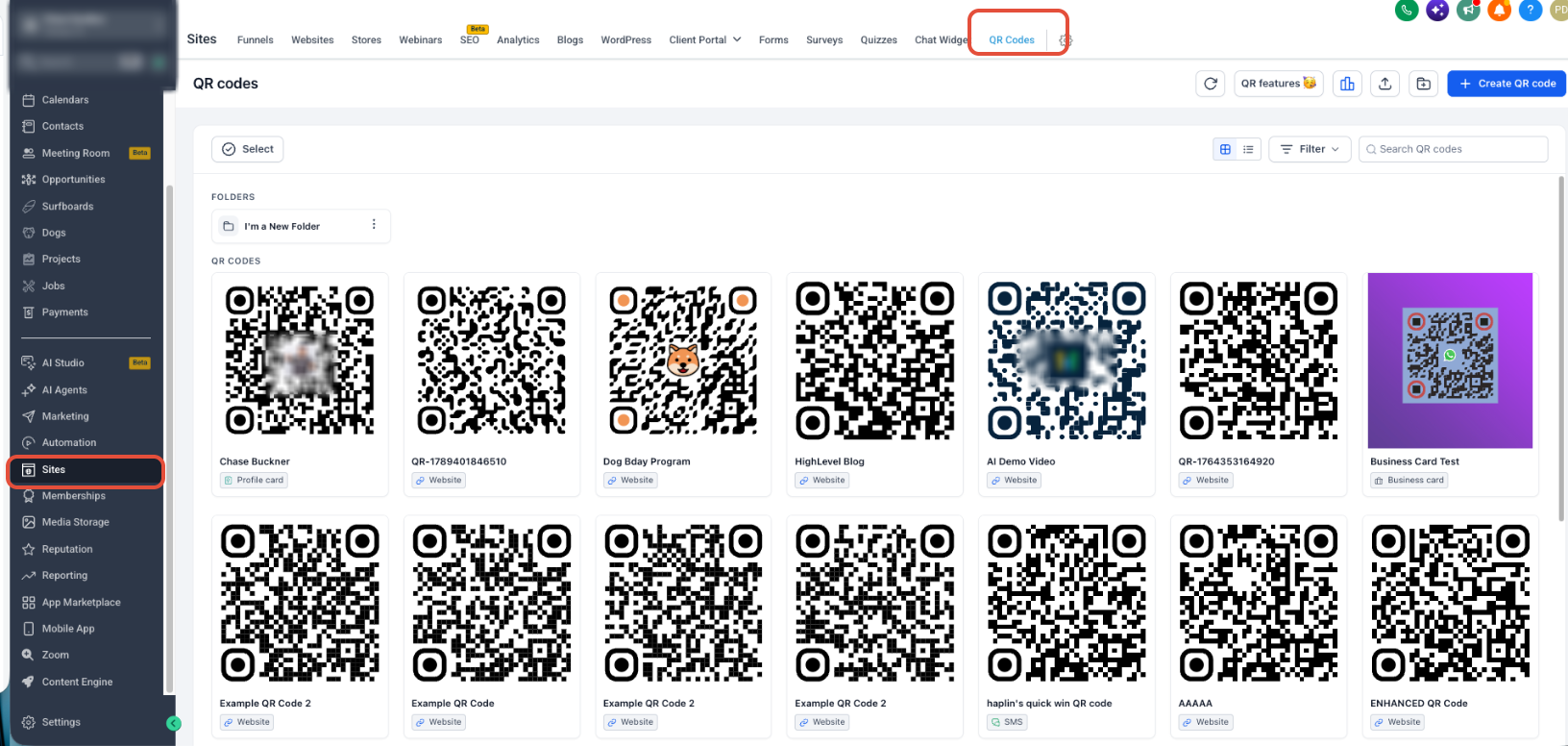
- From the Sub-Account view, select Sites.
- Select QR Codes from the upper navigation.
- Click Create QR Code.
- Enter a recognizable name for the QR code.
- Select App as the QR Code type.
- Enter the App Store URL that iOS users should open.
- Enter the Play Store URL that Android users should open.
- If needed, enter an Other Devices URL for unsupported or unidentified devices.
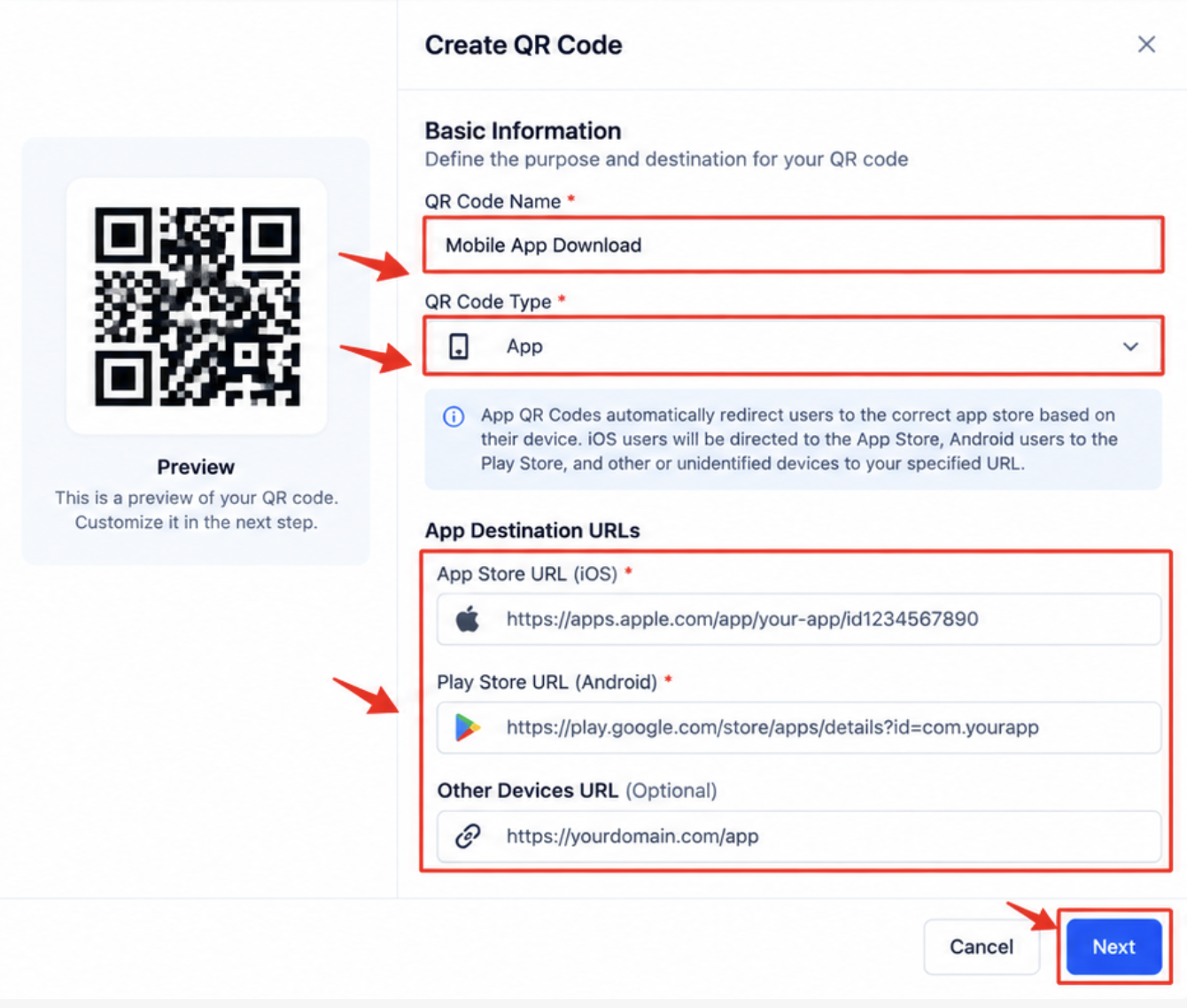
- Click Next to continue to the QR Code design and customization experience.
- Customize the QR code using the available design options.
- Scan and test the QR code before finalizing it to confirm that the configured destinations open correctly.
- Save the QR code when the configuration and design are complete.
Tip: Test the code with both an iOS and Android device when possible. If you configured an Other Devices URL, verify that fallback destination separately as well.
How App QR Code Device Routing Works
HighLevel determines which configured destination to use after someone scans the App QR Code, removing the need for the visitor to choose between separate iOS and Android links.
| Device Type | Destination |
|---|---|
| iOS | Configured App Store URL |
| Android | Configured Play Store URL |
| Other or Unidentified | Configured Other Devices URL, when provided |
Frequently Asked Questions
Was this article helpful?
That’s Great!
Thank you for your feedback
Sorry! We couldn't be helpful
Thank you for your feedback
Feedback sent
We appreciate your effort and will try to fix the article