Launch a fully branded iOS and Android app—without developers or tickets. HighLevel’s Self‑Service Whitelabelled Mobile App Customizer guides you from branding to App Store/Google Play release with live build tracking, flexible release tracks, and priority updates. Own your brand, control your rollout, and ship on your schedule.
TABLE OF CONTENTS
- What is the Self‑Service Whitelabelled Mobile App Customizer?
- Key Benefits of the Self‑Service Customizer
- Prerequisites
- Branding
- Package & Bundle Identifiers
- Store Listing Preparation
- Migrating from an Existing Whitelabel App
- How To Setup the Self‑Service Customizer
- Frequently Asked Questions
- Related Articles
What is the Self‑Service Whitelabelled Mobile App Customizer?
The Self‑Service Whitelabelled Mobile App Customizer is a guided workspace in HighLevel that lets agencies create, brand, build, and publish their own iOS & Android apps. It centralizes branding, module selection, store listing prep, connection to App Store Connect and Google Play Console, and one‑click build/release controls—so teams can go live quickly and update reliably.
High‑level capabilities include:
- End‑to‑end flow from branding to live publishing
- Interactive wizards for Apple/Google connections
- Automatic package/bundle identifier creation
- Module toggles and navigation layout control
- Live build status and release track options
- Priority access to new app versions
Key Benefits of the Self‑Service Customizer
Understanding the value helps you plan implementation and team workflows. These benefits highlight how the customizer reduces time‑to‑market, improves brand consistency, and streamlines future updates across iOS and Android.
- Speed to Market: Go from idea to App Store/Google Play submission quickly using guided steps and pre‑checks.
- No Dev Dependency: Build and release without engineers or support tickets.
- On‑Brand Experience: Upload icons/logos, set colors & fonts, and choose modules/navigation for a consistent mobile presence.
- Priority Updates: Access new versions ahead of the free apps and choose when to roll them out.
- Flexible Releases: Ship to Internal for testing or Production when you’re ready.
- Operational Control: Trigger builds, track status live, and manage changelogs.
- Consistency at Scale: Standardized workflows reduce errors and accelerate recurring releases.
Prerequisites
Meeting requirements up front avoids store rejections and build delays. Confirm organizational accounts, identifiers, and policy pages before you start.
- A valid D‑U‑N‑S number (Apple requirement)
- Apple Developer Program – Organization account with App Store Connect access
- Google Play Console – Organization account
- HighLevel subscription for Custom Agency App (Monthly or Quarterly) to enable builds & publishing
- Policy URLs hosted and accessible publicly: Privacy Policy and Terms & Conditions
- Recommended roles/permissions:
- Apple: Admin or App Manager rights in App Store Connect
- Google: Admin or Release Manager in Play Console
- Apple: Admin or App Manager rights in App Store Connect
Branding
Branding ensures your mobile app looks and feels like your business from the splash screen to the login screen and icons in both light and dark modes. Here you can configure,
- App icon (platform‑appropriate sizes)
- Splash screen & login logos (light and dark variants)
- Primary colors (HEX) and brand fonts
Best practices
- Use high‑resolution, square source artwork for icons.
- Provide both light and dark logo variants to ensure readability.
- Aim for WCAG‑friendly contrast ratios for text over backgrounds.
Package & Bundle Identifiers
Every app needs unique identifiers for Apple and Google. The customizer auto‑generates these to reduce store rejections and collisions.
Automatic logic
- Suggested Pattern: com.domain.appname_uniqueString
- Generated During Creation after you provide App Name and Domain Name
Guidelines
- Avoid changing identifiers after your first production release.
- Keep your package/applicationId (Android) and bundle identifier (iOS) stable to preserve update continuity.
Store Listing Preparation
A strong listing helps with compliance and discoverability. Prepare accurate content and compliant policy links to minimize reviewer questions.
Fields Commonly Included
- App title, short and long descriptions
- Support email
- Privacy Policy URL and Terms & Conditions URL
- Category/keywords (platform‑specific)
Migrating from an Existing Whitelabel App
If you already run a whitelabel app, you can adopt the self‑service flow for faster updates while preserving continuity for users and store listings.
Recommendations
- Keep existing bundle/application identifiers unchanged to maintain update paths.
- Sync store listing content in the customizer so future releases stay consistent.
- Start with Internal builds to validate upgrade behavior before Production.
How To Setup the Self‑Service Customizer
These steps walk you from creation to live release with clear checkpoints. Completing them in order reduces review issues and speeds approval.
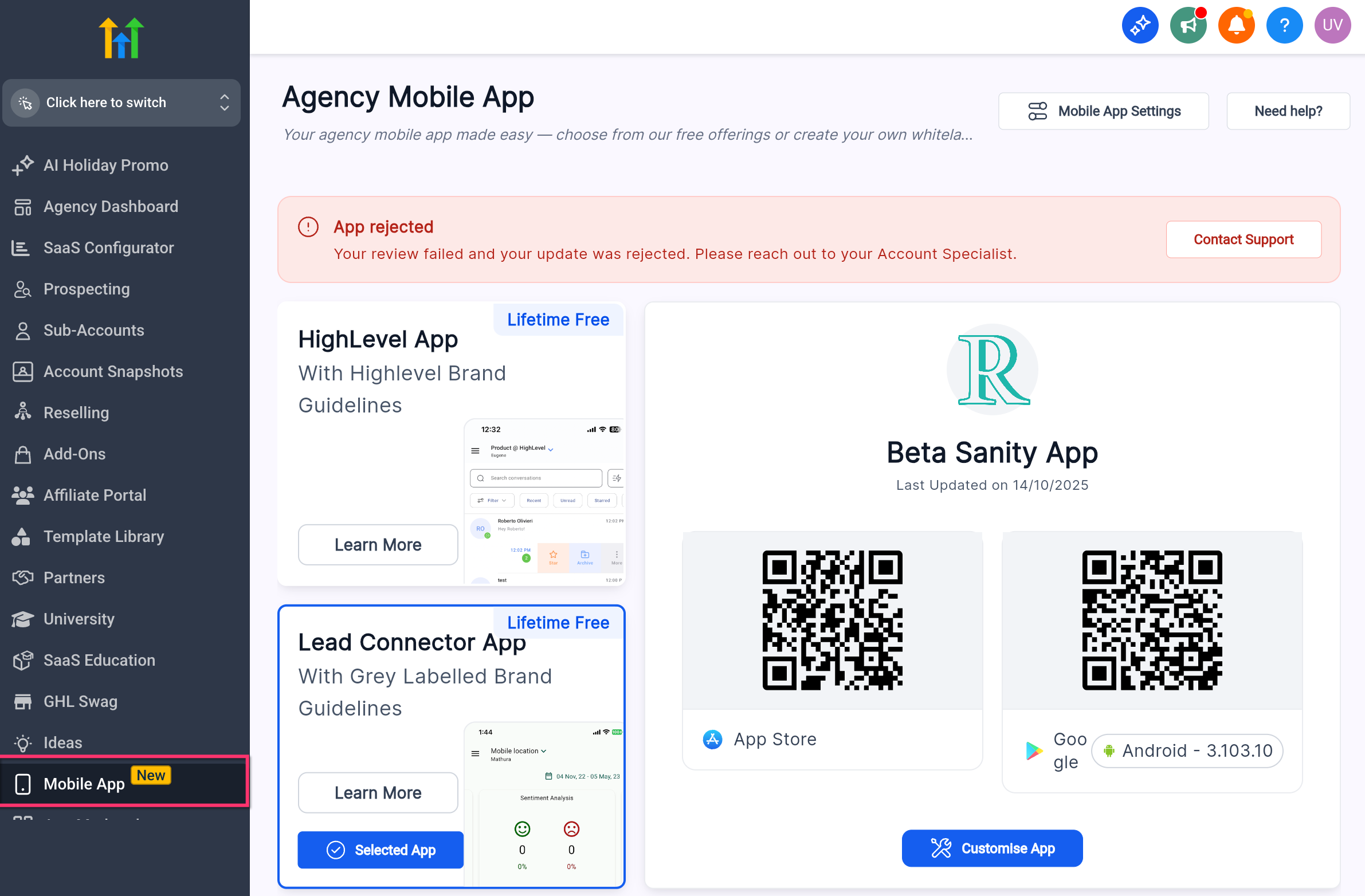
- Open the Customizer: Navigate to the Agency view and Click on Mobile App.
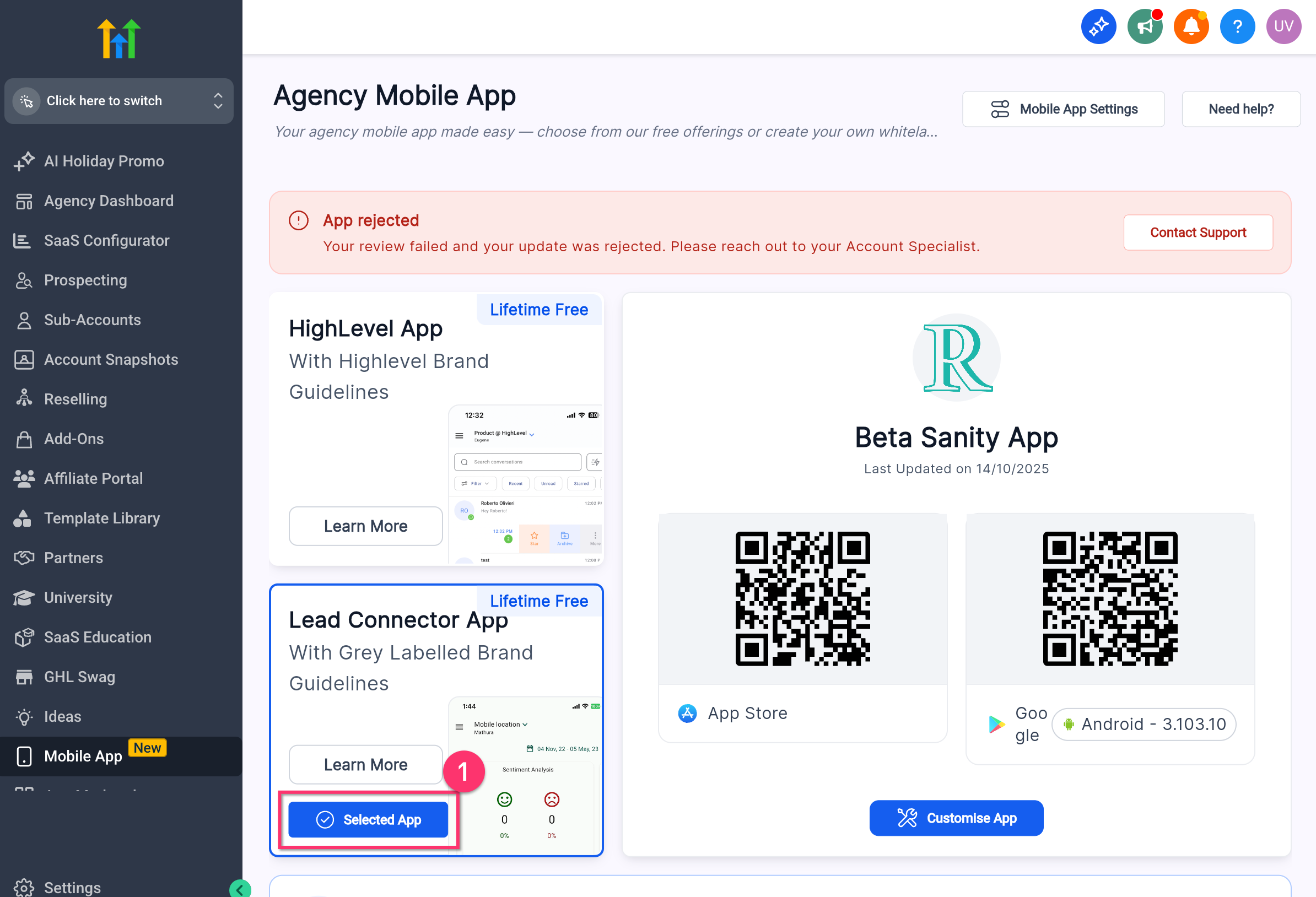
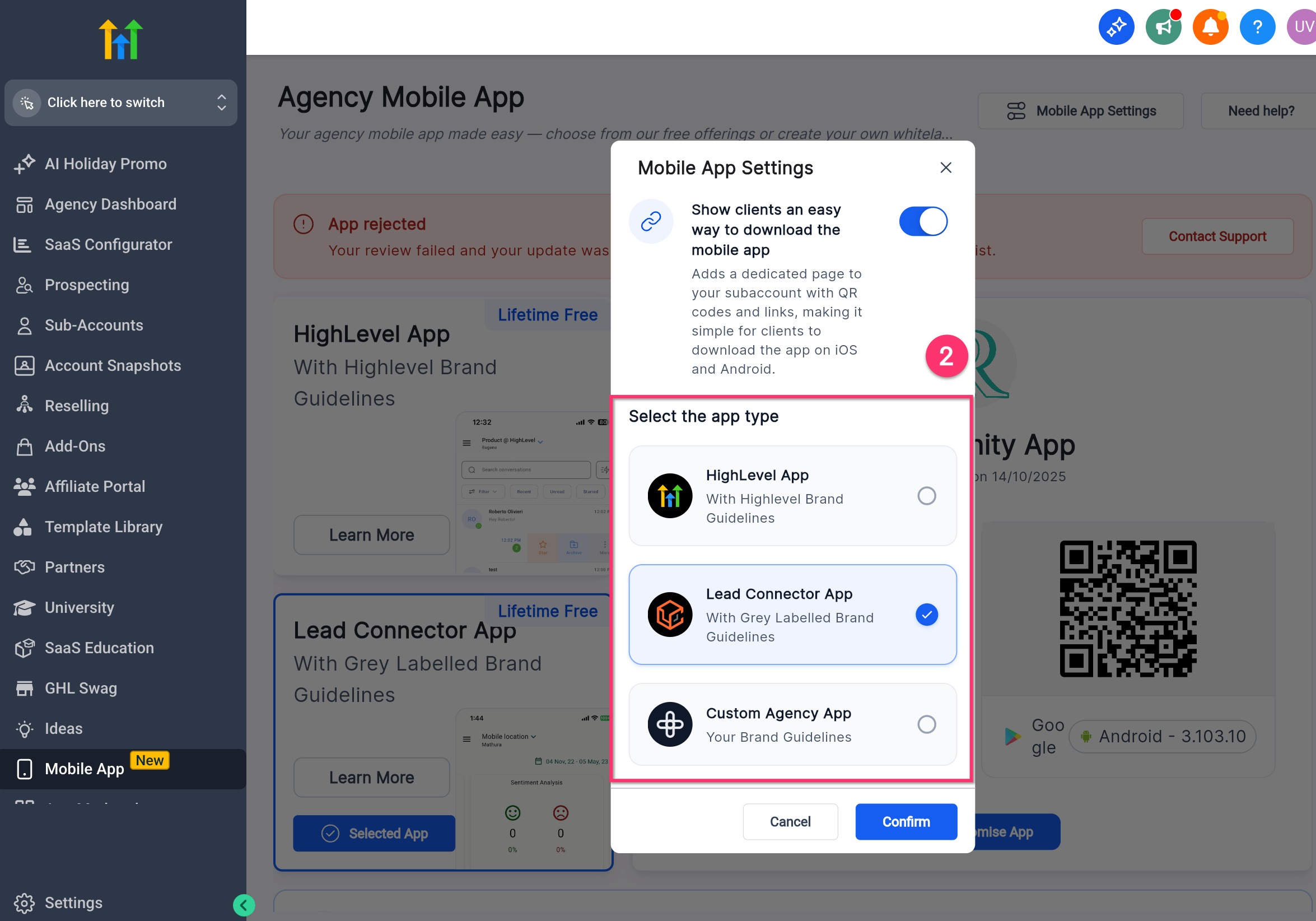
- Choose Your App: Click on the "Selected App icon" to learn about the app and to change other app versions. Enter App Name and Domain Name. The system auto‑generates a unique package/bundle identifier.
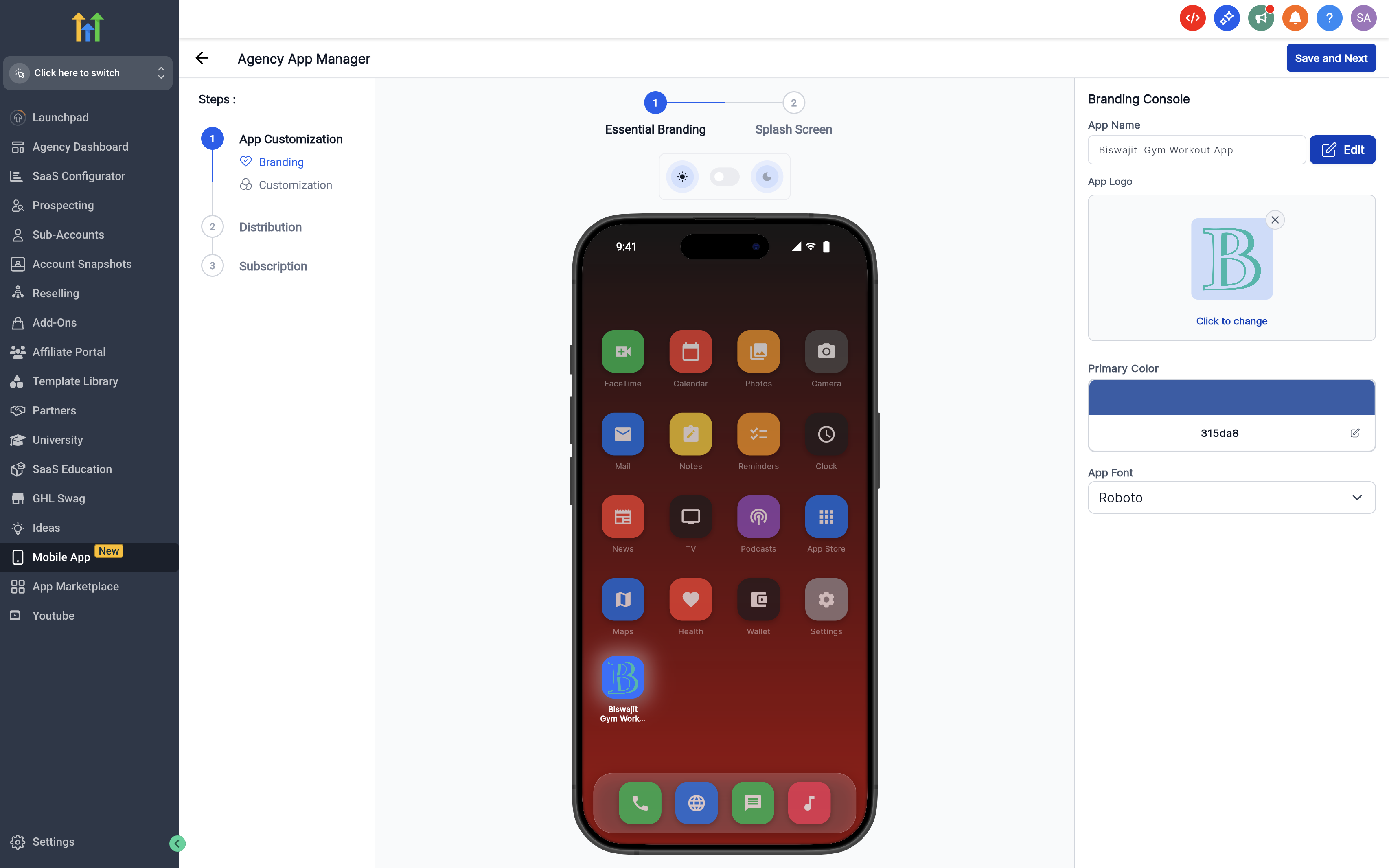
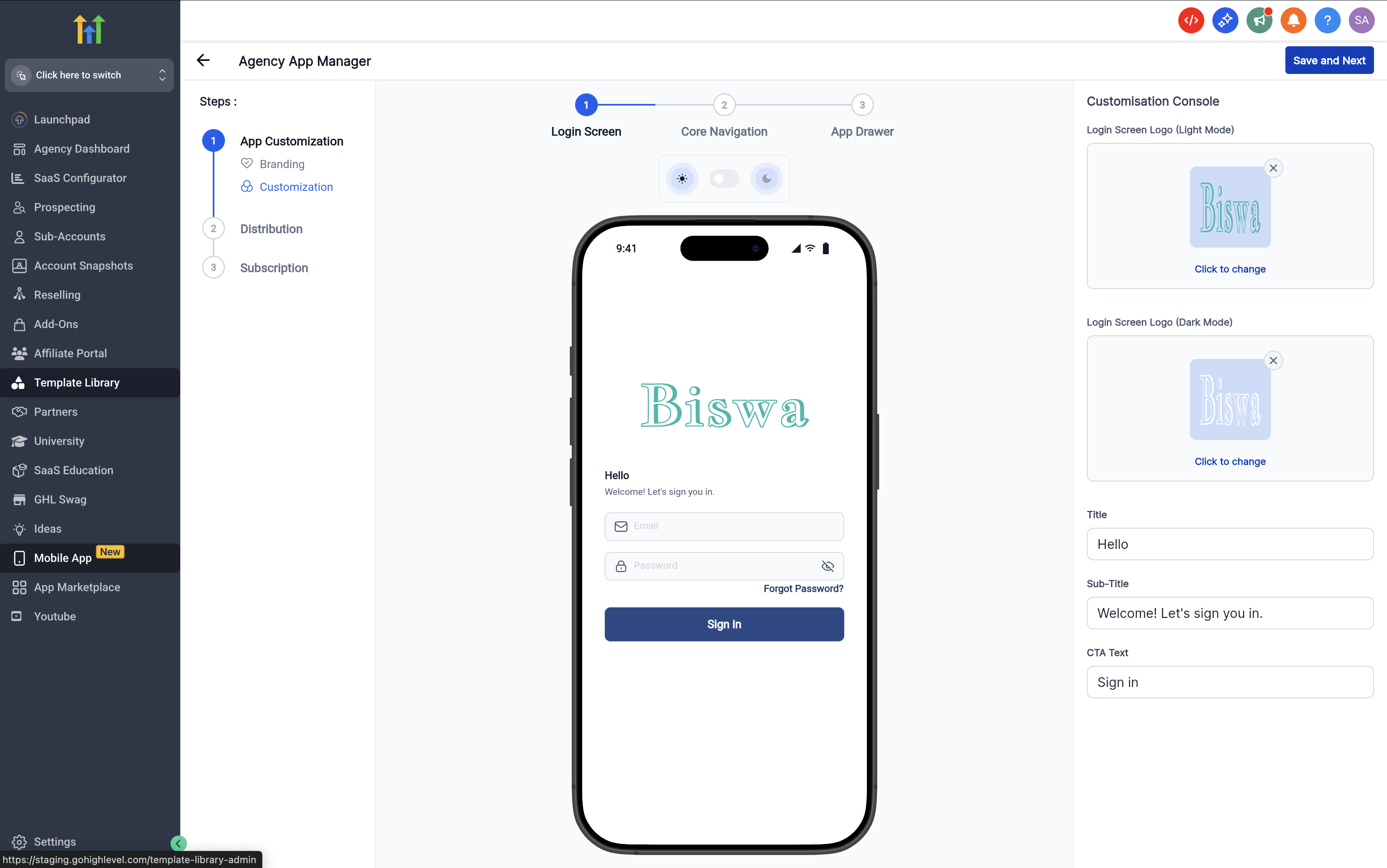
- Brand Your App: Click on "Customisation > Branding". Then, upload app icon, login & splash logos (light/dark) under Branding page.
- Customization: Customization
A. Login Screen
Configure logo, brand colors, optional tagline.
B. Core Navigation
Choose Bottom Nav (4–5 items) or Left Drawer (many items).
Add/reorder modules (e.g., Notifications, Conversations, POS, Calendar, Apps).
If you hit the limit, move extras to the App Drawer.
C. App Drawer
Organize remaining modules into categories; reorder as needed.
Tap to Pay note: Add POS (and/or Invoices/Estimates) here or in Core Nav to unlock payments features.
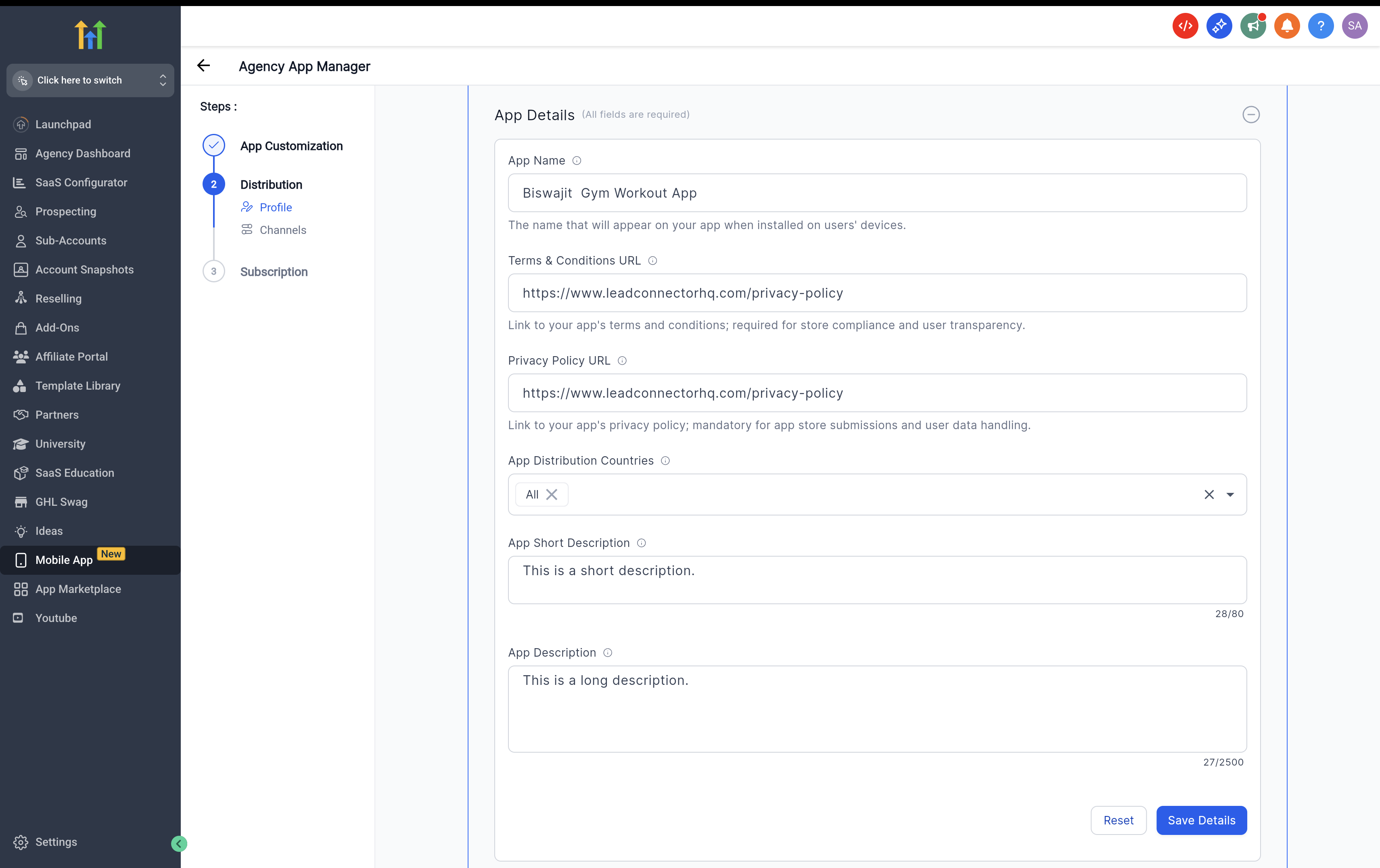
- Distribution → Profile (Store Listing)
Fill App Name, Descriptions, Support email/URL.
Add Privacy Policy & Terms URLs.
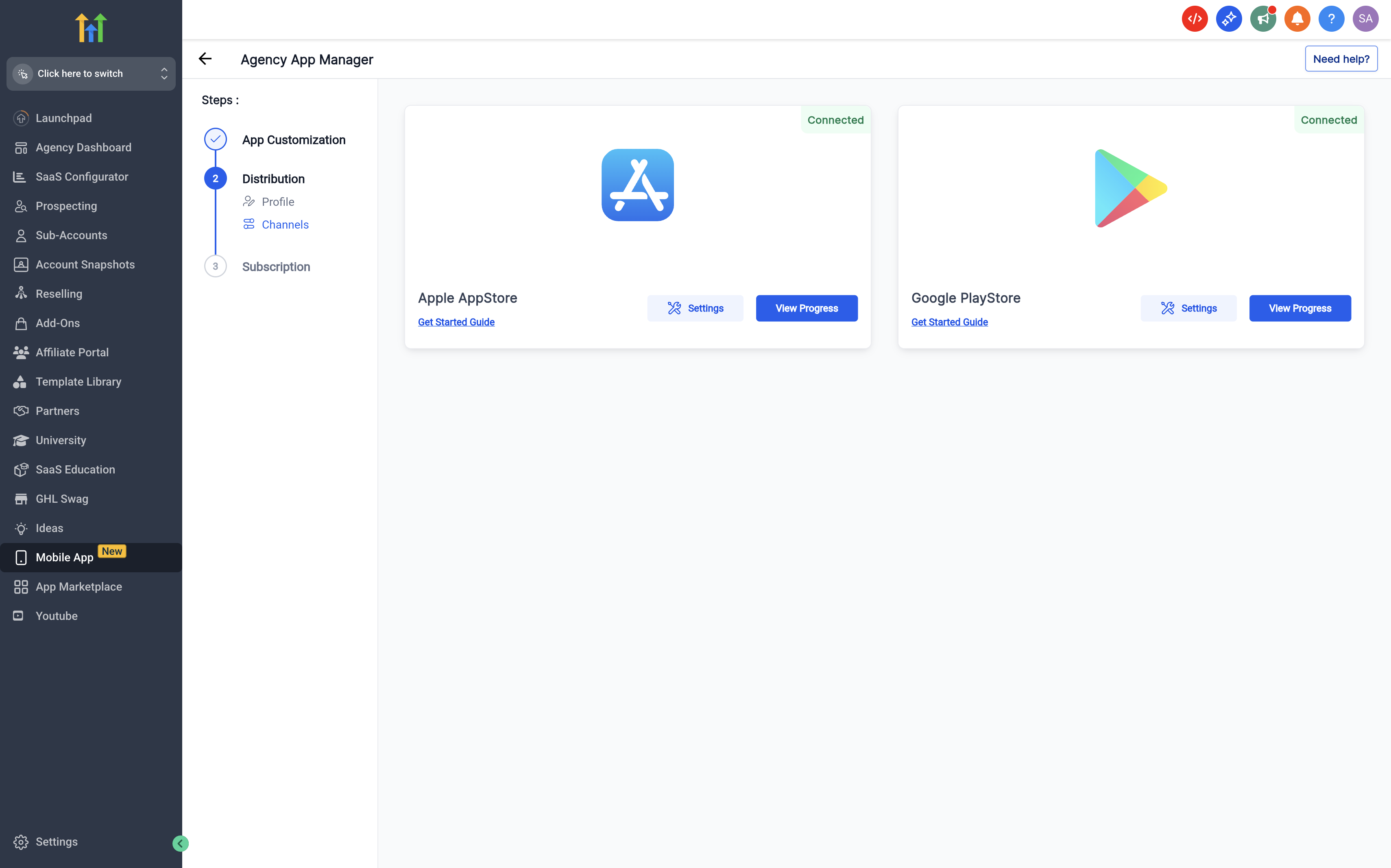
Distribution → Channels (Connect Stores)
Connect App Store Connect and Play Console via the wizards.
Ensure both show Connected (green).
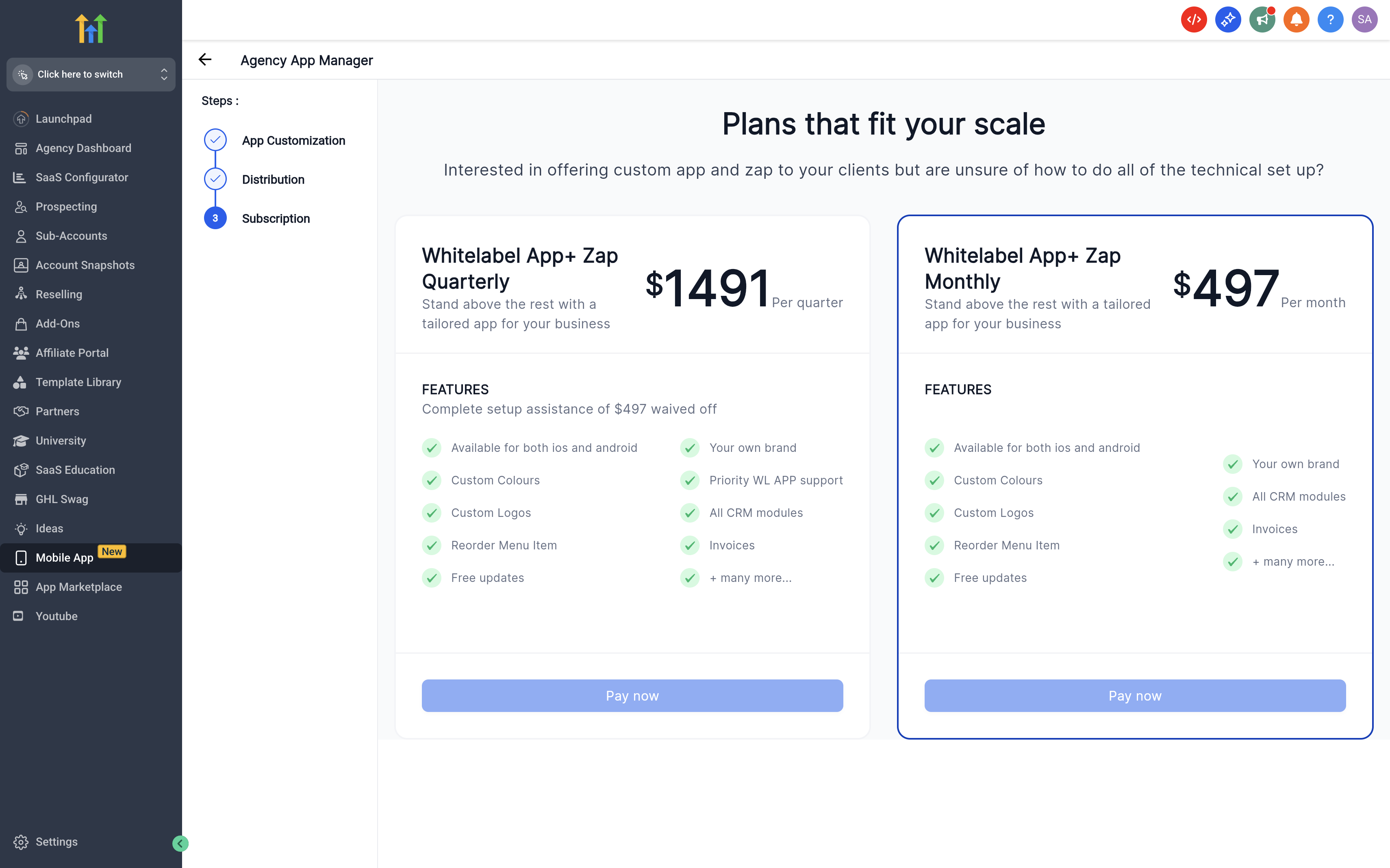
Subscription
Choose Monthly or Quarterly to unlock building and publishing.
Build & Release
Create App (first time only).
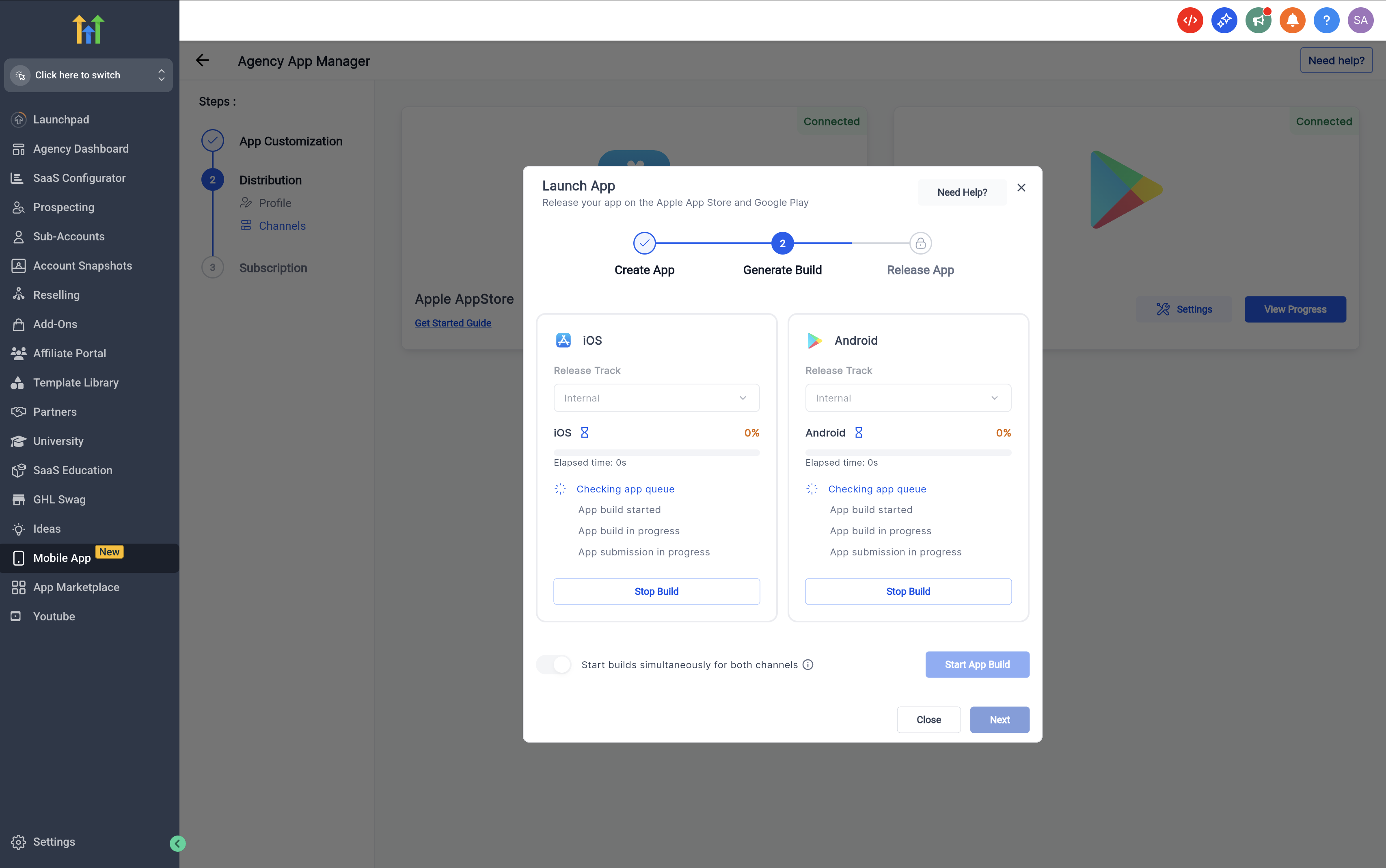
Generate Build: choose Internal (testing) or Production, add changelog, Start App Build.
Release: Submit in Applestore/Play Console; track in Live Build Status.
If a build fails, click View Progress → Visit knowledge base to diagnose the issue and Retry Build
Frequently Asked Questions
Q: Do I need an Apple Developer Organization account?
A: Yes. Apple Individual accounts are not supported for whitelabel publishing.
Q: Can I change the package/bundle identifier later?
A: Avoid changing it after your first production release; doing so creates a new app and breaks update continuity.
Q: What does Internal vs Production mean?
A: Internal is for testing with your team; Production is the public release in the stores.
Q: How do priority updates work?
A: You receive new versions earlier than the free apps and can choose when to ship them via the customizer.
Q: My build failed—what should I check first?
A: Review the error in Live Build Status, confirm store connections, validate asset sizes, and re‑trigger the build.
Q: Where do I manage billing?
A: In Mobile App, open the subscription card to purchase, change, or cancel your plan.
Q: Are all HighLevel mobile features available in whitelabel apps?
A: Feature availability generally matches the core app, but depends on your selected modules and platform policies.
Q: How long does store review take?
A: Timelines vary by Apple/Google. Submitting complete metadata and compliant assets typically speeds approval.
Q: Can I test on real devices before Production?
A: Yes. Use Internal builds (and platform‑specific test programs) to validate on devices prior to public release.
Related Articles
- Setting up an Apple Developer Account for your Whitelabel Mobile App
- Setting up a Google Developer Account for your Whitelabel Mobile App
- Enable Tap to Pay on Your Whitelabelled Mobile App
- Linking Apple Appstore account to the Whitelabel Mobile App Customizer
- Linking Google PlayStore account to the Whitelabel Mobile App Customizer
Was this article helpful?
That’s Great!
Thank you for your feedback
Sorry! We couldn't be helpful
Thank you for your feedback
Feedback sent
We appreciate your effort and will try to fix the article