Once your build is ready, Agency App Manager checks that it can be uploaded to the App Store or Google Play. These checks run at step 2, Upload to store.
They confirm that a build file exists, that the store has an open version to receive it, and that the build has not already been uploaded.
Two types of result
- BLOCKER must be resolved before the upload can start.
- WARNING does not stop the upload. Three of the four warnings at this stage need no action at all.
Most upload blockers are fixed by creating a new build. If a build file is missing, or the build number is already on the store, return to the build step and start a new build — Agency App Manager assigns a fresh build number automatically.
When the checks pass, select Continue to start the upload.
Watch the whole process
These walkthroughs follow a complete build from start to finish, for each store.
Quick reference
Select an issue to jump straight to it.
| Issue | Store | Type |
|---|---|---|
| iOS build available to upload | iOS | BLOCKER |
| Editable App Store version | iOS | BLOCKER |
| Version not in App Review | iOS | BLOCKER |
| Metadata target version | iOS | BLOCKER |
| Build number available for upload | iOS | BLOCKER |
| Editable App Store version | iOS | WARNING |
| Metadata target version | iOS | WARNING |
| Cache vs App Store version | iOS | WARNING |
| Android build available to upload | Android | BLOCKER |
| Play Console publishing access | Android | BLOCKER |
| Version code available for upload | Android | BLOCKER |
| Version code available for upload | Android | WARNING |
iOS — Blockers
These must be resolved before your iOS build can be uploaded.
iOS build available to upload
BLOCKERNo build file was found.
What this means
The iOS app binary is missing, so there is nothing to upload.
This usually means the build did not finish successfully, or the build has expired from the cache.
How to resolve it
- Return to the build step and start a new build.
- Wait for the build to complete successfully before moving on to upload.
- If builds keep failing, check your app customisation settings for invalid values, such as an incorrect logo size or colour format.
Verify the fix
Return to the Upload to store checklist in Agency App Manager and run it again. Once the check passes, select Continue to proceed with the upload.
Editable App Store version
BLOCKERNo open draft version in App Store Connect.
What this means
There is no open draft version in App Store Connect for the build to upload into, and one cannot be created automatically in this situation.
This usually happens when you have a live app and an earlier version was submitted using the same version number.
How to resolve it
- In App Store Connect, open your app and select + Version or Platform.
- Create a new version using the version number that matches your build.
- Return to Agency App Manager and try the upload again.
Verify the fix
Return to the Upload to store checklist in Agency App Manager and run it again. Once the check passes, select Continue to proceed with the upload.
Version not in App Review
BLOCKERYour version is currently with Apple.
What this means
Your target version is waiting for review or currently in review. Apple does not allow a new build to be uploaded to a version that has already been submitted, so you need to wait for the review to finish.
How to resolve it
- Check your review status in App Store Connect → Activity. Apple reviews usually take 24 to 48 hours.
- If the review is approved, continue with submission from Agency App Manager.
- If the review is rejected, you can resubmit the same build directly from App Store Connect without creating a new build. Review the rejection reason, fix the issue in App Store Connect, then resubmit.
Do not reject the submitted build yourself. Rejecting a submission that is already in review resets it and puts you back at the start of the queue. If you need to submit a new build, either wait for the current one to go live or contact support.
Verify the fix
Return to the Upload to store checklist in Agency App Manager and run it again. Once the check passes, select Continue to proceed with the upload.
Metadata target version
BLOCKERThe target version could not be resolved.
What this means
Agency App Manager cannot work out which App Store Connect version to attach your build and listing details to.
This happens when no version is in the Prepare for Submission state and a new one cannot be created automatically.
How to resolve it
- In App Store Connect, check your app's version status.
- If the App Store Connect version number does not match your build version, update it to match. A mismatch is the most common cause of this error.
- If every version is in review or already live, create a new version by selecting + Version.
- Make sure the version is in the Prepare for Submission state, then try the upload again.
Verify the fix
Return to the Upload to store checklist in Agency App Manager and run it again. Once the check passes, select Continue to proceed with the upload.
Build number available for upload
BLOCKERThis build number is already on App Store Connect.
What this means
Apple requires every uploaded build to have a unique build number. A previous upload already used this one, so Apple will reject a repeat.
How to resolve it
- Return to the build step and start a new build. Agency App Manager assigns a new build number automatically.
- Do not try to upload the same file again. Apple will always reject it.
Verify the fix
Return to the Upload to store checklist in Agency App Manager and run it again. Once the check passes, select Continue to proceed with the upload.
iOS — Warnings
These do not stop the upload. Two are handled automatically.
Editable App Store version
WARNINGYour upload can continue.
What this means
Only a live version exists in App Store Connect, with no open draft. Agency App Manager will create a new draft version automatically, using the version number from your build.
How to resolve it
No action needed. Agency App Manager handles this for you.
Verify the fix
After the upload completes, check in App Store Connect that the new version appears with the version number you expected.
Metadata target version
WARNINGYour upload can continue.
What this means
No metadata target was found, but Agency App Manager can resolve it automatically. The upload will proceed.
How to resolve it
No action needed. This is resolved automatically.
Verify the fix
No check is needed. The upload will continue as normal.
Cache vs App Store version
WARNINGYour upload can continue, but check this first.
What this means
The version number in your build does not match the version currently open in App Store Connect. For example, your build may be version 2.4.0 while App Store Connect has a draft open for 2.3.0.
The upload will still proceed, but it may attach your build to the wrong version.
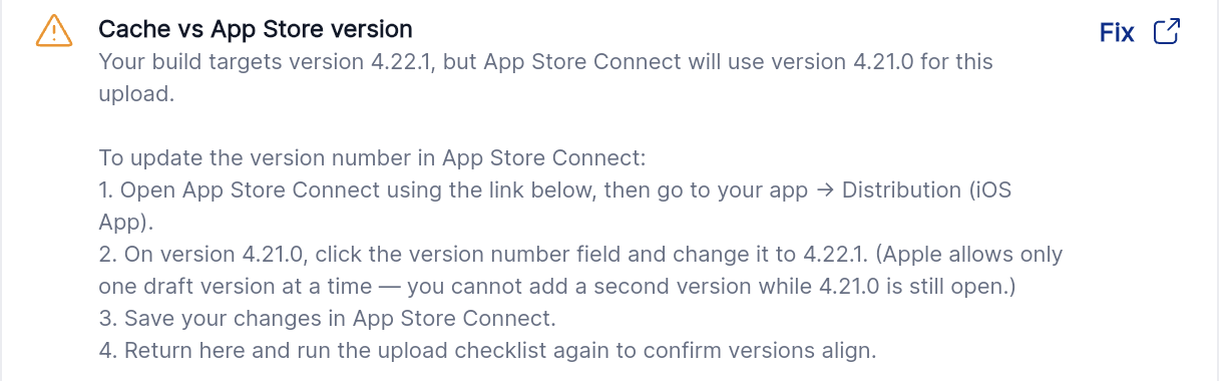
The checklist shows both version numbers and the steps to align them in App Store Connect.
How to resolve it
- In App Store Connect, update the version number on the open draft so it matches your build, or close the version that does not match.
- Alternatively, return to the build step and create a build with a matching version number.
Apple allows only one draft version at a time, so you cannot add a second version while the first is still open.
Verify the fix
Return to the Upload to store checklist in Agency App Manager and run it again. Once the check passes, select Continue to proceed with the upload.
Video tutorial
Watch: Resolve a cache versus App Store version warning
Android — Blockers
These must be resolved before your Android build can be uploaded.
Android build available to upload
BLOCKERNo build file was found.
What this means
The Android App Bundle is missing or was not generated successfully, so there is nothing to upload.
How to resolve it
- Return to the build step and start a new Android build.
- Wait for the build to complete before trying the upload again.
Verify the fix
Return to the Upload to store checklist in Agency App Manager and run it again. Once the check passes, select Continue to proceed with the upload.
Play Console publishing access
BLOCKERGoogle Play refused the release edit.
What this means
Google Play returned a permission error. The service account is signed in successfully, but it does not have the role needed to create a release for this app.
How to resolve it
- In Play Console → Setup → API access, find your service account in the list.
- Select Manage permissions and make sure the account has the Admin role.
- Save your changes, then wait 15 to 30 minutes for Google to apply them before trying again.
Permission changes in Google Play are not immediate. If the check still fails straight after saving, wait and run it again before making further changes.
Verify the fix
Return to the Upload to store checklist in Agency App Manager and run it again. Once the check passes, select Continue to proceed with the upload.
Version code available for upload
BLOCKERThis version code is already on Play Console.
What this means
A build with this Android version code already exists on your internal testing or production track. Google will not accept a duplicate.
How to resolve it
- Return to the build step and start a new build. A new version code is assigned automatically.
- Do not try to upload the same file again. Google will reject it.
Verify the fix
Return to the Upload to store checklist in Agency App Manager and run it again. Once the check passes, select Continue to proceed with the upload.
Android — Warnings
This does not stop the upload.
Version code available for upload
WARNINGYour upload can continue.
What this means
Agency App Manager could not confirm whether this version code already exists on Google Play, because the check did not return a clear answer. The upload will still be attempted.
How to resolve it
No action needed. Continue with the upload and watch the result.
Verify the fix
If the upload fails at Google Play because the version code is a duplicate, return to the build step and create a new build.
Frequently asked questions
The checklist says my build is missing. What happened?
Either the build did not finish successfully, or it has expired from the cache. Return to the build step and start a new build, then wait for it to complete before uploading.
Can I upload the same build again after changing something?
No. Both Apple and Google reject a build that reuses a build number or version code. Always create a new build, which is given a fresh number automatically.
My app is in review. Can I still upload?
No. Apple does not allow a new build to be uploaded to a version that is already in review. Wait for the review to finish. Do not withdraw the submission yourself, as this restarts the review queue.
What does a version mismatch warning mean?
Your build's version number does not match the draft version open in App Store Connect. The upload will still run, but it may attach to the wrong version, so it is worth aligning them first.
Related articles
The distribution workflow has three stages. This article covers stage 2 of 3.
Was this article helpful?
That’s Great!
Thank you for your feedback
Sorry! We couldn't be helpful
Thank you for your feedback
Feedback sent
We appreciate your effort and will try to fix the article