These are the final checks before your app is sent to Apple or Google for review. They run at step 3, Submit for review.
They confirm your upload has finished processing, your listing details pass the store's own validation, your version is in a submittable state, and that all required compliance information is present.
Two types of result
- BLOCKER must be resolved before you can submit.
- WARNING does not stop submission. Both warnings at this stage are Android only.
How to re-check after fixing an issue
Most issues at this stage are fixed in App Store Connect or Google Play Console. When you have made your changes, return to the checklist, tick I have fixed all blocking issues, then select Verify.
Apple needs time to process a build. After uploading, allow 15 to 30 minutes before submitting. You can watch for the build in App Store Connect under Activity.
Watch the whole process
These walkthroughs follow a complete build from start to finish, for each store.
Quick reference
Select an issue to jump straight to it.
| Issue | Store | Type |
|---|---|---|
| Latest store upload completed | iOS | BLOCKER |
| Listing metadata ready to push | iOS | BLOCKER |
| App Store version ready for review | iOS | BLOCKER |
| App Store screenshots | iOS | BLOCKER |
| App Store listing compliance | iOS | BLOCKER |
| Latest store upload completed | Android | BLOCKER |
| Listing metadata ready to push | Android | BLOCKER |
| Play production track | Android | BLOCKER |
| Play production live status | Android | WARNING |
| Play production track | Android | WARNING |
iOS — Blockers
These must be resolved before your iOS app can be submitted. There are no iOS warnings at this stage.
Latest store upload completed
BLOCKERNo processed build was found.
What this means
There is no build in App Store Connect that has finished Apple's processing and can be submitted for review.
Apple usually takes 15 to 30 minutes to process a build after it is uploaded.
How to resolve it
- Go back to Upload to store and complete a successful upload.
- Wait 15 to 30 minutes for Apple to process the build. You can watch for it in App Store Connect → Activity.
- Once the build shows as processed, return here and try submitting again.
If the status has not changed after a long wait, create a new build and upload it again.
Verify the fix
Return to the Submit for review checklist, tick I have fixed all blocking issues, then select Verify.
Listing metadata ready to push
BLOCKERApple rejected one or more listing fields.
What this means
Agency App Manager ran a validation check on your App Store listing before submitting, and Apple's API rejected at least one field.
Common causes are:
- A description longer than 4,000 characters
- Keywords longer than 100 characters in total, or containing competitor names
- URLs that are invalid or cannot be opened
- An app name containing prohibited characters
- Promotional text that is missing or too long
How to resolve it
- Check the error detail shown on the checklist. It names the exact field that failed.
- In Agency App Manager, go to Distribution → Profile and open App Details, then correct the field.
- Common fixes: shorten the description to under 4,000 characters, make sure every URL starts with https:// and opens publicly, and remove competitor brand names from your keywords.
- Save your changes.
Verify the fix
Return to the Submit for review checklist, tick I have fixed all blocking issues, then select Verify.
Video tutorial
App Store version ready for review
BLOCKERThe version cannot be submitted in its current state.
What this means
The version in App Store Connect is in a state that does not allow submission. Check which of the three situations below applies to you.
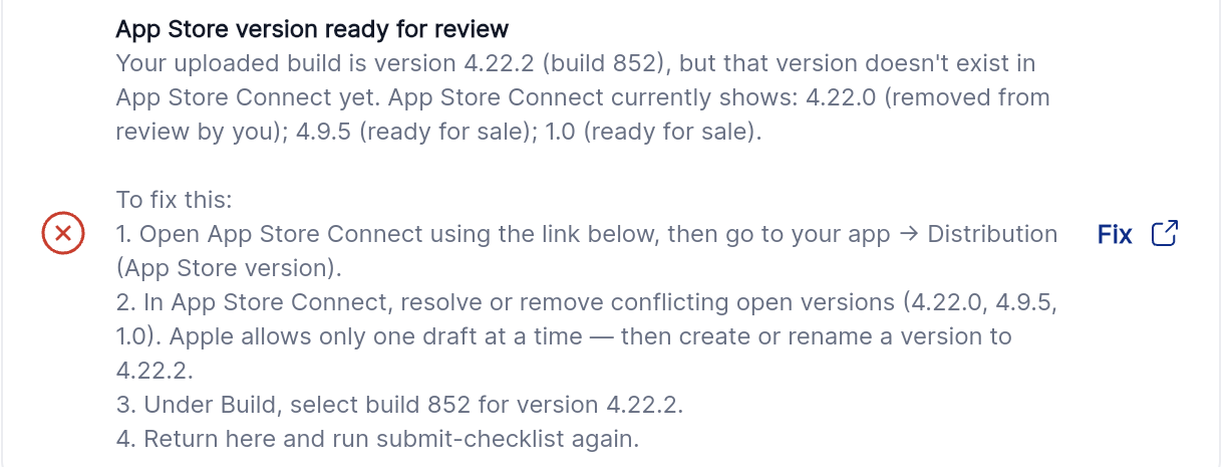
The checklist lists the conflicting versions and the steps to resolve them.
How to resolve it
Waiting for review, or in review
Your submission is already with Apple. Wait for the review to finish. No action is needed unless you need to withdraw and resubmit.
Rejected by Apple, or rejected by you
Review the reason in App Store Connect → Resolution Center. Fix the issue Apple identified, upload a new build, then submit again.
The version is missing or already released
The version for your uploaded build either does not exist in App Store Connect, or has already been released. Create a new version in App Store Connect and upload again.
Verify the fix
Return to the Submit for review checklist, tick I have fixed all blocking issues, then select Verify.
Video tutorial
Watch: Fix App Store version ready for review
App Store screenshots
BLOCKERRequired iPhone screenshots are missing.
What this means
Apple requires at least one screenshot for the largest iPhone display sizes, and none were found for this version.
The accepted sizes are:
- iPhone 6.5 inch: 1242 × 2688 px, or 2688 × 1242 px for landscape
- iPhone 6.7 inch: 1290 × 2796 px, or 2796 × 1290 px for landscape
How to resolve it
- In App Store Connect, open your app, select your version, and go to App Screenshots and Previews.
- Choose iPhone 6.5" or iPhone 6.7" and upload at least one screenshot. You can upload up to ten.
- Screenshots must match the pixel dimensions above exactly.
If you upload 6.7 inch screenshots, Apple also accepts them for the 6.5 inch size, so you only need one set.
Verify the fix
Return to the Submit for review checklist, tick I have fixed all blocking issues, then select Verify.
App Store listing compliance
BLOCKERRequired compliance information is missing.
What this means
One or more required compliance fields have not been completed in App Store Connect. The checklist names the ones that apply to you.

The checklist names which compliance fields are still outstanding.
How to resolve it
Copyright
In App Store Connect, open your version and go to General → Copyright. Enter your copyright line, for example the year followed by your company name.
Content rights
In your version, answer the content rights question about whether your app uses content you do not own, such as images or music.
Age rating
Go to your version and open Age Rating, then work through the questionnaire. Apple asks about in-app controls and capabilities, mature themes, medical or wellness content, sexuality or nudity, violence, and chance-based activities. Apple calculates the rating from your answers on the final step, where you can also raise it if you want to.
App Privacy
In App Store Connect → App Privacy, complete the questionnaire covering what data your app collects and why. This has been required since iOS 14.
Pricing
In App Store Connect → Pricing and Availability, set your price. Even free apps must explicitly select Free.
Verify the fix
Return to the Submit for review checklist, tick I have fixed all blocking issues, then select Verify.
Video tutorial
Watch: Fix App Store listing compliance
Android — Blockers
These must be resolved before your Android app can be submitted.
Latest store upload completed
BLOCKERNo completed upload was found.
What this means
There is no successfully uploaded build on Google Play's internal track that can be submitted for review.
How to resolve it
- Go back to Upload to store and complete a successful upload to the internal testing track.
- Check the build appears in Play Console → Testing → Internal testing.
- Once the upload is confirmed, return here and try submitting again.
If there is no progress after a long wait, create a new build and upload it again.
Verify the fix
Return to the Submit for review checklist, tick I have fixed all blocking issues, then select Verify.
Listing metadata ready to push
BLOCKERGoogle rejected one or more listing fields.
What this means
Agency App Manager ran a validation check on your Play Store listing, and Google's API rejected at least one field.
Common causes are:
- A short description longer than 80 characters
- A full description longer than 4,000 characters
- Phone numbers or URLs inside your descriptions
- A missing content rating
- Content that Google does not permit in listing text
How to resolve it
- Check the validation error shown on the checklist. It names the specific field.
- In Agency App Manager, go to Distribution → Profile and open App Details, then correct the field.
- If a content rating is missing, complete it in Play Console → Store presence → Content rating.
- Save your changes.
Verify the fix
Return to the Submit for review checklist, tick I have fixed all blocking issues, then select Verify.
Play production track
BLOCKERThe build cannot be submitted in its current state.
What this means
Your build is either not on a Play track, already live, or has been rejected. Check which situation applies.
How to resolve it
Not on any track
The build has not been uploaded to a track yet, or the internal testing track has no active release. Go back to the upload step and complete it.
Already published
This version is already live on production. Create a new build with a higher version code for your next release.
Rejected by Google Play
Google rejected the submission. Review the rejection email from Google Play, fix the issue flagged, then upload and submit again.
Verify the fix
Return to the Submit for review checklist, tick I have fixed all blocking issues, then select Verify.
Android — Warnings
These do not stop submission.
Play production live status
WARNINGThis never blocks submission.
What this means
Your app is not live on Google Play production yet. Google requires the first production release to be published manually from Play Console, because it cannot be automated.
Once your first release is live, later updates can be handled automatically.
How to resolve it
- In Play Console → Production, you will see a release ready to be published.
- Review the release details, then select Review release and Start rollout to Production.
- Choose your rollout percentage, then confirm.
This warning stops appearing after your first production release is published. Every update after that can be fully automated.
Verify the fix
After you start the rollout, wait 15 to 30 minutes, then return to the Distribution wizard and check the status has updated.
Play production track
WARNINGNo submission action is needed.
What this means
This warning appears in two situations. Check which one applies to you.
How to resolve it
Your app is under review by Google
Google is reviewing your submission. No action is needed. Reviews usually take between one and seven days, and you will receive an email when it finishes.
Approved, but the rollout has not started
Google has approved the release but it is waiting to be published. Go to Play Console → Production and select Start rollout.
Verify the fix
If your app is under review, no check is needed. If you started a rollout, wait 15 to 30 minutes, then return and confirm the status has updated.
Frequently asked questions
I uploaded my build but the checklist says there is no completed upload. Why?
Apple takes 15 to 30 minutes to process a build after upload. Check App Store Connect under Activity, and try again once the build appears as processed.
My app is already with Apple for review. Do I need to do anything?
No. Wait for the review to finish. You only need to act if Apple rejects the submission, in which case the reason will be in the Resolution Center.
Which screenshot sizes does Apple require?
At least one screenshot at iPhone 6.5 inch (1242 × 2688 px) or iPhone 6.7 inch (1290 × 2796 px). If you upload 6.7 inch screenshots, Apple accepts them for both sizes.
Why does my first Google Play release need manual publishing?
Google requires the first production release to be published manually from Play Console. After that first release is live, later updates can be handled automatically.
Google has approved my app but it is not live. What now?
The release is waiting to be published. Go to Play Console, open Production, and select Start rollout.
Related articles
The distribution workflow has three stages. This article covers stage 3 of 3.
Was this article helpful?
That’s Great!
Thank you for your feedback
Sorry! We couldn't be helpful
Thank you for your feedback
Feedback sent
We appreciate your effort and will try to fix the article