See your customisations on a real phone while you make them. Change a colour, a logo or the app drawer in the Customizer and watch your phone update instantly, before anything reaches your end users.
What is Live Preview?
Live Preview connects the Whitelabel Mobile App Customizer on your computer to your own phone using a QR code. While the session is on, the changes you make in the Customizer appear on your phone in real time.
- It only shows a draft. Nothing is published to your end users until you publish.
- Only one device can be connected per session.
- You can end the session at any time, from the Customizer or from your phone.
Before you start
- Open the Customizer on your computer (desktop browser).
- Install your whitelabel mobile app (WLMA) on the phone you will preview on, and sign in as an agency admin.
- Make sure your phone has an internet connection.
Start a Live Preview session
Step 1: On your computer
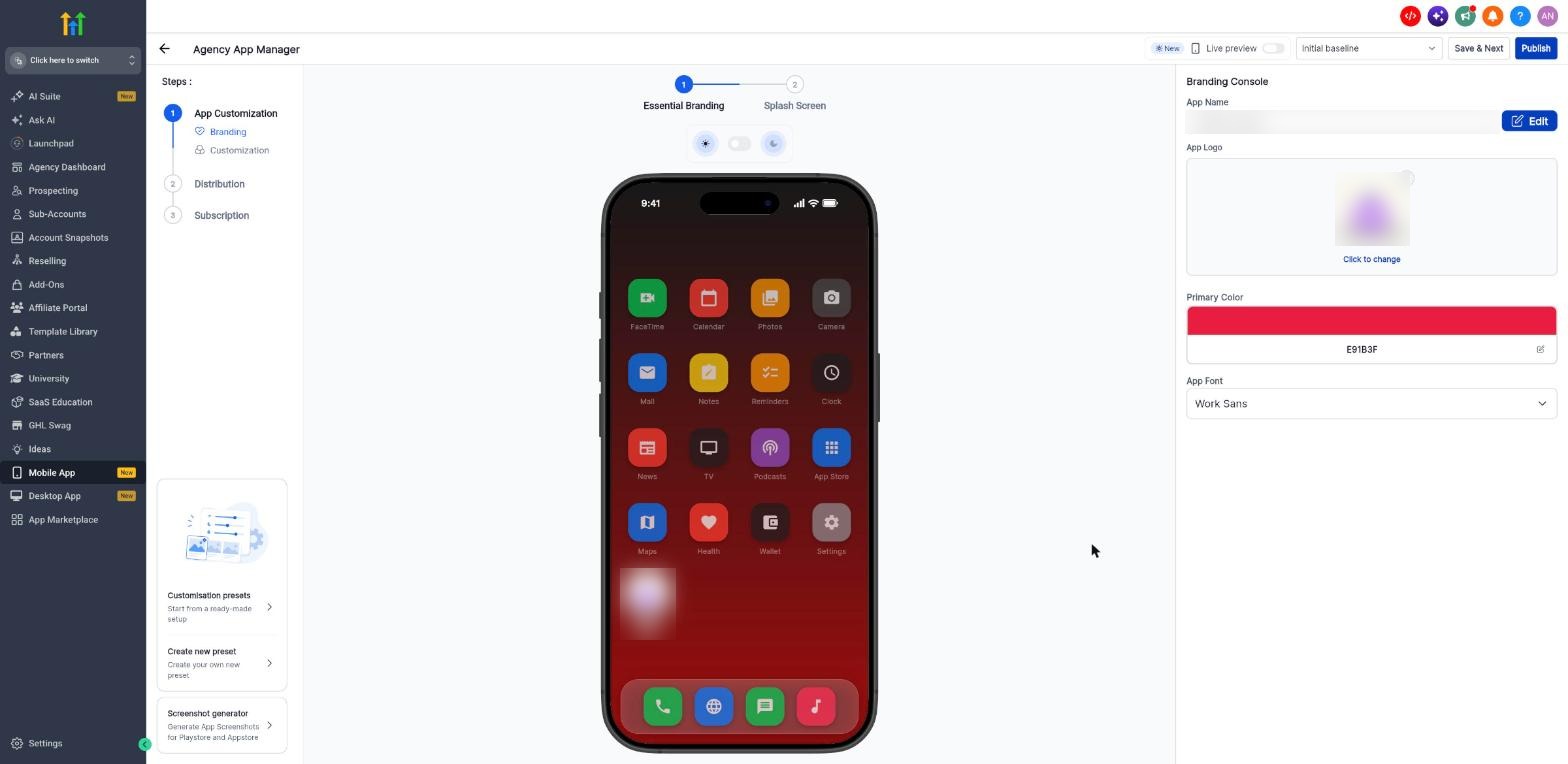
- Go to Mobile App and click Customise App to open the Customizer (Agency App Manager).
- In the top bar, turn on the Live preview toggle.
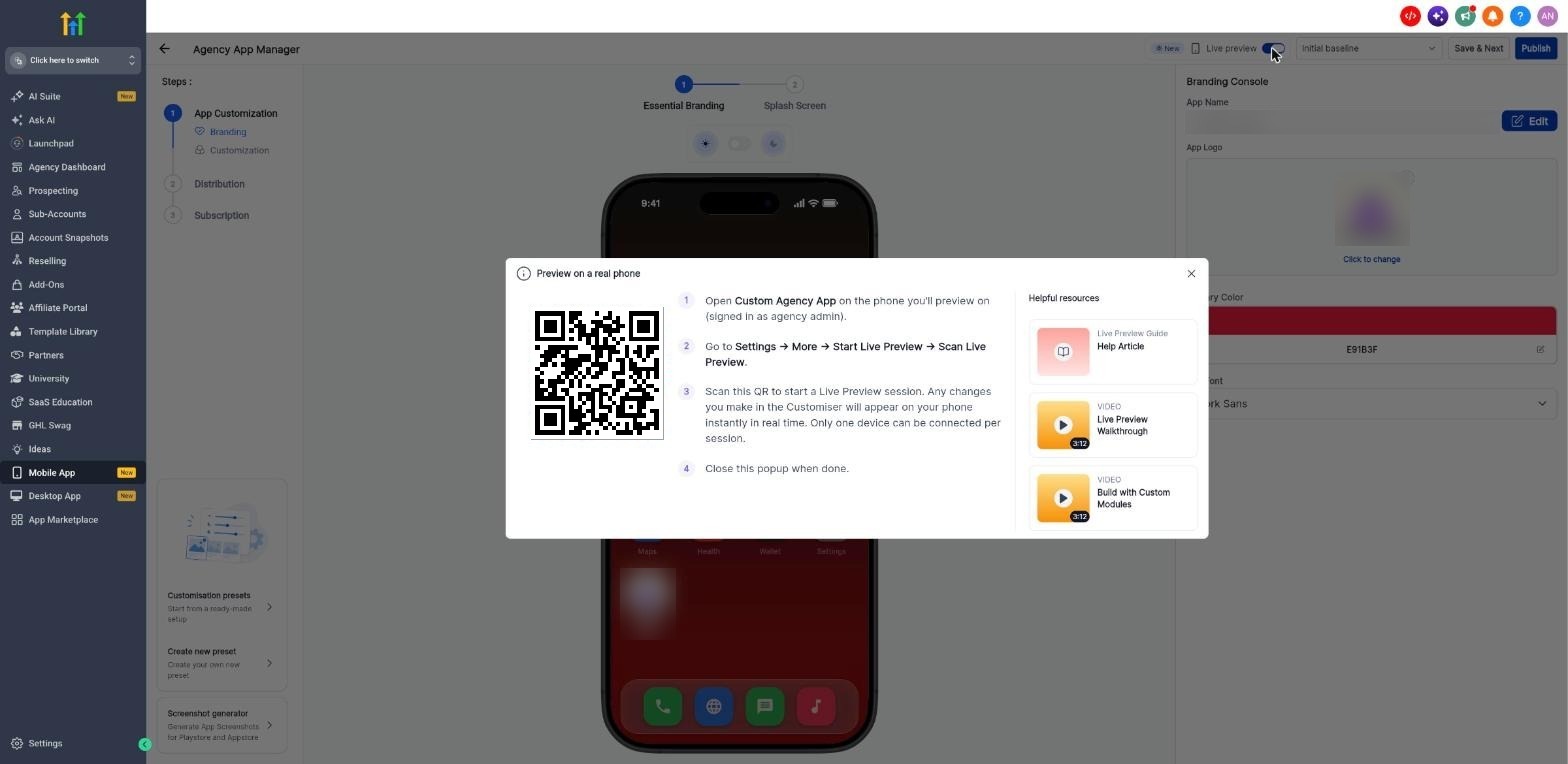
- The Preview on a real phone window opens with a QR code. Keep it open.
Step 2: On your phone
- Open your mobile app and go to Settings.
- Under Additional resources, tap Scan Live Preview QR.
- Point your camera at the QR code on your computer screen and keep it inside the frame.
- You will see Live preview connected and a banner that says Changes sync in real time, with a Stop button.
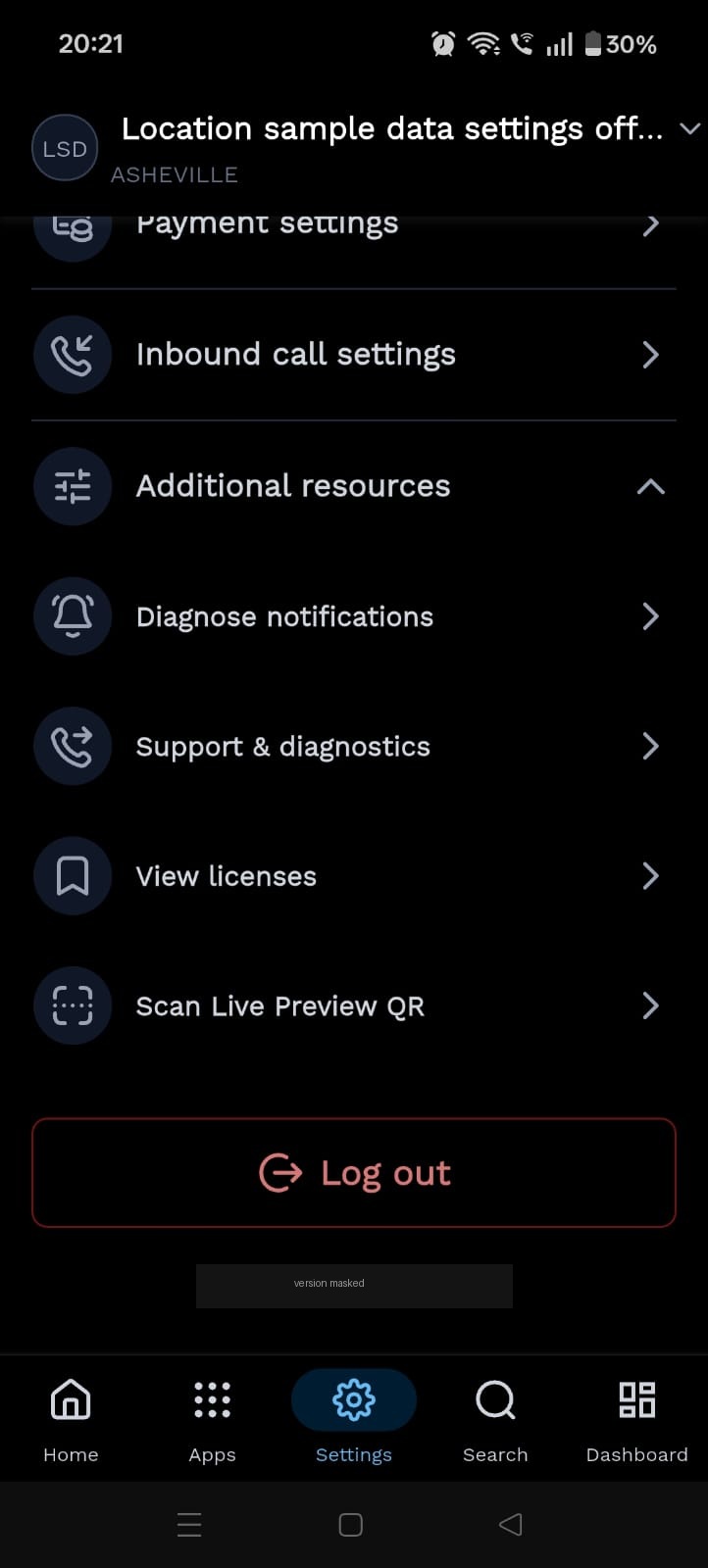 Settings > Additional resources > Scan Live Preview QR | 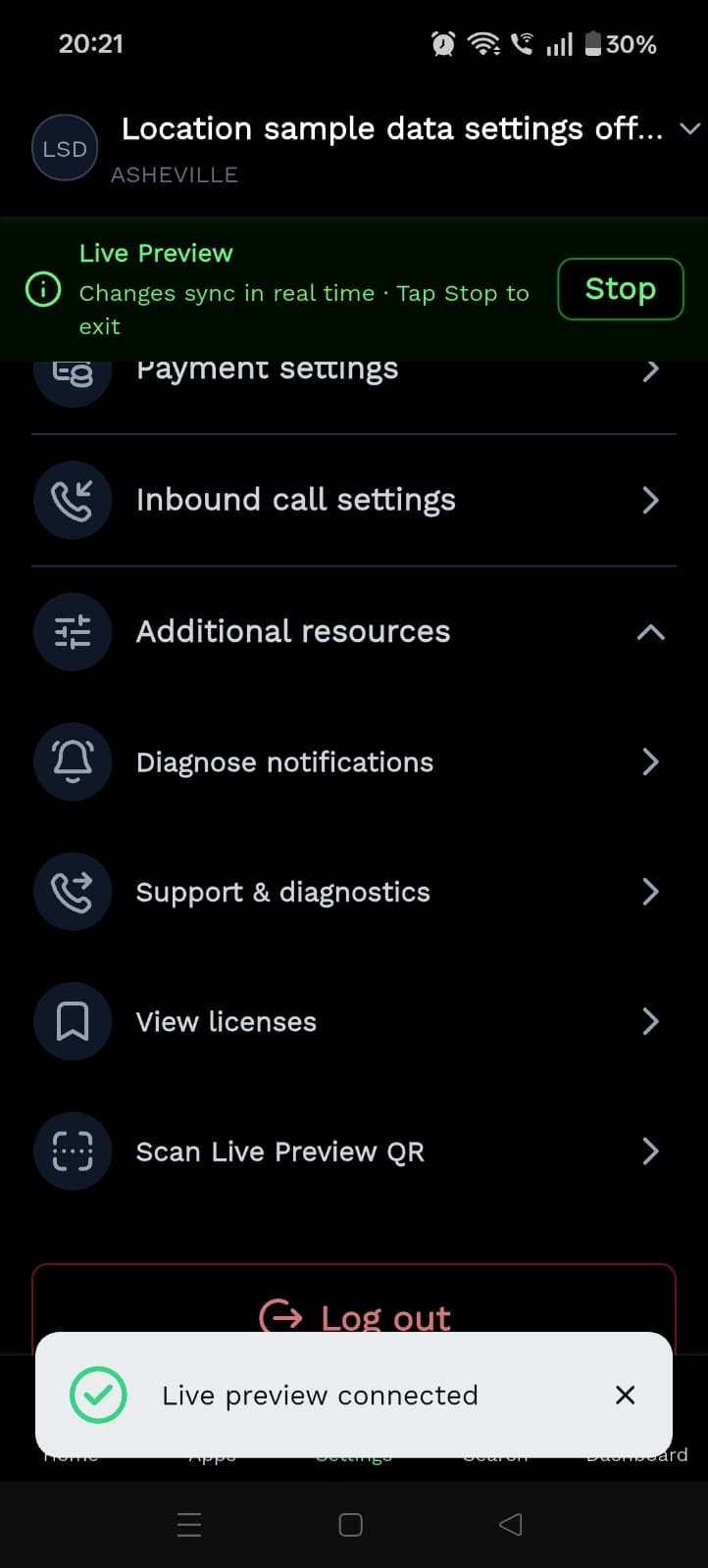 Connected: changes sync in real time |
Make changes and preview them
With the session connected, change anything in the Customizer, for example the Primary Color. The change shows on your phone right away.
End a Live Preview session
- From the Customizer: turn the Live preview toggle off. The tooltip reminds you that this ends the session on your phone.
- From your phone: tap Stop in the banner. The Customizer shows Live preview closed from your phone.
Save your customisation as a preset
Every saved customisation is stored as a preset, a named version of your app setup. You can have up to 20 presets.
- Click Save & Next to open the Save customization window.
- Enter a Preset name (required, up to 30 characters). Add a description if you like.
- Choose Save as draft to keep it private, or Save and publish to go live.
Publish your customisation
Publishing makes your customisation live for your end users.
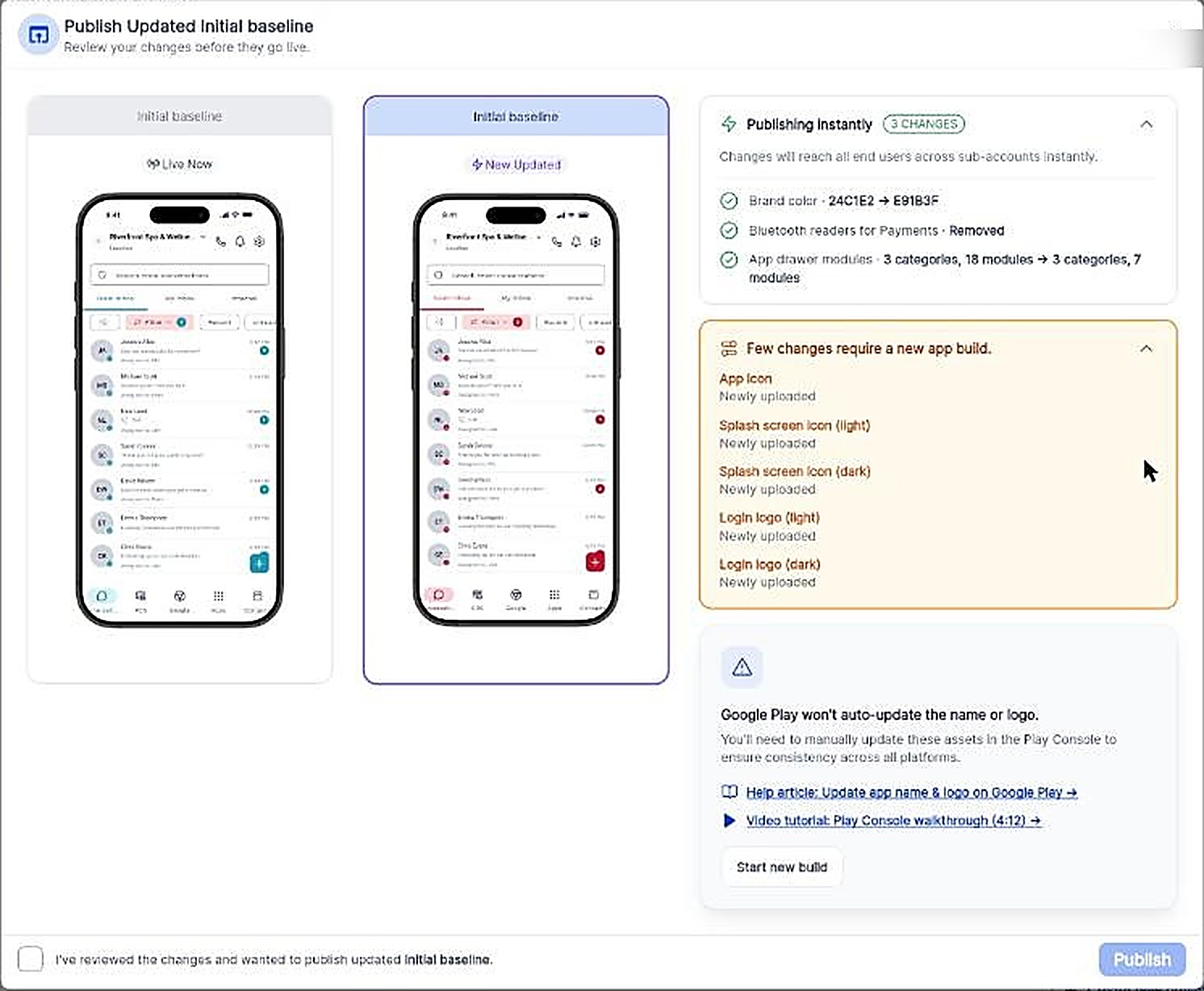
- Open the Publish window. It compares Live Now with New Updated on two phones.
- Under Publishing instantly, review the changes that go live right away for all end users across your sub-accounts.
- If a box says Few changes require a new app build, those items are listed there. They will not reach your users until a new build is live.
- Tick the checkbox to confirm you have reviewed the changes. The Publish button stays disabled until you do.
- Click Publish.
When publishing succeeds, you see a message that your preset is live. Changes are live instantly and no App Store or Google Play review is needed for them.
Which changes are instant, and which need a new build?
| Goes live instantly | Needs a new app build |
|---|---|
| Changes such as brand colour and app drawer modules (shown under "Publishing instantly") | App icon, splash screen icon (light and dark), login logo (light and dark) |
Build your app
If your publish includes build-required changes, the success window shows a Start app build button. You can also start a build from Distribution > Channels.
- Click Start app build.
- Go to Distribution > Channels to follow progress. The page shows build status updates and, for each store, the app status, app version and last successful build.
Manage your presets
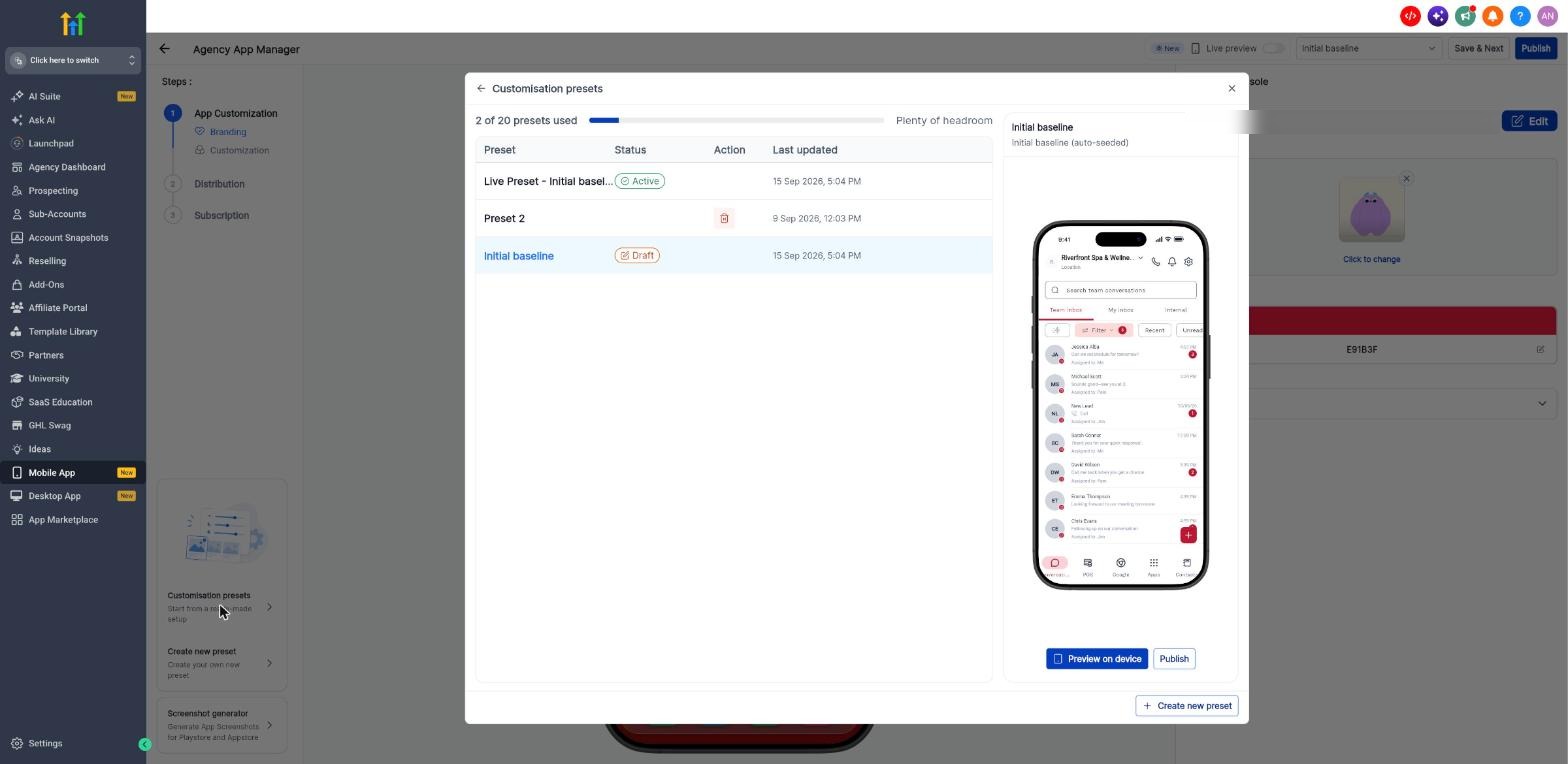
Open Customisation presets from the left side of the Customizer.
- The list shows each preset's name, status (for example Active or Draft) and when it was last updated. The bar at the top shows how many of your 20 presets you have used.
- Preview on device sends the selected preset to your connected phone so you can look at it without publishing.
- Publish makes the selected preset the live one. To go back to an earlier version, select that preset and click Publish.
- The bin icon deletes a preset.
- You can also create a new preset from Create new preset.
Frequently asked questions
Will my end users see anything while I use Live Preview?
No. Live Preview only shows a draft on your phone. Your live app does not change until you publish.
How quickly do published changes reach my users?
Instantly, for everything except the build-required items listed above.
I see "Live preview already running". What now?
Your phone already has a session open. Tap Stop live preview, then scan the new QR code.
Can I connect more than one phone?
No. Only one device can be connected per session.
What is the difference between "Save as draft" and "Save and publish"?
Save as draft keeps the preset private and nothing changes for your end users. Save and publish takes you to the Publish window.
How do I go back to an earlier version?
Open Customisation presets, select the earlier preset and click Publish. Review the Live Now and New Updated phones, confirm, and publish.
I have used all 20 presets. What should I do?
Delete a preset you no longer need to make room for a new one.
Related articles
- Self-Service Whitelabelled Mobile App Customizer
- Publish Your iOS White-Label App in App Store Connect
- Publish Your Android White-Label App in Google Play Console
- Linking Apple Appstore Account to the Whitelabel Mobile App Customizer
- Linking Google PlayStore Account to the Whitelabel Mobile App Customizer
- How to Promote and Customize Your Whitelabel Mobile App: A Comprehensive Guide
Was this article helpful?
That’s Great!
Thank you for your feedback
Sorry! We couldn't be helpful
Thank you for your feedback
Feedback sent
We appreciate your effort and will try to fix the article