Notification Diagnosis helps identify why HighLevel Mobile App notifications may not be reaching your phone. From one troubleshooting flow, you can check your network, notification permission, sound settings, and actual notification delivery. If a problem remains after troubleshooting, you can copy the diagnostic report and share it with Support.
Learn how to run Notification Diagnosis, understand each diagnostic check, confirm whether a test notification arrives, rerun the diagnosis after making changes, and copy the report when additional Support assistance is needed.
What Is Notification Diagnosis in the HighLevel Mobile App?
Notification Diagnosis is a built-in troubleshooting tool that helps identify why notifications may not be reaching your phone.
The diagnosis checks four areas: Network, Notifications, Sound, and Test delivery. Each check returns a result so you can identify which part of the notification experience may need attention.
The Test delivery check sends an actual notification to your phone. If a check identifies a possible issue, the app provides guidance about what to review before you run the diagnosis again.
Key Benefits of Notification Diagnosis
Notification Diagnosis brings the most important notification checks into one guided flow, helping you narrow down problems without manually reviewing every device setting first.
- Check Multiple Dependencies at Once: Review Network, Notifications, Sound, and Test delivery from one troubleshooting flow.
- Test Real Notification Delivery: Send a test notification to your phone and confirm whether it arrives.
- Identify What Needs Attention: Use the result of each check to focus on the relevant device or connection setting.
- Retry Test Delivery: Use Resend when you want another test notification.
- Verify Changes: Run the diagnosis again after adjusting a setting.
- Share Diagnostic Results: Copy the report and include it in a Support request when the issue continues.
Prerequisites and Limitations
Use a supported mobile app version and review the diagnostic results together rather than relying on a single check. Passing checks confirm the areas tested, but persistent notification problems may still require further investigation.
- Use HighLevel Mobile App version 4.25.0 or higher.
- The diagnosis evaluates Network, Notifications, Sound, and Test delivery.
- Follow the guidance displayed by the app when a check needs attention.
- After making changes, run the diagnosis again to verify the new result.
- If the checks pass but notifications still do not arrive as expected, copy the diagnostic report and send it to Support.
- The feature is also supported in LeadConnector and supported white-label mobile apps when running an applicable version.
How To Run Notification Diagnosis
Run Notification Diagnosis when expected mobile notifications are missing or when you want to verify whether your device can receive HighLevel notifications correctly.
- Open the HighLevel Mobile App.
- Open Settings.
- Select Diagnose Notifications.
- Tap Start Diagnosis.
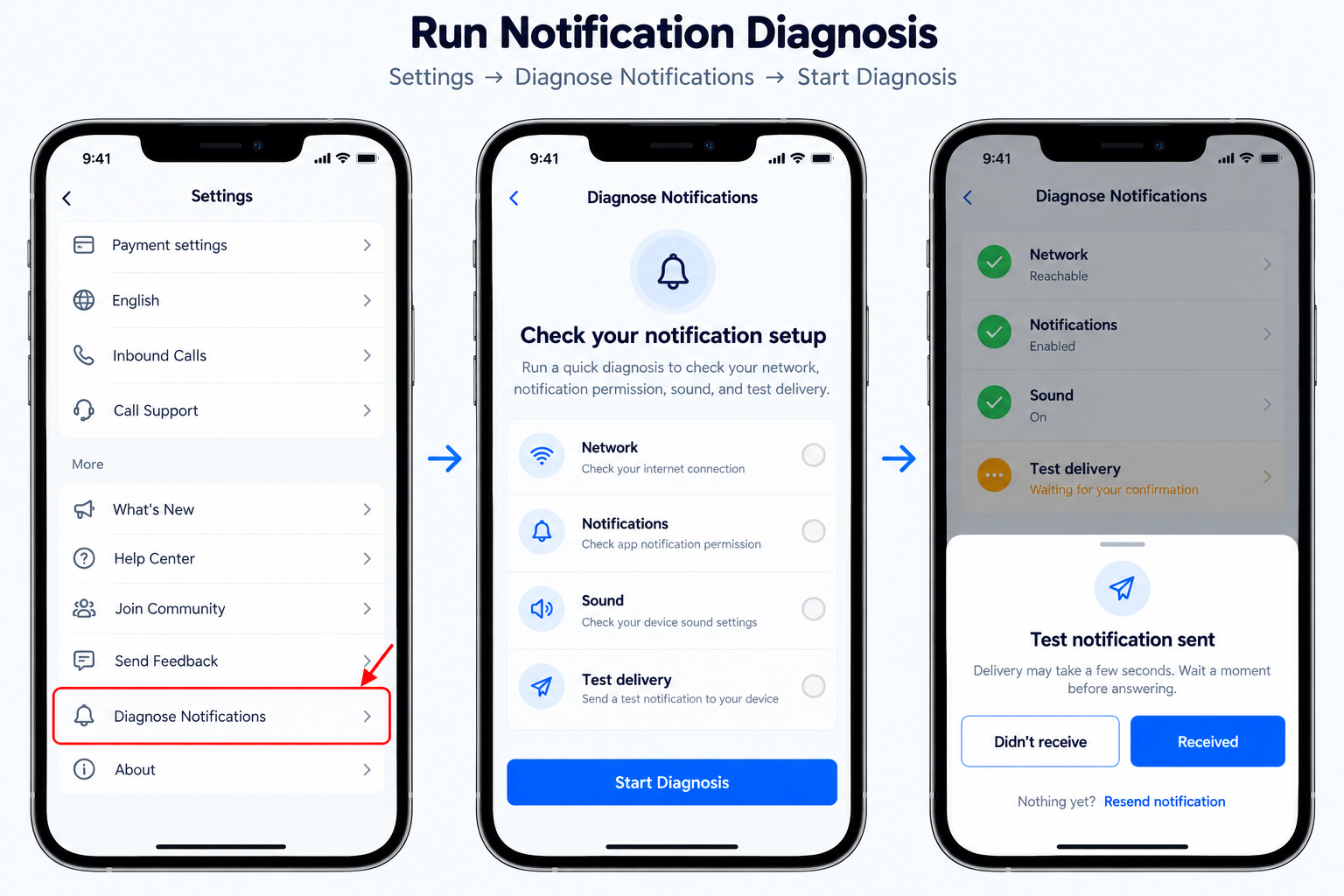
- Allow the app to run the Network, Notifications, Sound, and Test delivery checks.
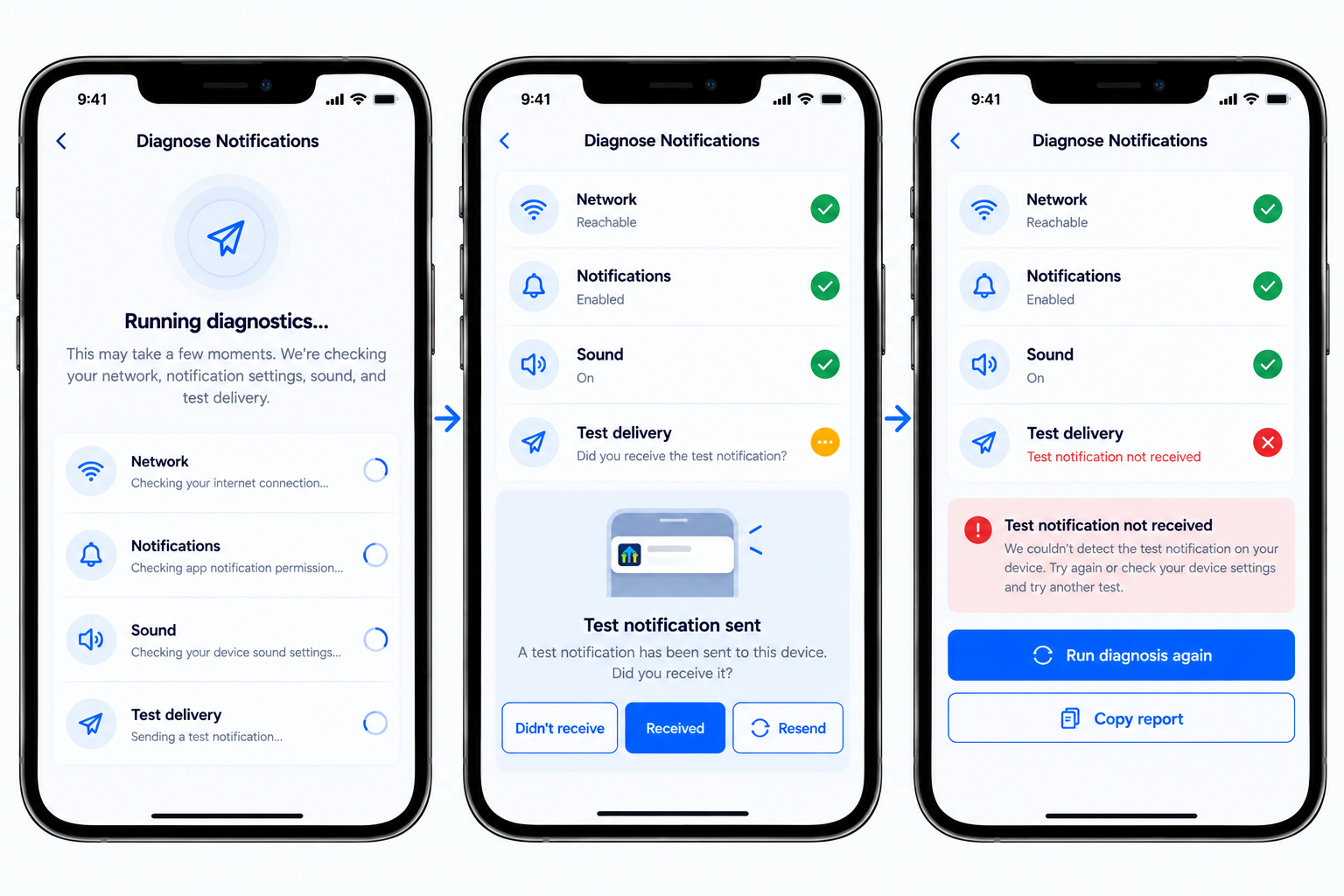
- Review the result displayed for each check.
- When the test notification is sent, confirm the result using:
- Received: Select this when the test notification arrived.
- Didn't receive: Select this when the notification did not arrive.
- Resend: Send another test notification.
- Follow any guidance displayed for checks that need attention.
- Make the recommended change to the applicable device or connection setting.
- Return to Notification Diagnosis and tap Run diagnosis again.
- Review the updated results.
- If notifications still do not work as expected, tap Copy report.
- Paste the copied diagnostic report into your Support request.
Understanding the Notification Diagnosis Checks
Each check tests a different part of notification delivery. Reviewing all four results helps narrow down whether the issue is related to connectivity, device permissions, audible alerts, or actual notification delivery.
Network
The Network check evaluates the connection needed for notification delivery. If the check needs attention, follow the guidance shown in the app and review your network or Wi-Fi connection before running the diagnosis again.
Notifications
The Notifications check determines whether the required notification permission is available. If it needs attention, follow the in-app guidance to review notification permission, then return to the app and rerun the diagnosis.
Sound
The Sound check helps identify settings that may prevent you from hearing notification alerts. Review the guidance displayed for settings such as your ringer or Focus mode, make the applicable change, and rerun the diagnosis.
Test Delivery
Test delivery sends an actual notification to your phone so you can confirm whether notification delivery is working.
- Select Received if the notification arrived.
- Select Didn't receive if it did not arrive.
- Select Resend when you want another test notification.
- If the other checks pass but test delivery still fails, use Copy report and include the diagnostic results in your Support request.
Frequently Asked Questions
Was this article helpful?
That’s Great!
Thank you for your feedback
Sorry! We couldn't be helpful
Thank you for your feedback
Feedback sent
We appreciate your effort and will try to fix the article