How to Fix Bad Call Quality in HighLevel
Bad call quality shows up as choppy or robotic audio, one-way audio, echo, dropped calls, or long delays between speakers. These symptoms typically result from network instability, device configuration issues, or local setup problems.
This article walks you through a step-by-step troubleshooting process to identify and resolve call-quality issues in HighLevel.
This article focuses on calls that connect but have poor or unstable audio. If calls consistently fail to connect, immediately disconnect, or show a specific error code, use the relevant call-error troubleshooting article instead.
What is Bad Call Quality?
Bad call quality refers to audio issues during a connected call. Common symptoms include:
- Choppy, robotic, or garbled audio
- One-way audio (you can hear them, but they can't hear you, or vice versa)
- Echo or feedback
- Long delays between speakers
- Calls that drop intermittently or disconnect unexpectedly
Because HighLevel calling relies on an internet connection, network instability, device issues, or local configuration problems can affect call quality.
Key Benefits of Resolving Call-Quality Issues
Fixing call-quality problems improves communication reliability and supports better customer and team experiences:
How to Fix Bad Call Quality
Follow this troubleshooting process in order to identify and resolve the cause of poor call quality:
Determine whether the issue affects one user, one device, one network, or every user in the location. This helps narrow down whether the problem is device-specific, network-specific, or broader.
If possible, compare Wi-Fi with a wired connection or another stable network. If call quality is poor on Wi-Fi, test the same call over a wired Ethernet connection when available. A successful wired test can help identify whether the Wi-Fi network is contributing to the issue.
Pause streaming, backups, downloads, VPN-heavy applications, or other traffic competing with the call. Video conferencing, cloud syncing, or large file transfers can consume bandwidth and degrade call quality.
Confirm the correct microphone and speaker are selected in your device settings or HighLevel calling interface. Test a different headset or microphone if available. Poor hardware or incorrect input/output selection can cause one-way audio or echo.
Refresh the HighLevel Web App, restart your browser or mobile app, and ensure the application is current. Outdated browser or app versions can cause compatibility issues with real-time audio.
Power cycling can resolve temporary network issues. Unplug the affected network equipment (router or modem), wait about 30 seconds, reconnect it, and allow the connection to fully restore before testing another call.
Check for high-rtt, high-jitter, high-packet-loss, or low-mos warnings displayed during or after the call. These indicators point to specific network or connection issues. See the Understanding Call-Quality Warnings section for details.
Internet speed alone does not determine call quality. Test latency, jitter, packet loss, and connection stability in addition to upload and download speed. Tools that measure network quality (not just bandwidth) provide more accurate diagnostics.
Corporate firewalls, VPNs, security software, or restrictive network policies can interfere with real-time audio. If call-quality problems occur only on a specific managed network, ask your IT team to review HighLevel's voice-network requirements. Browser extensions, VPNs, security tools, communication apps, or background software can also interfere with microphone access or network performance. Temporarily disable likely conflicts and test another call.
If the problem continues after completing the steps above, escalate to HighLevel Support with example calls and timestamps. See the Escalating to HighLevel Support section for the required information.
Understanding Call-Quality Warnings
HighLevel displays call-quality warnings when network conditions fall below thresholds that support clear audio. These warnings help identify the underlying cause of poor call quality.
The Web App may display the following warnings during or after a call:
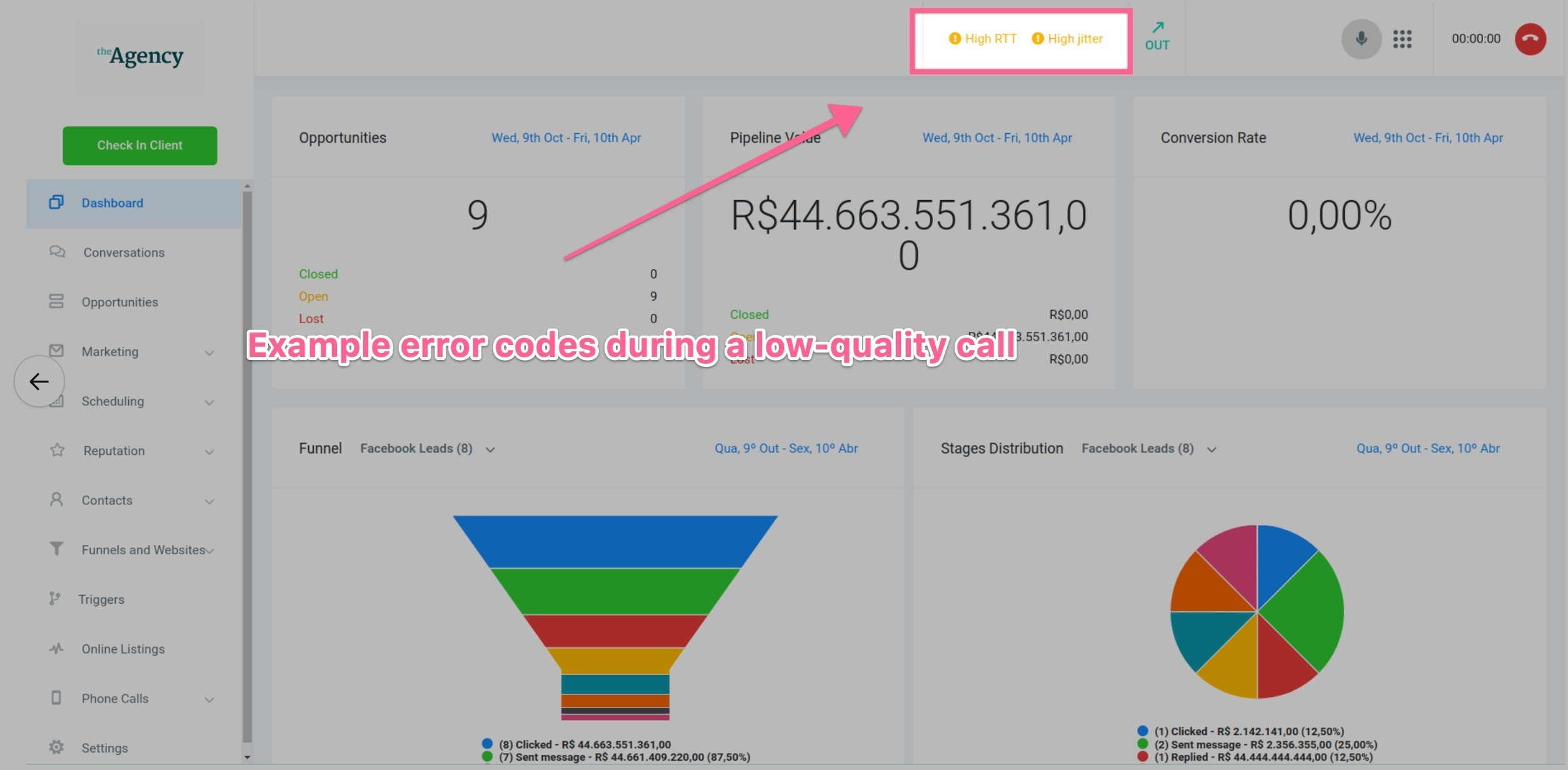
High round-trip time (latency). This measures the delay in the audio path. High latency can create noticeable conversation delays.
Inconsistent packet arrival. Jitter measures variation in packet arrival time. Lower values generally provide more consistent audio; sustained high jitter can cause crackling or robotic sound.
Voice packets are being lost in transit. Packet loss represents voice packets that do not reach their destination. Ideally packet loss should be negligible; sustained packet loss can cause missing or choppy audio.
The Mobile App may display the following warnings during or after a call:
High round-trip time (latency). This measures the delay in the audio path. High latency can create noticeable conversation delays.
Inconsistent packet arrival. Jitter measures variation in packet arrival time. Lower values generally provide more consistent audio; sustained high jitter can cause crackling or robotic sound.
Voice packets are being lost in transit. Packet loss represents voice packets that do not reach their destination. Ideally packet loss should be negligible; sustained packet loss can cause missing or choppy audio.
Overall call-quality score is below the expected range. MOS (Mean Opinion Score) is a composite measure of call quality. Low MOS indicates degraded audio quality from one or more factors.
Common Symptoms and Where to Check
Use this table to identify which area to troubleshoot based on the symptom you are experiencing:
Escalating to HighLevel Support
If the problem continues after completing the troubleshooting steps above, contact HighLevel Support with the following information:
- Location ID
- User experiencing the issue
- Example contact/phone number
- Exact call date and timestamp
- Whether the call was inbound or outbound
- Web App or Mobile App
- Network used at the time (Wi-Fi, Ethernet, cellular)
- Any high-rtt, high-jitter, high-packet-loss, or low-mos warning shown
- Whether the issue is reproducible
Providing this information helps Support diagnose the issue more quickly and accurately.
Frequently Asked Questions
Was this article helpful?
That’s Great!
Thank you for your feedback
Sorry! We couldn't be helpful
Thank you for your feedback
Feedback sent
We appreciate your effort and will try to fix the article