Service prices may need to change for a specific booking because of negotiated rates, complimentary services, or other one-time pricing scenarios. HighLevel lets you edit a service price directly on an individual Services appointment without changing the service’s standard price. This gives your team more flexibility to charge the correct amount while keeping global and staff-specific pricing intact for other bookings.
TABLE OF CONTENTS
- What is Appointment-Specific Service Pricing?
- Key Benefits of Appointment-Specific Service Pricing
- How Appointment-Specific Pricing Works
- Custom Price Validation
- The Custom Price Tag
- Staff-Specific Pricing and Custom Appointment Prices
- Custom Service Pricing on the Mobile App
- How To Setup a Custom Service Price for an Appointment
- Frequently Asked Questions
- Related Articles
What is Appointment-Specific Service Pricing?
Appointment-specific service pricing lets you manually change the price of a service for a single Services appointment. The custom amount is saved only to that appointment, allowing you to accommodate one-off pricing needs without modifying how the service is normally priced for future bookings.
You can apply a custom service price when creating a new Services appointment or when editing or duplicating an existing appointment. After the price is changed, HighLevel displays a Custom tag next to the amount so your team can easily recognize that the appointment is not using its standard service price.
Key Benefits of Appointment-Specific Service Pricing
Appointment-specific pricing gives your team more control over what a customer is charged while protecting your standard service pricing from unintended changes.
Flexible pricing: Apply negotiated, discretionary, or one-time service prices directly to an appointment.
No global pricing changes: Keep the service’s standard configured price unchanged for every other booking.
Staff pricing overrides: Use an appointment-specific price even when the selected staff member has a different service-specific price configured.
Complimentary services: Set the price to $0 when a service should be provided at no charge.
Clear identification: Quickly recognize manually adjusted prices through the Custom tag.
Immediate totals: See the appointment total update as soon as you change the service price.
Desktop and mobile flexibility: Manage custom appointment pricing whether your team is working from the web app or the HighLevel mobile app.
How Appointment-Specific Pricing Works
Understanding which price HighLevel uses helps prevent unexpected totals when a service has standard pricing, staff-specific pricing, and an appointment-level override.
HighLevel can use different pricing levels depending on how the service and appointment are configured:
Appointment-specific custom price: If you manually enter a price for the appointment, HighLevel uses that amount for the booking.
Staff-specific service price: If no appointment-specific price has been entered and the selected staff member has their own price for the service, HighLevel uses the staff-specific price.
Standard service price: If neither of the above applies, HighLevel uses the price configured for the service.
An appointment-specific price does not modify either the staff-specific price or the standard service price. Those values remain available for other bookings.
Custom Price Validation
Price validation helps ensure that manually adjusted appointment prices remain valid while supporting legitimate no-charge scenarios.
A service price can be set to $0 for complimentary appointments.
A service price cannot be set to a negative amount.
If a negative price is entered, HighLevel displays a validation error and prevents the appointment from being saved until the value is corrected.
The Custom Price Tag
The Custom tag makes it easier for staff to distinguish an appointment-level price override from the normal service or staff-specific price.
After you manually change a service price within an appointment, HighLevel displays a Custom tag beside the adjusted amount. This visual indicator helps staff confirm that the price was intentionally changed for that booking.
Staff-Specific Pricing and Custom Appointment Prices
Staff-specific pricing lets businesses charge different amounts depending on which staff member performs a service. An appointment-specific override takes priority when a different amount needs to be charged for one particular booking.
For example, if a service normally costs $100 and the selected staff member has a staff-specific price of $120, HighLevel normally applies the $120 staff price. If you manually change the service price to $90 within the appointment, that appointment uses $90.
The $120 staff-specific price remains unchanged and continues to apply to other applicable bookings.
Custom Service Pricing on the Mobile App
Mobile support allows staff to handle one-off pricing changes while working away from a desktop, helping maintain the same pricing flexibility across booking workflows.
Appointment-specific service pricing is also available in the HighLevel mobile app. Staff can adjust a service price while working with a Services appointment, and the custom amount applies only to that booking.
Existing Services mobile functionality supports creating and managing service-based appointments, including staff-specific pricing.
How To Setup a Custom Service Price for an Appointment
Applying a custom price directly from the appointment helps ensure the correct amount is attached to the booking without requiring changes to your service configuration.
To set a custom service price:
Open a Services appointment while creating a new booking, editing an existing appointment, or duplicating an appointment.
Locate the service included in the appointment.
Click the Edit icon next to the service.
Enter the new price for the service.
Confirm the updated amount. The appointment total updates to reflect the new service price.
Verify that the Custom tag appears next to the edited price.
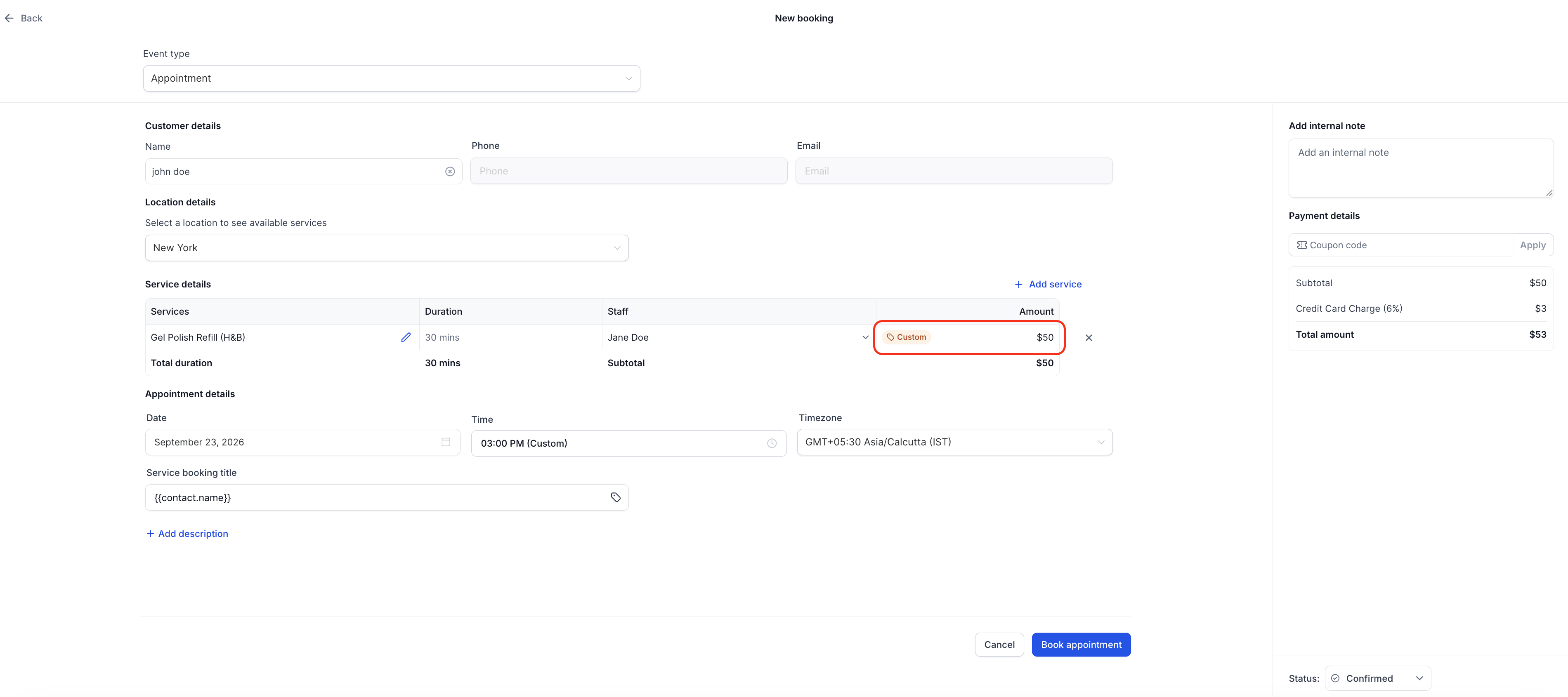
Complete any other appointment details and click Save or the applicable booking action.
The custom price applies only to that appointment. The standard service price and any staff-specific pricing remain unchanged.
HighLevel’s existing Services appointment modal also supports managing and duplicating Service bookings from the calendar.
Frequently Asked Questions
Q: Will changing a service price on an appointment change the service’s standard price?
No. The manually entered price applies only to that appointment. The globally configured service price remains unchanged.
Q: What happens if the selected staff member has a staff-specific service price?
The appointment-specific custom price overrides the staff-specific price for that booking. The staff member’s configured service price is not changed.
Q: Can I enter $0 as the service price?
Yes. A price of $0 is valid and can be used for complimentary services or other no-charge scenarios.
Q: Can I enter a negative service price?
No. Negative values are not supported. HighLevel displays a validation error and prevents the appointment from being saved until a valid price is entered.
Q: How can I tell whether an appointment is using a custom price?
HighLevel displays a Custom tag beside a service price that has been manually changed for the appointment.
Q: Can I use custom pricing when duplicating an appointment?
Yes. Appointment-specific service pricing is available within the duplicate appointment workflow, allowing you to adjust the service price before saving the new booking.
Q: Is appointment-specific service pricing available on mobile?
Yes. You can edit the service price for an individual Services appointment from the HighLevel mobile app.
Q: Do I need to change the service configuration before offering a negotiated price?
No. You can enter the negotiated amount directly on the applicable appointment without changing the service’s global pricing.
Related Articles
Was this article helpful?
That’s Great!
Thank you for your feedback
Sorry! We couldn't be helpful
Thank you for your feedback
Feedback sent
We appreciate your effort and will try to fix the article