Managing service bookings faster with the appointment modal. Edit appointments, create blocked slots, duplicate bookings and view resources from the Appointment modal.
TABLE OF CONTENTS
- What is the Appointment Modal for Service Appointments?
- Key Benefits of Managing Service Appointments
- How to Access the Appointment Modal
- Edit Service Appointments
- Duplicate Service Appointments
- Blocked Slots on Your Service Calendar
- Show Resource in Appointment Modal
- Use Custom Values in Service Notifications
- Frequently Asked Questions
- Related Articles
What is the Appointment Modal for Service Appointments?
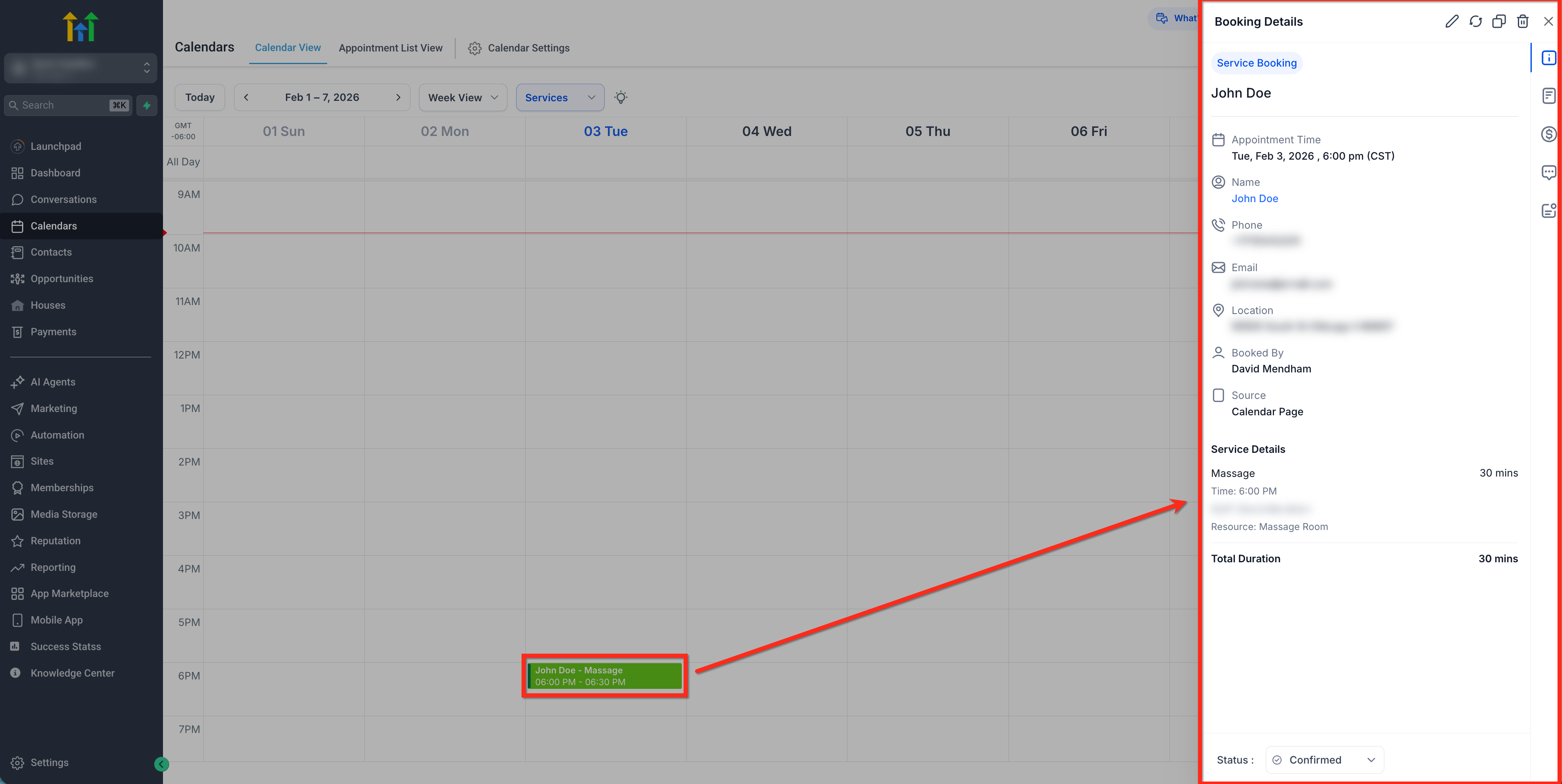
The Appointment modal is the side-panel where admins and staff review and take action on a single Service booking. It centralizes essential tasks such as editing details, rescheduling and duplicating, so teams can maintain accurate calendars with less back-and-forth.
Key Benefits of Managing Service Appointments
- Speed: Edit and reschedule services without leaving the page.
- Control: Block time from the same modal.
- Scalability: Duplicate bookings for repeat or similar clients
How to Access the Appointment Modal for Service Appointments
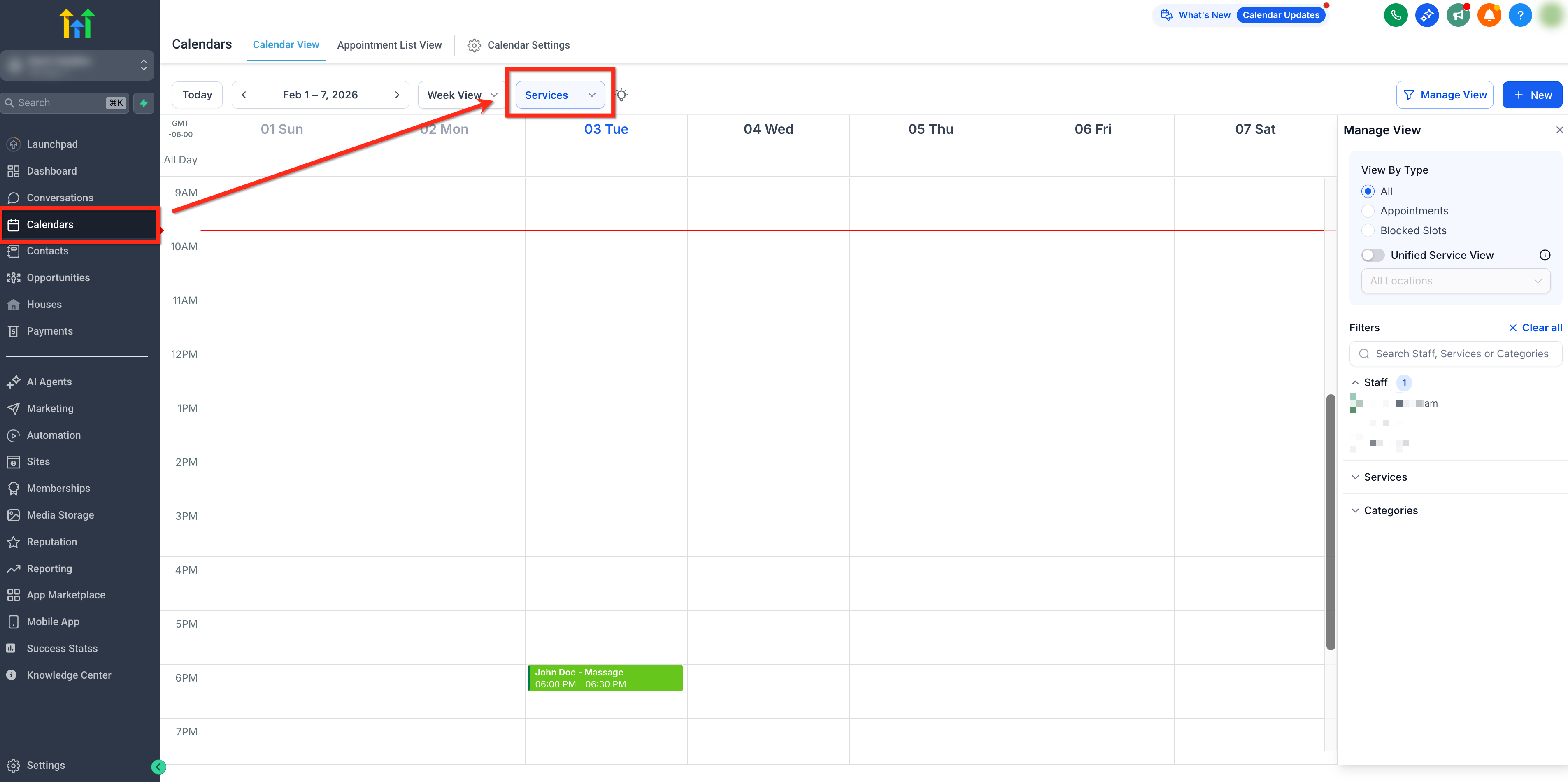
Go to Calendars → Calendar View (or Appointment List View) → Services.
Click any appointment to open Booking Details in the side panel (the Appointment modal).
For more information, see: Calendar View – Services.Generate and Copy a Reschedule Link
Use the appointment’s reschedule link when you want the customer to choose a new time themselves. You can generate the link directly from an existing Service appointment and share it through your preferred communication channel.
- Open the Service appointment.
- Click Appointment Actions.
- Select Generate Reschedule Link.
- After the link is generated, click Copy Link.
- Share the link with the customer.
The customer can open the shared link and use the existing rescheduling flow to choose a new appointment time.
Edit Service Appointments
Edit Unpaid Appointments
Users can fully modify unpaid Service Appointments directly from the edit screen without needing to cancel or rebook. This make it easier to handle last-minute requests, corrections or changes, with far less friction.
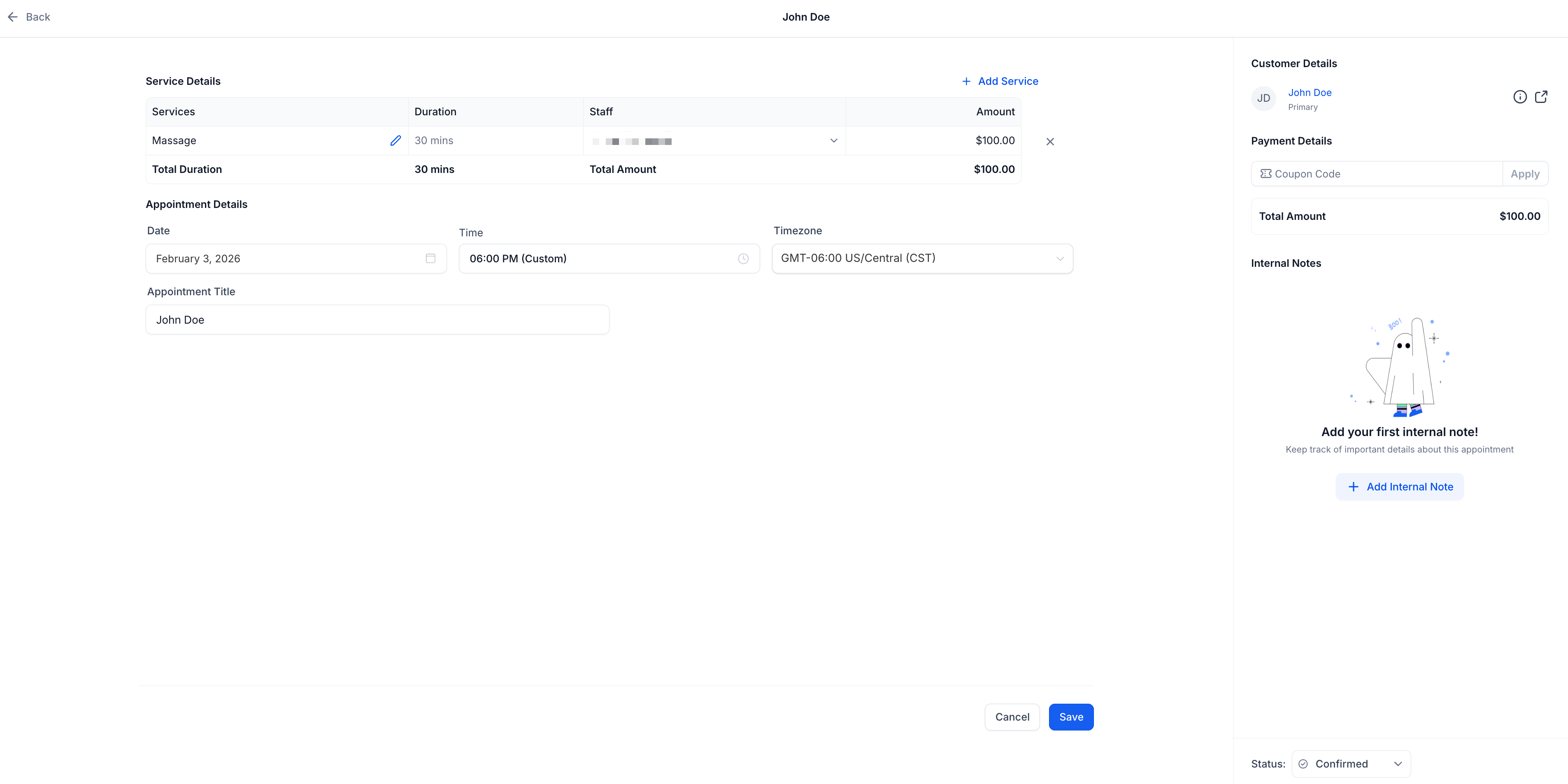
Users can now update nearly all appointment details with ease, including the ability to:
- Add/remove Services
- Add/remove Add-Ons
- Change Staff or Service Variants
- Change Location, appointment title, appointment date/time, timezone, or coupon codes
To edit an unpaid service appointment, follow these steps:
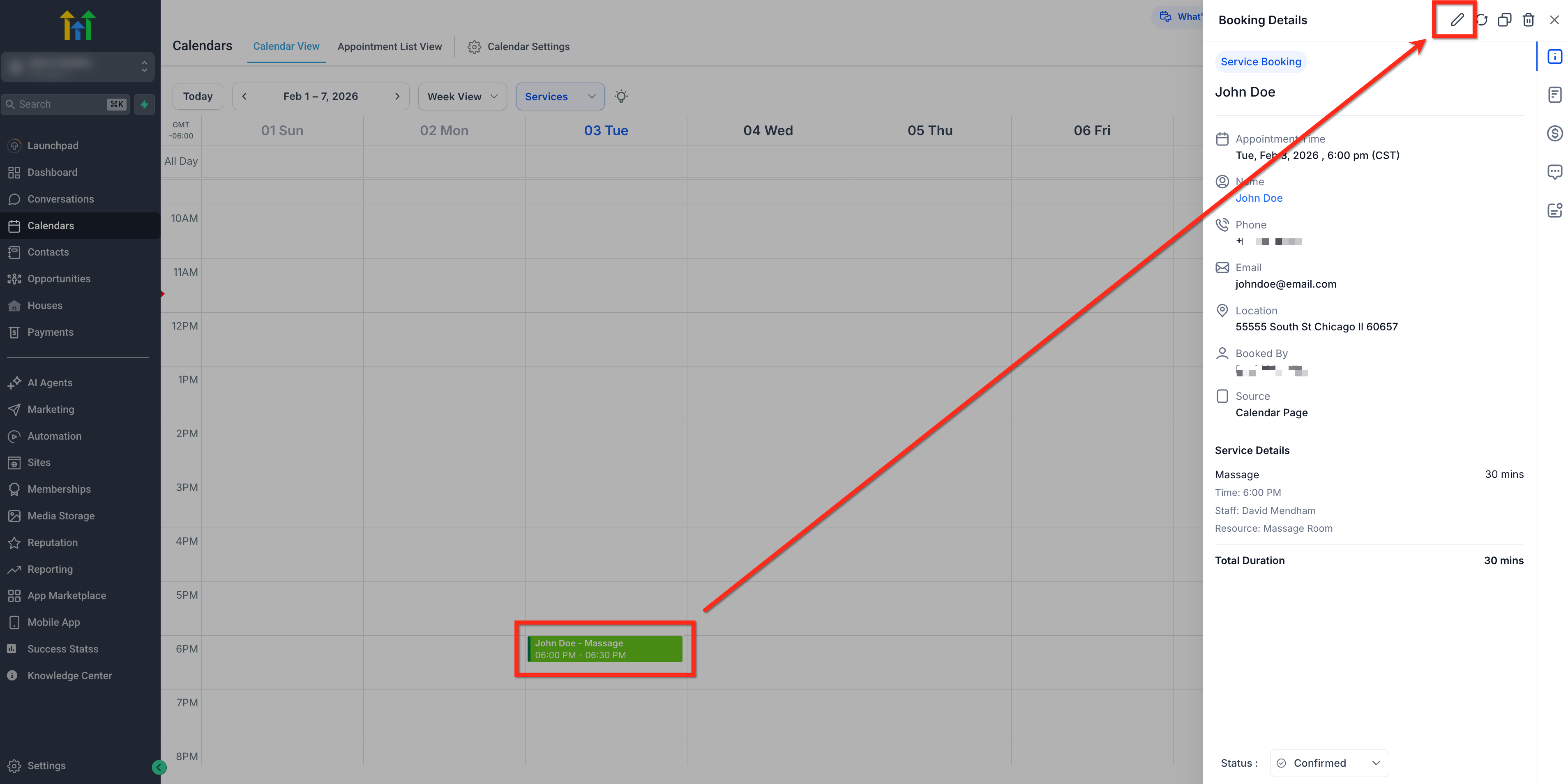
Select the Appointment you want to edit then click the pencil icon to open the editor.
.Adjust services, add-ons, staff/variant, location, title, date/time, timezone, or coupon then click Save.
Enhanced Support for Paid Appointments
Paid appointments remain locked for structural changes (e.g., service or staff), but you can now duplicate appointment to quickly clone the appointment, make edits, and rebook without starting from scratch.
A clear message in the edit screen that explains what's editable and what’s not, so there’s no confusion.
Duplicate Service Appointments
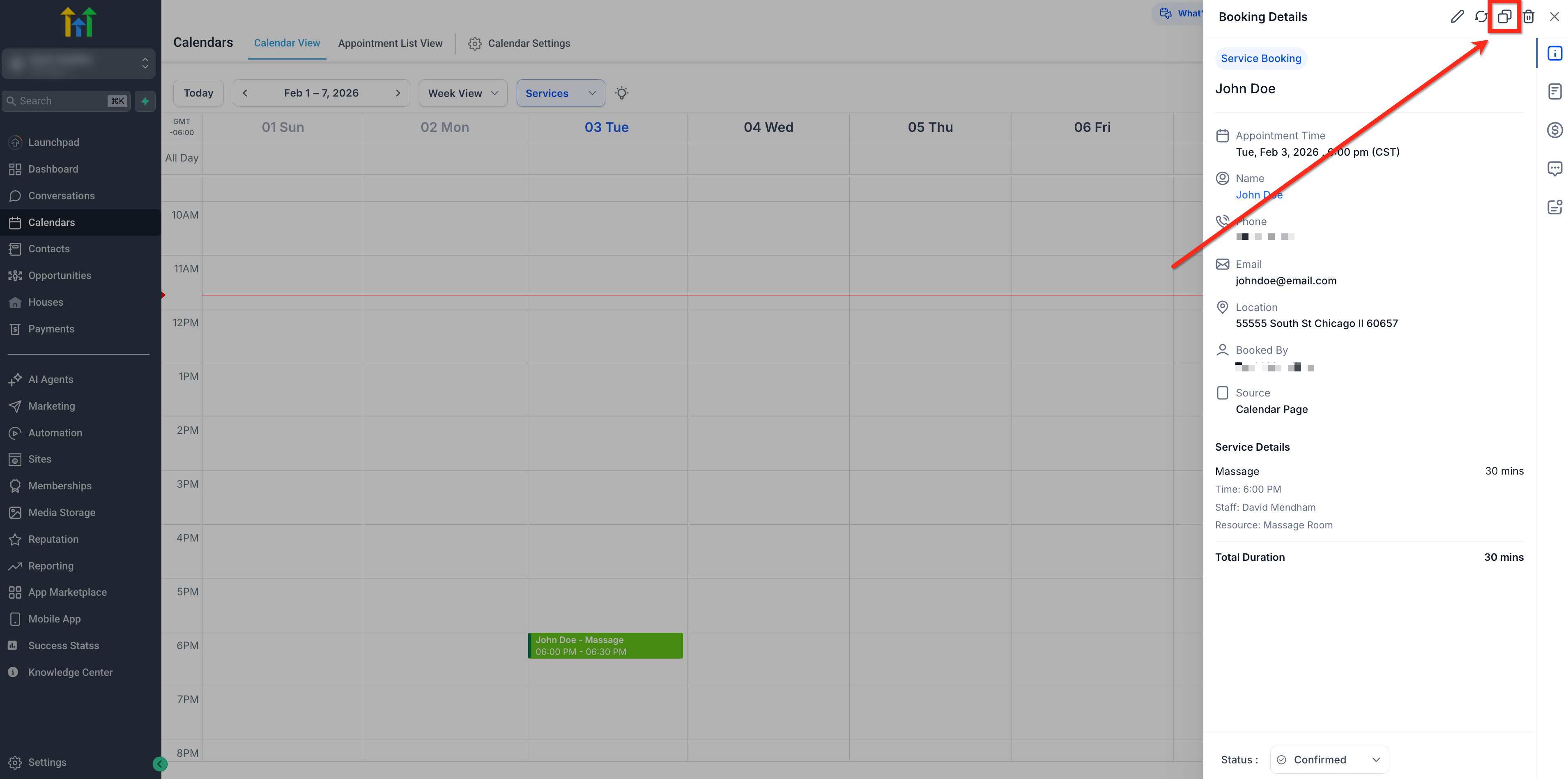
The Duplicate Appointment button is available in the appointment modal. With one click, you can create a new booking carrying over all the same details, making it much faster to set up repeat or similar appointments without re-typing everything.
To duplicate an appointment, click on the appointment you want to duplicate then select the Duplicate icon.
Blocked Slots on Your Service Calendar
Blocked slots help you quickly mark unavailable time during the booking flow, keeping your calendar accurate and preventing accidental bookings.
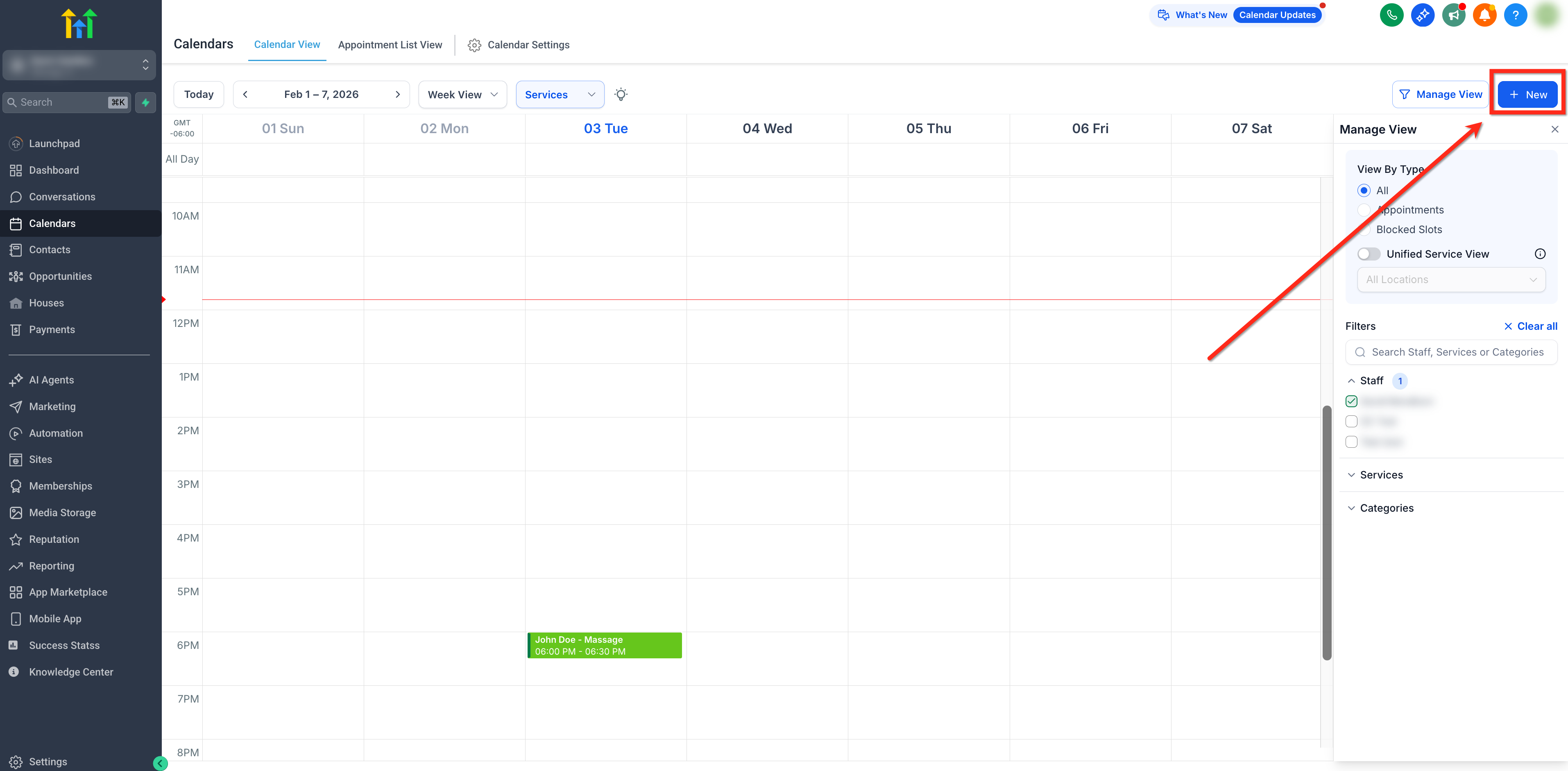
To create a blocked slot, follow these steps:
Click New Booking in your calendar.
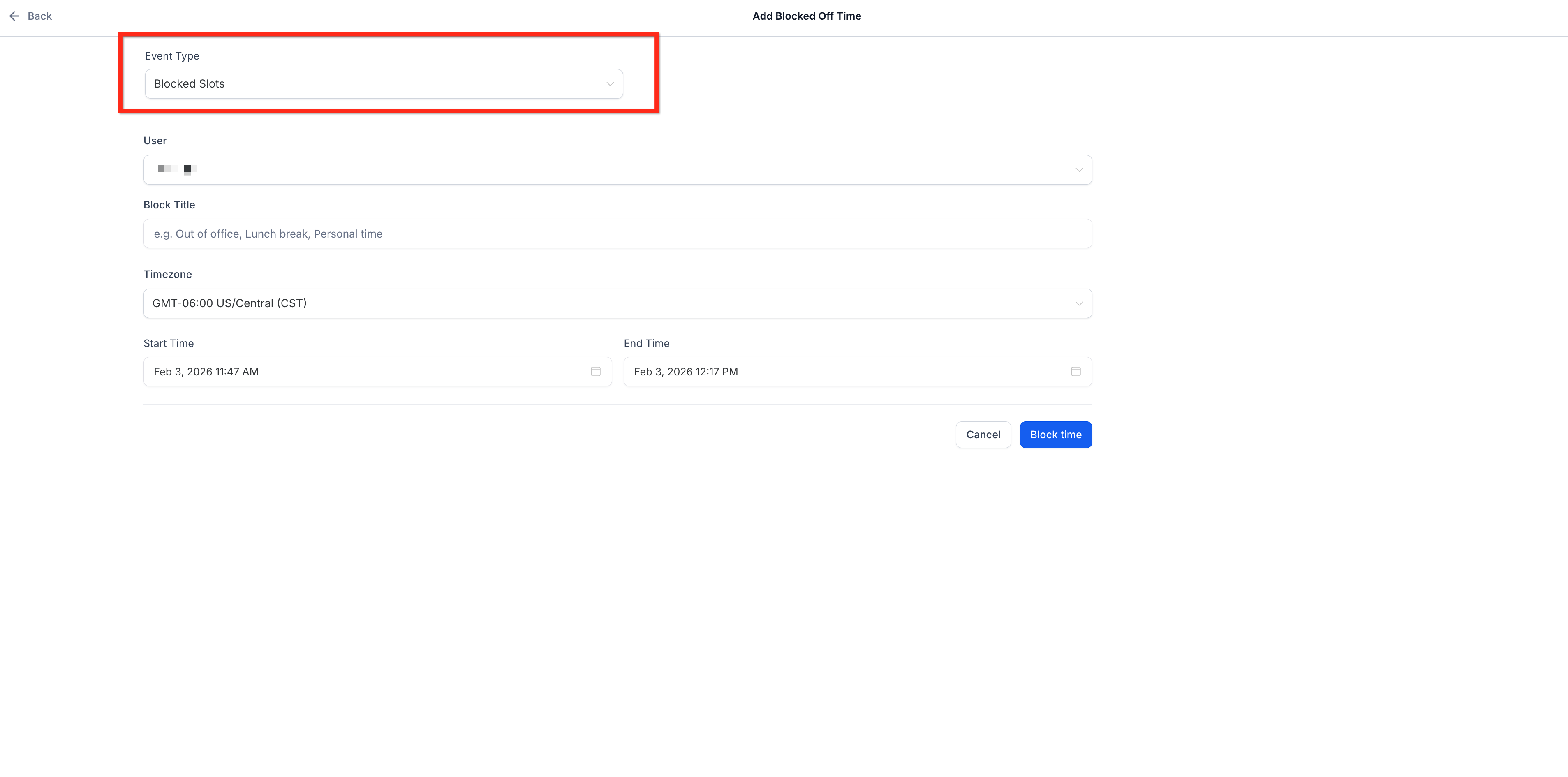
Switch Event Type to Blocked Slot.
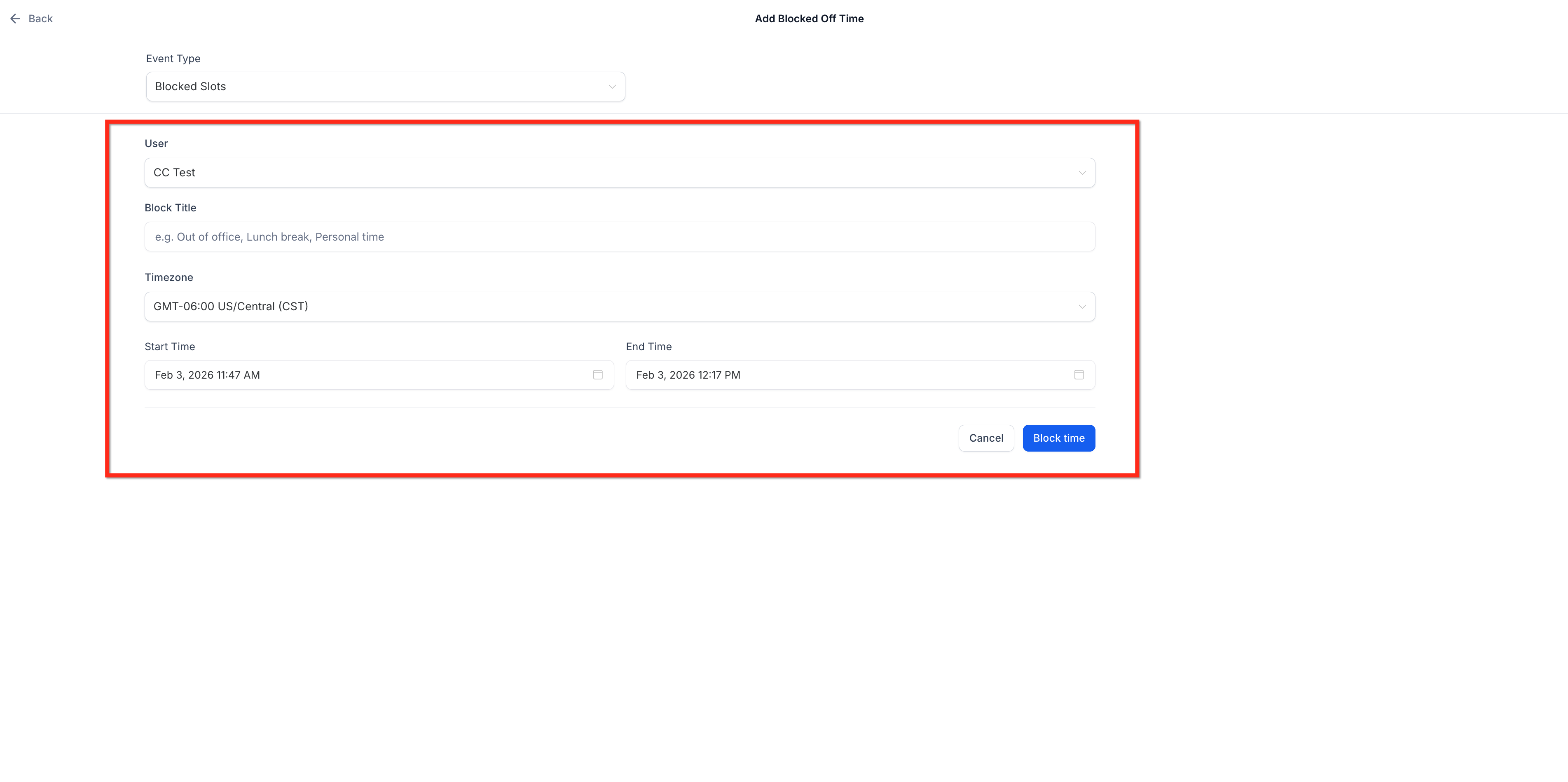
Select date/time, title and staff then click Block Time.
Show Resource in Appointment Modal
The appointment modal now displays the resource that was booked. This makes it clearer who or what has been reserved and helps avoid confusion around resource allocation.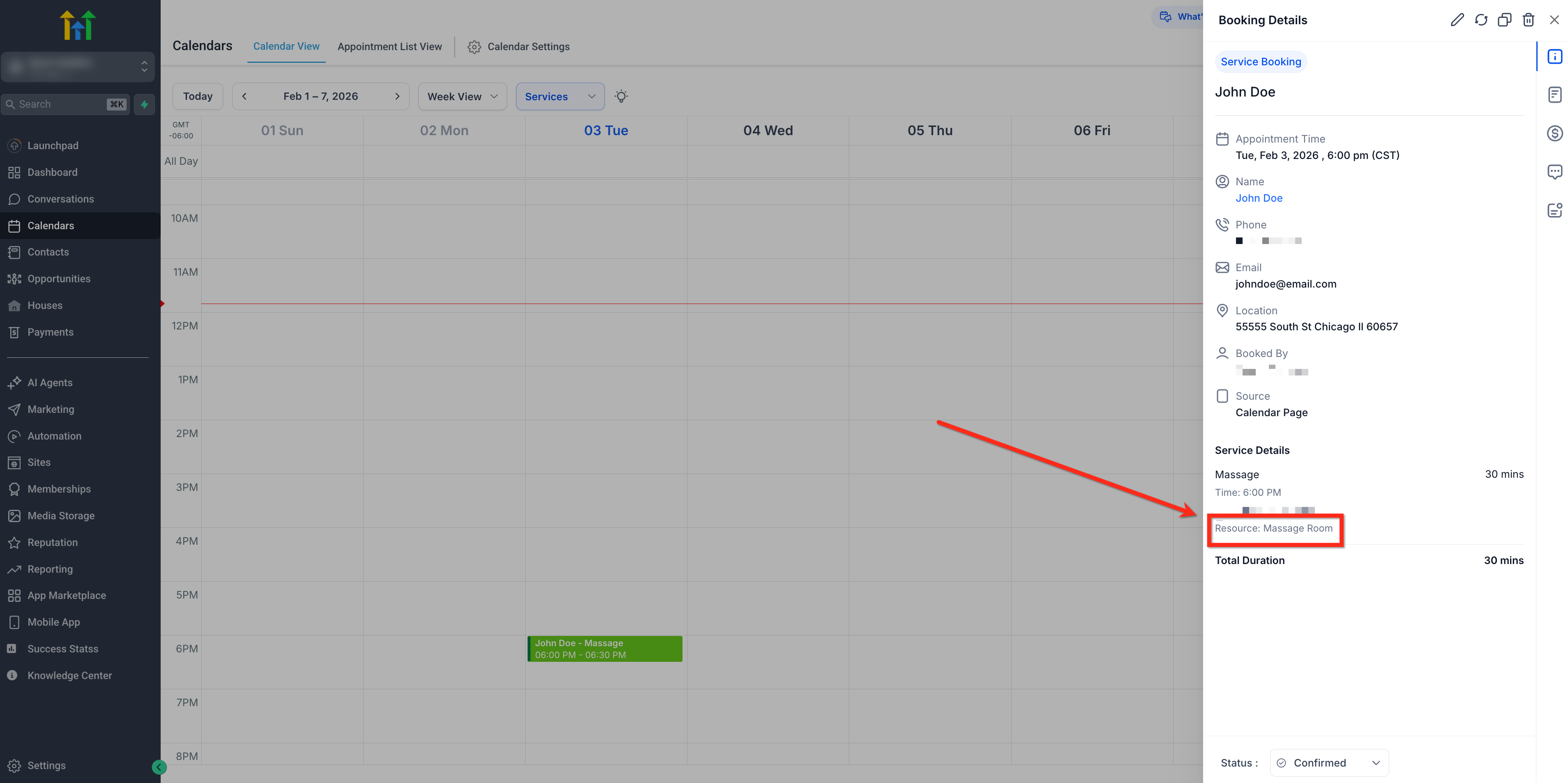
Use Custom Values in Service Notifications
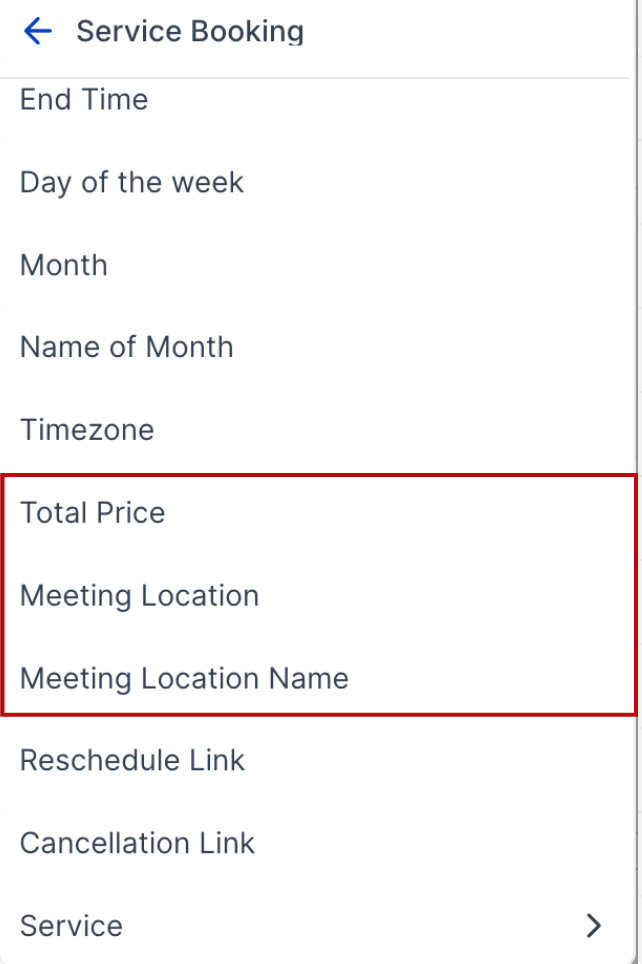
Two custom values that can be used in calendar notifications:
- Service Booking Price
- Meeting Location Name (short label instead of full address)
These provide dynamic details you can use to personalize confirmations, reminders, and other customer touch points.
Go to Calendars → Calendar Settings → Notifications.
Open the template (confirmation, reminder, etc.).
Insert Service Booking Price, or Meeting Location Name from the merge field picker.
Save and test.
Frequently Asked Questions
Q: Can I change the staff or service after payment is collected?
Structural edits (services, add-ons, staff/variant, coupon, title, location) are locked on paid bookings. Reschedule date/time or use Duplicate Appointment to rebook with changes.
Q: What carries over when I duplicate an appointment?
Contact, services, add-ons, staff/resource, meeting location, and notes typically carry over. Adjust anything needed before booking the copy.
Q: Does rescheduling a paid appointment change the existing order or payment?
No. The payment remains associated with the original booking.
Related Articles
- How To Create Service Calendars
- Calendar View for Rentals
- Troubleshooting Tool for Calendar
- Payments Tab in Calendars
Was this article helpful?
That’s Great!
Thank you for your feedback
Sorry! We couldn't be helpful
Thank you for your feedback
Feedback sent
We appreciate your effort and will try to fix the article