Managing Service v2 appointments from the mobile app helps your team make quick booking updates without switching to desktop. You can edit, reschedule, duplicate, delete, or generate a customer reschedule link for Service Calendar v2 appointments directly from the appointment detail screen. This gives staff more flexibility when handling last-minute client changes, repeat bookings, or appointment corrections while on the go.
TABLE OF CONTENTS
- What is Mobile Service v2 Appointment Management?
- Key Benefits of Mobile Service v2 Appointment Management
- Availability and Requirements
- Appointment Actions Available from Mobile
- Editing Unpaid Service v2 Appointments
- Editing Paid Service v2 Appointments
- Rescheduling Service v2 Appointments
- Duplicating Service v2 Appointments
- Deleting Service v2 Appointments
- Managing Appointments with Associated Services
- How To Manage Service v2 Appointments in the Mobile App
- Frequently Asked Questions
- Related Articles
What is Mobile Service v2 Appointment Management?
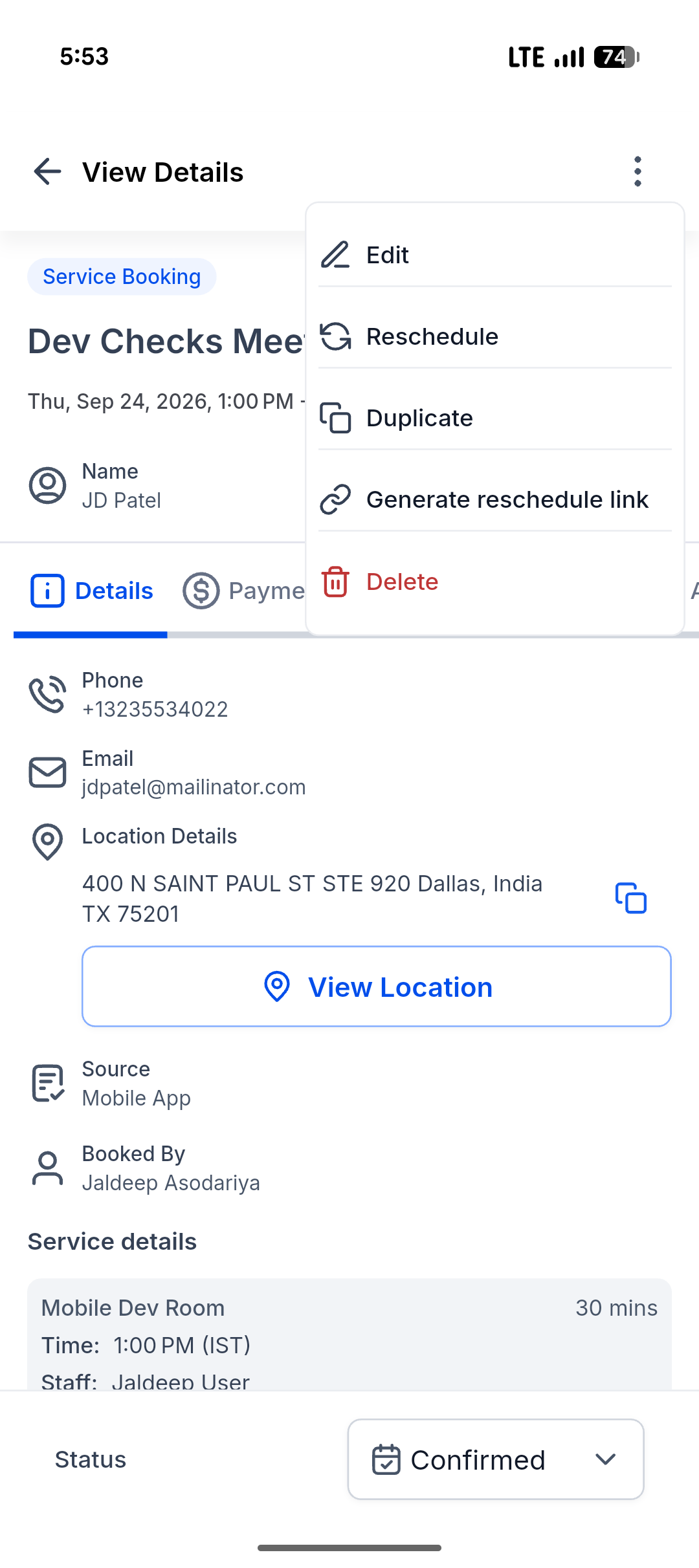
Mobile Service v2 Appointment Management allows users to manage the full lifecycle of Service Calendar v2 appointments from the HighLevel mobile app. From an appointment's detail screen, users can open the action menu and choose to edit, reschedule, duplicate, delete, or generate a reschedule link for the customer.
This feature is designed for service-based teams that need to respond quickly to customer requests from a phone. Instead of waiting to access the desktop calendar, users can make supported updates directly inside the mobile app.
Key Benefits of Mobile Service v2 Appointment Management
Managing appointments from mobile helps teams stay responsive when clients request changes outside the office. These mobile actions reduce delays, improve scheduling accuracy, and help staff manage bookings from wherever they are working.
Manage Appointments on the Go: Edit, reschedule, duplicate, or delete Service v2 appointments directly from the mobile app.
Respond Faster to Client Requests: Handle appointment changes immediately when a customer calls, texts, or emails.
Save Time with Duplicate Appointment: Copy an existing appointment and adjust the details instead of creating a new booking from scratch.
Reduce Scheduling Friction: Reschedule appointments quickly so clients do not need to wait for a desktop user to make changes.
Protect Paid Bookings: Paid appointment restrictions help prevent accidental changes to service or staff details after payment has been collected.
Maintain Mobile and Web Consistency: Manage Service v2 appointments from mobile using actions similar to the web calendar experience.
Availability and Requirements
Mobile Service v2 appointment actions are available only for supported Service Calendar v2 appointments. Confirming app and appointment eligibility helps users understand why the action menu may or may not appear for certain bookings.
This feature is available for:
Service Calendar v2 appointments only
HighLevel mobile app
LeadConnector mobile app
White-labeled mobile apps
Mobile app version 4.10.0 (810) or later
This feature is available in the app only. It is not available through native or share-link appointment flows.
Appointment Actions Available from Mobile
The appointment action menu gives users quick access to the main actions needed to manage an existing Service v2 booking. Each action supports a different appointment management need, from changing a time slot to removing a booking entirely.
Available actions include:
Edit: Update supported appointment details, such as services, add-ons, staff, variants, location, title, date, time, timezone, coupon codes, internal notes, or status.
Reschedule: Go directly to date and time selection to choose a new appointment slot.
Duplicate: Clone an appointment with details pre-filled so you can adjust and save it as a new booking.
Delete: Remove the appointment after confirming the deletion.
Generate reschedule link: Share the appointment's reschedule link so the customer can select a new appointment time. Tapping Share copies the link and opens the device's native share sheet.
Location Details in Service v2 Appointments
Location details help users quickly understand where the appointment is happening and what action to take next. Showing the right location value directly in the appointment view reduces friction when traveling to a physical address or joining a virtual meeting.
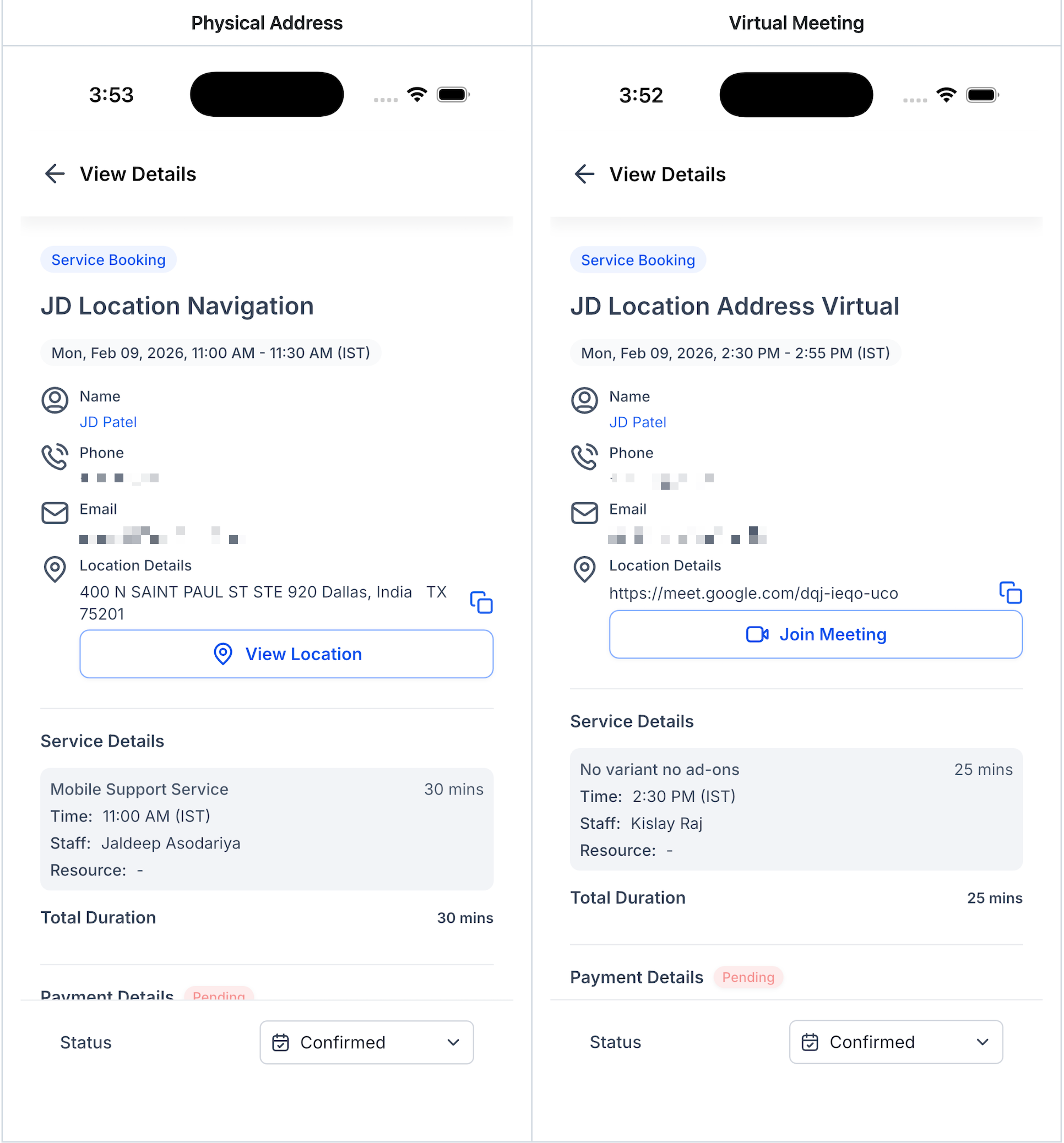
In the mobile Service v2 appointment view, the Location Details area now displays the most relevant location value based on the appointment type.
For physical appointments, users can:
- view the full address
- copy the displayed address
- tap View Location to open navigation options
For virtual appointments, users can:
- view the meeting URL
- copy the displayed URL
- tap Join Meeting to launch the meeting directly
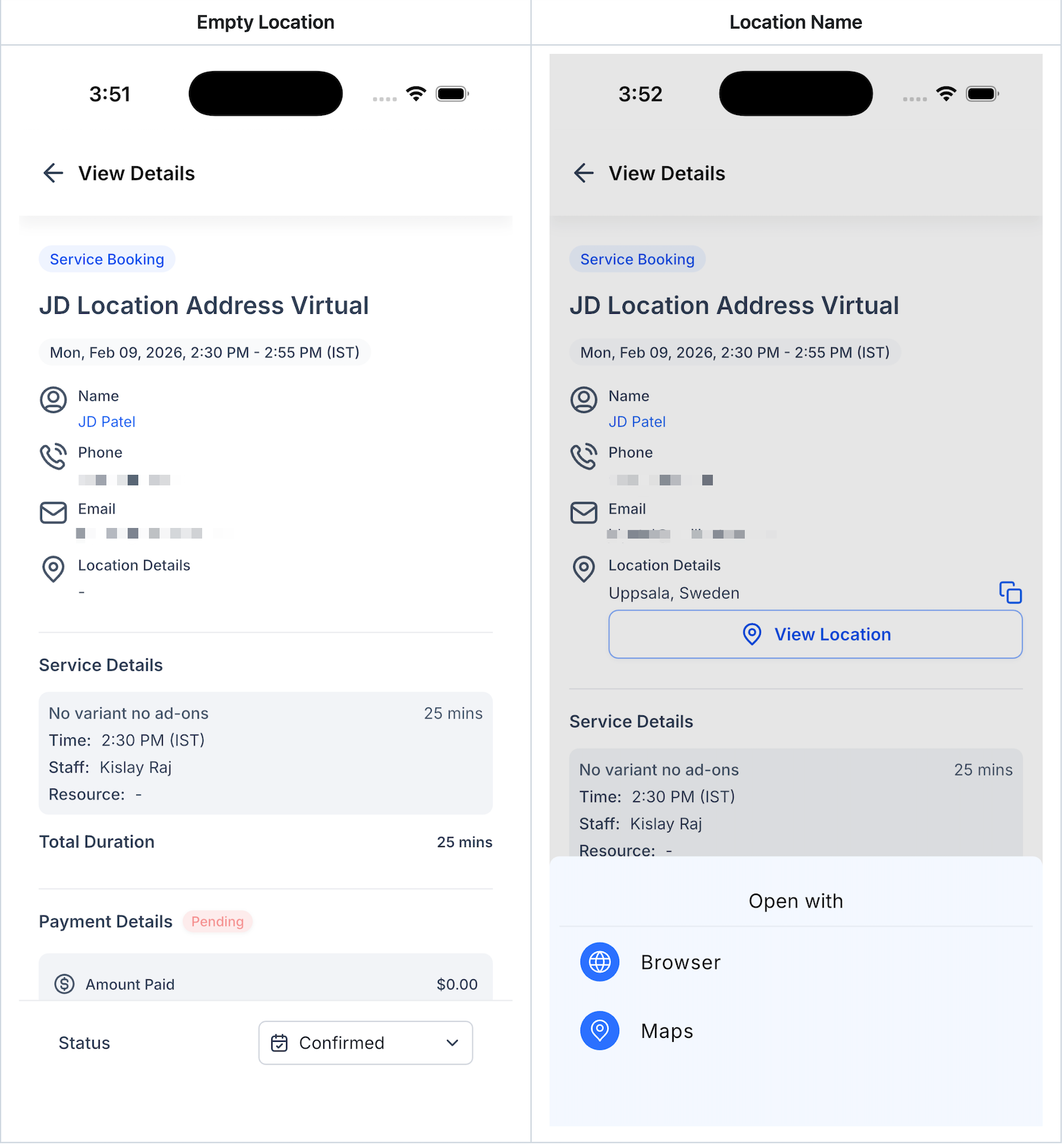
Fallback behavior:
- if a full address is available, that value is shown
- if a full address is not available, the location name is shown
- if neither value is available, the field shows -
This update applies to Service Calendar v2 appointments in the mobile app.
Editing Unpaid Service v2 Appointments
Unpaid appointments support the most flexible editing experience because no collected payment needs to be protected. This allows teams to update booking details when a customer changes their service needs, preferred staff member, or appointment information.
For unpaid Service v2 appointments, users can edit supported fields such as:
Services
Add-ons
Staff
Variants
Location
Appointment title
Date and time
Timezone
Coupon codes
Internal notes
Appointment status
After making changes, tap Save Changes to update the appointment.
Editing Paid Service v2 Appointments
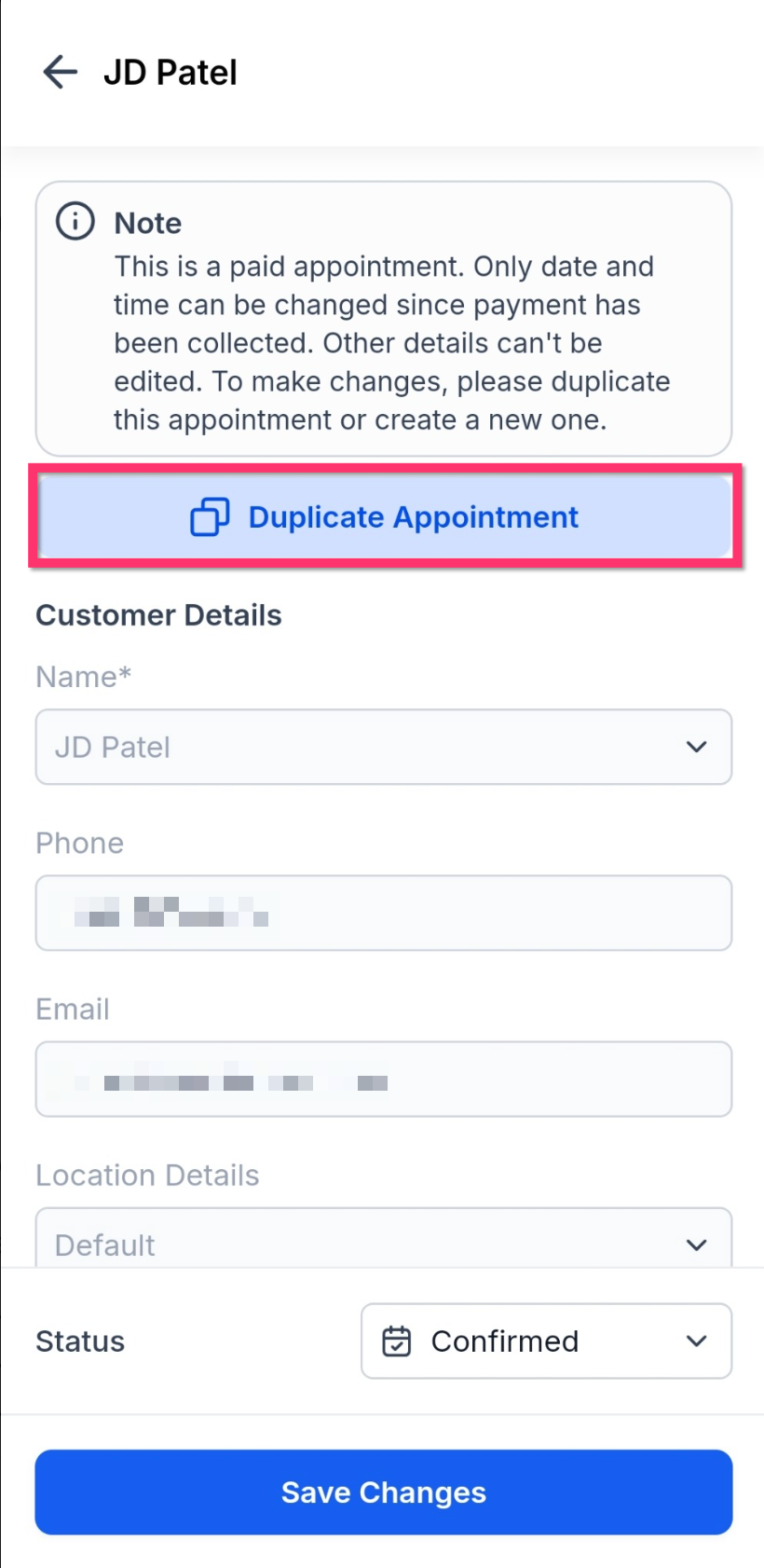
Paid appointments have editing limits to protect payment accuracy and prevent accidental changes to details tied to the collected payment. When payment has already been collected, the app explains which fields are locked and why.
For paid appointments:
Date and time can be changed.
Structural details such as service and staff are locked.
Some customer, service, or payment-related fields may appear disabled.
Use Duplicate Appointment when you need to create a new booking with different service or staff details.
The app displays a note explaining that the appointment is paid and that only supported details can be changed. This helps users avoid making changes that could conflict with the original payment.
Rescheduling Service v2 Appointments
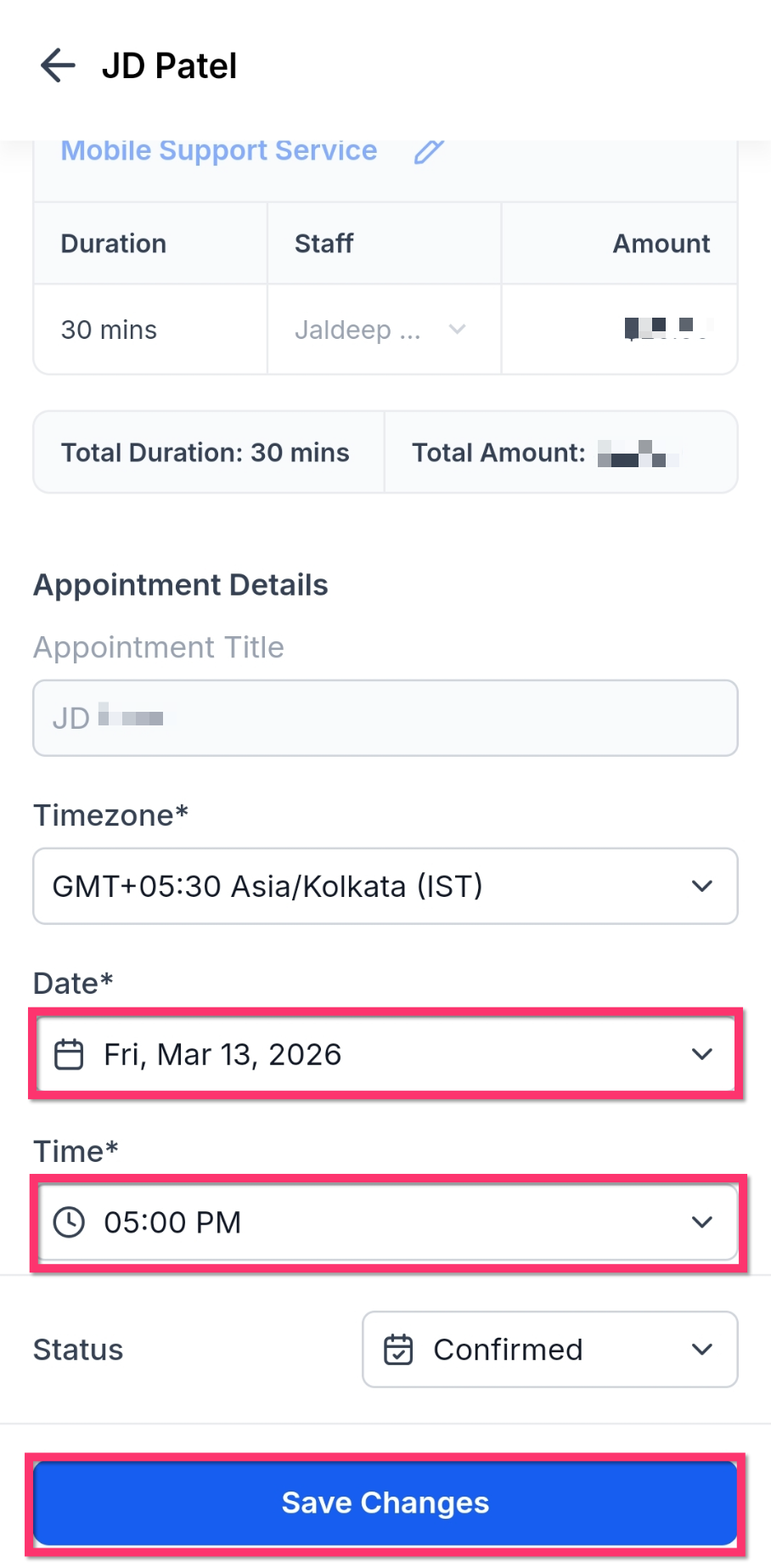
Rescheduling lets users quickly move an appointment to a new date or time without rebuilding the full booking. This is useful when a client requests a different slot or when staff availability changes.
When rescheduling from mobile, users can update appointment scheduling details such as:
Timezone
Date
Time
Appointment status, where available
The date picker is timezone-aware and helps prevent unavailable past dates from being selected. After choosing the updated schedule, tap Save Changes.
Sharing a Reschedule Link for a Service v2 Appointment
You can share the appointment's reschedule link instead of selecting a new time on the customer's behalf.
To share a reschedule link:
1. Open the Service v2 appointment.
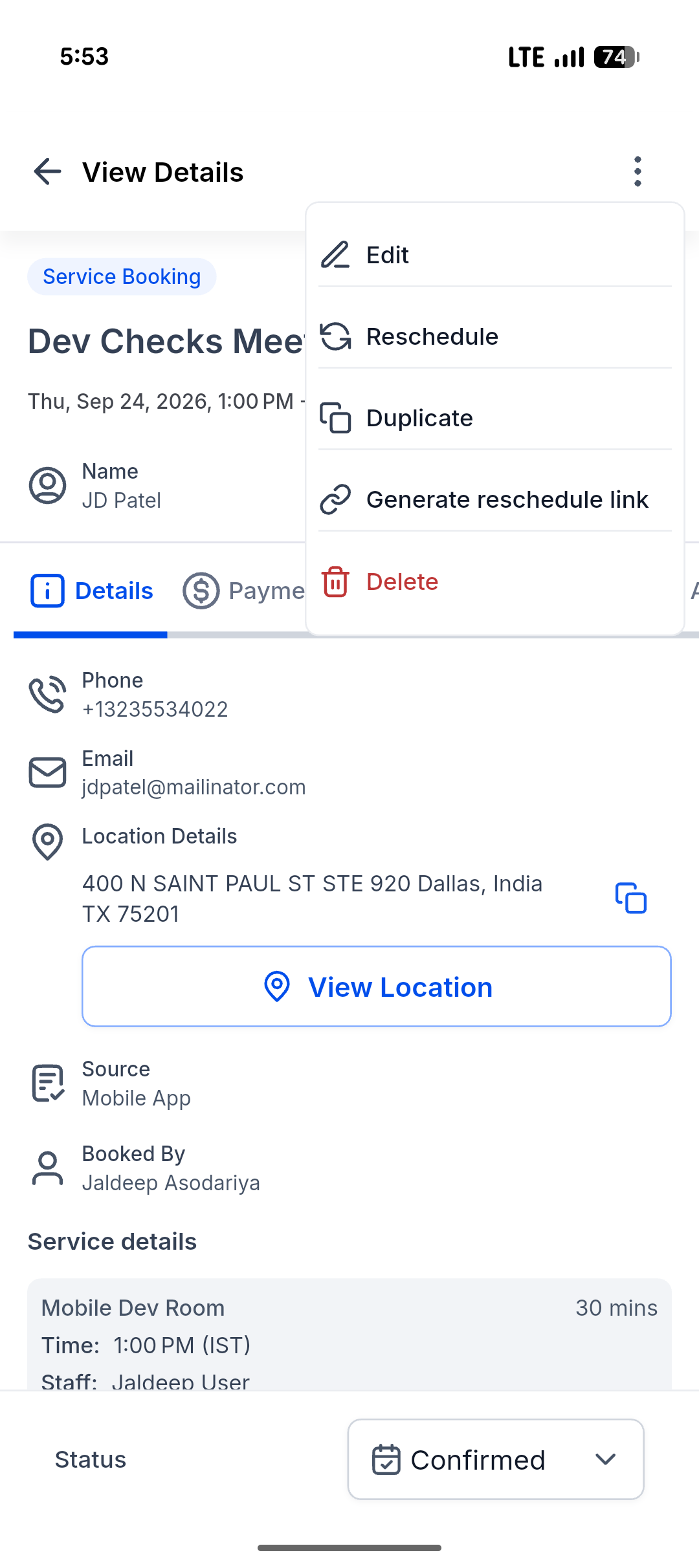
2. Tap the three-dot menu in the upper-right corner.
3. Tap Generate reschedule link.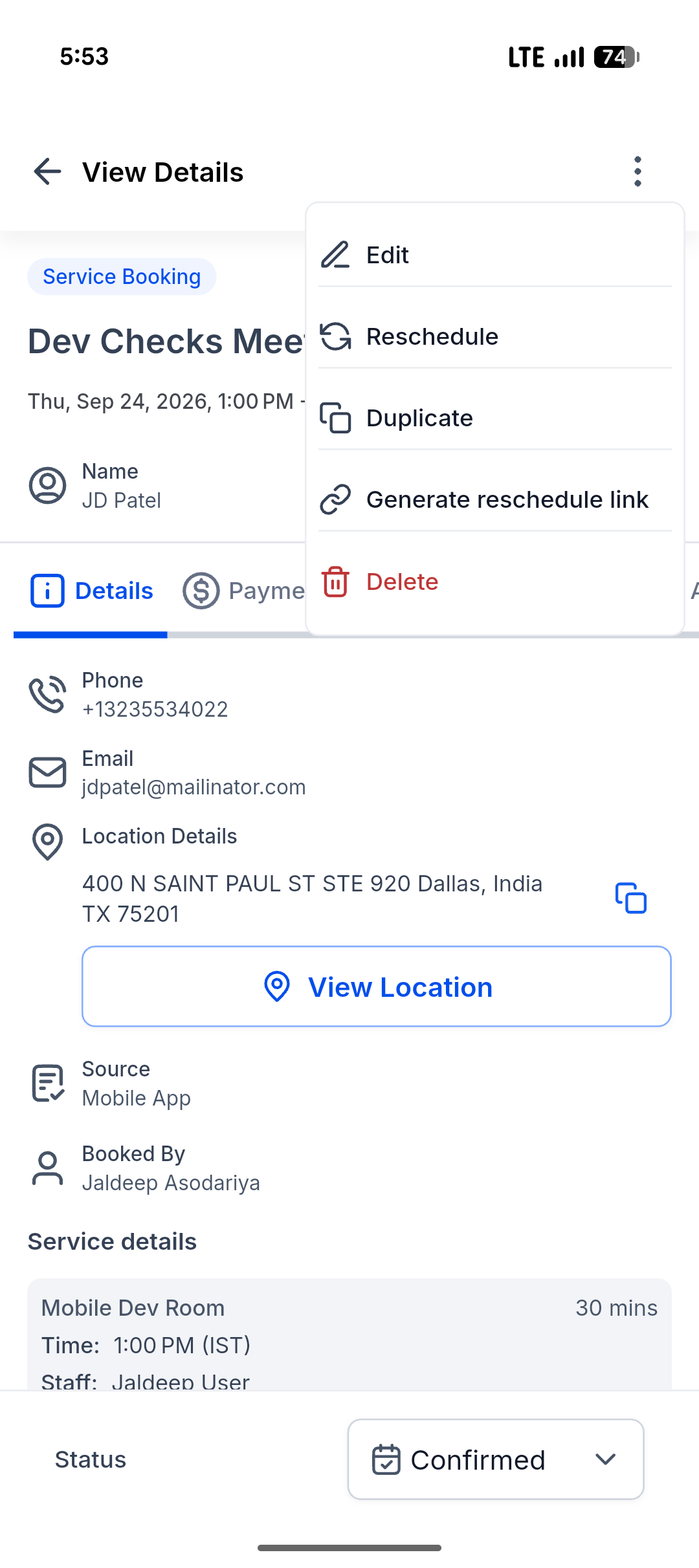
4. Review the link in the Share a reschedule link sheet. Tap Share.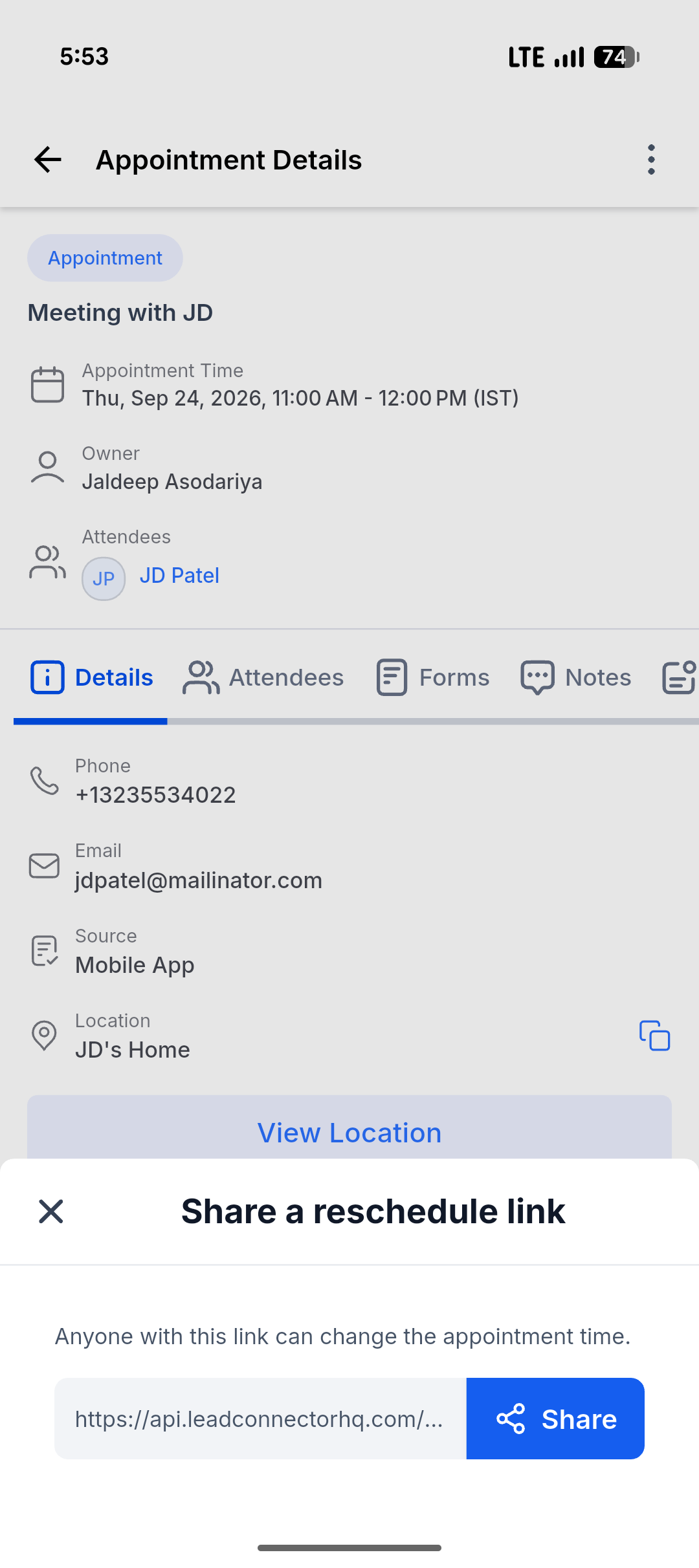
5. Select an app from your device's native share sheet.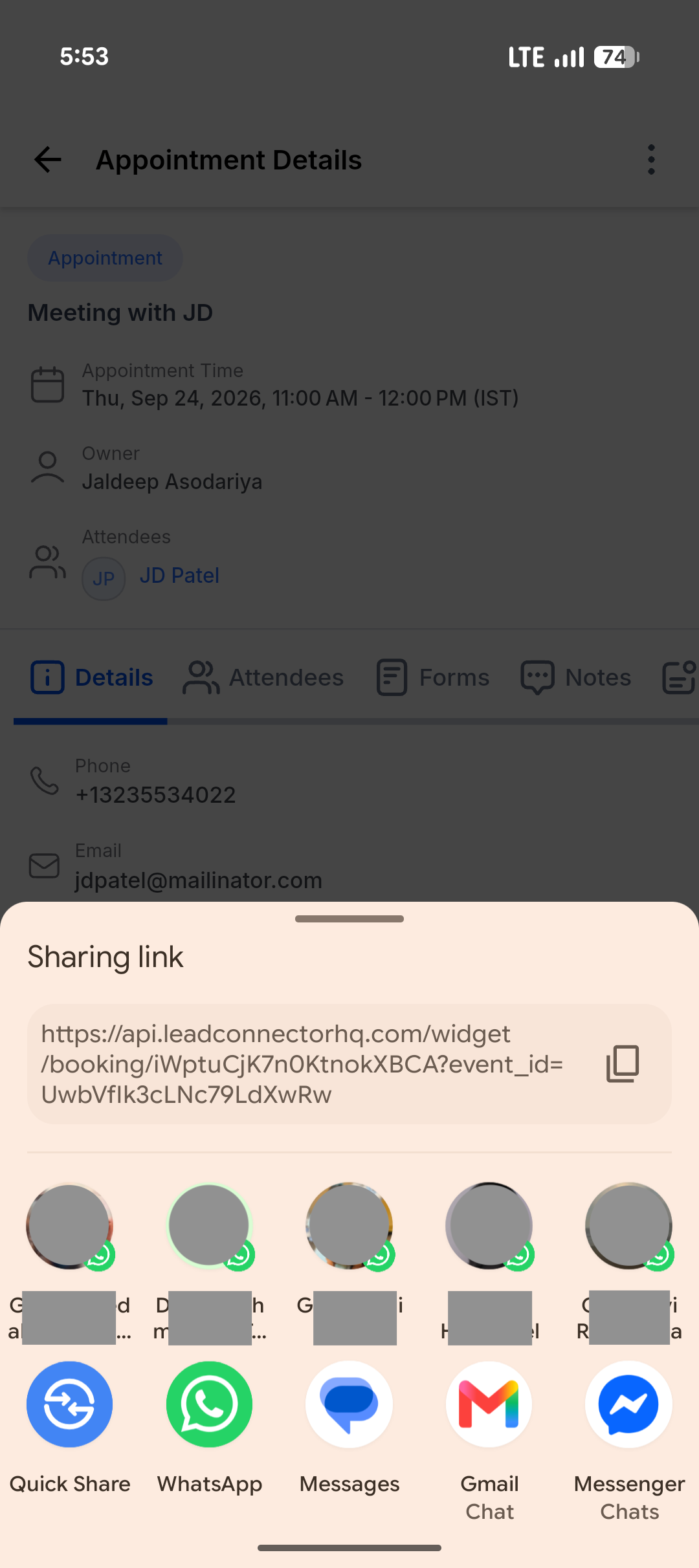
Tapping Share also copies the reschedule link to your clipboard. The action menu appears after the Service booking loads when you have permission to manage the appointment.
If the link cannot be built, the sheet displays N/A and the Share button is disabled.
Duplicating Service v2 Appointments
Duplicating an appointment creates a new booking using the existing appointment details as a starting point. This is helpful for repeat customers, similar service requests, or paid bookings where locked details cannot be changed directly.
Use Duplicate Appointment when:
A customer wants the same or similar service again.
A paid appointment needs structural changes, such as different service or staff details.
You want to reuse appointment details without manually entering everything again.
You are duplicating a past appointment and want to use today’s date as the starting point.
After duplicating, review the copied details, make any needed changes, and save the new appointment.
Deleting Service v2 Appointments
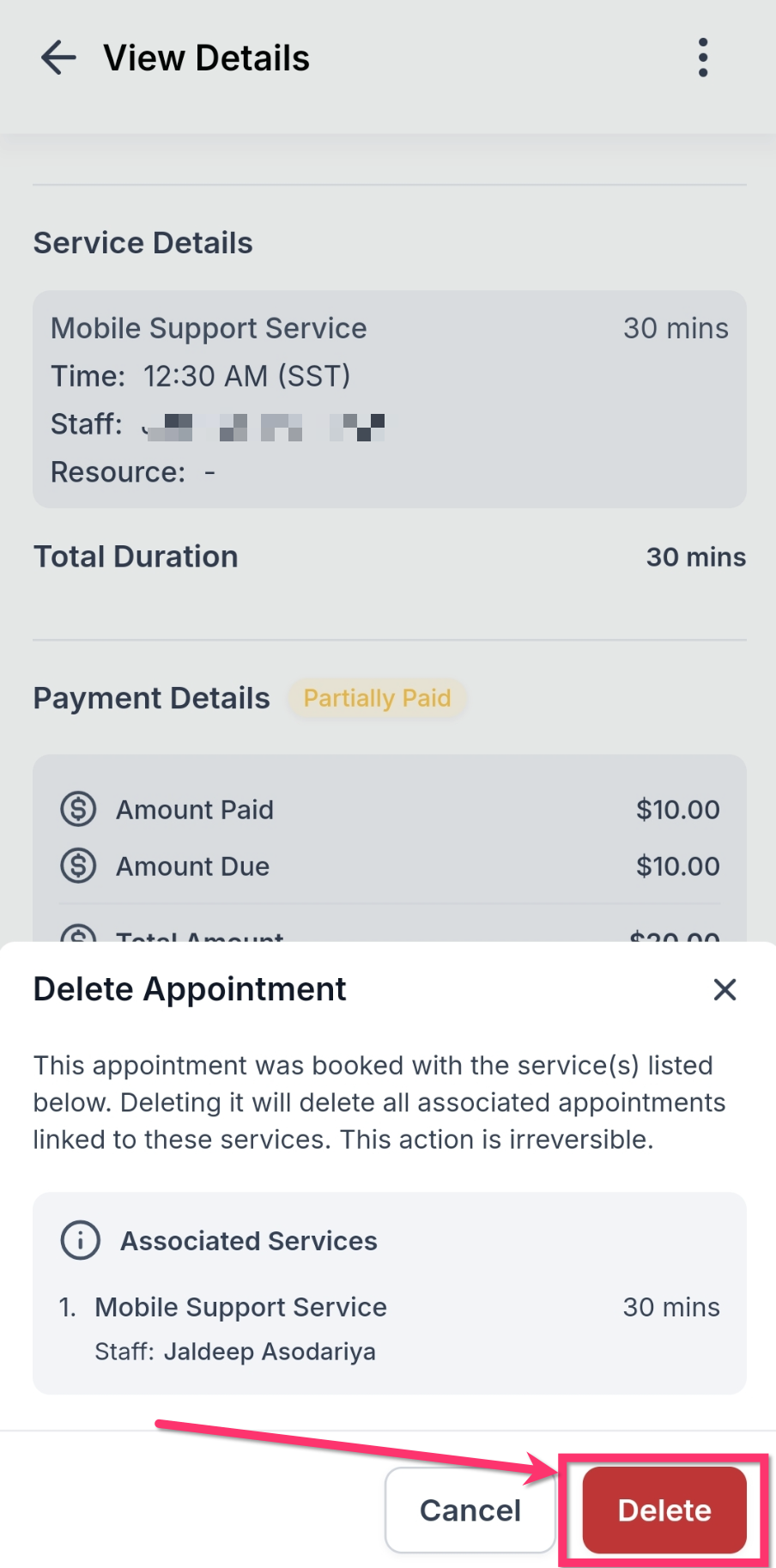
Deleting an appointment removes the booking after confirmation. The confirmation step helps prevent accidental deletion, especially when the appointment includes associated services.
Before deleting, review the confirmation sheet carefully. If the appointment includes multiple associated services, deleting it may also delete the associated appointments linked to those services.
Managing Appointments with Associated Services
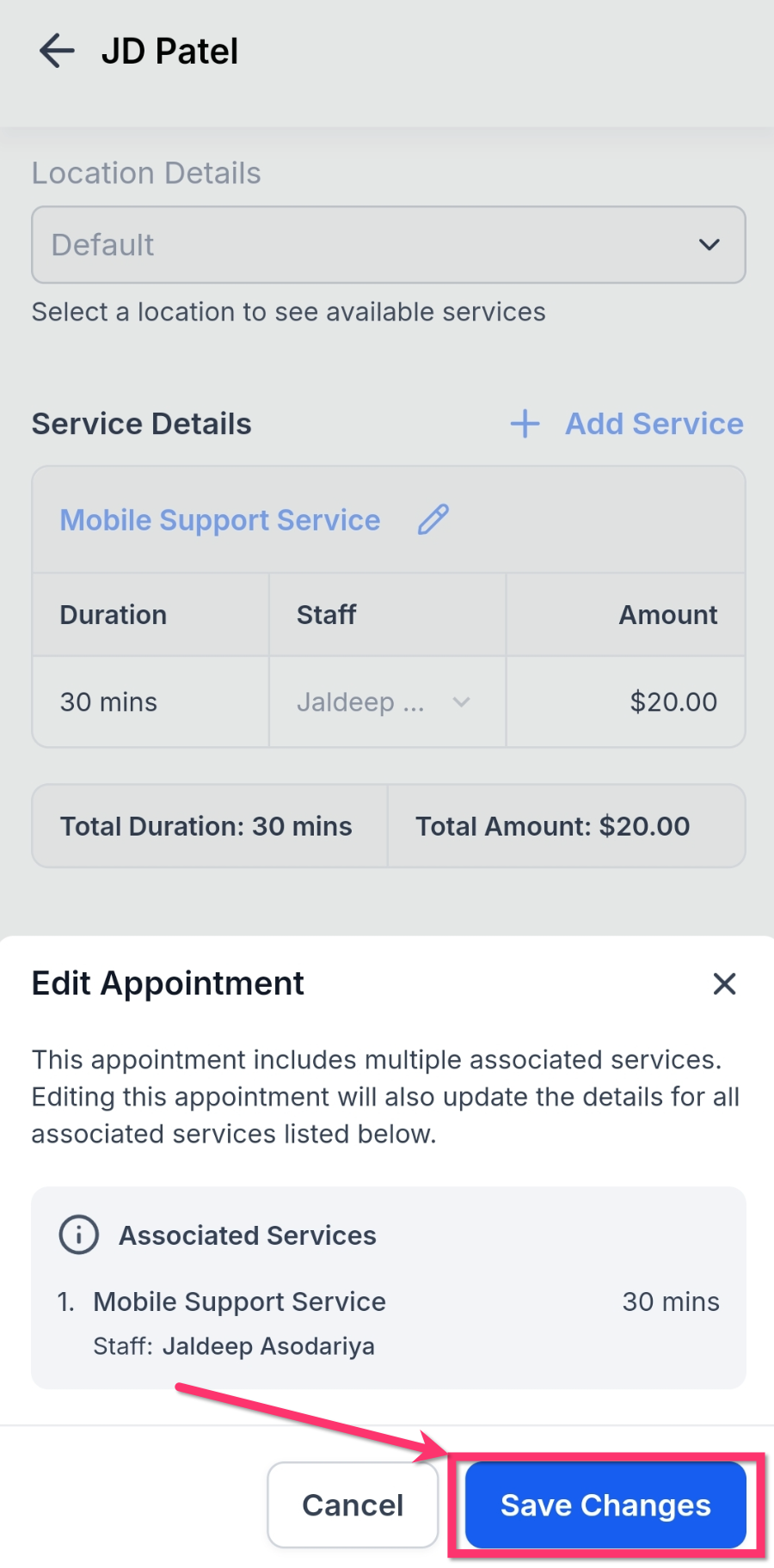
Some Service v2 bookings may include multiple associated services. When editing or deleting these appointments, the app may show a confirmation sheet explaining that the changes apply to the associated services listed.
Review the associated services before saving or deleting so you understand which linked appointments will be updated or removed. This confirmation helps protect multi-service bookings from unintended changes.
Screenshot Placeholder: Add a screenshot showing the Edit Appointment confirmation sheet explaining that changes will update associated services.
How To Manage Service v2 Appointments in the Mobile App
Managing Service v2 appointments from mobile starts from the calendar appointment detail screen. Opening the action menu gives users access to supported appointment actions based on appointment type and payment status.
Open the mobile app.
Go to Calendars.
Switch to any Calendar View.
Tap a Service v2 appointment to open the appointment detail screen.
Tap the three-dot menu in the top-right corner.
Choose one of the available actions:
Edit
Reschedule
Duplicate
Delete
Generate reschedule link
Review any notes, restrictions, or confirmation messages shown in the app.
Make the needed changes.
Tap Save Changes, or confirm the action when deleting.
For paid appointments, use Duplicate Appointment when the details you need to change are locked.
Frequently Asked Questions
Q: Is this available for all appointment types?
No. These actions are available for Service Calendar v2 appointments only.
Q: Which mobile apps support this feature?
This feature is available in the HighLevel mobile app, LeadConnector mobile app, and white-labeled mobile apps.
Q: What app version is required?
Mobile app version 4.10.0 (810) or later is required.
Q: Can I edit paid appointments from the mobile app?
Yes, but paid appointments have restrictions. Date and time can be changed, while structural details such as service and staff are locked after payment has been collected.
Q: Why are some fields disabled when I edit an appointment?
Some fields may be disabled because the appointment is paid. These restrictions help protect payment accuracy and prevent changes that could conflict with the collected payment.
Q: When should I duplicate instead of edit?
Use Duplicate Appointment when you need to create a similar booking, rebook a repeat customer, or make structural changes to a paid appointment that cannot be edited directly.
Q: Can I delete an appointment with associated services?
Yes, but review the confirmation sheet carefully. Deleting an appointment with associated services may also delete the linked associated appointments.
Q: Can I reschedule a Service v2 appointment from mobile?
Yes. Open the appointment detail screen, tap the three-dot menu, and select Reschedule to choose a new date or time.
Q: Does this work from booking links or native/share-link flows?
No. This feature is available in the mobile app only.
Q: Can I send the customer a reschedule link instead of rescheduling the appointment myself?
Yes. Open the Service v2 appointment, tap the three-dot menu, and select Generate reschedule link. Tap Share to copy the link and open your device's native share sheet.
Related Articles
Was this article helpful?
That’s Great!
Thank you for your feedback
Sorry! We couldn't be helpful
Thank you for your feedback
Feedback sent
We appreciate your effort and will try to fix the article