HighLevel allows you to add retail products directly to service appointments, so customers can purchase services and products during the same visit. You can select products from your catalog, adjust quantities and prices, and view the combined appointment total. Inventory also updates automatically for products with stock tracking enabled. This article explains how to add retail products and manage their payment and inventory details.
TABLE OF CONTENTS
- What are Retail Products in Service Appointments?
- Adding Retail Products to Appointments
- Managing Product Quantities and Prices
- Understanding Appointment Payments
- How Retail Products Affect Inventory
- Viewing Retail Products in Booking Details
- How to Add Retail Products to Service Appointments
- Frequently Asked Questions
- Related Articles
What are Retail Products in Service Appointments?
Retail Products in Service Appointments allow you to include catalog products in an eligible service booking.
For example, a salon can add two bottles of shampoo to a keratin treatment appointment. The service and products appear together in the appointment details and payment summary.
You can add products when creating or editing eligible appointments.
Important: Retail products are managed under Payments → Products, not Services. They cannot be added through the customer-facing booking page.
Adding Retail Products to Appointments
Retail products can be selected from your HighLevel catalog while creating or editing an eligible service appointment.
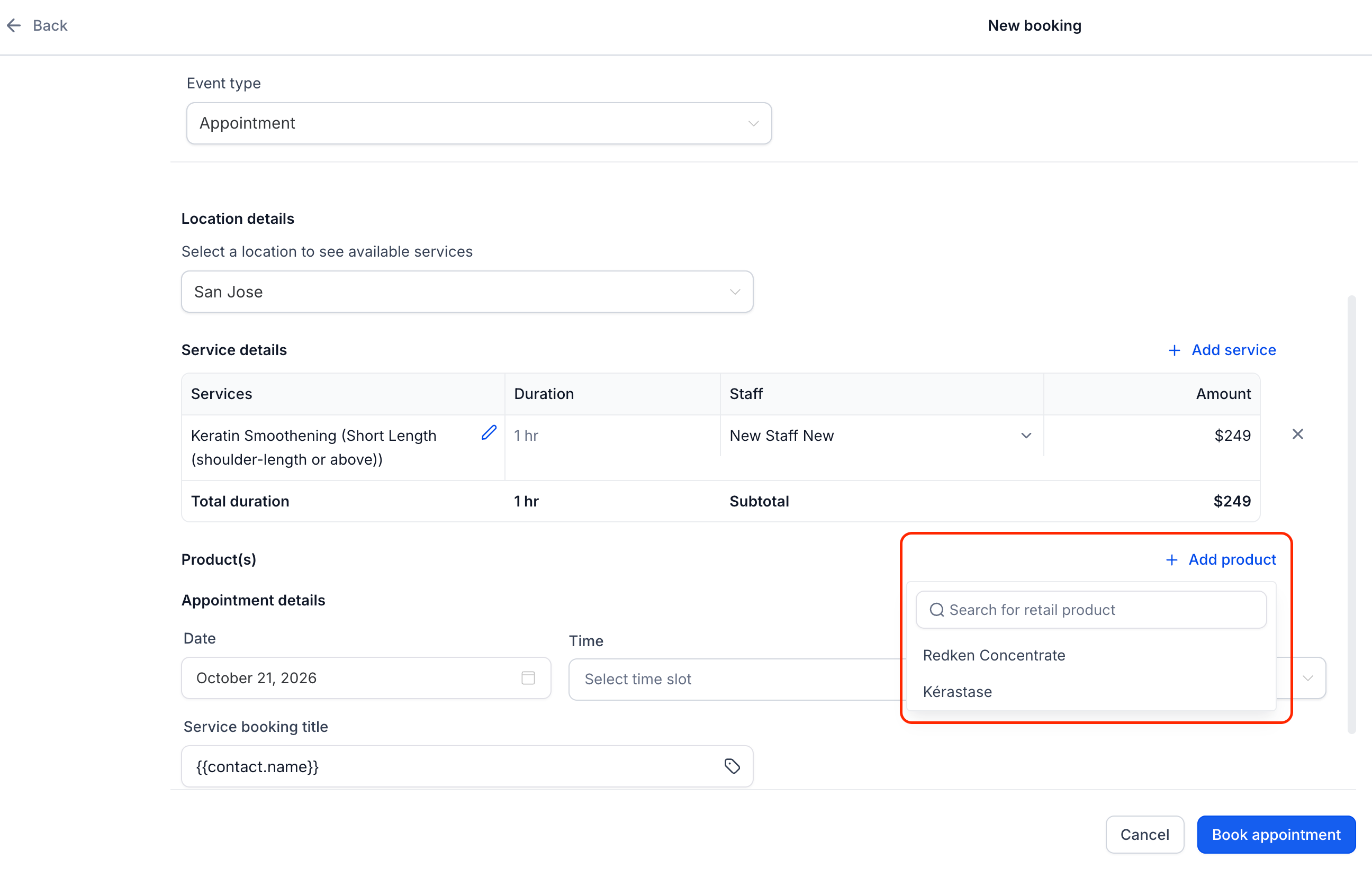
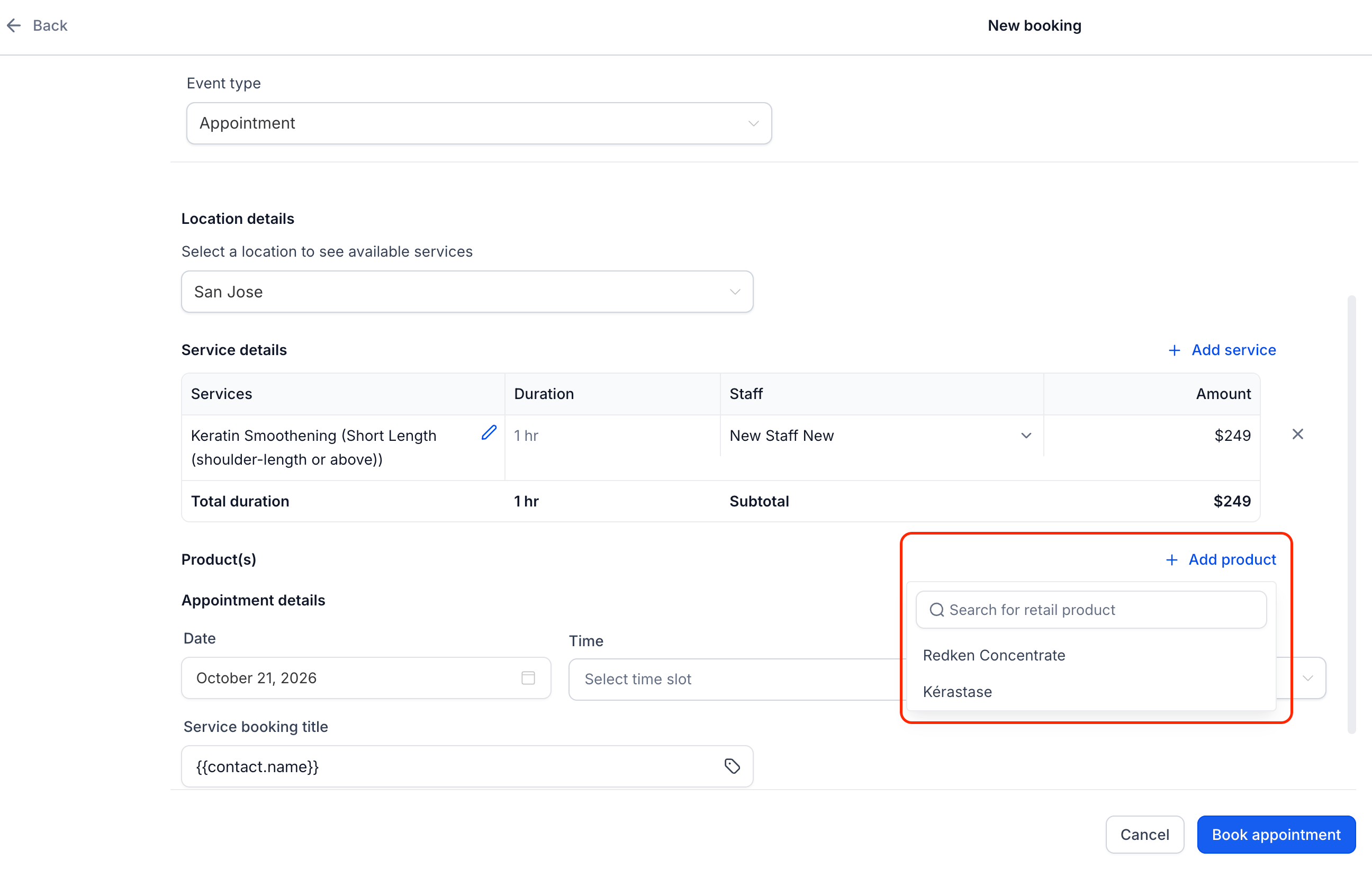
Open the appointment modal and click + Add product under Product(s). Search for the product or variant you want to include.
Managing Product Quantities and Prices
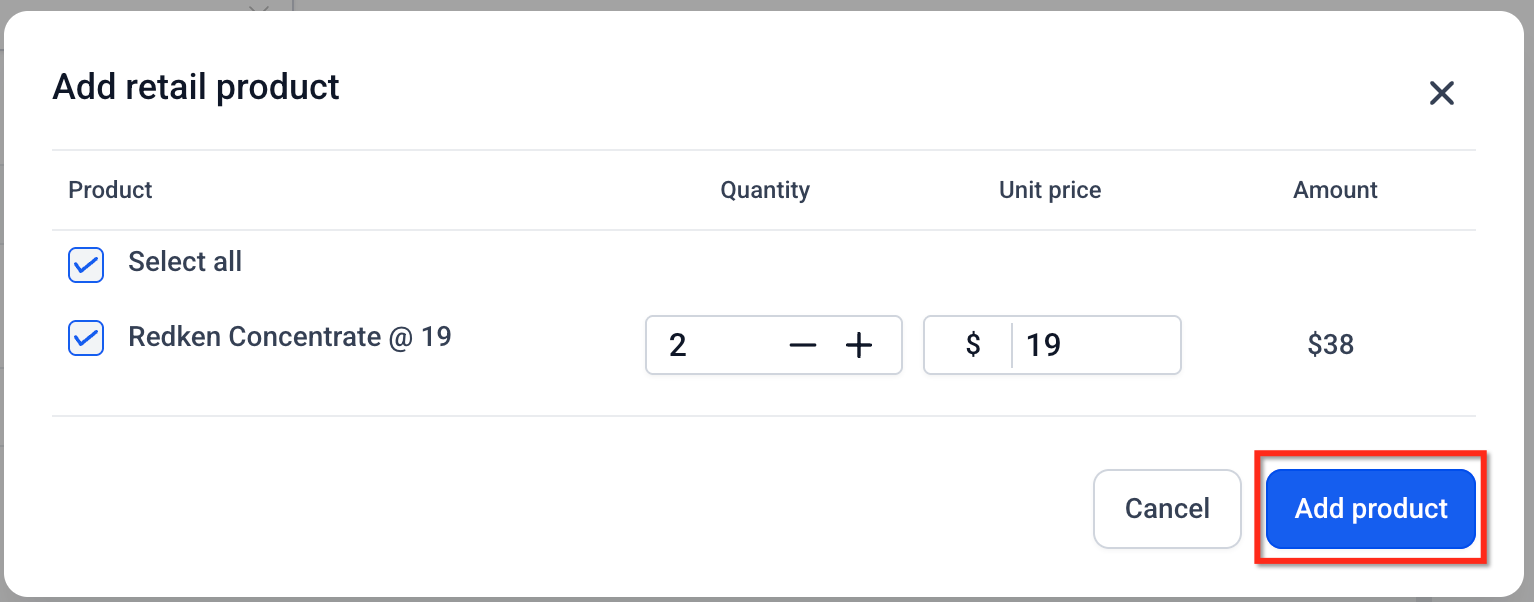
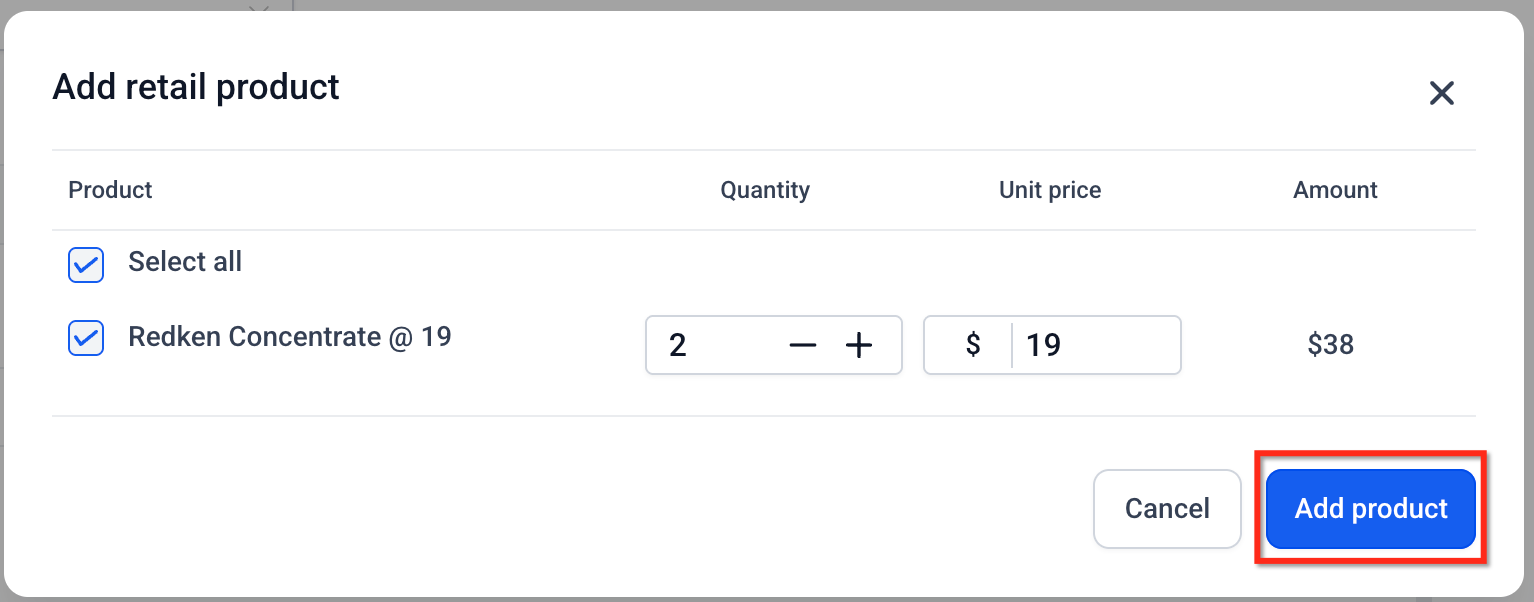
After selecting a product, you can adjust its quantity and unit price before adding it to the appointment.
The Add retail product window includes:
Product: Selected item or variant.
Quantity: Number of units.
Unit price: Price charged per unit.
Amount: Total retail charge for the selected product.
For example, two products priced at $19 each add $38 to the appointment.
Changing the unit price affects only that appointment, not the catalog price.
Understanding Appointment Payments
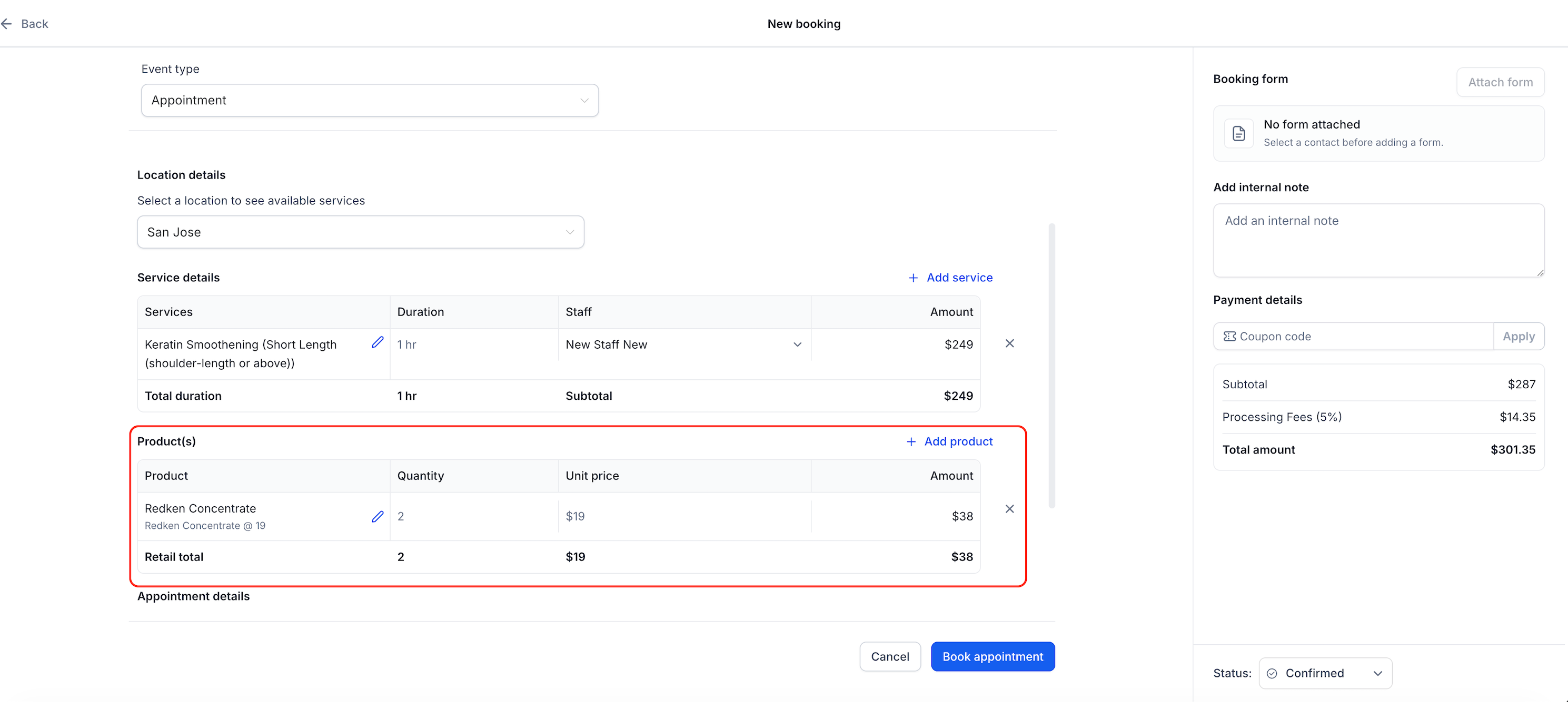
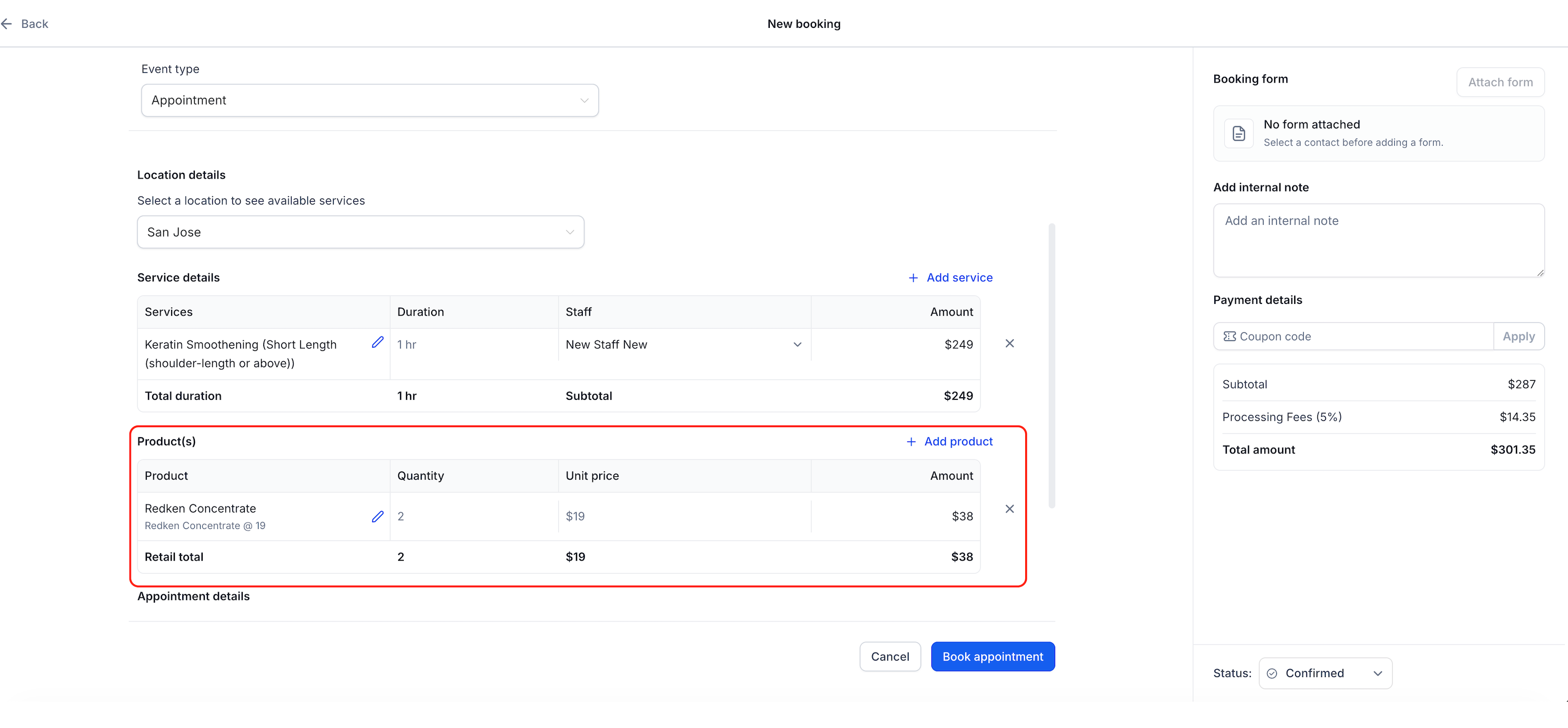
Retail charges appear alongside service charges in the appointment's payment summary.
| Item | Amount |
|---|---|
| Keratin treatment | $249 |
| Shampoo — 2 × $19 | $38 |
| Subtotal | $287 |
Applicable taxes or fees may affect the final total.
If you change retail products on an appointment with existing payments, the payment status reflects any additional balance or refund owed.
Important: Updating the balance does not automatically collect an additional payment or process a refund. Review the Payments tab to manage the transaction.
For details, see Payments Tab in Calendars.
How Retail Products Affect Inventory
HighLevel automatically adjusts stock when inventory-tracked products are added to or removed from appointments.
Add a product: Available stock decreases.
Remove a product: Applicable stock is restored.
Reduce quantity: The difference is returned to stock.
Insufficient stock: An error appears unless the product allows continued selling when out of stock.
Products without inventory tracking are unaffected.
Note: Inventory behavior when an appointment is canceled requires confirmation before publication.
Viewing Retail Products in Booking Details
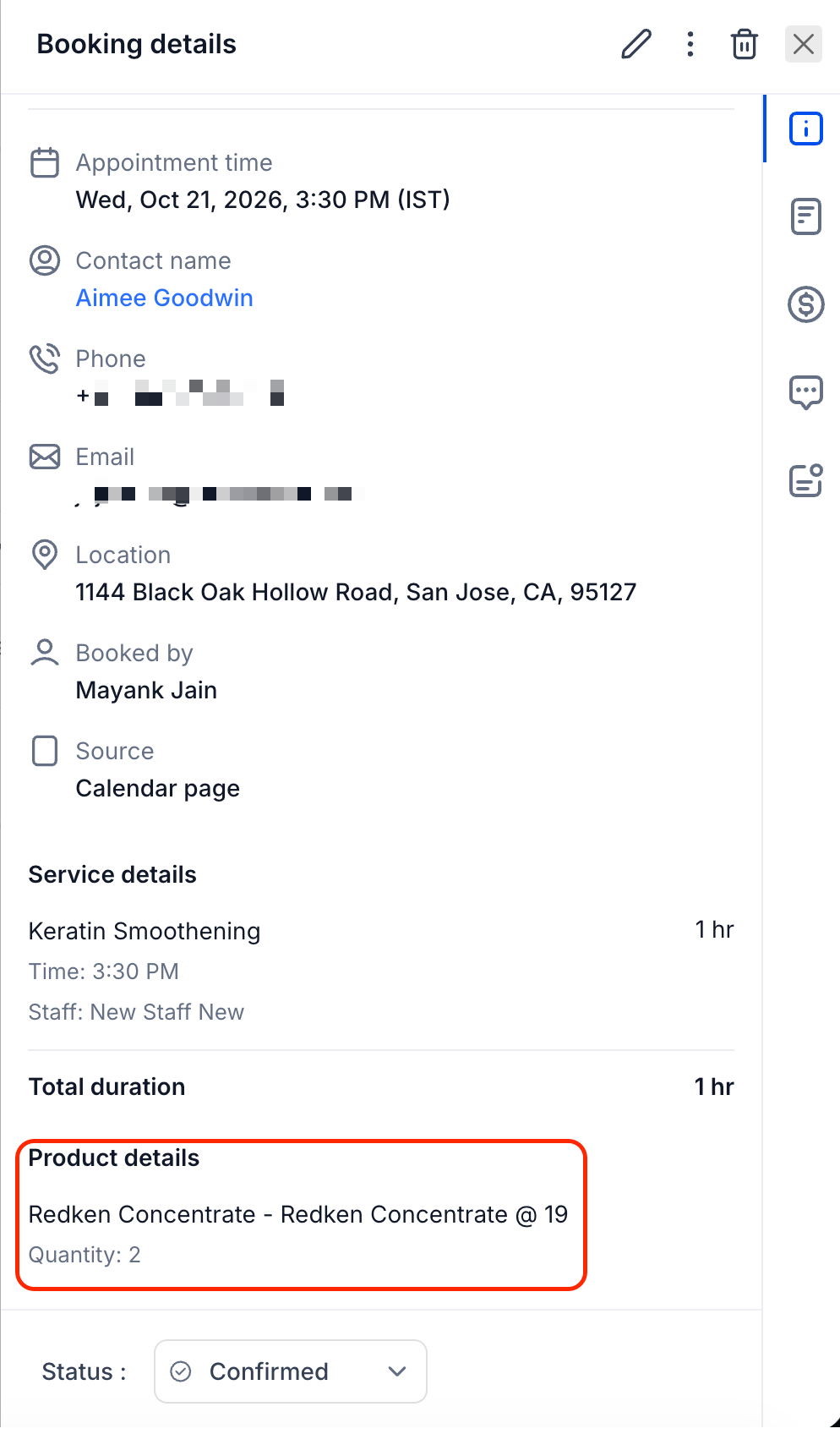
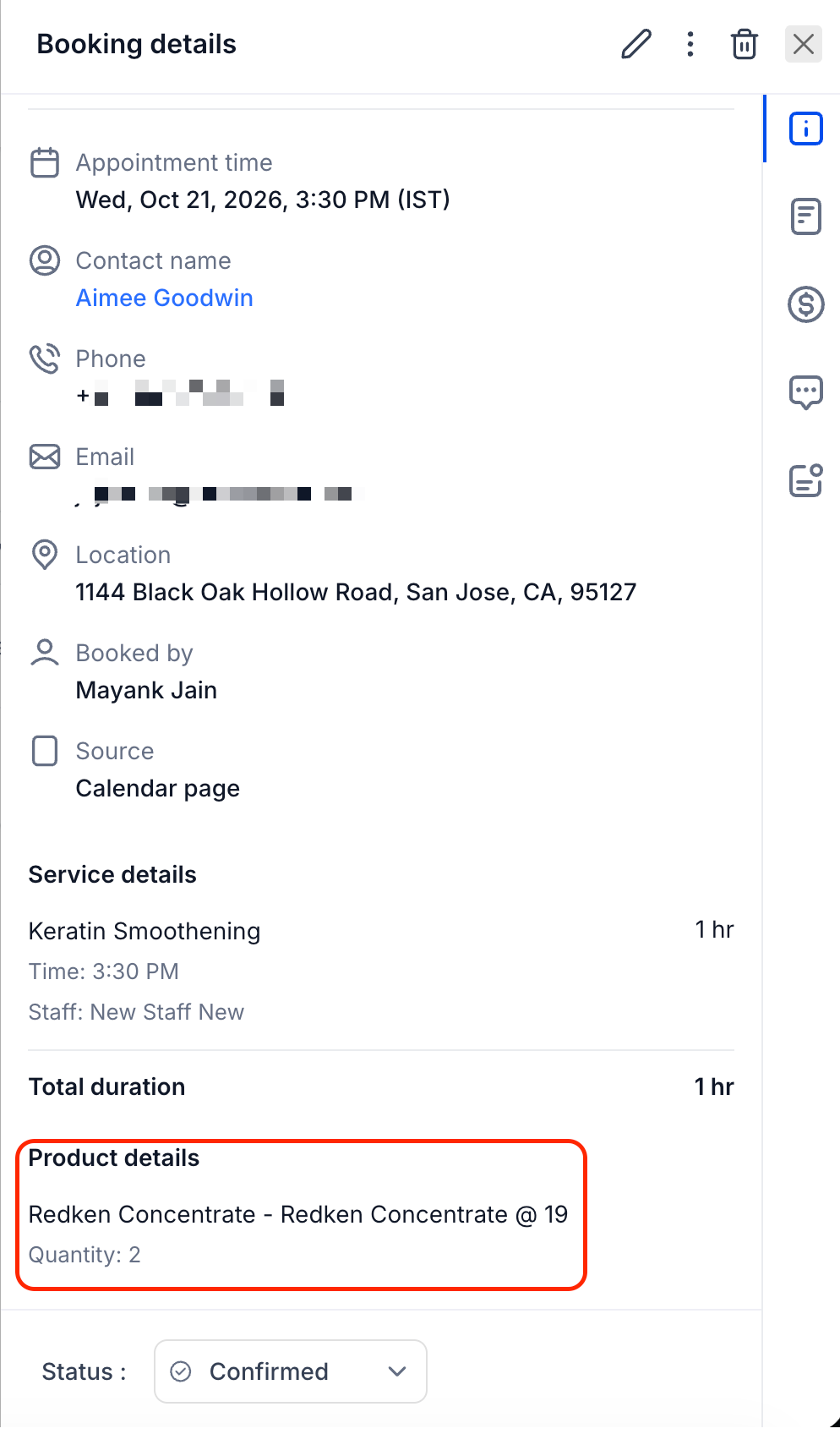
Saved appointments display their associated retail products in Booking details.
The Product details area shows the product name and quantity, allowing staff to confirm what was included in the booking.
Appointment history retains the associated product information even if catalog details change later.
How to Add Retail Products to Service Appointments
You can add retail products while creating or editing an eligible service appointment. Before starting, ensure the products exist under Payments → Products.
Step 1: Open a Service Appointment
Go to Calendars → Calendar View → Services.
Create a new service booking or open an eligible existing appointment.
If editing, click the Edit (pencil) icon.
Step 2: Select a Retail Product
Find Product(s) in the appointment modal.
Click + Add product.
Search for the product or variant.
Select the product.
Step 3: Set Quantity and Price
Enter the required Quantity.
Adjust the Unit price, if needed.
Review the calculated Amount.
Click Add product.
Step 4: Review and Save the Appointment
Review the service and retail product details.
Confirm quantities, prices, and the updated payment summary.
Click Book appointment for a new booking, or save the changes to an existing appointment.
Important: Retail products are supported through eligible in-app service booking flows, not the customer-facing booking page.
Step 5: Verify Booking and Payment Details
Open the saved appointment.
Review Product details in Booking details.
Open the Payments tab to check the total, amount paid, and remaining balance.
If the appointment already has payments, review any outstanding balance or refund owed before taking further payment action.
Frequently Asked Questions
Q: Can I add retail products to an existing appointment?
A: Yes. You can add products when editing eligible service appointments without recreating the booking.
Q: Can customers add retail products on the booking page?
A: No. Retail products can only be added through supported in-app service booking flows.
Q: Where do I create retail products?
A: Go to Payments → Products to create and manage catalog products.
Q: Can I add multiple units or change the product price?
A: Yes. You can adjust the quantity and unit price for an appointment without changing the catalog price.
Q: What happens if a product is out of stock?
A: HighLevel displays an error unless Continue selling when out of stock is enabled for that product.
Q: What happens if I remove a retail product?
A: The product is removed from the appointment, and applicable tracked inventory is restored.
Q: Are additional charges or refunds processed automatically?
A: The payment status updates to reflect the amount due or refund owed. Payment collection and refunds must be handled through the appropriate payment process.
Q: Can I add products to a fully paid appointment?
A: The release supports changes to appointments with existing payments, but the exact editing rules for fully paid appointments require confirmation.
Related Articles
Was this article helpful?
That’s Great!
Thank you for your feedback
Sorry! We couldn't be helpful
Thank you for your feedback
Feedback sent
We appreciate your effort and will try to fix the article