Client Portal Appointments lets clients book, view, and manage meetings without leaving the HighLevel Client Portal. Clients can review appointments in Today, Upcoming, and Past views, use a calendar view, and book from one or more calendars you make available.
Available client information is automatically filled during booking, while businesses remain in control of which calendars accept Client Portal bookings and whether the Appointments app appears in the portal.
Appointments are currently available only in the new Client Portal UI. Support for branded apps is coming soon.
This article covers the currently released calendar-based appointment experience. Service-menu booking and additional appointment-related event-management capabilities referenced as future enhancements are not part of the setup documented below.
What is Client Portal Appointments?
Client Portal Appointments brings scheduling directly into the Client Portal so clients can access meetings and booking options from the same place they use for other business resources. Keeping appointment activity inside the portal reduces the need to search through booking links, confirmation emails, or separate scheduling tools.
Once Appointments and at least one eligible calendar are enabled, clients can:
- View appointments under Today, Upcoming, and Past.
- Use a calendar view to locate appointments by date.
- Book new appointments without leaving the Client Portal.
- Select from one or multiple calendars enabled for Client Portal booking.
- Review appointment details.
- Reschedule or cancel eligible appointments.
- Start another booking after an appointment has been completed.
Key Benefits of Client Portal Appointments
Bringing appointment access and booking into the Client Portal gives clients more control over scheduling while allowing businesses to determine exactly which booking options are available. This creates a more connected self-service experience without changing the calendar rules used to manage availability.
- Centralized Appointment Access: Clients can review and manage appointments from the Client Portal instead of relying only on emails or separate booking links.
- Simplified Booking: Clients can choose an available calendar, date, and time without leaving the portal.
- Multiple Calendar Options: Businesses can make one or several eligible calendars available for clients to choose from.
- Less Repeated Data Entry: Existing client contact information is automatically filled where available during booking.
- Appointment Self-Service: Clients can cancel or reschedule appointments when those actions are permitted by the calendar's policies.
- Faster Repeat Booking: Clients can begin another booking after an appointment has been completed.
- Administrative Control: Businesses control both the Appointments app's visibility and which individual calendars accept Client Portal bookings.
Availability and Configuration Requirements
Client Portal Appointments depends on both the portal experience and calendar-level configuration. Understanding each requirement helps prevent situations where the Appointments app is visible but clients cannot select a calendar or complete a booking.
| Requirement | What It Controls | Required? |
|---|---|---|
| New Client Portal UI | Provides the currently supported Client Portal Appointments experience. | Yes |
| Appointments App Permission | Controls whether Appointments appears in the Client Portal navigation. | Yes |
| Client Portal Booking on a Calendar | Controls whether that individual calendar appears as a booking option. | Yes, for each calendar |
| Branded Client Portal App | Branded-app support is not included in the current release. | Not currently supported |
Enabling the Appointments child app does not automatically enable calendar booking. At least one individual calendar must also have Client Portal booking enabled.
View and Manage Appointments
Appointment views help clients understand what is happening now, what is scheduled next, and what has already taken place. Clients can also open individual appointments to review meeting information and access the management actions allowed by the calendar's policies.
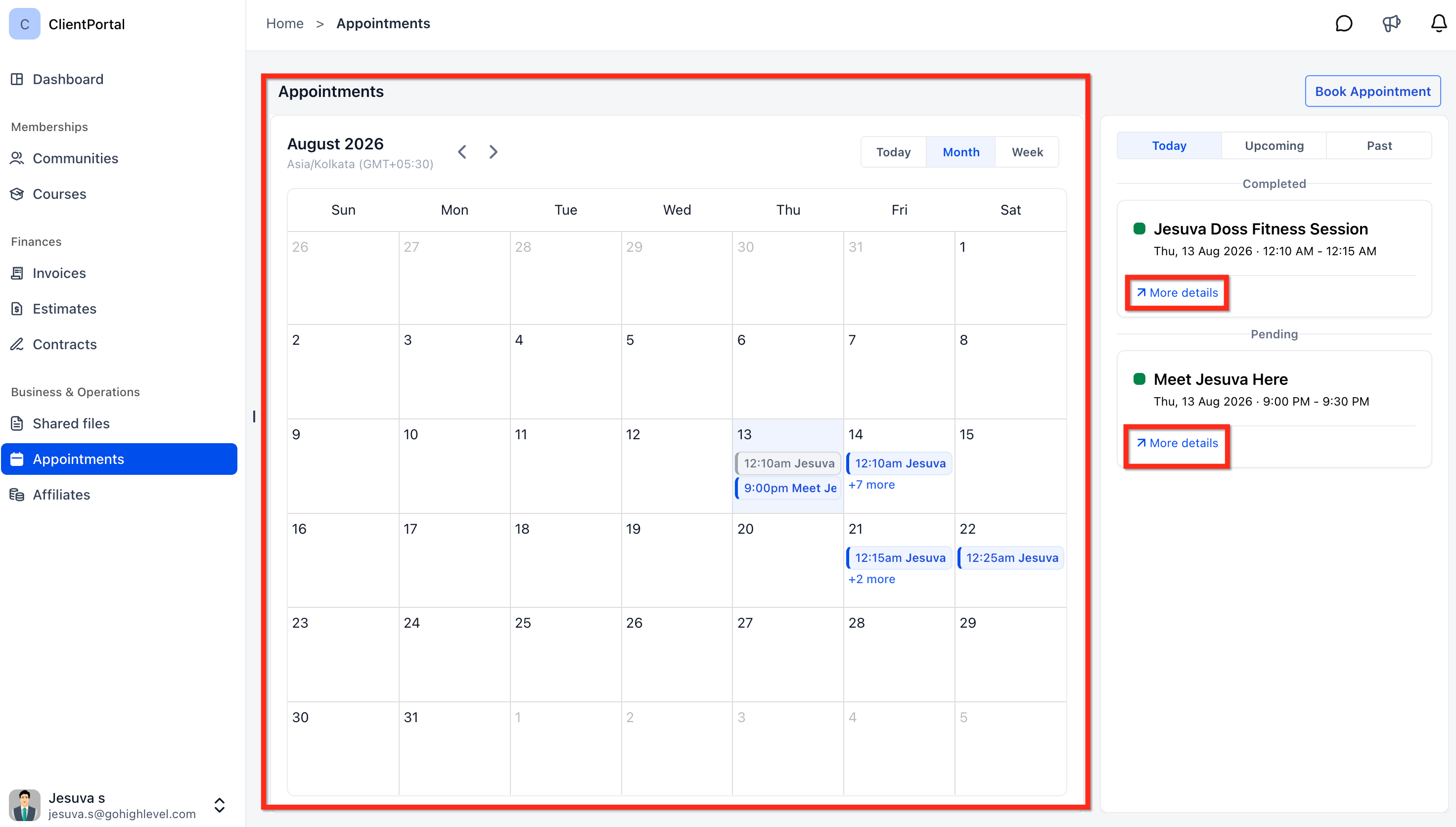
From Appointments in the Client Portal, clients can use Today, Upcoming, and Past to organize their meetings. A calendar view provides another way to locate appointments by date.
View Appointment Details and Available Actions
Opening an appointment gives clients a focused view of the meeting information and any actions currently available. Cancellation and rescheduling options appear only when the appointment remains eligible under the calendar's configured policies.
- Open Appointments from the Client Portal navigation.
- Locate the appointment you want to review.
- Click More details.
- Review the appointment information.
- If available, select Cancel or Reschedule.
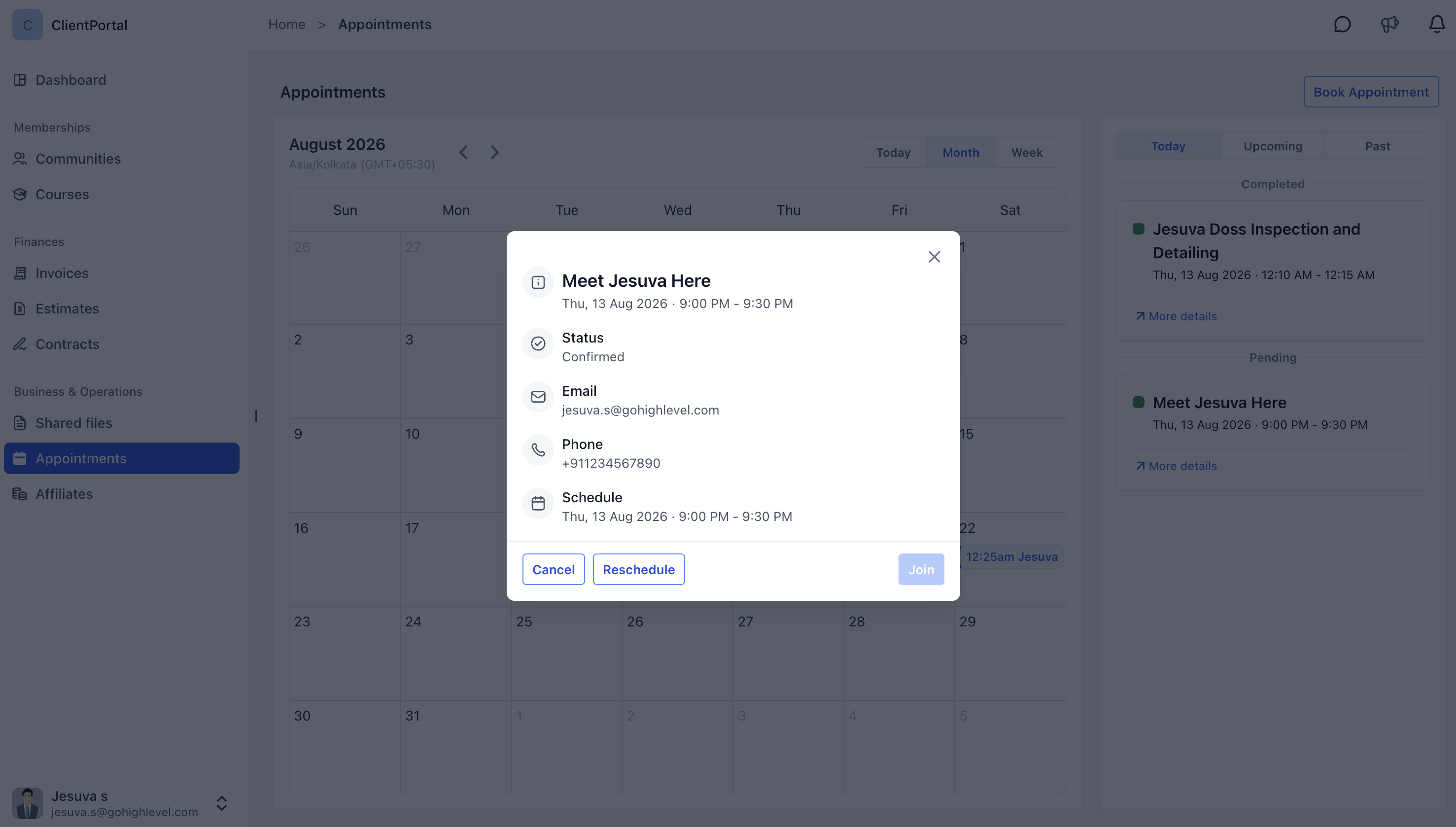
Whether an appointment can be canceled or rescheduled depends on the cancellation and rescheduling rules configured for that calendar. For more information, see Cancellation & Reschedule Policy (Booking Widget).
Book Appointments from the Client Portal
The Client Portal booking flow lets clients choose from the calendars you make available and select an eligible date and time without leaving the portal. Existing contact information is automatically filled where available, while the selected calendar continues to determine which dates and times can be booked.
- Open Appointments in the Client Portal.
- Click Book Appointment.
- Select an available calendar.
- Select an available date.
- Choose an available time.
- Complete the booking.
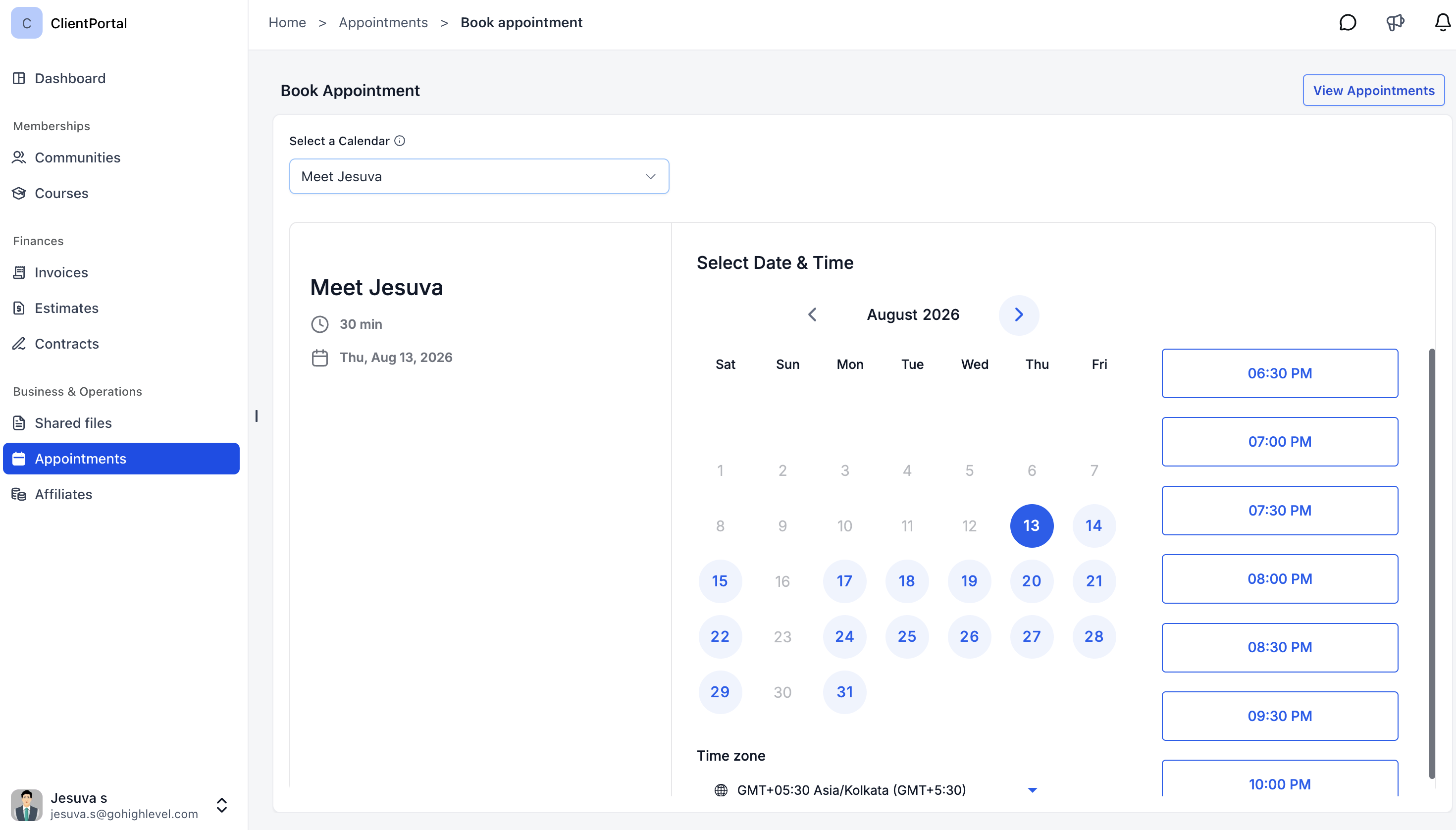
The dates and times shown to the client are determined by the selected calendar's availability and scheduling rules. Office hours, slot duration, minimum scheduling notice, buffers, appointment limits, existing bookings, and connected-calendar conflicts can affect which time slots appear.
For more information, see Adjusting Availability Settings for Individual Calendars.
Use Multiple Calendars for Client Portal Booking
Enabling multiple calendars gives clients a choice of booking options while allowing you to control exactly which calendars appear in the Client Portal. This is useful when separate calendars represent different appointment types, departments, locations, or team members.
Client Portal booking is enabled individually for each calendar. You can enable one calendar or repeat the configuration for each additional calendar clients should be able to select.
| Option | Purpose | Required for Multiple Client Portal Calendars? |
|---|---|---|
| Client Portal Calendar Selector | Displays the individual calendars that have Client Portal booking enabled. | Yes |
| Group Calendar | Combines calendars into a separate grouped booking experience under a shared link. | No |
A Group Calendar is not required solely to expose several individual calendars through Client Portal Appointments. For more information about Group Calendars, see HighLevel Group Calendar Overview and Setup Guide.
How to Set Up Client Portal Appointments
Client Portal Appointments requires configuration in both calendar settings and Client Portal App Permissions. App Permissions controls whether clients can access the Appointments app, while the individual calendar setting determines which calendars can be selected for new bookings.
Complete both setup steps. Enabling only the Appointments child app does not make a calendar available, and enabling only a calendar does not make the Appointments app visible.
Step 1: Enable Client Portal Booking for a Calendar
Each calendar must be explicitly enabled for Client Portal booking before clients can select it. This lets you expose only the calendars appropriate for Client Portal users while keeping other calendars unavailable through this booking channel.
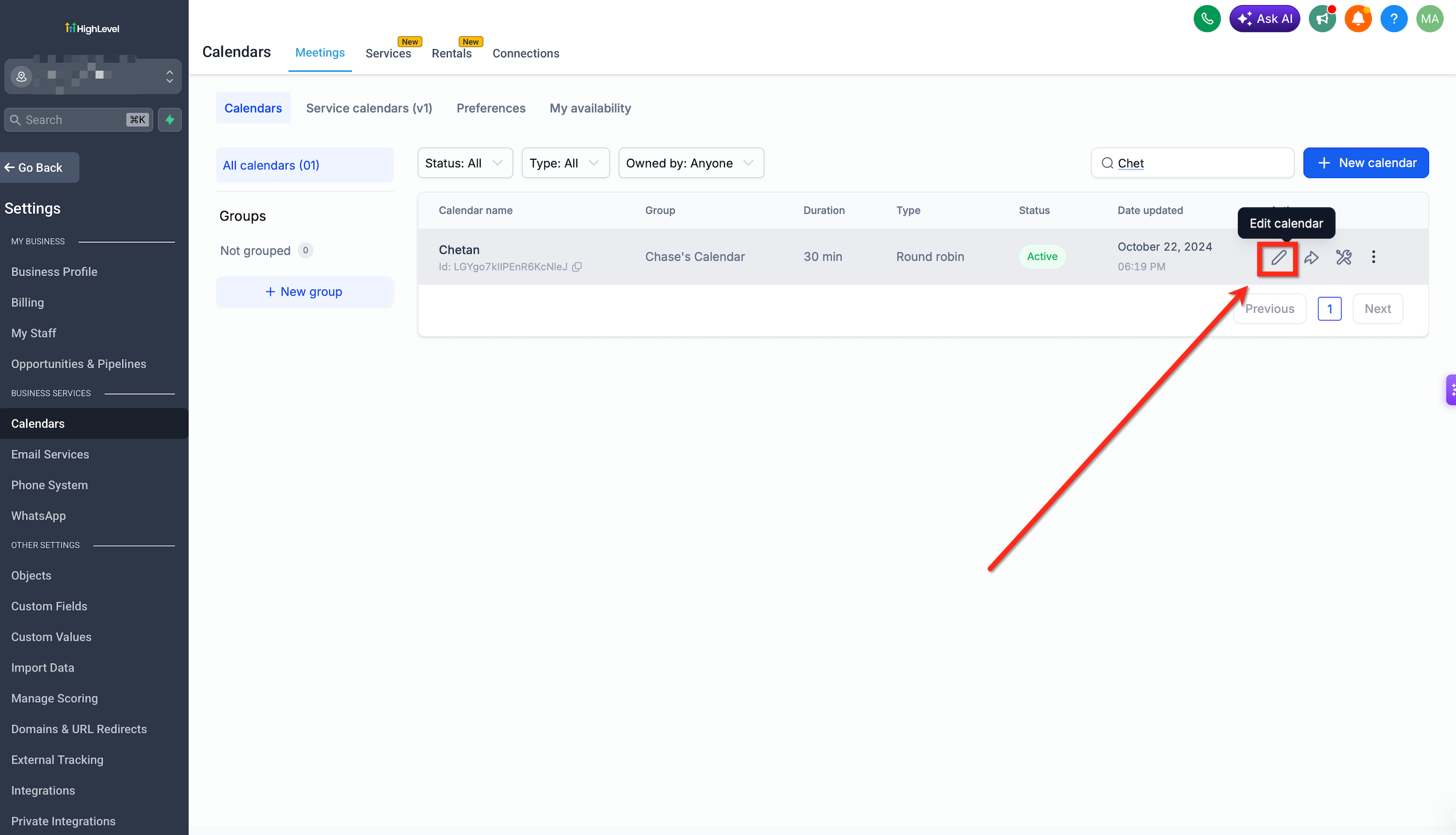
- Go to Calendars and open Calendar settings.
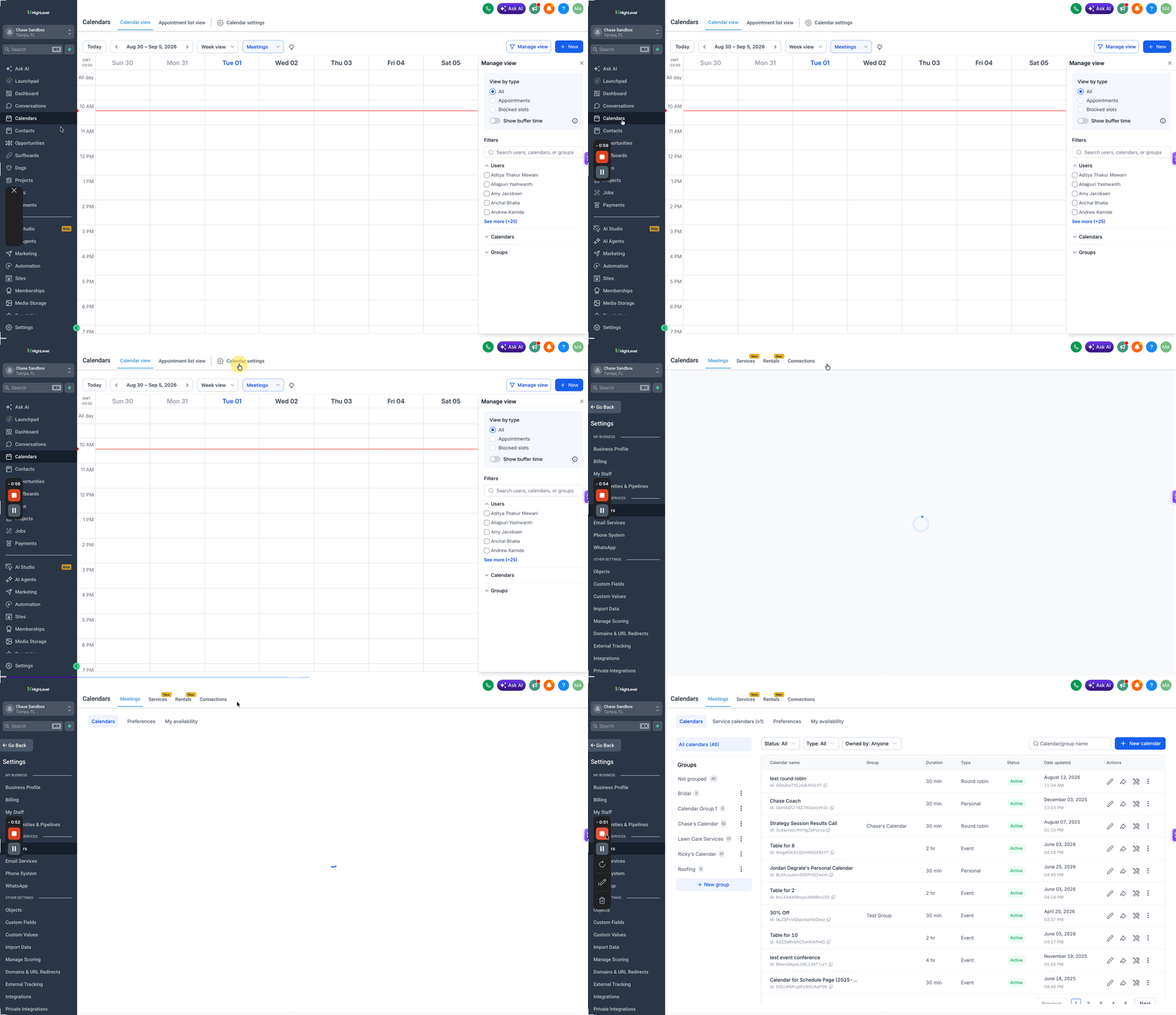
- Under Meetings → Calendars, locate the calendar you want to make available.
- Click the Edit calendar icon.
- In the calendar editor, expand Advanced settings.
- Select Booking channels.
- Turn on Client Portal booking.
- Click Save changes.
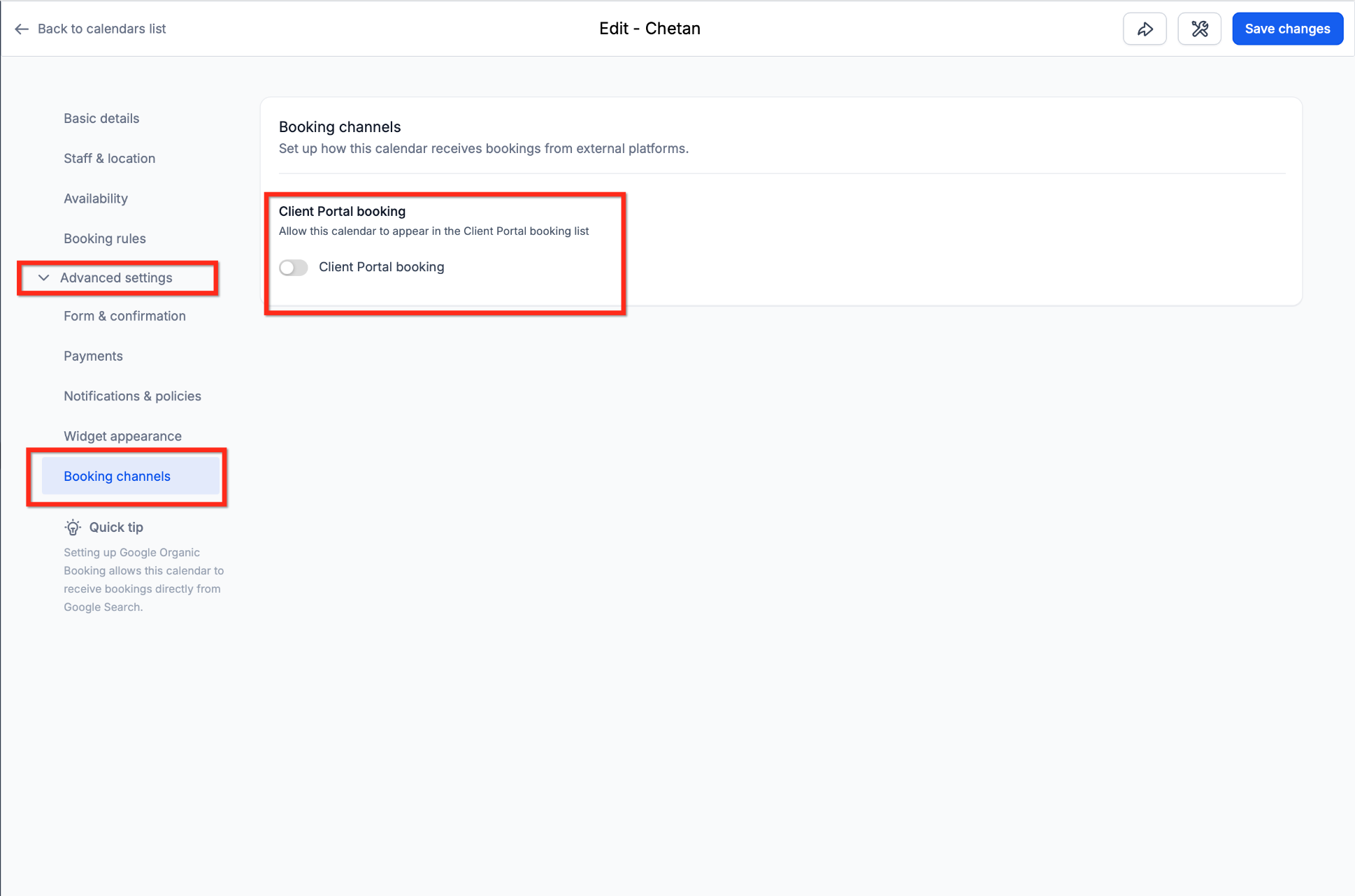
Repeat these steps for every additional calendar clients should be able to select when booking through the Client Portal.
Step 2: Enable Appointments in Client Portal App Permissions
Enabling the Appointments child app makes the appointment experience visible inside the Client Portal. App Permissions are configured at the sub-account level, so the selected child-app visibility applies to contacts using that sub-account's Client Portal.
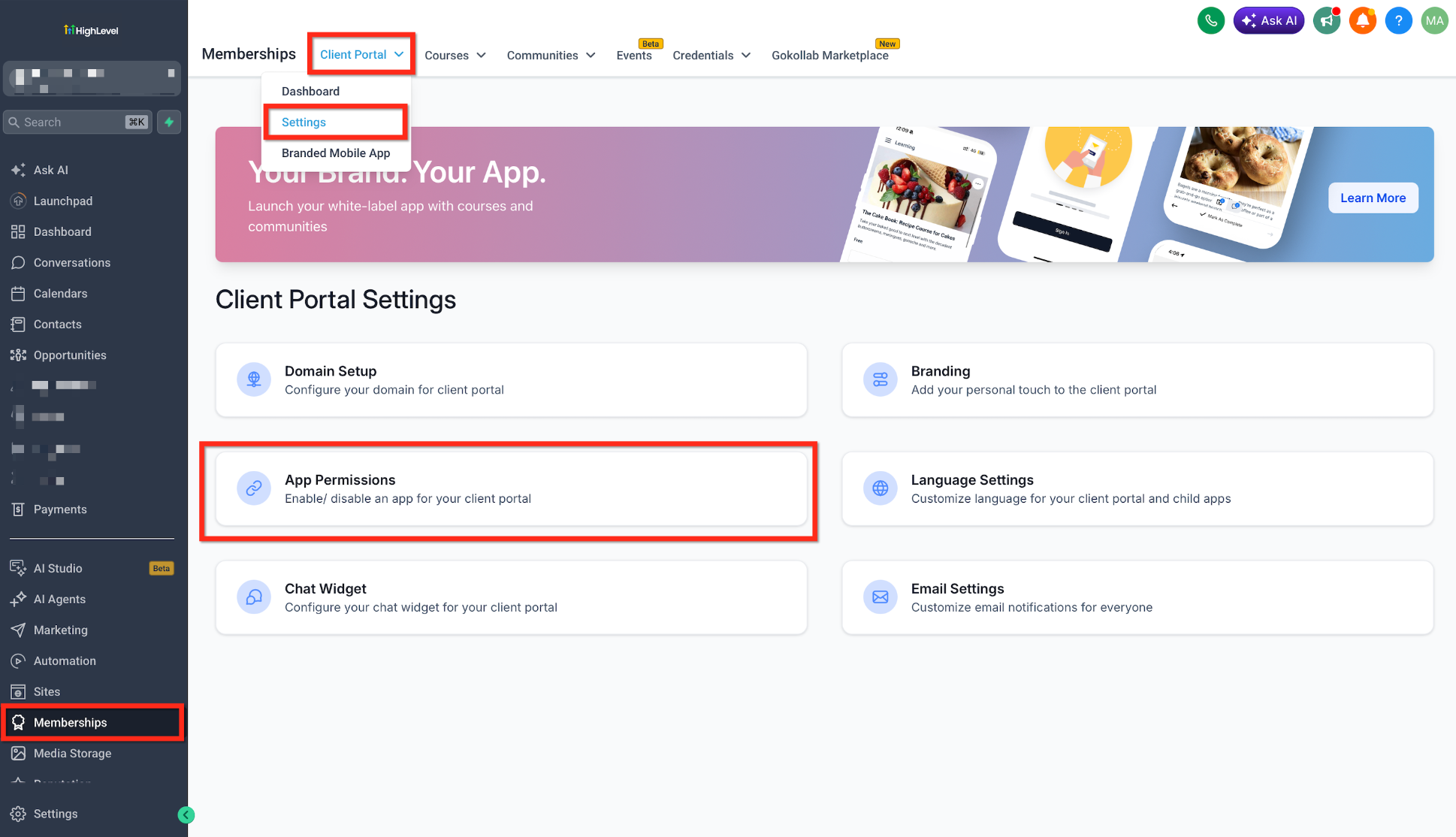
- Go to Memberships.
- Open Client Portal.
- Select Settings.
- Open App Permissions.
- Locate Appointments in the child-app list.
- Enable Appointments.
- Click Save Settings.
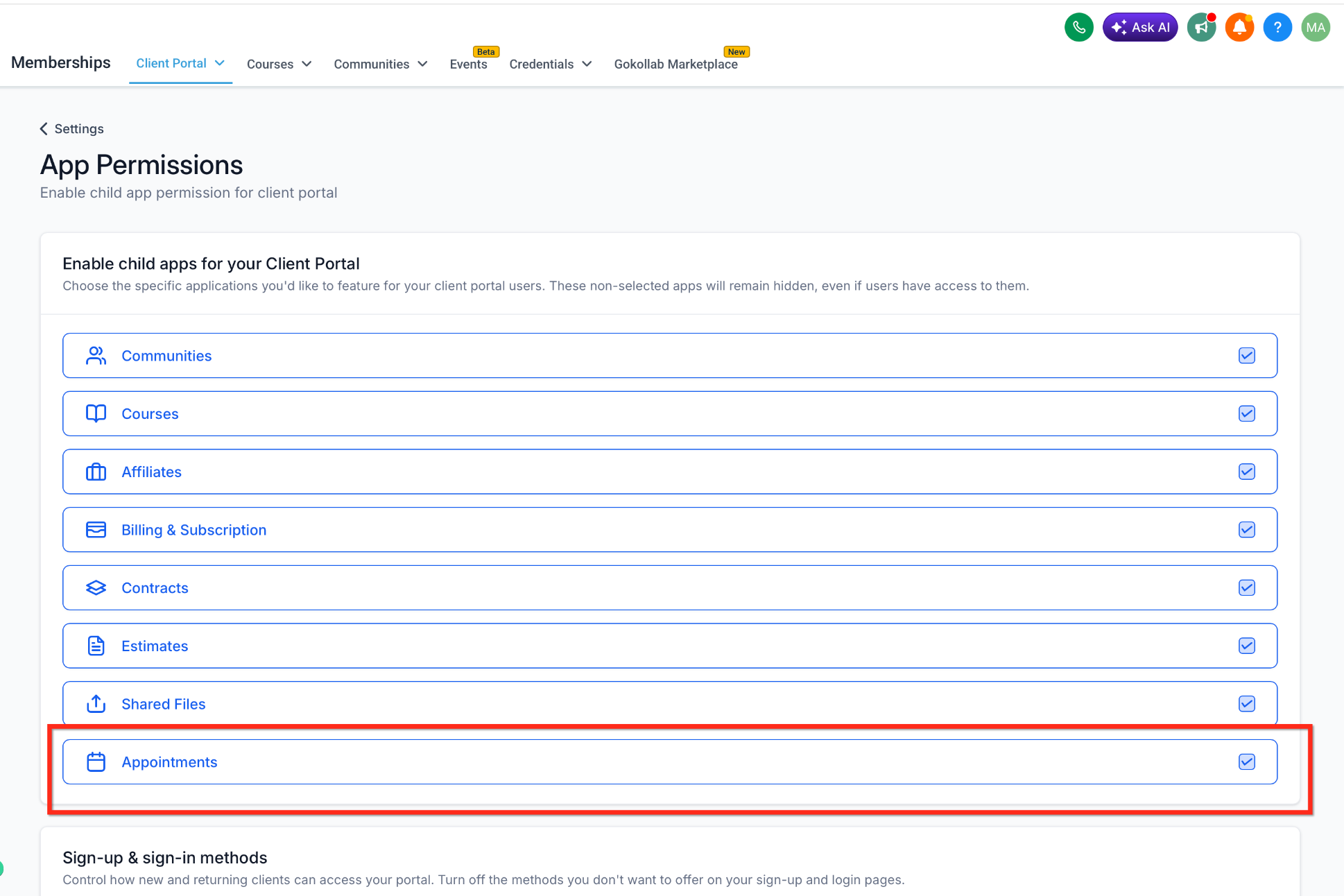
Important: Enabling Appointments in App Permissions does not automatically make every calendar available for booking. Each calendar you want clients to select must also have Client Portal booking enabled under its Booking channels settings.
For more information about controlling Client Portal apps, see App Permissions in Client Portal: Enabling/Disabling Child Apps and Authentication.
Troubleshooting Client Portal Appointments
Most Client Portal appointment issues are caused by one of the two required permissions, an individual calendar rule, or use of an unsupported portal experience. Compare the client's experience with the checks below before changing the calendar or recreating an appointment.
| Issue | What to Check |
|---|---|
| Appointments does not appear in the portal | Confirm the client is using the new Client Portal, Appointments is enabled in App Permissions, and the changes were saved. |
| Appointments appears, but no calendars are available | Enable Client Portal booking under Advanced settings → Booking channels for at least one individual calendar. |
| A calendar appears, but a time slot is missing | Review availability, scheduling notice, buffers, appointment limits, existing bookings, and connected-calendar conflicts. |
| Cancel or Reschedule is unavailable | Review whether the calendar permits the action and whether its cancellation or rescheduling restriction window has passed. |
| The time-zone selector is missing | Check whether Disable Contact Timezone is enabled for the sub-account. |
| A recent permission change is not visible | Confirm the change was saved, then have the client refresh the portal or sign out and sign back in. |
Frequently Asked Questions
Was this article helpful?
That’s Great!
Thank you for your feedback
Sorry! We couldn't be helpful
Thank you for your feedback
Feedback sent
We appreciate your effort and will try to fix the article