Copy and Delete Workflow Triggers in HighLevel

Modified on: Wed, 9 Sep, 2026 at 10:42 AM

Workflow Automation

Copy and Delete Workflow Triggers in HighLevel

Duplicate triggers instantly and streamline your automation workflow with improved trigger management tools.
What You'll Learn

This article explains how to use the Copy Trigger feature to duplicate workflow triggers with a few clicks, and how to delete triggers directly from the canvas menu.

You'll learn how to save time when building automations by reusing trigger configurations with minor adjustments, and manage your workflow triggers more efficiently.

1

What is Copy Trigger?

Copy Trigger allows you to duplicate any workflow trigger directly from the canvas in just a couple of clicks. When building automations in HighLevel, you often need to create similar triggers with minor variations in filter conditions or settings.

Instead of configuring each trigger from scratch—a process that can be time-consuming and prone to errors—you can now duplicate an existing trigger and make quick edits. The copied trigger automatically receives a descriptive name, making it easy to identify and modify.

Along with Copy Trigger, you can also delete triggers directly from the dropdown menu without opening the trigger configuration first, streamlining your workflow management experience.

2

Key Benefits

The Copy Trigger feature delivers significant quality-of-life improvements for workflow builders. Here's what you gain:

Speed and Efficiency — Duplicate triggers in seconds instead of rebuilding them from scratch, saving valuable time when creating complex automation workflows.
Automatic Naming — Copied triggers automatically receive the prefix "Copy of" plus the original trigger name, eliminating the need for manual renaming and preventing confusion.
Reduced Errors — Reusing proven trigger configurations reduces the risk of configuration mistakes that can occur when manually setting up similar triggers.
Streamlined Deletion — Remove unwanted triggers directly from the canvas menu with a single confirmation, making workflow cleanup fast and intuitive.
Simplified Variations — Create multiple versions of the same trigger with different filter conditions quickly, ideal for segmented automation strategies.
3

How to Copy a Workflow Trigger

Follow these steps to duplicate any trigger in your workflow canvas:

Step 1
Open the Trigger Menu

Click the three-dot menu icon on any trigger card in your workflow canvas.

Step 2
Select Copy

From the dropdown menu, select "Copy" to duplicate the trigger.

Step 3
Review the Duplicated Trigger

The duplicated trigger automatically appears on the canvas with the name "Copy of [Original Trigger Name]". This automatic naming helps you instantly identify which trigger was duplicated.
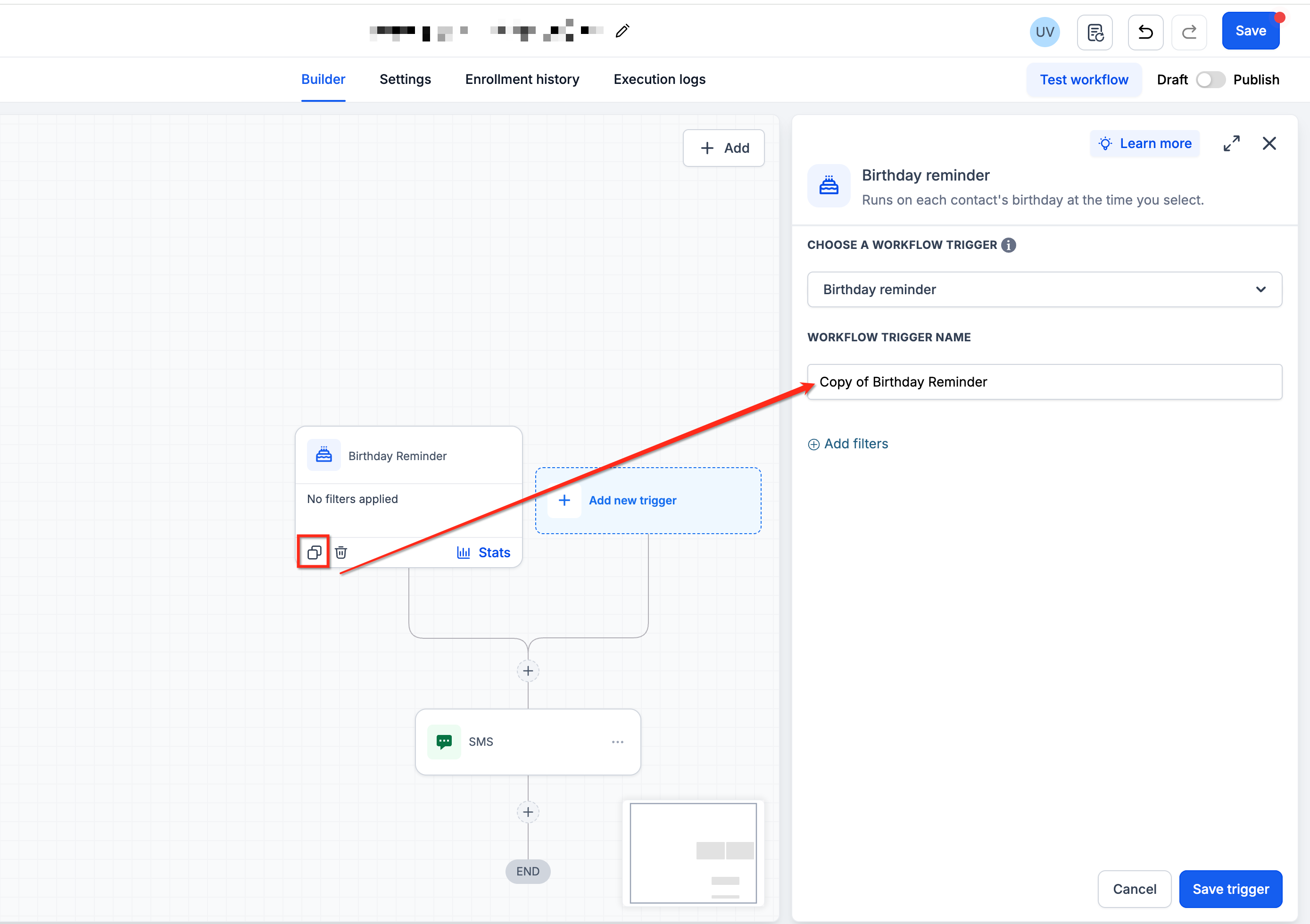
Step 4
Modify Filter Conditions (Optional)

Open the copied trigger and make any necessary changes to filter conditions, settings, or other parameters. This is typically where you'll adjust the trigger for your specific use case.

Step 5
Save the Trigger

Click Save to add the copied trigger to your workflow. The trigger is now active and ready to use.

Pro Tip

Use Copy Trigger when you need multiple variations of the same automation with different audience segments, timing conditions, or tag filters. This approach ensures consistency while allowing customization.

4

How to Delete a Workflow Trigger

Deleting triggers is now faster and more intuitive. You can remove a trigger directly from the canvas without opening the trigger configuration panel:

Step 1
Open the Trigger Menu

Click the bin icon on the trigger card you want to delete.
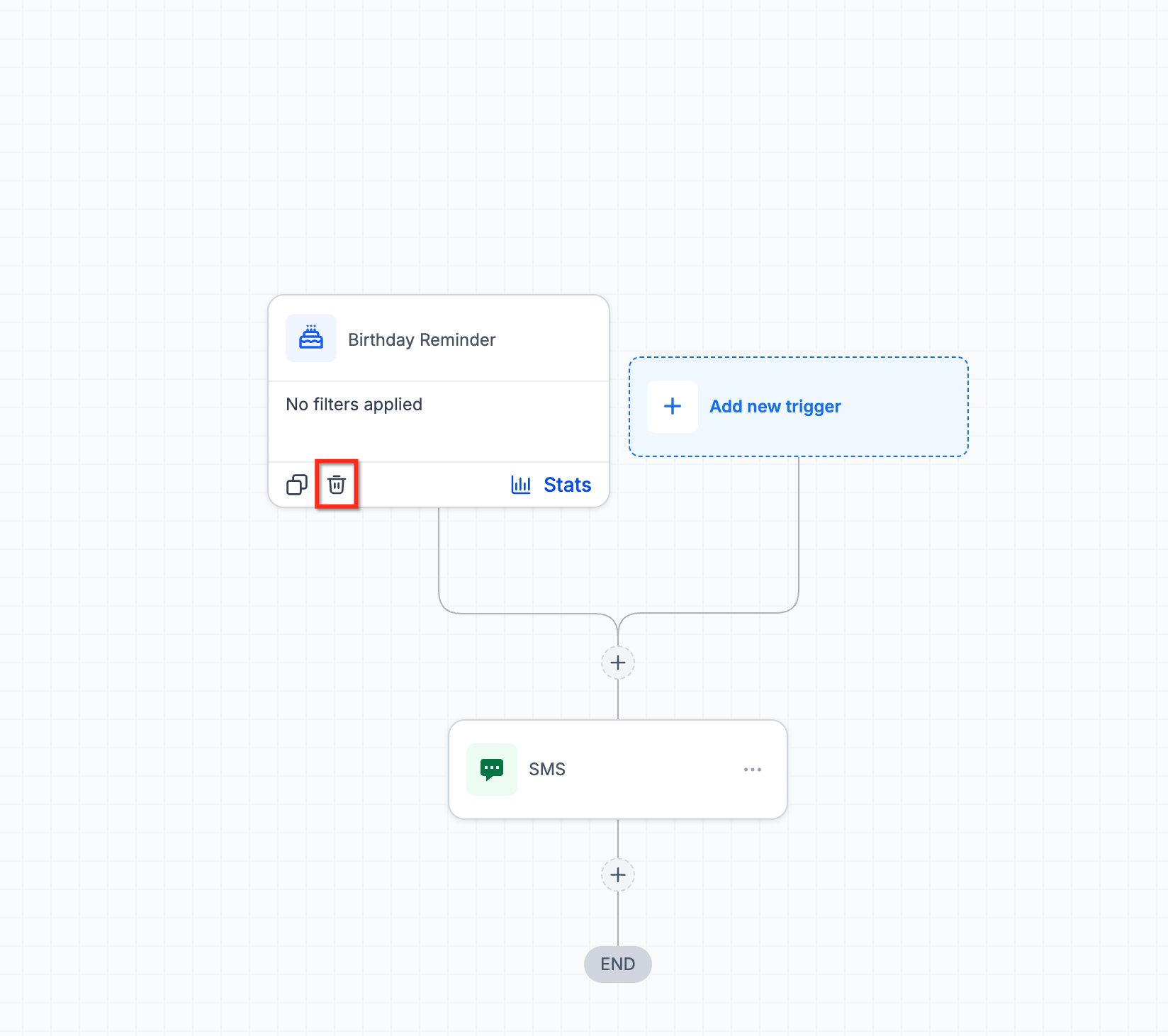
Step 2
Confirm Deletion

A confirmation prompt will appear. Confirm the action, and the trigger is immediately removed from your workflow.
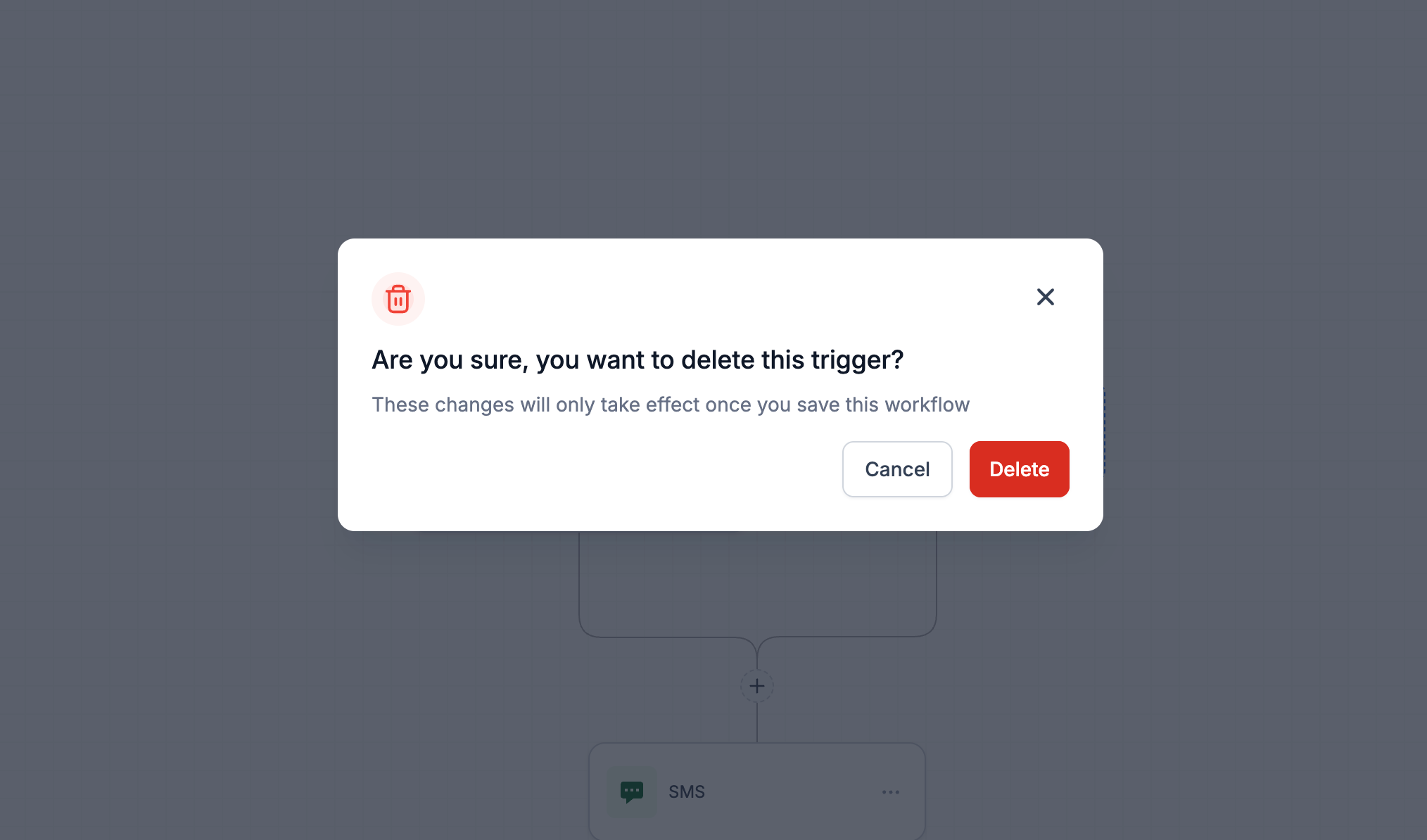
Note

Deleting a trigger is permanent and cannot be undone. Make sure you've selected the correct trigger before confirming deletion.

5

Frequently Asked Questions

Q: Can I rename a copied trigger after duplication?
Yes. While copied triggers automatically receive the name "Copy of [Original Trigger Name]", you can open the trigger settings and rename it to anything you prefer.
Q: Does copying a trigger duplicate all its filter conditions and settings?
Yes. When you copy a trigger, all filter conditions, settings, and configurations from the original trigger are duplicated. You can then modify any of these settings in the copied version.
Q: Can I undo a trigger deletion?
No. Trigger deletion is permanent and cannot be undone. If you accidentally delete a trigger, you'll need to recreate it manually or copy it from another workflow if a similar version exists.
Q: Where does the copied trigger appear on the workflow canvas?
The copied trigger automatically appears on the workflow canvas immediately after duplication. The exact position may vary, but it will be visible and ready to configure.
Q: Is there a limit to how many times I can copy a trigger?
No. You can copy a trigger as many times as needed for your workflow. Each copy will receive the same automatic naming convention with the "Copy of" prefix.
Q: Do I need to save the workflow after copying or deleting a trigger?
After copying a trigger and making any desired modifications, you must click Save on the trigger itself to add it to the workflow. For deletions, the trigger is removed immediately after confirmation. However, it's good practice to save your overall workflow to ensure all changes are preserved.
Q: Can I copy triggers between different workflows?
Currently, the Copy Trigger feature duplicates triggers within the same workflow. To reuse a trigger in a different workflow, you would need to manually recreate it or use workflow templates if available.
Q: What happens to automations that were using a deleted trigger?
When you delete a trigger, any automation paths or actions that depended on that trigger will no longer execute. Make sure to review your workflow structure before deleting triggers to avoid breaking active automations.

Was this article helpful?

That’s Great!

Thank you for your feedback

Sorry! We couldn't be helpful

Thank you for your feedback

Let us know how can we improve this article!

Select at least one of the reasons
CAPTCHA verification is required.

Feedback sent

We appreciate your effort and will try to fix the article