Automate structured AI workflows by integrating Manus directly into HighLevel Workflows. With native Manus triggers and actions, you can create, manage, and continue AI tasks without third-party automation tools. This integration enables real-time AI execution, lifecycle-based automation, and scalable task orchestration directly inside HighLevel.
TABLE OF CONTENTS
- What is Manus – Actions & Triggers in Workflows?
- Key Benefits of Manus Actions & Triggers
- Prerequisites & Permissions
- Connecting Your Manus Account
- Available Triggers (Manus → HighLevel)
- Available Actions (HighLevel → Manus)
- Best Practice: Store the Task ID
- How to Use Manus in a Workflow
- Common Use Cases
- Frequently Asked Questions
- Related Articles
What is Manus – Actions & Triggers in Workflows?
Manus is a task-based AI system where each task begins with a prompt, processes structured AI logic, and returns an output. Tasks can also be continued with additional prompts, allowing multi-step AI execution within a single task lifecycle.
The Manus integration in HighLevel enables two-way automation:
HighLevel → Manus: Create, update, continue, fetch, or delete AI tasks using workflow actions.
Manus → HighLevel: Trigger workflows automatically when task events occur (such as task creation or completion).
This eliminates the need for external middleware tools and allows you to build fully automated AI-driven workflows directly inside HighLevel.
Key Benefits of Manus Actions & Triggers
Integrating Manus into HighLevel Workflows allows agencies and businesses to operationalize AI in a structured, scalable way.
Native AI Automation: Create and manage Manus tasks directly inside HighLevel without third-party tools.
Instant Task-Based Triggers: Automatically trigger workflows when Manus tasks are created or stopped.
Multi-Step AI Logic: Continue existing tasks with follow-up prompts to create structured AI workflows.
End-to-End Visibility: Track task IDs and execution logs within HighLevel.
Premium Workflow Integration: Manus steps function as Premium Workflow actions and support agency rebilling.
Scalable AI Operations: Build repeatable automations for prospecting, research, content creation, and more.
Prerequisites & Permissions
Before using Manus triggers and actions in workflows, ensure the following requirements are met:
Workflow Access: You must have access to Automation → Workflows in the sub-account.
Premium Features Enabled: Manus triggers and actions are premium workflow steps and must be enabled at the agency level if required.
Valid Manus Subscription: AI task processing and usage limits depend on your Manus subscription plan.
API Key Access: You must generate a valid API key from your Manus dashboard.
Connecting Your Manus Account
A one-time connection allows HighLevel to securely communicate with Manus via API authentication.
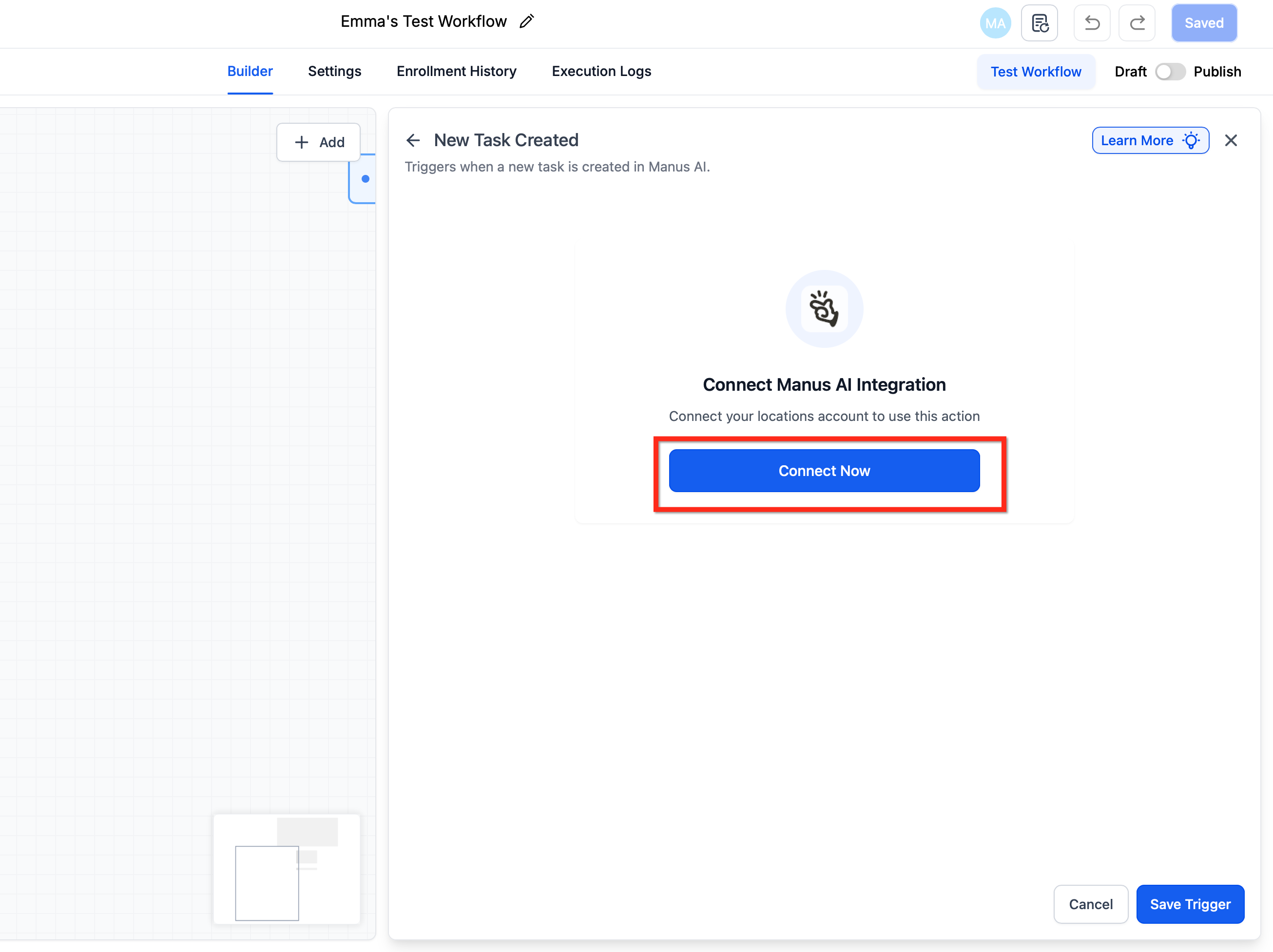
Connect from Workflow Builder
- In HighLevel, open Automation → Workflows and add any Manus action or trigger.
→ If not connected, click Connect Now and sign in to Manus to approve access.
→ If already connected, fields load instantly in the step.
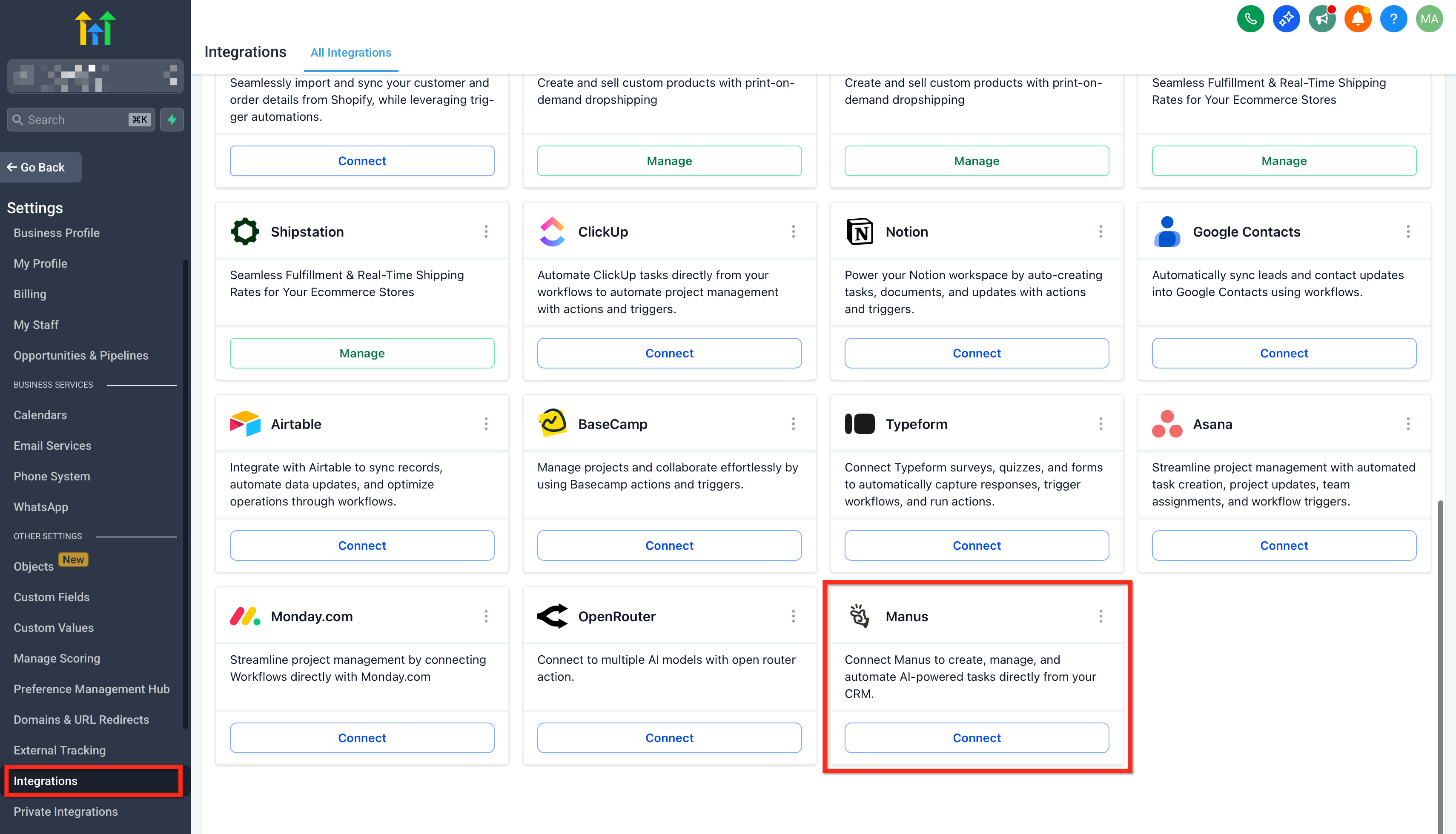
Connect from Integrations Page
- Sub-Account settings → Integrations → Manus → Connect.
Getting Your Manus API Key
Navigate to Manus API Settings.
Click on Create New.
Copy the generated API key.
Paste the key into the API key field when prompted.
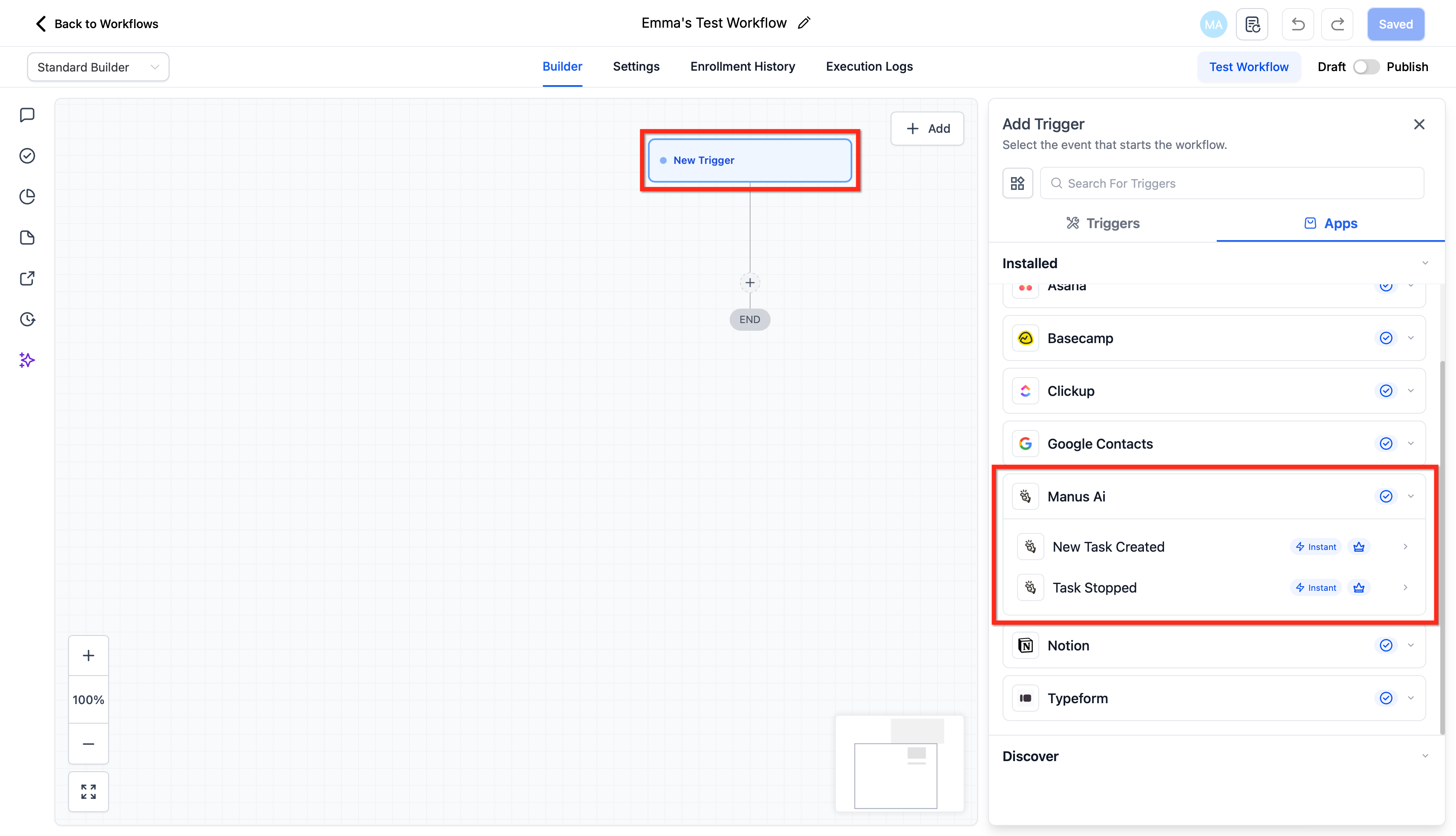
Available Triggers (Manus → HighLevel)
Manus triggers allow workflows to start automatically based on AI task lifecycle events. These triggers fire instantly when conditions are met.
| Trigger | Description |
|---|---|
| New Task Created | Fires when a new task is created in Manus |
| Task Stopped | Fires when a Manus task is stopped or completed |
Triggers fire instantly.
Triggers only activate for tasks created through HighLevel workflows.
Tasks created directly inside the Manus application will not trigger workflows.
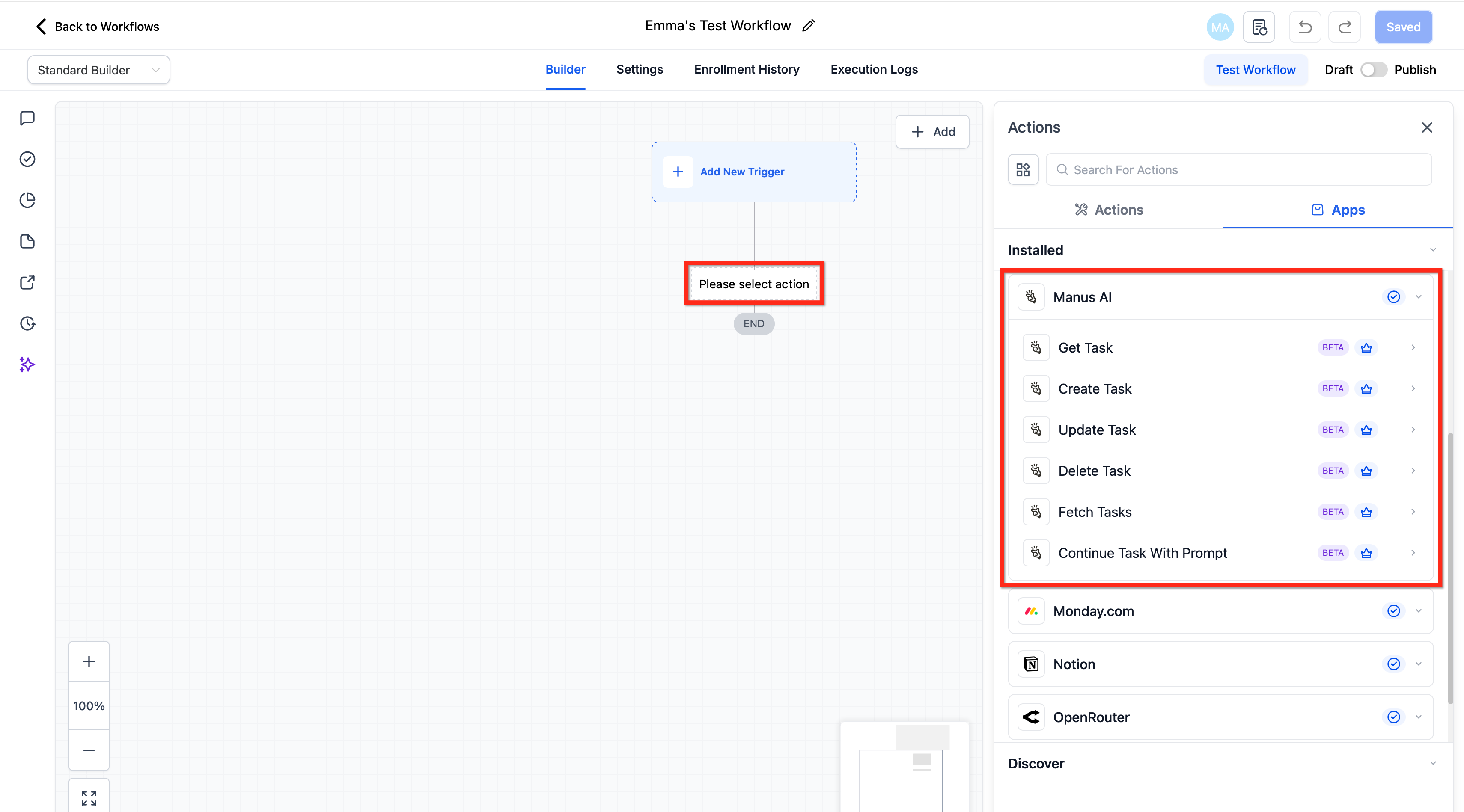
Available Actions (HighLevel → Manus)
Manus actions allow you to control AI task execution directly from within a workflow.
| Action | Description |
|---|---|
| Create Task | Create a new task in Manus |
| Get Task | Retrieve details of a specific task |
| Update Task | Modify task metadata or parameters |
| Fetch Tasks | Retrieve a list of tasks |
| Delete Task | Remove a task |
| Continue a Task with a Prompt | Add a follow-up prompt to an existing task |
Each action requires a stored Task ID when referencing an existing task.
Best Practice: Store the Task ID
Every time you use the Create Task action, Manus returns a unique Task ID. Storing this Task ID in a custom contact or opportunity field ensures reliable automation.
This is required when using:
Get Task
Continue Task with Prompt
Update Task
Delete Task
Without storing the Task ID, downstream workflow steps may fail or reference the wrong task.
How to Use Manus in a Workflow
- Go to Automation → Workflows and click + Create Workflow (or open an existing one).
- Select a trigger (Manus trigger or another workflow trigger)
Add a Manus action (e.g., Create Task)
Map merge fields such as:
{{contact.first_name}}
{{contact.email}}
{{opportunity.name}}
{{custom_values}}
Optionally store the returned Task ID in a custom field
Add conditions or Wait steps
Test and Publish
Common Use Cases
Below are practical agency and business examples.
1. Proposal Generation + ClickUp Review Task
Goal: Auto-generate proposal when deal reaches “Proposal Requested” and create review task in ClickUp.
Trigger
Pipeline Stage Changed → Stage = Proposal Requested
Workflow Steps
Create Task (Manus)
Prompt: Generate a proposal for {{contact.first_name}} for {{opportunity.name}} including scope, deliverables, pricing, and timeline.Store Task ID →
manus_proposal_task_idWait (1–2 min)
Get Task (Manus)
Create Internal Note (HighLevel) → Attach draft
Create Task (ClickUp) → “Review Proposal – {{opportunity.name}}”
Internal Notification → Assigned sales rep
Outcome: Sales gets a ready draft. Delivery sees task instantly in ClickUp.
2. Lead Research + Google Contacts Enrichment
Goal: Auto-research inbound leads before sales outreach.
Trigger
Form Submitted → Inbound Lead Form
Workflow Steps
Create Task (Manus)
Prompt: Research {{custom.company_name}}. Summarize industry, size, competitors, and likely pain points.Store Task ID
Wait
Get Task (Manus)
Create Internal Note (HighLevel)
Update Contact (Google Contacts) → Add research summary
Internal Notification → Sales rep
Outcome: Rep starts call with AI-generated insights. CRM and Google Contacts both enriched.
3. Website Scraping & Personalized Prospecting (Opportunity-Based)
Goal: Automatically research a prospect’s company website from an Opportunity and generate personalized outbound messaging.
Trigger
Pipeline Stage Changed → “Prospecting”
OR Opportunity Created
Store website in an Opportunity custom field:{{opportunity.website}}
Step 1: Create Task (Manus) – Website Analysis
Add Create Task (Manus).
Prompt Example:
Step 2: Store Task ID
Save to: manus_scrape_task_id
Step 3: Wait (1–2 min) → Get Task
Use Get Task (Manus) to retrieve:
Website insights
Personalized email draft
Step 4: Use the Output
Create internal note on Opportunity
Update Opportunity custom fields
Send generated email
Create follow-up task for SDR
Outcome: When an Opportunity enters Prospecting, the system auto-researches the company and drafts tailored outreach — reducing manual SDR effort and improving personalization at scale.
4. Competitor Ad Scraping + AI Content Generation (Manus + OpenRouter)
Goal: Scrape competitor ads, extract messaging patterns, and generate differentiated ad creatives automatically.
Trigger
Pipeline Stage Changed → “Content Strategy”
OR Opportunity Tag Added → “Ad Research”
Store competitor URLs in:{{opportunity.competitor_urls}}
Step 1: Create Task (Manus) – Scrape & Analyze Ads
Add Create Task (Manus).
Prompt Example:
Step 2: Store Task ID
Save to: manus_ad_research_task_id
Step 3: Wait → Get Task
Retrieve structured competitor insights.
Step 4: Generate Creative (OpenRouter Action)
Add OpenRouter Action.
Prompt Example:
Step 5: Route Output
Create internal note
Create “Review Ads” task
Push to ClickUp/Notion
Notify marketing team
Outcome: When an Opportunity enters Content Strategy, competitor ads are analyzed automatically and differentiated creatives are generated — creating an AI-driven competitive intelligence and content engine inside HighLevel.
Frequently Asked Questions
Q: Where can I view the full output of a Manus task?
Full prompt history and task lifecycle details are available in your Manus dashboard.
Q: How do I retrieve the output of a task inside HighLevel?
Use the “Get Task” action and reference the stored Task ID to fetch the latest task details.
Q: What are common reasons a task might fail?
Integration disconnected, invalid Task ID, task already stopped, missing required prompt input, or API authorization failure. Check Automation → Workflows → Execution Logs for error details.
Q: Do I need a paid Manus plan to use this integration?
The integration works with Manus accounts, but usage limits and advanced features depend on your Manus subscription.
Q: Are Manus actions and triggers premium workflow steps?
Yes, they follow HighLevel Premium Workflow billing rules.
Q: Is there a limit to how many tasks I can create?
Task limits depend on your Manus subscription plan and API usage caps.
Q : Does HighLevel include AI credits for Manus?
No. HighLevel does not include AI credits for Manus. AI usage is billed by Manus, along with standard automation rates in HighLevel.
Related Articles
Was this article helpful?
That’s Great!
Thank you for your feedback
Sorry! We couldn't be helpful
Thank you for your feedback
Feedback sent
We appreciate your effort and will try to fix the article