Connect Airtable to HighLevel to automate data sync, lead capture, and project ops with native triggers and actions. This guide covers supported steps, setup, examples, FAQs, and links so your team can launch confidently without third‑party tools.
TABLE OF CONTENTS
- What is the Airtable Integration in Workflows?
- Key Benefits of the Airtable Integration
- Triggers & Actions
- How To Set Up the Airtable Integration
- Connect Airtable (two paths)
- Build your first flow:
- Use Cases
- Frequently Asked Questions
- Related Articles
What is the Airtable Integration in Workflows?
HighLevel’s native Airtable integration lets you react to Airtable record changes and perform Airtable tasks directly from a workflow. Use Airtable triggers to enroll runs when rows are created or updated, and add Airtable actions (Find/Create/Update/Delete) to keep CRM and boards in sync.
Key Benefits of the Airtable Integration
These benefits highlight how HighLevel and Airtable work together to route data faster, reduce manual tasks, and centralize operations in one automation hub.
Effortless data consistency: keep project trackers and CRM data aligned as records change.
Native automation: replace external connectors by running Airtable steps directly in HighLevel.
Predictable billing: Airtable steps are premium executions and can be rebilled to sub‑accounts.
Fast trigger detection: polling checks Airtable about every 5 minutes for new or updated records.
Works on Airtable’s free plan: get started without upgrading Airtable (Airtable’s own limits still apply).
Triggers & Actions
This overview consolidates the Airtable trigger and actions in one place so you can quickly compare capabilities and what each step returns for downstream mapping.
| Type | Name | Description |
|---|---|---|
| Trigger | New Record | Fires when a new row is added to the selected Airtable table. Detected via polling (~5 minutes). |
| Trigger | Updated Record | Fires when an existing row changes in the selected table. Detected via polling (~5 minutes). |
| Action | Find Record | Looks up a record by Record ID or field criteria; returns values as Custom Values for downstream steps. |
| Action | Create Record | Creates a new row in the selected table with fields you map from the workflow. |
| Action | Update Record | Updates one or more fields in an identified row (e.g., via Record ID or a prior Find result). |
| Action | Delete Record | Permanently removes a row from the selected table. |
How To Set Up the Airtable Integration
A clean connection and correct mapping ensure reliable enrollments and actions. Use the options below to connect quickly and verify with a live test.
Connect Airtable (two paths)
From a Trigger/Action step
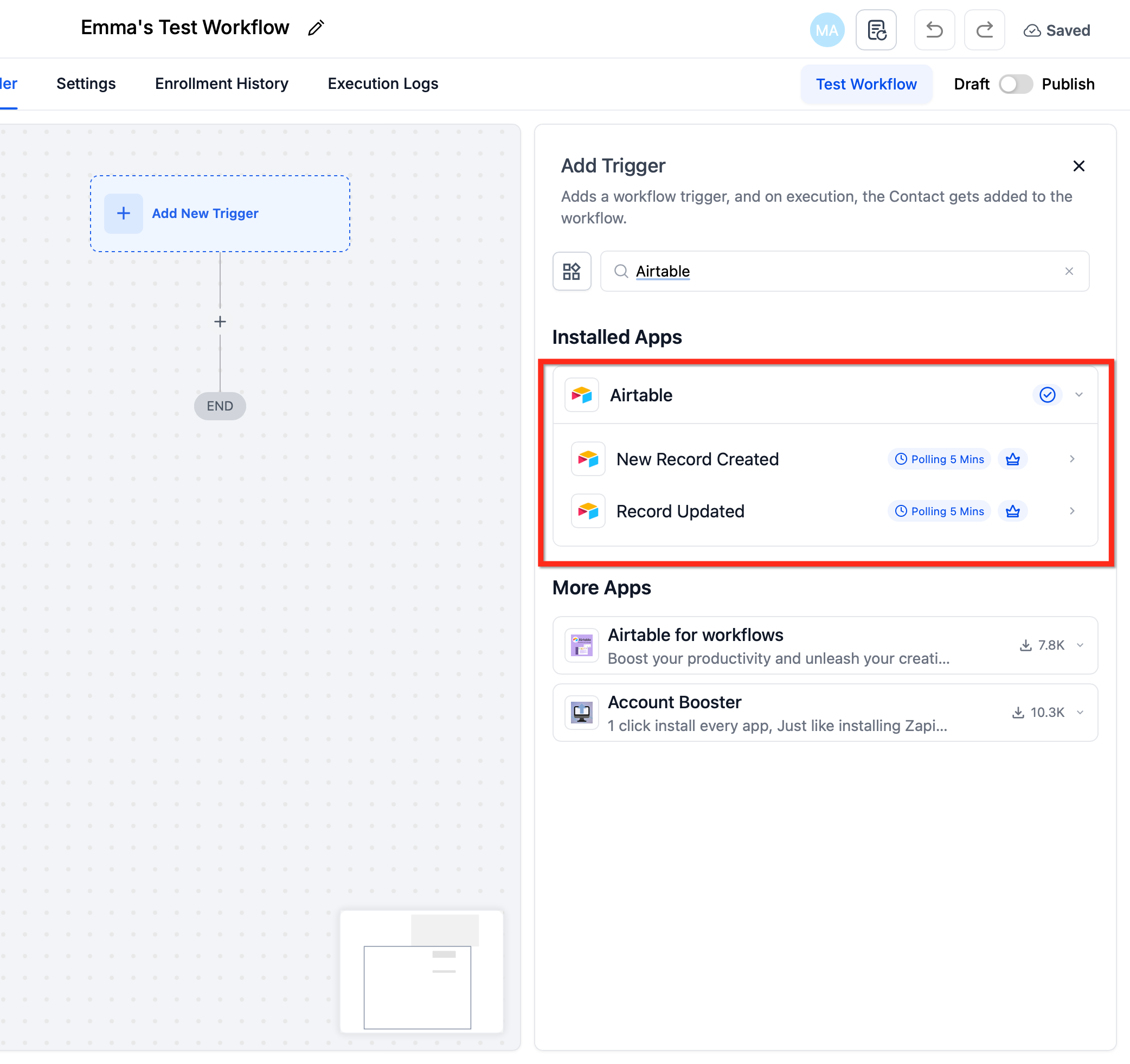
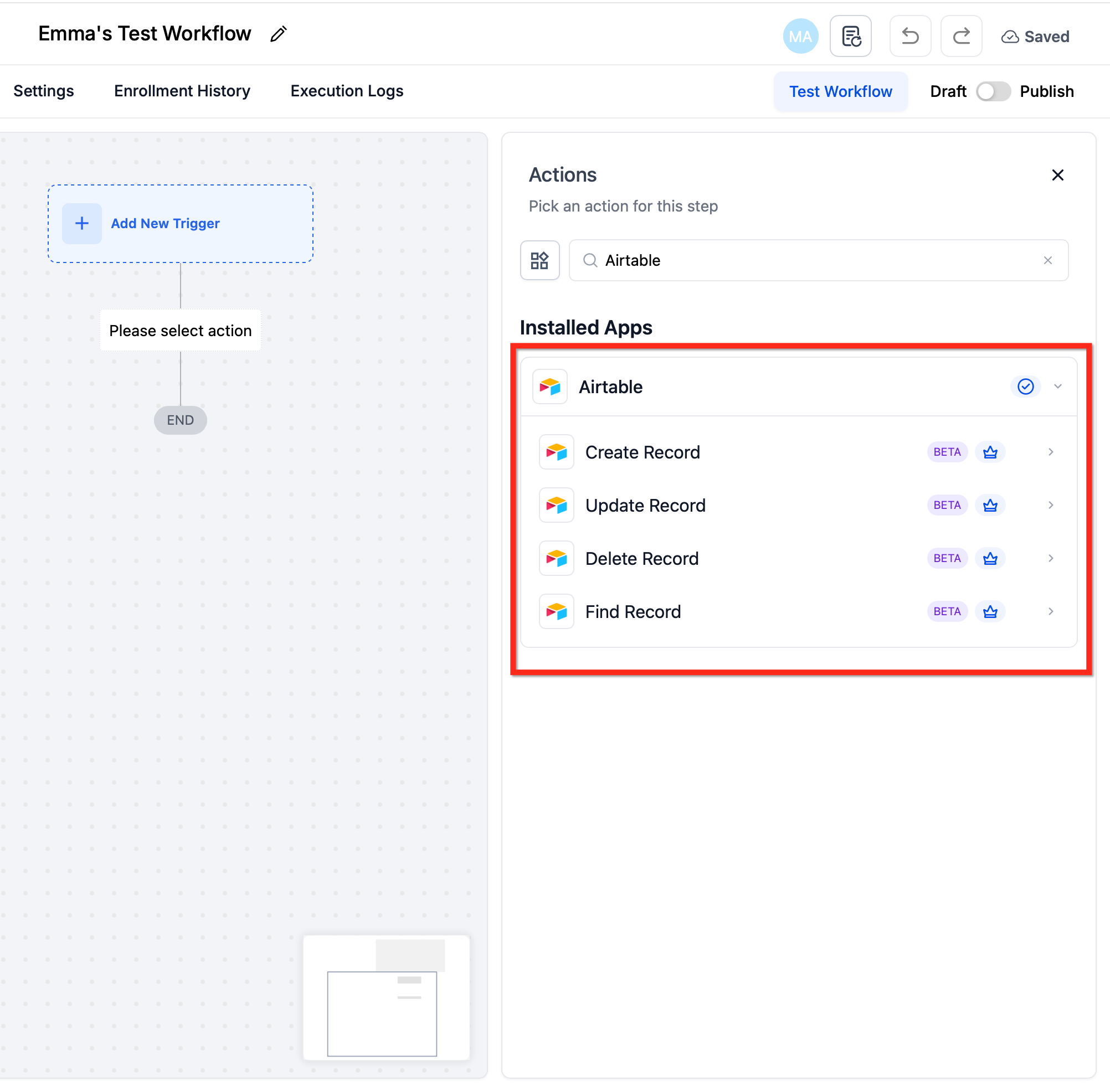
In Automations → Workflows, click + Add Trigger and search Airtable or click + Add Action and search Airtable.
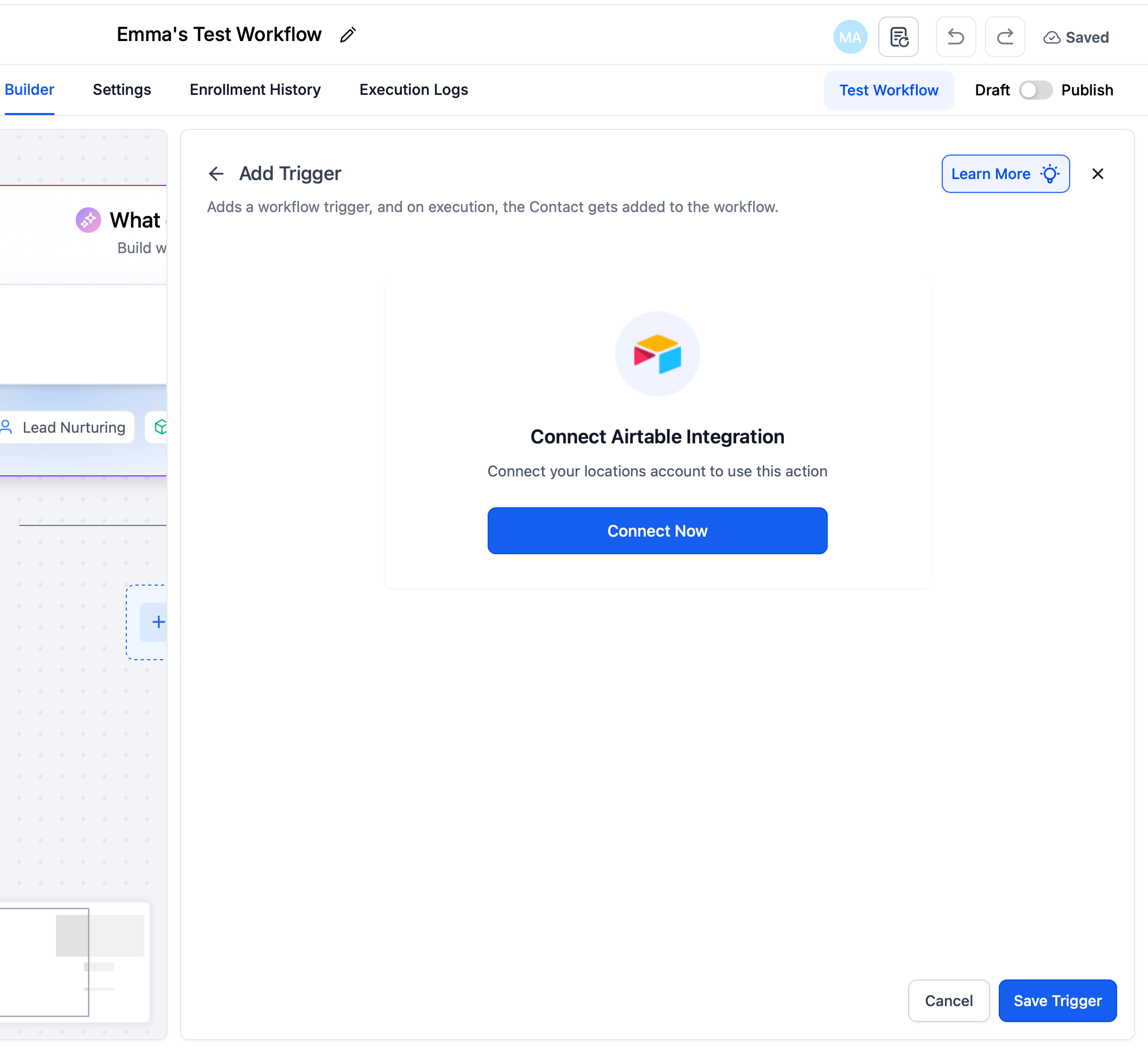
Choose New Record/Updated Record (trigger) or an Airtable action, then click Connect Now.
Sign in to Airtable (OAuth) or add a Personal Access Token (if applicable) and authorize HighLevel.
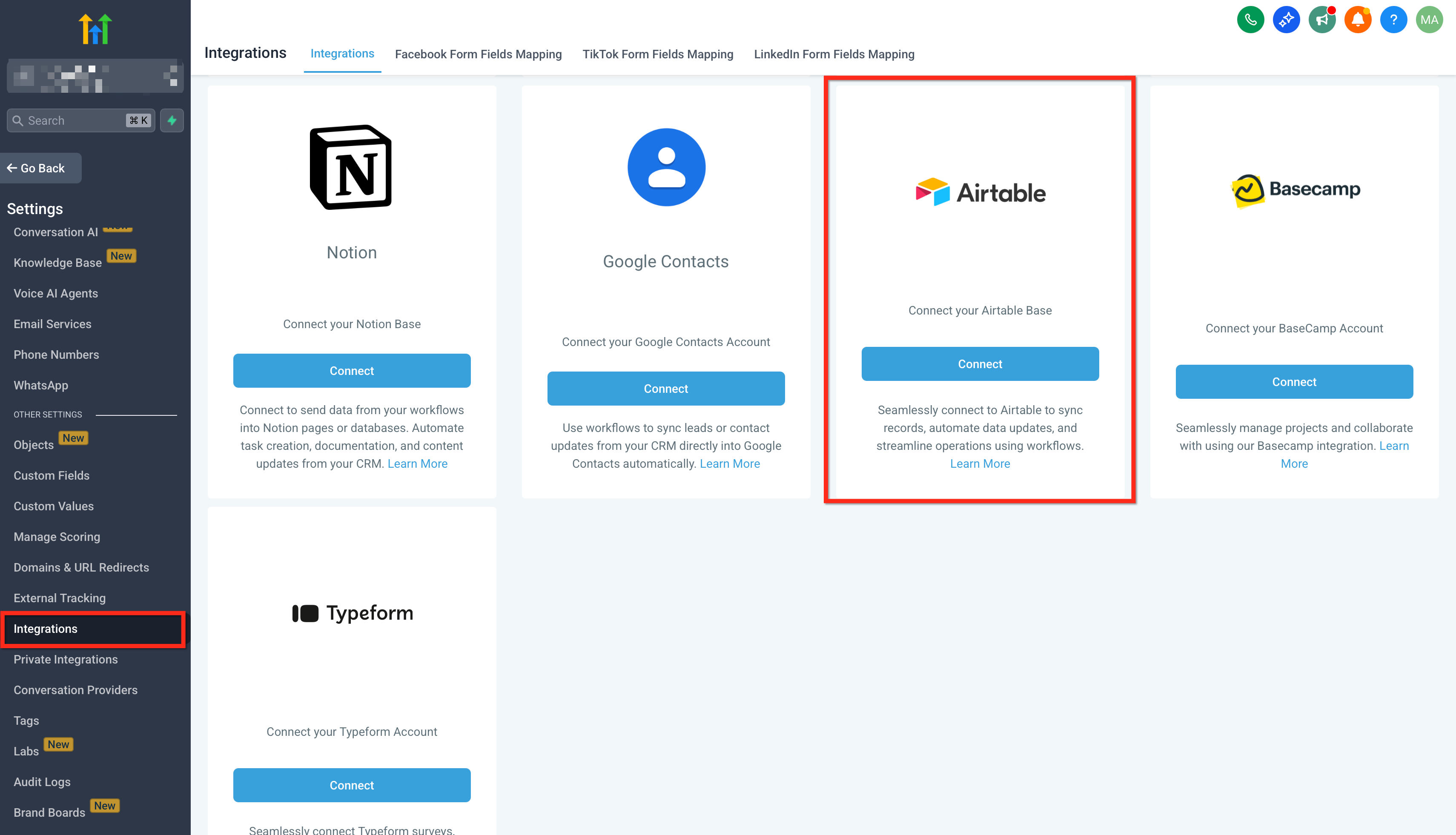
From Settings → Integrations
Go to Settings → Integrations, locate Airtable, and complete the connection (connections are per sub‑account).
Build your first flow:
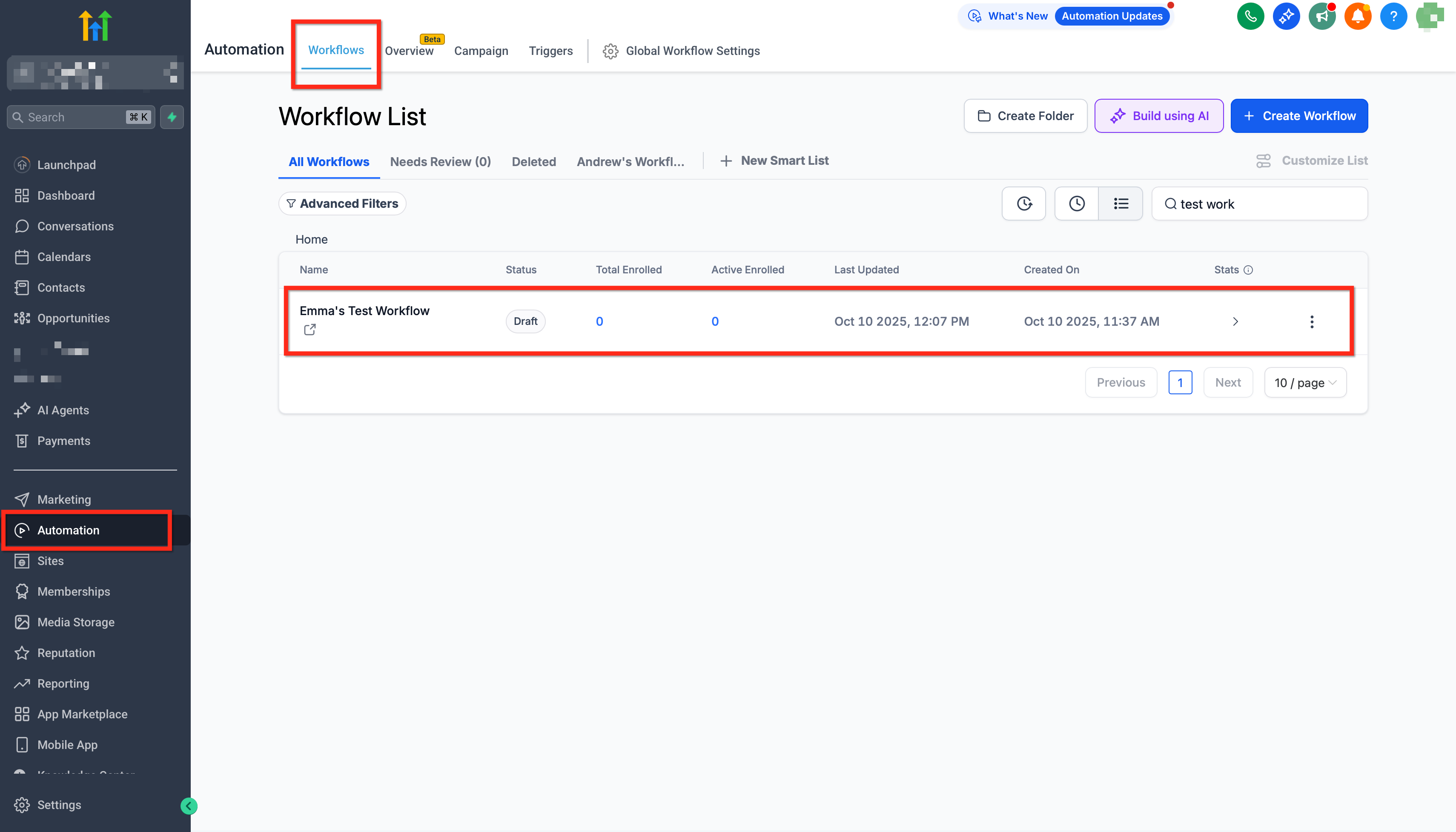
From the desired sub‑account, go to Automations → Workflows and click Create Workflow (or open an existing workflow).
Add New Record or Updated Record (Airtable) and select the Base and Table. Click Test Trigger to pull a sample.
Add Airtable Actions (e.g., Find Record, then Update Record or Create Record). Map email/phone/IDs from the trigger sample.
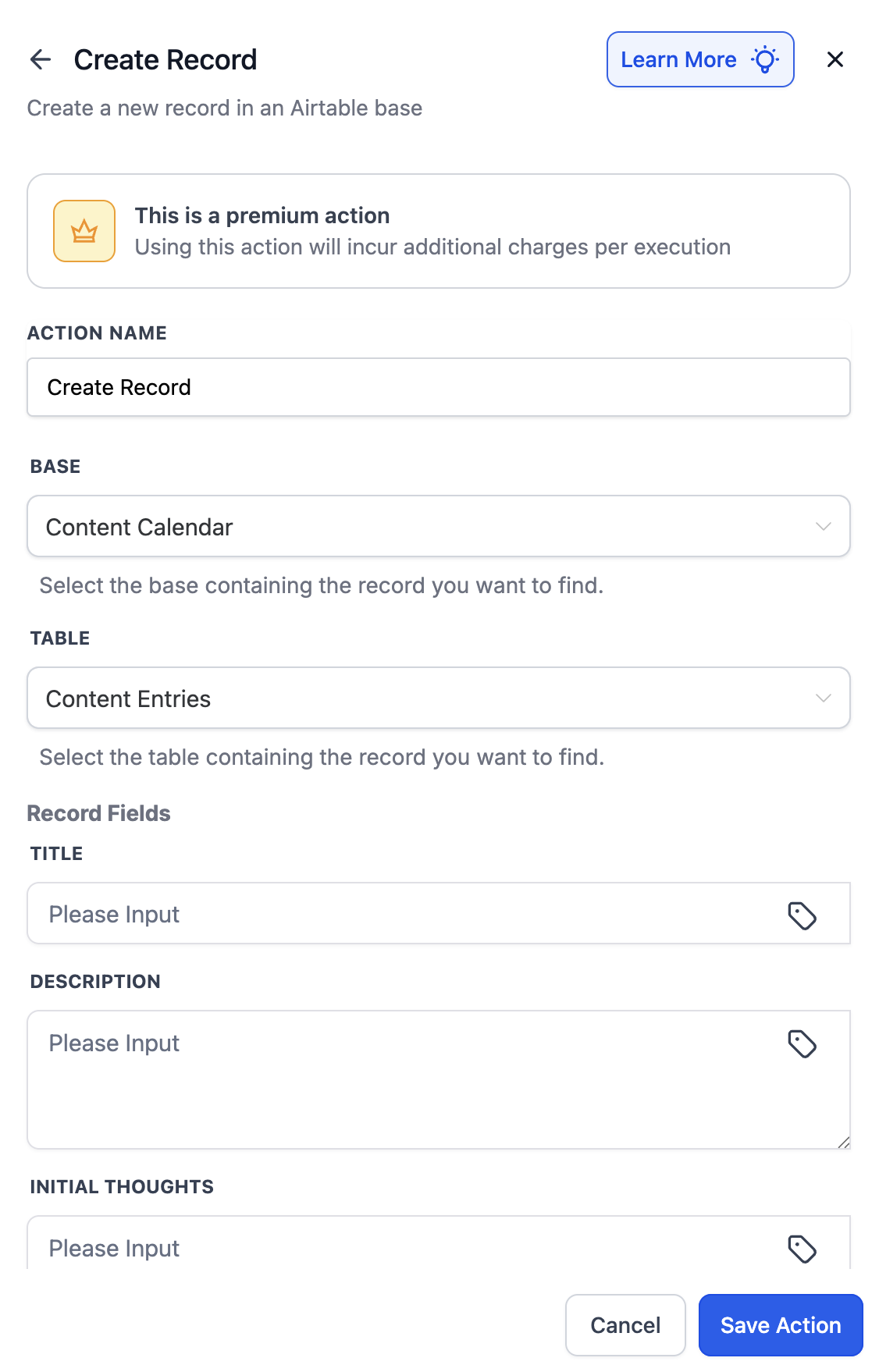
Add follow‑ups (e.g., Send Email, Notify User, Create Opportunity), then Publish and test once to verify entries in Execution Logs.
Use Cases
These real-world patterns show how to pair Airtable steps with workflow logic to notify teams, keep data synchronized across systems, and generate tasks with AI.
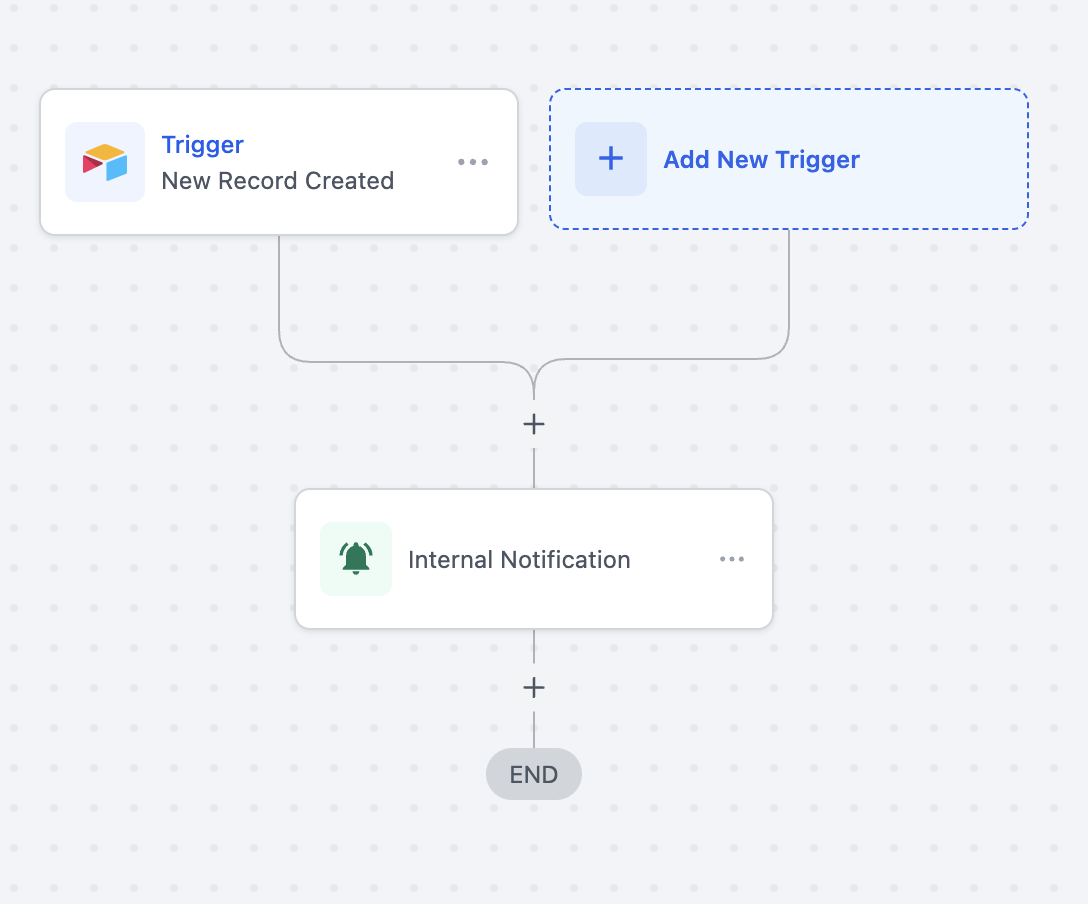
Use Case 1: Create Tasks and Notify Team from Airtable Records
Goal: Notify teams when a new Airtable record is created or updated.
Workflow Setup:
Trigger: Airtable → New Record (use Updated Record if you prefer to notify on changes)
Actions:
Find Record (Airtable)
Internal Notification → Email
Example:
A new client project is added in Airtable → the HighLevel workflow finds the record → an internal email is sent to the project manager saying:
“New Airtable record created. Project ID: {{record.id}}. Please review the details.”
Use Case 2: Conditional Updates and Notifications from Airtable
Goal: Keep Airtable in sync with contacts or leads created in HighLevel and external tools.
Workflow Setup:
Triggers:
Contact Changed (with Tag = "New")
Contact Created (Type = Lead)
Facebook Lead Form Submitted (Form = "Form 1")
Actions:
Find Record (Airtable)
If found → Update Record
If not found → Create Record
Example:
A Facebook lead form is submitted → HighLevel checks if the lead exists in Airtable → if found, the record is updated with the latest phone/email → if not found, a new Airtable record is created.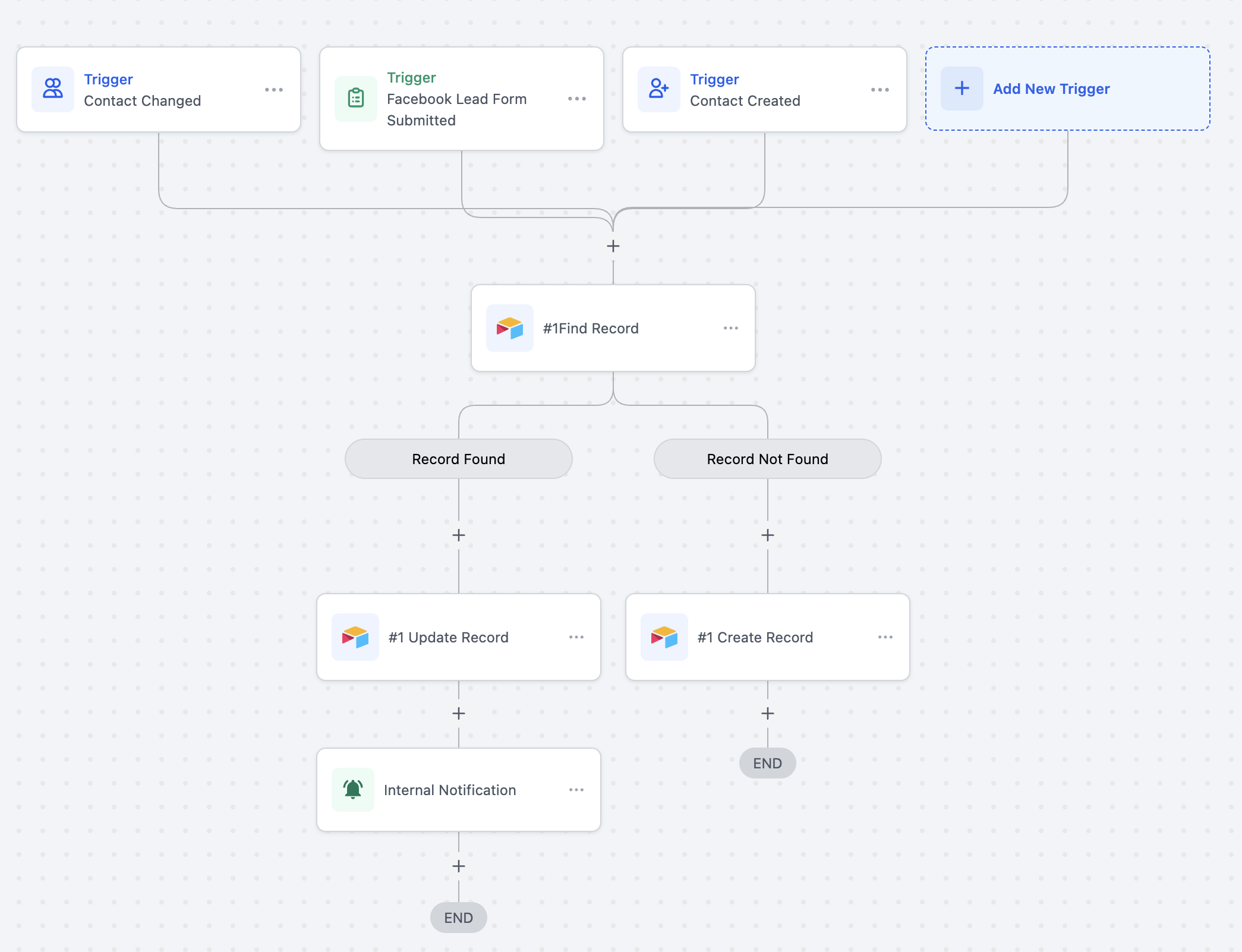
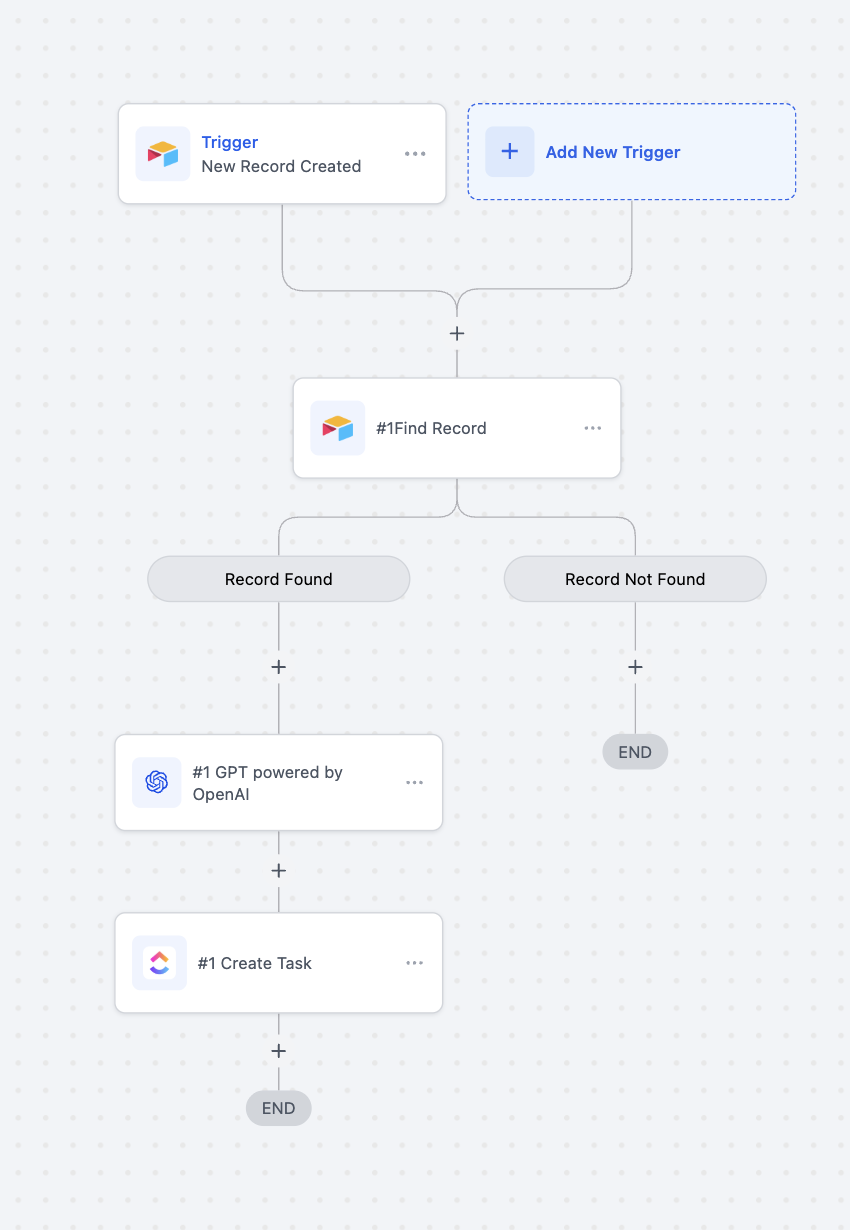
Use Case 3: Automate Content Production from Airtable Briefs
Goal: Generate content and create downstream tasks based on new briefs added to Airtable.
Workflow Setup:
Trigger: Airtable → New Record (Table: “Content Briefs”)
Actions:
Find Record (Airtable)
Generate Content with AI (workflows)
Create Task (ClickUp)
Send Internal Notification (workflows)
Send Email (workflows)
Example: When a new brief is added, the workflow generates draft copy, creates a ClickUp task populated with the content, and alerts your team and the client.
Frequently Asked Questions
Q: Do I need a paid Airtable plan?
The integration works with free and paid Airtable accounts. Airtable’s own plan limits (e.g., row caps, attachment storage) still apply.
Q: Is this integration available to all users?
Yes, it’s available to all accounts that have access to workflows and integrations in HighLevel.
Q: Are Airtable steps premium‑billed in HighLevel?
Yes. The Airtable trigger and actions are premium and billed per execution at your account’s standard rate. Agencies can optionally rebill sub‑accounts.
Q: Where do new or updated rows live?
All actions read/write in the Base and Table you select for that step, using the connected Airtable account.
Q: How do I troubleshoot failures?
Check Execution Logs for specific step errors (e.g., invalid table/field, missing permissions). If authorization expired, reconnect Airtable and re‑run a test.
Related Articles
Was this article helpful?
That’s Great!
Thank you for your feedback
Sorry! We couldn't be helpful
Thank you for your feedback
Feedback sent
We appreciate your effort and will try to fix the article