This guide explains how to use four Communities workflow triggers that fire when key actions happen inside your HighLevel Communities groups—such as join requests being rejected, posts or comments being created, or members registering for group events.
You'll learn what each trigger does, how to configure filters for smarter targeting, and how to set up complete automation flows inside Workflows to automate moderation, engagement, and event follow-up at scale.
What is Communities Workflow Automation for Member Activity?
Communities Workflow Automation for member activity refers to a set of workflow triggers that fire when key actions happen inside your HighLevel Communities groups—such as join requests being rejected, posts or comments being created, or members registering for group events. These triggers let you connect everyday activity in your groups directly to workflows so you can send alerts, follow up, and track engagement automatically.
HighLevel supports a broad library of workflow triggers across CRM, payments, and communities, all managed inside the Workflow Builder. These Communities triggers provide deeper coverage so your groups can benefit from the same level of automation as the rest of your account.
Key Benefits of Communities Workflow Triggers
These Communities triggers are designed to turn what members do inside groups into timely, targeted automation.
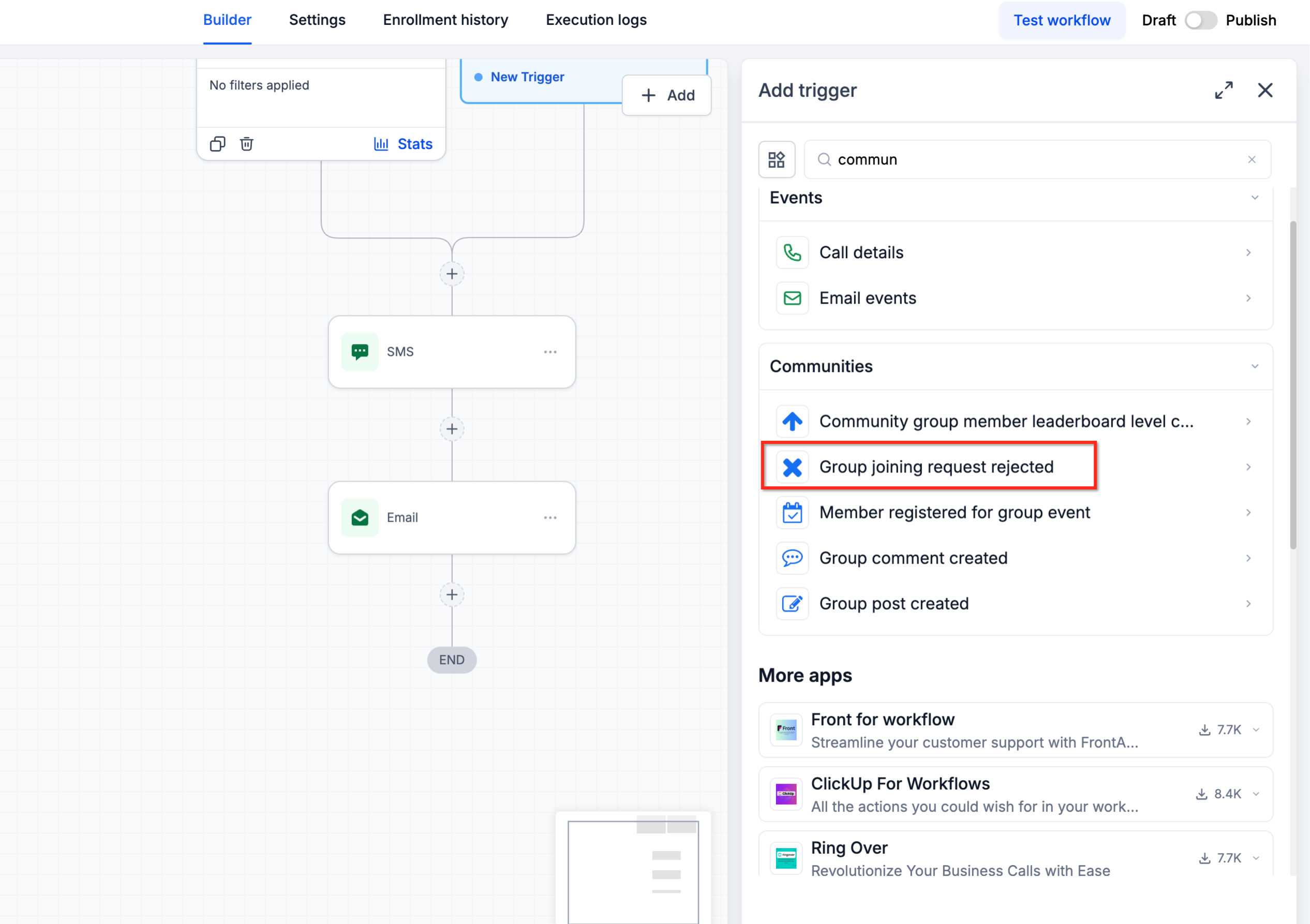
Group Joining Request Rejected
Group Joining Request Rejected is a Communities workflow trigger that fires when a member's request to join a specific group is rejected. It helps you keep rejected applicants on a structured follow-up path—whether that's sending a polite decline, offering alternative resources, or notifying an internal team.
- You want to send an automatic, friendly "declined" message explaining next steps.
- You need to log rejected requests in your CRM for future outreach or reporting.
- Moderators or sales reps should be notified when high-value applicants are rejected.
- Send an email or DM explaining why access was declined and how to qualify.
- Create a task for a team member to review the application.
- Apply tags (e.g., "Community – Join Request Rejected") for segmentation.
Group Post Created
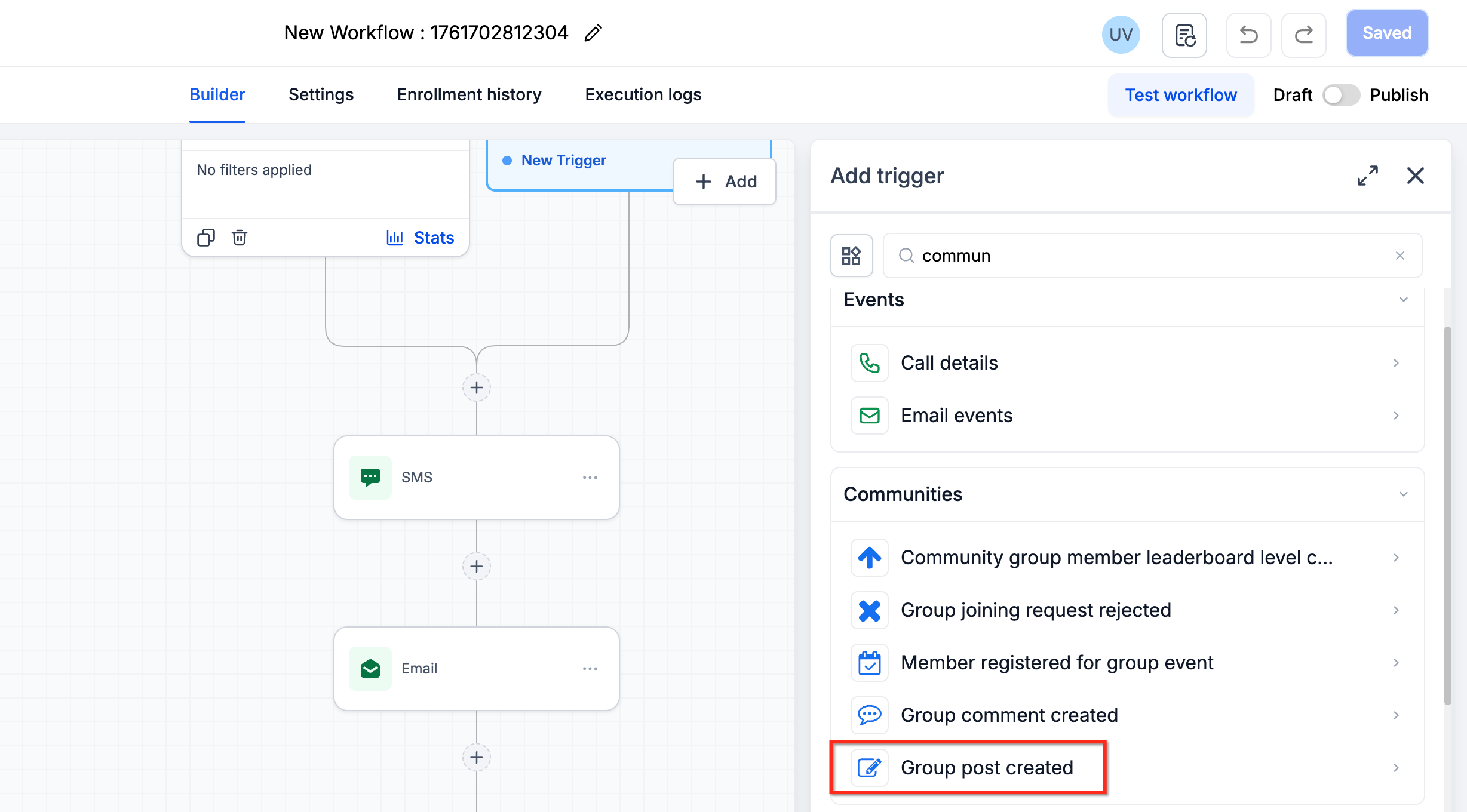
Group Post Created lets you trigger a workflow every time someone publishes a new post in a specified community group. This is ideal for automating engagement, routing important content, or moderating posts that match specific criteria.
This trigger focuses on top-level posts, not comments, and is especially powerful when combined with filters on channel and content.
- Group (required) – Target specific group(s).
- Channel – Limit to a specific channel (e.g., Announcements, Q&A).
- Post Title – Match posts based on the title (e.g., contains "Launch").
- Post Content – Match posts based on body content (e.g., contains "refund", "support", or keywords you watch for).
- Auto-reply with guidance when someone posts a "Help" or "Support" question.
- Notify your team via email/Slack when a VIP or partner publishes in a key channel.
- Start a nurture workflow when someone posts an introduction in a "Welcome" channel.
- Flag posts containing specific keywords for moderation review.
Group Comment Created
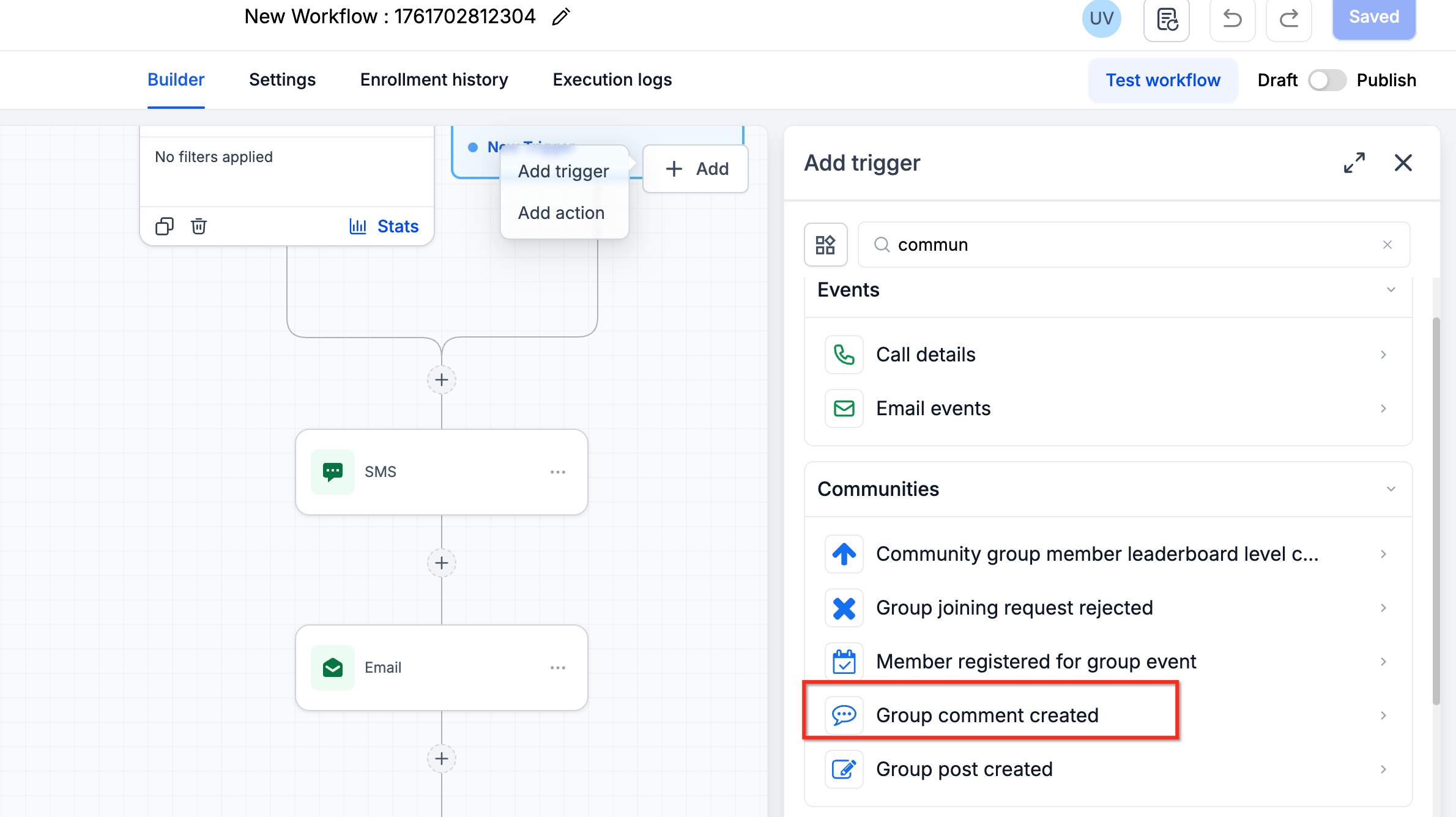
Group Comment Created fires when someone adds a comment to an existing group post. This trigger is perfect for deep engagement tracking—catching replies, questions, or red-flag comments that might otherwise be missed in busy threads.
It gives you the same context as Group Post Created, plus the exact comment content.
- Group (required) – Limit to one or more groups.
- Channel – Narrow down to specific channels.
- Post Title – Fire only on comments made under posts matching certain titles.
- Post Content – Filter on the original post's content.
- Comment Content – Filter based on what's written in the comment (e.g., "cancel", "refund", "issue", profanity, or other keywords).
- Auto-open a support ticket when a comment includes escalation keywords.
- Alert an account manager when a high-value client leaves a question on a post.
- Award gamification points or send kudos when members give helpful answers.
- Route potentially harmful or policy-violating comments for moderator review.
Member Registered for Group Event
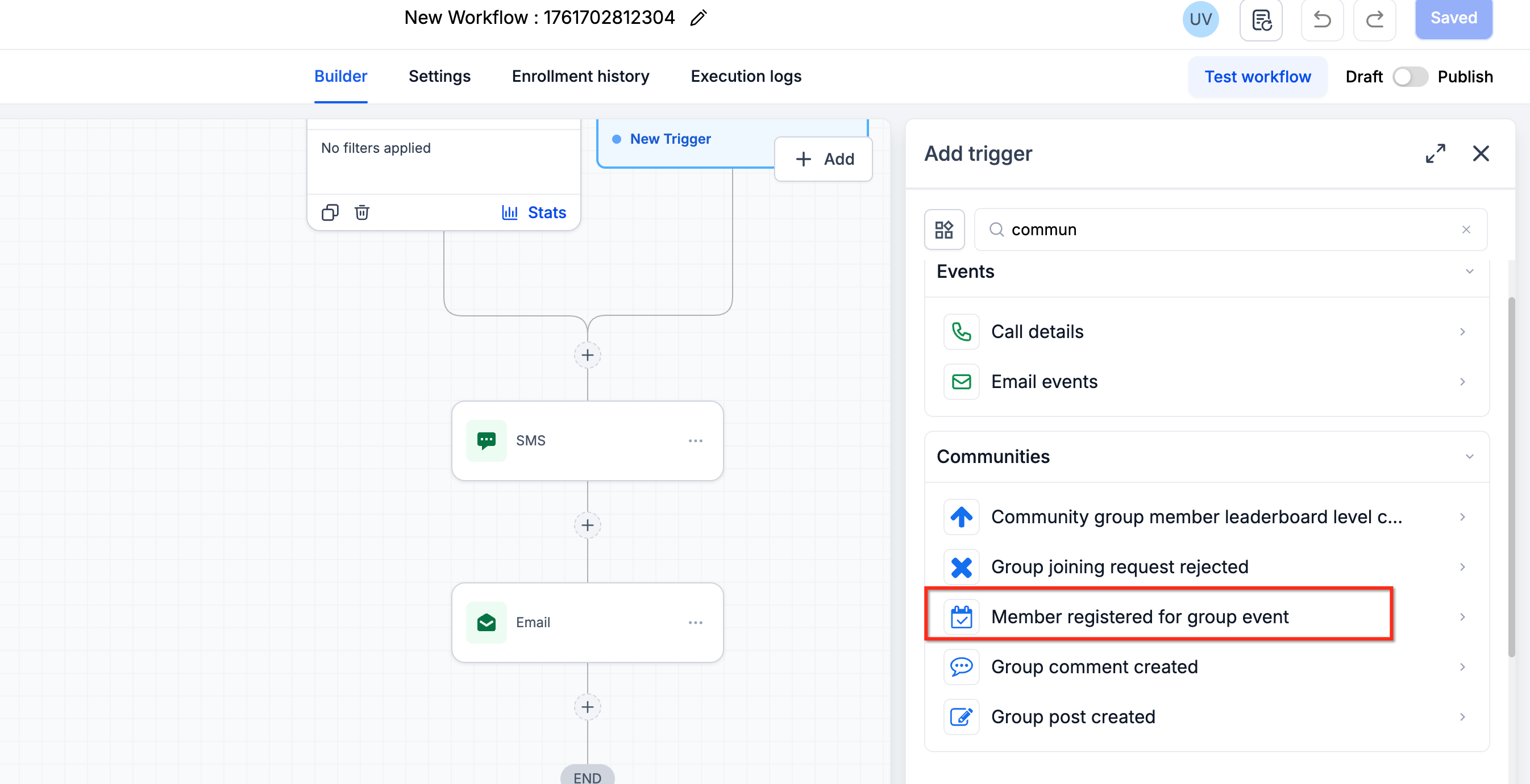
Member Registered for Group Event lets you start workflows when someone registers for an event attached to a specific community group. This gives you a clean automation hook for reminders, follow-ups, and post-event nurturing.
- Group (required) – Choose the group hosting the event.
- Event Title – Target one event or a group of events by name pattern (e.g., "Monthly Q&A").
- Send a confirmation sequence with calendar links and prep materials.
- Add registrants to a follow-up campaign that sends replays and upsell offers.
- Notify hosts when VIPs or certain segments register.
- Automatically tag contacts by the type of event they registered for (e.g., "Webinar – Product Demo Attendee").
How to Setup Communities Workflow Triggers
Configuring these Communities triggers follows the same pattern as other workflow triggers in HighLevel—choose the trigger, add filters, then define the actions you want to run. Understanding this pattern helps you build consistent automation across your account.
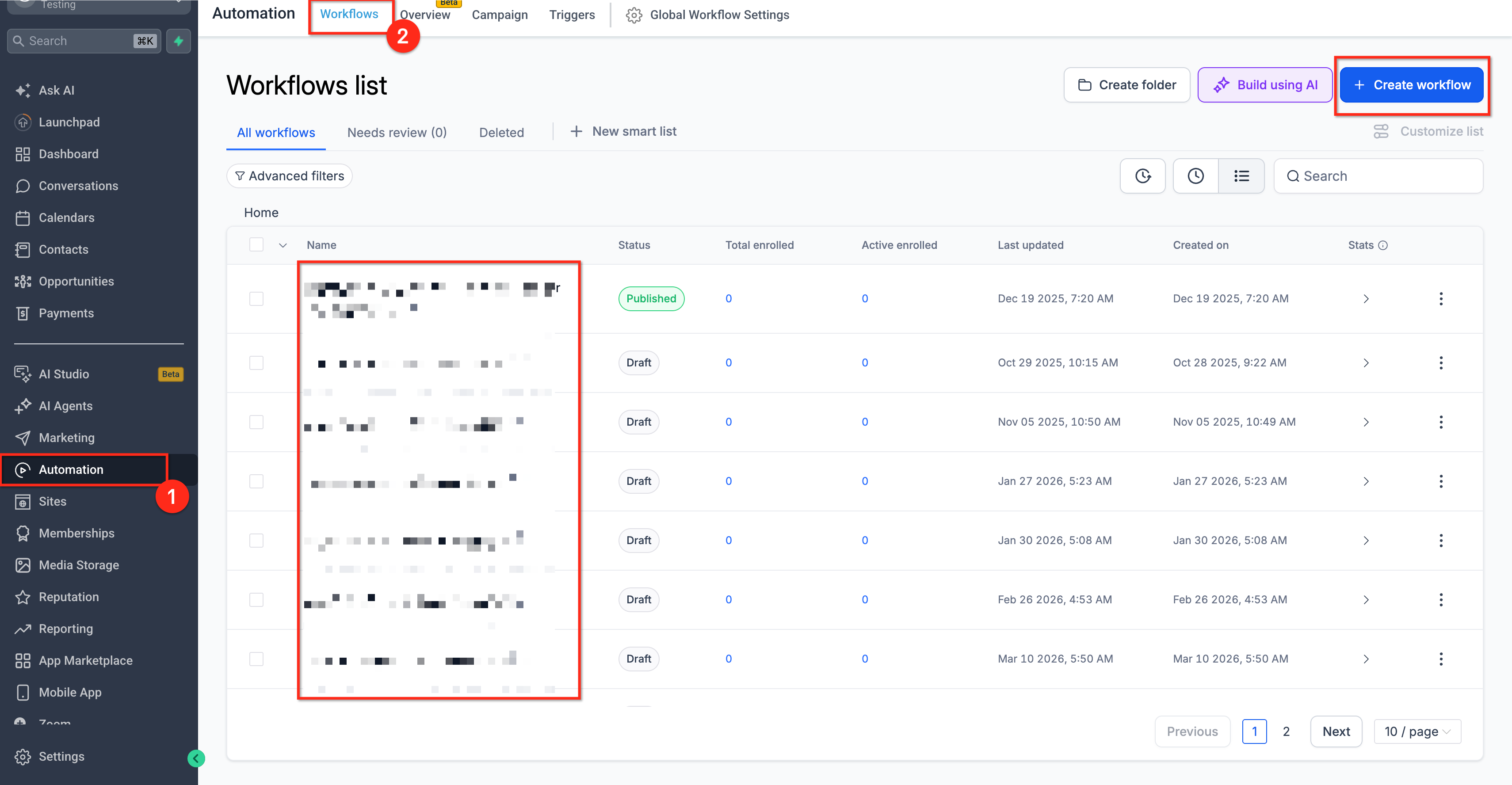
- Go to Automation > Workflows in your HighLevel location.
- Click Create Workflow (or open an existing workflow where you want to add a Communities trigger).
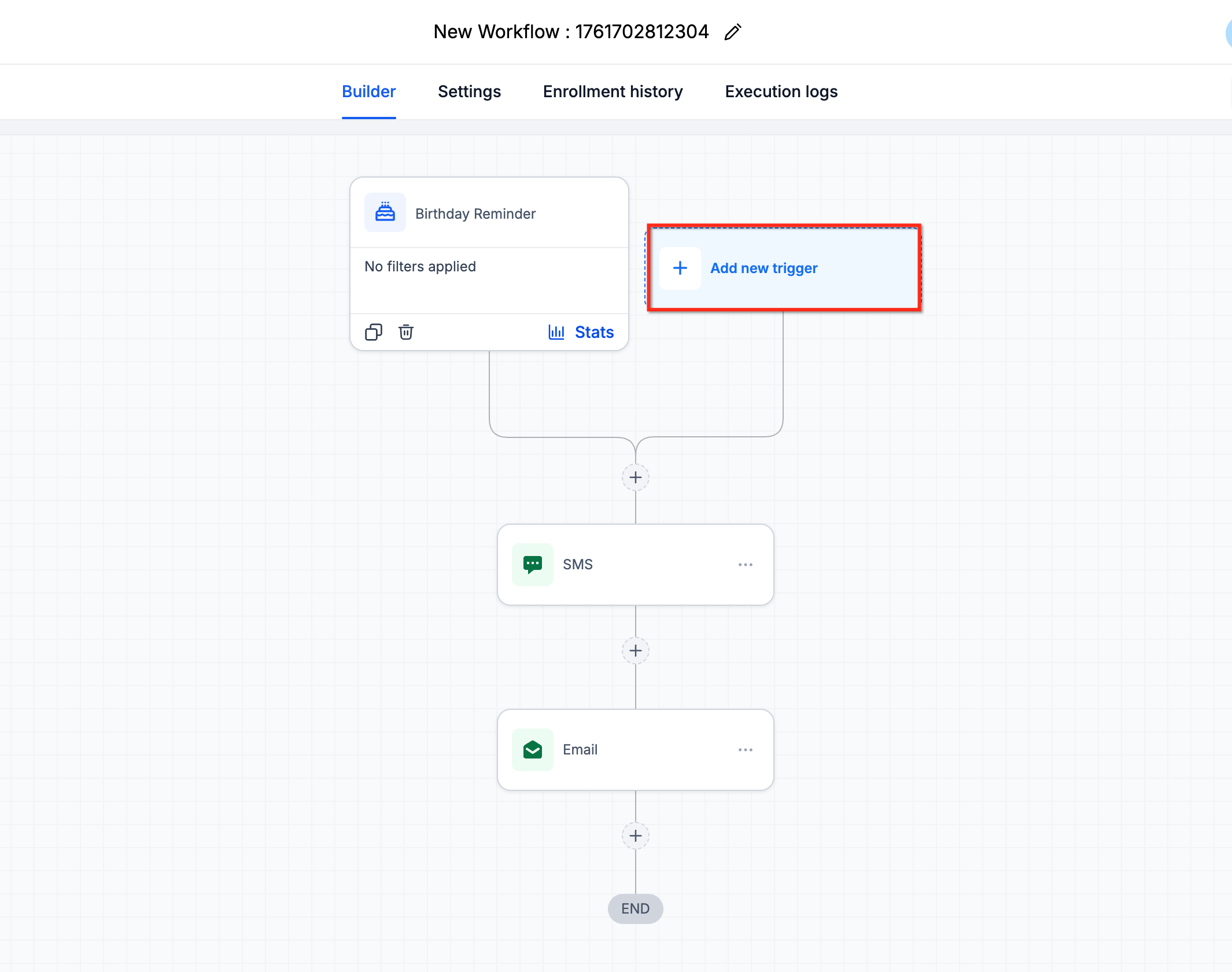
- In the workflow canvas, click Add New Trigger.
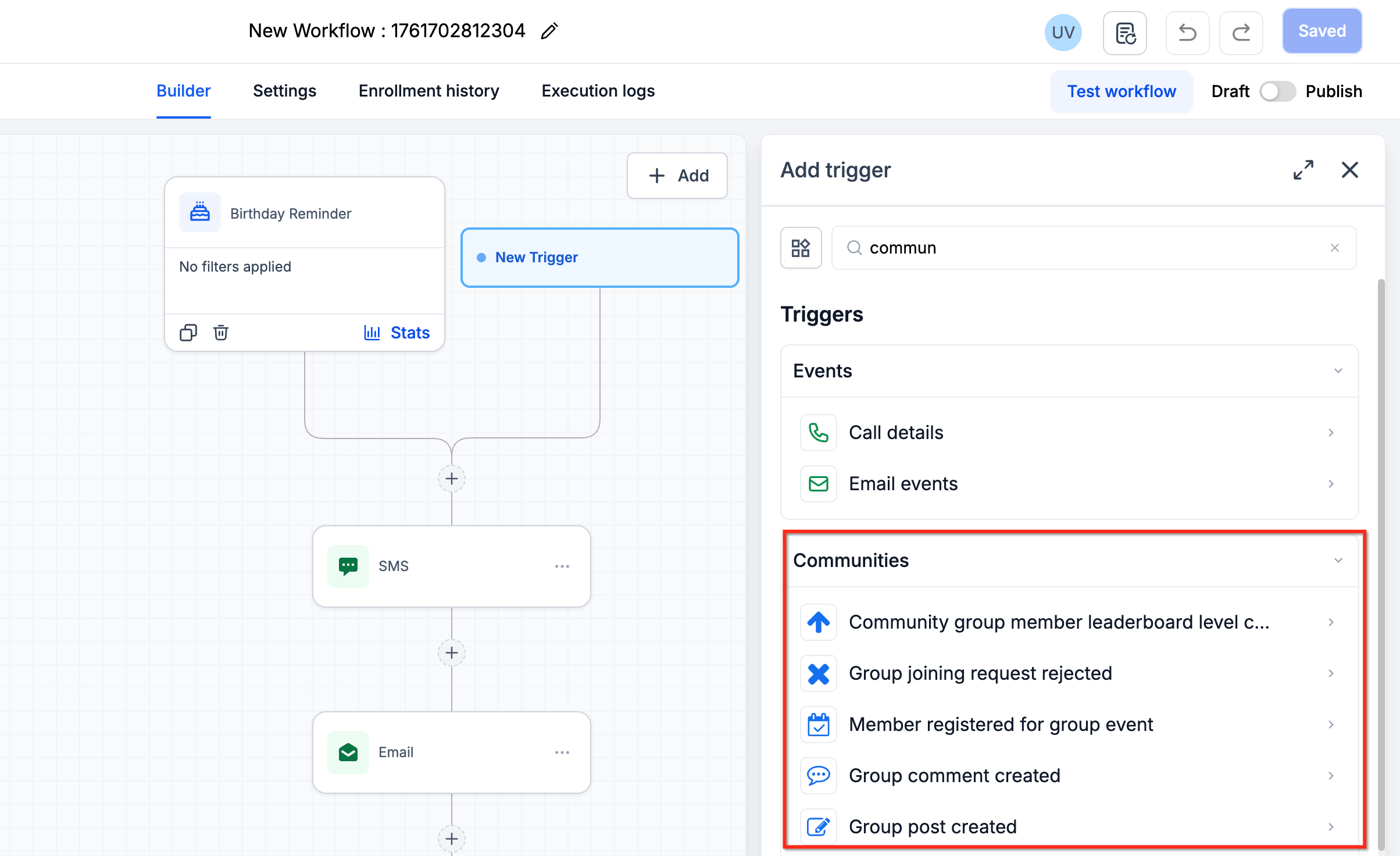
- In the trigger list, locate the Communities category.
- Choose one of the four triggers:
- Group Joining Request Rejected
- Group Post Created
- Group Comment Created
- Member Registered for Group Event
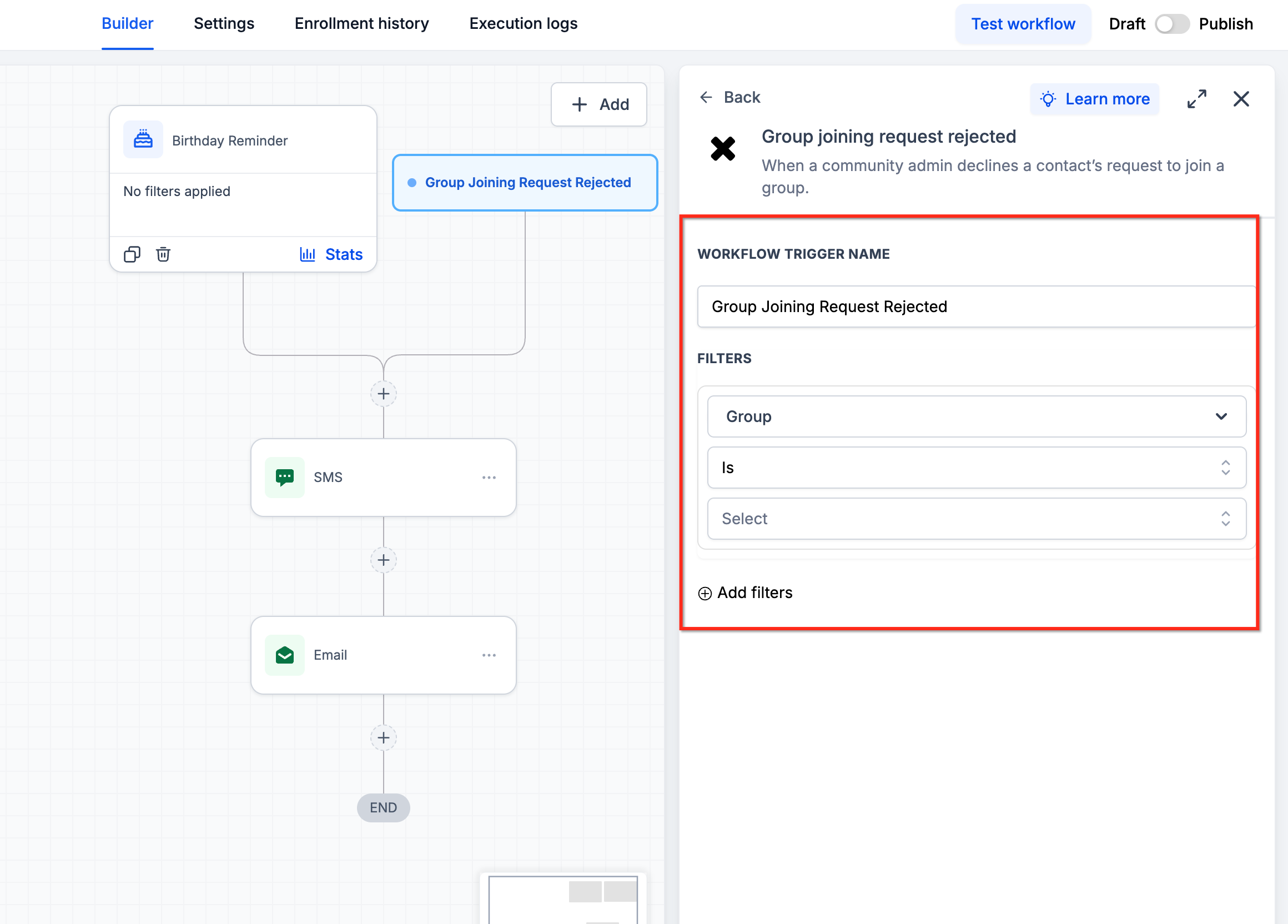
Each trigger requires at least a Group filter, and some include additional optional filters.
Under Filters, set:
- Group (required): Choose the specific community group(s) to monitor.
- (Optional) Add more filters depending on the trigger:
- Channel – For post/comment triggers.
- Post Title / Post Content – To match posts containing certain words or phrases.
- Comment Content – To react to specific comments.
- Event Title – For event registration triggers.
Click Save Trigger.
Once the trigger is configured, define what should happen when it fires.
Typical actions might include:
- Send Email / SMS / In-app notification to the member or internal team.
- Create a Task for a moderator or account manager.
- Add/Remove Tags to segment contacts based on their community activity.
- Add to Another Workflow to enroll the contact in a broader nurture or onboarding sequence.
- Update Contact Fields (e.g., last engaged group, interest category).
Use a test contact or a test member account to:
- Submit a join request and reject it,
- Create a post or comment,
- Register for a group event (depending on the trigger you configured).
Confirm that:
- The contact is added to the workflow run.
- The correct actions (emails, tags, tasks, etc.) are executed.
When everything looks good, toggle the workflow to Publish.
Frequently Asked Questions
Was this article helpful?
That’s Great!
Thank you for your feedback
Sorry! We couldn't be helpful
Thank you for your feedback
Feedback sent
We appreciate your effort and will try to fix the article