Individual Attendee Details for Multi-Ticket Registrations
HighLevel Events now collects attendee information for every ticket in a multi-ticket registration, enabling organizers to track individual participants in group bookings, conferences, workshops, and team registrations.
This guide covers how individual attendee details work, how to copy attendee information from previously completed attendees to reduce repetitive data entry, and how to streamline multi-ticket registrations that include different ticket types.
What Are Individual Attendee Details?
Individual attendee details allow event organizers to capture attendee information for every ticket purchased in a single registration. The primary buyer is automatically treated as the first attendee and is associated with Ticket 1. Each additional ticket receives its own attendee entry with unique contact details.
Attendee information includes first name, last name, email address, and applicable event-specific information configured for the event. This capability is designed for events where identifying every participant is important, such as conferences, workshops, training sessions, team outings, and corporate bookings.
Additional attendees can reuse information from a previously completed attendee using the "Copy data from" dropdown, which reduces repetitive data entry during multi-ticket registrations.
Key Benefits
Capturing individual attendee details provides organizers with accurate participant information and improves the registration experience for buyers purchasing multiple tickets.
How Individual Attendee Details Work
When a buyer selects multiple tickets during event registration, the checkout flow automatically collects attendee information for each ticket.
The primary buyer is automatically treated as the first attendee and is associated with Ticket 1.
For each additional ticket (Ticket 2, Ticket 3, etc.), the buyer can provide unique attendee details, including first name, last name, and email address.
The primary buyer's ticket is labeled with a "BUYER" badge to distinguish it from additional attendee tickets in the registration form.
All attendee details can be edited or updated during the registration process, including copied data from other attendees.
Copying Attendee Information
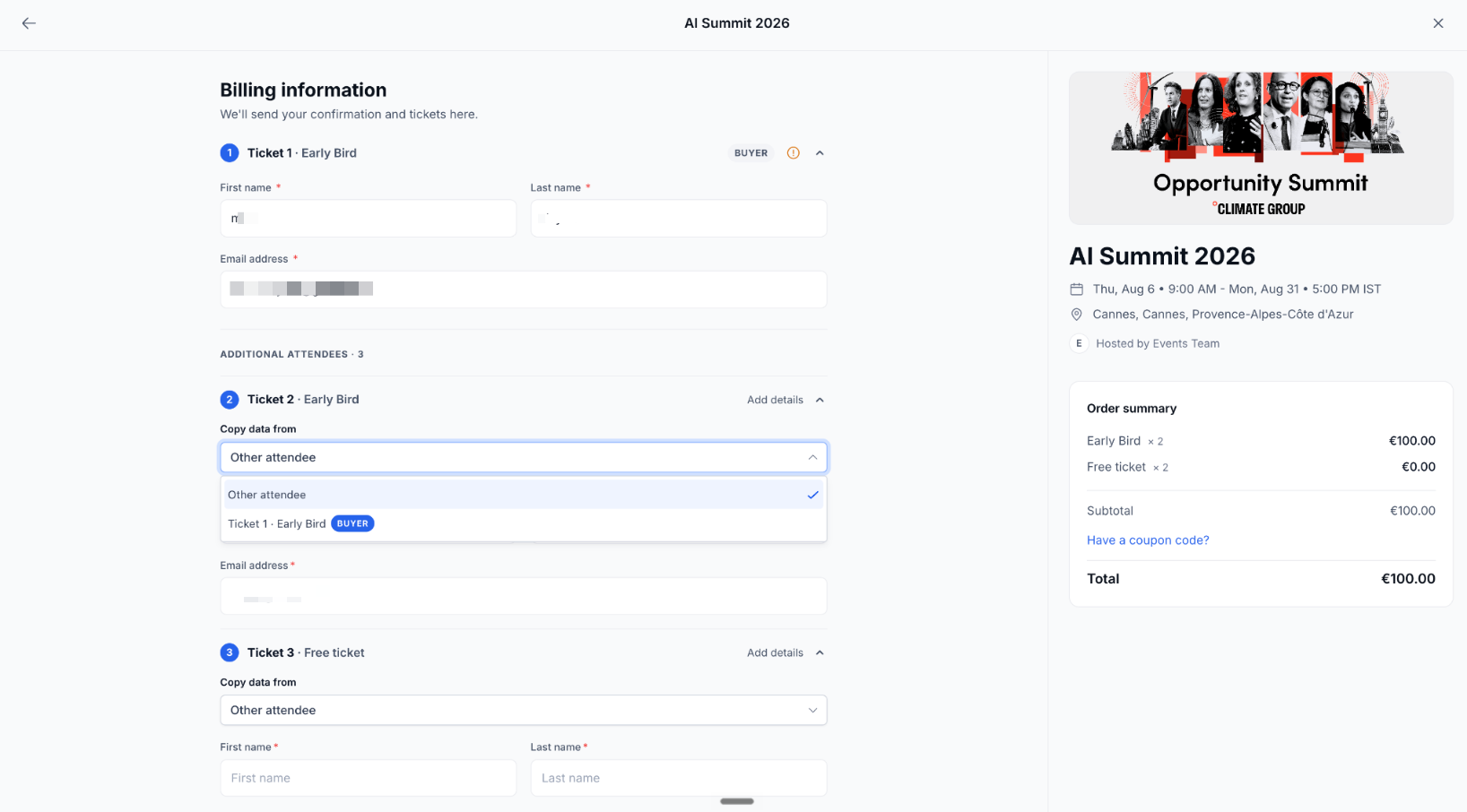
The "Copy data from" feature allows buyers to reuse attendee information from any previously completed attendee within the same registration. This significantly speeds up multi-ticket registrations by eliminating repetitive data entry.
Previously completed attendees appear as selectable options in the dropdown. For example, if a company is registering 10 employees, the buyer can copy details from the first attendee to subsequent tickets and only update the fields that differ.
Each additional attendee ticket includes a "Copy data from" dropdown. Buyers can select a previously completed attendee as the data source, such as "Ticket 1 - Early Bird (BUYER)" or "Ticket 2 - Early Bird". Selecting a source automatically fills in the attendee's details.
Buyers can select any completed attendee from the registration as the data source. The dropdown shows options like "Ticket 1 - Early Bird (BUYER)" and "Ticket 2 - Early Bird".
After copying attendee information, all fields remain editable. Buyers can update any field as needed for the specific attendee.
Multi-Ticket and Mixed Ticket-Type Registrations
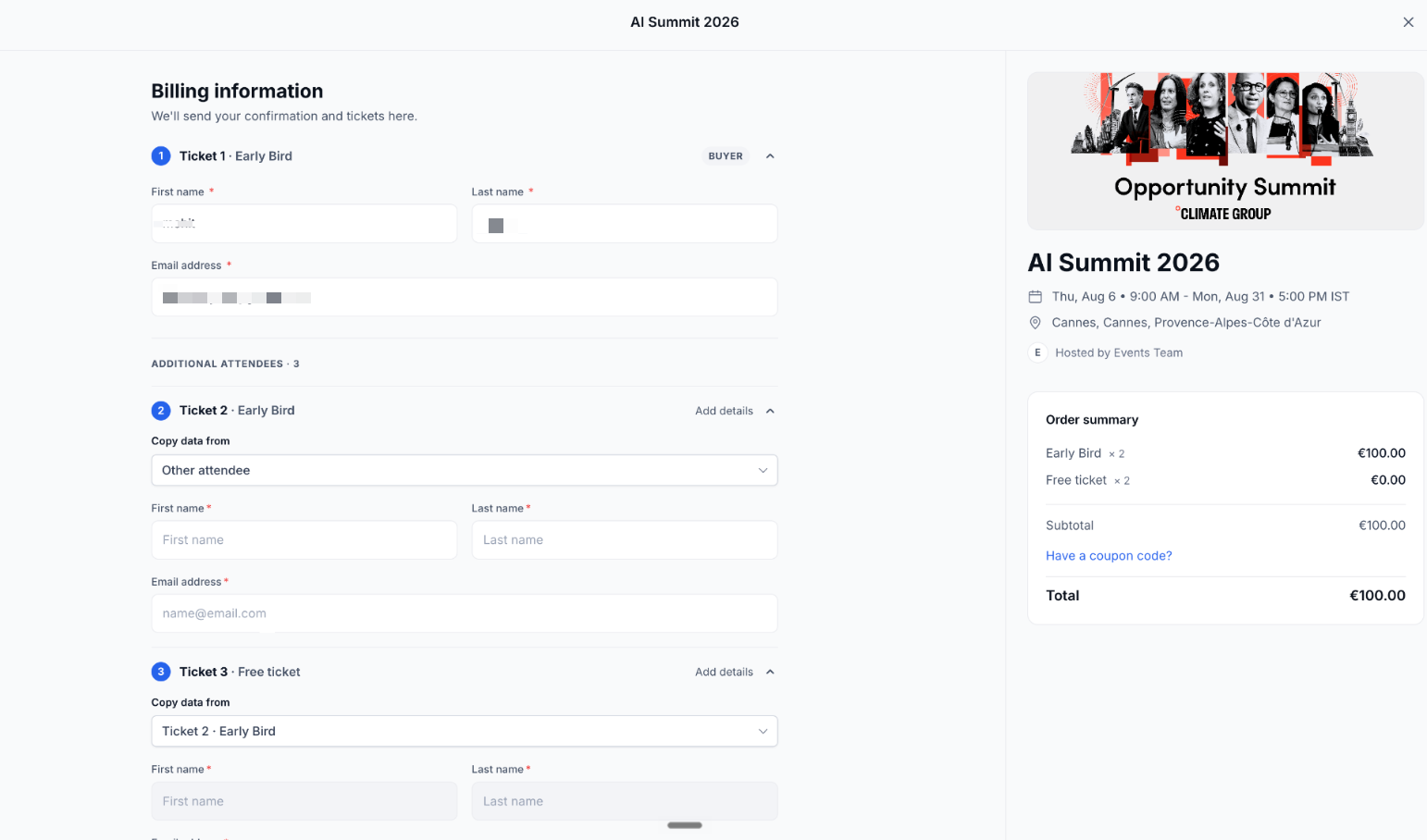
A buyer can select multiple ticket quantities during event registration. When different ticket types are available for the event, multiple ticket types can be included in the same order.
For example, a buyer can register for multiple Early Bird tickets plus a Free ticket in a single checkout. The Order summary displays the selected ticket types, quantities, and applicable totals.
Attendee-level information is collected for each ticket included in the multi-ticket registration. This ensures organizers have complete participant information for every ticket holder.
Event-Specific Attendee Information
First name, last name, and email address are core checkout fields collected for attendees during multi-ticket registrations. These fields enable organizers to identify and contact individual participants.
Applicable custom checkout fields can also be configured for the event. Custom fields allow organizers to collect additional information specific to their event requirements.
Organizers should keep requested attendee information focused on what is actually needed for the event to maintain a streamlined registration experience.
How to Complete Multi-Ticket Registrations
Follow these steps to complete a multi-ticket registration using individual attendee details and the data copying feature.
Organizers should create the event and configure ticket options, pricing, and checkout fields before buyers begin registering.
Set up ticket types with appropriate quantities, pricing, and availability settings to support multi-ticket registrations.
Confirm that checkout fields are configured to collect the necessary attendee information for each ticket.
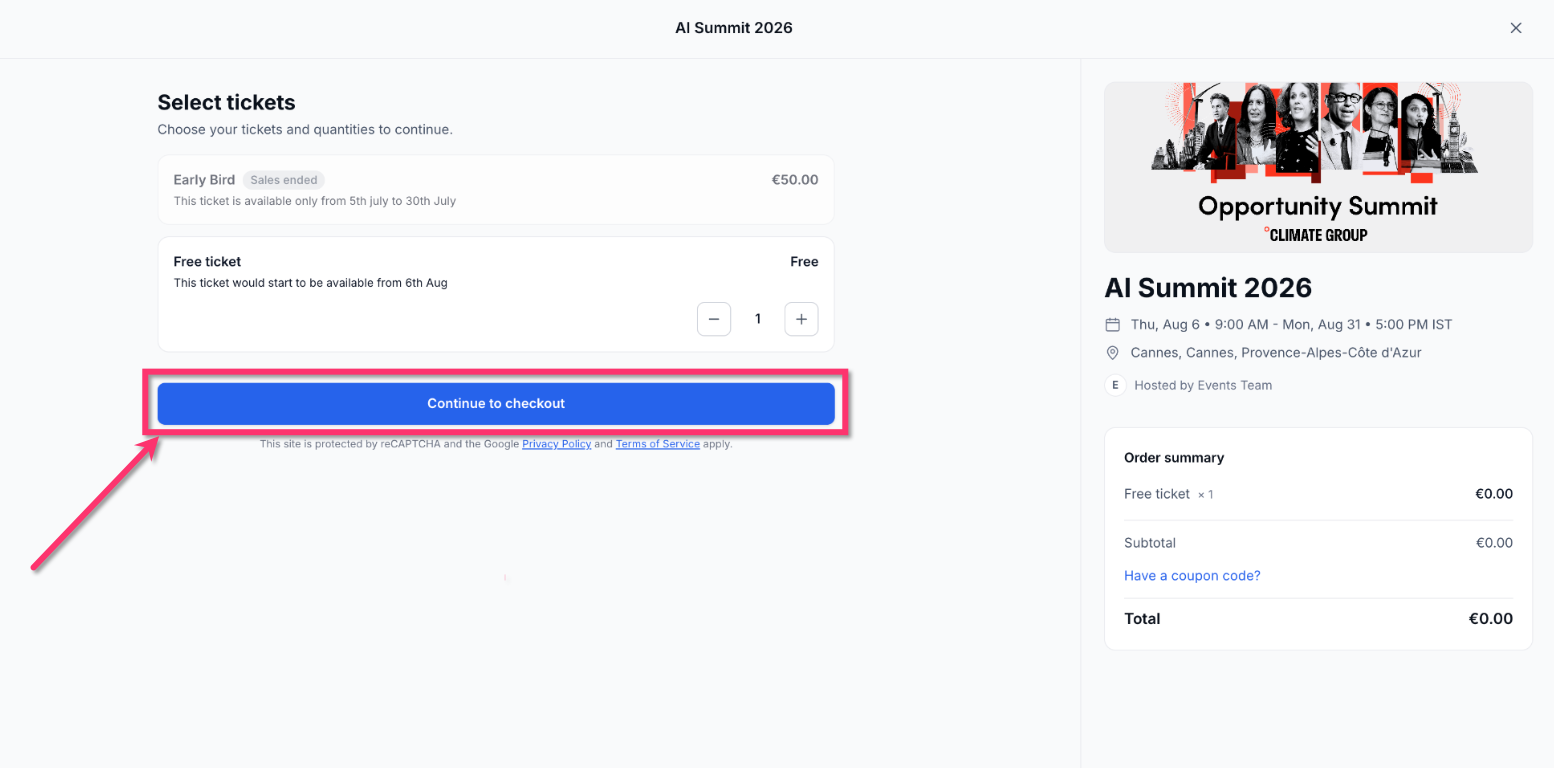
On the event registration page, use the quantity selectors to choose the number of tickets needed. You can select multiple ticket types if different options are available for the event.
Click "Continue to checkout" to proceed to the billing information page where attendee details are collected.
Fill in the first name, last name, and email address fields for Ticket 1. This ticket is labeled "BUYER" and represents the primary buyer, who is automatically treated as the first attendee.
For each additional ticket (Ticket 2, Ticket 3, etc.), provide unique attendee details by manually entering information or using the "Copy data from" dropdown.
To speed up data entry, select a previously completed attendee from the "Copy data from" dropdown to reuse their information.
After copying attendee information, update any fields that differ for the current attendee. All fields remain editable after copying.
Review the Order summary to confirm ticket quantities and total cost. After filling in all required attendee details, continue through the remaining checkout steps to complete the registration.
Use the "Copy data from" feature when registering teams or groups with similar information. This reduces data entry time while ensuring each attendee has their own registration information.
Use Cases for Multi-Attendee Registrations
Individual attendee details are ideal for events where tracking participant information is important. Here are common use cases:
Register several employees within one order while maintaining separate attendee information for each participant.
Capture attendee-level information when one buyer purchases tickets for multiple participants.
Identify each participant when a group registers together.
Allow one buyer to register multiple team members while maintaining separate attendee entries.
Simplify larger registrations by reusing previously entered attendee information where appropriate.
Frequently Asked Questions
Was this article helpful?
That’s Great!
Thank you for your feedback
Sorry! We couldn't be helpful
Thank you for your feedback
Feedback sent
We appreciate your effort and will try to fix the article