Event attendees can keep their in-person tickets close at hand by saving them to Apple Wallet or Google Wallet after registering. Each wallet pass contains the event and attendee details needed at the venue, including the QR code used for check-in. Organizers can also make wallet links available through ticket PDFs and supported confirmation communications. This guide explains how event ticket wallet passes work and where attendees can access them.
Table of Contents
What is Add Event Tickets to Apple Wallet and Google Wallet?
Event ticket wallet passes let attendees save tickets for in-person events to a supported digital wallet after completing their registration or purchase.
Attendees can save a ticket to Apple Wallet on iPhone or Google Wallet on Android. The wallet pass contains the same QR code used for event check-in.
Each ticket receives its own wallet link and pass. This keeps the attendee name and ticket type connected to the correct ticket when attendees arrive at the venue.
Key Benefits of Event Ticket Wallet Passes
Wallet passes give attendees a convenient way to keep their event ticket available while preserving the existing HighLevel check-in experience.
- Convenient ticket access: Attendees can save their in-person event ticket to Apple Wallet or Google Wallet after registration.
- Clear attendee details: Each pass displays the attendee name and ticket type, helping identify the correct ticket at the venue.
- Consistent QR check-in: The wallet pass uses the same QR code that staff scan for event check-in.
- Individual passes for groups: Each ticket in a guest or multi-ticket order receives its own wallet link.
- Multiple delivery options: Wallet links can appear on the ticket PDF and in supported confirmation communications.
Prerequisites and Limitations
Wallet passes are designed specifically for attendees who need a ticket for arrival and check-in at a physical venue.
Before using event ticket wallet passes, confirm the following:
The event is an in-person event.
The attendee completes a ticket purchase or registration for the event.
Apple Wallet is used on iPhone when that wallet option is selected.
Google Wallet is used on Android when that wallet option is selected.
Current limitations and scope include:
Online events do not use wallet passes or QR check-in. Attendees continue to the online attendee or join experience instead.
The release does not specify minimum supported iOS or Android versions.
The release does not document additional device or wallet-app requirements.
HighLevel currently distinguishes In-person and Online locations when configuring an Event. QR check-in is also documented as an in-person event experience.
How To Setup Event Ticket Wallet Links
Wallet links become available as part of the attendee ticket experience for eligible in-person events. Organizers can also place wallet links in supported event confirmation communications.
Attendee wallet flow
Register for or purchase a ticket to an in-person event.
Complete the required registration or checkout steps.
On the post-registration experience, select the available wallet option for the device.
On iPhone, save the ticket to Apple Wallet.
On Android, save the ticket to Google Wallet.
On other supported devices, use the available Add to Wallet option.
Open the saved pass when arriving at the venue.
Present the QR code on the pass for event check-in.
The QR code on the wallet pass is the same event check-in QR used by staff. HighLevel's existing check-in experience lets staff scan attendee QR codes for in-person Events.
Access wallet links from the ticket PDF
Apple Wallet and Google Wallet badges are included on the event ticket PDF.
Open the event ticket PDF received with the registration.
Locate the Apple Wallet or Google Wallet badge.
Use the appropriate wallet option for the attendee's device.
Follow the device prompts to save the pass.
Add wallet links to registration confirmation notifications
Organizers can include wallet links in registration confirmations so attendees can save their in-person event tickets after registering.
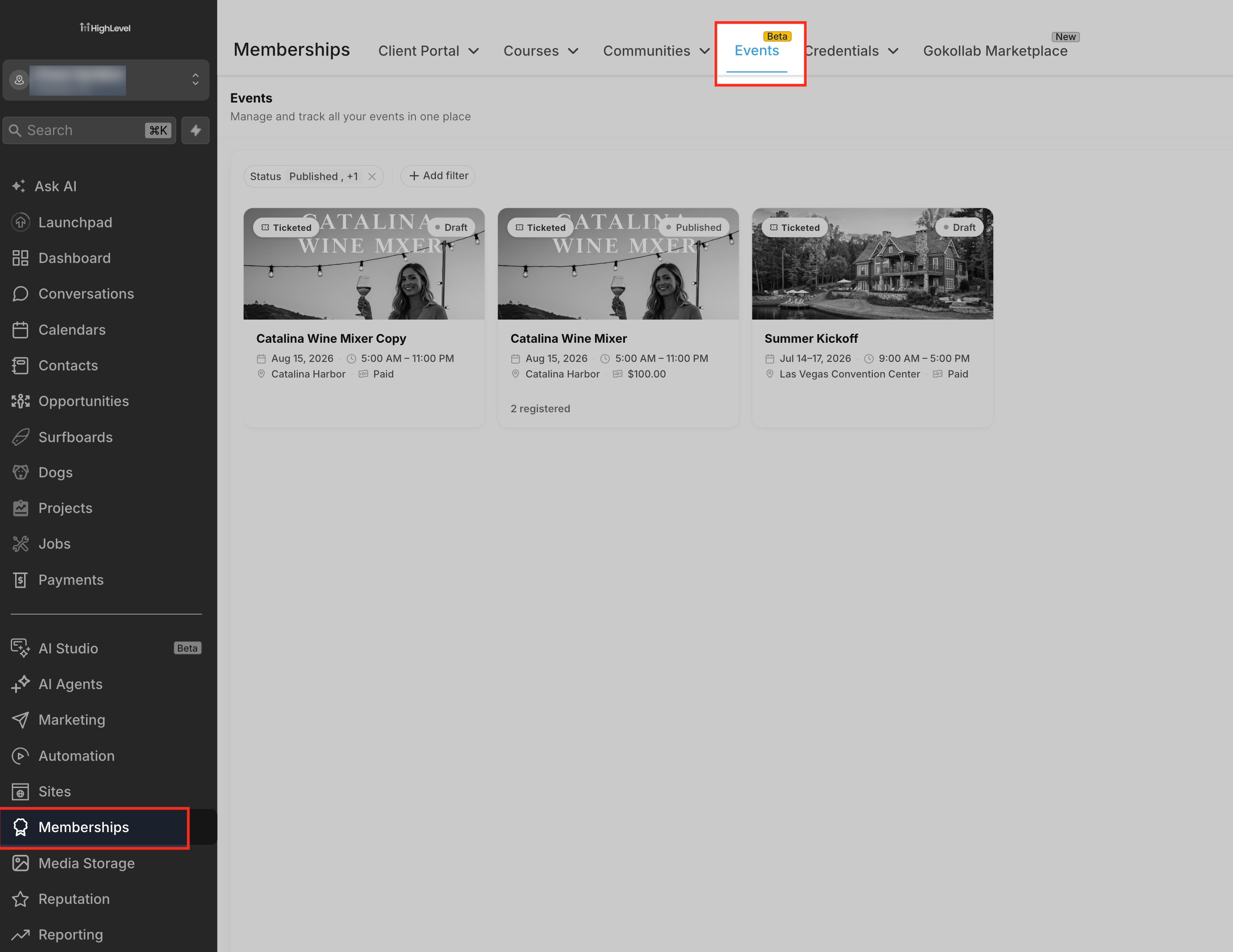
From the Sub-Account view, select Memberships in the left sidebar. Select Events from the top navigation.
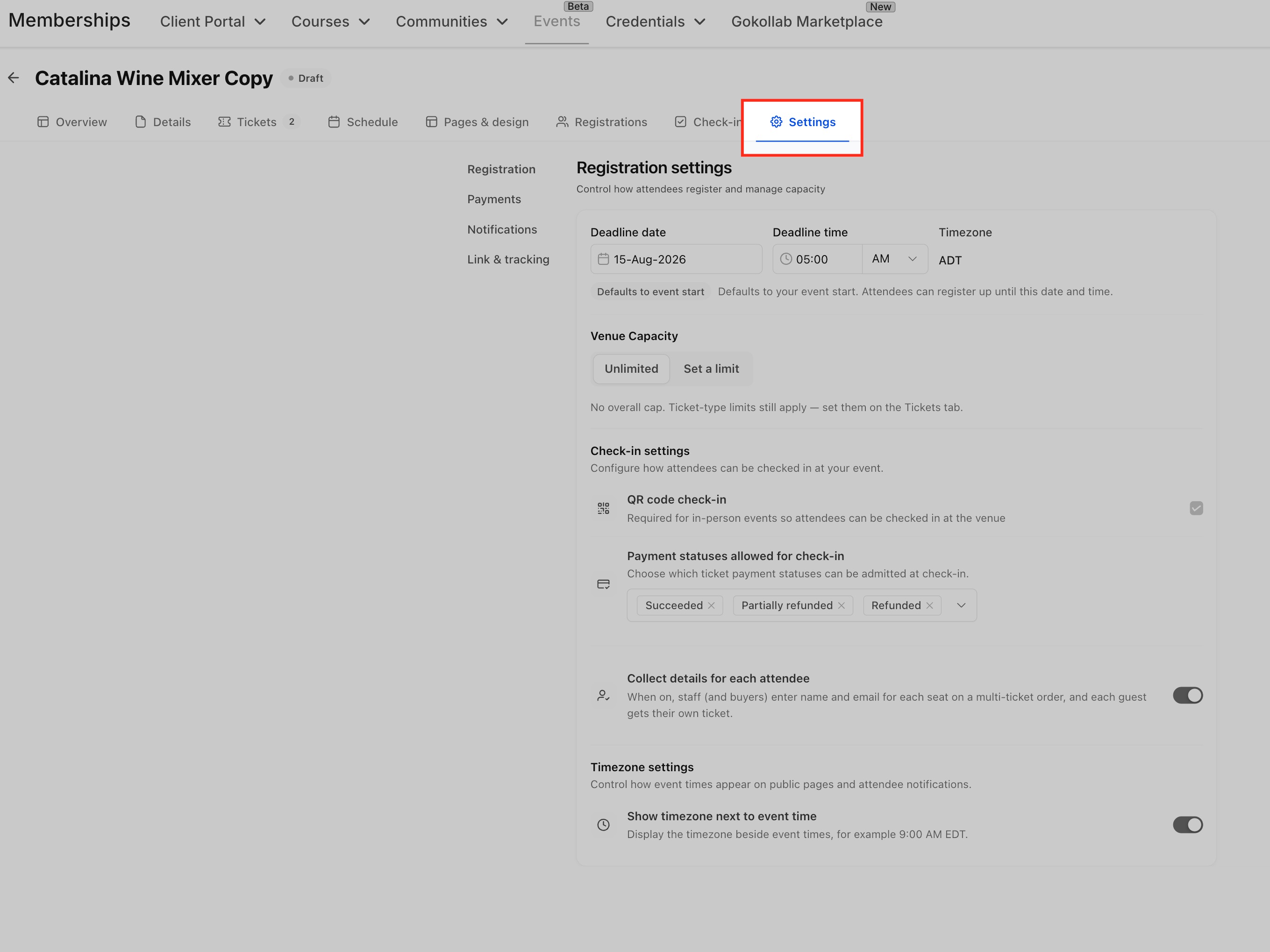
Open the applicable in-person event. Select Settings from the event navigation.
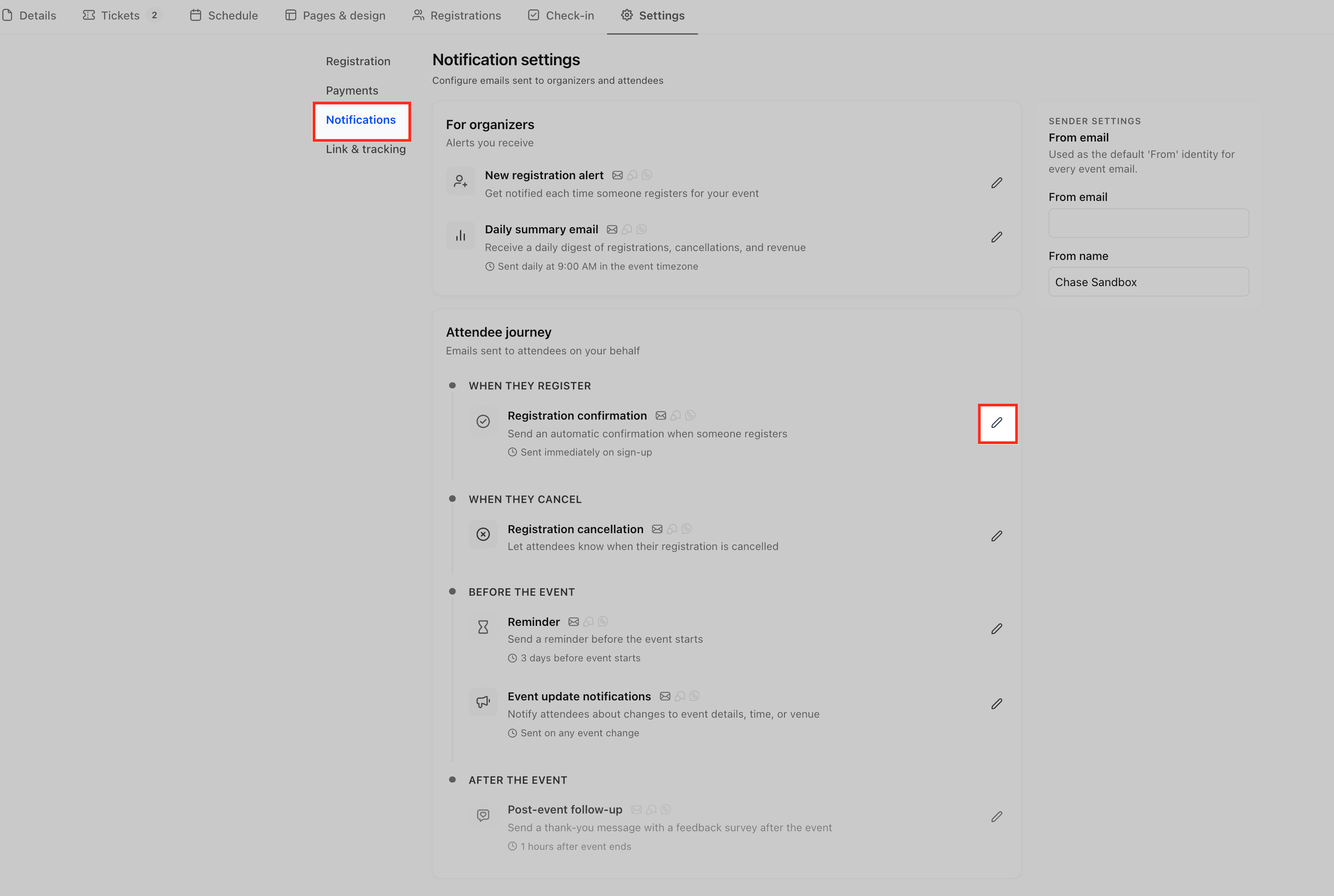
Select Notifications from the Settings menu. Under Attendee journey, locate Registration confirmation beneath WHEN THEY REGISTER. Click the pencil icon on the right side of Registration confirmation.
Select the Email, SMS, or WhatsApp tab for the notification you want to update. Add the Wallet Links merge field to the message content: {{event.ticket.wallet_links}}. Click Save in the top-right corner.
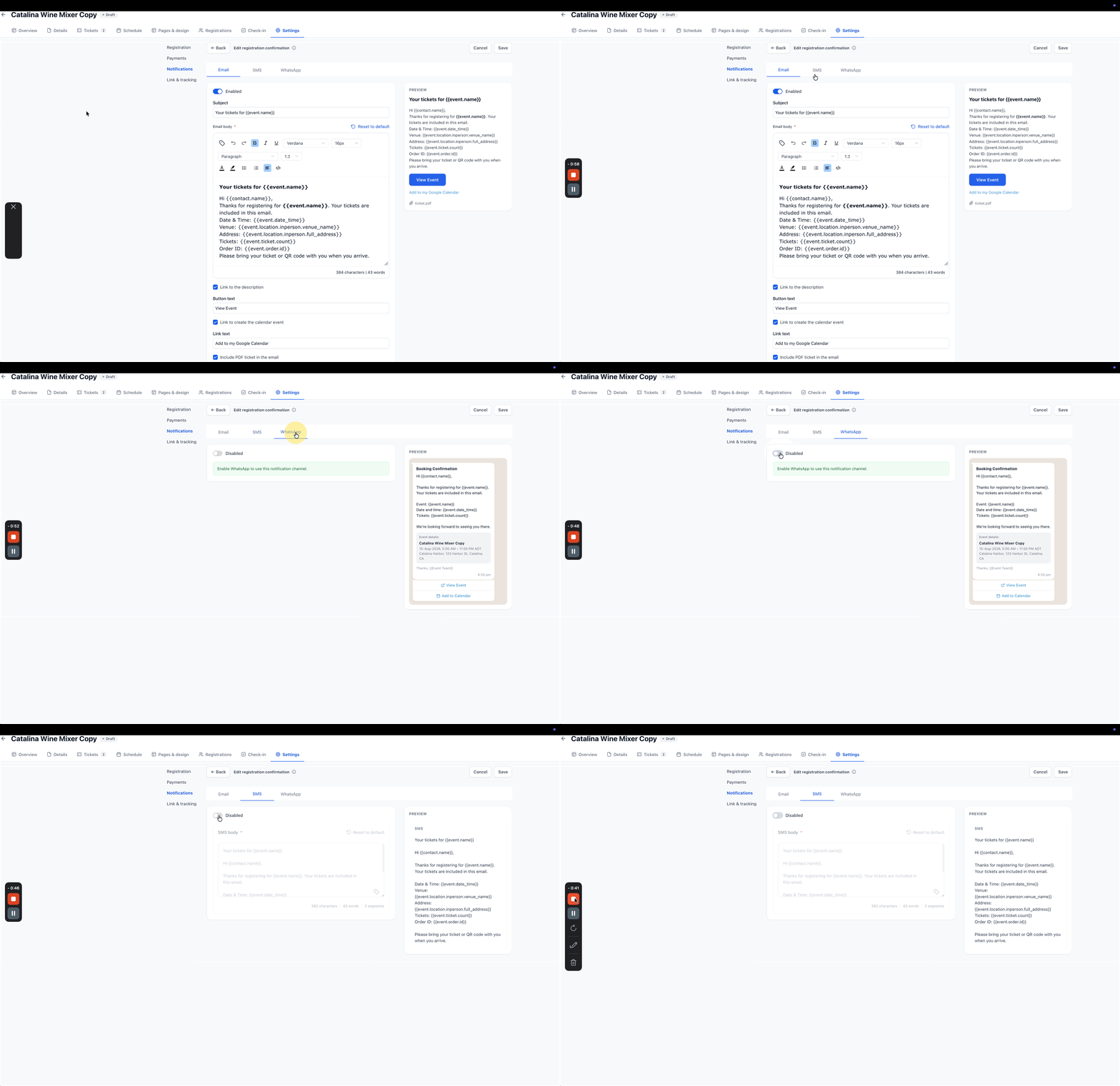
If you want the attendee to receive the ticket PDF, keep Include PDF ticket in the email selected. The release confirms that Apple Wallet and Google Wallet badges appear on the ticket PDF.What Information Appears on the Wallet Pass?
The wallet pass keeps the information an attendee needs for arrival and check-in together in one place.
Each pass displays:
Event name.
Event date and time in the event timezone.
Venue.
Ticket type.
Attendee name.
Event check-in QR code.
The wallet pass is more than a separate QR image. It combines the attendee's ticket information with the QR code staff already use at the door.
How Wallet Passes Work for Multi-Ticket Orders
Individual wallet passes help organizers and attendees keep tickets correctly assigned when one registration contains multiple seats or ticket types.
Each ticket receives its own wallet link. As a result, each wallet pass can display the correct attendee name and ticket type.
For example, if one buyer registers two attendees, the tickets do not share one generic wallet pass. Each ticket receives its own wallet link.
HighLevel's existing multi-attendee registration experience also creates individual attendee records for tickets within a multi-ticket registration.
Frequently Asked Questions
Q: Does saving the ticket to a wallet create a different QR code?
A: No. The wallet pass uses the same event check-in QR code that staff scan at the venue.
Q: Can attendees save tickets for online events to Apple Wallet or Google Wallet?
A: No. Wallet passes and QR check-in are limited to in-person events. Online attendees continue to the attendee or join experience.
Q: Does each ticket in a multi-ticket order get its own wallet pass?
A: Yes. Each ticket receives its own wallet link so the correct attendee name and ticket type can appear on the pass.
Q: Where can attendees receive wallet links?
A: Wallet badges appear on the ticket PDF. Wallet links can also be included in supported confirmation email, SMS, and WhatsApp messages.
Q: What merge field adds wallet links to an event notification?
A: Use the Wallet Links merge field: {{event.ticket.wallet_links}}.
Q: What happens on devices other than iPhone or Android?
A: The release states that attendees can use an Add to Wallet option on other devices. Exact device-specific behavior is not documented.
Related Articles
Was this article helpful?
That’s Great!
Thank you for your feedback
Sorry! We couldn't be helpful
Thank you for your feedback
Feedback sent
We appreciate your effort and will try to fix the article