Multi-Attendee Registration with Individual Details and Data Copying
HighLevel Events supports collecting individual attendee information for every ticket in a registration. Instead of capturing details only for the primary buyer, you can now collect each attendee's name, email, and event-specific information.
This guide explains how multi-attendee registration works, how to use the data copying feature to speed up group bookings, and how this capability improves the experience for conferences, workshops, corporate events, and team registrations.
What is Multi-Attendee Registration?
Multi-attendee registration allows you to capture individual attendee information for every ticket purchased in a single transaction. Each attendee can have their own name, email, and event-specific details, rather than only collecting information for the primary buyer.
The primary buyer is automatically treated as the first attendee, and subsequent attendee forms appear for each additional ticket. This capability is designed for conferences, workshops, team registrations, corporate bookings, and any multi-ticket event where individual participant tracking is required.
Key Benefits
Multi-attendee registration with data copying delivers several advantages for both event organizers and attendees.
How Multi-Attendee Registration Works
When a buyer purchases multiple tickets for an event, the registration process automatically collects individual attendee information for each ticket.
The primary buyer's information (name, email, and any event-specific fields) is automatically used for the first attendee record.
For each additional ticket, a separate attendee form appears during the registration flow. Each form collects the same information fields (name, email, and custom fields) configured for the event.
The buyer can manually enter each attendee's information or use the data copying feature to reuse information from a previously completed attendee in the same registration.
Once all attendee forms are completed, the buyer proceeds to checkout. Each attendee receives their own registration record with individual details.
The primary buyer's email is used for order confirmation and receipt communication. Each individual attendee receives their own confirmation email with their specific registration details.
Using the Data Copying Feature
The data copying feature allows buyers to reuse attendee information from any previously completed attendee within the same registration, significantly speeding up group bookings.
On any attendee form after the first, locate and select the option to copy attendee information. This option appears once at least one attendee's information has been completed.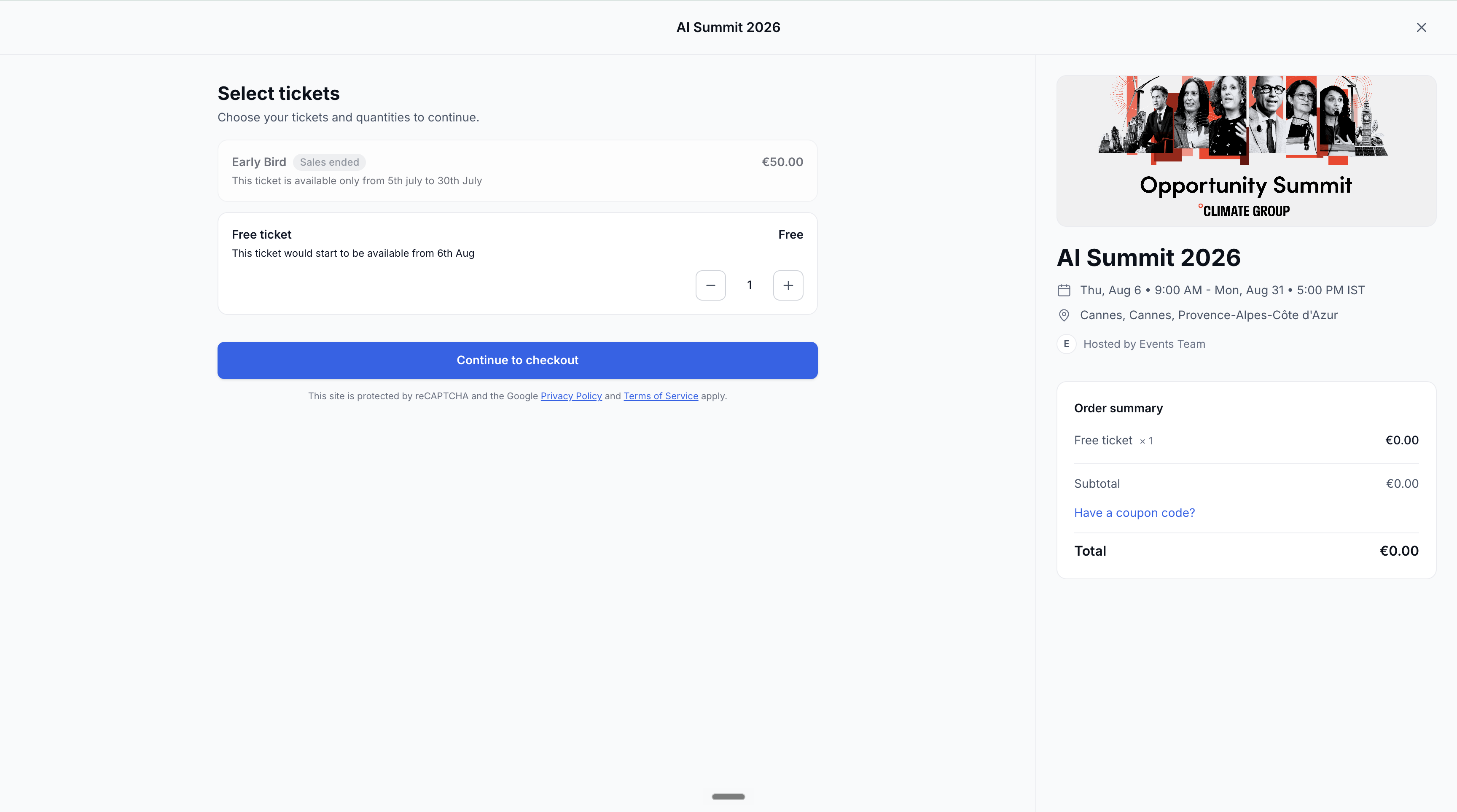
Select which previously entered attendee's information you want to copy. All completed attendees from the current registration appear in the list.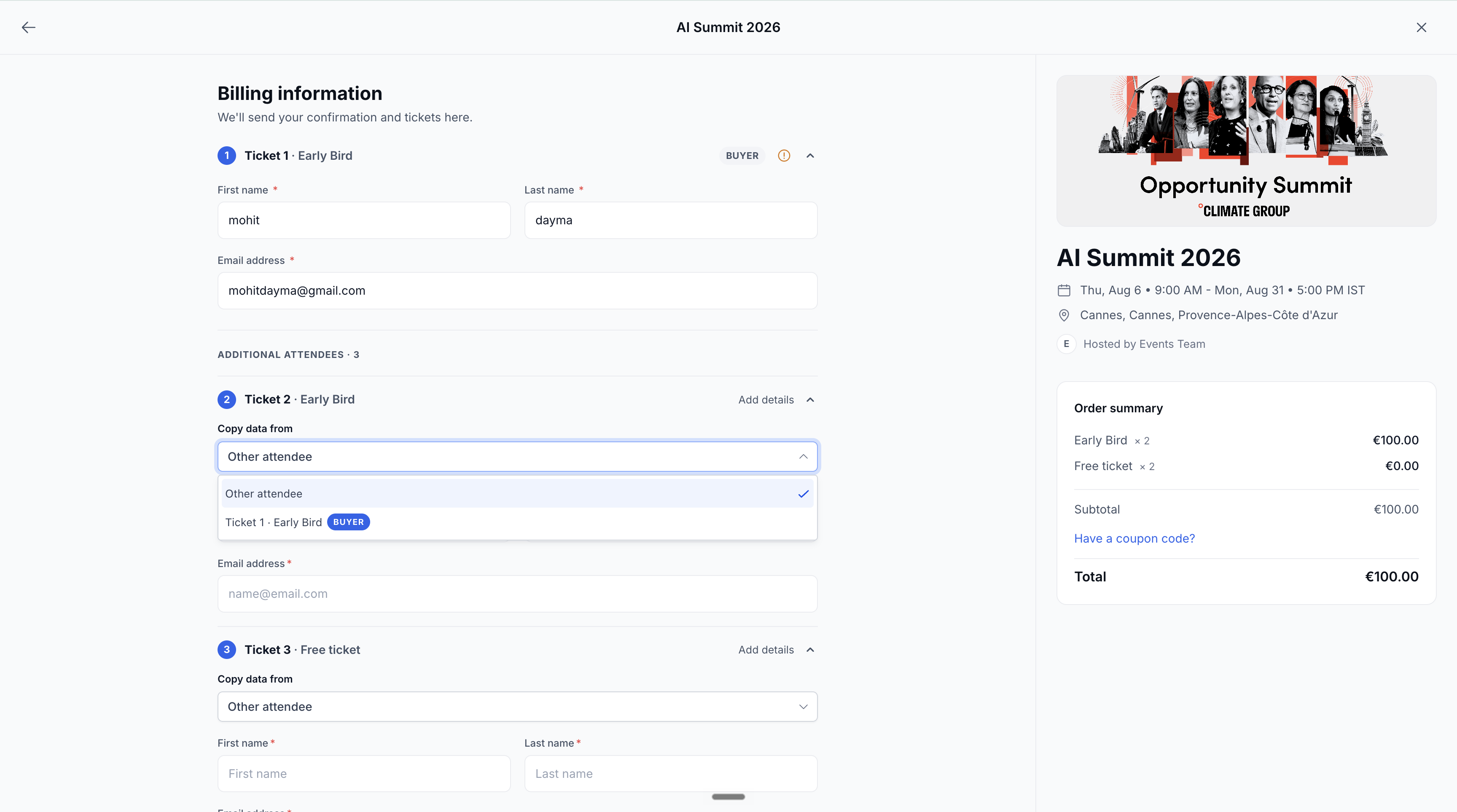
The selected attendee's information populates all form fields. You can edit any field to customize the information for the current attendee while keeping the copied data as a starting point.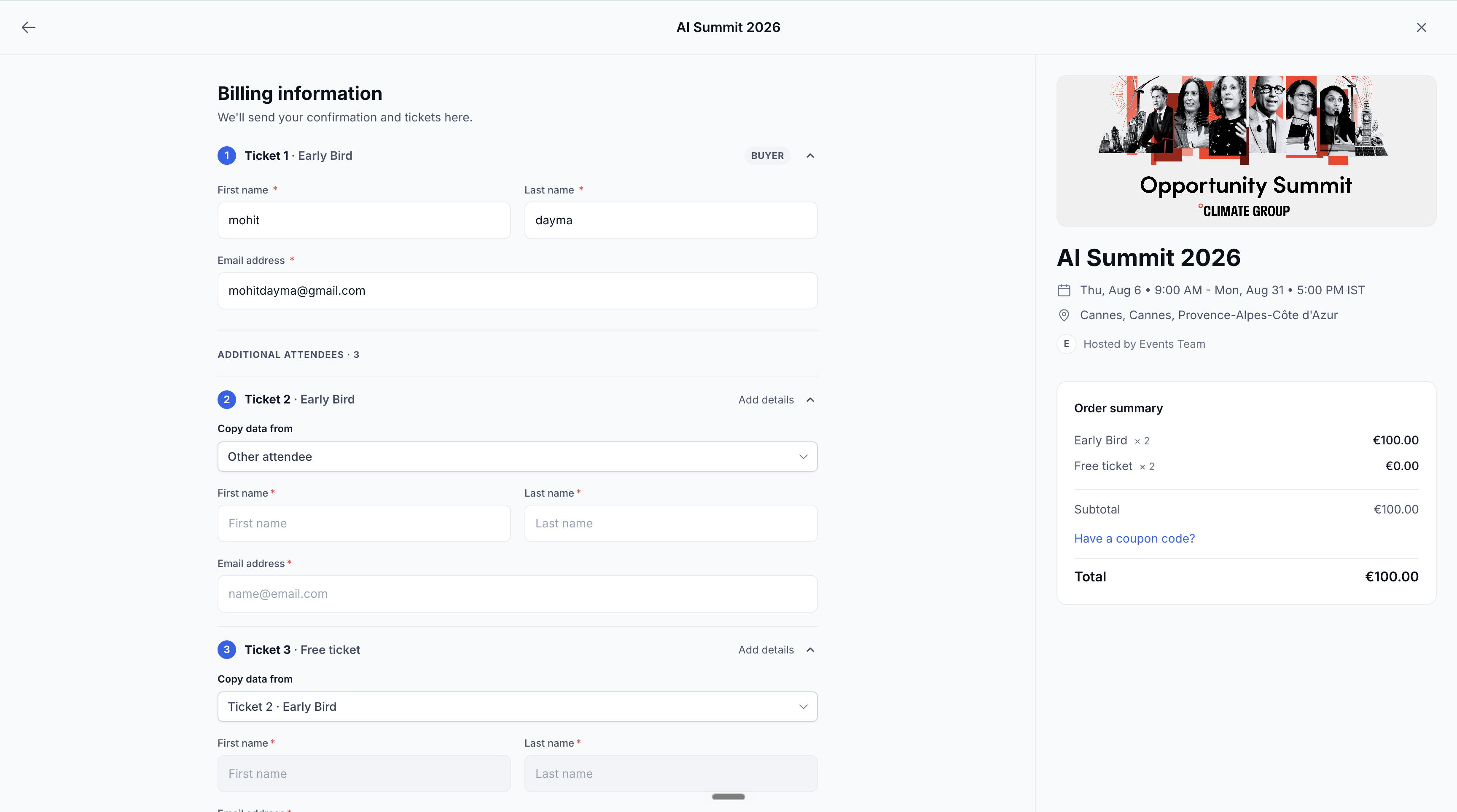
For corporate team registrations where many attendees share the same company information or preferences, copy the first attendee's details and update only the name and email fields for each subsequent attendee.
Best Practices for Group Registrations
Follow these best practices to optimize the multi-attendee registration experience for your events.
Only require essential information for each attendee. Too many required fields increase registration time and abandonment, even with data copying available.
Each attendee form displays a sequential label (e.g., Attendee 1, Attendee 2). Use clear instructions at the beginning of the registration to explain that each ticket requires individual attendee information.
For events targeting corporate teams or groups, include instructions that highlight the data copying feature to reduce perceived registration complexity.
Add custom fields (dietary preferences, session selections, t-shirt sizes) only when you need individual attendee responses. Generic fields like company name are better copied from the first attendee.
Frequently Asked Questions
Was this article helpful?
That’s Great!
Thank you for your feedback
Sorry! We couldn't be helpful
Thank you for your feedback
Feedback sent
We appreciate your effort and will try to fix the article