Workflow AI Assistant Performance Analytics
The Workflow AI Assistant answers performance questions in plain language. You can ask how a workflow is performing, track individual contacts through steps, diagnose trigger issues, and search every workflow in your account.
This article explains what insights you can request, how to interpret the data, and how to use the Assistant to troubleshoot and optimize your workflows.
What is Workflow AI Assistant Performance Analytics?
The Workflow AI Assistant answers questions about how your workflows are performing by analyzing live data from your account. You ask in plain language, and it returns structured insights — entries, completion rates, trigger diagnostics, contact-level tracking, and email or SMS engagement — without requiring you to search through execution logs.
The Assistant reads your workflow data but never modifies your workflows. All date ranges respect your account timezone, and when data is missing, the Assistant tells you what to check rather than inventing numbers.
Key Benefits
Performance analytics in the AI Assistant help you troubleshoot and optimize workflows faster. You spend less time guessing and more time fixing.
How to Access the AI Assistant
The AI Assistant is available in every workflow. Follow these steps to access performance analytics:
From your HighLevel dashboard, go to Automations and then select Workflows.
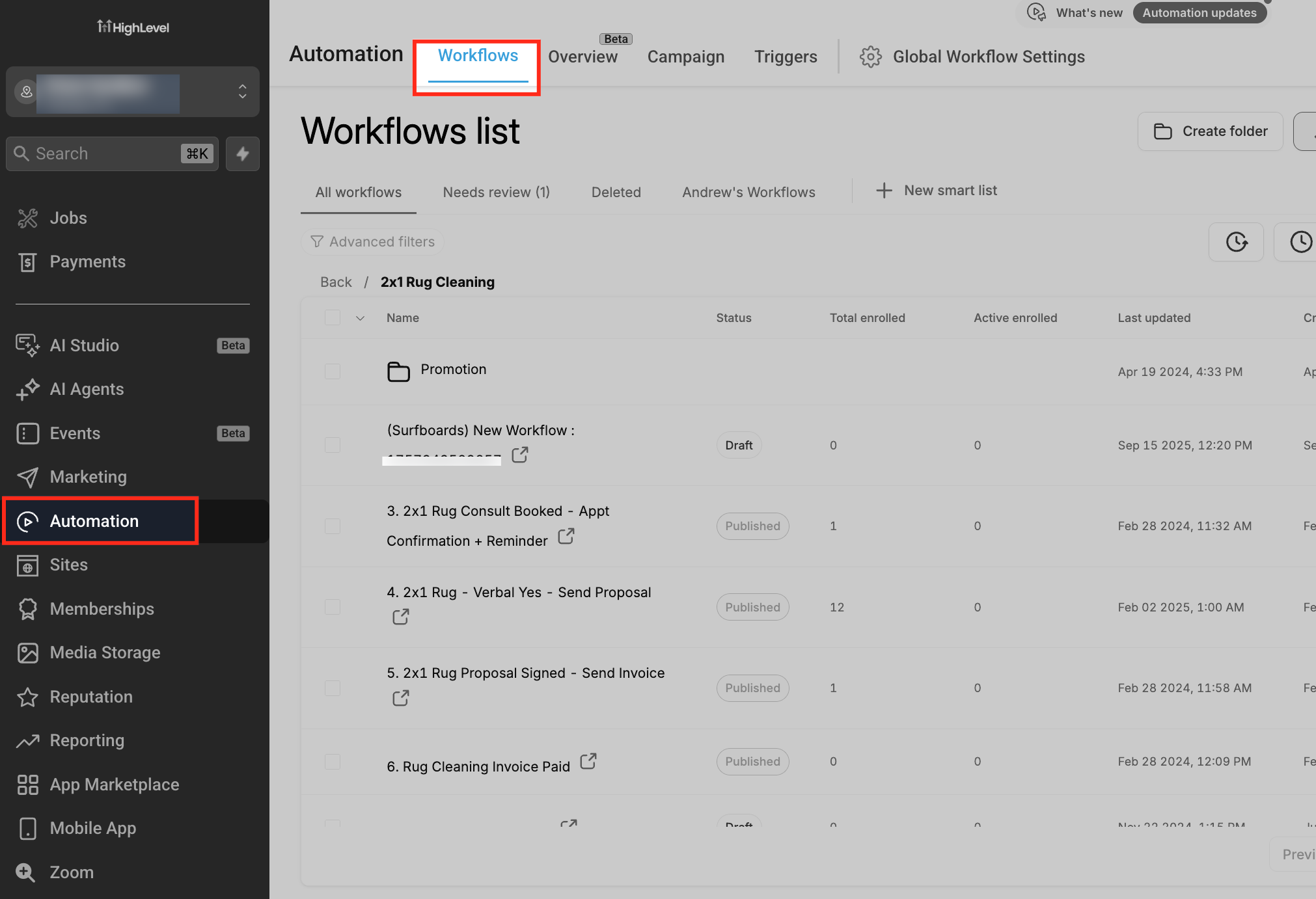
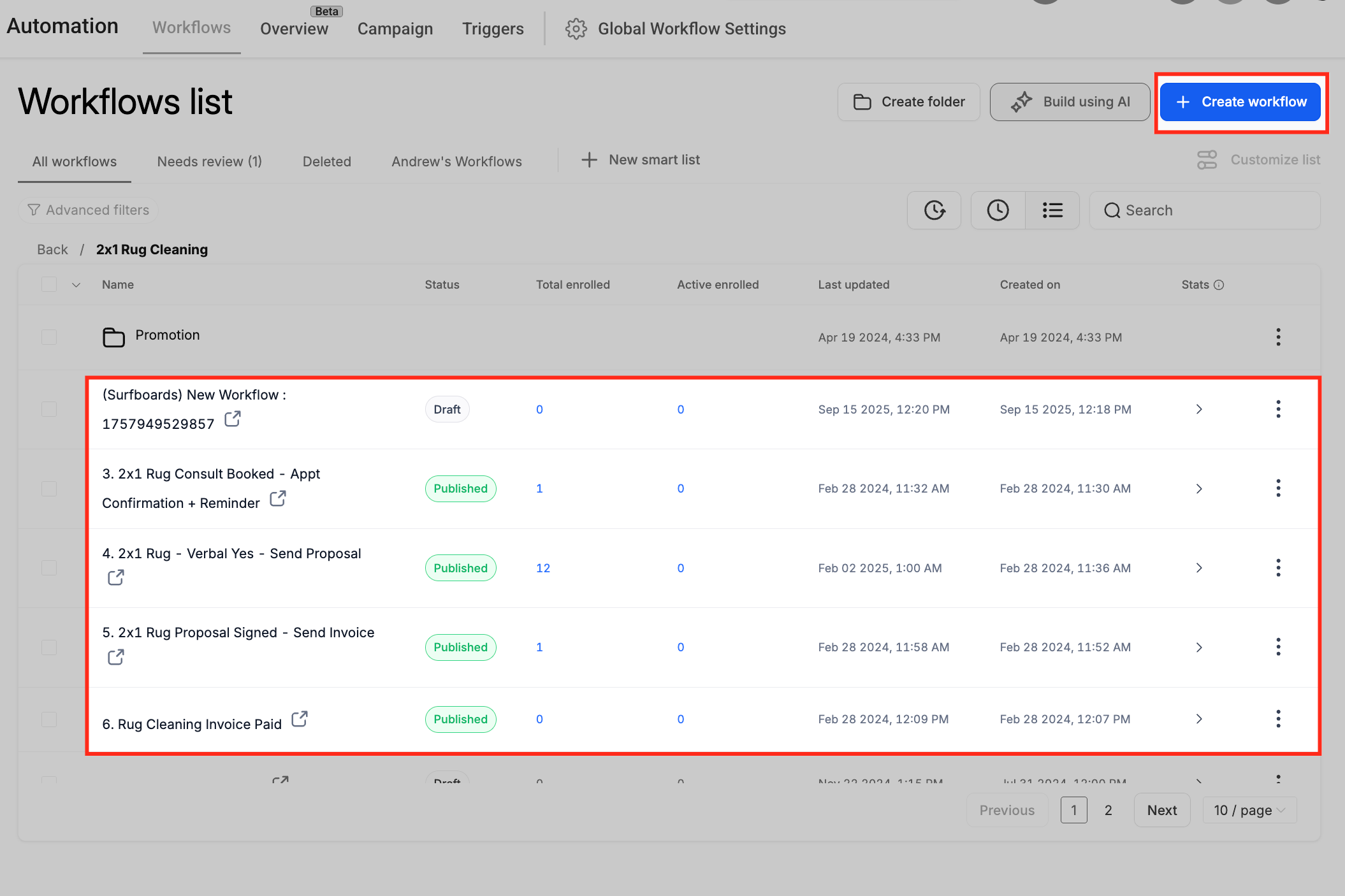
Choose an existing workflow you want to analyze, or create a new workflow from scratch.
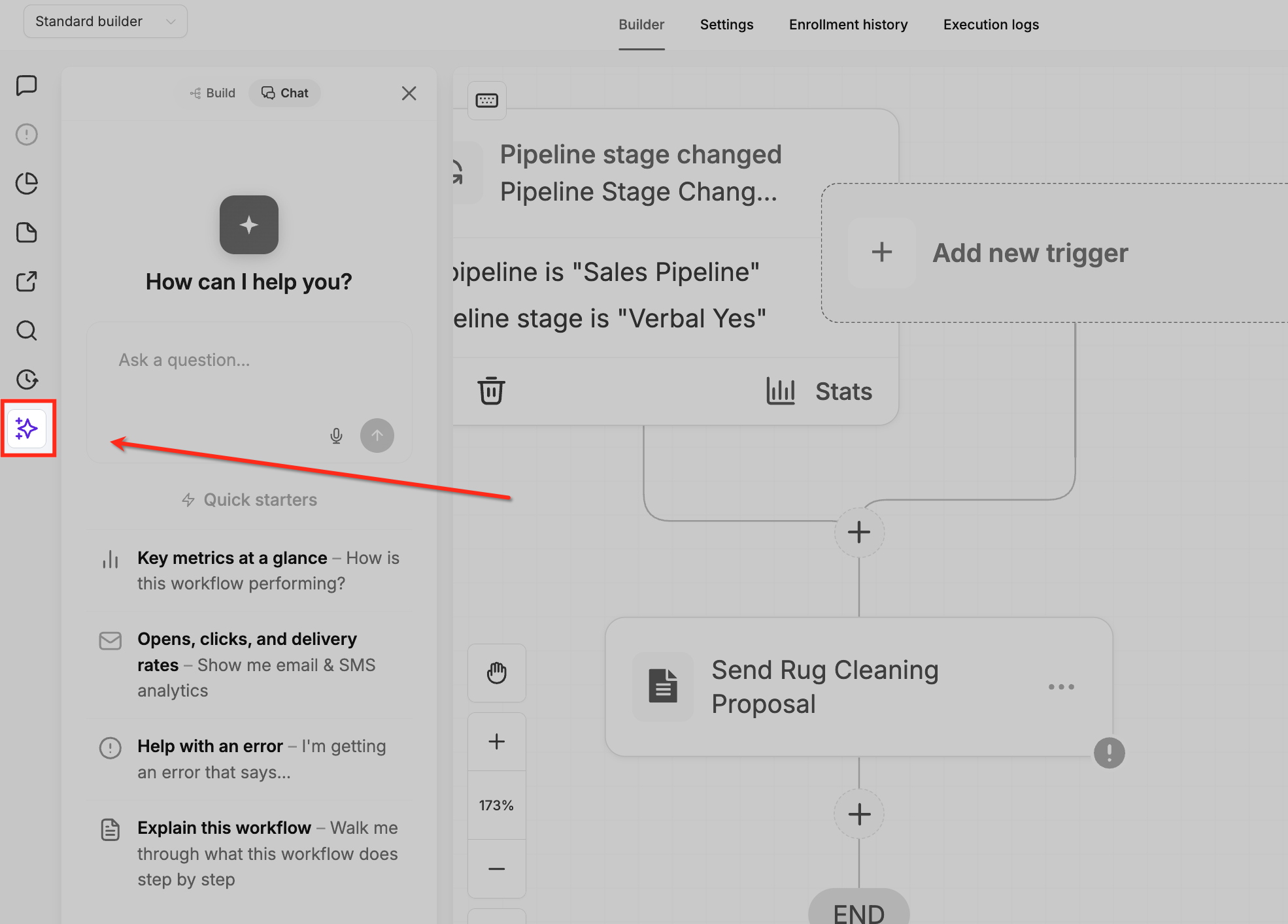
Once you're inside the workflow builder, locate the AI Assistant icon in the left sidebar and click it to open the Assistant panel.
At the top of the AI Assistant panel, click the Chat button to switch to Chat mode. This enables performance analytics and displays Quick Starters to help you get started.
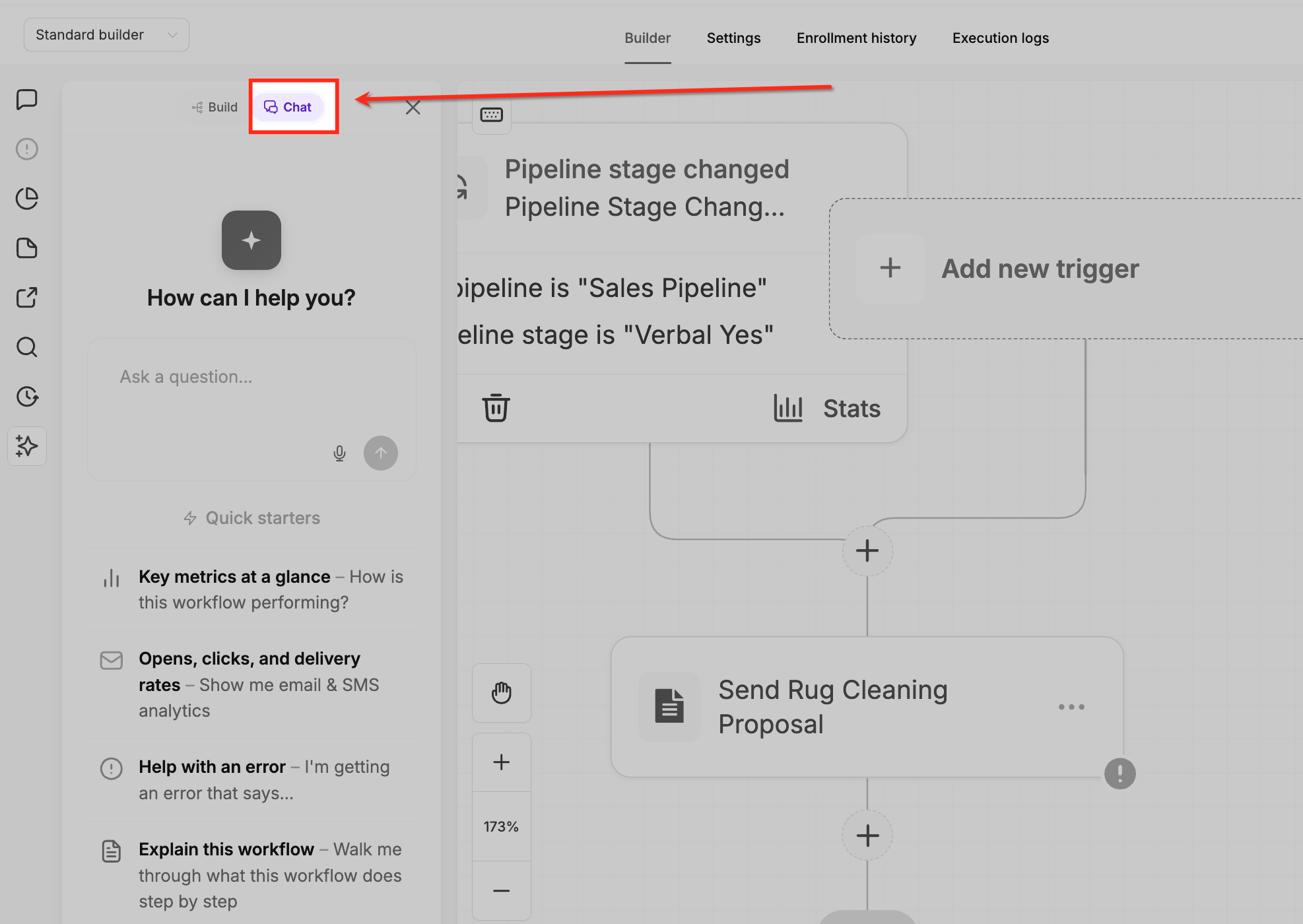
Type your question in the input field or select one of the Quick Starters, such as "Key metrics at a glance" or "Opens, clicks, and delivery rates," to instantly retrieve performance insights.
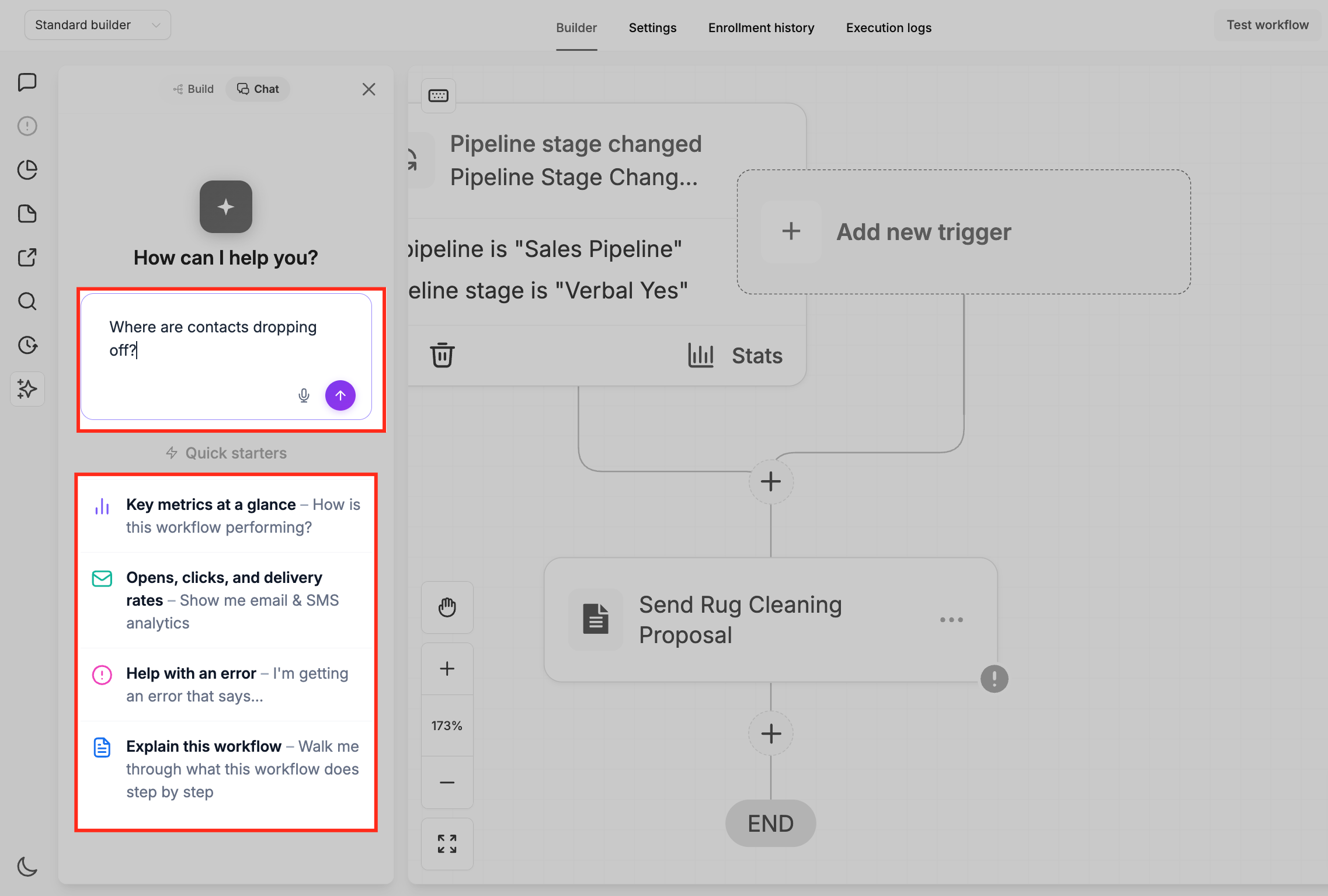
Use the Quick Starters to see example queries you can ask. You can also type custom questions in plain language, such as "How is this workflow performing?" or "Why aren't contacts entering?"
Performance Insights
Ask the Assistant how a workflow is performing to see entries over any period, a status breakdown, completion rate, goal conversions, and where contacts drop off. You can view trends by week, day, or hour, and see how many contacts sit at each step right now.
Example queries:
- "How is [workflow name] performing?"
- "Show me entries for the last 30 days"
- "What's the completion rate this week vs. last week?"
- "Where are contacts dropping off?"
The Assistant compares the current period against the equivalent period before it. For example, "last 7 days" compares against the 7 days prior to that window.
The response includes total entries, percentage change from the previous period, a status breakdown (completed, failed, waiting, skipped), goal conversion counts if applicable, and a step-by-step view showing where contacts are currently positioned in the workflow.
Email and SMS Results
Ask for delivery and engagement metrics for any email or SMS step in your workflow. The Assistant reports delivered, opened, clicked, replied, bounced, unsubscribed, opted out, and other engagement events.
Example queries:
- "Show me email results for [step name]"
- "How many SMS messages were delivered?"
- "What's the open rate for the welcome email?"
Use these metrics to measure engagement, identify deliverability issues, and refine messaging based on real performance data.
Branch and Path Insights
For if/else and split steps, the Assistant shows what percentage of contacts took each branch. This reveals whether your conditional logic is working as expected and which paths contacts prefer.
Example query:
- "What percentage of contacts took the yes branch?"
Contact Tracking
Check whether an individual contact completed, failed, or is still active in the workflow. The Assistant returns when they entered, how long they've been in the workflow, and where they are right now.
You can also ask for lists of contacts who meet specific conditions — who entered during a period, who failed at a particular step, or who is waiting at a given action.
Example queries:
- "Did [contact name] complete this workflow?"
- "Who entered last week?"
- "Which contacts failed at the SMS step?"
- "Show me everyone waiting at step 3"
Trigger Diagnostics
Trigger diagnostics help you understand why a workflow isn't enrolling as many contacts as expected. The Assistant tells you whether the trigger is firing, what percentage of fires qualified, and the top reasons contacts are rejected.
You can inspect a single fire event to compare the value checked against the value expected. This surfaces silent rejections that were previously invisible in execution logs.
Example queries:
- "Is the trigger firing?"
- "What percentage of trigger fires qualified?"
- "Why are contacts being rejected?"
- "Show me the last trigger fire"
Trigger diagnostics reveal rejections that don't appear in standard execution logs. If contacts aren't entering as expected, ask the Assistant to check trigger qualification.
Find Workflows Across Your Account
Search every workflow in your account by name, status, tags, the triggers or actions it contains, or who last edited it. This is useful when you need to audit workflows, find workflows using a specific step type, or locate workflows edited by a particular team member.
Example queries:
- "Which workflows use a Wait step?"
- "Which workflows have the Invoice Paid tag?"
- "Show me all active workflows"
- "Which workflows did [team member name] last edit?"
Version History
Ask who last edited a workflow and how many versions exist. This helps you track changes and understand the workflow's editing history.
Example queries:
- "Who last edited this workflow?"
- "How many versions exist?"
Frequently Asked Questions
Was this article helpful?
That’s Great!
Thank you for your feedback
Sorry! We couldn't be helpful
Thank you for your feedback
Feedback sent
We appreciate your effort and will try to fix the article