Rearrange and Rename Community Tabs
This article explains how community admins and owners can customize their community's tab layout to match their community's unique workflow and branding preferences.
You'll learn how to reorder tabs via drag-and-drop, rename tab labels with custom text, and disable tabs that your community doesn't use — all while maintaining Discussion and About as required tabs.
What is Tab Customization?
Tab Customization is a community configuration feature that allows admins and owners to tailor the navigation experience for their community members. Instead of using HighLevel's default tab labels and order, you can reorganize tabs to match your community's workflow, rename tabs to use language that fits your branding, and disable tabs that your community doesn't need.
All customization controls are located in the community settings panel, right alongside the existing Show/Hide Tabs controls. Changes you make are saved immediately and persist across sessions — members will see your customized tab layout whenever they visit the community.
[Screenshot: Community settings panel showing tab customization controls with drag handles, rename fields, and disable toggles]
Key Benefits
Customizing your community's tab layout offers several advantages for both community management and member experience:
How to Customize Community Tabs
Follow these steps to reorder, rename, or disable tabs in your community. All changes are saved automatically and take effect immediately.
Navigate to Memberships > Communities > Groups in HighLevel. Locate and log in to the group where you want to make changes.
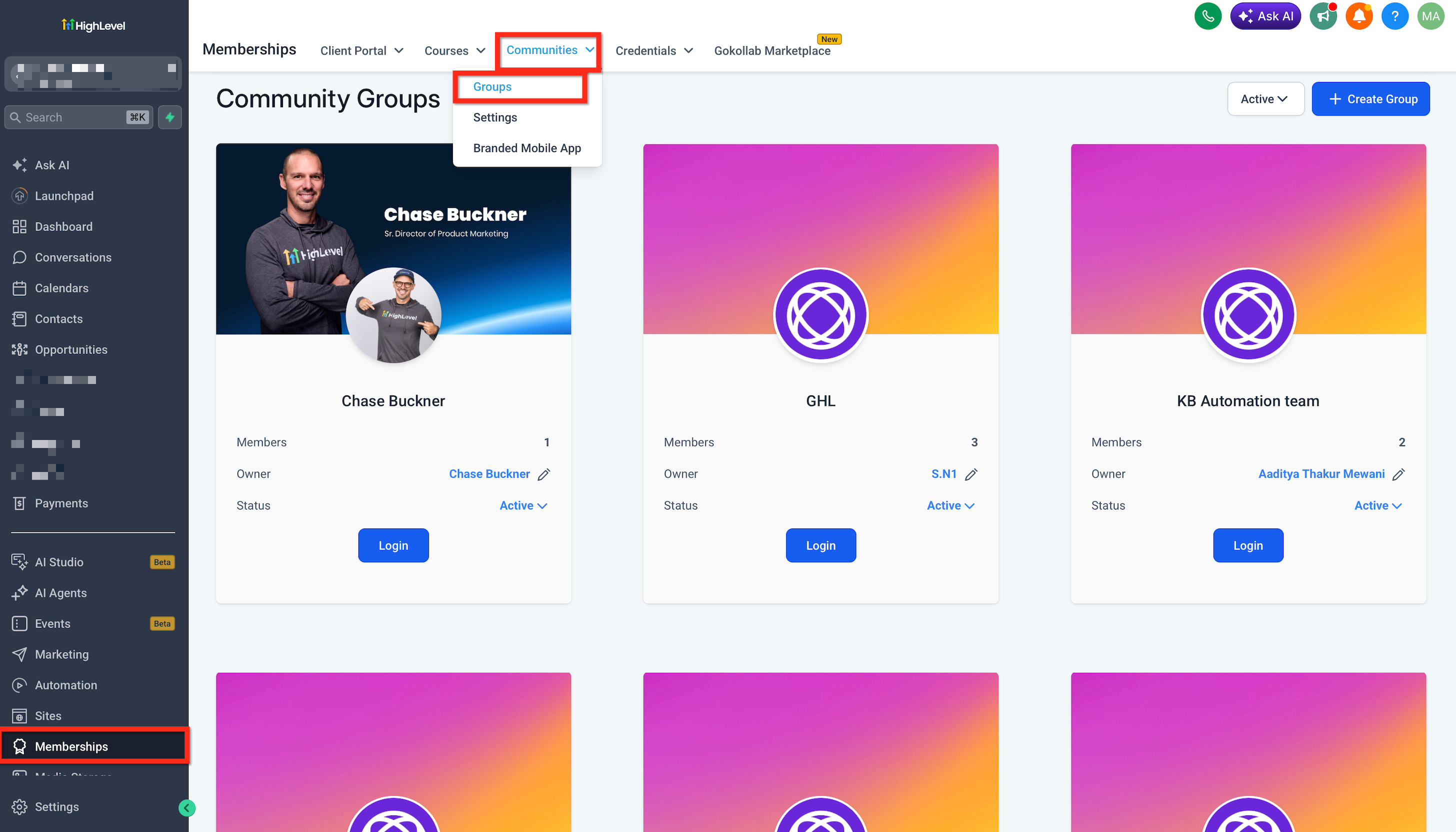
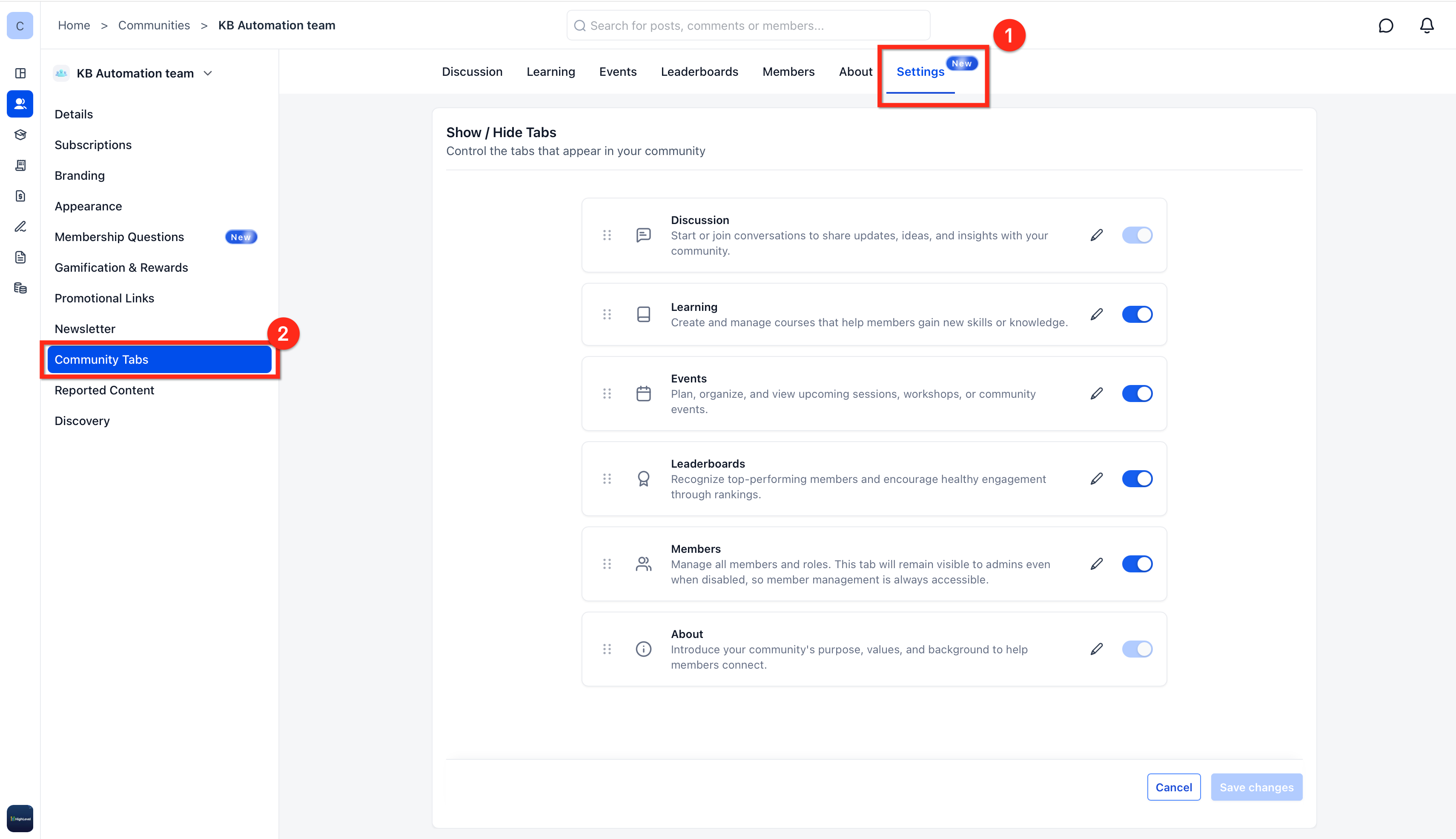
Click the Settings icon (gear icon) to open the community settings panel. Locate the tab customization controls alongside the existing Show/Hide Tabs section.
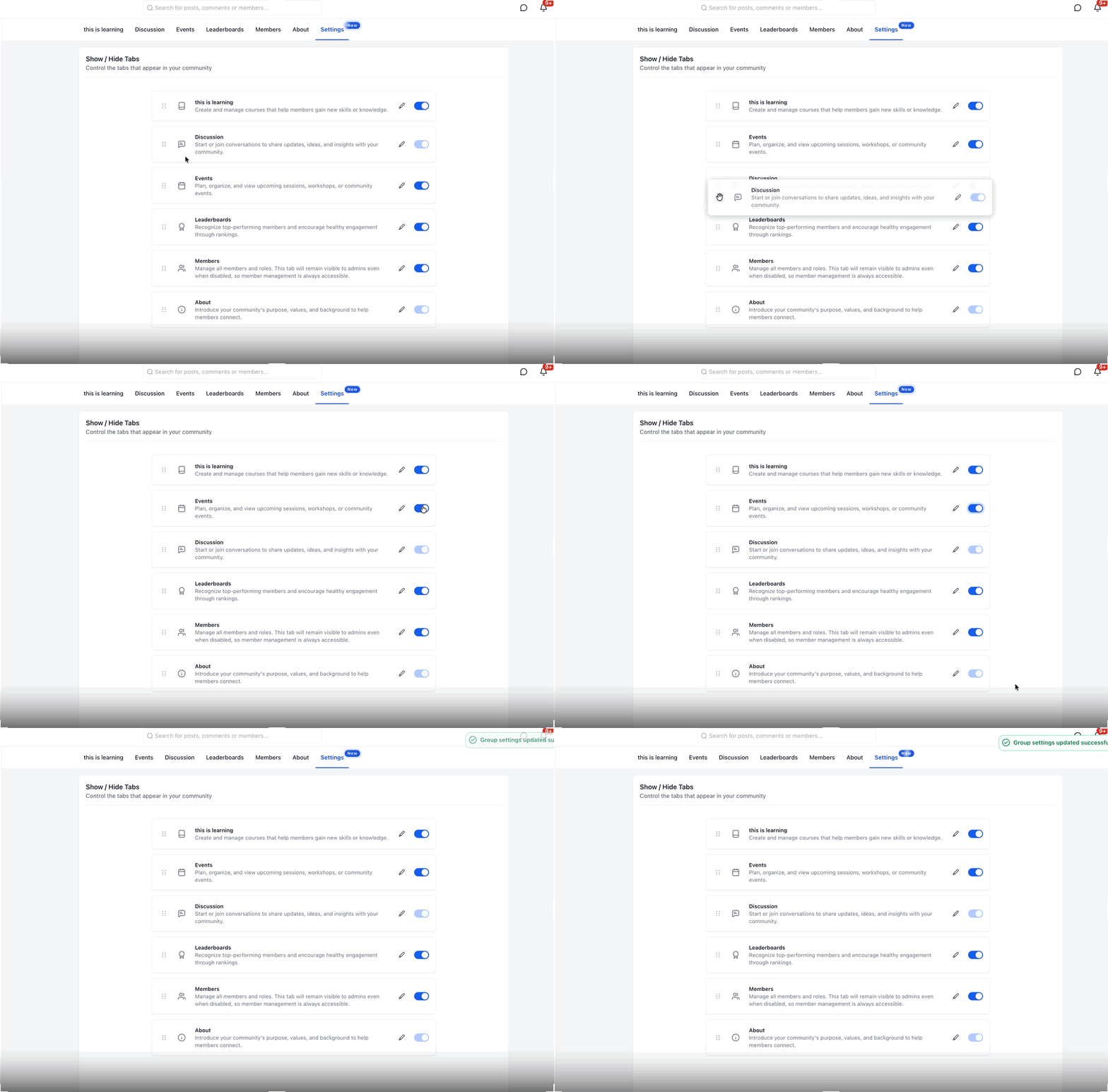
To reorder tabs, click and hold the drag handle (six-dot icon) next to any tab name. Drag the tab up or down to the desired position in the list. Release the mouse button to lock the new order in place. The tab order you set here controls the order members see in the community navigation bar.
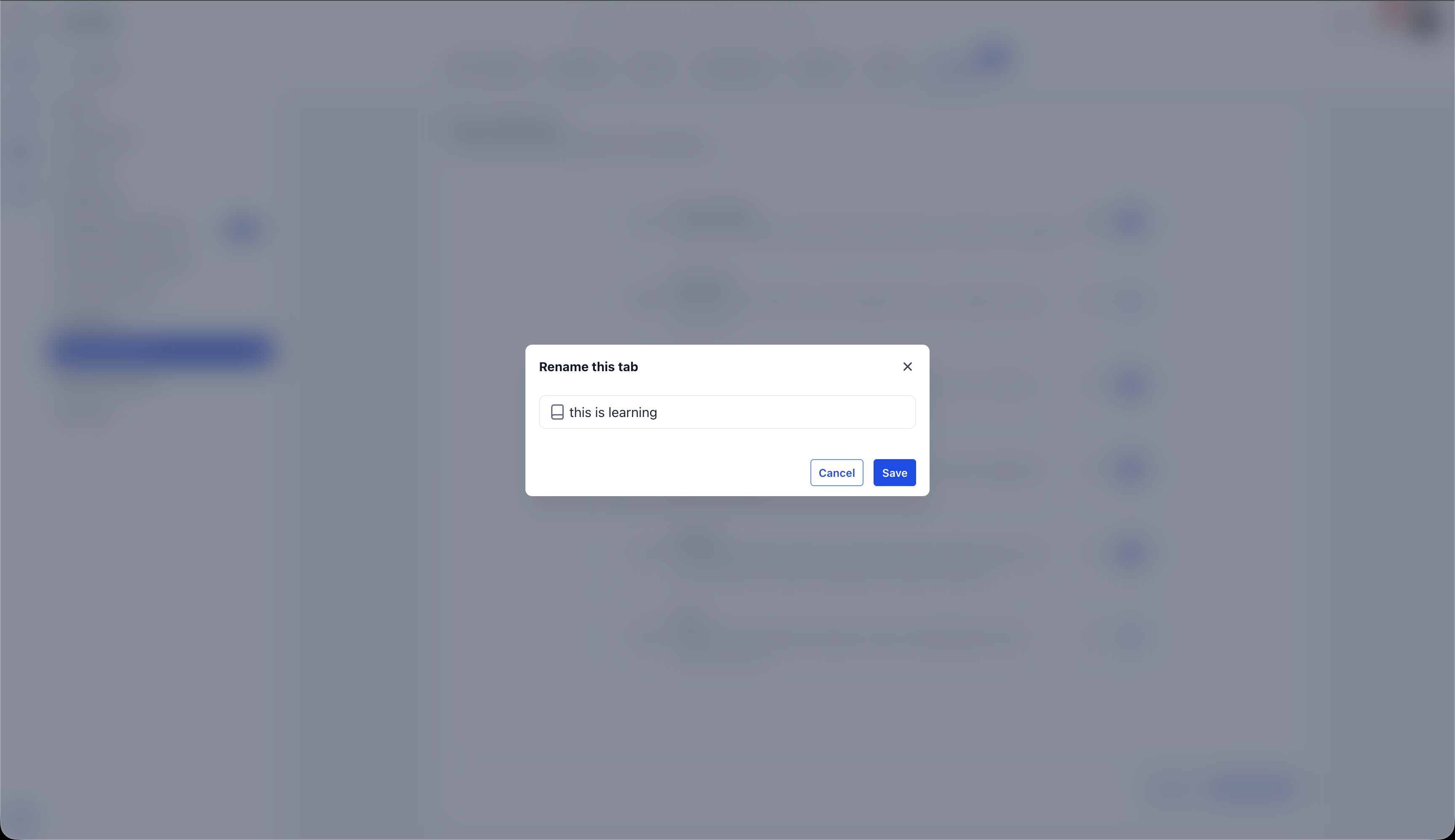
To rename a tab, click the text field next to the tab's default name. Delete the existing text and type your custom label. Custom tab names are not translated whatever you type is saved and displayed exactly as entered, regardless of user language settings.
To disable a tab your community doesn't use, click the toggle switch next to the tab name. The toggle will move to the "off" position and the tab will be hidden from all community members. You cannot disable the Discussion or About tabs — the disable toggle is unavailable for these required tabs.
All changes are saved automatically. To verify your customizations, refresh the community page or log in as a member. The tabs will appear in the order you specified, with the custom names you entered, and disabled tabs will not be visible. Your settings persist across sessions — members will see the customized layout every time they visit.
Tab customizations are saved automatically and persist after page reload. Members will see your customized tab layout immediately without needing to log out or refresh.
Permissions and Restrictions
Tab customization is a powerful administrative feature with specific permission requirements and built-in safeguards:
Only community admins and owners can rearrange, rename, or disable tabs. Regular members and moderators do not have access to the tab customization controls in community settings.
The Discussion and About tabs provide essential community functionality and cannot be disabled. The disable toggle is not available for these two tabs. You can still reorder and rename them to fit your community's structure.
Custom tab names are saved and displayed exactly as entered. HighLevel does not translate custom tab labels — whatever text you type appears the same for all members, regardless of their language settings. Plan your tab names accordingly if your community serves a multilingual audience.
If your community serves a multilingual audience, consider using universally recognized terms or icons when renaming tabs. Custom tab names are not translated and will appear the same for all members.
Frequently Asked Questions
Related Articles
Learn more about managing and customizing your HighLevel community with these helpful resources:
Was this article helpful?
That’s Great!
Thank you for your feedback
Sorry! We couldn't be helpful
Thank you for your feedback
Feedback sent
We appreciate your effort and will try to fix the article